

Integrate MS Intune
Connect your Microsoft Intune (MS Intune) account with Scrut to automatically pull employee device data into your compliance workflows. In this guide, we walk you through connecting your Microsoft Intune account to Scrut.
What This Integration Does in Scrut
- User Endpoint Devices: Fetches employee device details, including security posture and installed software. These devices are mapped to employees and visible in their profile under People → Employees → Technical.
- Automated Tests: Runs automated compliance checks that continuously evaluate your device configurations against applicable compliance frameworks.
- Scrut Monitor: Collects evidence through Scrut Monitor. This helps automate evidence gathering and significantly speeds up compliance workflows.
- Asset Management: Populates the Asset Management module in Scrut with discovered devices and supports the collection of asset-related compliance evidence.
Prerequisites
- An active Microsoft Intune account with administrator access
- Devices enrolled and managed in Microsoft Intune
Permissions and Access Requirements
For MS Intune
Scrut requires the following read-only OAuth scopes during authorization:
openidoffline_accesshttps://graph.microsoft.com/User.Read.AllDeviceManagementManagedDevices.Read.AllDeviceManagementConfiguration.Read.All
Note: Refer to Microsoft's documentation for details on each permission scope.
For Scrut
- Admin access to Scrut, or Contributor access with the Integration module enabled
Data Collected
Scrut fetches the following details for each device in your MS Intune account:
- Device name
- OS version
- Serial number
- Antivirus installed (Displayed as Yes/No)
- HD Encrypted (Displayed as Yes/No)
- Screenlock Enabled (Displayed as Yes/No)
- List of installed applications
Sync Frequency
Data syncs automatically every 24 hours. You can also trigger a manual sync from the MS Intune integration page.
Integration Setup
Step 1: Connect MS Intune in Scrut
-
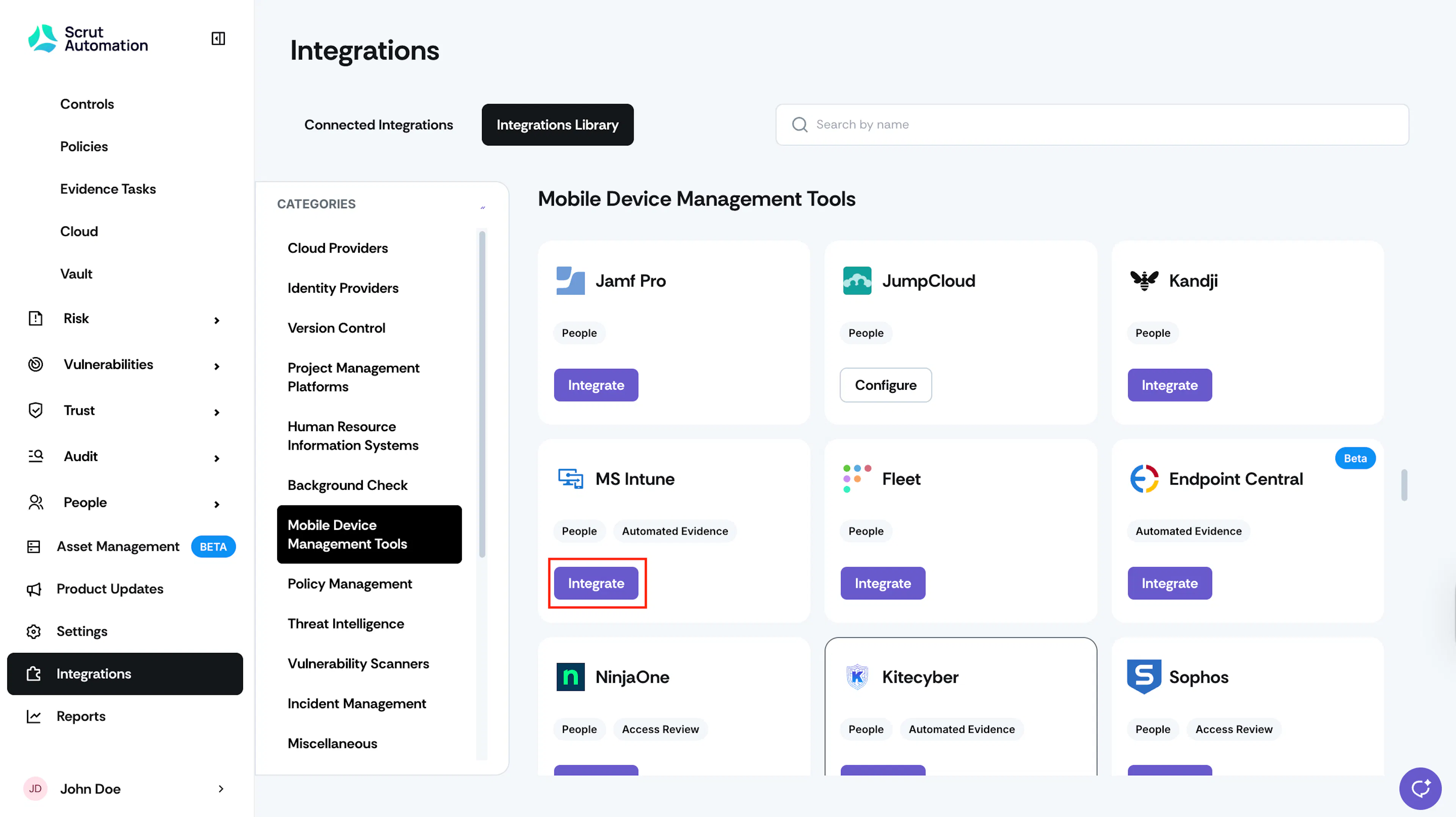
Sign in to Scrut and click Integrations in the left navigation panel.
-
Click the Integrations Library tab.
-
Under Categories, select Mobile Device Management (MDM) Tools.
-
Locate the MS Intune tile and click Integrate.
-
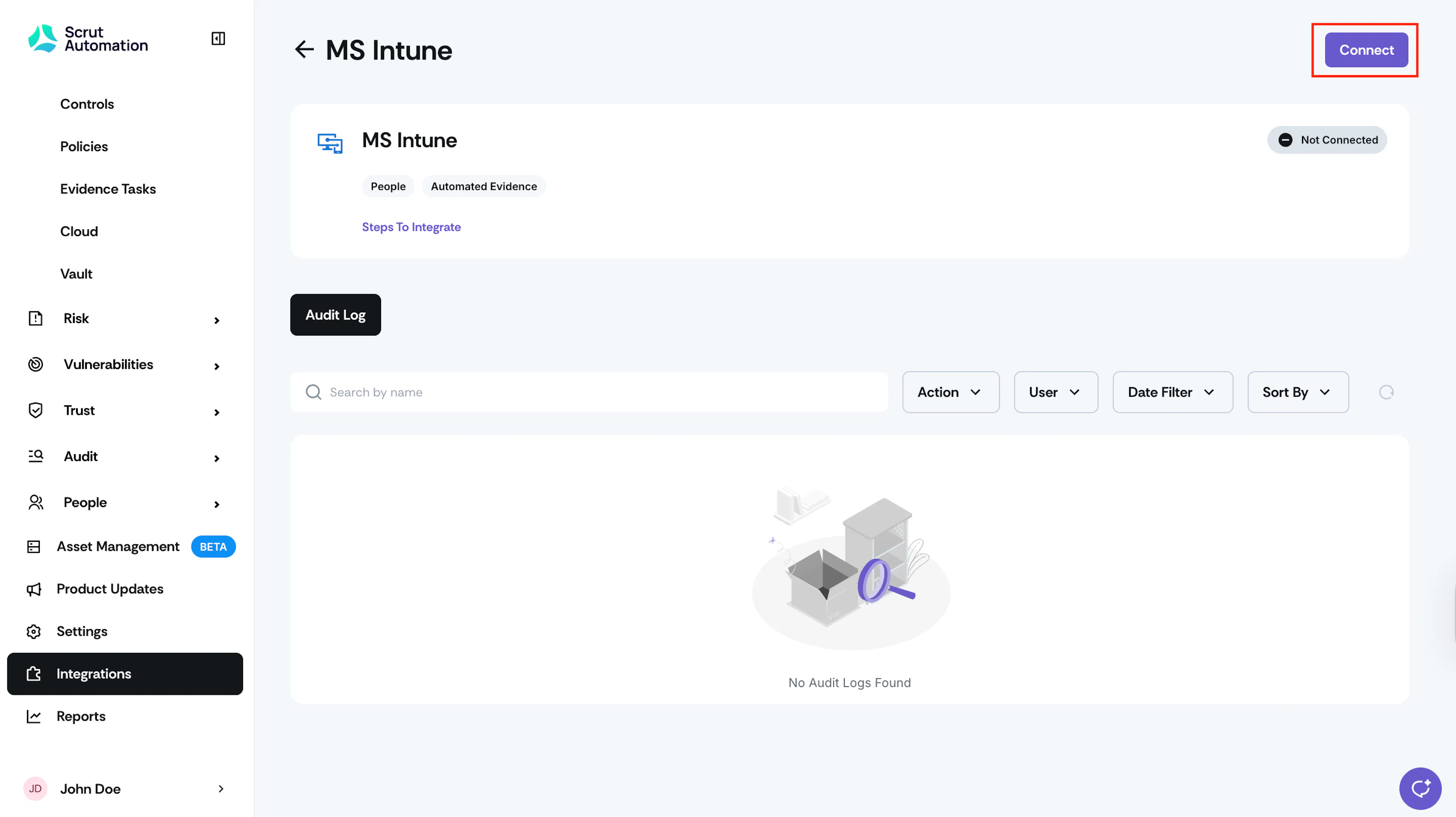
On the MS Intune integration page, click Connect in the top right.
-
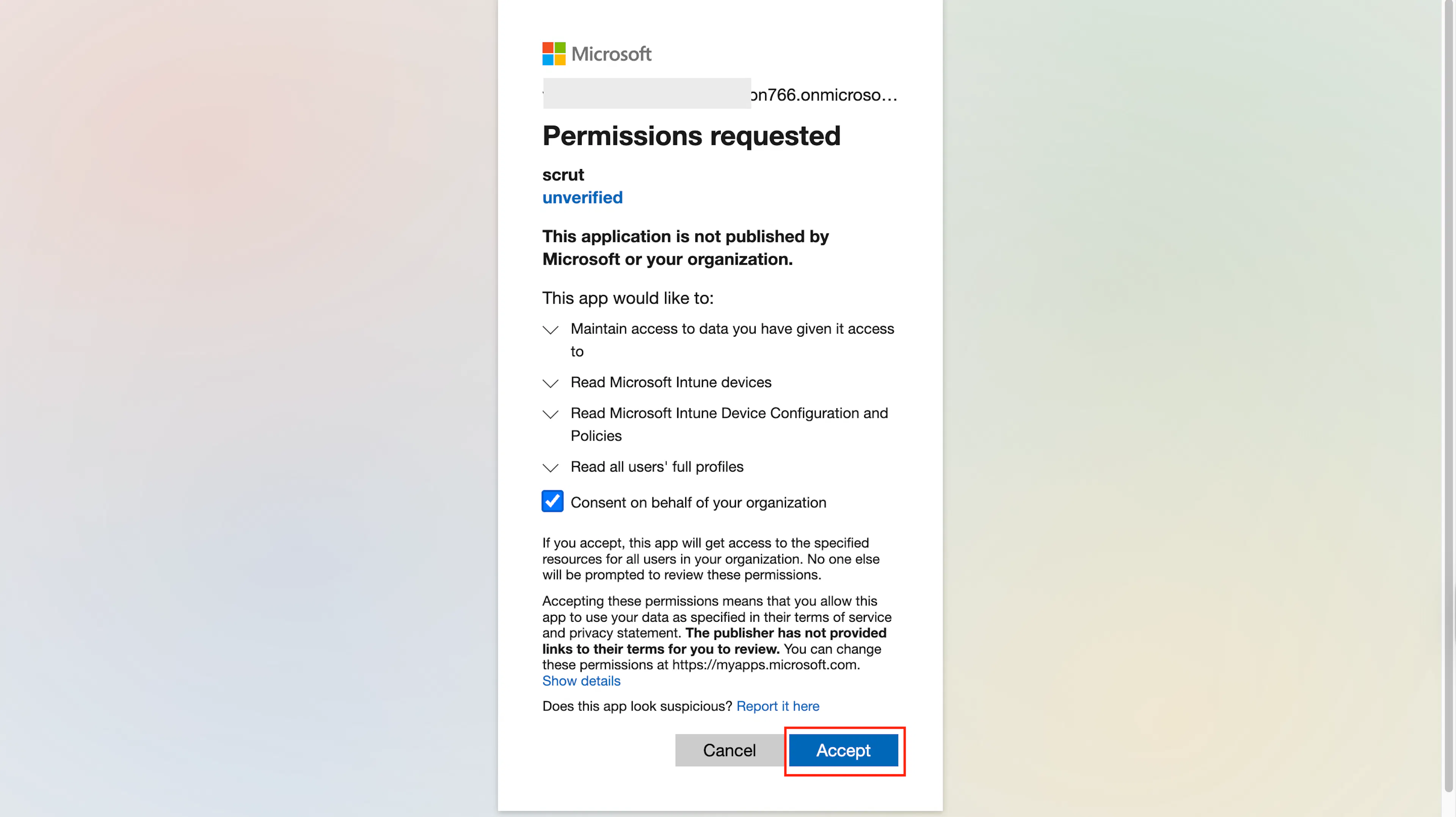
You are redirected to Microsoft's authentication page. Sign in with your Microsoft administrator account if prompted.
-
On the Microsoft OAuth screen, review the requested permissions. Select the Consent on behalf of your organization checkbox and click Accept.
-
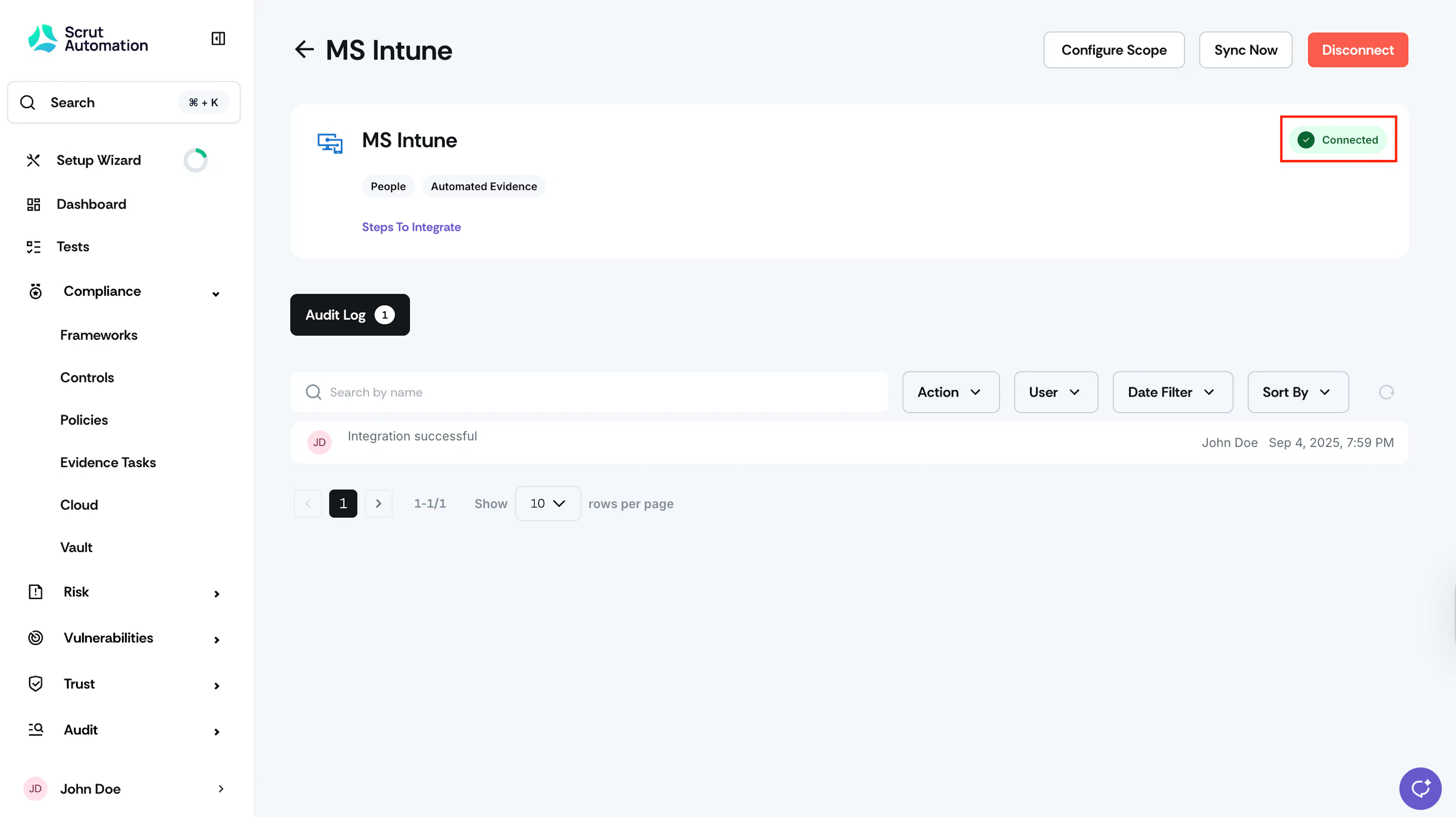
Watch for the success notification and confirm the status changes to Connected.
Step 2: Configure Scope
-
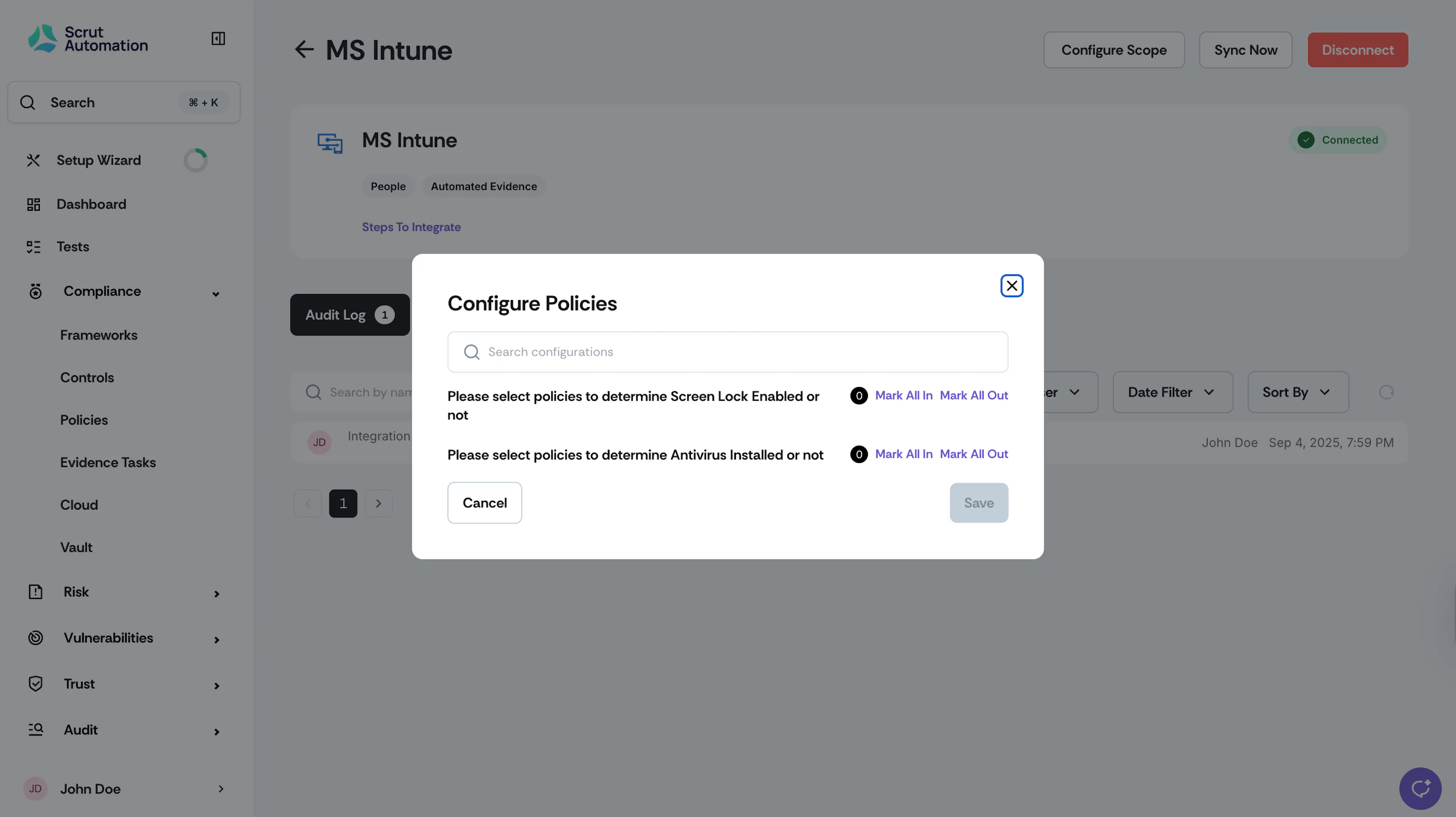
On the MS Intune integration page, click Configure Scope.
-
Select the device checks you want Scrut to monitor:
- Screen Lock Enabled
- Antivirus Installed
-
Click Save.
What Happens Next?
Initial data sync
Scrut begins syncing device data from Microsoft Intune after the integration is connected. Full data population may take some time, depending on the size of your device inventory. Monitor sync progress in the Audit Log on the MS Intune integration page.
Review synced data
- Navigate to People → Employees → Technical to view employee device records and security posture data.
- Navigate to Asset Management to view devices populated from MS Intune.
- Navigate to Compliance → Evidence Tasks to set up a Scrut Monitor to automate evidence collection from MS Intune.
- Navigate to Tests to view automated test coverage driven by MS Intune data. Apply the Application filter with MS Intune selected to view only MS Intune tests.
Common Errors & Troubleshooting
Authentication failure
Cause: The Microsoft account used during authorization does not have administrator privileges, or the consent checkbox was not selected.
Possible solutions:
- Confirm you are signing in with an account that has the Global Administrator or Intune Administrator role in Microsoft Entra ID.
- Repeat the authorization flow and ensure Consent on behalf of your organization is checked before clicking Accept.
Device data not appearing in Scrut
Possible solutions:
- Check the Audit Log on the integration page to confirm the sync completed without errors.
- Confirm that devices are enrolled and active in your Microsoft Intune account.
- Trigger a manual sync by clicking Sync Now on the MS Intune integration page, and check again after a few minutes.
Device check fields show no data
Cause: The device check policies may not be configured in the Configure Scope step, or the relevant policies are not assigned in Intune.
Possible solutions:
- Go to the MS Intune integration page, click Configure Scope, and confirm your desired checks are selected and saved.
FAQs
Reach out to support@scrut.io or contact your CSM for further assistance.