

Integrate Endpoint Central
The Scrut-Endpoint Central Integration enables Scrut to monitor device compliance, security settings, and patch management across your organization. It tracks device configurations and ensures that all endpoints meet your security and compliance requirements.
Prerequisites
Before starting the integration, ensure you have the following permissions for your Endpoint Central account:
-
Account Information: Your Endpoint Central login email address
-
Admin Access: You must be an Endpoint Central admin to grant the following permissions:
- Read access: To allow Scrut to read your inventory data
Pro Tip:
We recommend logging into your Endpoint Central account before starting the integration to avoid doing so later.
How To Integrate Scrut With Endpoint Central
Step 1: Copy Client ID and Client Secret from Endpoint Central
-
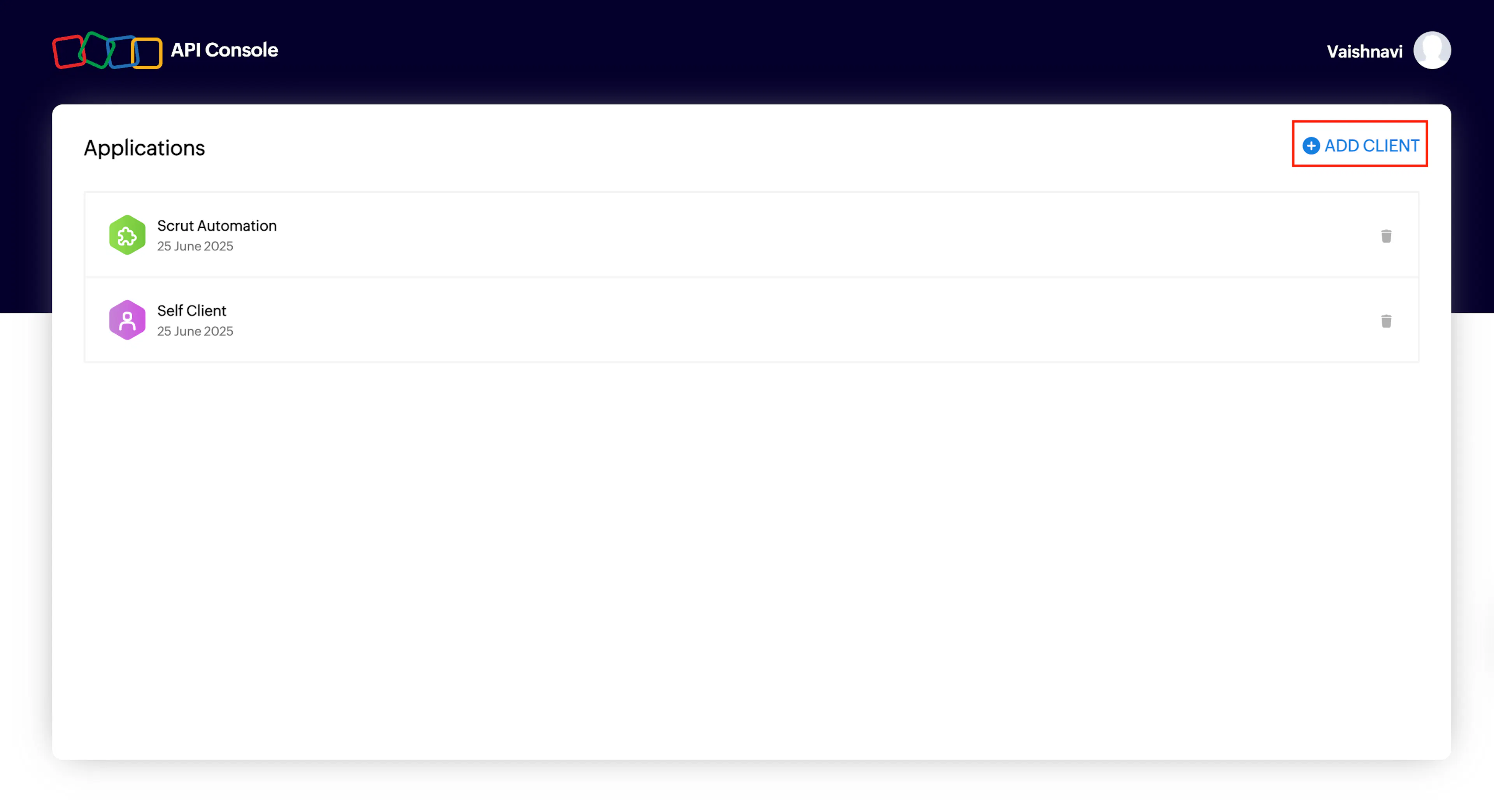
Sign in to your Zoho API console and click Add Client.
-
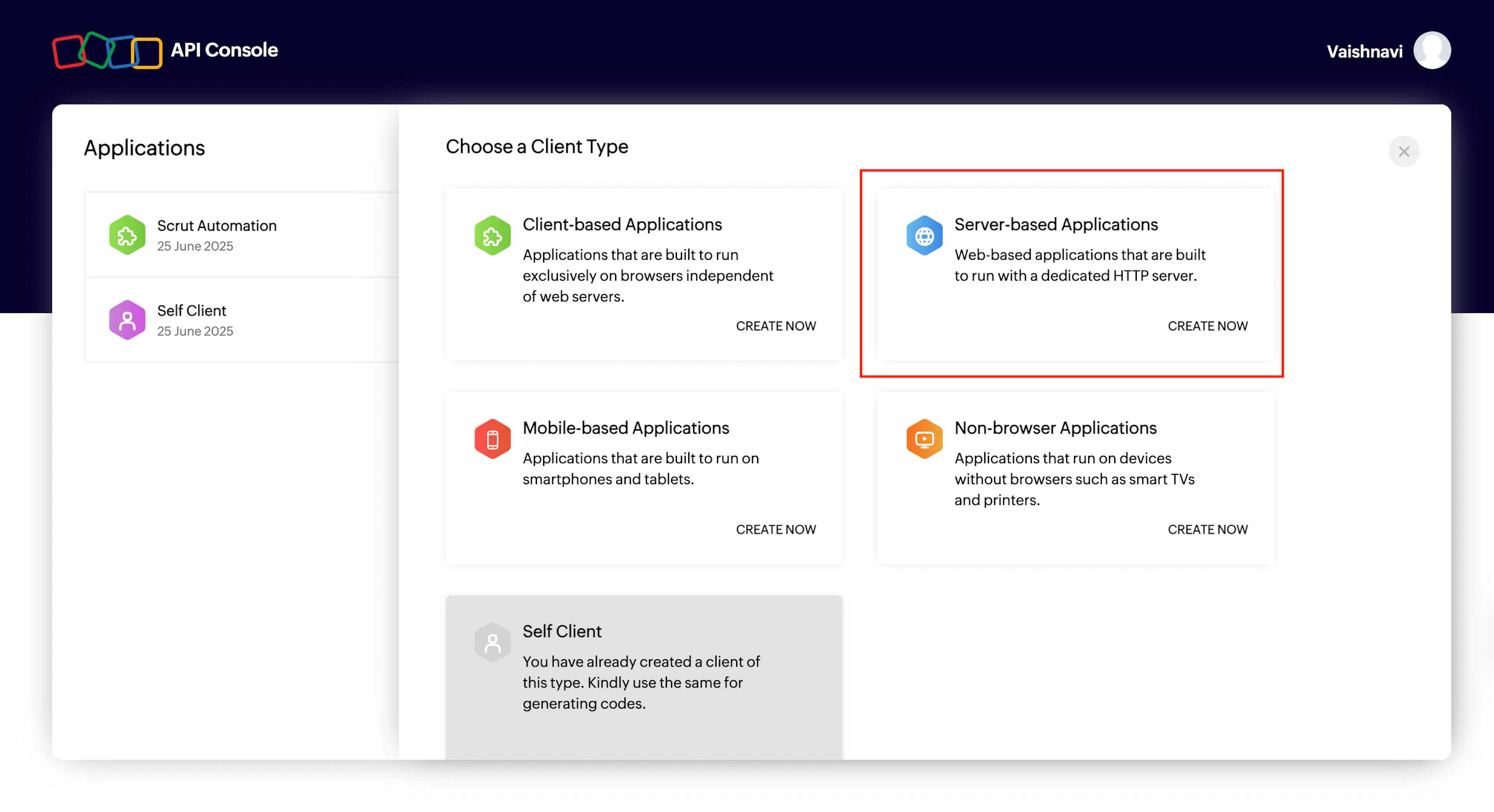
Choose Server-based Applications.
-
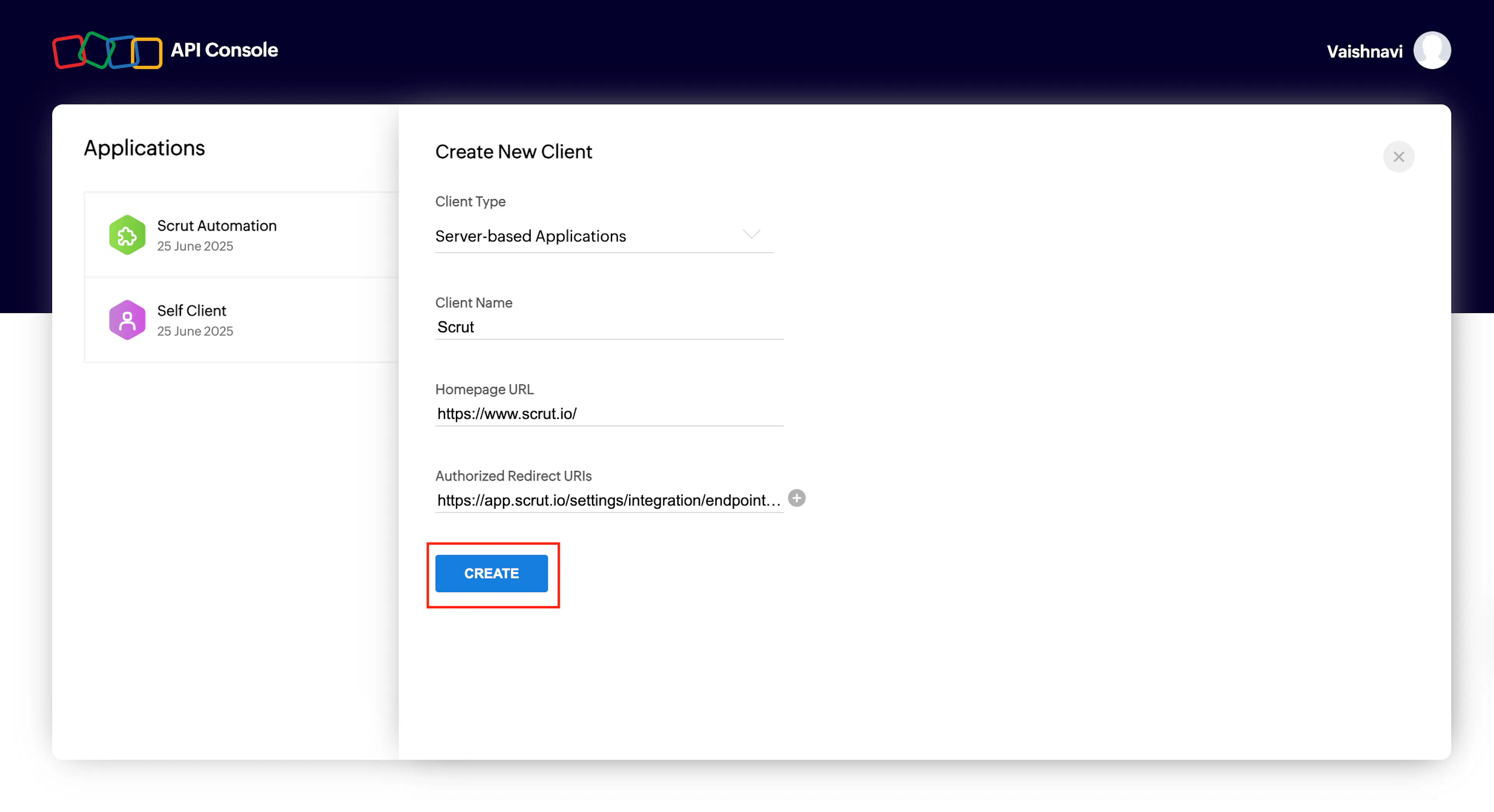
Enter a name for the integration, such as Scrut Automation.
-
For homepage URL, enter: https://app.scrut.io/
-
Enter the Redirect URL, based on your Scrut region:
-
Click Create.
-
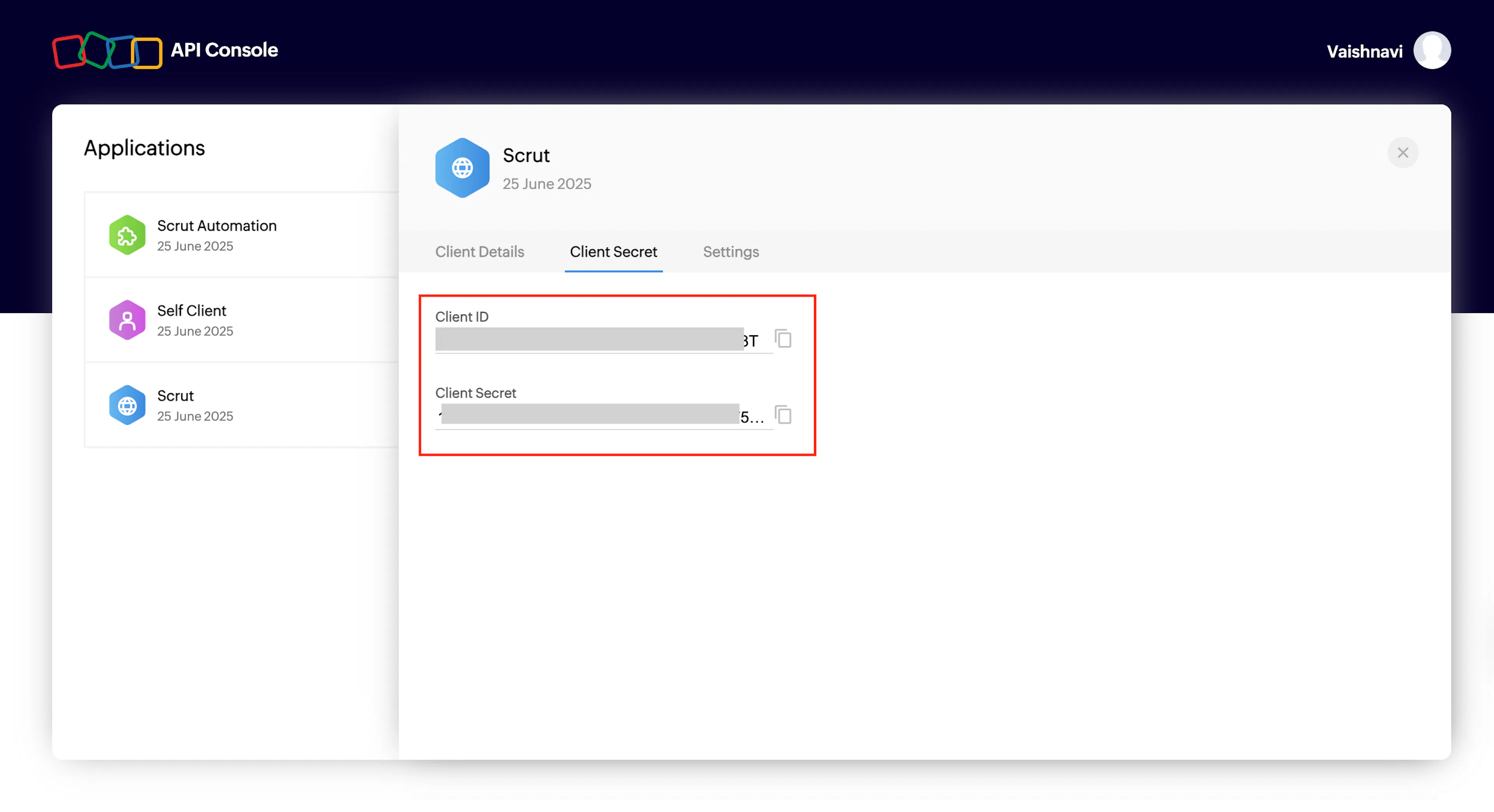
Copy the Client ID and Secret shown on the screen. Make sure to save these credentials carefully, as you’ll need to enter them in Scrut in the next step.
Step 2: Connect Your Endpoint Central Account in Scrut
-
Sign in to your Scrut account and click Integrations on the left navigation panel.
-
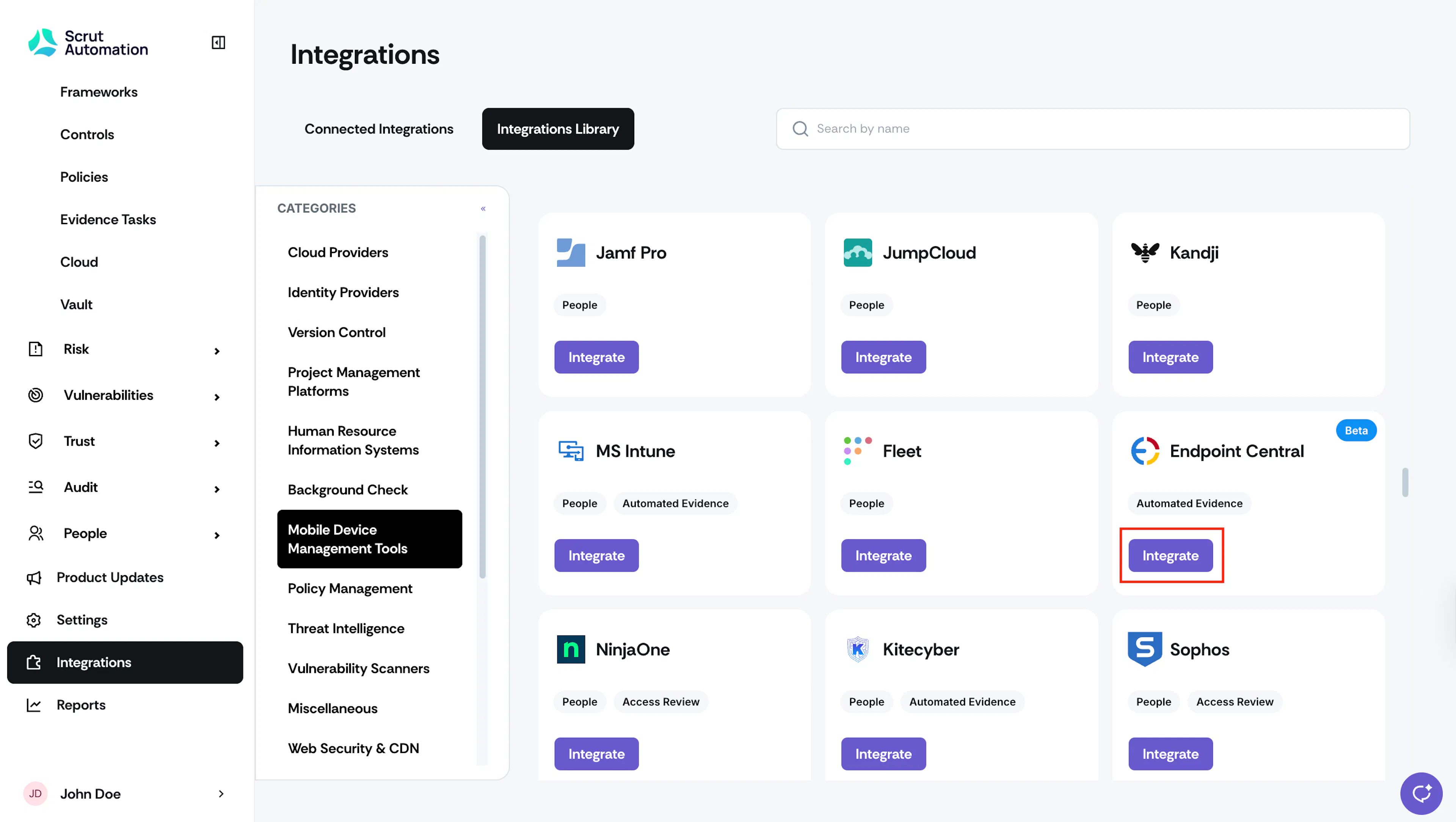
Navigate to the Integrations Library tab and choose Mobile Device Management Tools in the Categories section.
-
Scroll to the Endpoint Central tile and click Integrate.
-
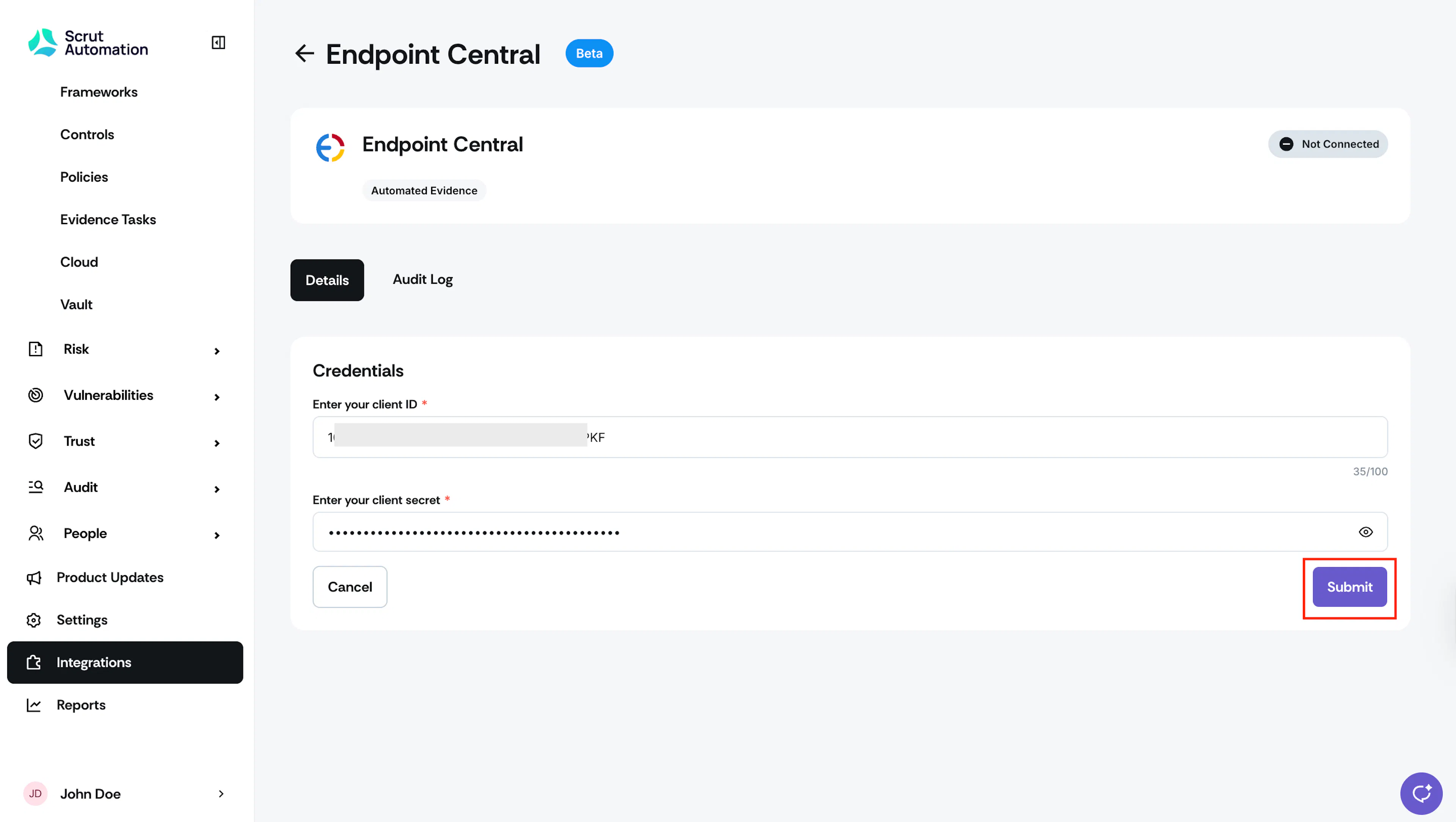
On the Endpoint Central integration page, enter the following details from Step 1.
- Client ID
- Client Secret
-
Click Submit.
-
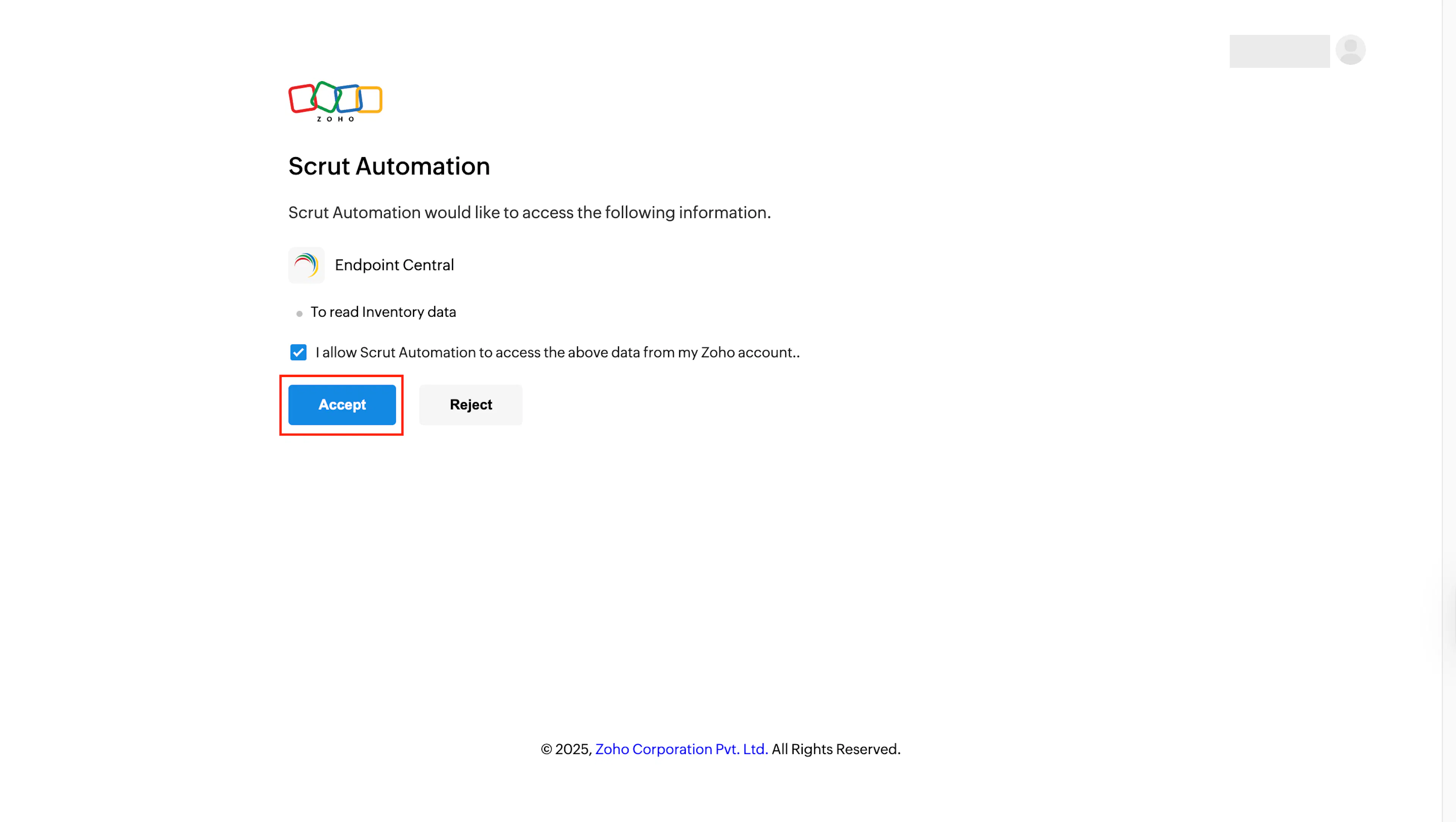
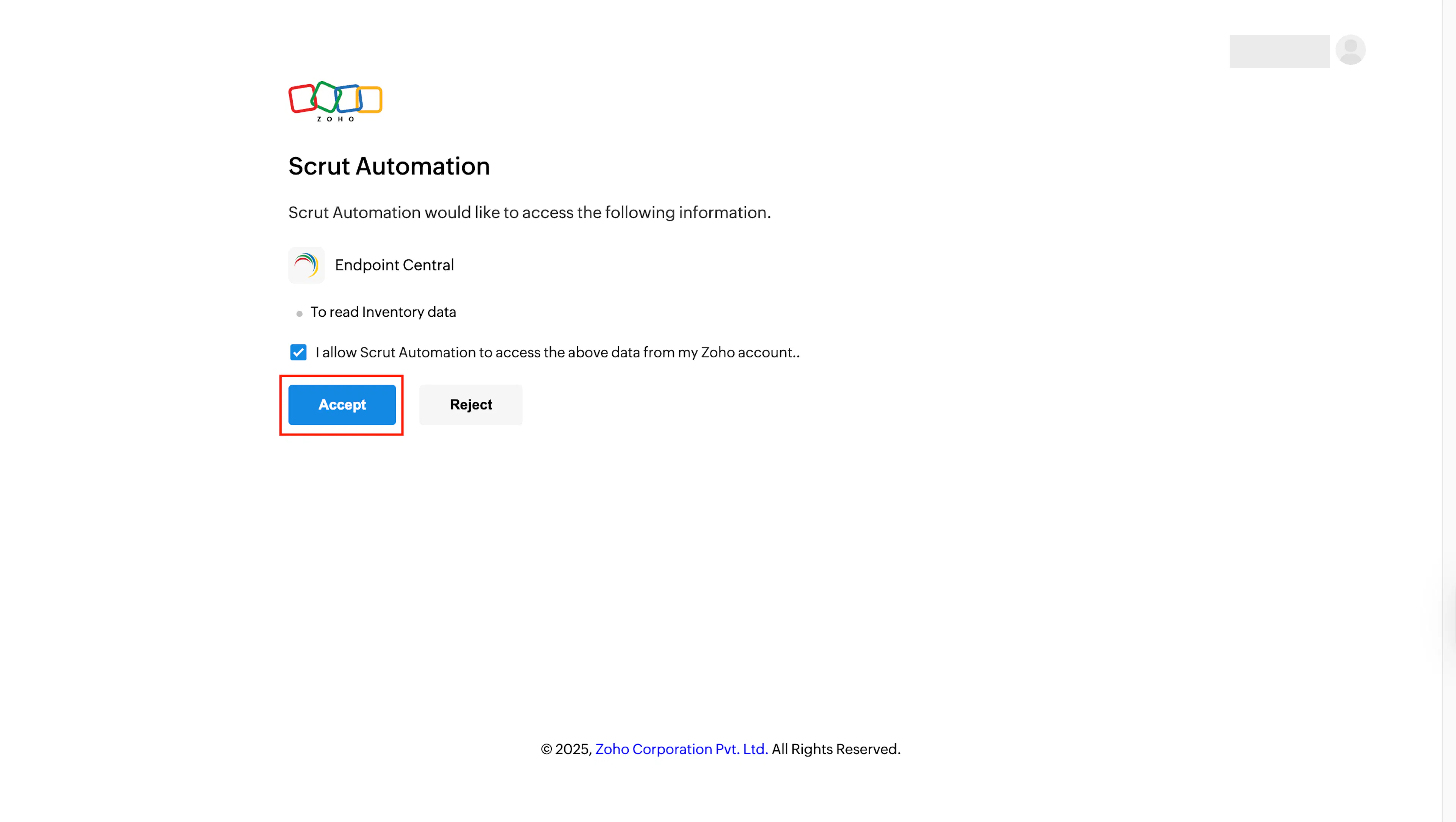
Click Accept to grant the required permissions.
-
Once authorization is done, watch out for the success toast message and the Connected status indicator.
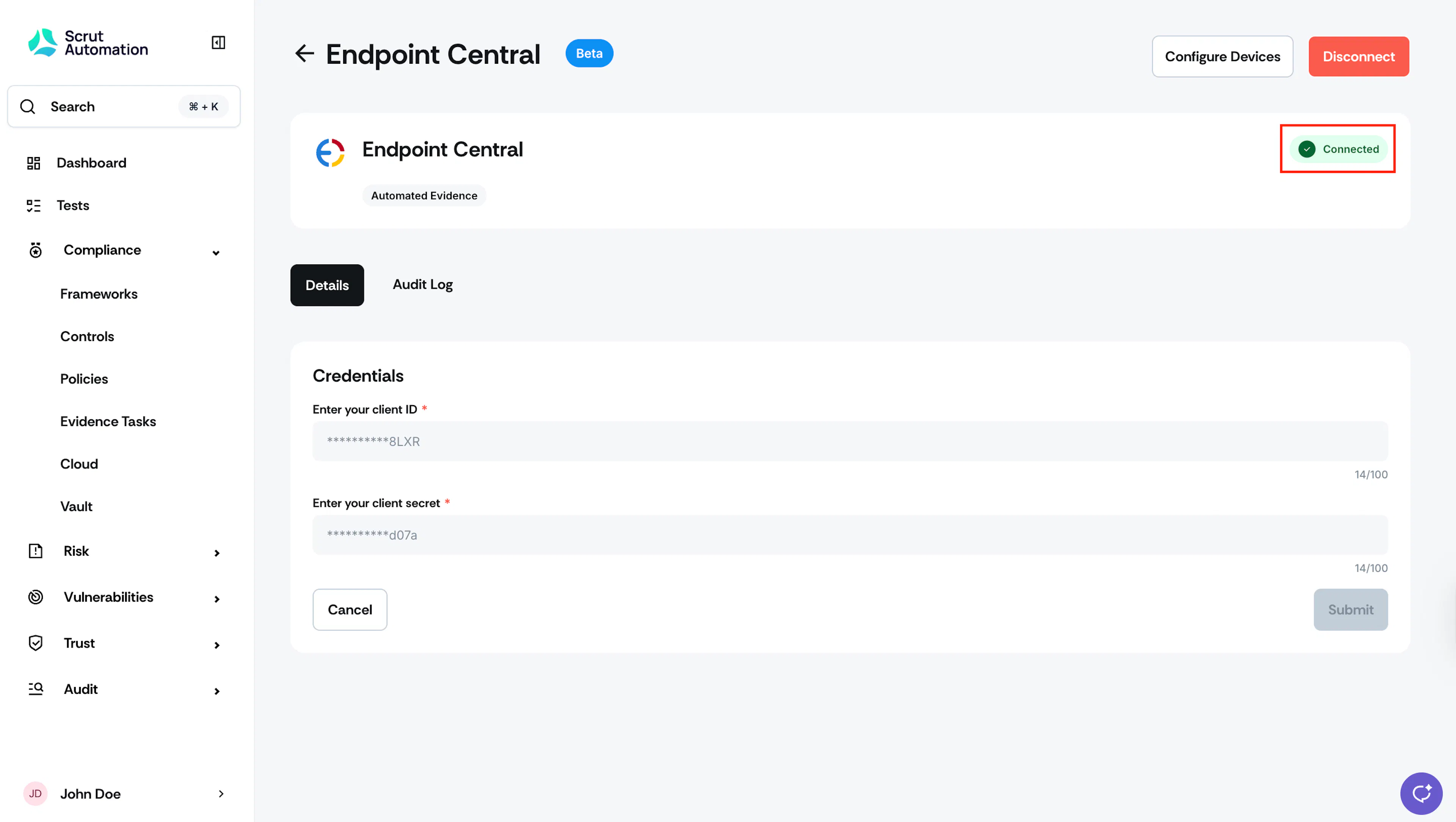
Step 3: Configure Devices
The final step of the integration is to configure the devices you sync with Scrut.
-
Go to the Endpoint Central integrations page and click Configure Devices on the top right.
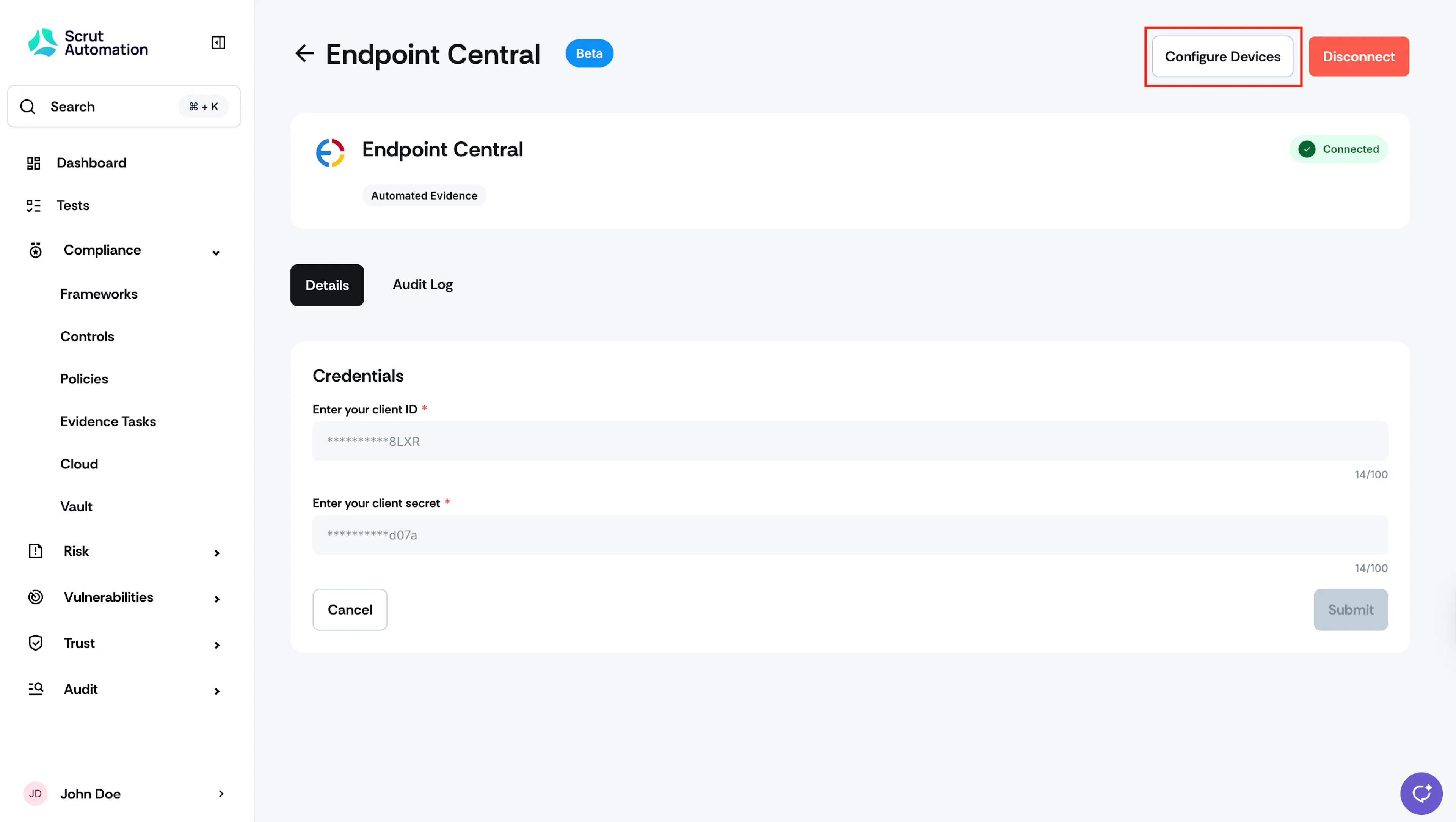
-
Select the devices you want to sync with Scrut, and click Save.
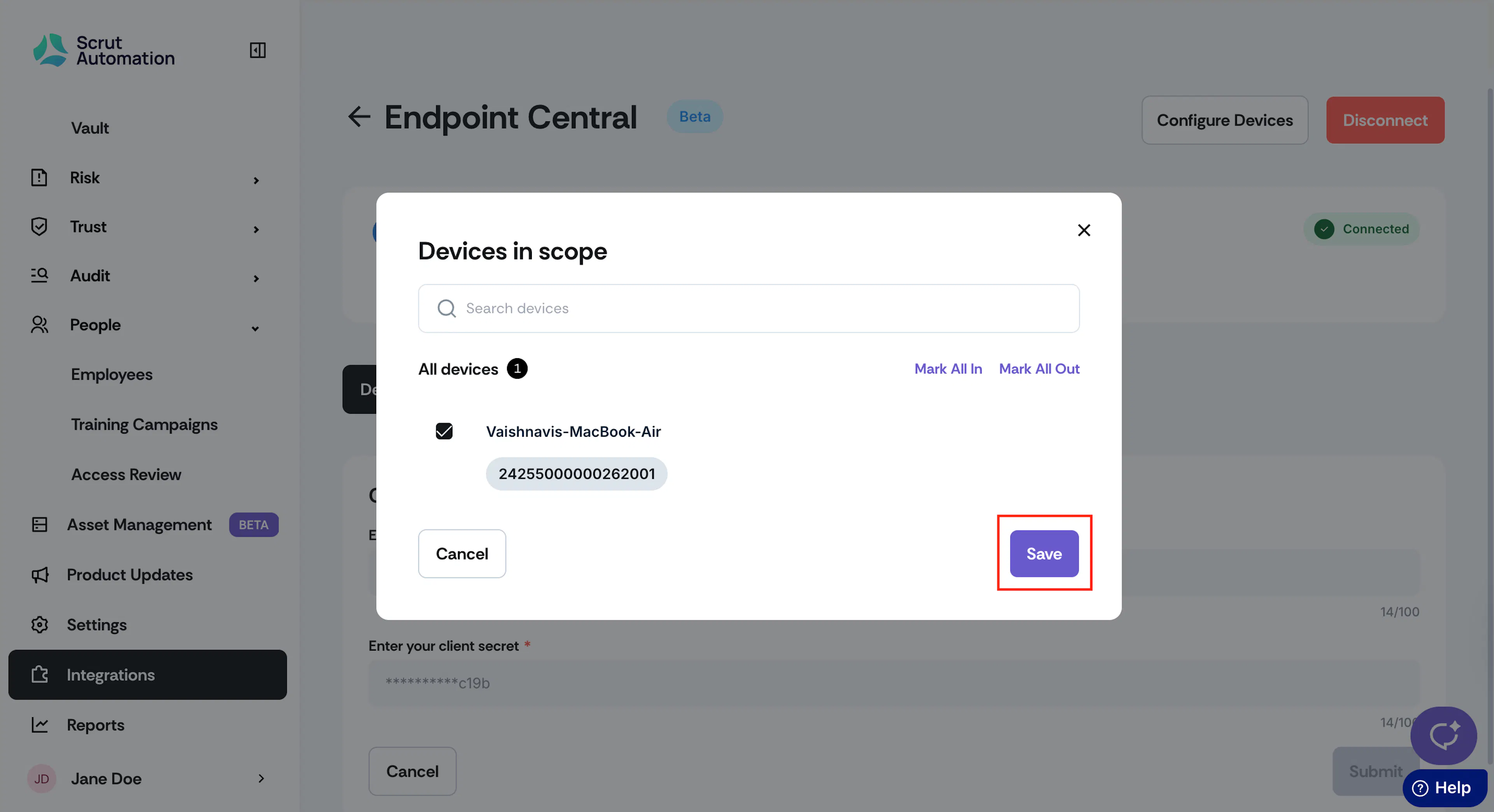
-
Watch out for the “Scope Updated Successfully!” notification message.
What Happens Next?
Upon completing the integration, Scrut will display the fetched data in the following modules: