

Integrate Hexnode
This article covers how to connect your Hexnode MDM instance with Scrut.
What this Integration Does in Scrut?
This integration enables Scrut to automatically collect device inventory, user information, and application data from your Hexnode MDM instance, streamlining compliance monitoring and asset management. It performs the following functions in Scrut:
- User Endpoint Devices: This integration fetches employee device details, including security posture and installed software. These devices are mapped to employees and visible in their profile under the People → Employees → Technicals section.
- Automated Tests: This integration is used by Scrut to run automated compliance checks. These checks continuously evaluate configurations against applicable compliance frameworks.
- Asset Management: This integration populates the Asset Management module in Scrut. It automates asset discovery and supports asset-related compliance evidences.
Prerequisites
Before setting up the integration, ensure you have:
-
An active Hexnode MDM account with administrator access
- Devices enrolled and actively managed in Hexnode
- User accounts in Hexnode with associated email addresses
Permissions and Access Requirements
For Hexnode
- Admin access to generate API keys in Hexnode
- Read access to device inventory, user data, and application information
For Scrut
- Admin access to Scrut (or Contributor with access to the Integration module)
Limitations
- Hard drive encryption status is not available through the Hexnode API and will not be populated in Scrut
- Screen lock enabled status is not available through the Hexnode API and will not be populated in Scrut
- Application data is collected, but antivirus detection depends on matching app names against Scrut's predefined antivirus list
- Only devices with
device_type=computerare synced to the Employee Devices section in the People module - All device types (computers, smartphones, tablets) are synced to Asset Management as mobile devices
- Region is not available through the Hexnode API, and will remain empty in the Asset Management module for Hexnode devices
Data Collected
The Hexnode integration collects device, user, and application data from your MDM instance and maps it to the following areas in Scrut:
1: People → Employees → Technicals
Data is synced to the Technicals section under each employee's profile. Only devices where device_type = computer are included here.
| Scrut Field | Hexnode Source Data | Notes |
|---|---|---|
| Computer Name | device.device_name | The device name as configured in Hexnode |
| Owner Email | user.email | Used to match the device to an employee in Scrut |
| Serial Number | device.serial_number | Hardware serial number from the device |
| OS Version | device.os_name + device.os_version | Combined OS name and version (e.g., "iOS 9.12") |
| Last Check | lastreported | Timestamp of the last time the device reported to Hexnode |
| HD Encrypted | Not Available | This field will remain empty (Hexnode API limitation) |
| AV Installed | Derived from applications array | Automatically detected by matching installed apps against Scrut's antivirus software list |
| Screenlock Enabled | Not Available | This field will remain empty (Hexnode API limitation) |
Note:
Smartphones and tablets are excluded from Employee Devices but are captured in Asset Management.
2: People → Employees → Tasks → Required Software Installed
Application data is extracted from the applications[] array for each device. Each application is stored as a separate record and linked to its associated device and user.
| Scrut Field | Source Data | Notes |
|---|---|---|
| App Name | name | The name of the installed application |
| Version | version | The version number of the installed application |
| Blacklisted | black_listed | Boolean flag indicating if the app is blacklisted |
| Status | status | Installation status (e.g., "Installed", "Pending") |
Usage: This application dataset is used to:
- Populate the "Required Software Installed" checklist in the People module
- Validate that employees have mandatory security software installed
- Identify unauthorized or blacklisted applications on managed devices
3: Asset Management → Mobile Devices
All devices (computers, smartphones, tablets) in your Hexnode MDM instance are synced to Asset Management as mobile device records.
| Scrut Field | Source Data | Notes |
|---|---|---|
| Asset Type | Mobile Device | All Hexnode devices are categorized as mobile devices |
| Resource Name | device.device_name | The device name, as shown in Hexnode |
| Resource ID | device.serial_number | Unique identifier for the asset |
| Source | Fixed value: Hexnode | Identifies the data source |
| Region | Not Available | This field will remain empty |
| Owner | user.email | Email of the user assigned to the device in Hexnode |
Sync Frequency
Data is synced automatically once every 24 hours. You can also manually trigger a sync from the integration settings page when needed.
Integration Setup
The Hexnode - Scrut integration setup involves two main steps:
- Generate an API key in Hexnode with appropriate permissions
- Add the API key & Base URL to Scrut and complete the integration configuration
Step 1: Retrieve Your API Key in Hexnode
-
Log in to your Hexnode MDM portal using your administrator credentials.
-
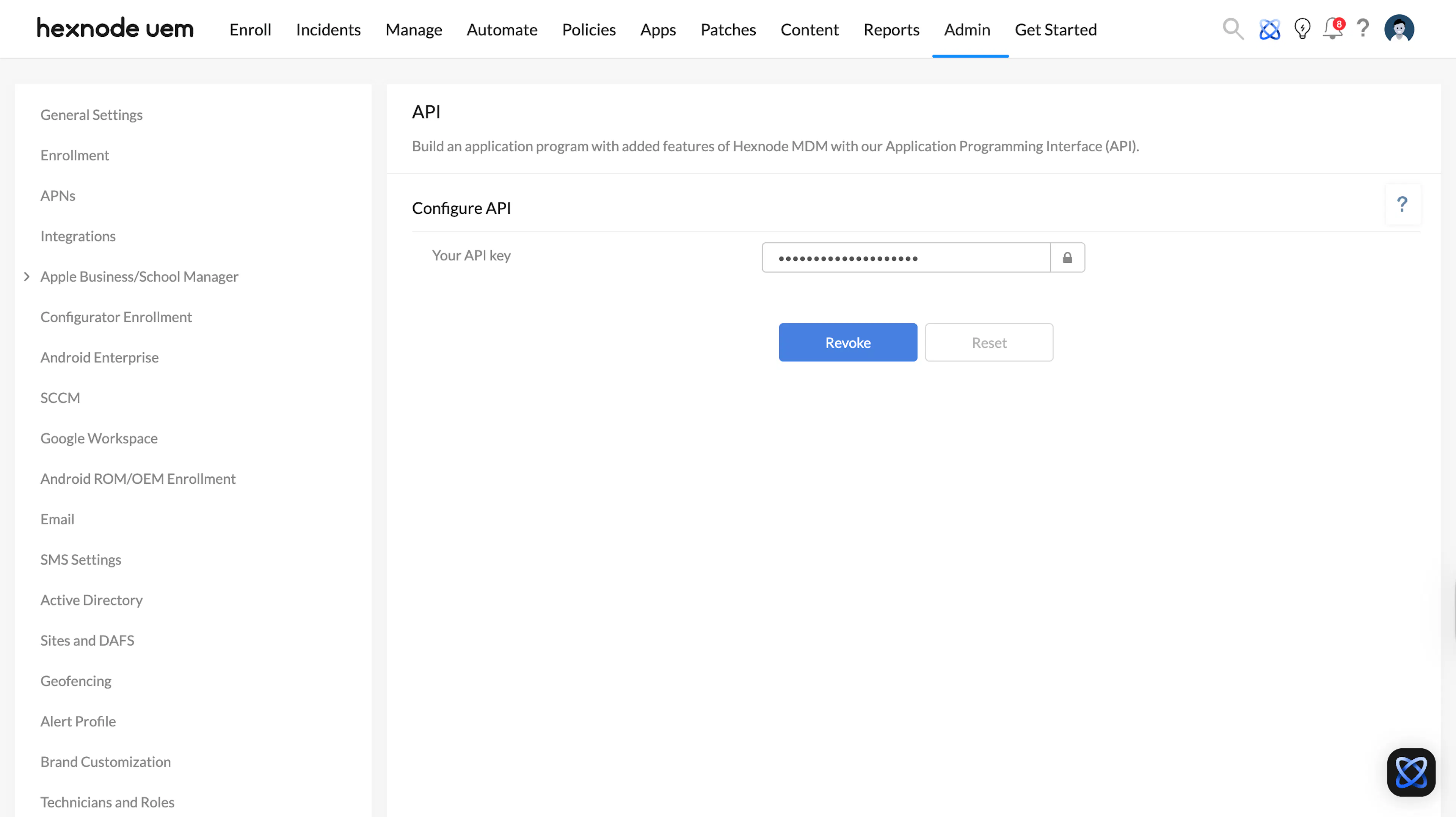
Navigate to the Admin tab, then click API in the left-hand navigation panel.
-
Copy your API Key and store it securely.
-
Next, note your Hexnode Base URL.
- It’s typically in the format:
https://yourcompany.hexnodemdm.com
- It’s typically in the format:
-
You’ll need to enter the API Key and base URL in Scrut in the next step.
Step 2: Enter the API Key and Base URL in Scrut
-
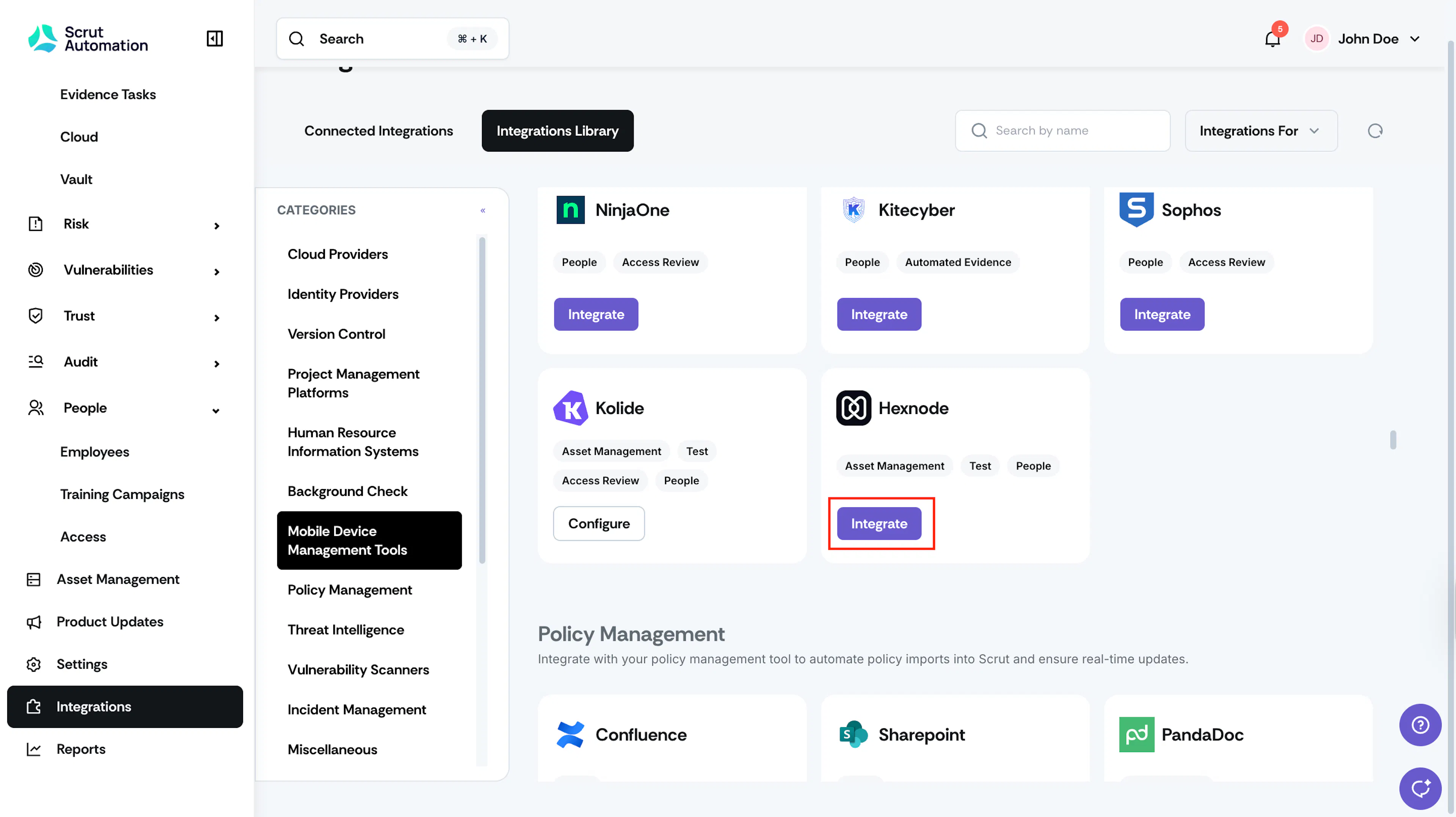
Click Integrations in the left navigation panel.
-
Select Mobile Devices Management Tools in the Categories section in the Integration Library, and search for Hexnode.
-
Click the Integrate button in the Hexnode tile.
-
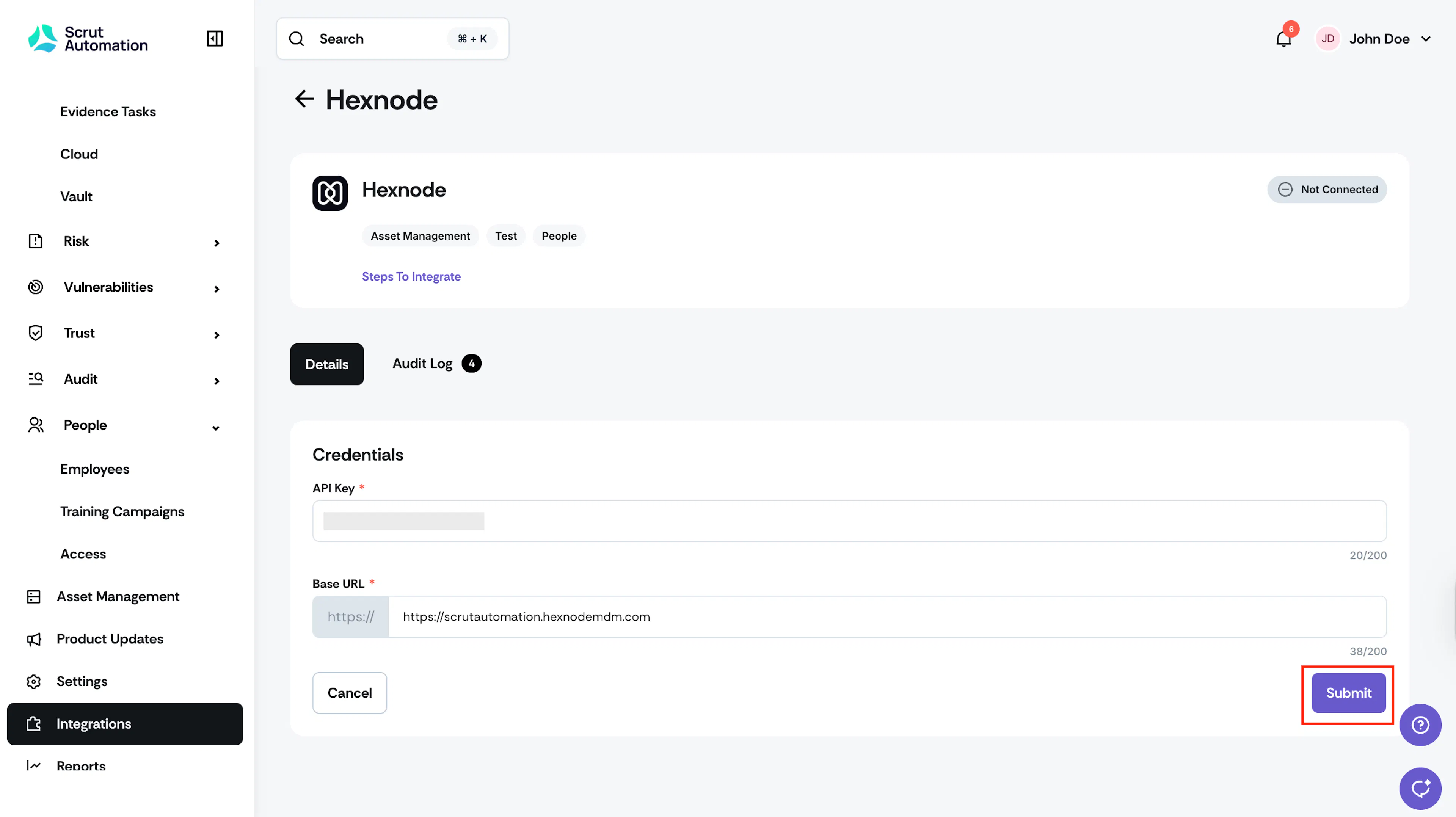
Enter the API Key and Base URL you copied from Hexnode and click Submit.
What Happens Next?
Initial Data Sync
The initial data sync will begin automatically. This may take several minutes, depending on the number of devices. You can monitor sync status in the Audit Logs section of the Hexnode integration.
Review Synced Data
Once the data sync is completed, you can view the data fetched from Hexnode in the following sections in Scrut:
- Navigate to People → Employees → Technicals to view employee device records
- Navigate to People → Employees → Tasks to view applicable device security details
- Navigate to Asset Management → Mobile Devices to view mobile device inventory
- Navigate to Tests → All Tests → Automated Tests and use the Application filter to view tests related to Hexnode.
Common Errors & Troubleshooting
Invalid API Key or Authentication Failed
Possible Solutions:
- Verify you copied the correct API key without extra spaces
- Check that the API key hasn't been revoked in Hexnode
- Ensure the API key has read permissions for devices, users, and applications
- Generate a new API key and update it in Scrut
Connection Timeout or Unable to Reach Hexnode
Possible Solutions:
- Verify your Hexnode portal URL is correct
- Verify if your internet connection is active
- Contact your IT team to ensure Scrut's IP addresses aren't blocked
- Verify your Hexnode subscription is active
Employee Devices Not Appearing in People Module
Possible Solutions:
- Verify that
device_typeis set tocomputerin Hexnode for the devices in question - Ensure user email addresses in Hexnode match employee email addresses in Scrut
- Check that devices have associated users in Hexnode
- Manually trigger a sync and wait for processing to complete
Antivirus Not Detected on Devices
Possible Solutions:
- Verify the antivirus application is actually installed on the device in Hexnode
- Check the exact name of the antivirus application in the Hexnode application list
- Contact Scrut support to add the antivirus name to the recognition list
Hard Drive Encryption or Screen Lock Status Shows as N/A
Cause: This data is not available through the Hexnode API
Possible Solutions:
- This is a known limitation
- You may need to collect this information manually or through other integrations
- Consider using complementary integrations to fill these gaps
- Document the limitation in your compliance workflow