

Integrate Rippling
Connect your Rippling account with Scrut to automatically sync employee data and device information, keeping your compliance workflows up to date without manual effort.
What This Integration Does in Scrut
- Employee Directory: Syncs employee and group data into Scrut's People module. These users can then access the Employee Portal for training, policy acceptance, and device-related activities.
- Automated Tests: Runs automated compliance checks that continuously evaluate your configurations against applicable compliance frameworks.
- Scrut Monitor: Collects evidence through Scrut Monitor. This helps automate evidence gathering and significantly speeds up compliance workflows.
- Asset Management: Populates the Asset Management module in Scrut with discovered assets and supports collecting asset-related compliance evidence.
- User Endpoint Devices: Fetches employee device details, including security posture and installed software. These devices are mapped to employees and visible in their profile under People → Employees → Technical.
Prerequisites
- An active Rippling account with Super Admin access.
- Employees in Rippling must have work email addresses to ensure accurate data mapping.
Pro Tip!
Log into your Rippling account before starting the setup in Scrut to avoid being redirected mid-flow.
Permissions and Access Requirements
For Rippling
Scrut requests read-only access to the following OAuth scopes during the authorization step:
Employee data:
- employee:read
- employee:name:read
- employee:preferredFirstName:read
- employee:preferredLastName:read
- employee:department:read
- employee:endDate:read
- employee:workEmail:read
- employee:userId:read
- employee:manager:read
- employee:roleState:read
Company data:
- company:read
- company:legalName:read
- company:departments:read
- company:employmentTypes:read
- company:customFields:read
Group data:
- groups:read
- group_members:read
Device data (required for MDM scope):
- reports:hardware:read
Authentication:
- openid
For Scrut
- Admin access to Scrut (or Contributor with access to the Integration module).
- To collect device data, you must configure the MDM scope after completing the initial HRIS connection. See Step 2 in the Integration Setup section below.
Data Collected
Employee Details
- First and Last Name
- Work Email
- Department
- Role
- Reporting Manager Email
- Joining Date
- Exit Date (if applicable)
- Group memberships
- Leave Data (Include start date, end date, and leave status)
Asset Management and User Endpoint Devices
- Device Name
- OS Version
- Serial Number
- Antivirus Installed (Displayed as Yes or No)
- Hard Drive Encrypted (Displayed as Yes or No)
- Screen Lock Enabled (Displayed as Yes or No)
Devices are mapped to employees using work email as the unique identifier.
Sync Frequency
Data is synced automatically once every 24 hours. You can also manually trigger a sync by clicking Sync Now on the Rippling integration page.
Integration Setup
The Rippling–Scrut integration setup involves two steps:
- Connect Rippling to Scrut as an HRIS by completing the OAuth authorization flow.
- Optionally, configure the MDM scope to also sync device data.
Step 1: Connect Rippling as an HRIS
-
Sign in to your Scrut account and click Integrations in the left navigation panel.
-
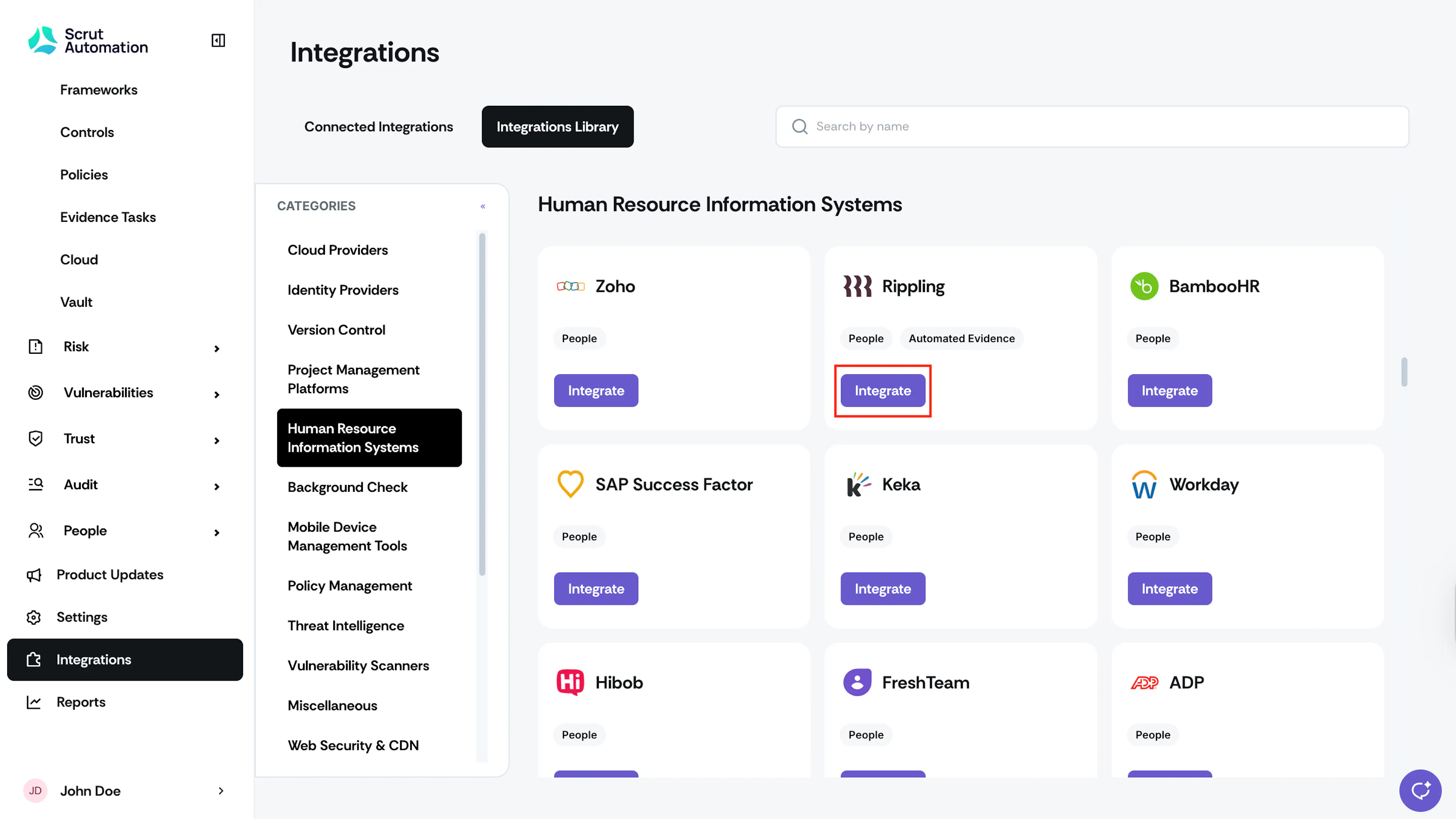
Go to the Integrations Library tab and select Human Resource Information Systems under Categories.
-
Locate the Rippling tile and click Integrate.
-
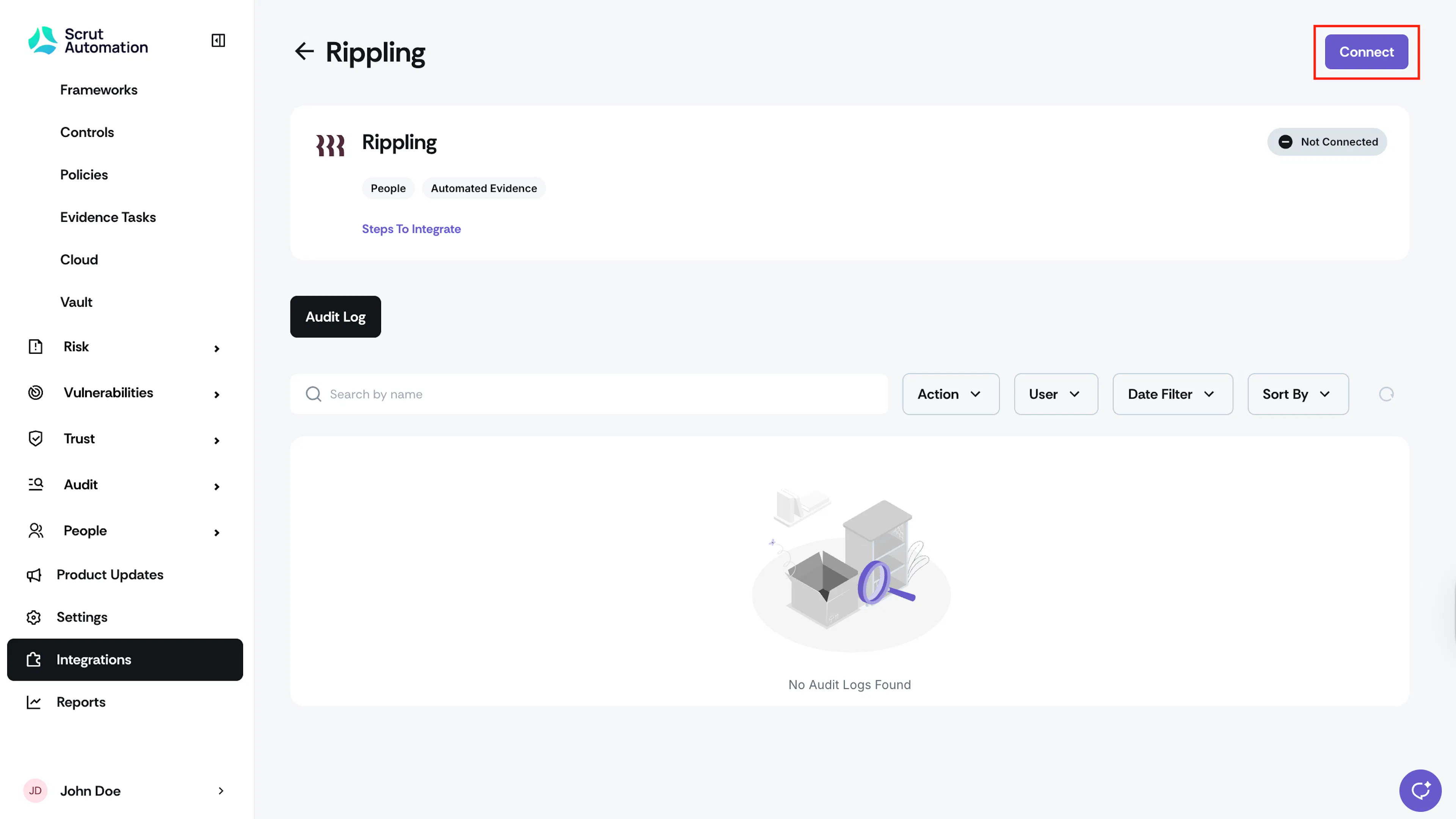
On the Rippling integration page, click Connect in the top right corner.
-
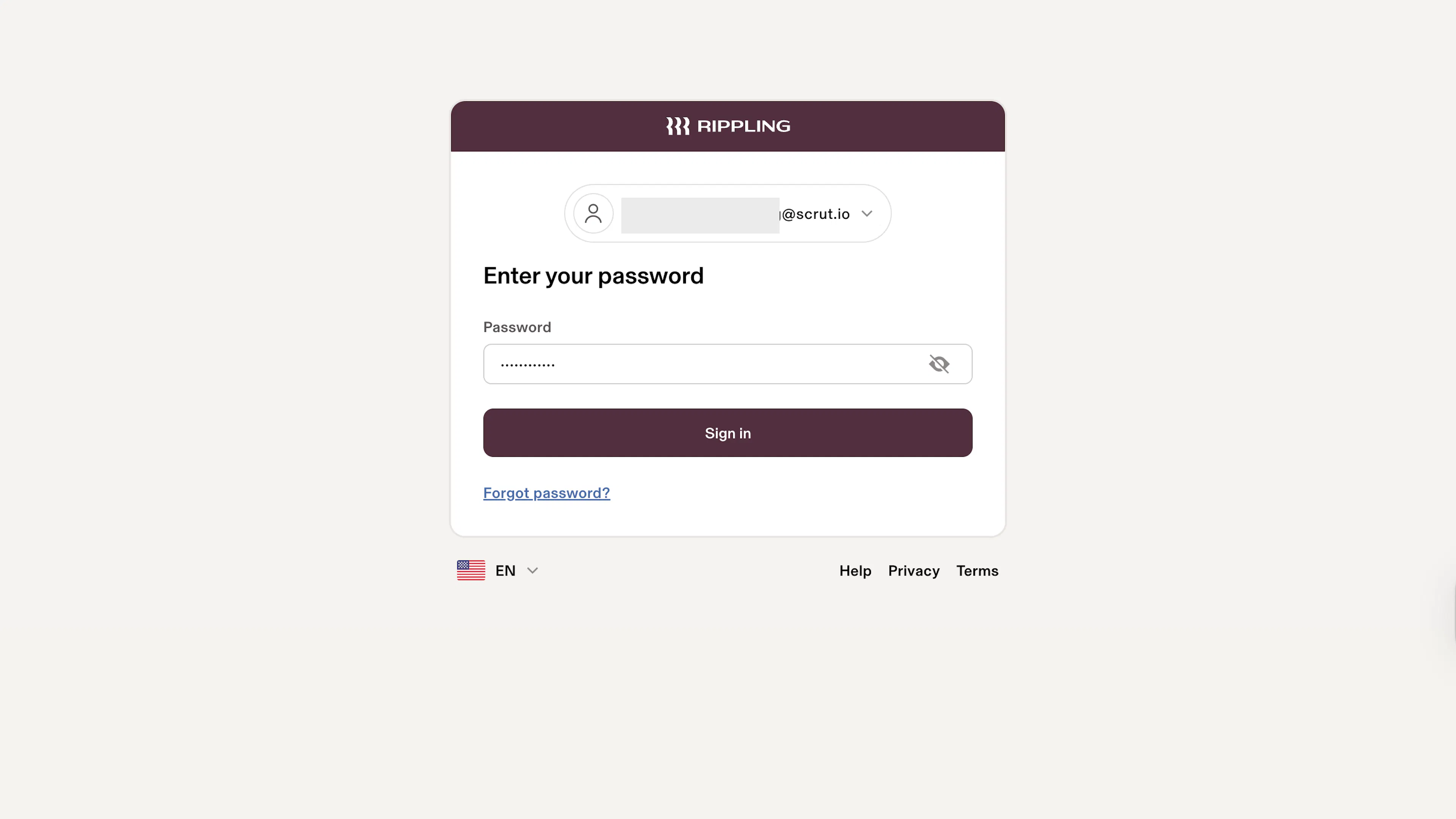
You are redirected to the Rippling login page. Enter your credentials and click Continue.
-
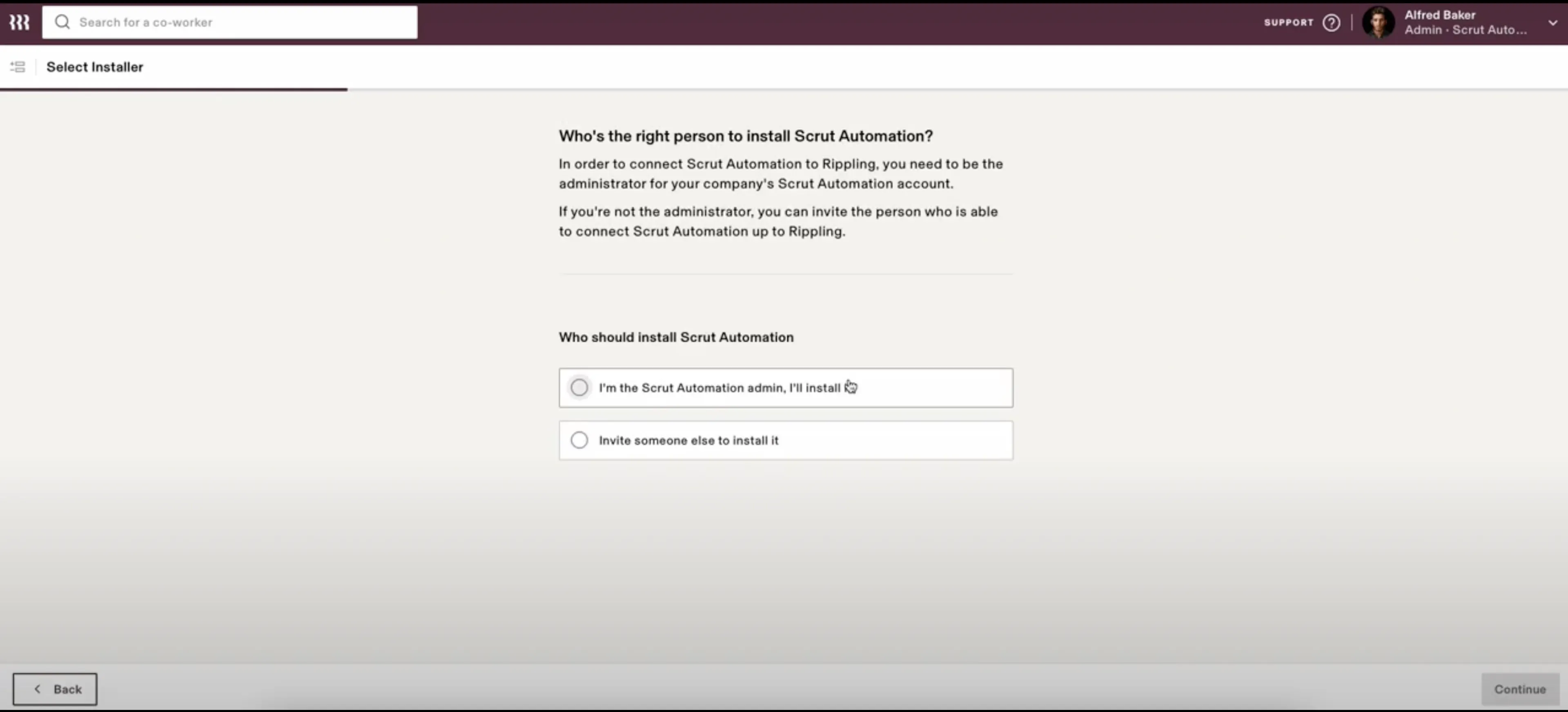
Rippling prompts you to install the Scrut Automation app in your Rippling account. Select I'm the Scrut Automation admin, I'll install it and click Continue.
Note: You must be a Scrut Admin to complete this step. If you are not the admin, select Invite someone else to install it to delegate the task.
-
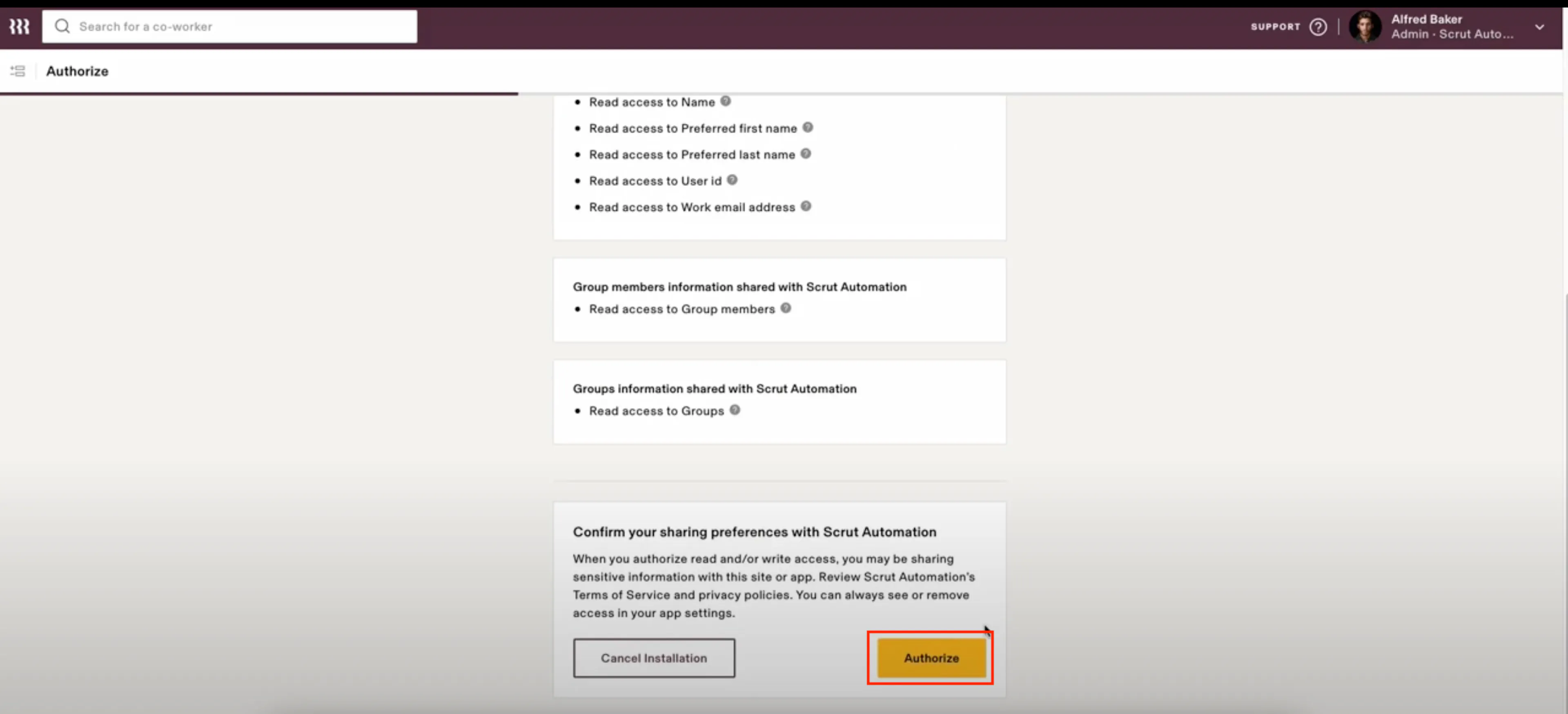
Review the permissions Scrut requires and click Authorize to grant access.
-
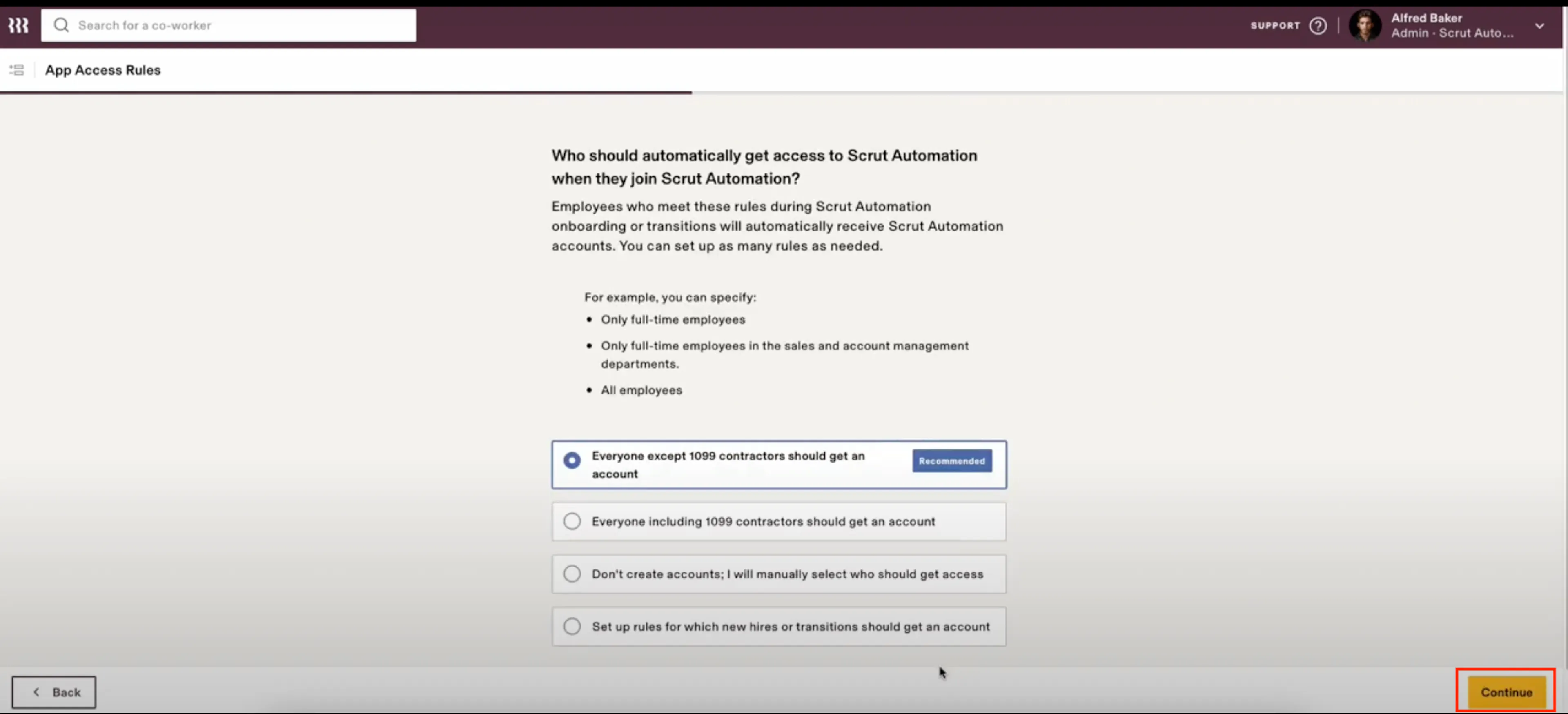
Under App Access Rules, select which employees should automatically receive access to Scrut Automation when they join Rippling. Click Continue.
Heads Up!
Rippling recommends "Everyone except 1099 contractors should get an account" as the default access rule. Adjust this to match your organization's access policy.
-
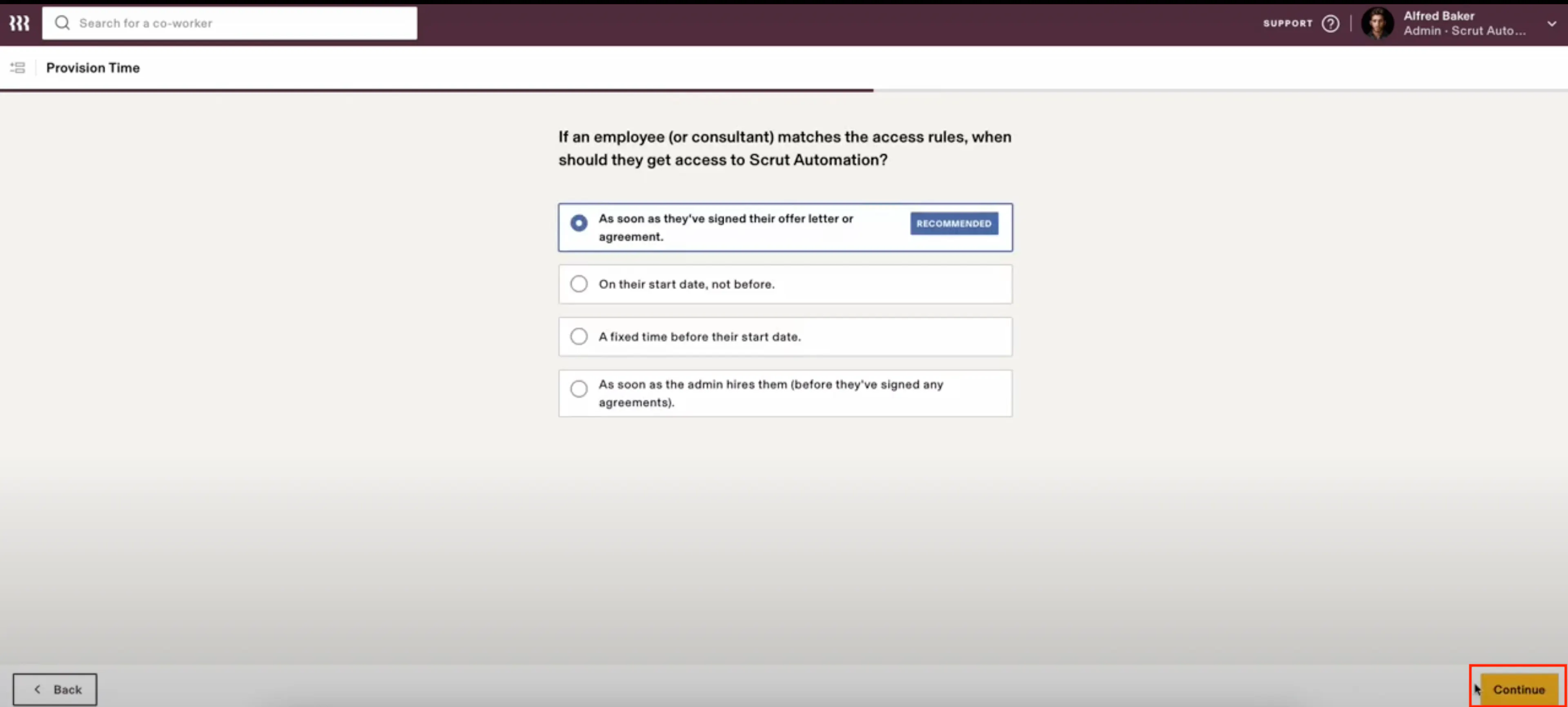
On the Provision Time page, select when newly eligible employees should be provisioned. Click Continue.
-
On the Redirect page, click Continue to finalize the connection.
Watch for the success toast and the Connected status tag on the Rippling integration page. The integration is now active.
Step 2: Configure the MDM Scope (Device Data)
Complete this step only if you also want to sync employee endpoint and device data from Rippling.
-
In Scrut, go to Integrations → Connected Integrations → Human Resource Information Systems.
-
Click Configure on the Rippling tile.
-
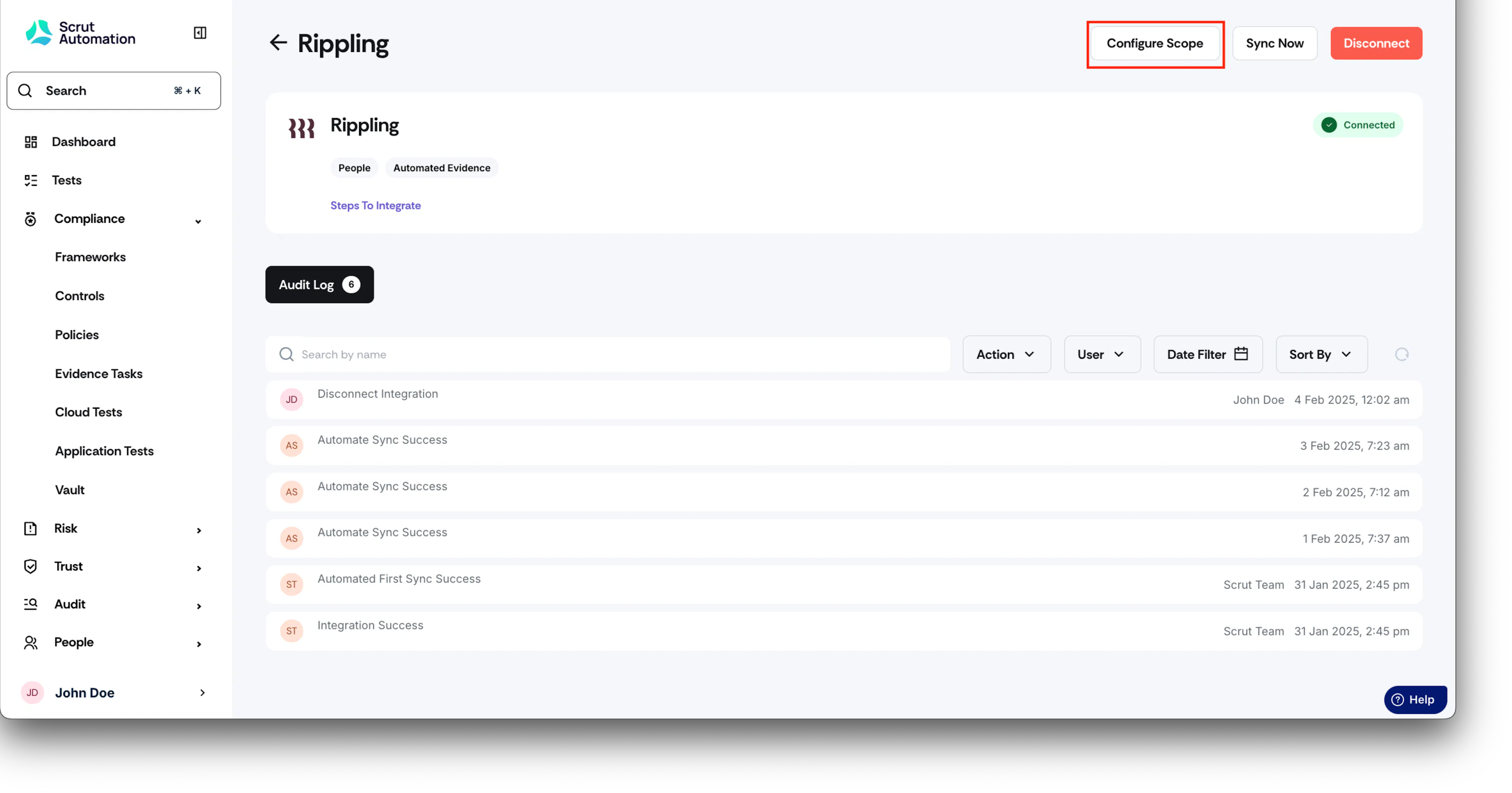
Click Configure Scope on the Rippling integration page.
-
In the Configure Scope panel, select Mobile Device Management (MDM).
-
Click Save.
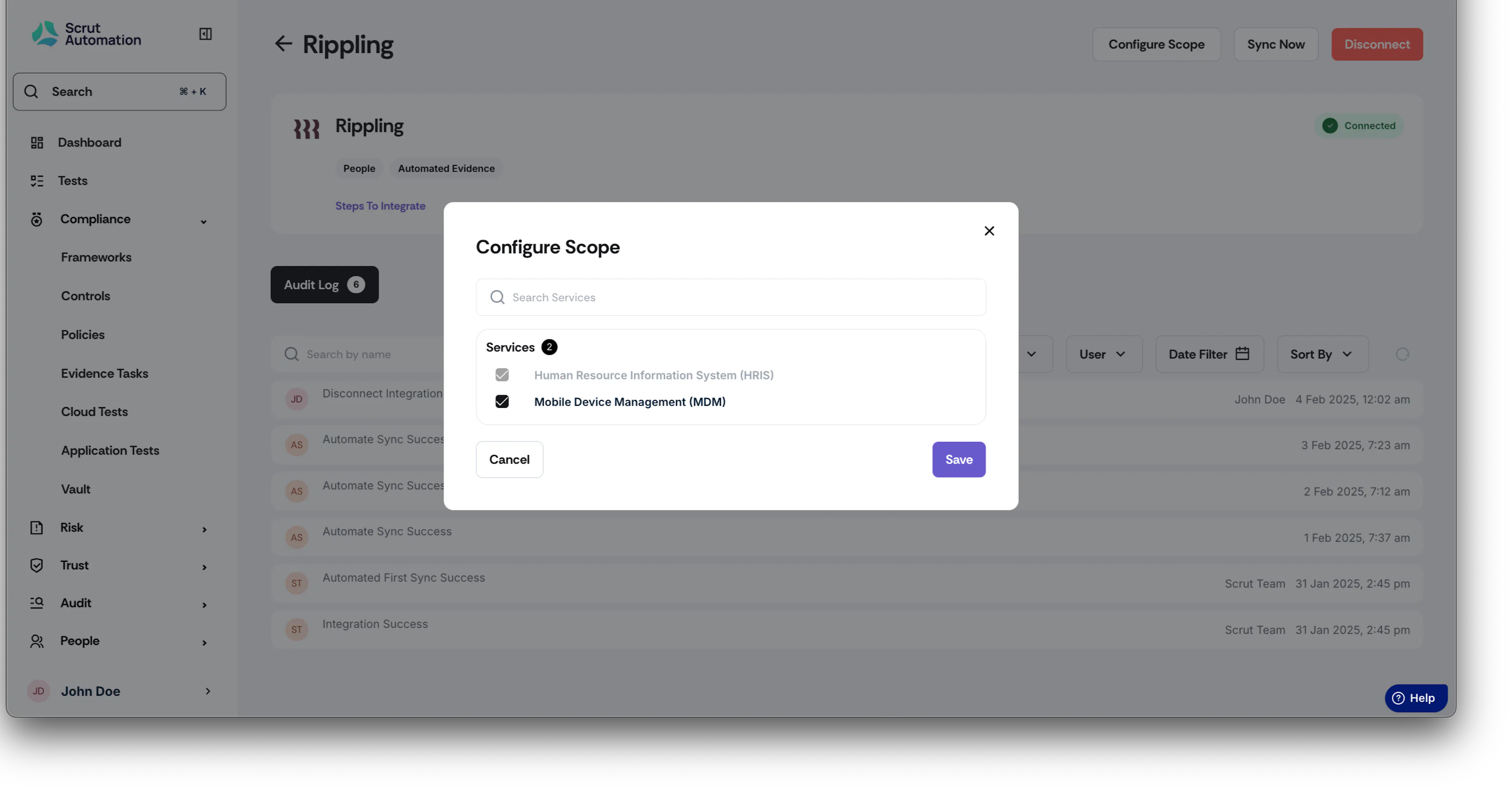
Scrut begins syncing device data from Rippling immediately after you save.
What Happens Next?
Initial data sync
Scrut starts syncing data from Rippling as soon as the connection is established. The initial sync may take a few minutes to complete. Track the sync status in the Audit Log on the Rippling integration page.
Review synced data
Once the sync completes, verify that the data has landed in the respective modules in Scrut:
- Navigate to People → Employees → All Employees to view synced employee records.
- Click on any employee profile to review their name, email, joining date, reporting manager, department, and leave data.
- Navigate to People → Employees → Technicals to view device records mapped to each employee.
- Navigate to Tests → Automated Tests to view automated configuration checks that Scrut runs for Rippling.
- Navigate to Compliance → Evidence Tasks to add a Scrut Monitor to automate evidence collection from Rippling.
- Navigate to Asset Management to view assets from your Rippling account reflected in Scrut.
Common Errors and Troubleshooting
Connection fails during authorization
Possible solutions:
- Confirm that you are logged in as a Super Admin in Rippling before starting the flow.
- Confirm that you are a Scrut Admin. Contributors can initiate but not complete the installation.
- Try clearing your browser cache and restarting the OAuth flow.
Employee data not appearing in Scrut
Possible solutions:
- Check the Audit Log on the Rippling integration page to confirm the sync completed without errors.
- Confirm that the affected employees have a work email address set in Rippling. Employees without a work email are excluded from the sync.
- Trigger a manual sync by clicking Sync Now on the integration page and check the Audit Log again.
Device data not appearing after enabling MDM
Possible solutions:
- Confirm that the MDM scope is saved correctly. Go to Integrations → Connected Integrations, click Configure on the Rippling tile, then click Configure Scope and verify that Mobile Device Management is checked.
- Allow time for the initial device sync to complete. Check the Audit Log for progress.
- Confirm that devices are enrolled and active in your Rippling account.
Data mismatch between Rippling and Scrut
Possible solutions:
- Trigger a manual sync and allow it to complete before comparing records.
- Confirm that the relevant employee fields are populated in Rippling. Fields left blank in Rippling will not be populated in Scrut.
- If the issue persists, connect with support@scrut.io.
FAQs
Reach out to support@scrut.io or contact your CSM for further assistance.