

Integrate Zoho
The Zoho (People) integration syncs employee data from Zoho into Scrut, giving your compliance team an up-to-date view of your workforce directly within the platform. Learn how to connect your Zoho account with Scrut to sync employee information.
What This Integration Does in Scrut
- Employee Directory: Syncs employee and group data into Scrut's People module. These users can then access the Employee Portal for training, policy acceptance, and device-related activities.
Prerequisites
Before setting up the integration, make sure you have the following in place:
- An active Zoho People account with Owner-level access
- Employee profiles set up in Zoho People
Permissions and Access Requirements
For Zoho People
- Owner role in Zoho People (required to authorize the integration)
- OAuth scope: ZOHOPEOPLE.forms.READ
Refer to Zoho’s documentation to learn more about OAuth scopes.
For Scrut
- Admin access to Scrut, or Contributor access with the Integration module enabled
Data Collected
- Employee Name
- Email Address
- Joining Date
- Exit Date (if applicable)
- Department (Synced only if available in Zoho People)
- Role (Synced only if available in Zoho People)
- Reporting Manager Email (Synced only if available in Zoho People)
- Leave Start Date
- Leave End Date
- Leave Status
Sync Frequency
Data is synced automatically once every 24 hours. You can also manually trigger a sync from the integration settings page.
Integration Setup
Step 1: Connect Zoho People in Scrut
-
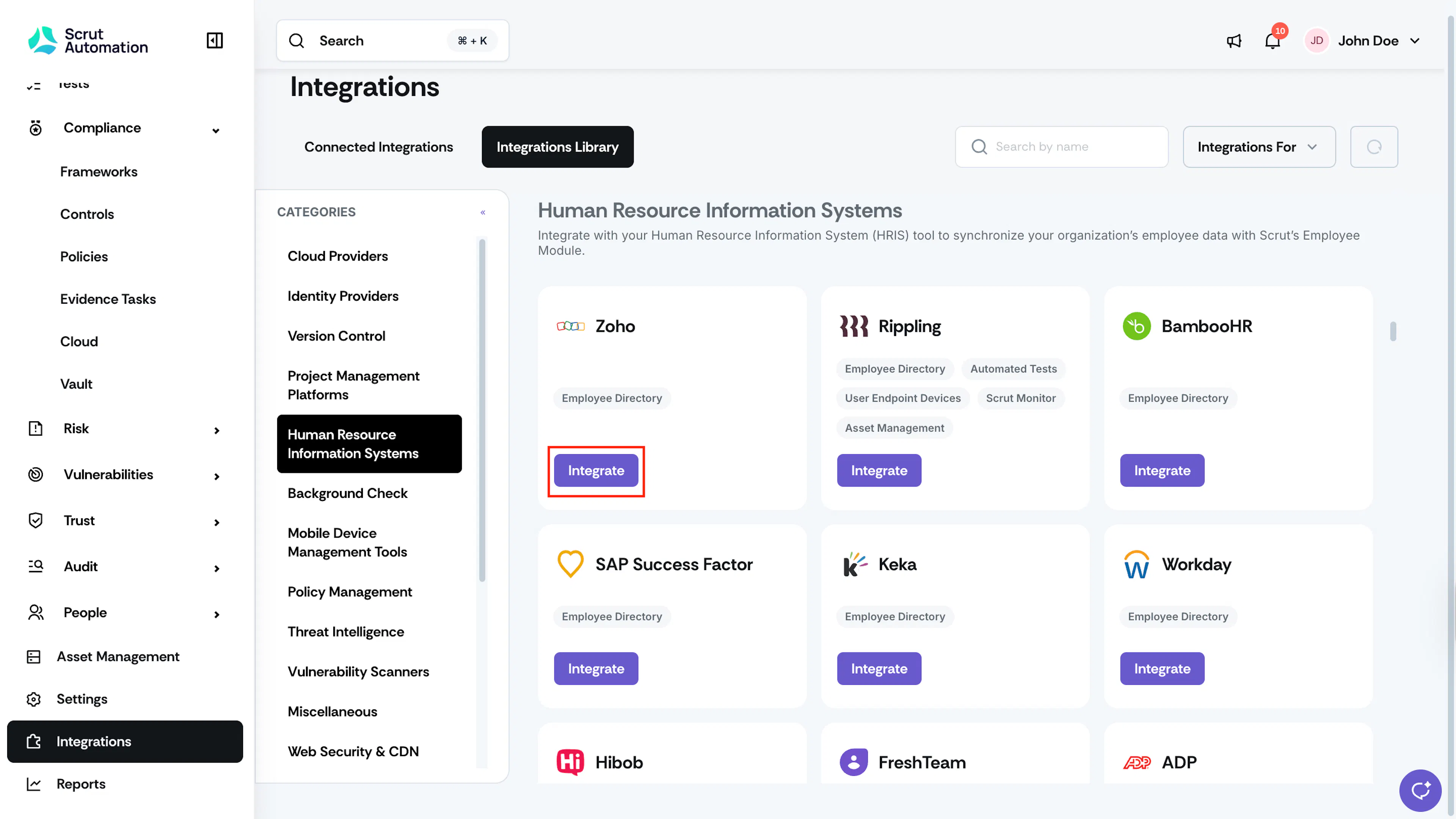
From the left navigation panel, select Integrations.
-
Navigate to the Integrations Library tab.
-
Scroll to the Human Resource Information Systems section and find Zoho.
-
Click Integrate.
-
Click Connect. You will be redirected to the Zoho login page.
-
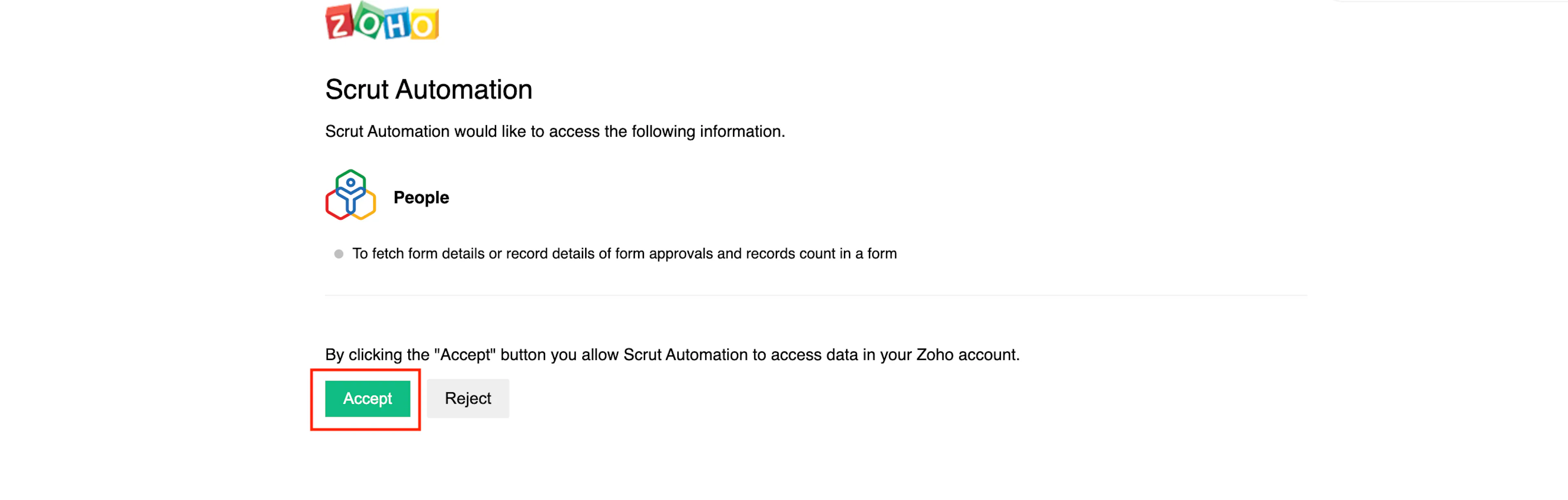
Sign in with your Zoho email address or mobile number.
-
On the permissions screen, click Accept to authorize Scrut Automation to access data in your Zoho account.
Step 2: Confirm the Connection
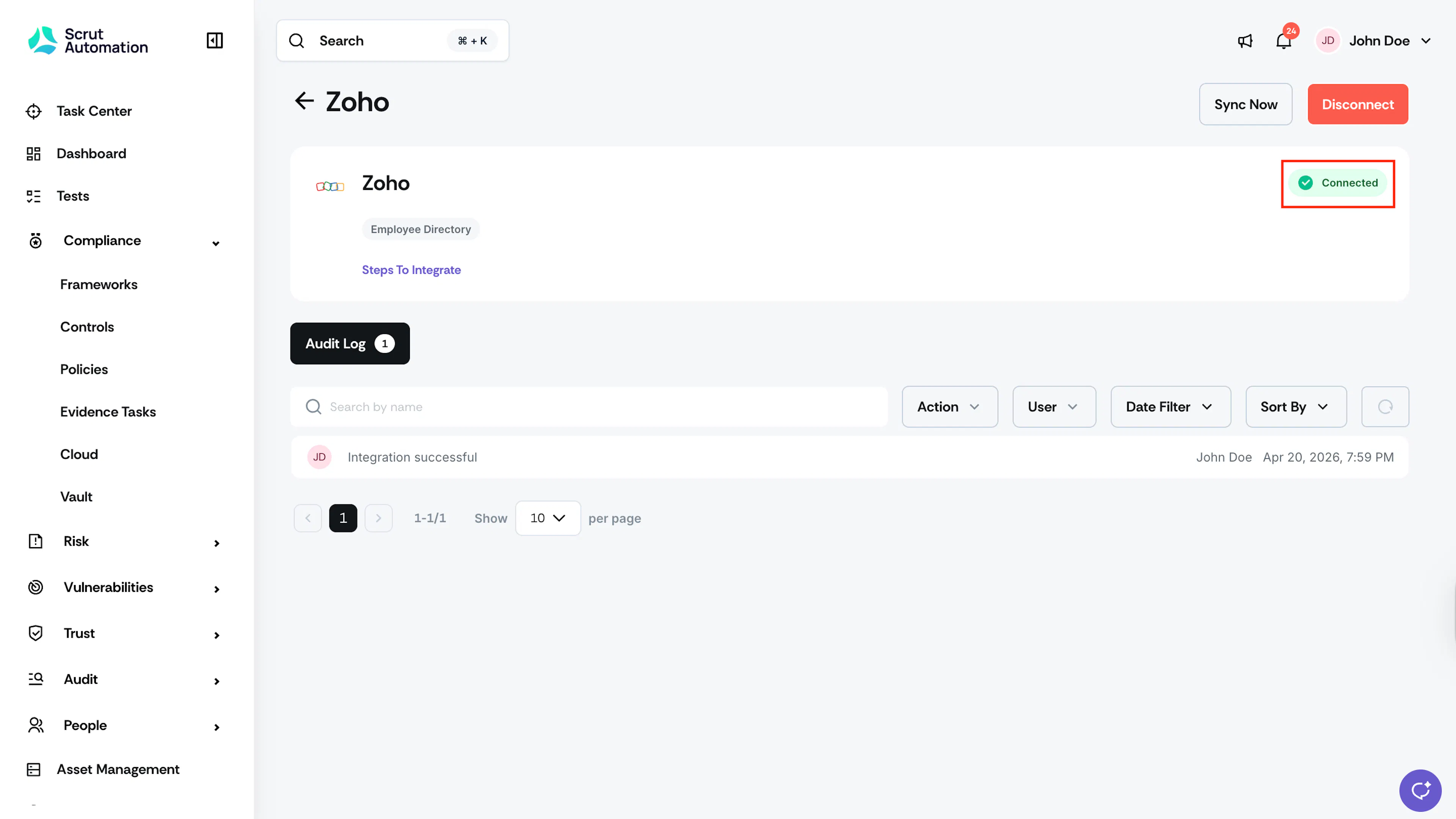
- After authorization, Zoho redirects you back to the Integrations page in Scrut.
- Zoho now appears with a Connected status.
Heads Up!
The user completing the integration must have an Owner role in Zoho People. Integrations completed by users without Owner access will not authorize successfully.
What Happens Next?
Initial data sync
Employee data begins syncing immediately after the integration is connected. To monitor sync activity, go to the Zoho People integration settings page and open the Audit Log tab.
Review synced data
Once the initial sync completes, verify that data has landed correctly in Scrut:
- Navigate to People → Employees to view synced employee records, including name, email, joining date, department, role, and reporting manager.
- Leave data is associated with each employee's record and updates with each sync cycle.
Common Errors and Troubleshooting
Integration fails to connect
Possible solutions:
- Confirm that the Zoho account used during setup has Owner-level access in Zoho People. Integration attempts by non-Owner accounts will not complete successfully.
- Try disconnecting and reconnecting the integration using an account with the correct role.
Employee data not appearing in Scrut
Possible solutions:
- Allow a few minutes after the initial connection before checking the People module. The first sync may take some time depending on the number of employee records.
- Trigger a manual sync by clicking the three-dot menu on the Zoho People integration card and selecting Sync Now.
- Check the Audit Log for any sync errors that may indicate a data retrieval issue.
Certain Fields show as blank
Cause: Certain fields are conditional and will only sync if they are populated in Zoho People.
Possible solutions:
- Confirm that Department, Role, Reporting Manager Email, and Exit Date are filled in for the relevant employees in Zoho People.
- Trigger a manual sync after updating the records in Zoho.
Employee records not updating after changes in Zoho
Possible solutions:
- Incremental updates sync every 24 hours. If you need updated records sooner, trigger a manual sync from the integration settings page.
- Confirm the changes were saved correctly in Zoho People before syncing.
FAQs
Reach out to support@scrut.io or contact your CSM for further assistance.