

Integrate greytHR
The Scrut-greytHR integration fetches employee data from your greytHR account and sends it to Scrut. Upon completing the integration, Scrut will display the fetched data in:
Prerequisites
Before starting the integration, ensure you have the following permissions for your greytHR account:
-
Account Information: Login credentials
-
Access Level: Admin access to greytHR
-
Permissions: Scrut requires read access to the following data:
- Read: user_profile
- Read: employment_info
- Read: manager_info (wherever applicable)
- Read: leave_data
Pro Tip:
We recommend logging into your greytHR account before starting the integration to avoid doing so later.
How To Integrate Scrut With greytHR
Step 1: Generate greytHR API Credentials
- Log in to your greytHR account and navigate to Settings → My Account → API Users.
- On the API Users page, click Create API User.
- In the Add API User pop-up, enter the User Name, like Scrut Automation.
- [Optional] In the Description text box, you can enter a short description, such as “Integration to connect with Scrut Automation.”
- In the Select Roles section, you can select the roles of the API user. You can select multiple roles.
- Click Next.
- A pop-up appears with the User Name and Password for the created API user.
Heads Up!
- Make sure to save this information as it’s crucial for integrating with Scrut. Copy and paste the API User Name and Key in a safe location. You’ll need to enter it in Scrut in Step 2.
- For detailed instructions, refer to greytHR’s documentation.
Step 2: Connect Your greytHR Account in Scrut
-
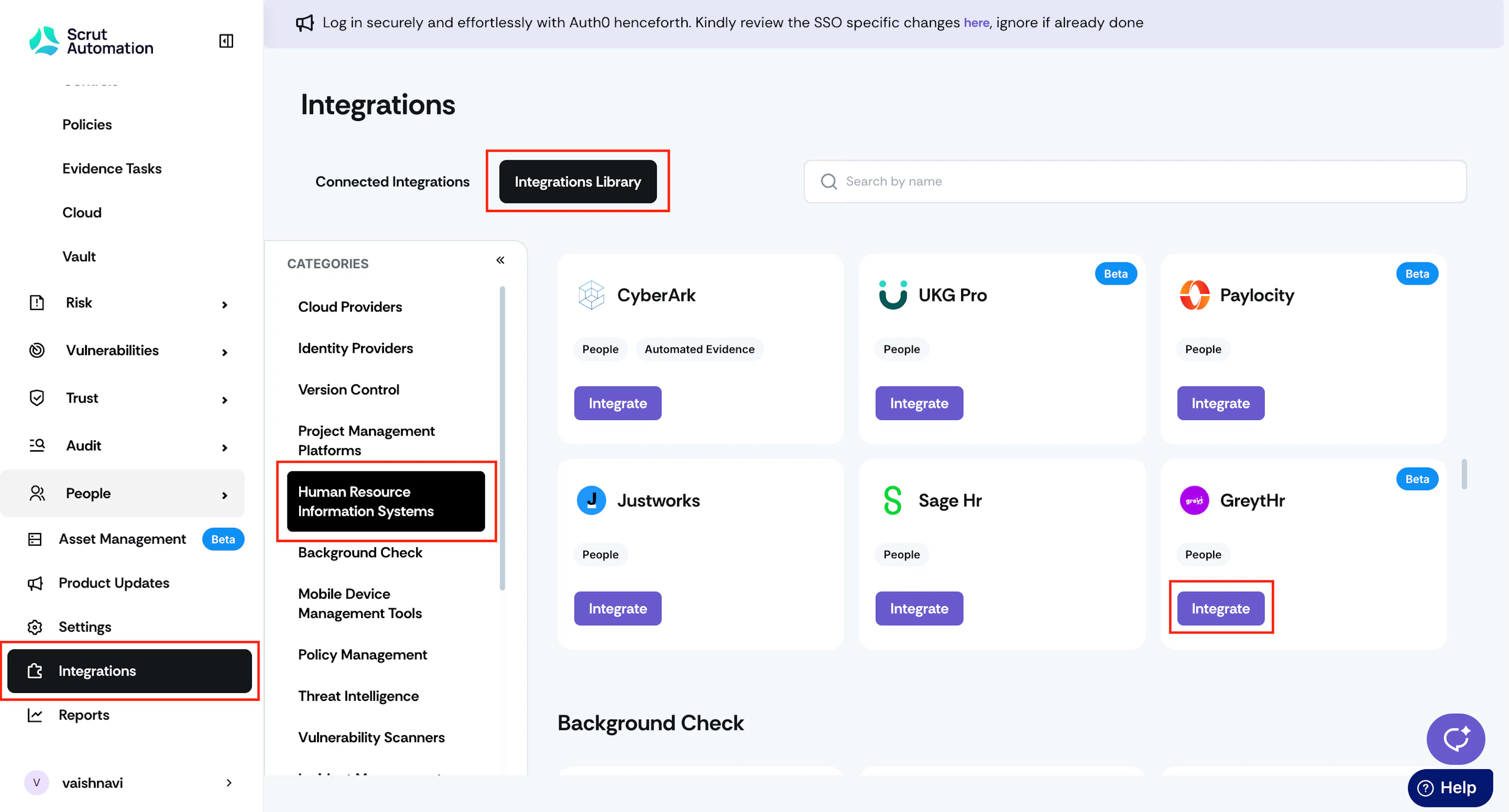
Sign in to your Scrut account and click Integrations on the left navigation panel.
-
Navigate to the Integrations Library tab and select Human Resource Information Systems from the Categories section.
-
Scroll to the greytHR tile and click Integrate.
-
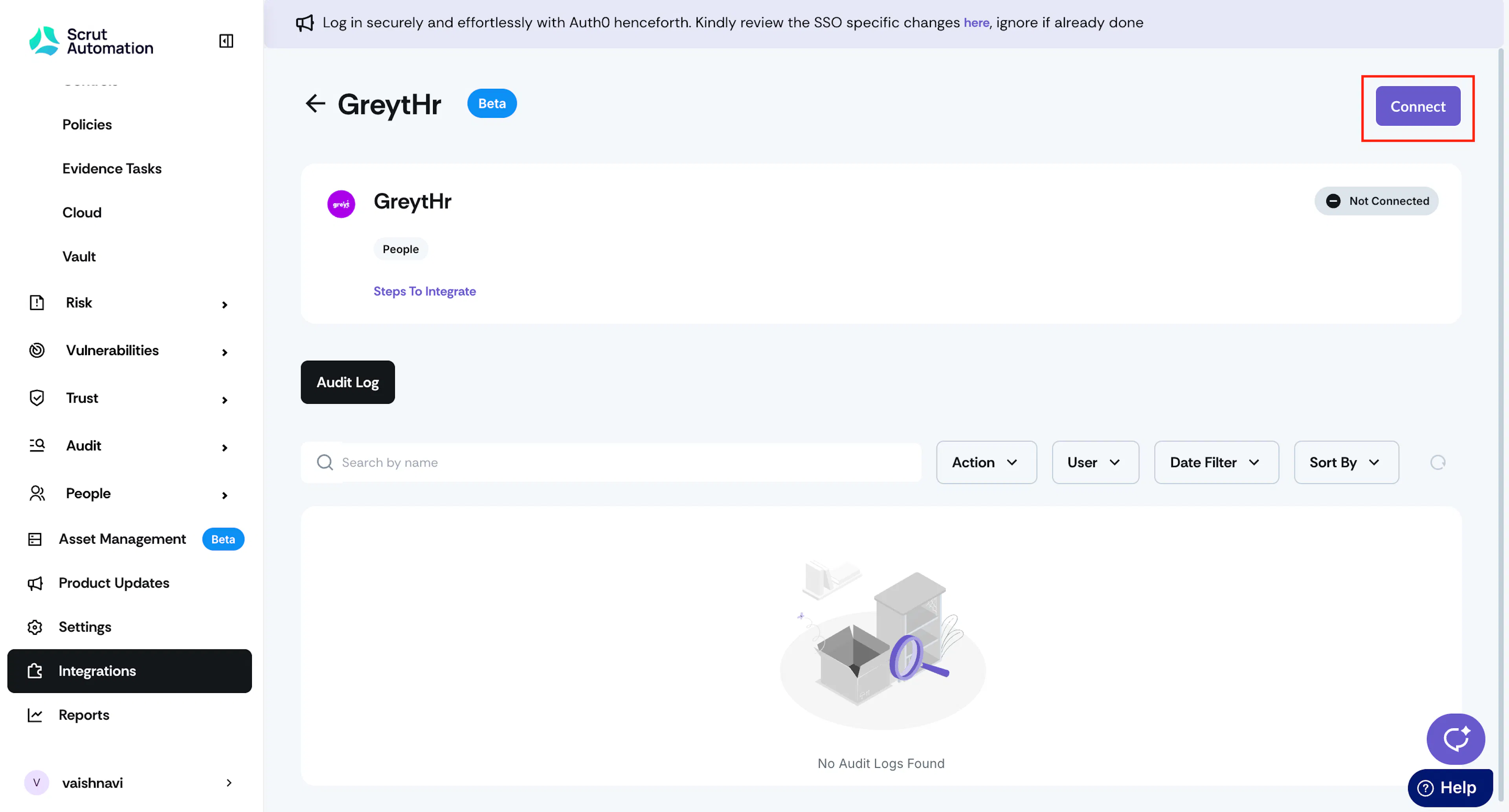
On the greytHR integrations page, click the Connect button on the top right.
-
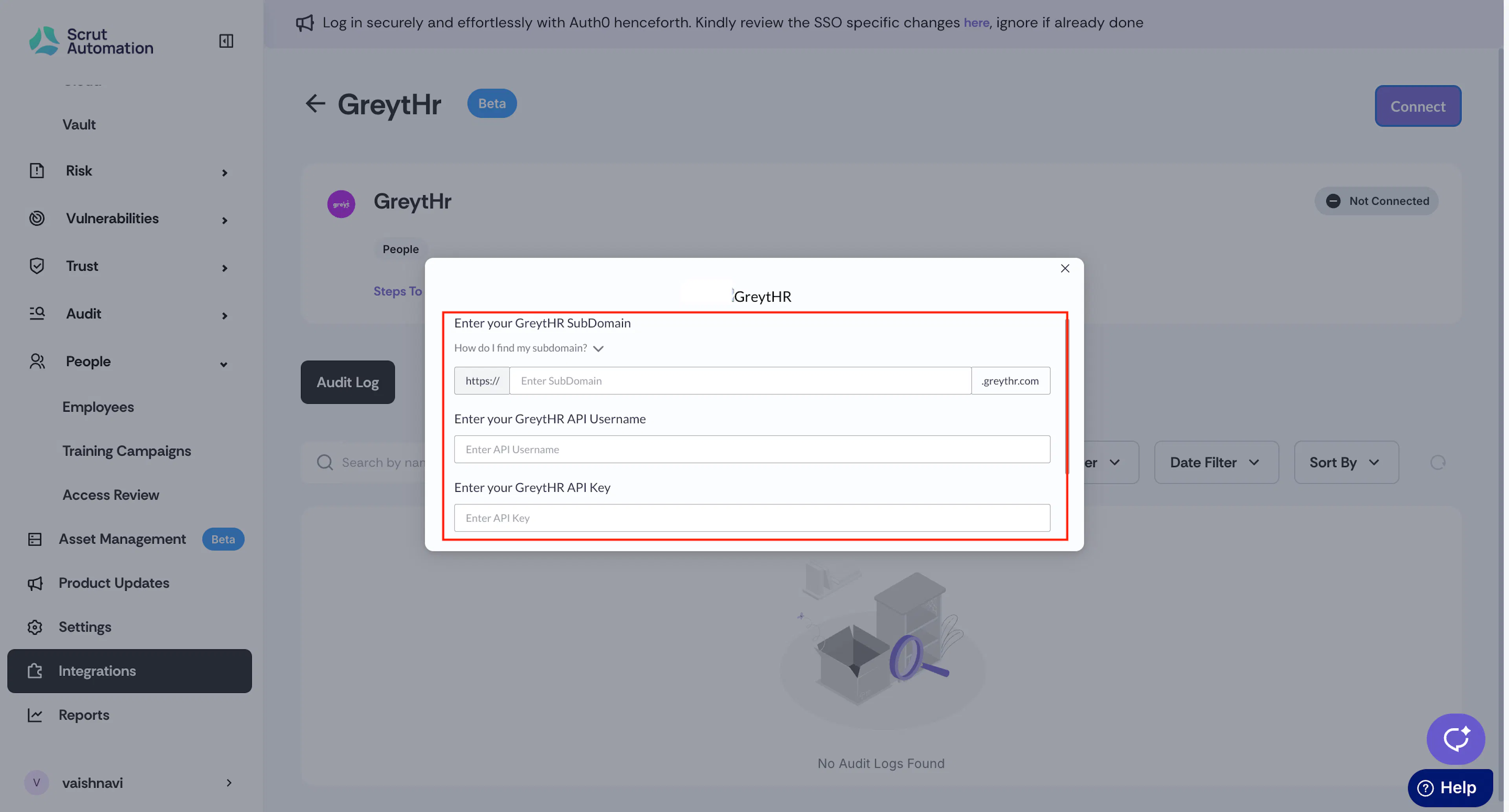
Enter your greytHR subdomain.
Note: For example, if you sign in at acme.greythr.com, acme is your subdomain. Do not enter the full “acme.greythr.com.”
-
Copy and paste the greytHR API Username and API Key that you generated in Step 1.
-
Click Submit.
Watch out for the “Connected Successfully” notification message and the Connected status tag.
Synchronization Details
- Initial Sync: Upon completing the integration, Scrut will immediately sync employee data from your greytHR account.
- Recurring Sync: After this, Scrut performs the sync every 24 hours to fetch incremental data.
- Manual Sync: You can also initiate a manual sync by clicking the Sync Now button on the greytHR integrations page.
Data Fetched from greytHR
Scrut fetches the following data for all your employees from greytHR:
- Employee name
- Email address
- Joining date
- Exit date (if applicable)
- Department and Role (if available)
- Email of reporting manager (if available)
- Leave data (start date, end date, and status)
Viewing greytHR Data in Scrut
To view greytHR data in Scrut:
- Go to People → Employees → All Employees.
- Click on any employee to view their details, including name, email, joining date, reporting manager, and more.
If you encounter any difficulties connecting your greytHR account with Scrut, please contact our support team at support@scrut.io for assistance.