

Integrate Keka
The Scrut-Keka integration fetches employee data from your Keka account and syncs it with Scrut. In this guide, we’ll walk you through the step-by-step process of connecting your Keka account with Scrut.
Prerequisites
Before starting the integration, ensure you have the following access and permissions:
Account Requirements
- You must be a Scrut Admin (or Contributor with access to the Integration module)
- You must be a Global Admin or IT Admin for your organization’s Keka account
Permissions
Scrut requires read access to the following data:
- Read: user_profile
- Read: employment_info
- Read: manager_info (wherever applicable)
- Read: leave_data
Pro Tip!
We recommend logging into your organization’s Keka account before starting the integration to avoid doing so later.
How To Integrate Keka With Scrut
Step 1: Fetch the API Key, Client ID, and Client Secret from Keka
-
Sign in to your organization’s Keka account, and click the gear icon next to your organization's name.
-
Click Integrations and Automation on the left panel, then go to the API Access tab.
-
Copy the Client ID and Client Secret displayed on the screen. Save these in a safe location, as they won’t be shown again.
-
Click the Create Key button.
-
In the Create API Key window, enter the key Name (such as Scrut) and select the Expiry Date.
-
Copy the Key and save it in a safe location, as it will not be visible again once you close this window.
-
In the Select Scope section, select:
- Employee And Org Information
- Leave
-
Click Save.
Step 2: Go To Integrations in Scrut
-
Sign in to your Scrut account and click Integrations on the left navigation panel.
-
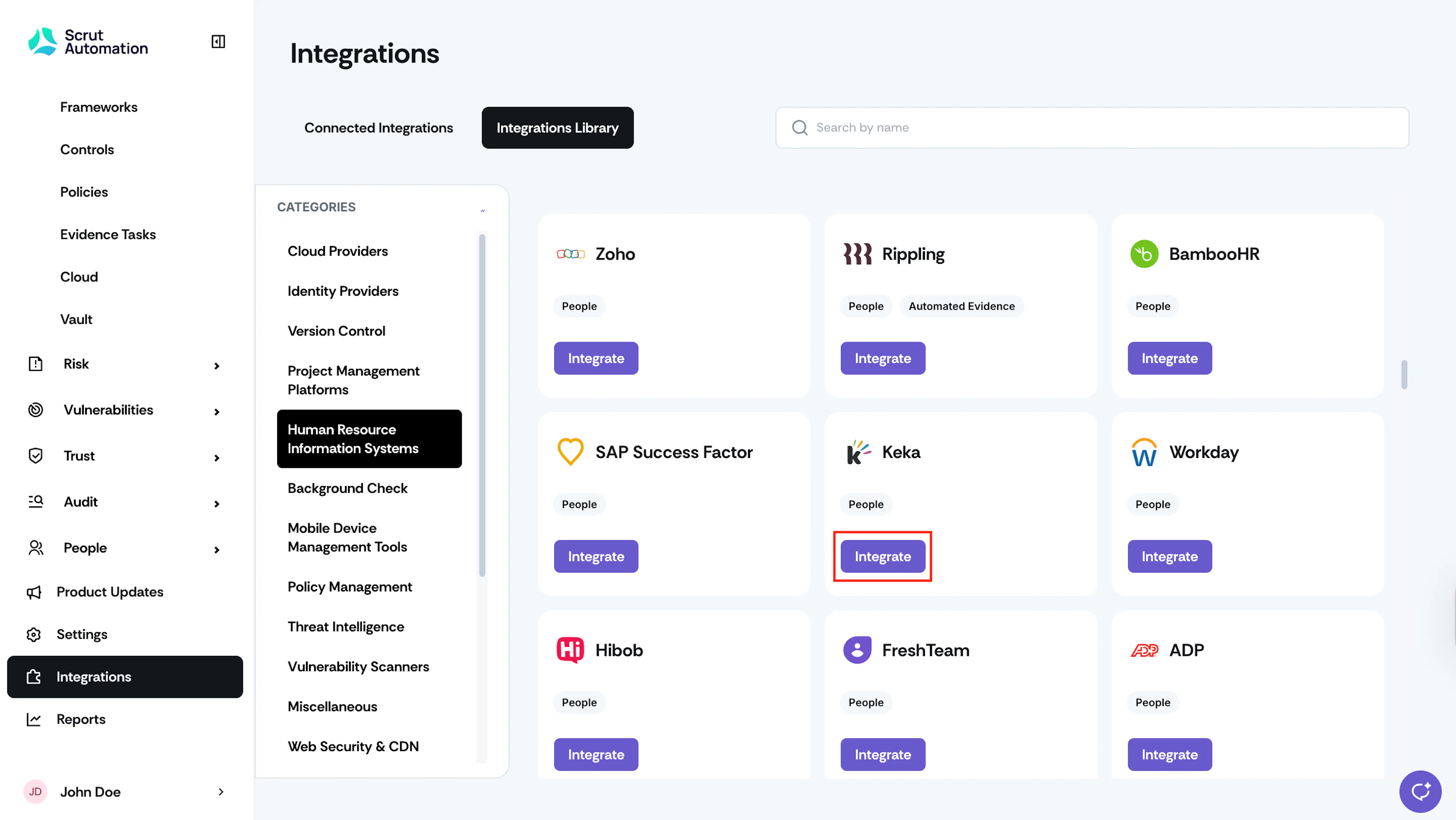
Navigate to the Integrations Library tab and select Human Resource Information Systems from the Categories section.
-
Scroll to the Keka tile and click Integrate.
-
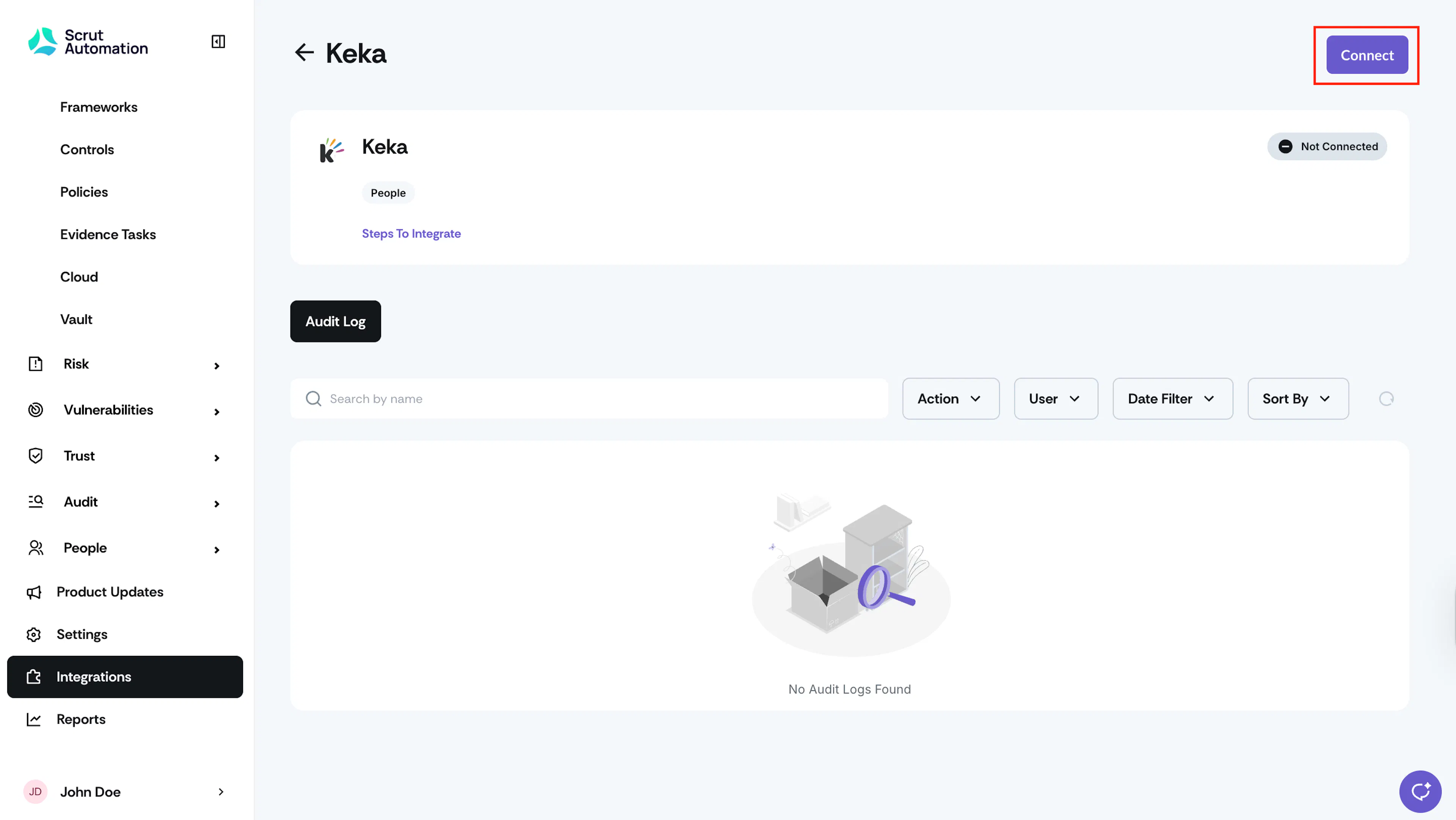
Click the Connect button at the top right of the Keka integration page.
-
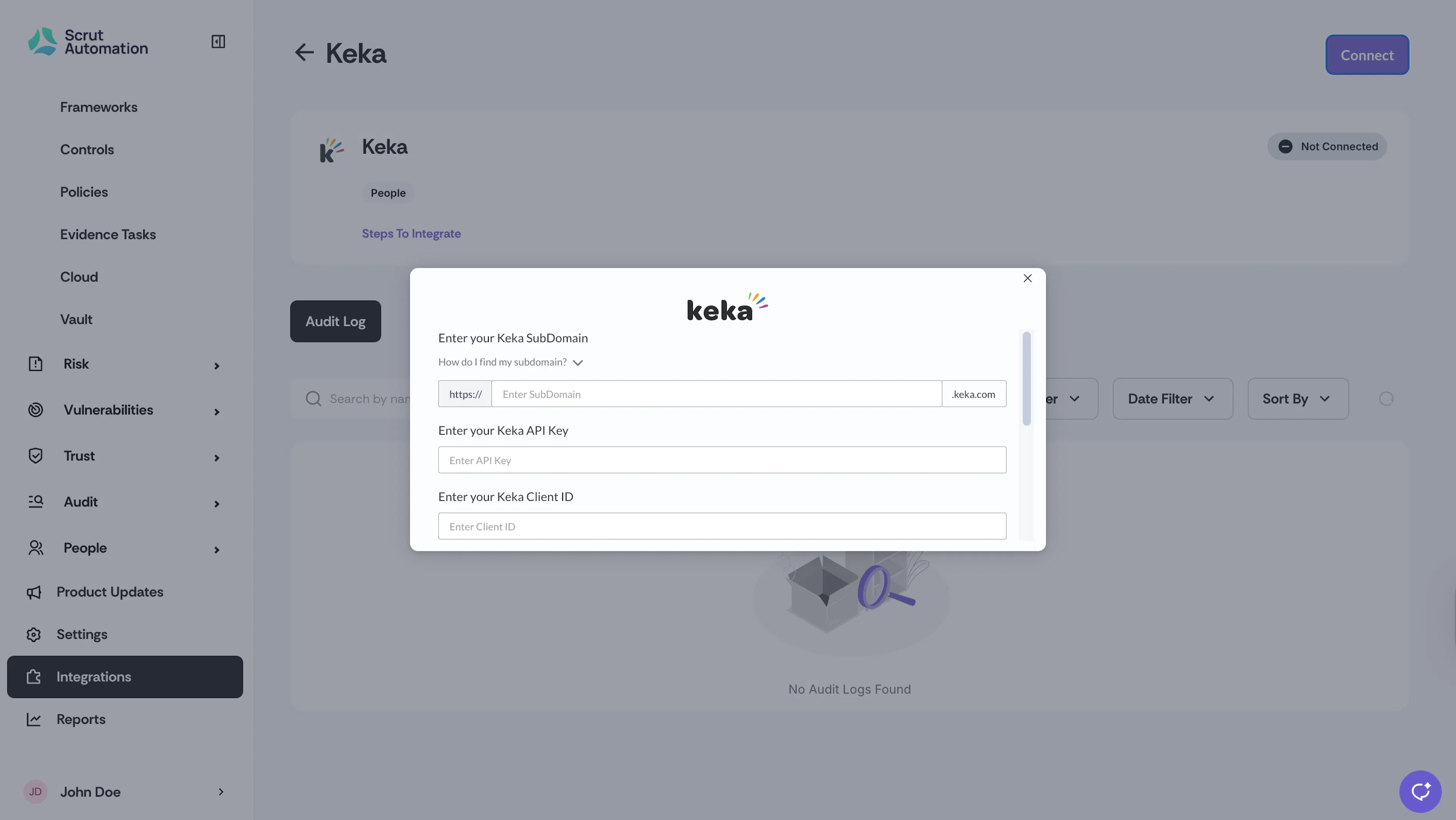
In the Subdomain field, enter the subdomain for your Keka account. For example, if you sign in at acme.keka.com, enter acme in the subdomain field. Do NOT enter the full URL acme.keka.com.
-
Paste the Keka API key, Client ID and Client Secret that you obtained in the previous step into the respective fields.
-
Select your Keka application environment.
-
Click Submit.
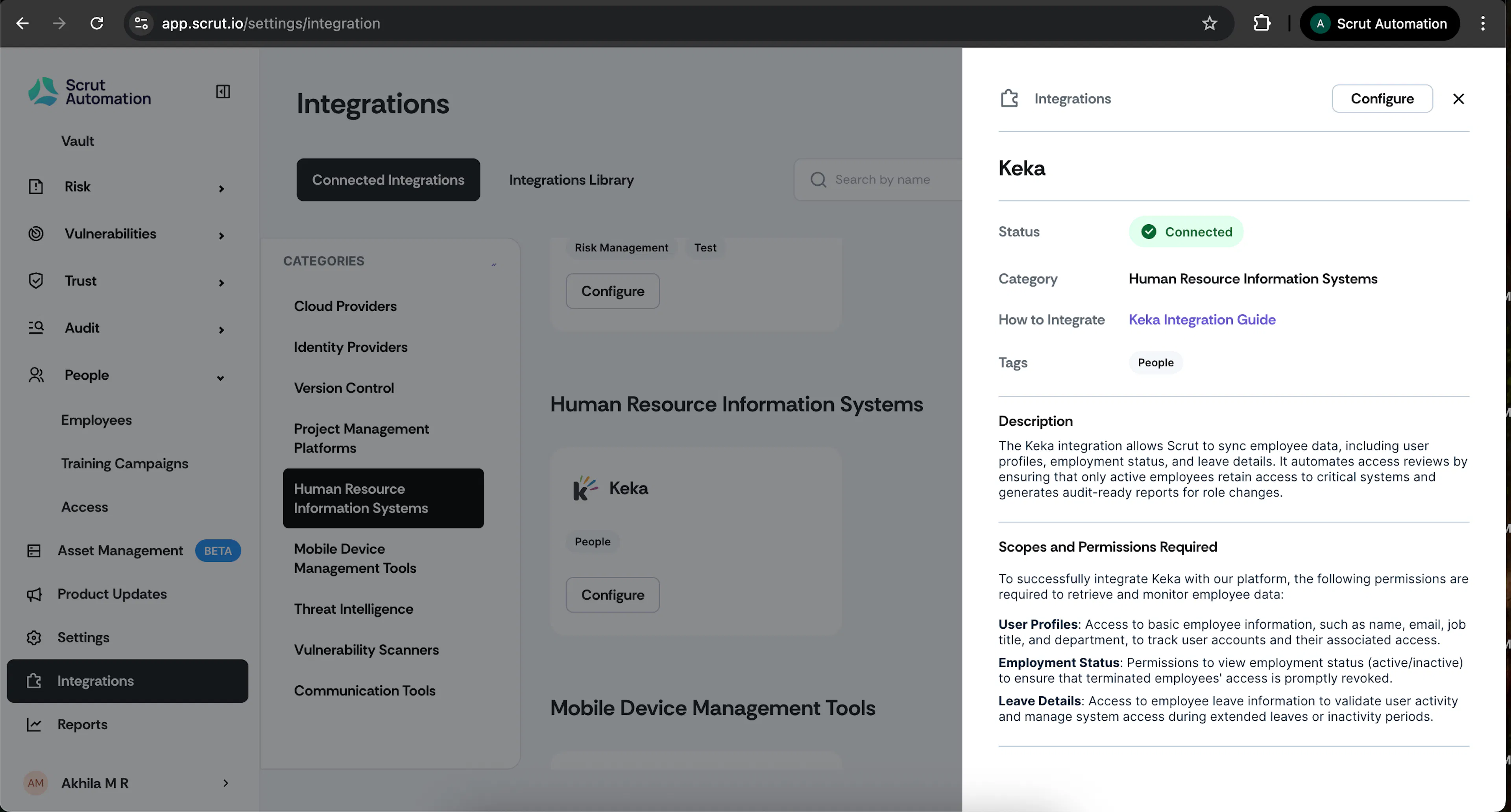
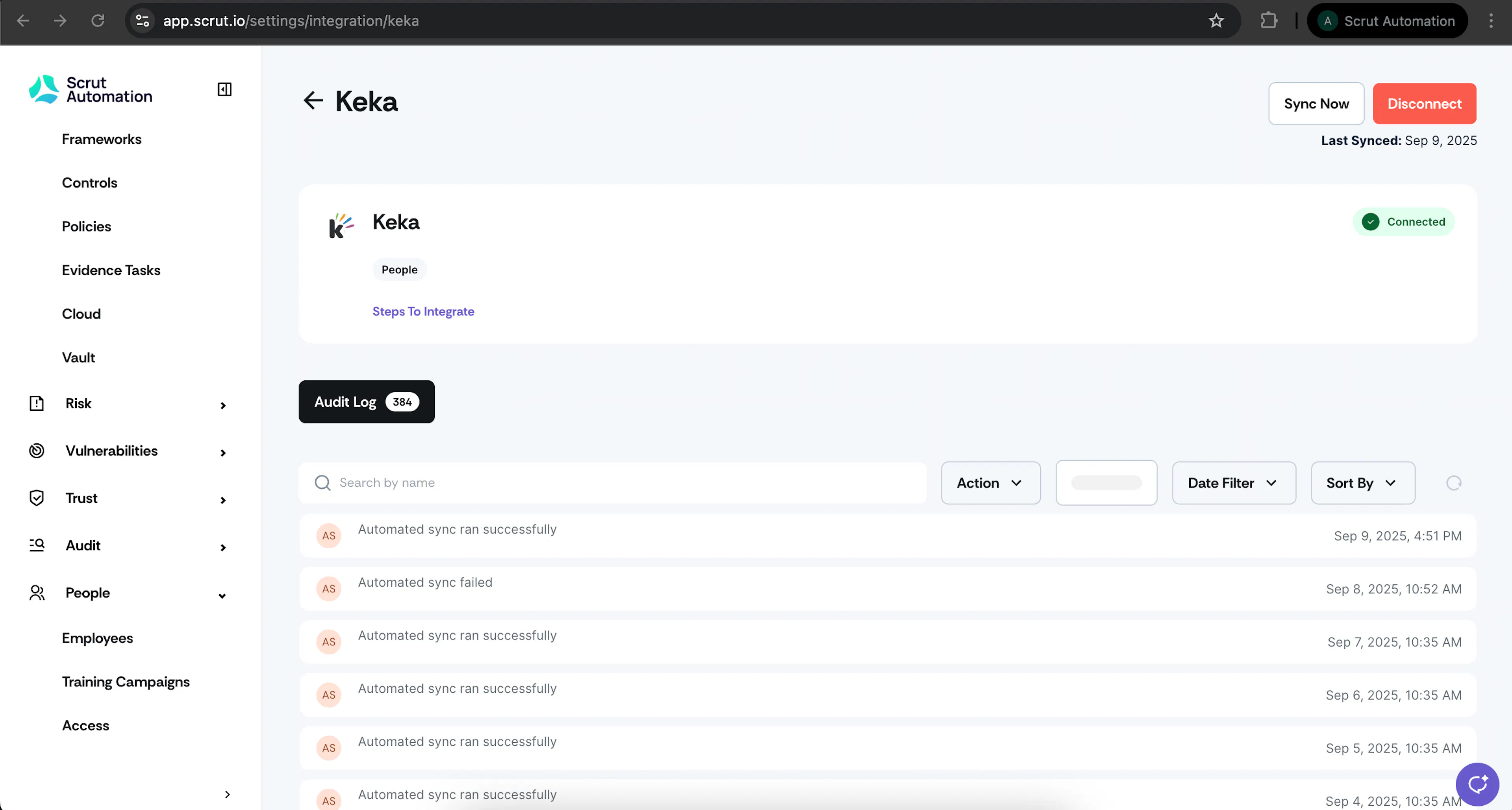
On successful integration, you’ll see the Connected flag.
Synchronization Details
-
Initial Sync: Upon completing the integration, Scrut will begin syncing employee data from your Keka account. Refer to the Audit Log to check sync status.
-
Recurring Sync: After this, Scrut performs the sync every 24 hours to fetch incremental data.
-
Manual Sync: You can also initiate a manual sync by clicking the Sync Now button on the Keka integrations page.
Data Fetched from Keka
Scrut fetches the following data for all your employees from Keka:
- Employee name
- Email address
- Joining date
- Exit date (if applicable)
- Department and Role (if available)
- Email of reporting manager (if available)
- Leave data (start date, end date, and status)
Viewing Keka Data in Scrut
To view Keka data in Scrut:
- Go to People → Employees → All Employees.
- Click on any employee to view their details, including name, email, joining date, reporting manager, and more.
If you encounter any difficulties connecting your Keka account with Scrut, please contact our support team at support@scrut.io for assistance.