

Integrate Breathe HR
Connecting your Breathe HR account with Scrut lets you sync your employee directory into Scrut's People module to support compliance workflows.
What This Integration Does in Scrut
- Employee Directory: Syncs employee and group data into Scrut's People module. Employees can then access the Employee Portal for training, policy acceptance, and device-related activities.
Prerequisites
- An active Breathe HR account with administrator access
Permissions and Access Requirements
For Breathe HR
- Administrator role in Breathe HR to access the Configure section and enable the API
For Scrut
- Admin access to Scrut, or Contributor role with access to the Integrations module
Data Collected
-
Employee Name: First Name, Last Name
-
Email Address: Work Email
-
Date of Joining
-
Date of Exit (Populated only if applicable)
-
Department (Populated if available)
-
Role / Designation (Populated if available)
-
Reporting Manager Email: Manager's Work Email
-
Leave Data:
- Leave Start Date
- Leave End Date
- Leave Status
Sync Frequency
Data syncs automatically once every 24 hours. You can also trigger a manual sync at any time from the Breathe HR integration settings page in Scrut.
Integration Setup
Step 1: Generate Your API Key in Breathe HR
-
Log in to your Breathe HR account.
-
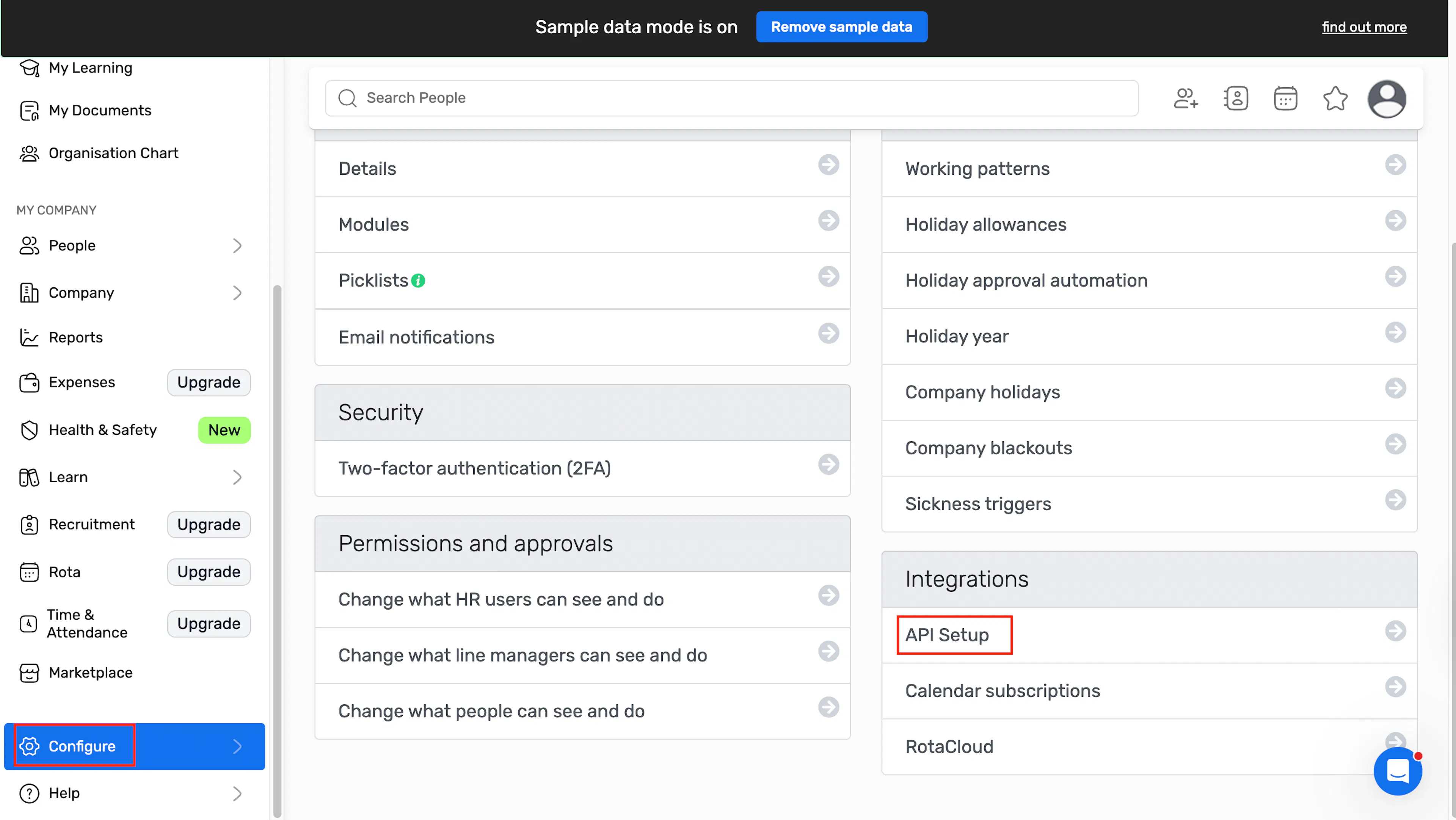
In the left navigation, click Configure → Settings.
-
Under the Integrations section, click API Setup.
-
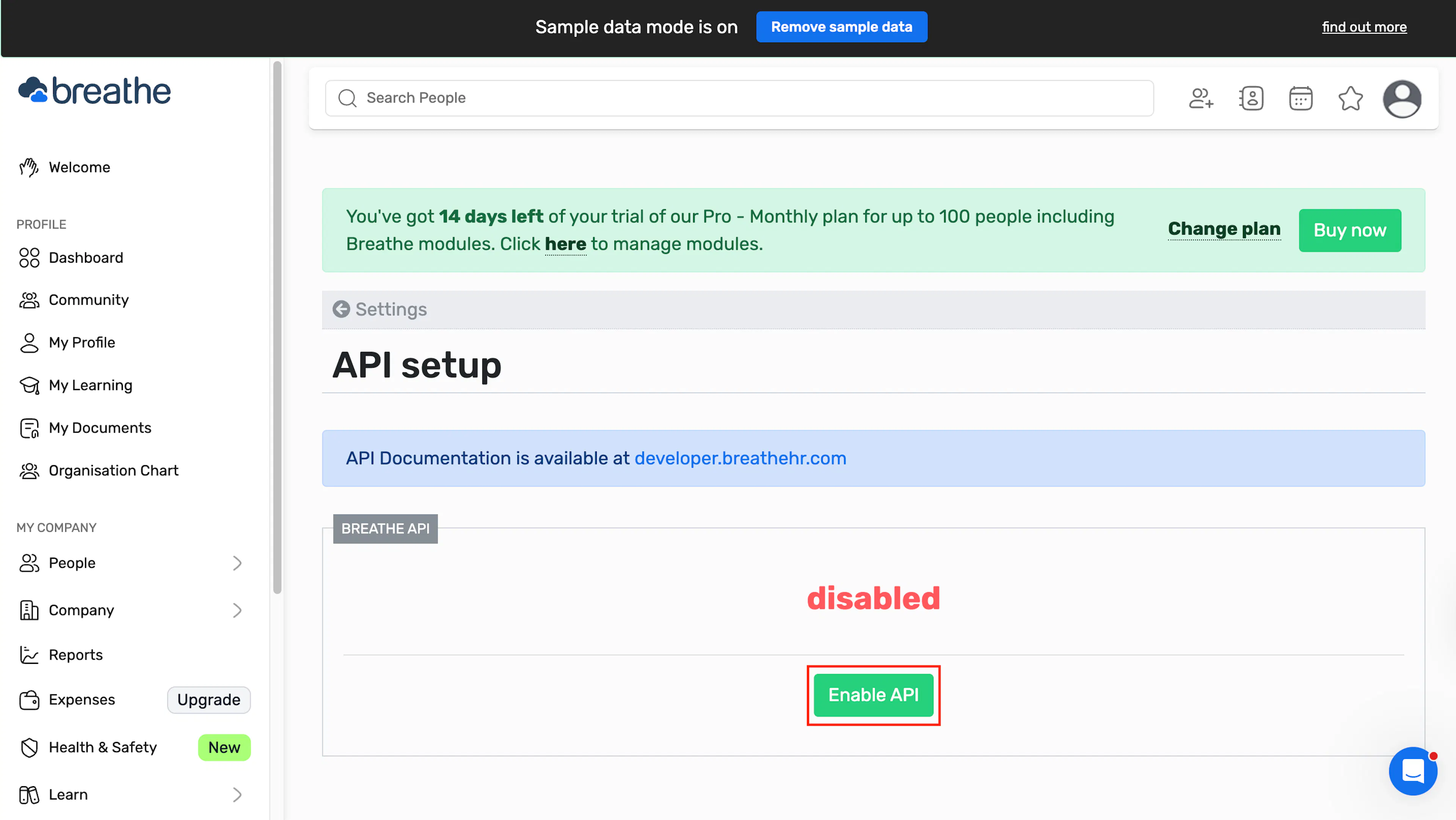
On the API Setup page, click Enable API.
-
A warning dialog appears, noting that sharing the API key grants access to sensitive employee information, including salary data and bank details. Select the I understand and want to continue checkbox, then click enable.
-
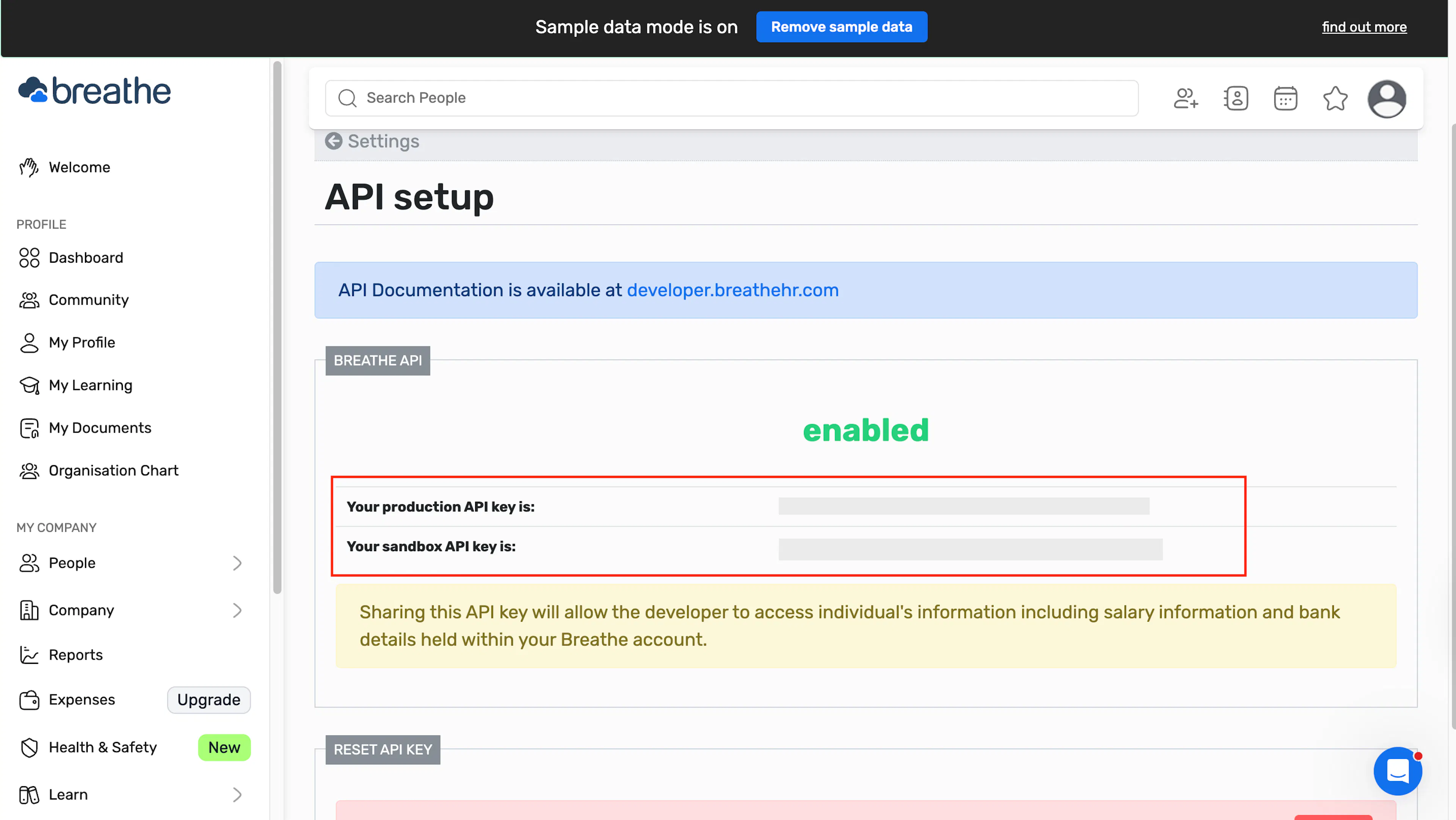
Your production API key and sandbox API key are now displayed on the API Setup page.
-
Copy your production API key. Keep this key secure.
Note:
Breathe HR API documentation is available at developer.breathe HR.com if you need additional context on the API.
Step 2: Connect Breathe HR in Scrut
-
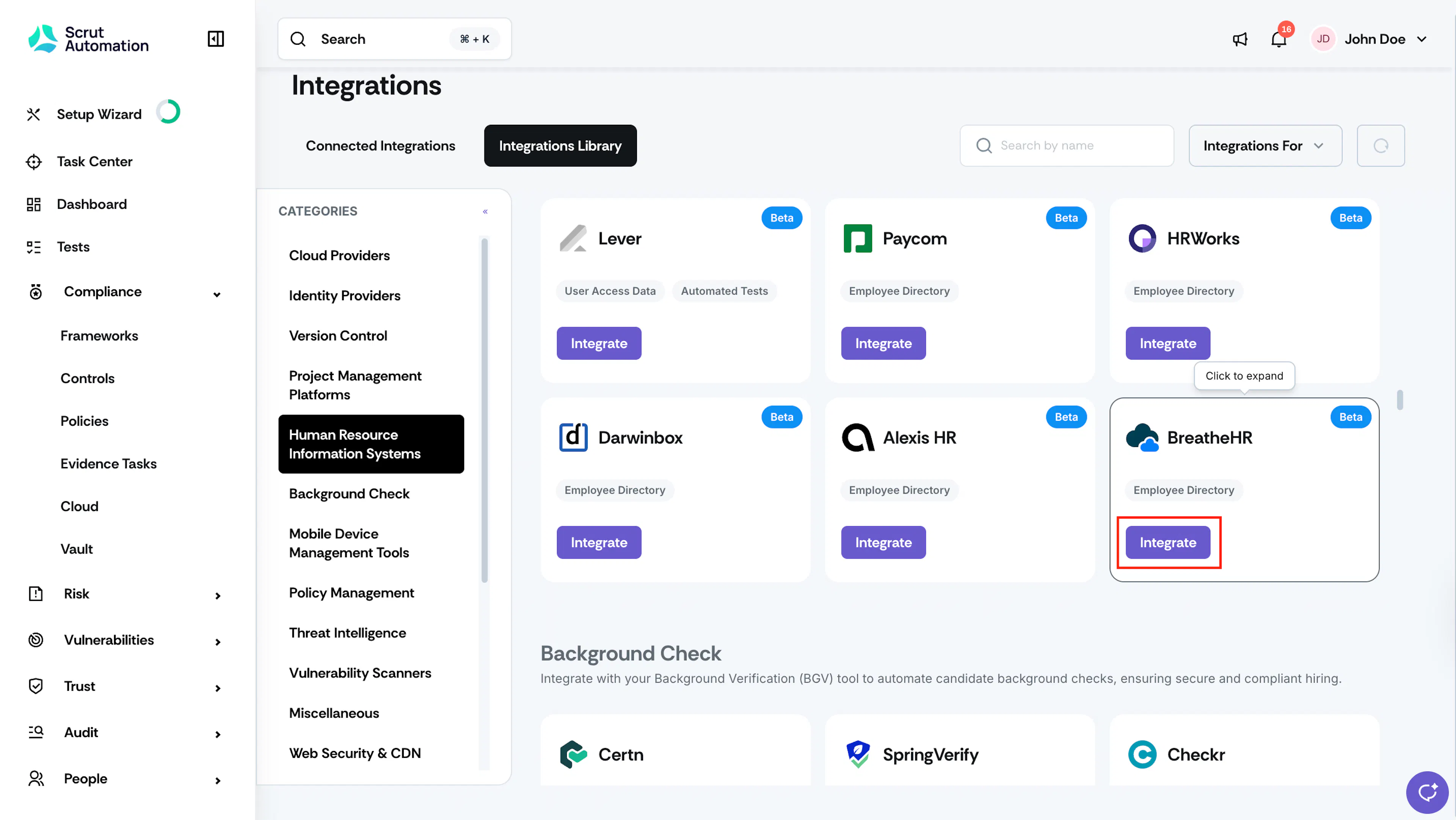
Log in to Scrut and go to Integrations in the left navigation.
-
Click the Integrations Library tab.
-
In the left panel, select Human Resource Information Systems.
-
Locate the Breathe HR card and click Integrate.
-
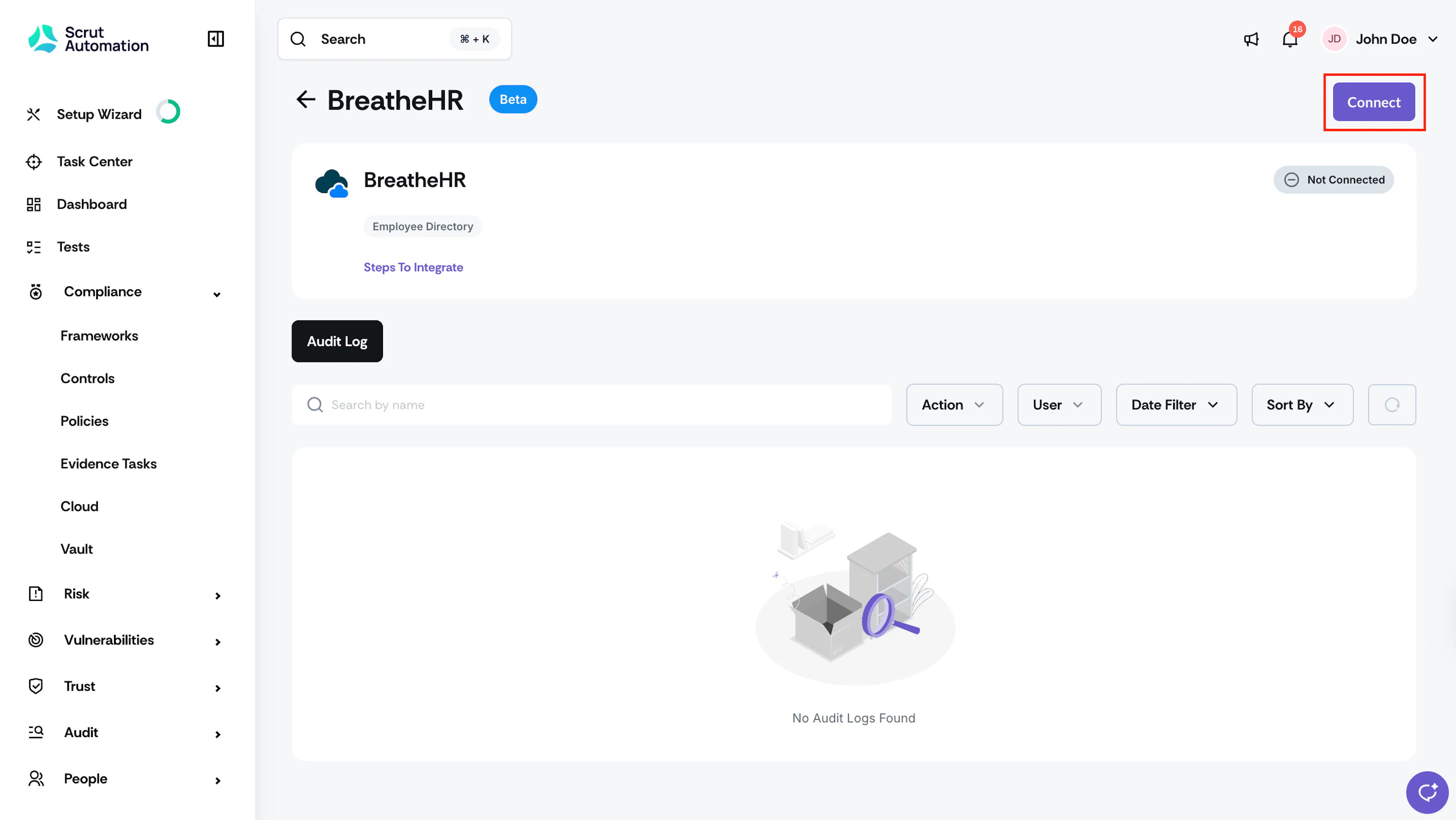
On the Breathe HR integration page, click Connect in the top-right corner.
-
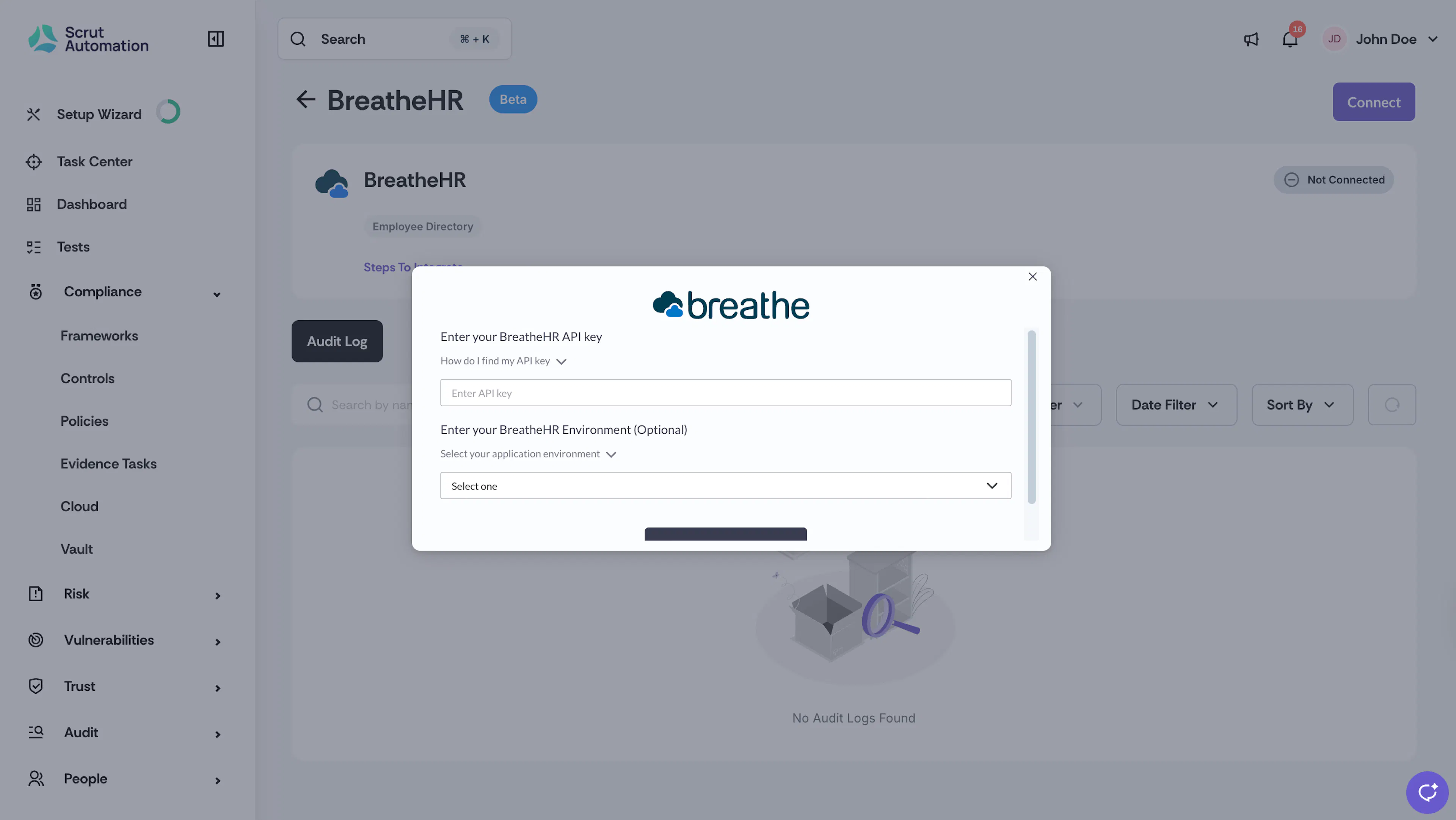
In the connection dialog, paste your Breathe HR API key into the Enter API key field.
-
Optionally, select your application environment from the Enter your Breathe HR Environment dropdown. Select Production if you are using your production API key.
-
Click Submit.
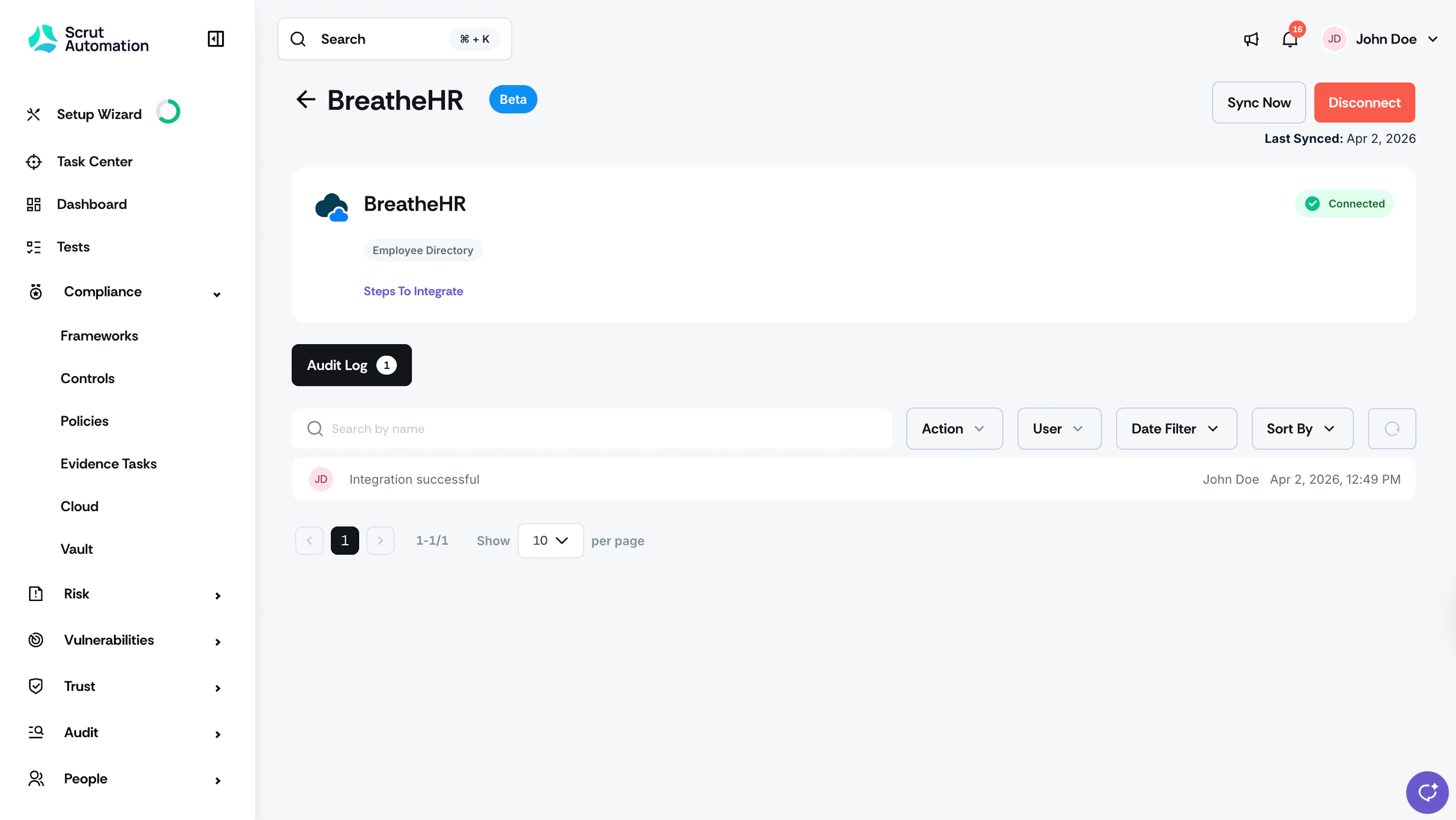
Scrut validates the API key and establishes the connection. The integration status updates to Connected.
What Happens Next?
Initial data sync
After a successful connection, Scrut begins the initial sync automatically. You can monitor sync activity from the Audit Log tab on the Breathe HR integration page.
Review synced data
Navigate to People → Employees to view the employee records synced from Breathe HR. Verify that names, email addresses, departments, and job titles are populated correctly.
Common Errors and Troubleshooting
Invalid API Key
Cause: The API key entered in Scrut does not match the active key in Breathe HR, or the key was reset after the connection was established. Possible solutions:
- Return to Configure → API Setup in Breathe HR and verify that the API is still enabled.
- Copy the production API key again and re-enter it in Scrut by disconnecting and reconnecting the integration.
API not enabled in Breathe HR
Cause: The Breathe HR API is disabled, so Scrut cannot authenticate.
Solution:
- Log in to Breathe HR, go to Configure → API Setup, and confirm the API status shows "enabled."
- If it shows "disabled," click Enable API and complete the confirmation step before retrying the connection in Scrut.
Employee data not appearing in Scrut
Possible solutions:
- Check the Audit Log on the Breathe HR integration page in Scrut to confirm the sync ran successfully.
- Trigger a manual sync by clicking Sync Now on the integration page and allow a few minutes for data to populate.
- Confirm the affected employees have an active status and a valid work email address in Breathe HR, as records without email addresses may not sync.
Wrong environment connected
Possible solutions:
- If you connected using the sandbox API key but intended to use production, disconnect the integration and reconnect using the production API key with the Production environment selected.
Reach out to support@scrut.io or contact your CSM for further assistance.