

Integrate Darwinbox
Connecting Darwinbox with Scrut lets you sync employee, organizational, and HR data into Scrut's People module to support compliance workflows.
What This Integration Does in Scrut
- Employee Directory: Syncs employee and group data into Scrut's People module. Employees can then access the Employee Portal for training, policy acceptance, and device-related activities.
Prerequisites
- An active Darwinbox account
- Darwinbox Studio (This needs to be enabled by the Darwinbox team. Contact Darwinbox support to request this)
- The following credentials generated in Darwinbox Studio: Client ID, Client Secret, Authorization Code, Dataset Key, and your Darwinbox account URL
Permissions and Access Requirements
For Darwinbox
- Darwinbox Studio must be enabled on your Darwinbox account. Contact your Darwinbox account team or support to get this enabled.
- The Studio User generating credentials must have permissions to create and manage API clients in Darwinbox Studio.
- All APIs used by Scrut must be enabled in Darwinbox Studio and explicitly linked to the Client ID and Client Secret generated for this integration.
For Scrut
- Admin access to Scrut, or a Contributor role with access to the Integration module.
Data Collected
-
Employee Name: first_name, last_name
-
Email Address: company_email_id
-
Date of Joining: date_of_joining
-
Date of Exit: date_of_exit (Populated only if applicable)
-
Department: department_name (Populated if available)
-
Role / Designation: designation_name (Populated if available)
-
Reporting Manager Email: direct_manager_employee_id
-
Leave Data:
- Leave Start Date
- Leave End Date
- Leave Status
Sync Frequency
Data is synced automatically once every 24 hours. You can also manually trigger a sync from the integration settings page.
Integration Setup
Important:
Contact the Darwinbox team to enable Darwinbox Studio before you can generate credentials. The Studio User account used to generate credentials must have the required permissions in Darwinbox Studio.
Step 1: Generate Credentials and Enable APIs in Darwinbox Studio
-
Contact your Darwinbox account team or Darwinbox support and request that Darwinbox Studio be enabled for your account.
-
Log in to Darwinbox Studio using your Studio User credentials.
-
Navigate to the API client management section and create a new API client to generate your Client ID and Client Secret.
-
Generate an Authorization Code for the API client.
-
Obtain the Dataset Key, which is required to access employee data via the Fetch Employee Data API.
-
Enable each of the following APIs in Darwinbox Studio:
- Fetch Employee Data (Full Load): /masterapi/employee
- Fetch Leave Balance: /leavesactionapi/leavebalance
- Fetch Leave Transactions API: /leavesactionapi/leaveActionTakenLeaves
-
Link all enabled APIs to the Client ID and Client Secret you generated.
-
Note down the following values: you will need them in Scrut:
- Darwinbox URL (for example, yourcompany.darwinbox.in or yourcompany.darwinbox.io)
- Client ID: Unique identifier assigned to the client (Studio User) or application for authentication purposes
- Client Secret: Confidential key used to authenticate the client (Studio User) or application securely
- Authorization Code: Code used to retrieve access and refresh tokens
- Dataset Key: Allows access to specific sets of employee data
Step 2: Connect Darwinbox in Scrut
-
Log in to Scrut and navigate to Integrations.
-
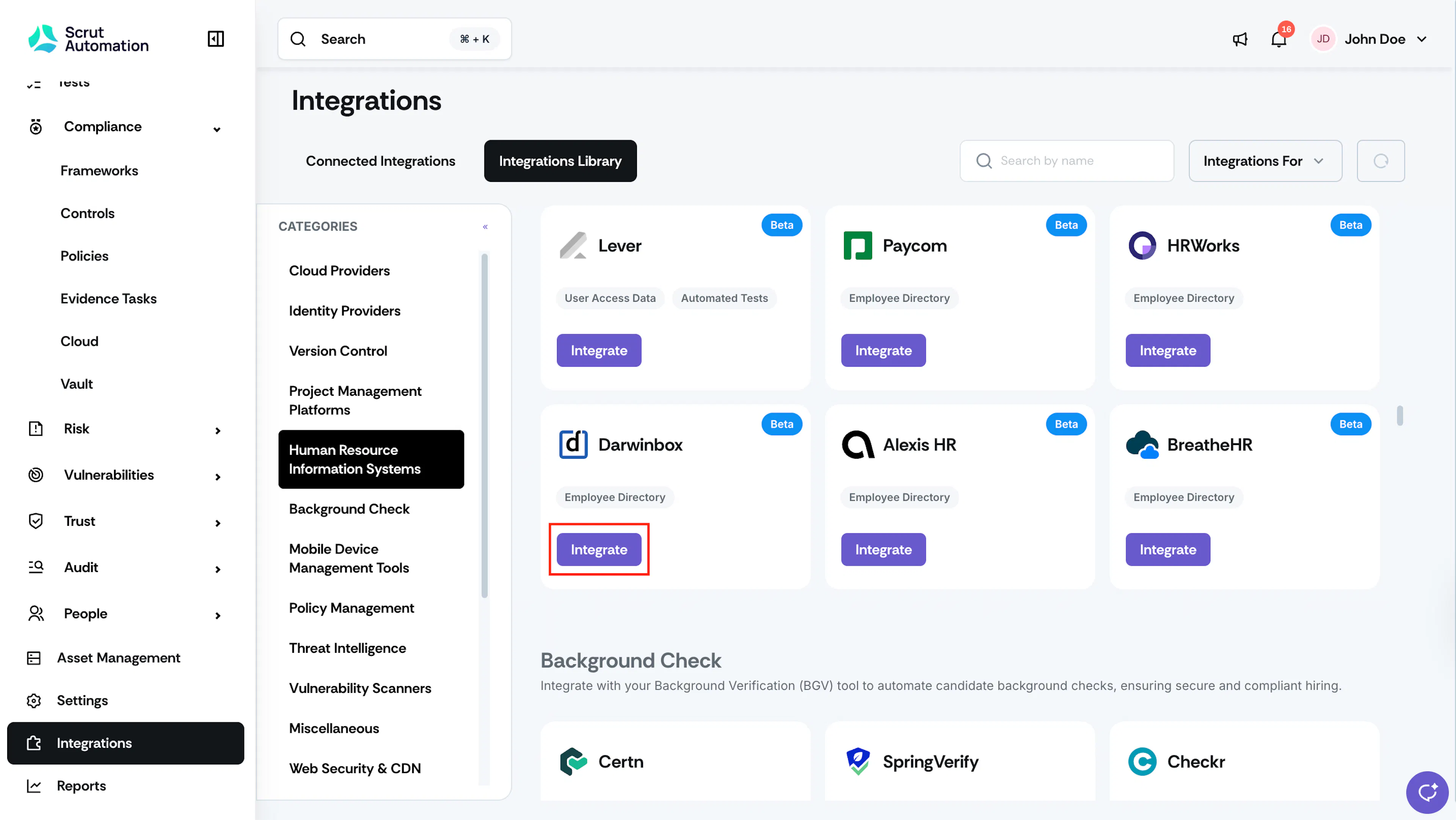
Scroll to Categories → Human Resource Information Systems and search for Darwinbox and click Integrate.
-
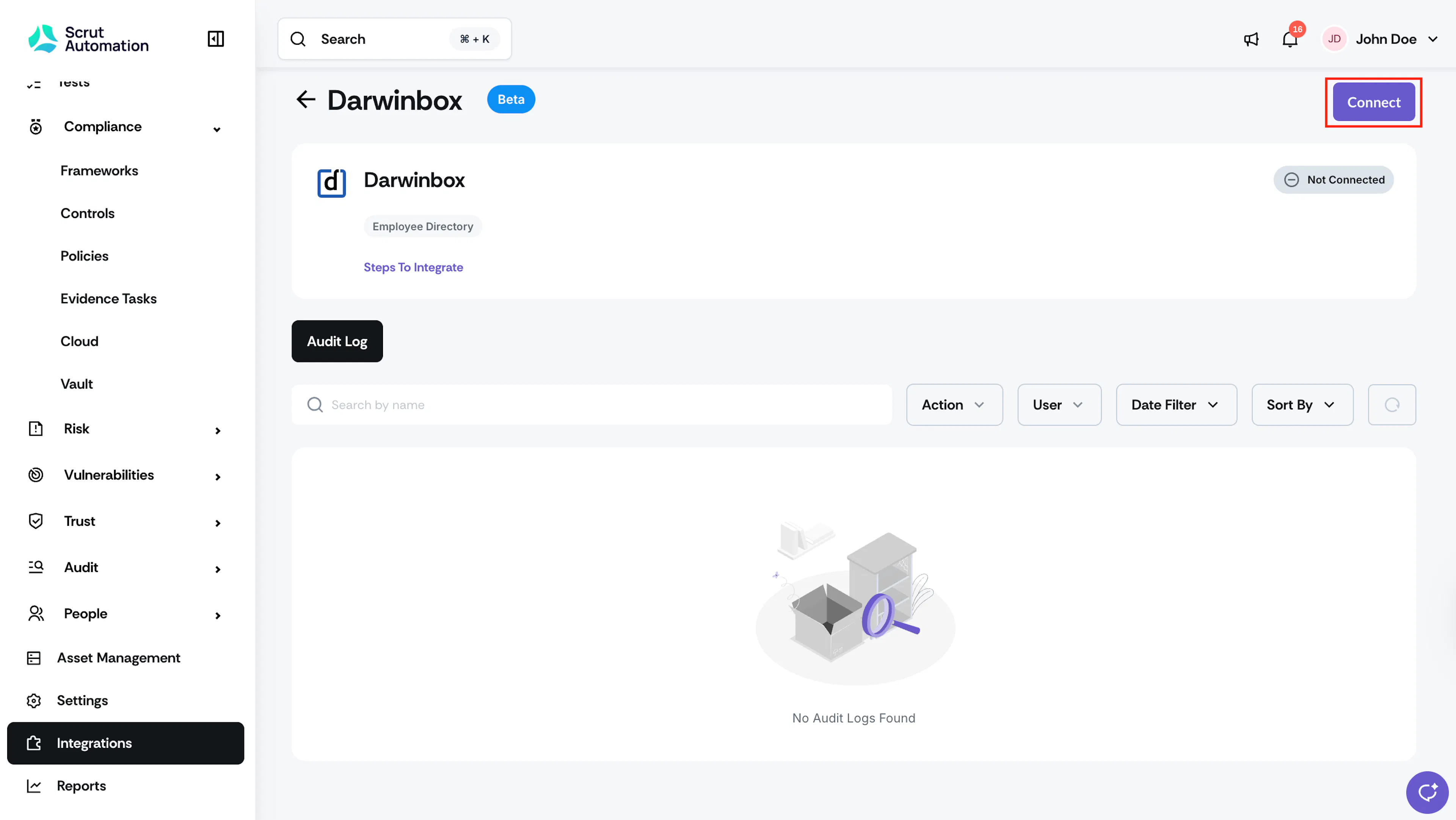
On the Darwinbox integration page, click Connect.
-
Enter the following credentials in the fields provided:
- Darwinbox URL
- Client ID
- Client Secret
- Authorization Code
- Dataset Key
-
[Optional] In the Dataset Key for Inactive Employees field, enter the Dataset Key that grants access to inactive employee records. Leave it blank if you do not want to sync inactive employees.
-
[Optional] In the Sync Pending Employees dropdown, choose how Scrut should handle pending employees. Pending employees are employees who do not have a fixed ID in the Darwinbox system.
- Select Don't sync pending employees to exclude them from the sync. This is the default setting.
- Select Sync all pending employees to include them. When this option is selected, Scrut uses company_email_id as the unique identifier for pending employees.
-
Click Submit to activate the integration.
What Happens Next?
Initial data sync
Once the integration is saved, Scrut initiates the first data sync automatically. The initial sync may take some time, depending on the size of your employee directory. You can monitor the sync status in Audit Logs within the Darwinbox integration settings.
Review synced data
- Navigate to People → Employees to verify that employee records have synced correctly.
Common Errors and Troubleshooting
Invalid credentials
Cause: One or more of the credentials entered in Scrut (Client ID, Client Secret, Authorization Code, or Dataset Key) is incorrect or has expired. Possible solutions:
- Double-check each credential against the values generated in Darwinbox Studio.
- If the Authorization Code has expired, generate a new one in Darwinbox Studio and update it in Scrut.
- Ensure the credentials belong to the same API client in Darwinbox Studio.
APIs not enabled or not linked to client
Cause: The required APIs were not enabled in Darwinbox Studio or were not linked to the Client ID and Client Secret used for this integration.
Possible solutions:
- Log in to Darwinbox Studio and confirm that all required APIs are enabled.
- Verify that each enabled API is explicitly linked to the Client ID and Client Secret entered in Scrut.
- Contact the Darwinbox team if you do not have permissions to manage API linkages in Studio.
Employee data not appearing in Scrut
Possible solutions:
- Confirm that the Dataset Key is correct and has been entered in Scrut.
- Check the Audit Logs in Scrut for any sync errors.
- Verify that the Fetch Employee Data (Full Load) API is enabled and linked in Darwinbox Studio.
- Trigger a manual sync on the Darwinbox integration settings page, then check again after a few minutes.
Department, Role, or Manager Email showing as blank
Possible solutions:
- These fields are populated only if the data is available in Darwinbox. Verify that the relevant fields are filled in for the affected employees in Darwinbox.
- If the data exists in Darwinbox but is not appearing in Scrut, check the Audit Logs for sync errors and contact support@scrut.io.
Darwinbox URL not accepted
Possible solutions:
- Enter only the domain portion of your Darwinbox URL, without https:// or a trailing slash. For example: yourcompany.darwinbox.in.
- Confirm the correct domain with your Darwinbox account team.
Reach out to support@scrut.io or contact your CSM for further assistance.