

Integrate Paycom
Connect your Paycom account with Scrut to automatically sync employee data into the People module.
What This Integration Does in Scrut
- Employee Directory: Syncs employee and group data into Scrut's People module. Synced employees can then access the Employee Portal for training, policy acceptance, and device security-check related activities.
Before You Begin
Whitelist the following IP addresses for Scrut's integration provider, in your network or firewall settings:
- 15.207.215.224
- 13.62.133.126
Prerequisites
To set up the integration, you need the following from Paycom:
- SID: Your company's unique identifier in Paycom
- API Token: A secure token that, along with your SID, authorizes API requests from Scrut
Permissions and Access Requirements
For Paycom
An active Paycom account with administrator access
For Scrut
Admin access to Scrut (or Contributor with access to the Integration module)
Data Collected
-
firstNameEmployee's first name -
lastNameEmployee's last name -
workEmailPrimary work email address -
startDateEmployment start date -
terminationDateEmployment termination date (if applicable) -
isRecordMissingFlag indicating if the record is incomplete -
departmentDepartment/team assignment -
roleJob title or role -
manager.workEmailDirect manager's email address -
leaveData- Employee leave information, including:startDateLeave start dateendDateLeave end datestatusLeave status (approved, pending, etc.)
Sync Frequency
Data is synced automatically once every 24 hours. You can also manually trigger a sync from the Paycom integration page in Scrut.
Integration Setup
Important:
Before you begin the integration make sure to whitelist the IPs for Scrut’s integration provider.
Step 1: Copy Your SID and API Token from Paycom
- Log in to your Paycom account as an administrator.
- Locate your SID and API Token. These are alphanumeric strings generated by your Paycom account representative during account configuration. Contact your Paycom representative if you don't have them.
- Copy both values.
Step 2: Enter Your Credentials in Scrut
-
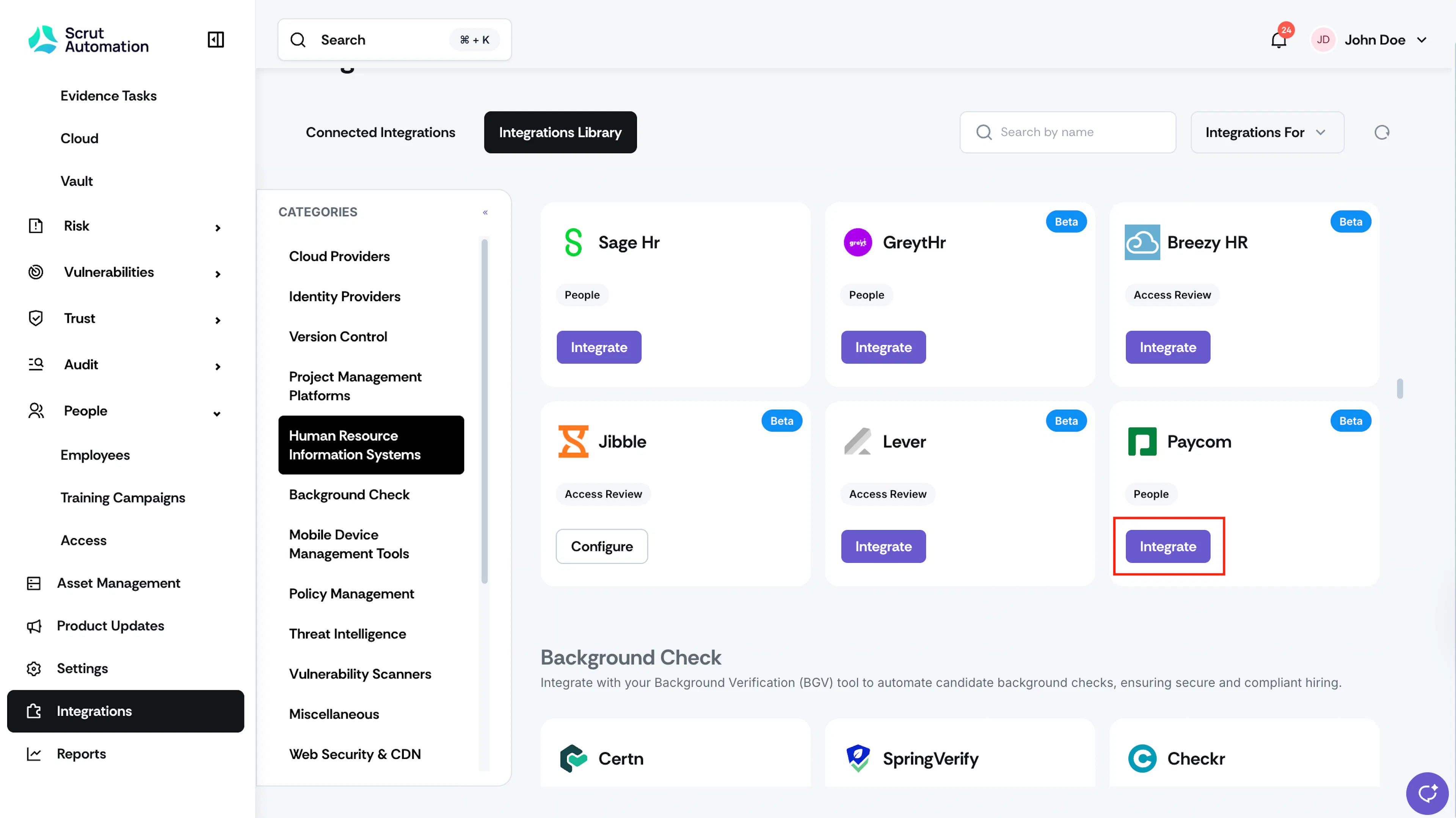
Click Integrations in the left navigation panel.
-
Select Human Resource Information Systems (HRIS) under Categories in the Integration Library.
-
Search for Paycom and click Integrate on the Paycom tile.
-
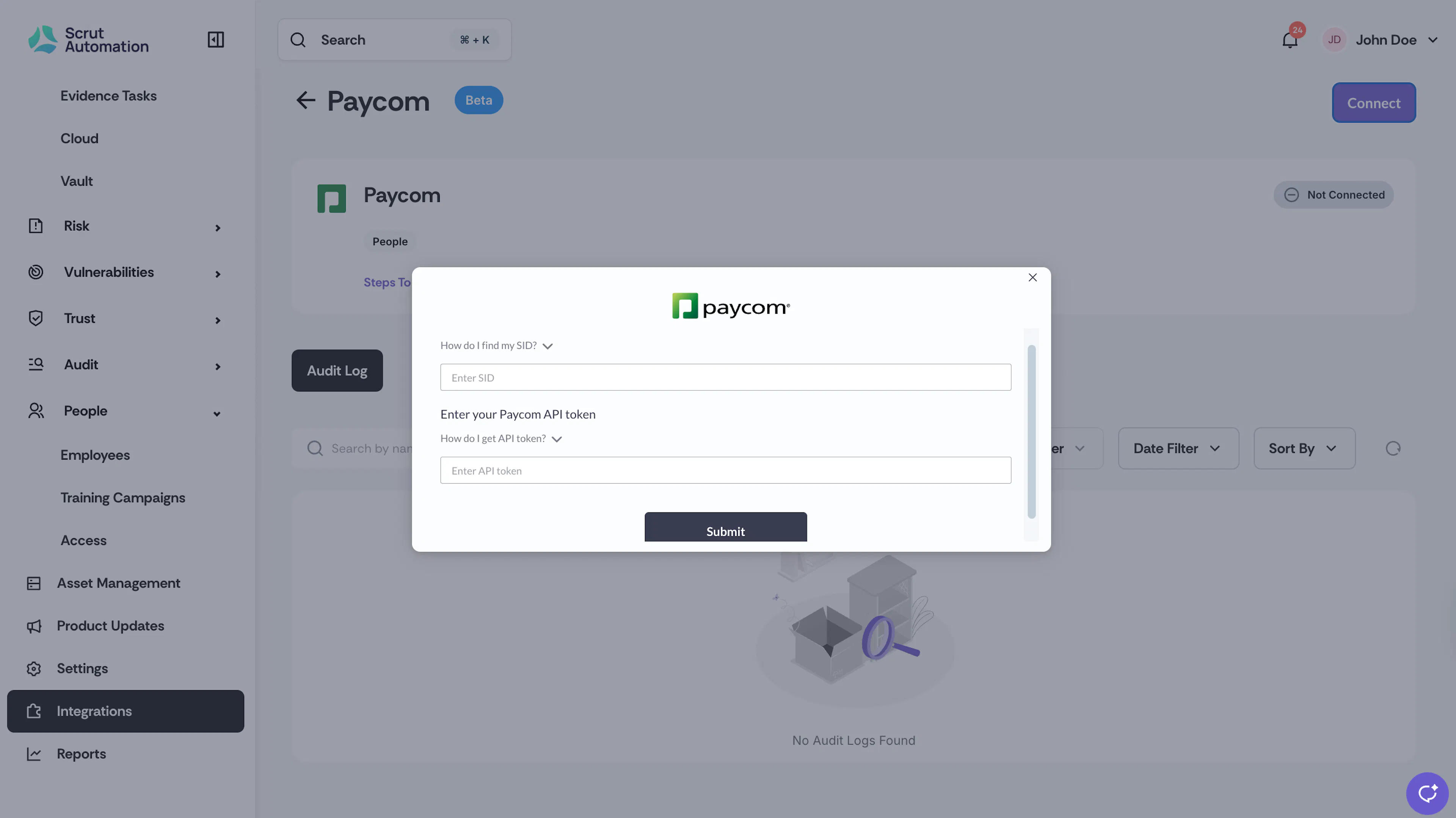
On the Paycom integration page, click Connect in the top-right corner.
-
Enter the SID and API Token you copied from Paycom, then click Submit.
What Happens Next?
Initial data sync
After you complete setup, Scrut starts an initial sync of all employee data from Paycom. This may take several minutes, depending on your employee count. Monitor sync progress in the Audit Logs section of the Paycom integration page.
Review synced data
- Navigate to People → Employees → All Employees to view the compliance data fetched for all synced employees.
Common Errors and Troubleshooting
Authentication failure
Possible solutions: Confirm that the SID and API Token you entered match the values in your Paycom account. Check whether the API Token has expired. Contact your Paycom representative to generate a new one if needed. Re-enter both credentials on the Paycom integration page and click Submit again.
Employee data not appearing in Scrut
Possible solutions: Check the Audit Logs on the Paycom integration page for any sync errors or warnings. Verify that the affected employees have a valid work email address in Paycom, as this is required for the record to sync. Manually trigger a re-sync from the Paycom integration page.
Connection errors
Possible solutions: Confirm that the Getknit IP addresses (15.207.215.224 and 13.62.133.126) are whitelisted in your network or firewall settings. Retry the connection after confirming the whitelist is in place.
FAQs
Reach out to support@scrut.io or contact your CSM for further assistance.