

Integrate HR Works
This article covers how to connect your HR Works account with Scrut.
What this Integration Does in Scrut?
This integration performs the following function in Scrut:
- Employee Directory: Upon connecting, the integration automatically syncs your organization’s employee and group data from HR Works to Scrut's People module to support workforce compliance. After setup, any changes you make to employee data are automatically reflected in Scrut. The synced employees can then access Scrut’s employee portal to complete security training, review and accept company policies, and perform requisite device security checks.
Prerequisites
To integrate HR Works with Scrut, you need the following credentials from HR Works:
- Access Key: A unique key that identifies your HR Works instance.
- Secret Access Key: A secure key that, together with your Access Key, authorizes API requests from Scrut.
Permissions and Access Requirements
For HR Works
- Administrator access to your HR Works instance (or access shared by an admin).
For Scrut
- Admin access to Scrut (or Contributor with access to the Integration module)
Data Collected
This integration fetches the following employee data from HR Works:
-
firstNameEmployee's first name -
lastNameEmployee's last name -
workEmailPrimary work email address -
startDateEmployment start date -
terminationDateEmployment termination date (if applicable) -
isRecordMissingFlag indicating if the record is incomplete -
departmentDepartment/team assignment -
roleJob title or role -
manager.workEmailDirect manager's email address -
leaveData- Employee leave information, including:startDateLeave start dateendDateLeave end datestatusLeave status (approved, pending, etc.)
Sync Frequency
Data from HR Works is synced automatically once every 24 hours. You can also manually trigger a sync from the HR Works integration page in Scrut, as needed.
Integration Setup
The HR Works - Scrut integration setup involves two main steps:
Step 1: Generate Your Access Key and Secret Access Key in HR Works
-
Log in to your HR Works instance as an admin.
-
On the sidebar, go to Administrator 'Company name' and click Basics. In some instances, Basics appears directly on the left sidebar.
-
Click Integrations.
-
Click on the tile HR WORKS-API.
-
On the new page, click New key pair.
-
Click Download. Your API credentials will be saved as a .txt file containing your Access Key and Secret Access Key.
-
Back in HR Works, select the key pair you just generated, and provide the following permissions:
- Read access: General
- Read access: Persons
-
Click Save.
Step 2: Enter Your HR Works Credentials in Scrut
-
Log in to Scrut and click Integrations in the left navigation panel.
-
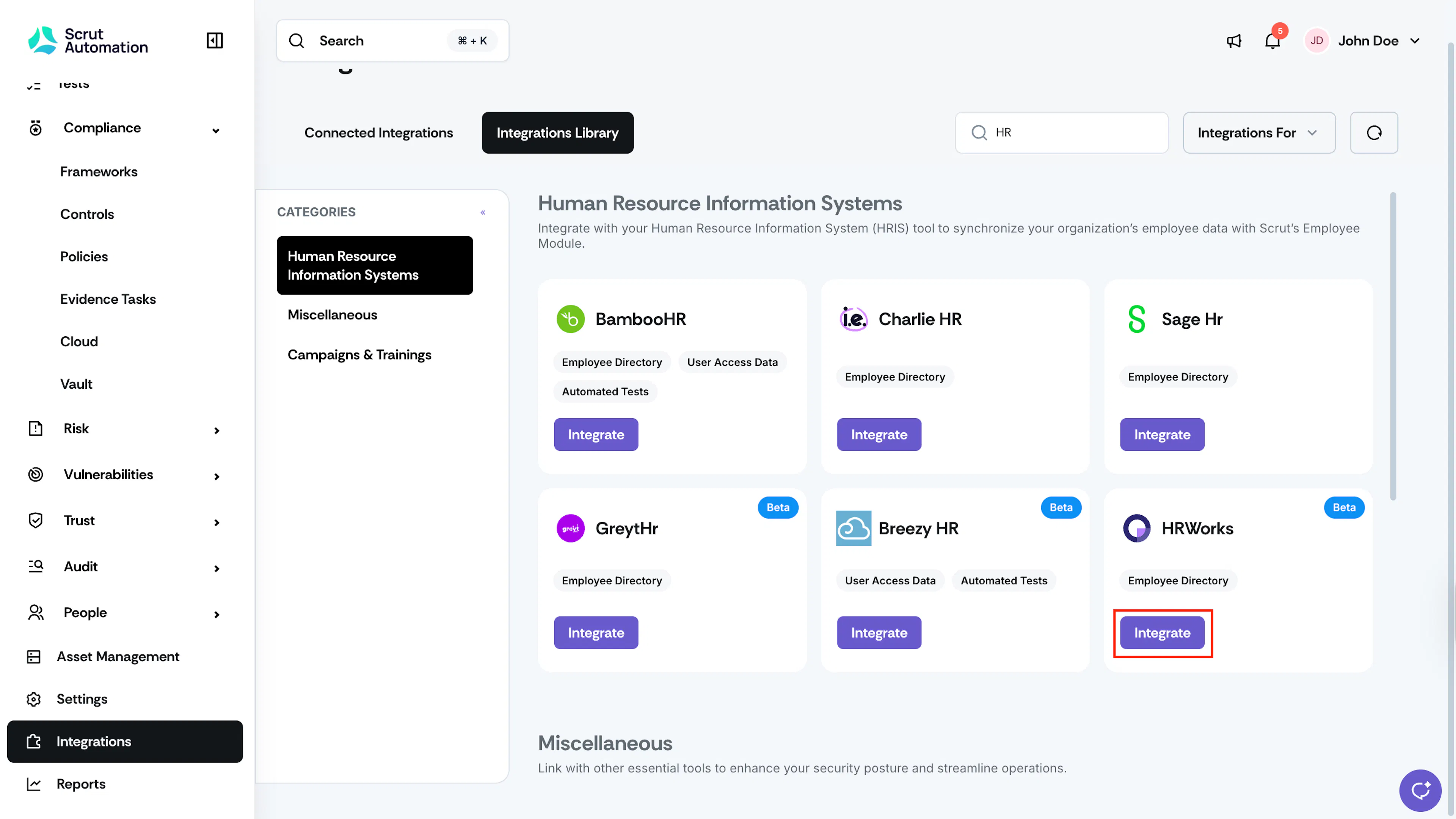
Select Human Resource Information Systems (HRIS) in the Categories section of the Integration Library, and search for HR Works.
-
Click the Integrate button in the HR Works tile.
-
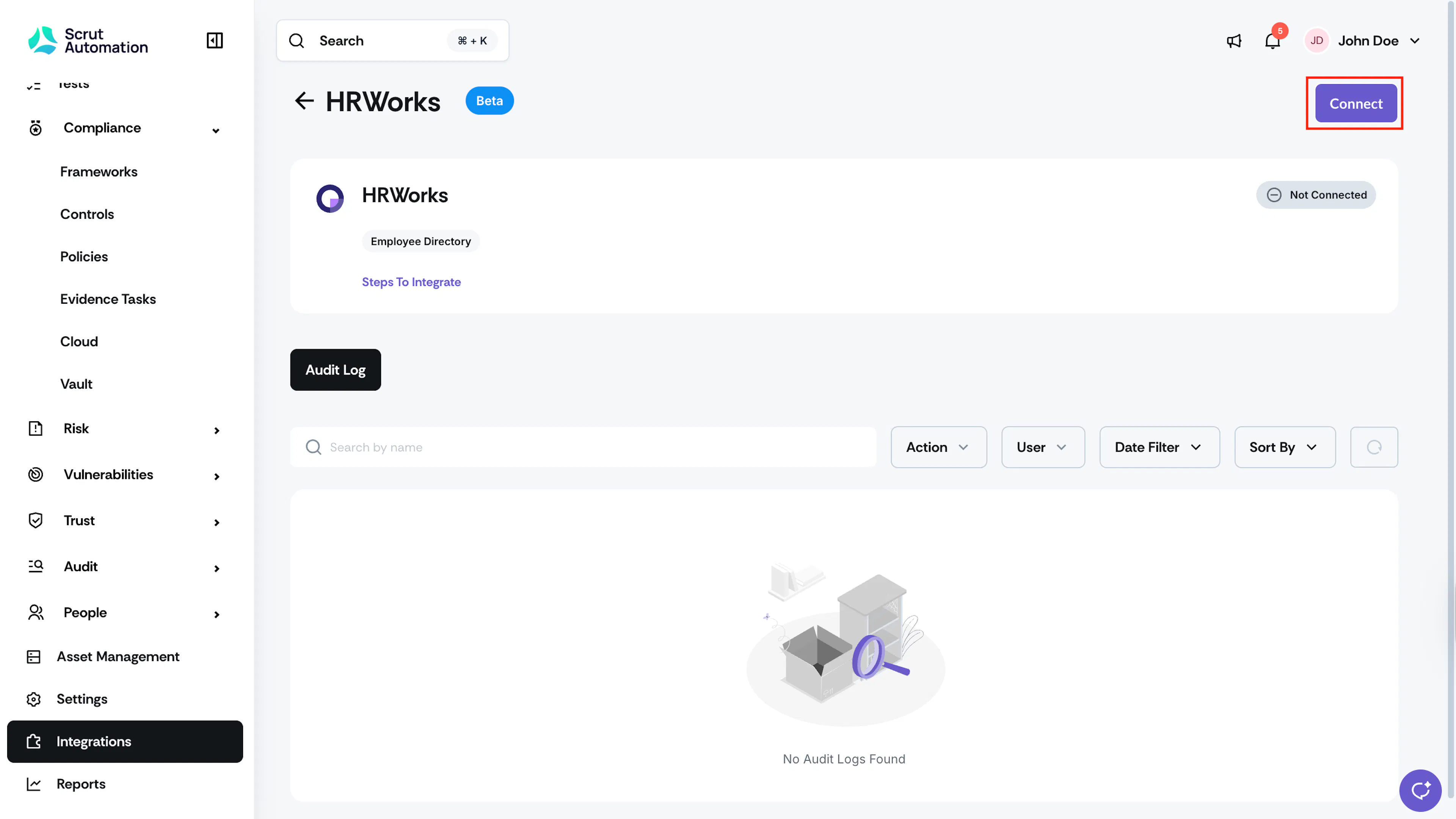
On the HR Works integration page, click Connect in the top-right.
-
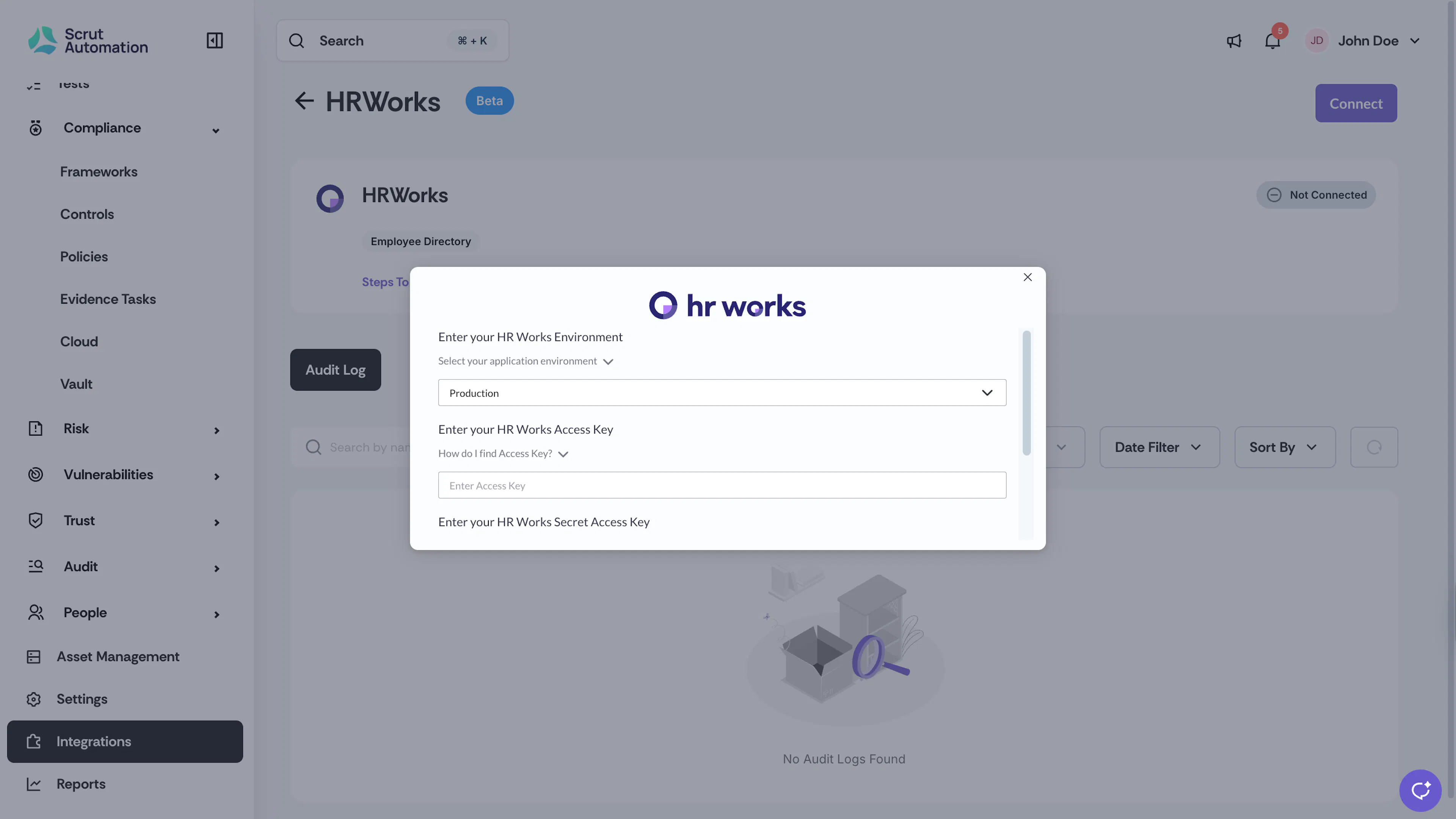
Select your HR Works Environment, enter the Access Key and Secret Access Key you copied in the previous step and click Submit.
What Happens Next?
Initial Data Sync
Once you complete the integration steps, Scrut will initiate an initial sync of all employee data from HR Works. This may take up several minutes, depending on the number of employees. You can monitor sync status in the Audit Logs section of the HR Works integration.
View Employee Data in Scrut
Once the sync is complete, your complete employee roster with all synced attributes will be available in the People → Employees → All Employees page in Scrut.