

Integrate SAP Success Factors
SAP SuccessFactors is a human resources management system (HRMS) that covers a wide range of HR functions. Through integrating SAP with scrut platform, we can fetch the employee details in the scrut platform, like Employee Name, email, department, reporting manager, joining date, and exit date.
Integrating SAP SuccessFactors
Step 1: Integration in Scrut
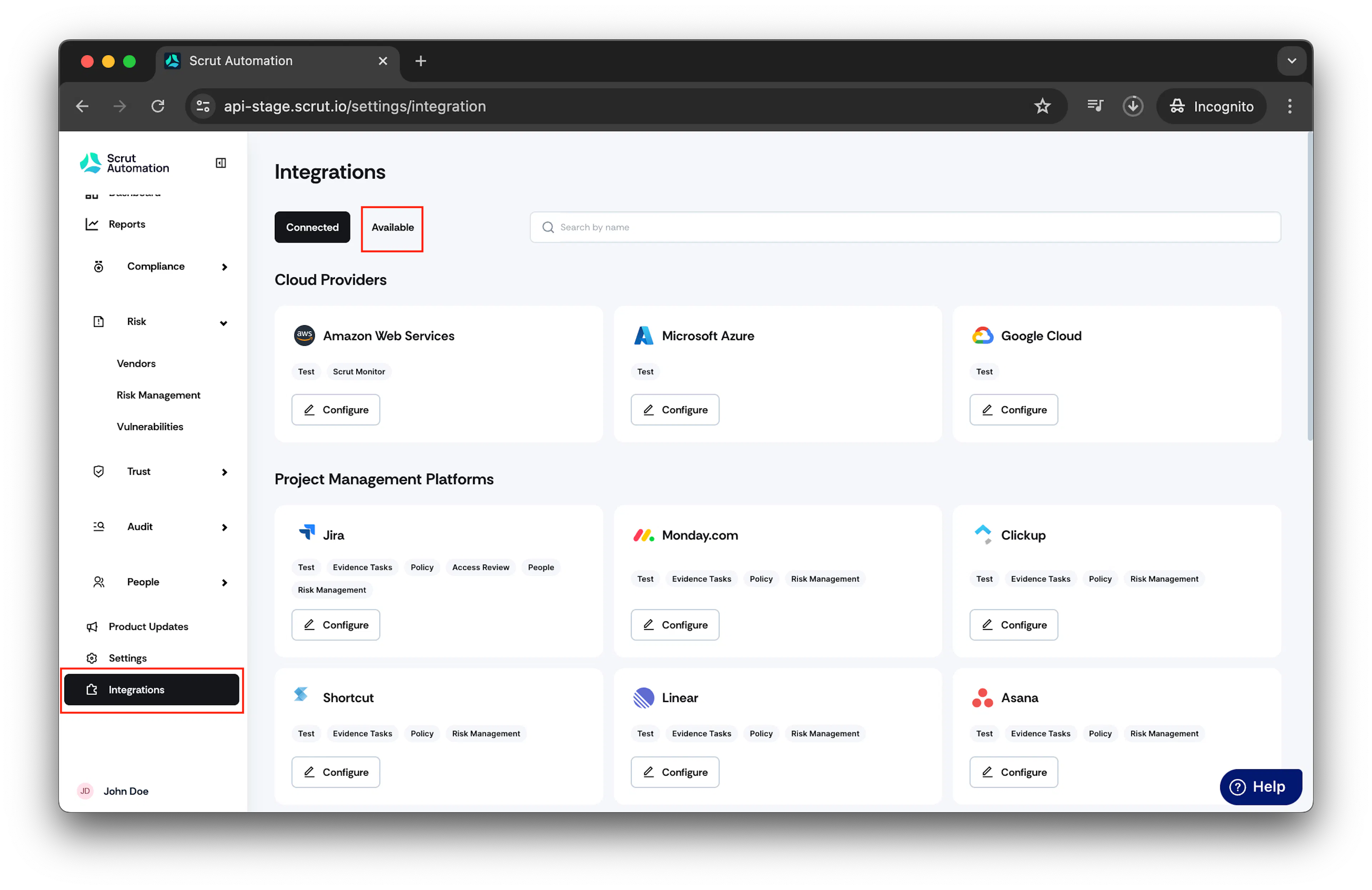
- From the left navigation panel, select Integrations.
- Click on Available.
-
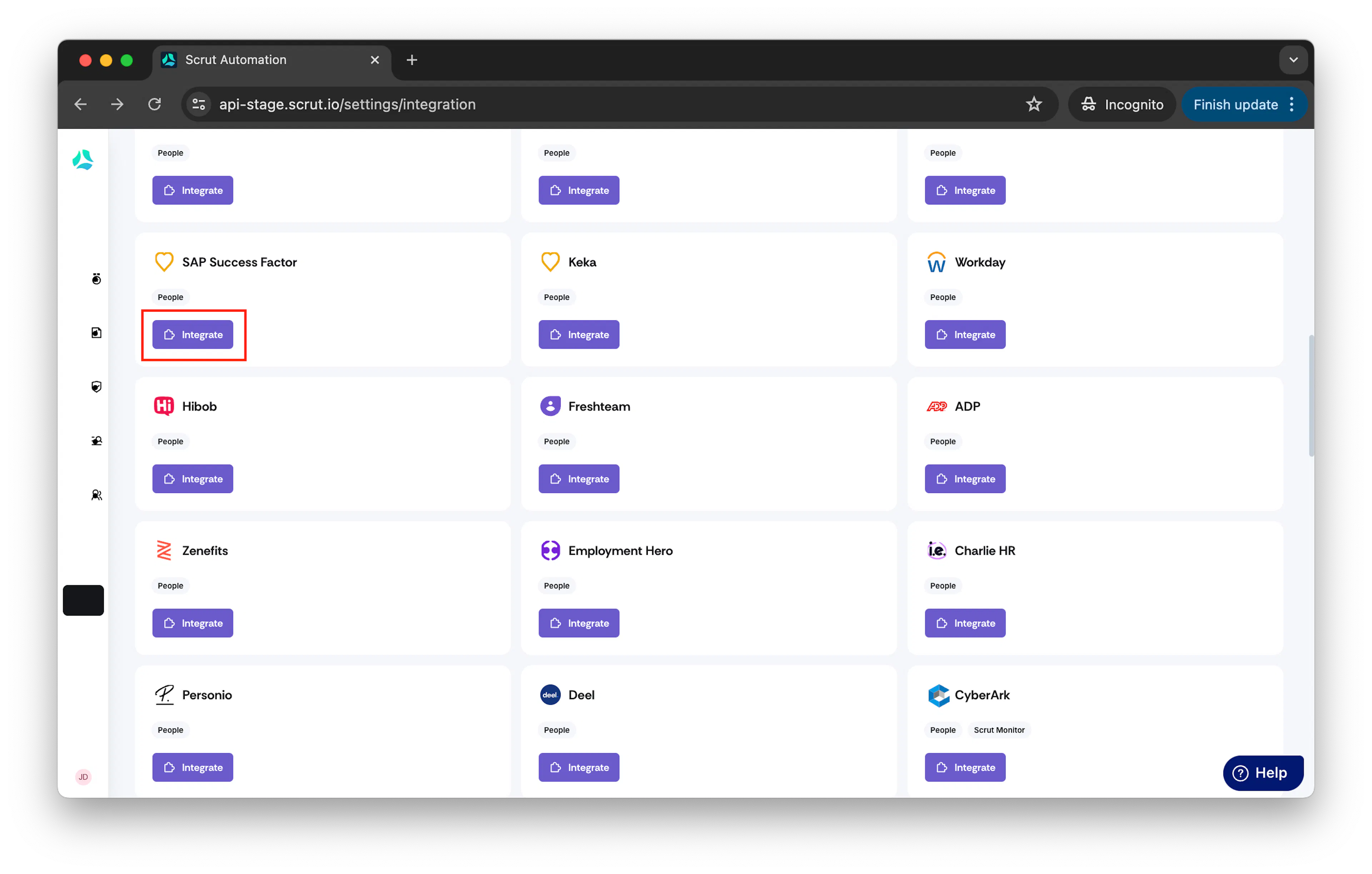
Scroll to the Human Resource Information Systems section and find SAP SuccessFactors.
-
Click Integrate.
-
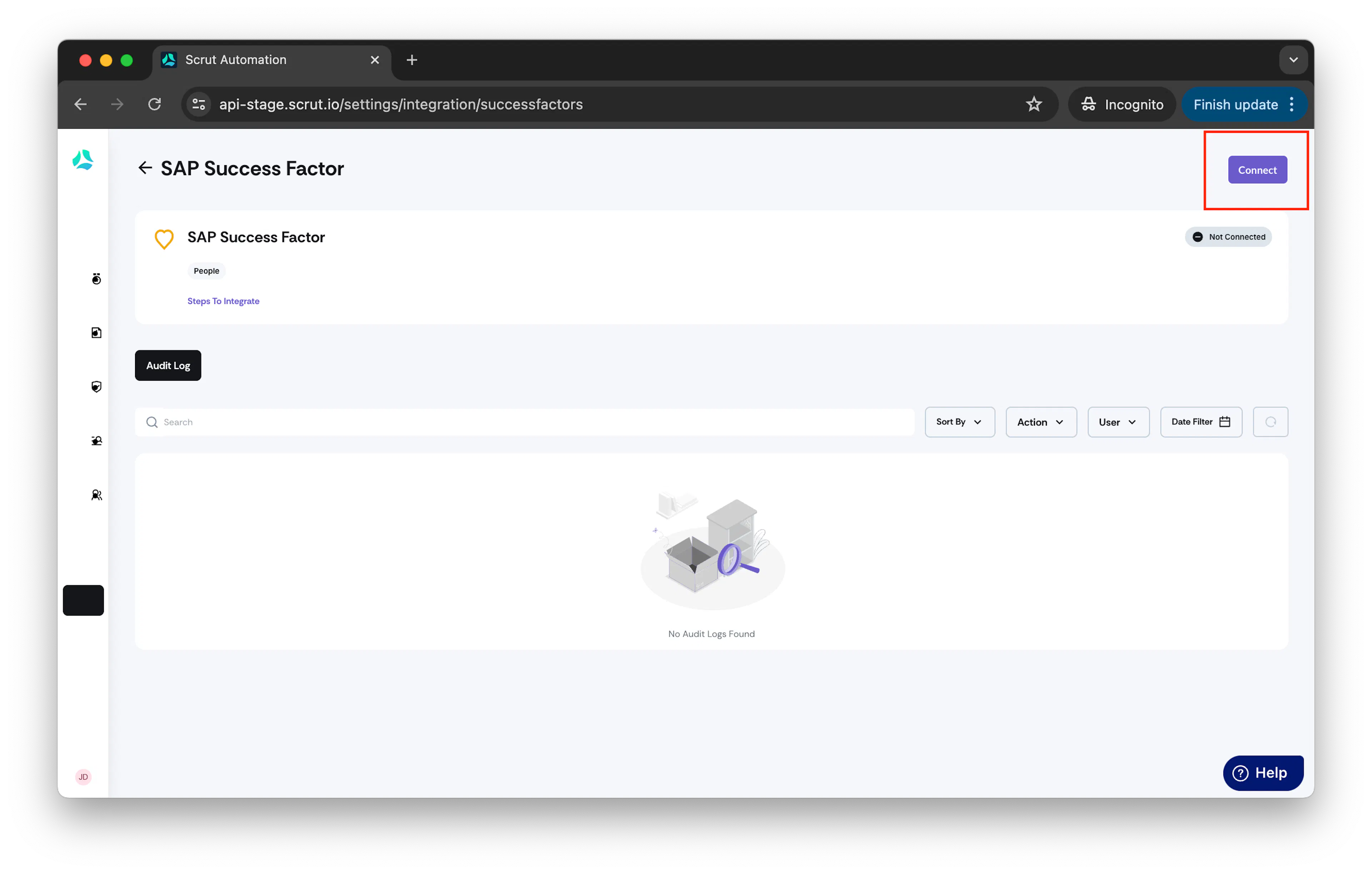
Click Connect.
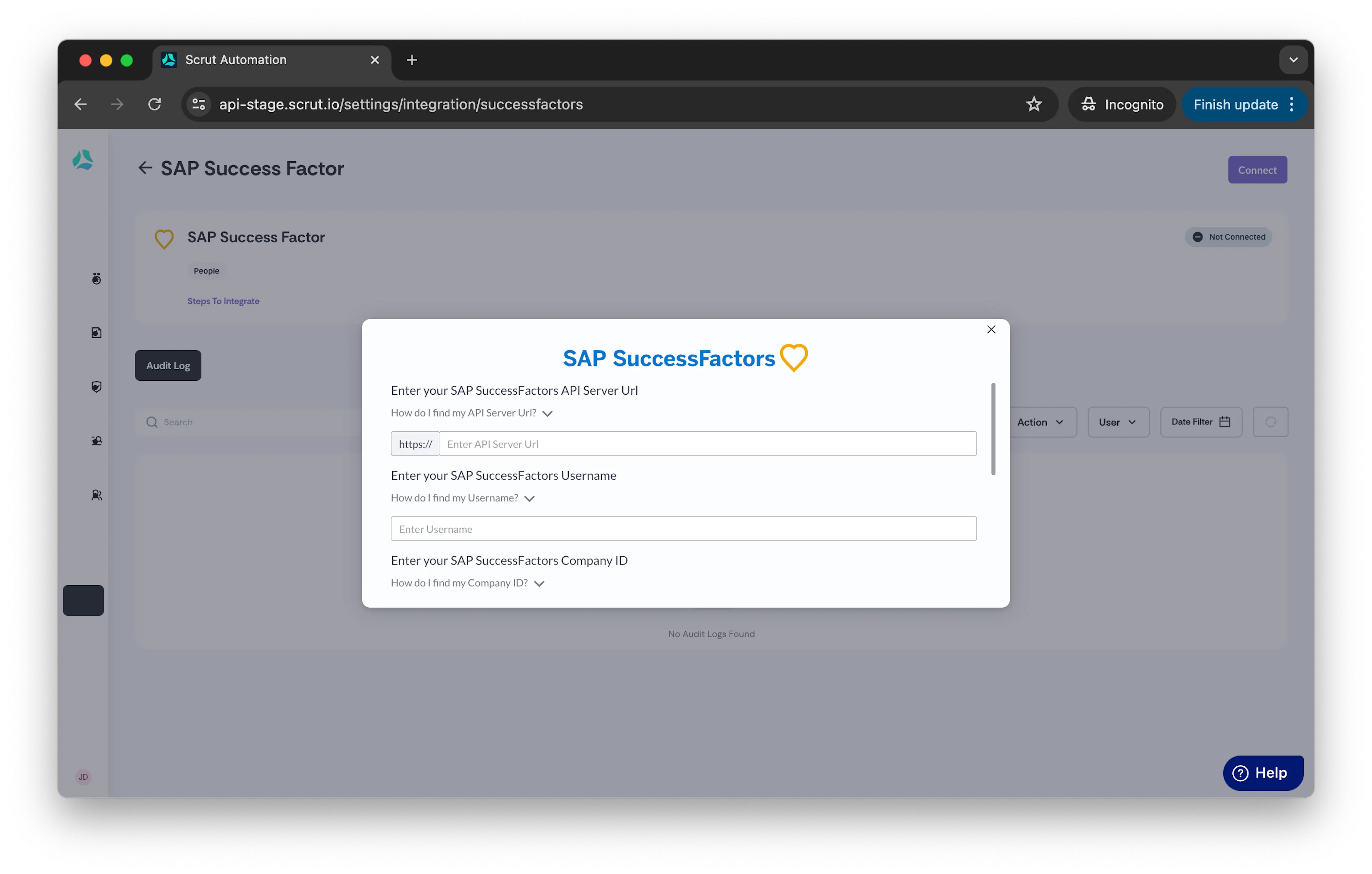
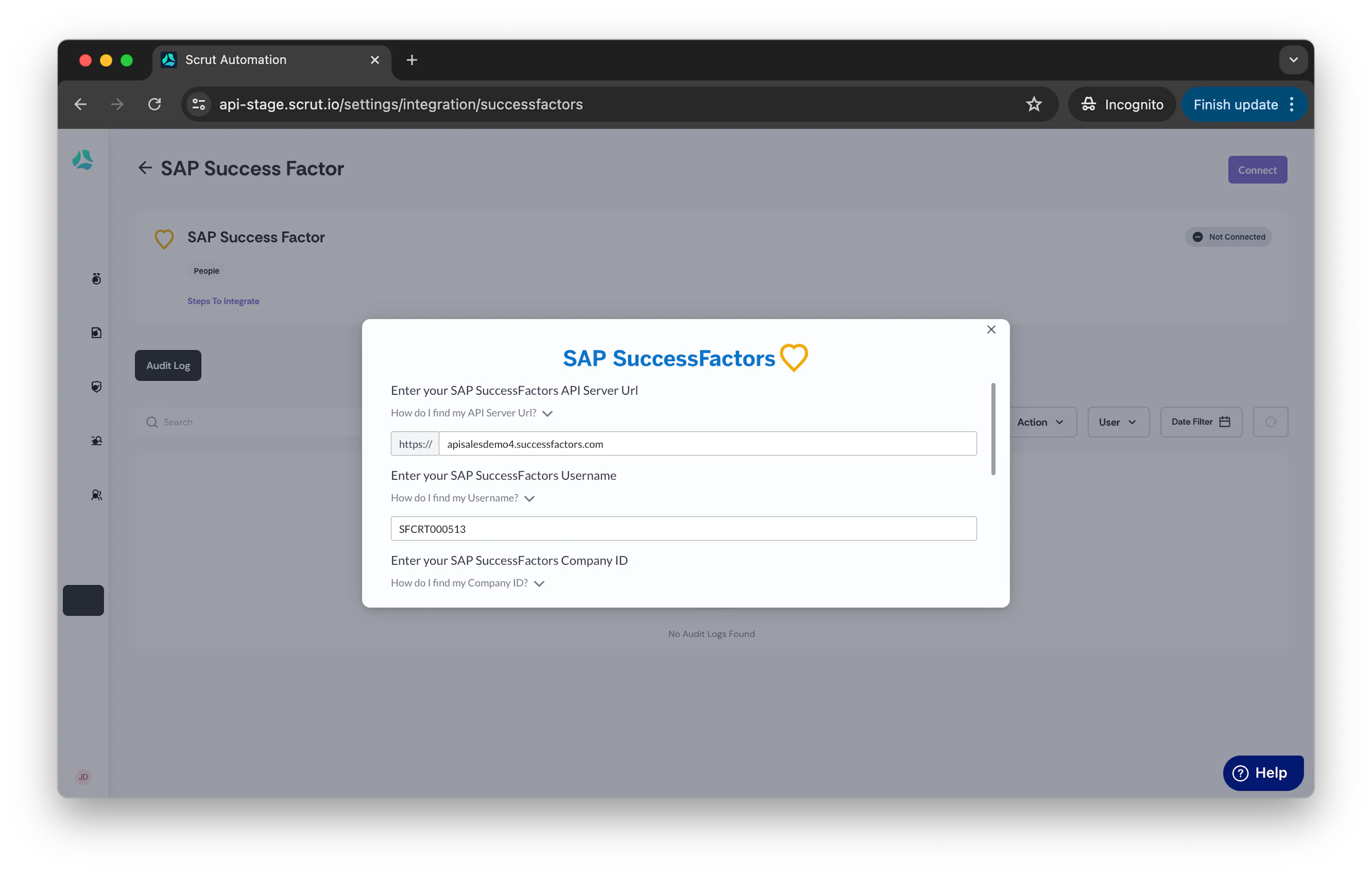
SAP SuccessFactors window opens.
Step 2: Find your SAP SuccessFactors API Server URL
-
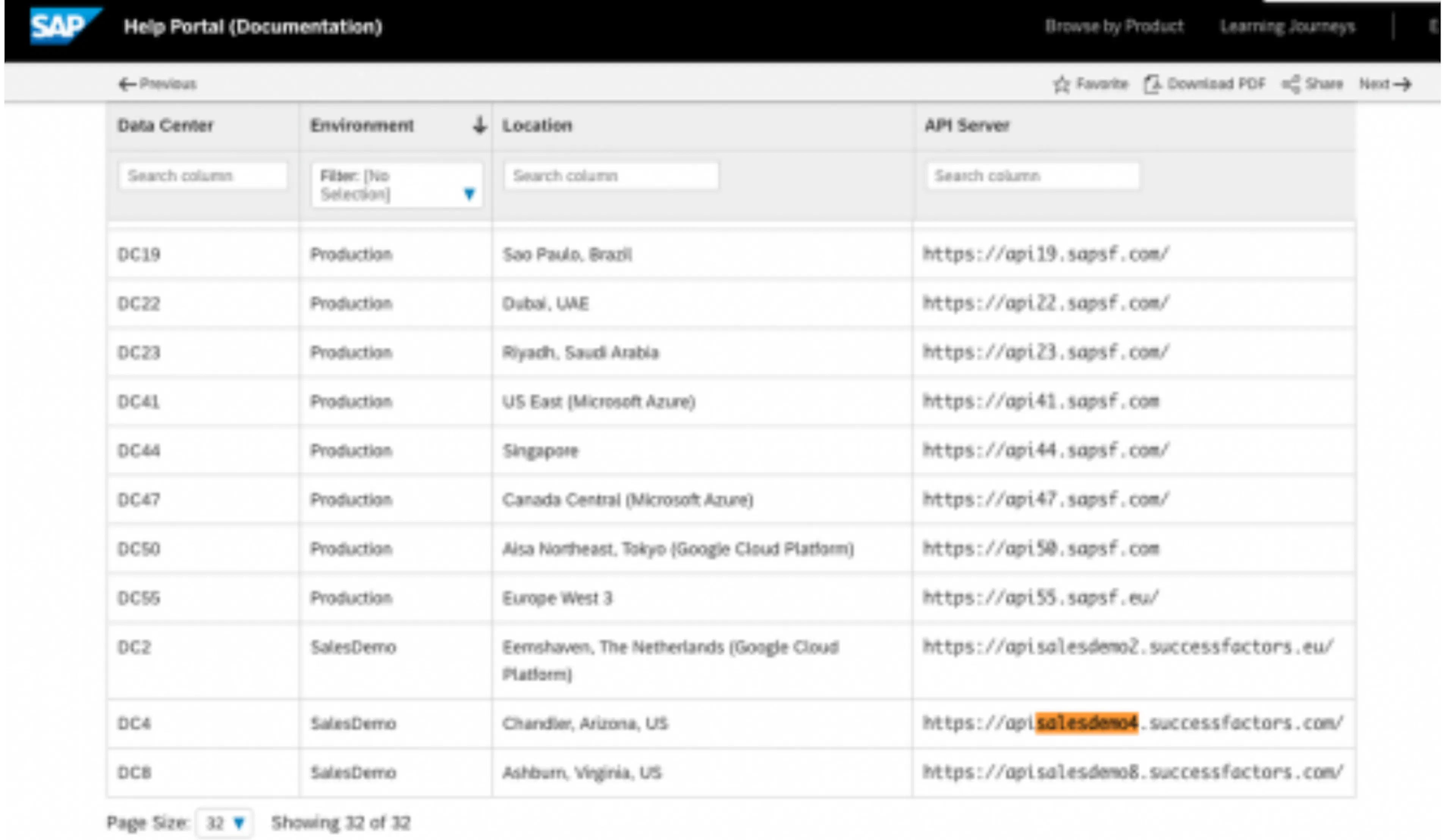
To find your API Server URL, go to this link.
-
In the listed API Server URLs, search for the environment that matches your subdomain. For example, if your domain is https://salesdemo4.successfactors.com, search for salesdemo4.
-
Copy the entire URL.
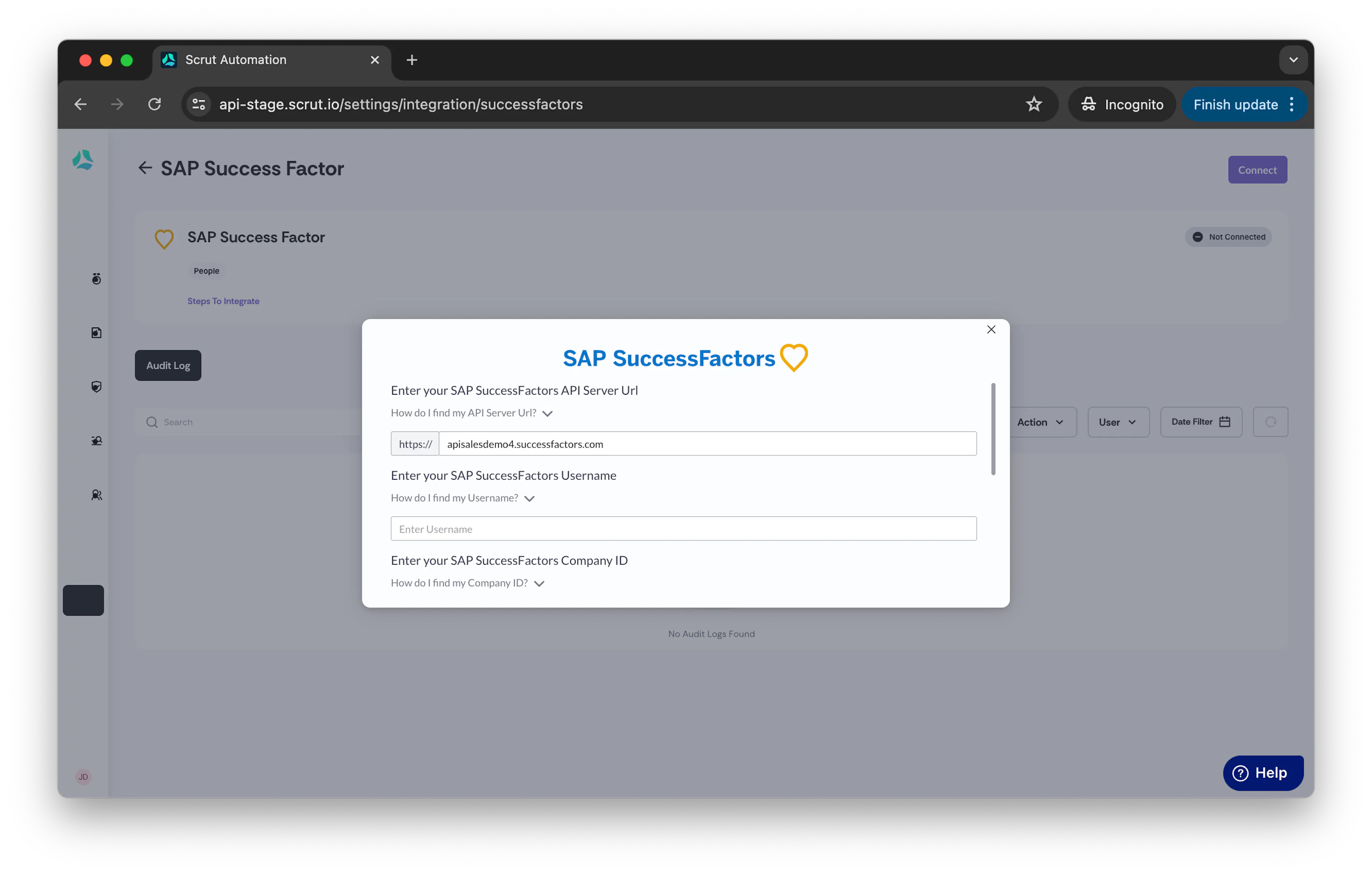
In this example, it would be: apisalesdemo4.successfactors.com
-
Enter your SAP SuccessFactors API Server URL into scrut's UI Auth component.
Step 3: Find your SAP SuccessFactors Username and Company ID
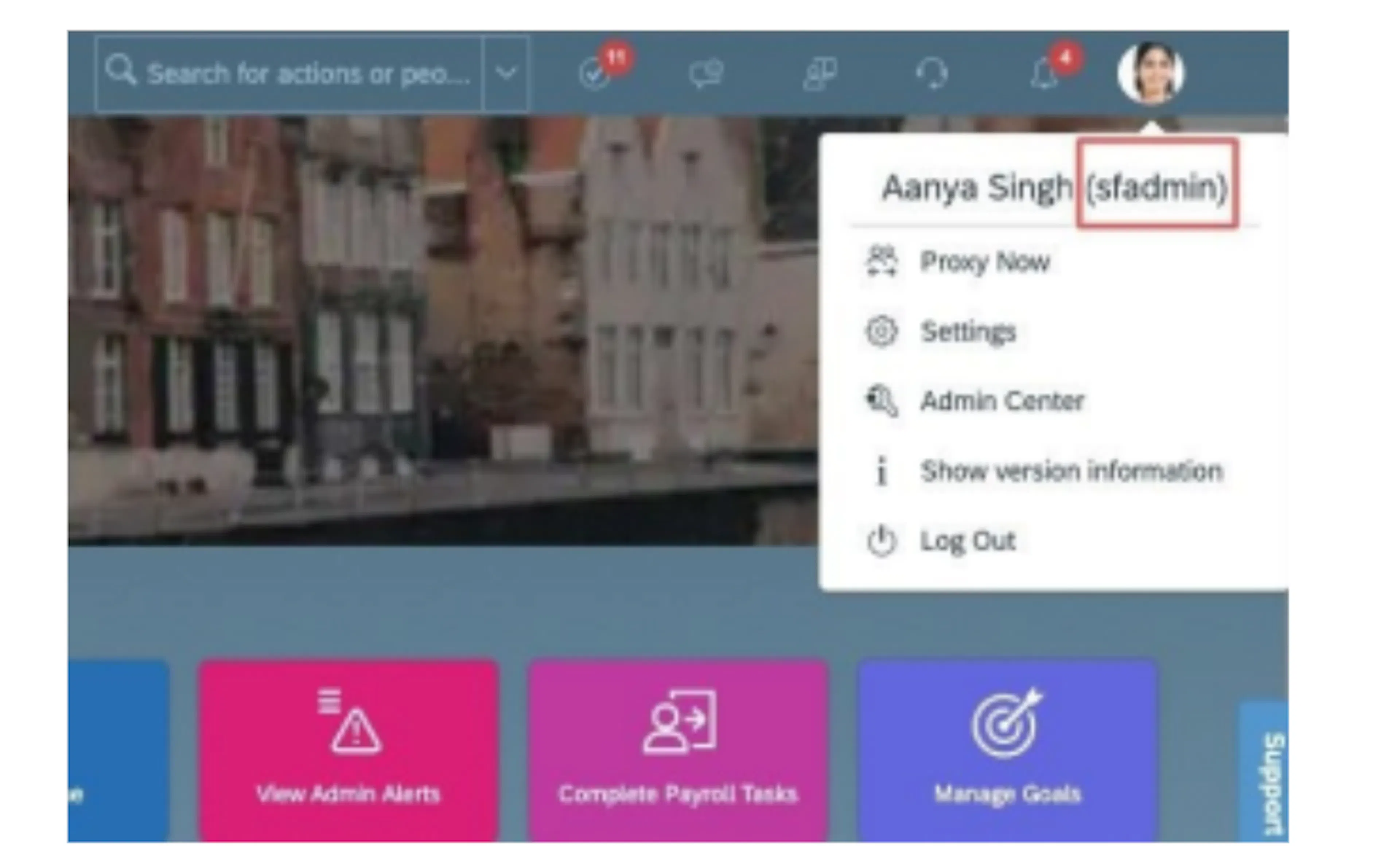
- To find your SAP SuccessFactors username, go to the upper right-hand side and click on your profile image to view your username.
Note: The username is not your email address.
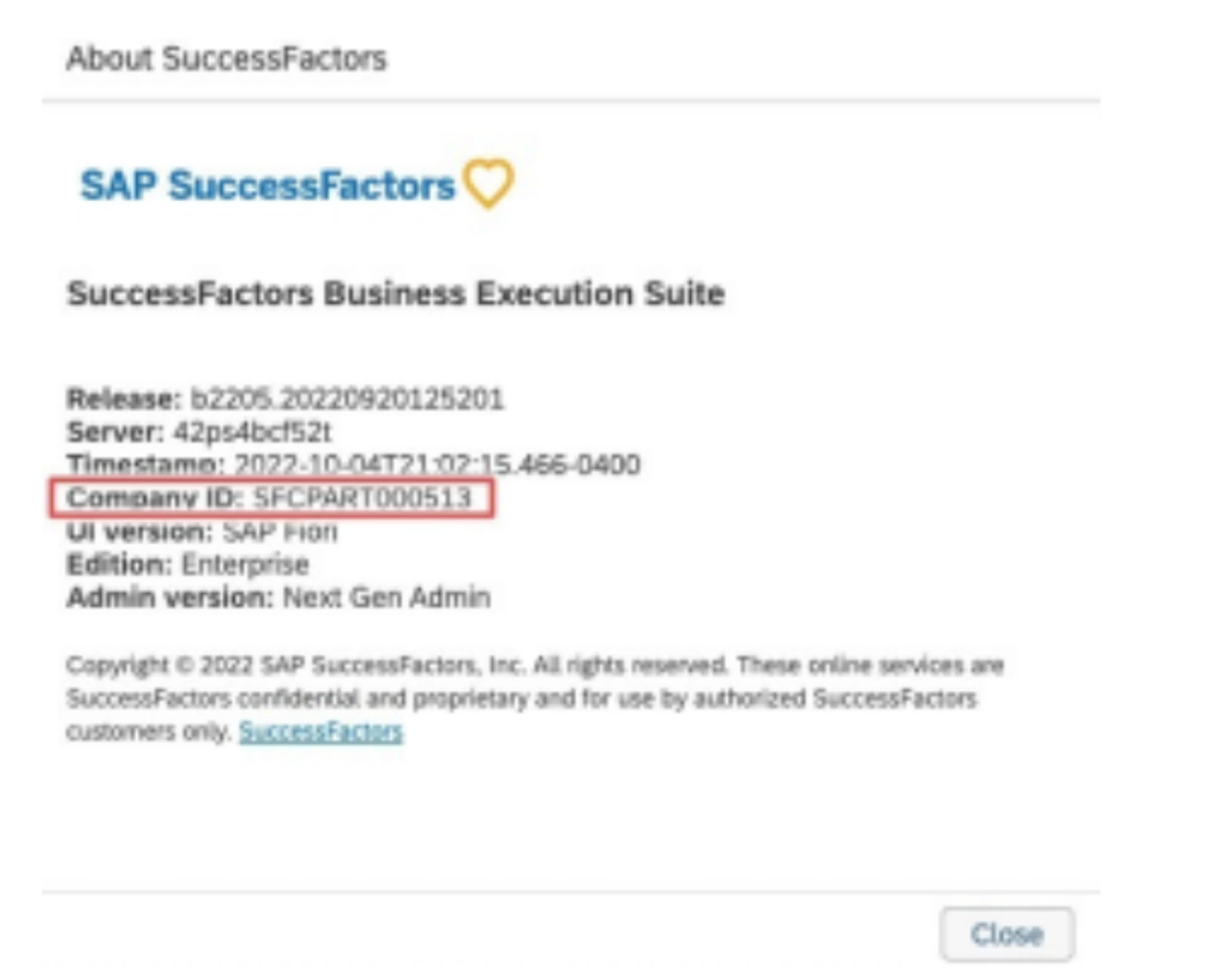
- To find your SAP SuccessFactors Company ID, in the same dropdown menu, click "Show version information." Locate Company ID in the modal that pops up:
-
Once you obtain your username (not email) and company ID from the previous step, enter them in Scrut's UI component.
Step 4: Find your SAP SuccessFactors API Key and Certificate details**
-
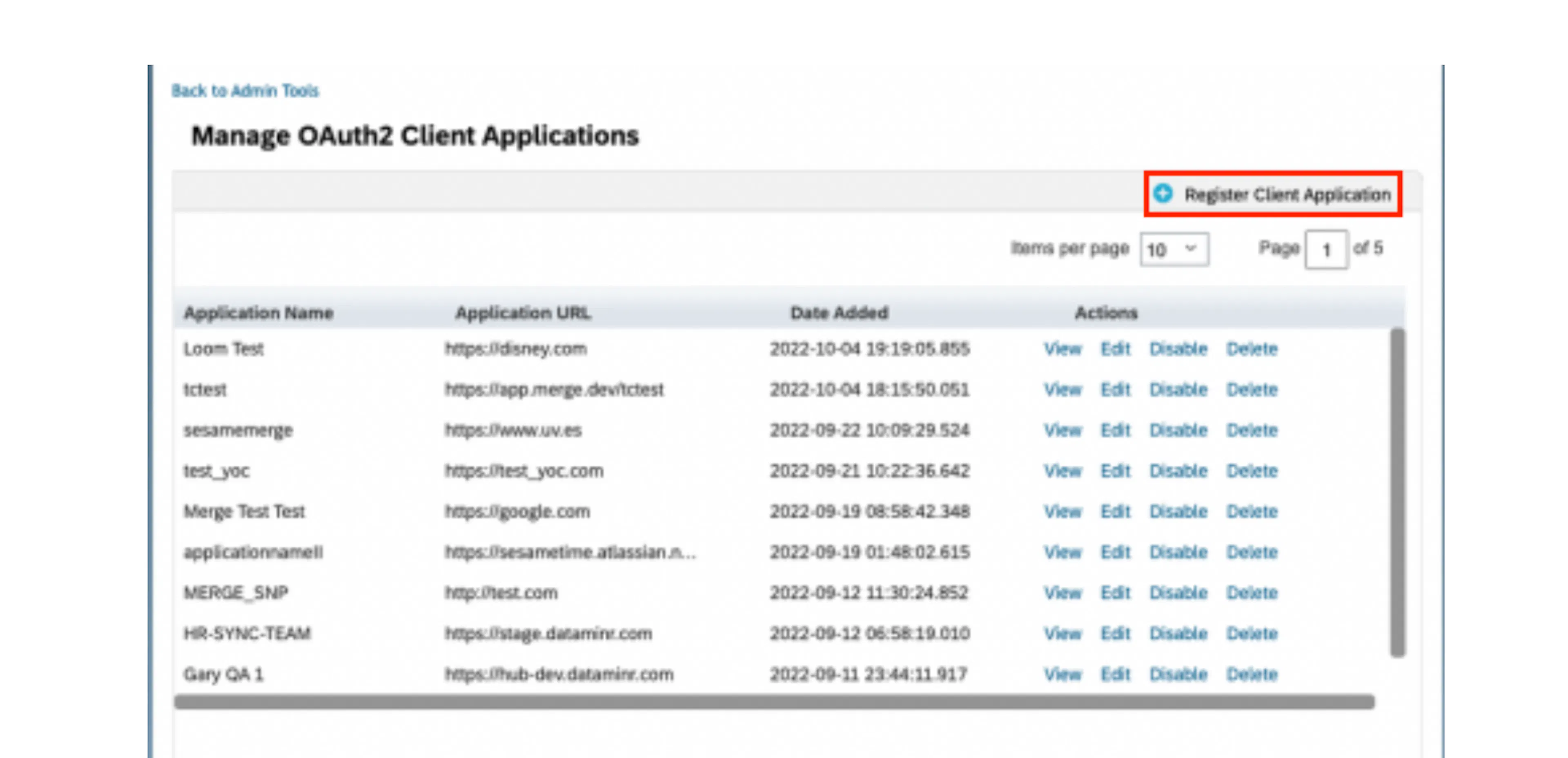
In your Admin Center, go to Tools, and search for Manage OAuth2 Client Applications (If your page looks different, search for Manage OAuth2 Client Applications in the search tool on your homepage).

-
Click Register Client Application.
-
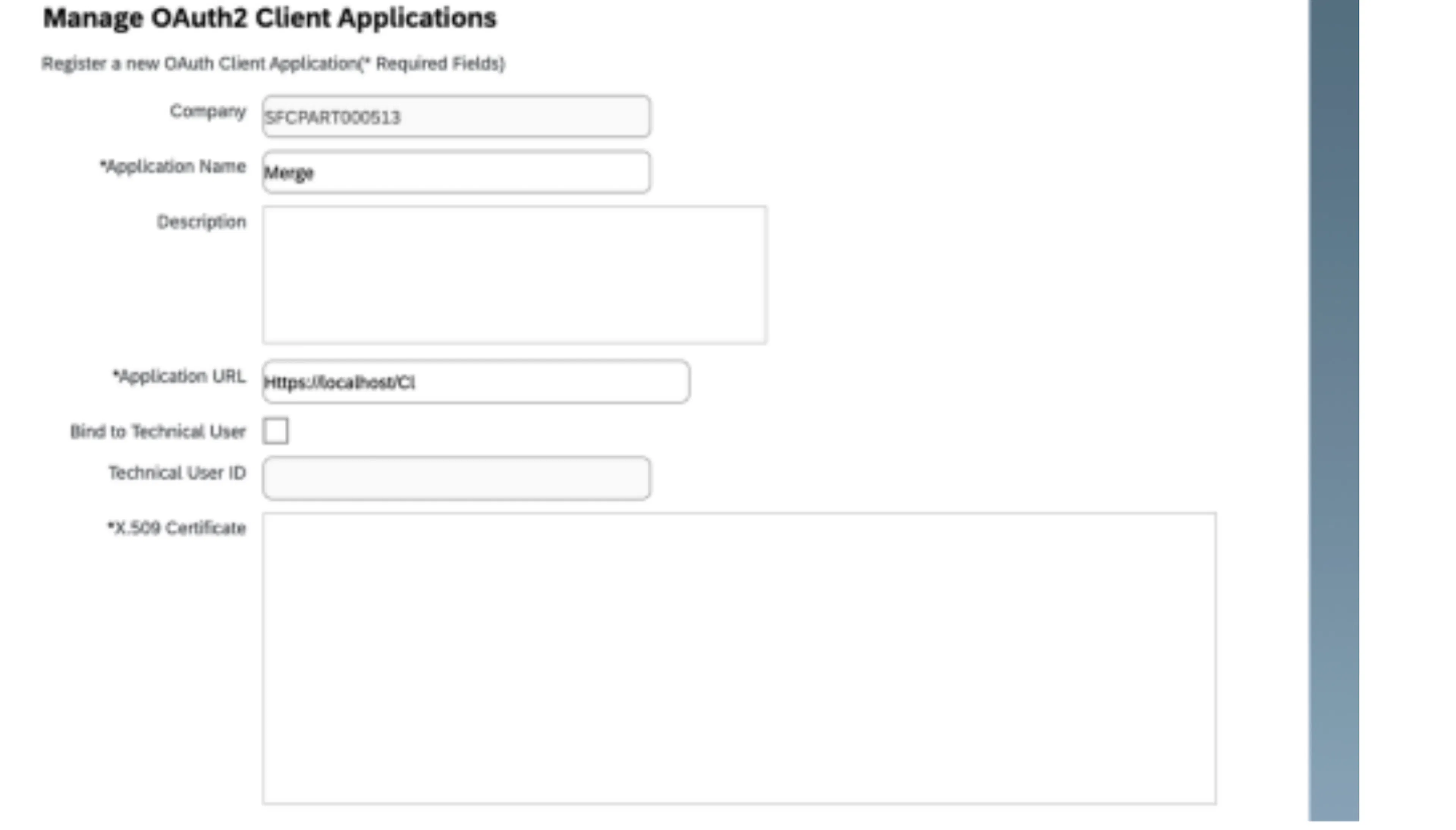
Fill out Application Name & Application URL (what actually goes in these fields is not important).
-
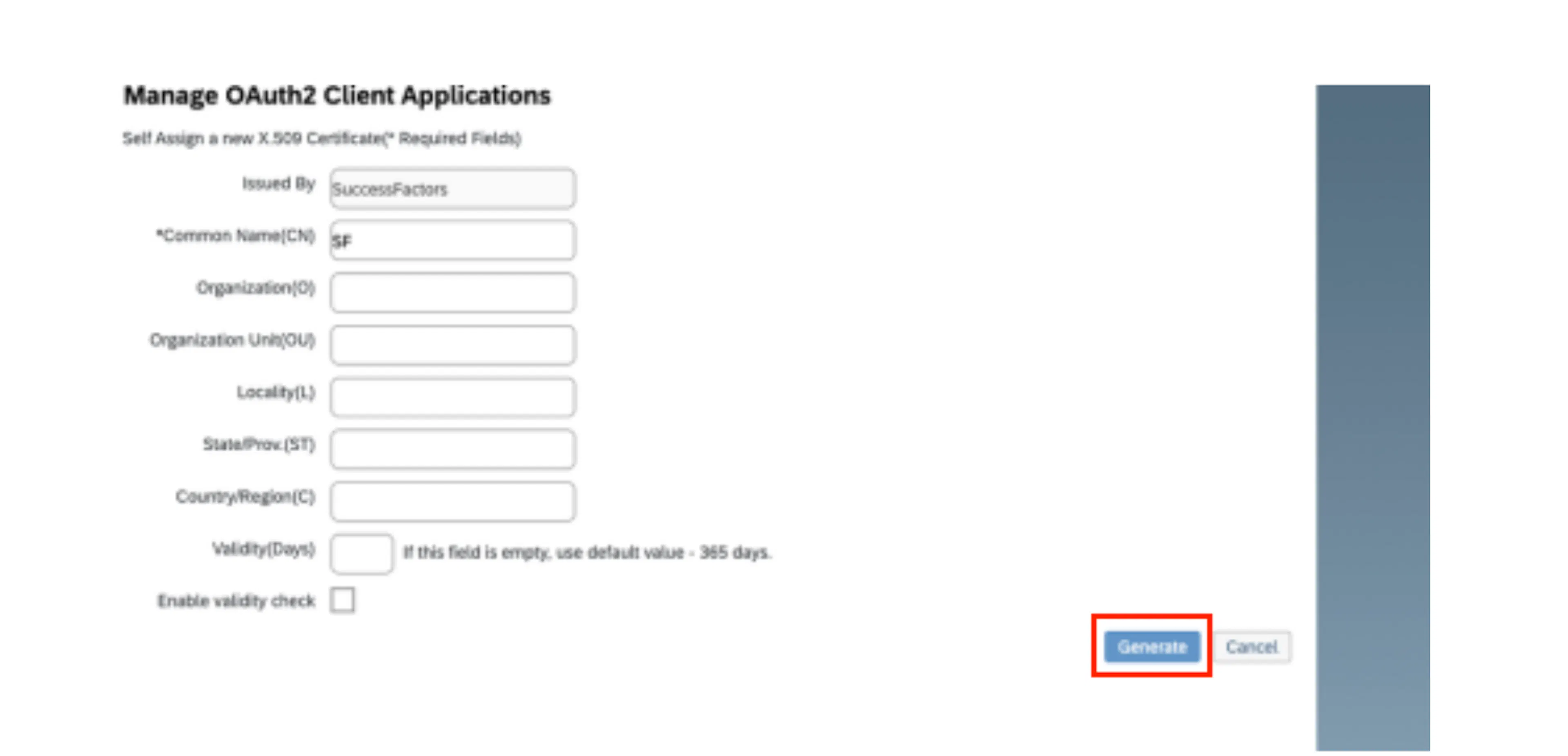
Click Generate X.509 Certificate. Fill out Common Name (name doesn't matter) and click Generate.
-
Once the certificate populates, download and save it. You will have downloaded a file called Certificate.pem.

-
Click Register (it will have replaced the Generate button).
-
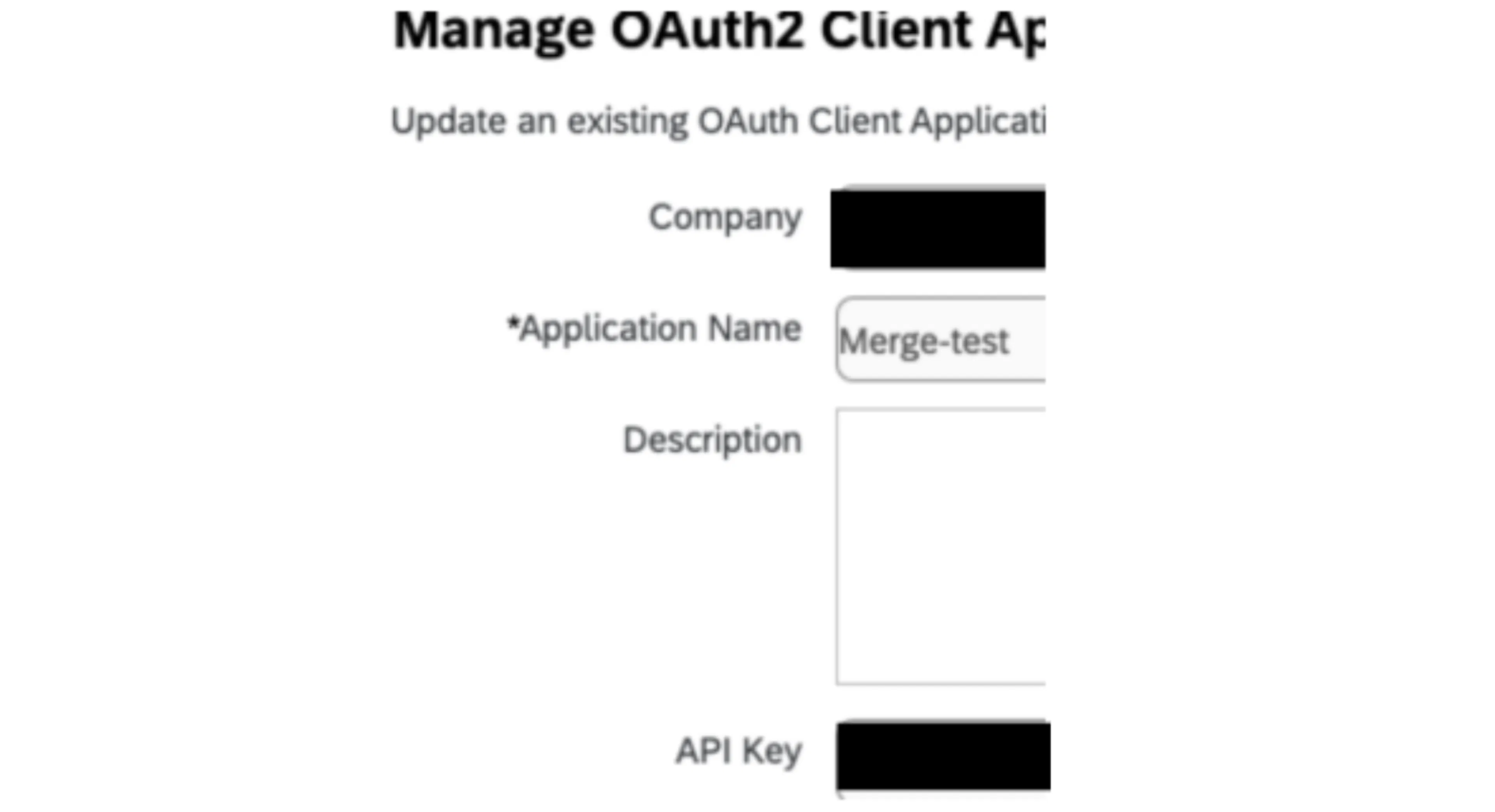
Back on your Manage OAuth2 Client Applications, go to the application you just created and click Edit.

-
You will now see an API key listed - this is your Client ID. Copy and Save this Key.
-
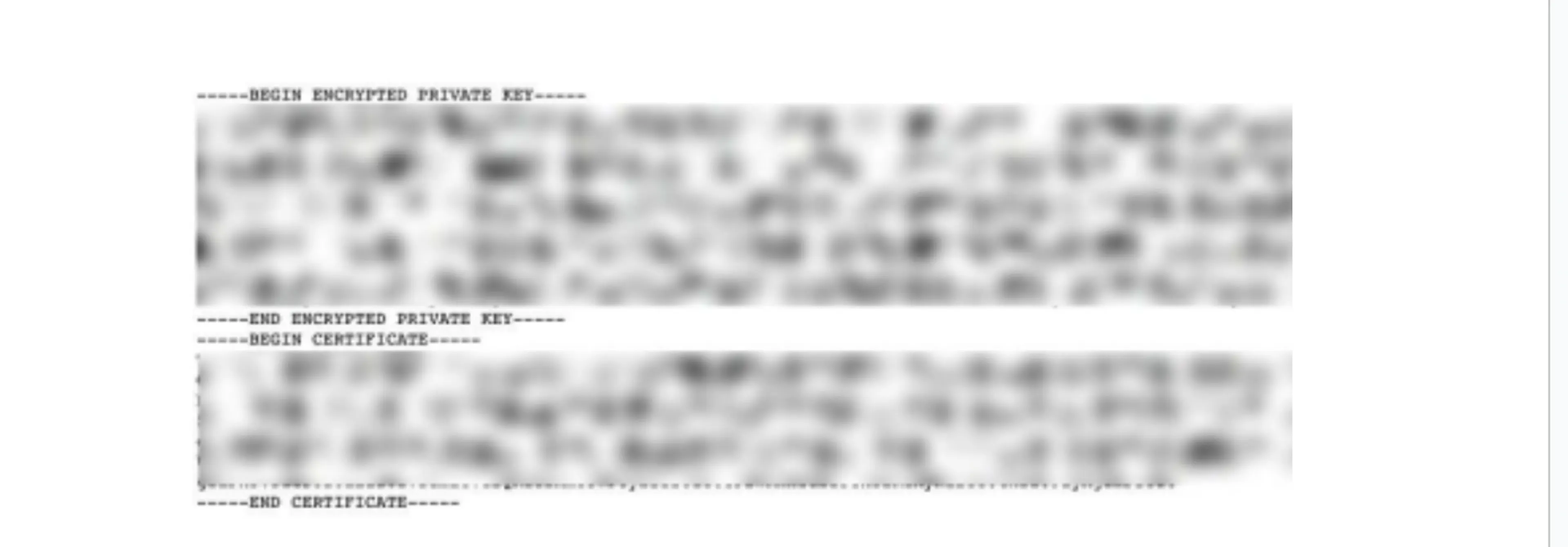
Open up the "Certificate.pem" file that you downloaded previously in a text editor.
-
Copy only the string between —BEGIN ENCRYPTED PRIVATE KEY——- and —-END ENCRYPTED PRIVATE KEY——-.
Note: Do not copy ——BEGIN ENCRYPTED PRIVATE KEY——and —-END ENCRYPTED PRIVATE KEY——.
This is your SuccessFactors Private Key.
-
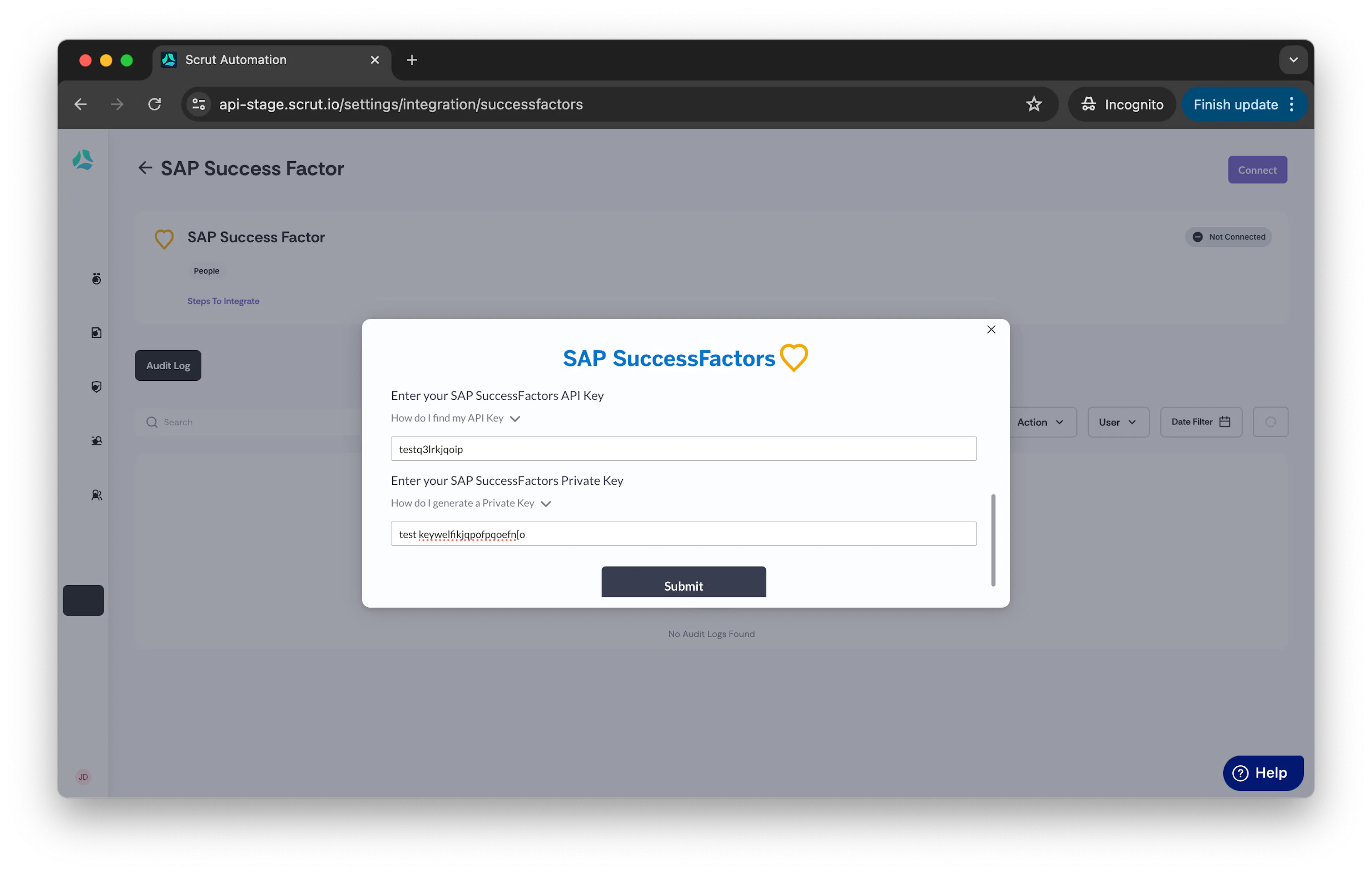
Enter your API Key and certificate’s private key into scrut's UI Auth component and hit Submit.
Info:
- Employee data will start syncing immediately. Incremental data will be synced every 24 hours.
- Data can also be manually synced by clicking the three dots and choosing the Sync Now option.