

Integrate UKG Pro
Connect your UKG Pro account with Scrut to sync employee records into the People module.
The Scrut-UKG Pro integration fetches employee data from your UKG Pro account and sends it to Scrut. After you complete the integration, Scrut will display the fetched data in the People → Employees module.
What This Integration Does in Scrut
- Employee Directory: Syncs employee and group data into Scrut's People module. These users can then access the Employee Portal for training, policy acceptance, and device-related activities.
Prerequisites
- An active UKG Pro account with administrator access to Service Account Administration and Web Services
- A Web Service Account in UKG Pro that can read employee data
- Employee records in UKG Pro with email addresses
Pro Tip!
We recommend logging into your UKG Pro account with your admin credentials before beginning the integration to avoid doing so later.
Permissions and Access Requirements
For UKG Pro
- A Web Service Account with access to employee data. To learn how to create one, see Web Service Account in the UKG developer documentation.
- Scrut requires the following read permissions for the integration:
- Read: user_profile
- Read: employment_info
- Read: manager_info (wherever applicable)
- Read: leave_data
For Scrut
- Admin access to Scrut (or Contributor with access to the Integration module)
Data Collected
| Scrut Field | Source Field / Data | Notes |
|---|---|---|
| Employee Name | Employee first and last name | |
| Email Address | Employee email address | |
| Joining Date | Employment start date | |
| Exit Date | Date of exit | Populated only for employees who have left the organization. |
| Department | Employee department | Populated only if the department is set in UKG Pro. |
| Reporting Manager | Reporting manager name and email | Populated only if a reporting manager is assigned in UKG Pro. |
| Leave Dates | Start and end dates of employee leaves | |
| Leave Status | Status of employee leaves |
Sync Frequency
Data syncs automatically every 24 hours. You can also manually trigger a sync by clicking Sync Now on the UKG Pro integration page.
Integration Setup
Step 1: Collect the Required Details From UKG Pro
Get the customer API key
- Log in to your UKG Pro account as a system administrator.
- Navigate to System Configuration → Security → Service Account Administration.
- Copy the Customer API Key and save it in a secure location.
Get your Web Service Account Username & Password
- Create a Web Service Account by following the steps in Web Service Account.
- Copy the username and password, and save them in a secure location.
Get your UKG Pro Host Name
- In UKG Pro, navigate to System Configuration → Security → Web Services.
- Locate the base service URL in any listed endpoint. Each endpoint has two parts: a base service URL and a resource path. The base service URL looks similar to
https://service5.ultipro.com/services/. - Copy the hostname from the base service URL.
- This is the part between
https://and the next/. - In the example above, the hostname is
service5.ultipro.com.
- This is the part between
To learn more, see Service Endpoints in the UKG developer documentation.
Heads Up! The hostname varies by datacenter and between production and test environments, so copy it from your own UKG Pro account. Enter the full hostname, such as service5.ultipro.com. Do not enter only the first part, such as service5, and do not include https:// or any path. An incomplete hostname causes the connection to fail.
Step 2: Connect Your UKG Pro Account in Scrut
- Log in to Scrut and click Integrations on the left panel.
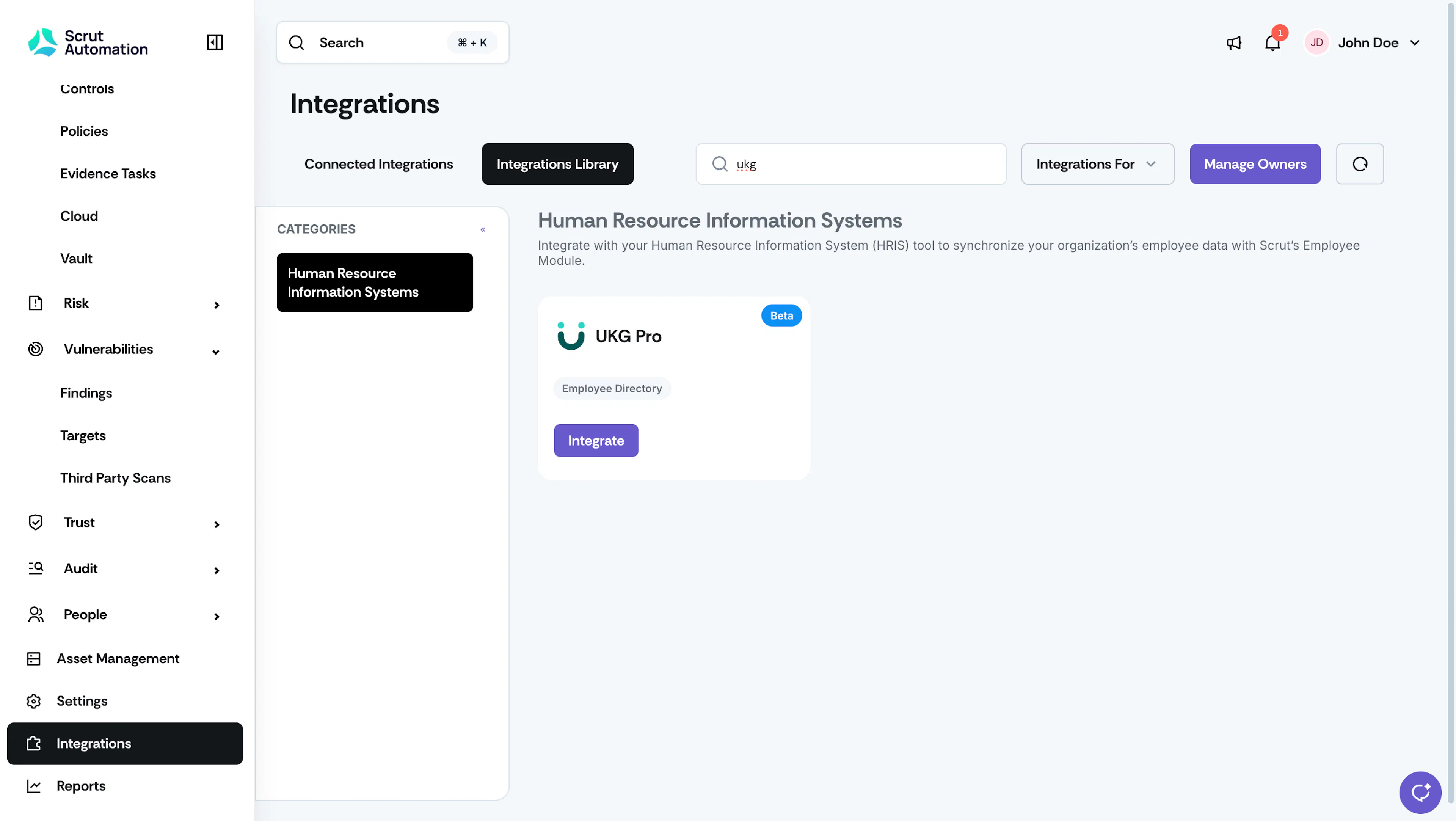
- Click the Integrations Library tab, and in the Categories section, click Human Resources Information Systems.
- Locate the UKG Pro card (or search for it in the search bar), then click Integrate.
Integrate UKG Pro - On the UKG Pro integration page, click Connect and enter the values you collected in Step 1.
- Click Submit.
When the connection succeeds, the UKG Pro integration page shows a connected status.
What Happens Next?
Initial Data Sync
Scrut starts syncing employee data from UKG Pro as soon as the integration is connected. After the initial sync, Scrut syncs new and updated data every 24 hours. You can monitor sync status in the Audit Logs on the UKG Pro integration page.
Review Synced Data
- Navigate to People → Employees → All Employees to view employees synced from UKG Pro.
- Click any employee to view their name, email address, joining date, exit date, department, and reporting manager.
Common Errors and Troubleshooting
FAQs
Contact support@scrut.io or your CSM for further assistance.