

Integrate Google Workspace
In this guide, we walk you through the process of connecting your Google Workspace account with Scrut.
What This Integration Does in Scrut
The Google Workspace integration performs the following functions in Scrut:
- Employee Directory: Syncs employee and group data into Scrut's People module. Synced employees can access the Employee portal for training, policy acceptance, and device-related activities.
- User Access Data: Fetches user details, roles, and permissions from Google Workspace for Access Reviews.
- Automated Tests: Runs automated compliance checks to continuously evaluate your Google Workspace configurations against applicable compliance frameworks.
- Scrut Monitor: Collects evidence through Scrut Monitor. This helps automate evidence gathering and significantly speeds up compliance workflows.
- SSO: Enables admins and employees to log in to Scrut and the Employee Portal, respectively, using their Google Workspace accounts.
- Vendor Management: Surfaces applications your employees access using their Google Workspace accounts as prospective vendors in Risk → Vendors → Onboarding.
Prerequisites
- An active Google Workspace account with Super Admin or User Management Admin access
- Your organization's users must have active Google Workspace accounts with work email addresses
Permissions and Access Requirements
For Google Workspace
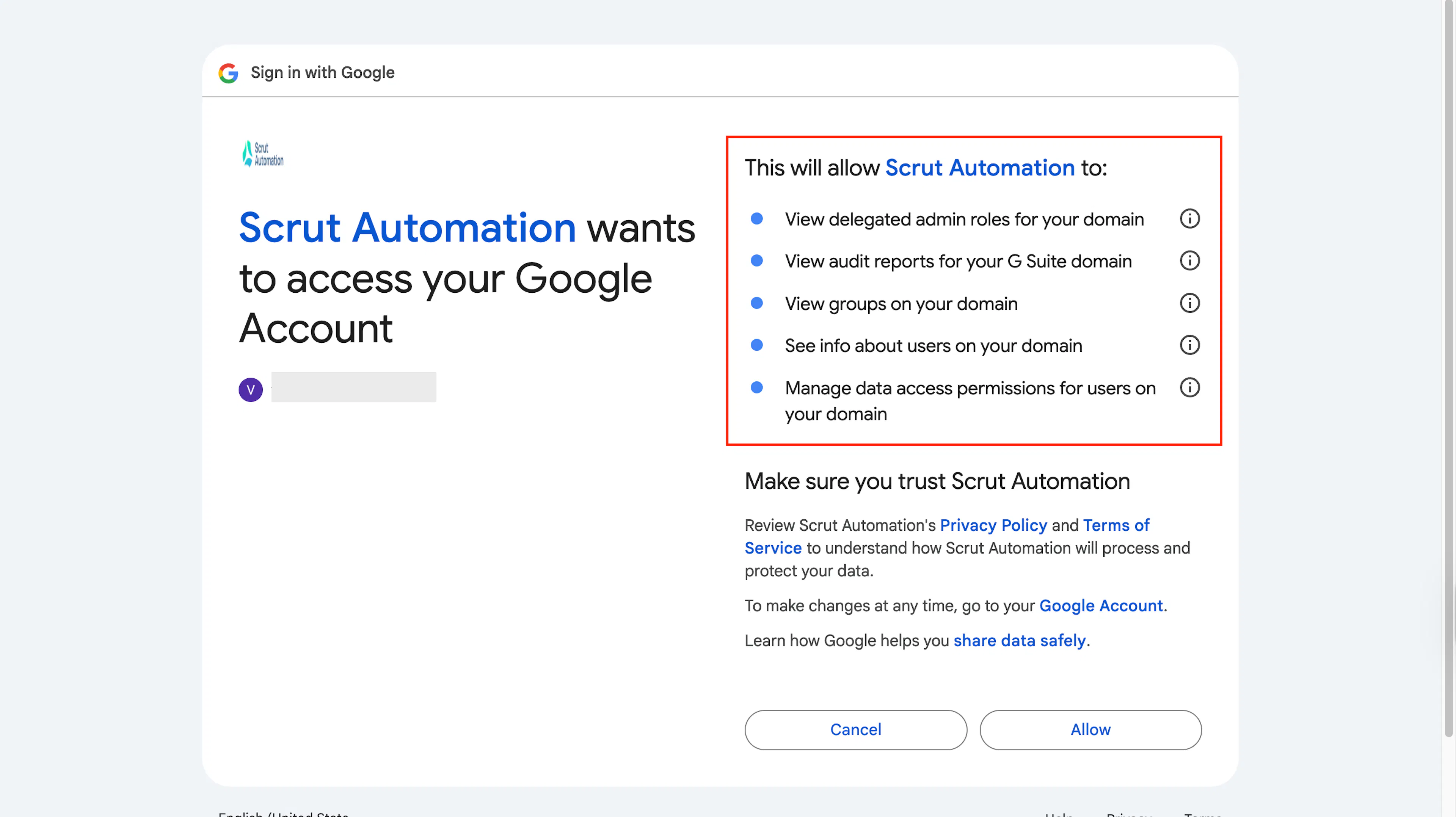
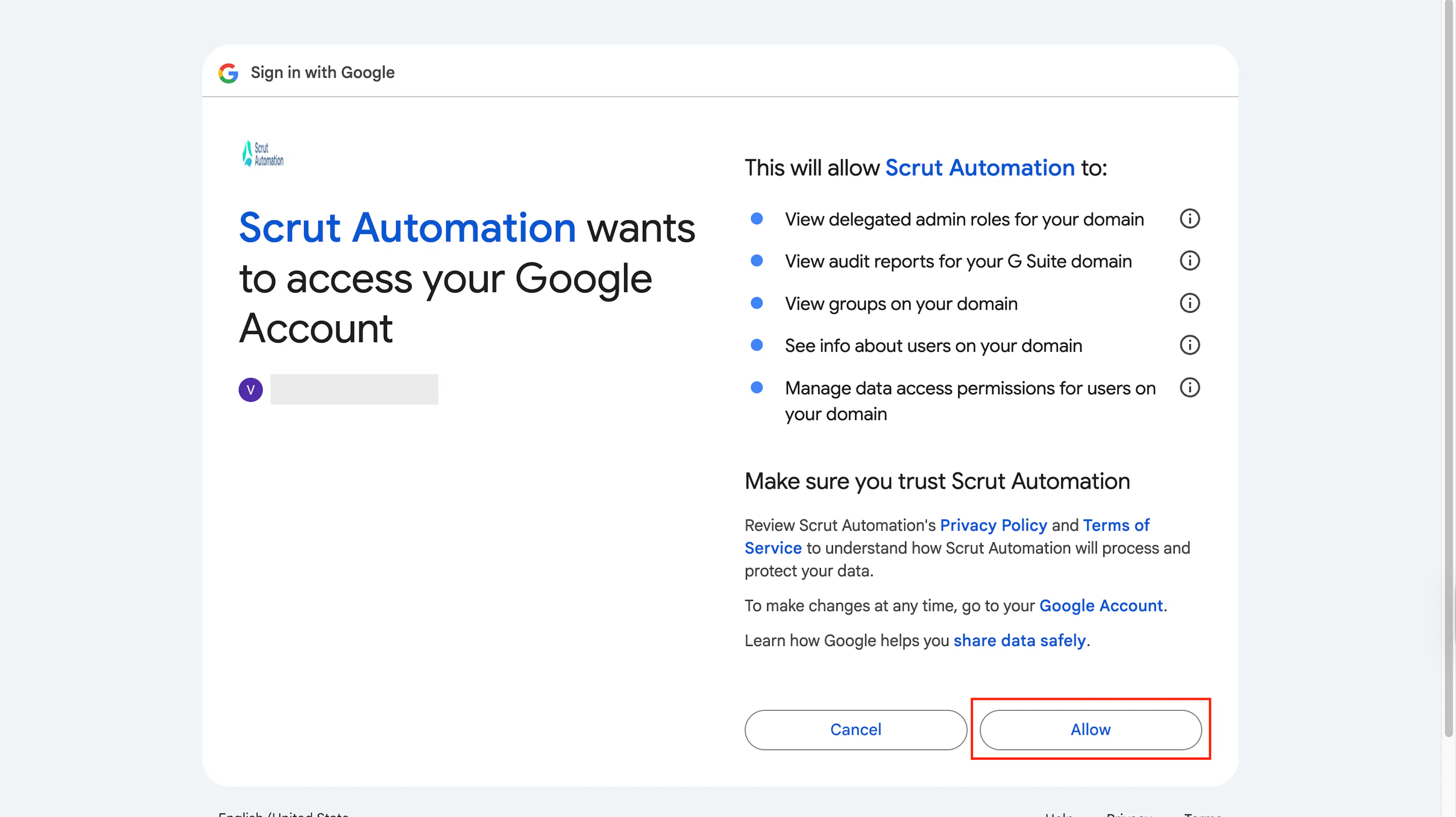
Scrut requires the following read-only OAuth scopes to fetch data from your Google Workspace. These are requested during the OAuth flow.
- https://www.googleapis.com/auth/admin.directory.user.readonly - View profile details and metadata for users in your domain, including name, email, phone number, role, manager info, and last login time.
- https://www.googleapis.com/auth/admin.directory.rolemanagement.readonly - View delegated admin roles currently defined for your domain.
- https://www.googleapis.com/auth/admin.directory.group.readonly - View group details (name, members) and metadata on your domain.
- https://www.googleapis.com/auth/admin.directory.user.security - View and manage data access permissions for users on your domain.
- https://www.googleapis.com/auth/admin.reports.audit.readonly - View audit reports of admin and user activity in your Google Workspace domain.
For Scrut
- Admin access to Scrut (or Contributor role with access to the Integrations module)
Data Collected
-
Users
- Employee Name: User's display name as set in Google Workspace.
- Email Address: User's primary work email address.
- Joining Date: Date the user was added to Google Workspace. Scrut treats this as the employee's start date.
- Exit Date: Date the user was deleted from Google Workspace. Scrut treats this as the employee's exit date.
-
Groups and Group Members
- Group name and member list
-
Roles and Role Assignments
- Admin roles assigned to the user
- Role-to-user mappings across the domain
-
Vendors
- Vendor Name (Third-party applications accessed via "Sign in with Google")
-
Audit Logs
- User login audit logs
- Admin login audit logs
Sync Frequency
Data is synced automatically once every 24 hours. You can also trigger a manual sync from the Google Workspace integration page in Scrut at any time.
Integration Setup
Pro Tip!
We recommend signing in to your Google Workspace account before starting the integration.
Step 1: Connect Google Workspace in Scrut
-
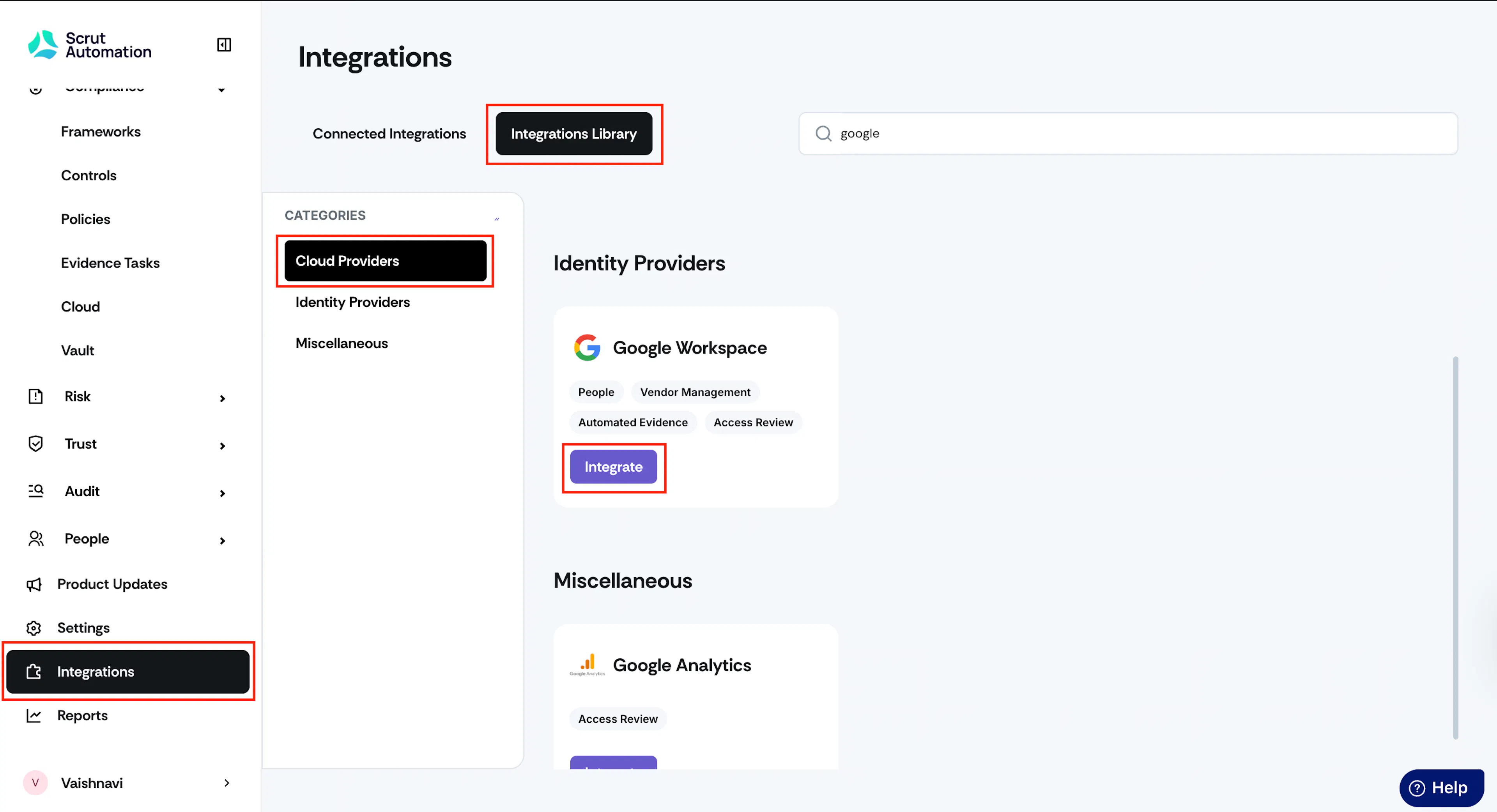
Sign in to Scrut and navigate to Integrations using the left side menu.
-
Go to the Integrations Library tab and select Identity Providers under Categories.
-
Locate the Google Workspace card and click Integrate. You can also use the search bar to find it quickly.
-
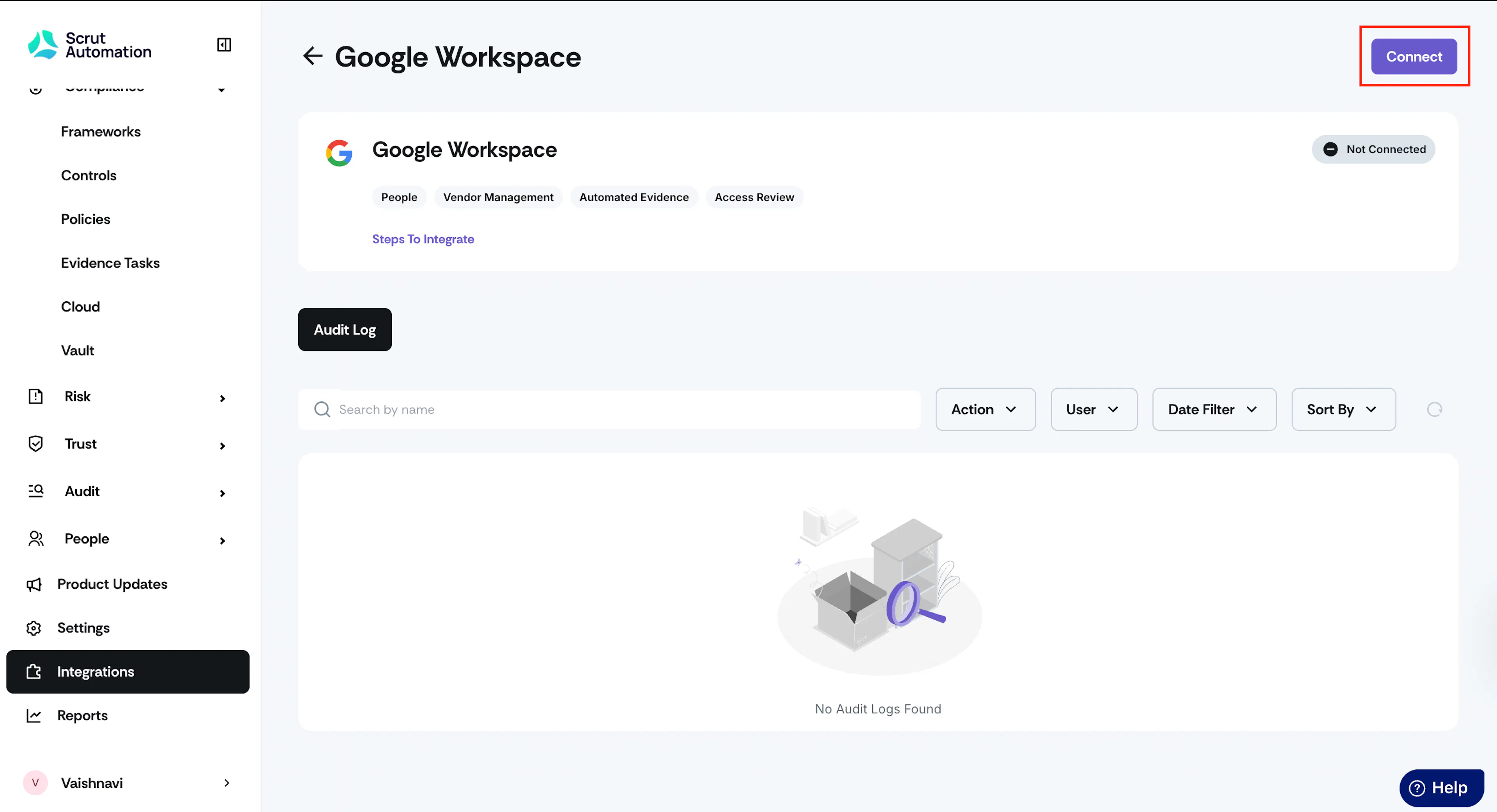
On the Google Workspace integration page, click Connect.
-
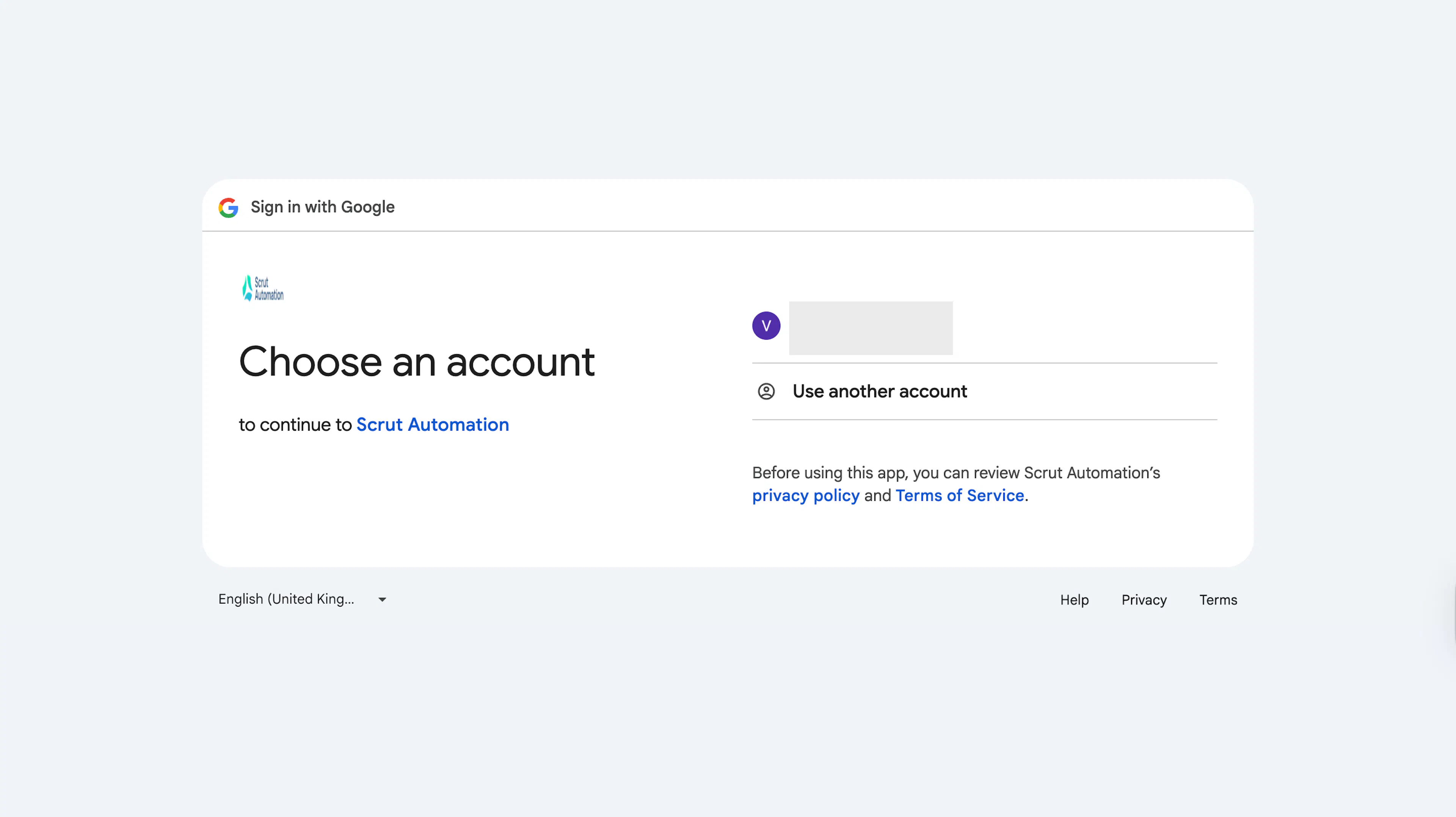
You will be redirected to Google's authentication page. Select your Google Workspace account. If you are not already signed in, you will be prompted to log in first.
-
Review the list of permissions Scrut is requesting and click Allow.
-
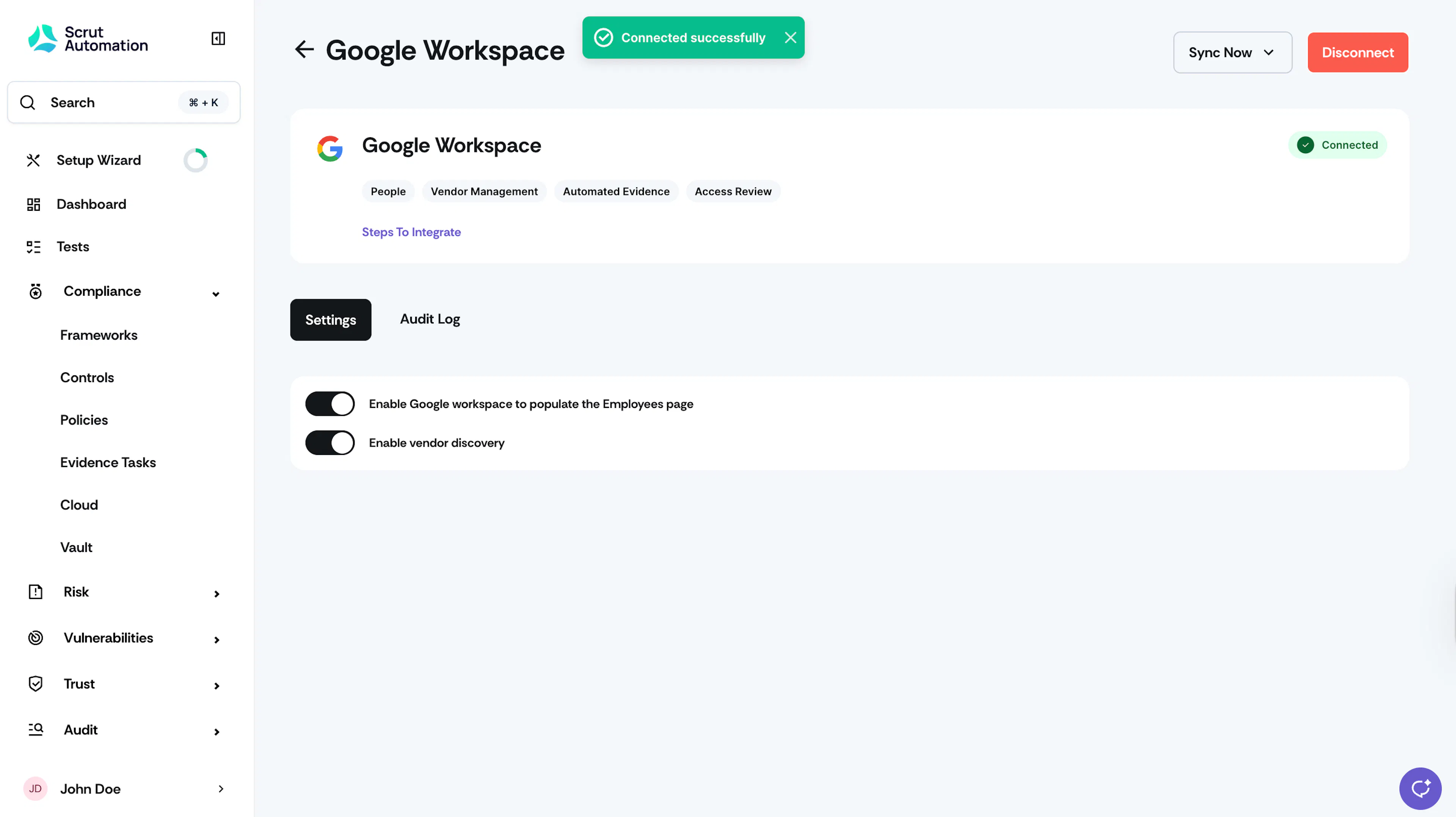
On successful authorization, you are redirected back to Scrut. A Connected status indicator appears on the Google Workspace integration page.
Step 2: Configure Settings in Scrut
On the integration settings page, turn the toggles on or off based on your needs.
- Enable Google Workspace to populate the Employees page: Turn on this toggle to automatically sync employee information from your Google Workspace directory into Scrut's People module. Scrut pulls the latest employee data directly from Google Workspace, so you do not need to add or update employee records manually.
- Enable vendor discovery: Turn on this toggle to populate the vendor module with third-party applications your organization's users access using their work Google accounts.
Step 3: Configure Third-Party App Access in Google Admin
To ensure Scrut has the access it needs, you must also configure app access from your Google Admin panel.
-
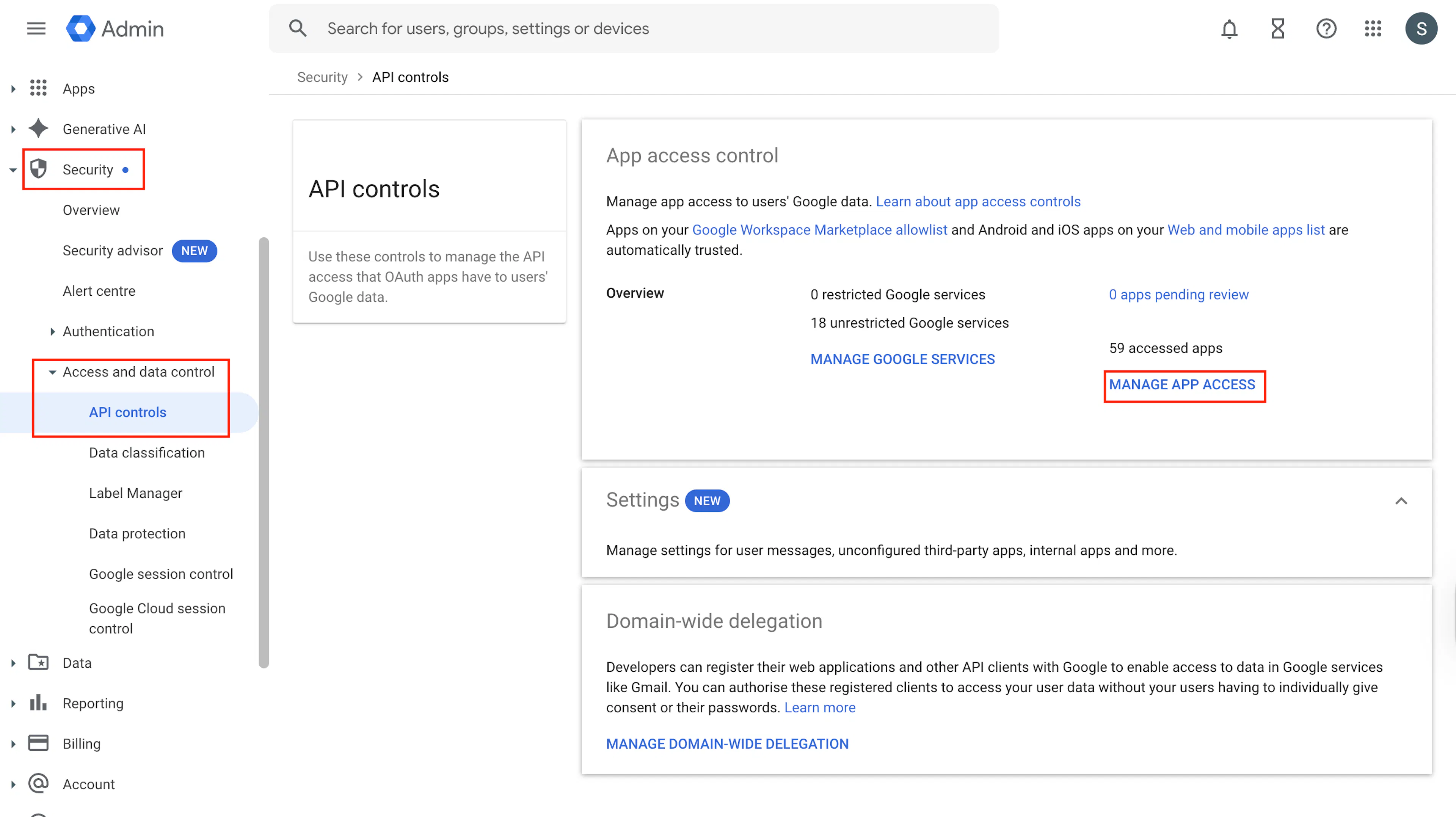
Sign in to your Google Admin console and navigate to Security → Access and data control → API Controls → Manage App Access.
-
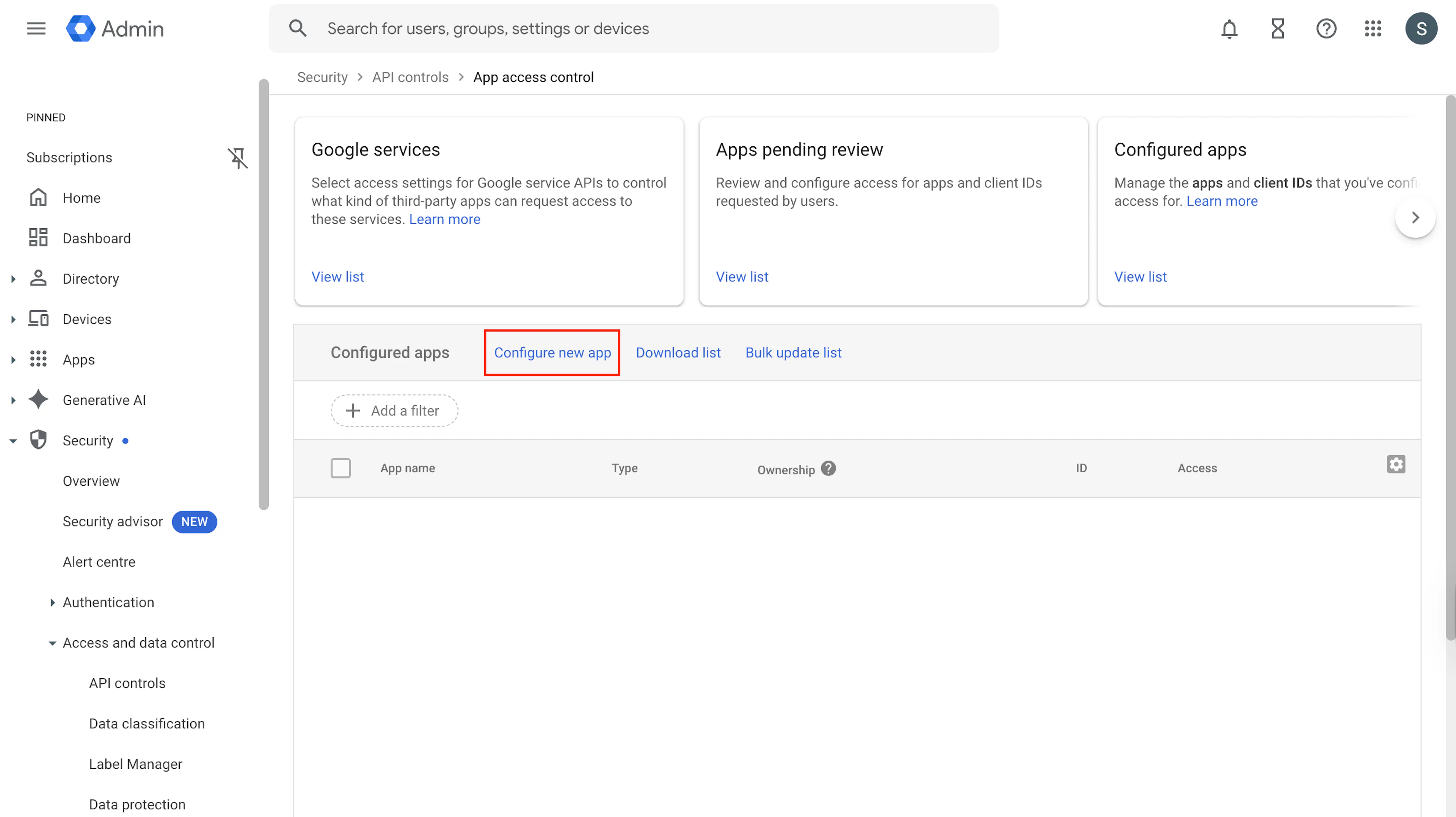
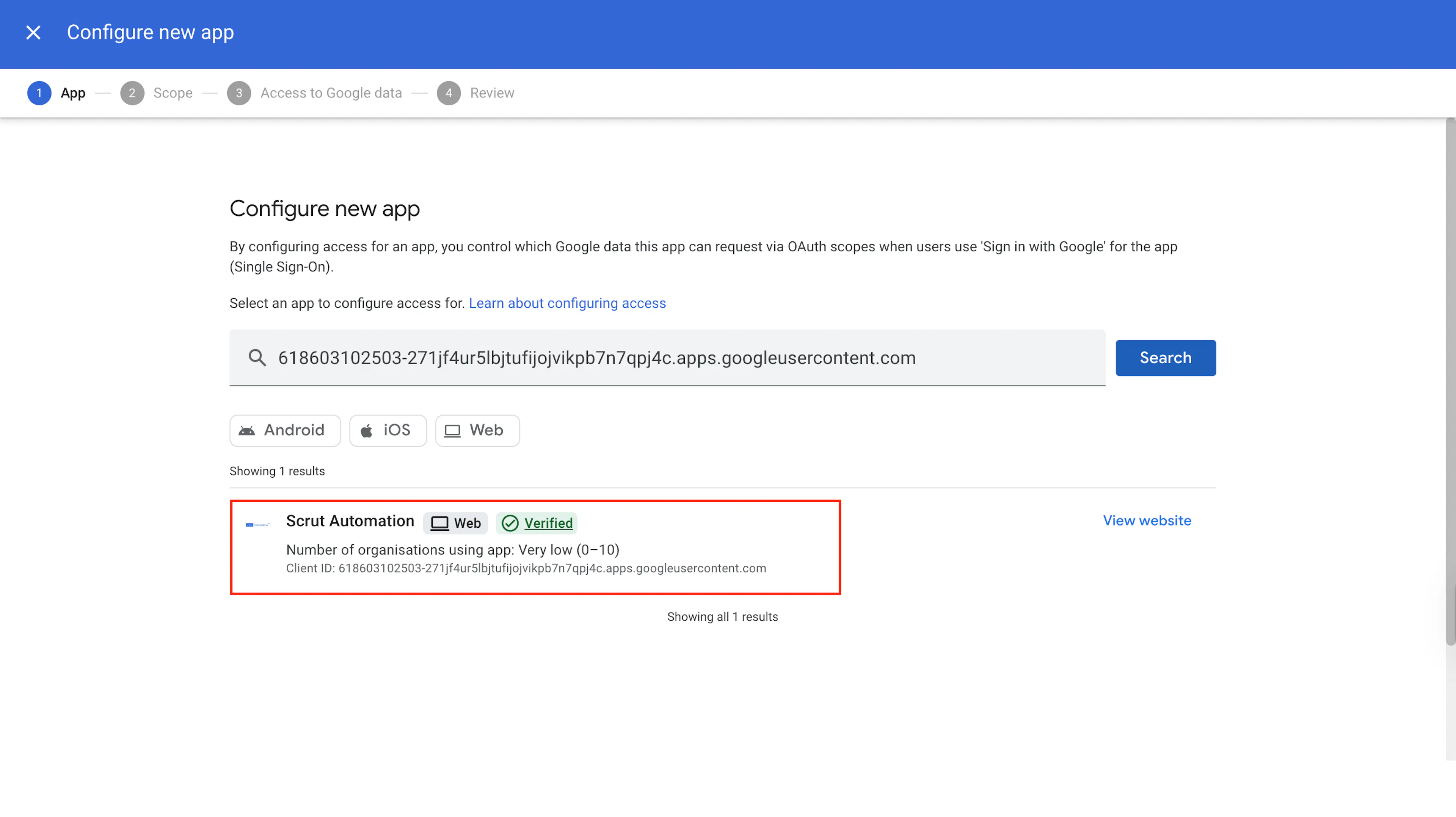
Click Configure new app.
-
Search for Scrut using one of the following verified Client IDs:
- 618603102503-271jf4ur5lbjtufijojvikpb7n7qpj4c.apps.googleusercontent.com
- 867036064227-qs01r28jmlotr3j65ti0t6uj4hp4urjs.apps.googleusercontent.com
- 713980123652-ilae3oaght9ko4cmsvjpduknj9458cvj.apps.googleusercontent.com
-
Select the Scrut app from the search results.
-
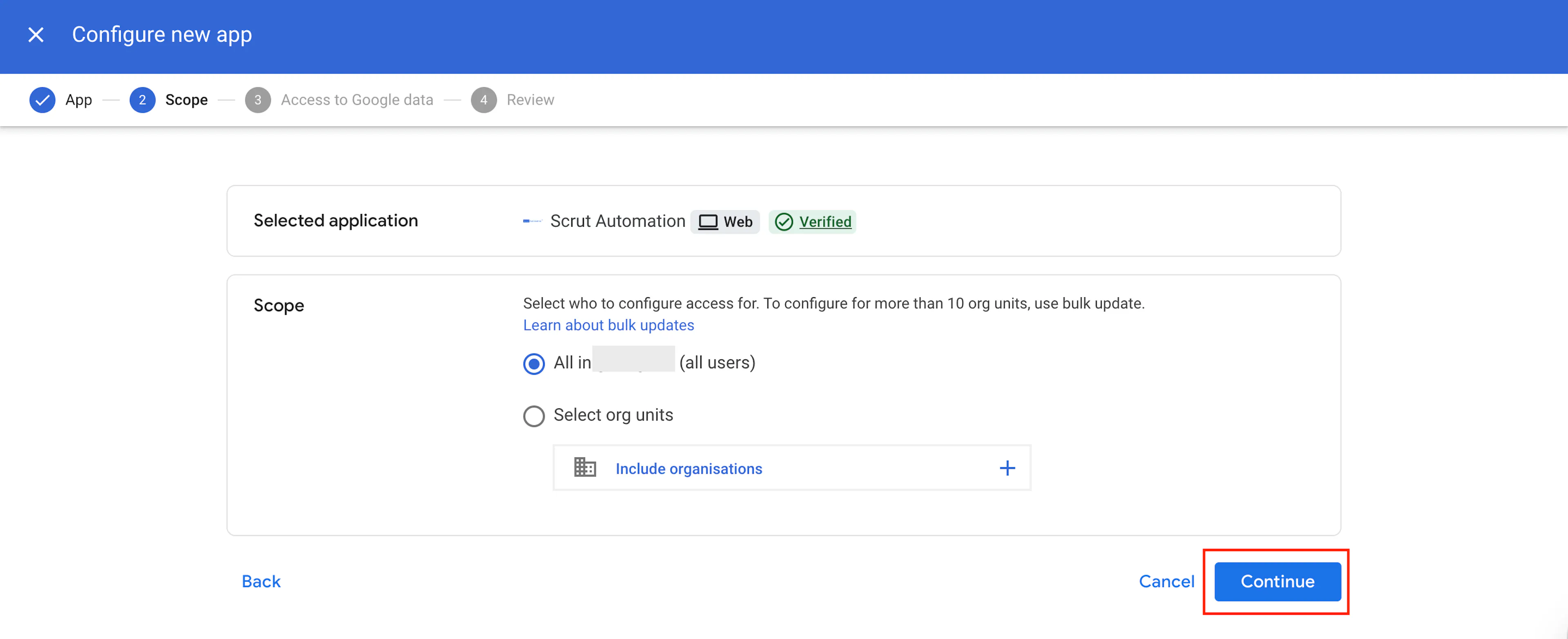
Set the scope to All Users and click Continue.
-
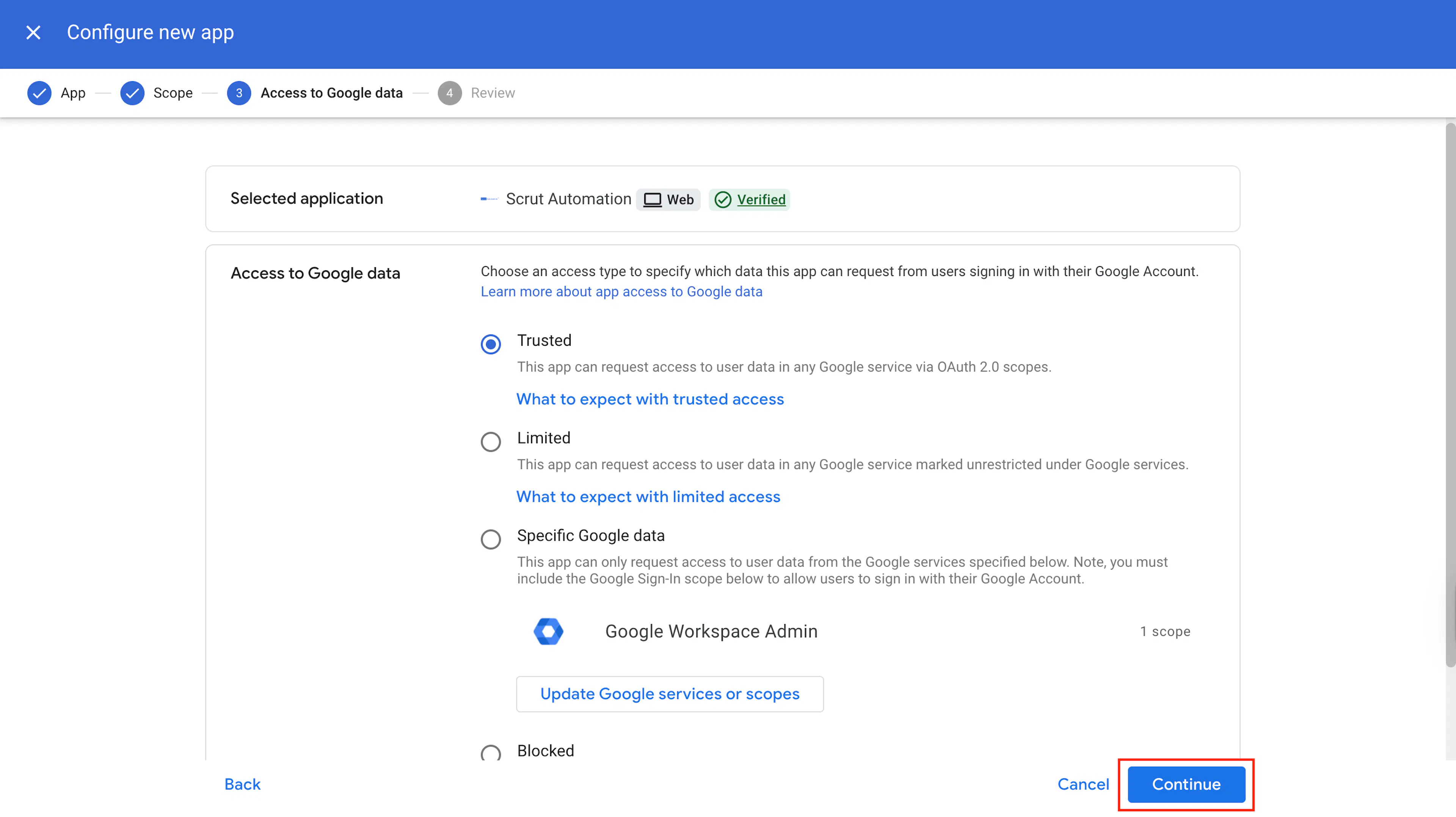
Under Access to Google data, select Trusted and click Continue.
-
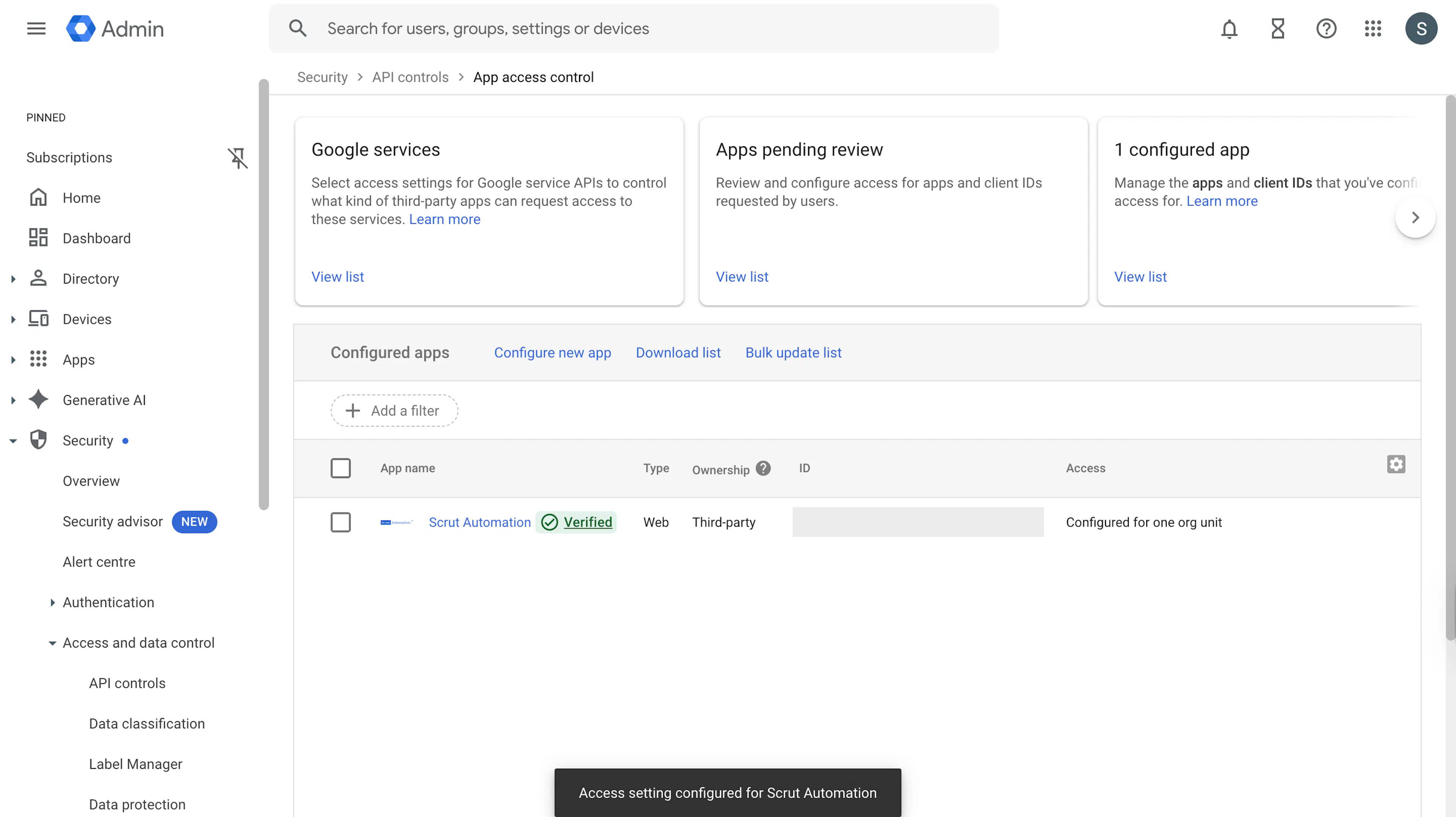
Review the configuration summary and click Finish.
What Happens Next?
Initial Data Sync
After setup is complete, Scrut automatically begins fetching data from your Google Workspace. Allow some time for the initial sync to complete. You can monitor sync activity from the Audit Log tab on the Google Workspace integration page.
Recurring Sync
Scrut automatically fetches incremental data every 24 hours.
Manual Sync
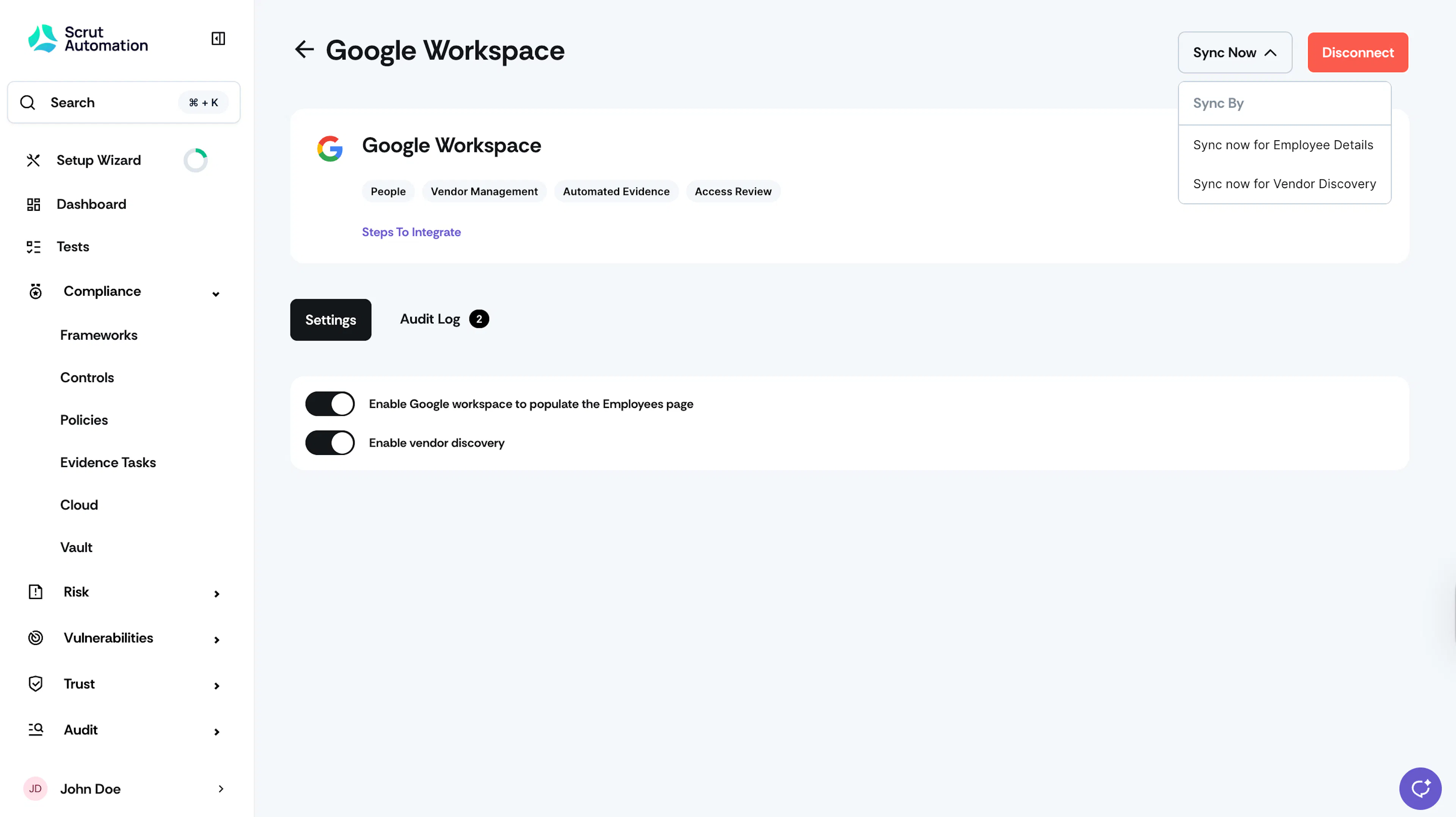
If you need to sync data before the next scheduled run, click Sync Now on the integration page and select one of the following:
- Sync now for employee details: Syncs user data from Google Workspace to the People module.
- Sync now for vendor discovery: Syncs vendor data to the Onboarding Tab in the Vendor Management module.
Review Synced Data
Once the sync is complete, verify that the data has landed correctly in the following locations:
-
Navigate to People → Employees to view synced employee records.
-
Navigate to People → Access Reviews to set up an access review to validate user roles and permissions in your Google Workspace.
-
Navigate to Settings → Administration to enable Google Workspace SSO Login for your Scrut organization.
-
Navigate to Compliance → Evidence Tasks to set up a Scrut Monitor to automate evidence collection from Google Workspace.
-
Navigate to Risk → Vendors → Onboarding → Discovered from Integration to review vendor discovery results.
-
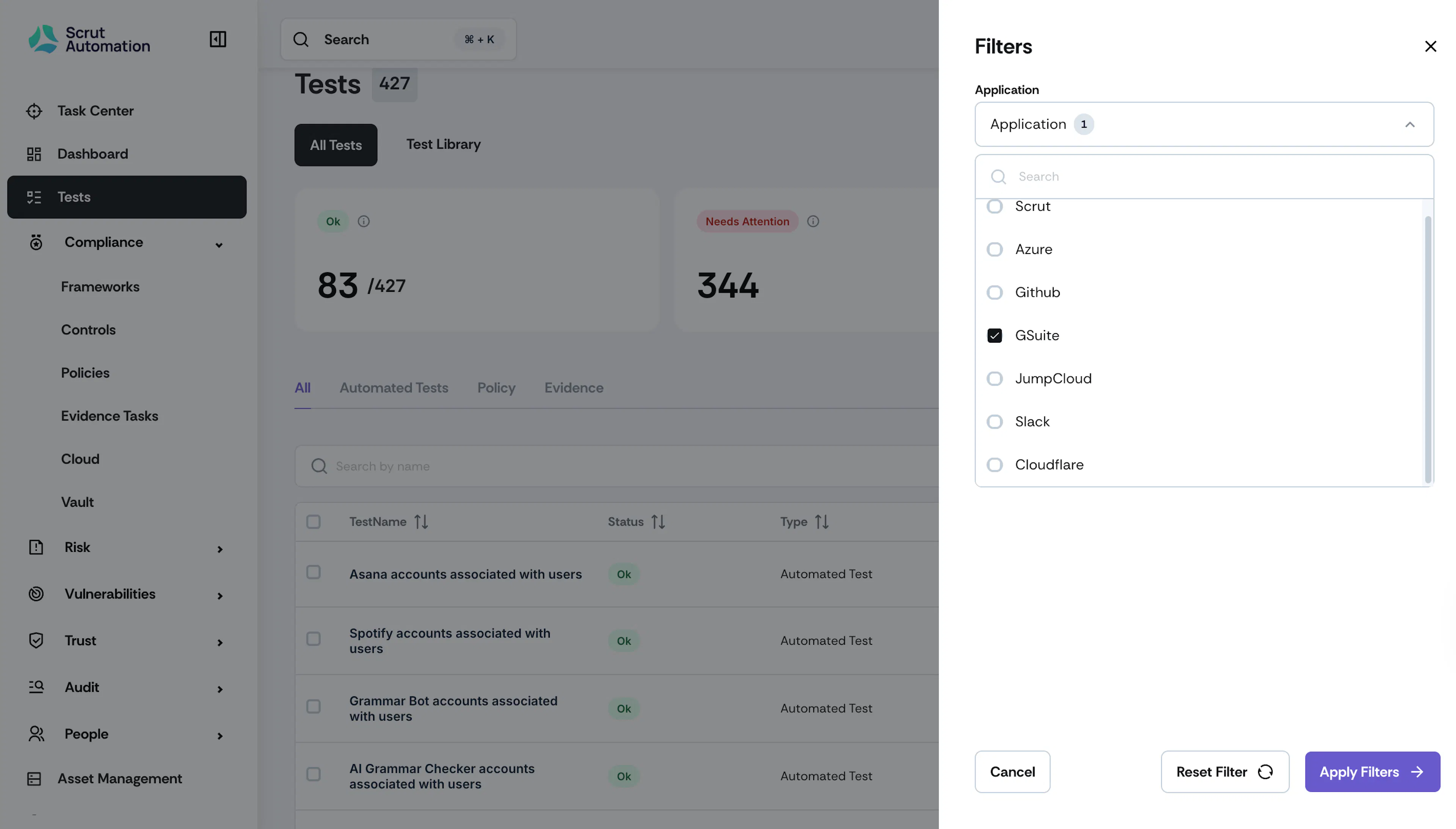
Navigate to Tests to view automated test coverage driven by Google Workspace data. Apply the Filter with G Suite selected to view tests only for Google Workspace.
Common Errors and Troubleshooting
Integration does not connect
Possible solutions:
- Confirm that the Google account you are using has Super Admin or User Management Admin access in Google Workspace.
- Make sure you are signing in with your work Google account, not a personal account.
- Check that you clicked Allow on the Google permissions screen. If you clicked Cancel, restart the integration flow.
Employee data not appearing in Scrut
Possible solutions:
- Confirm that the Enable Google Workspace to populate the Employees page toggle is turned on in the integration settings.
- Allow time for the initial sync to complete, then check the Audit Log tab for errors.
- Trigger a manual sync by clicking Sync Now → Sync Now for Employee Details.
Vendor discovery list is empty
Possible solutions:
- Confirm that the Enable vendor discovery toggle is turned on.
- Vendor discovery tracks "Sign in with Google" usage across your organization. If employees have not used their work accounts to access third-party apps, no vendors will appear.
- Trigger a manual sync by clicking Sync Now → Sync Now for Vendor Discovery.
Third-party app access not configured
Cause: Scrut was connected via OAuth, but app access was not configured in Google Admin. This may limit the data Scrut can retrieve. Possible solutions:
- Complete Step 3 of the integration setup to configure Scrut as a trusted app in Google Admin.
- Use the verified Client IDs listed in this guide to locate the correct Scrut app.
Incorrect or unexpected joining or exit dates
Cause: Scrut derives the joining date from when a user was added to Google Workspace and the exit date from when the user was deleted. These may not reflect actual employment dates if Google Workspace records were created or removed at a different time.
FAQs
Reach out to support@scrut.io or contact your CSM for further assistance