

Integrate Microsoft Entra (Azure AD)
In this guide, we walk you through the process of connecting your Microsoft Entra (Formerly, Azure Active Directory) account with Scrut.
What This Integration Does in Scrut
- Employee Directory: Syncs employee and group data into Scrut's People module. These users can then access the Employee Portal for training, policy acceptance, and device-related activities.
- User Access Data: Fetches user details, roles, and permissions from Microsoft Entra (Azure AD) for Access Reviews.
- Automated Tests: Runs automated compliance checks that continuously evaluate your configurations against applicable compliance frameworks.
- Vendor Management: Surfaces applications your employees access using their Microsoft Entra (Azure AD) accounts as prospective vendors in Risk → Vendors → Onboarding → Discovered from Integration.
- SSO: Enables admins and employees to log in to Scrut and the Employee Portal, respectively, using their Microsoft Entra (Azure AD) accounts.
Prerequisites
- An active Microsoft Entra (Azure AD) account with Global Administrator access.
- Users in your Microsoft Entra (Azure AD) account have email addresses assigned.
Pro Tip!
Log in to your Microsoft Entra (Azure AD) account before beginning the setup in Scrut. This makes the OAuth authorization flow faster and avoids an additional sign-in prompt mid-setup.
Permissions and Access Requirements
For Microsoft Entra (Azure AD)
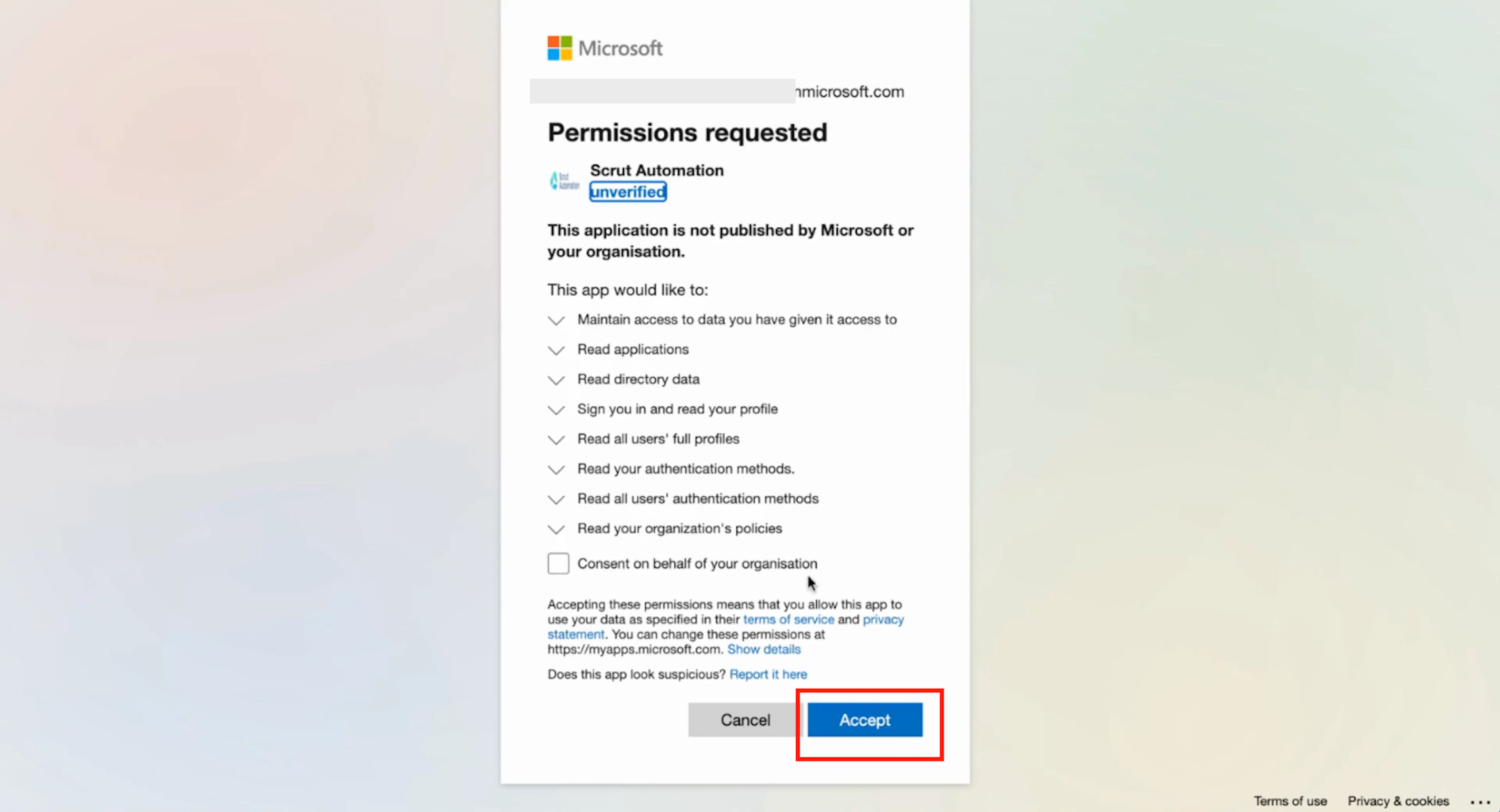
Scrut requests the following read-only permissions during the OAuth authorization flow:
- openid
- profile
- offline_access
- Application.Read.All
- Directory.Read.All
- User.Read
- User.Read.All
- UserAuthenticationMethod.Read
- UserAuthenticationMethod.Read.All
- Policy.Read.All
Note: For a detailed explanation of each permission scope, refer to Microsoft's Graph permissions reference documentation.
For Scrut
- Admin access to Scrut, or Contributor Role (with access to the Integrations module)
Supported Versions
This integration supports Microsoft Entra (Azure AD) across all account versions (v1, v2, v3, and v4).
Data Collected
-
Users
- displayName
- mail / userPrincipalName
- createdDateTime (The date the user was added to Azure AD)
- deletedDateTime (The date the user was deleted from Azure AD)
- administrativeUnit (The Administrative Unit the employee belongs to)
-
Groups
- memberOf (Group memberships associated with the user)
-
Vendors
- Application display names (Applications accessed via Entra accounts, surfaced as prospective vendors in Scrut)
Sync Frequency
Data syncs automatically every 24 hours. You can also trigger a manual sync at any time from the integration settings page.
Integration Setup
Step 1: Navigate to Integrations in Scrut
-
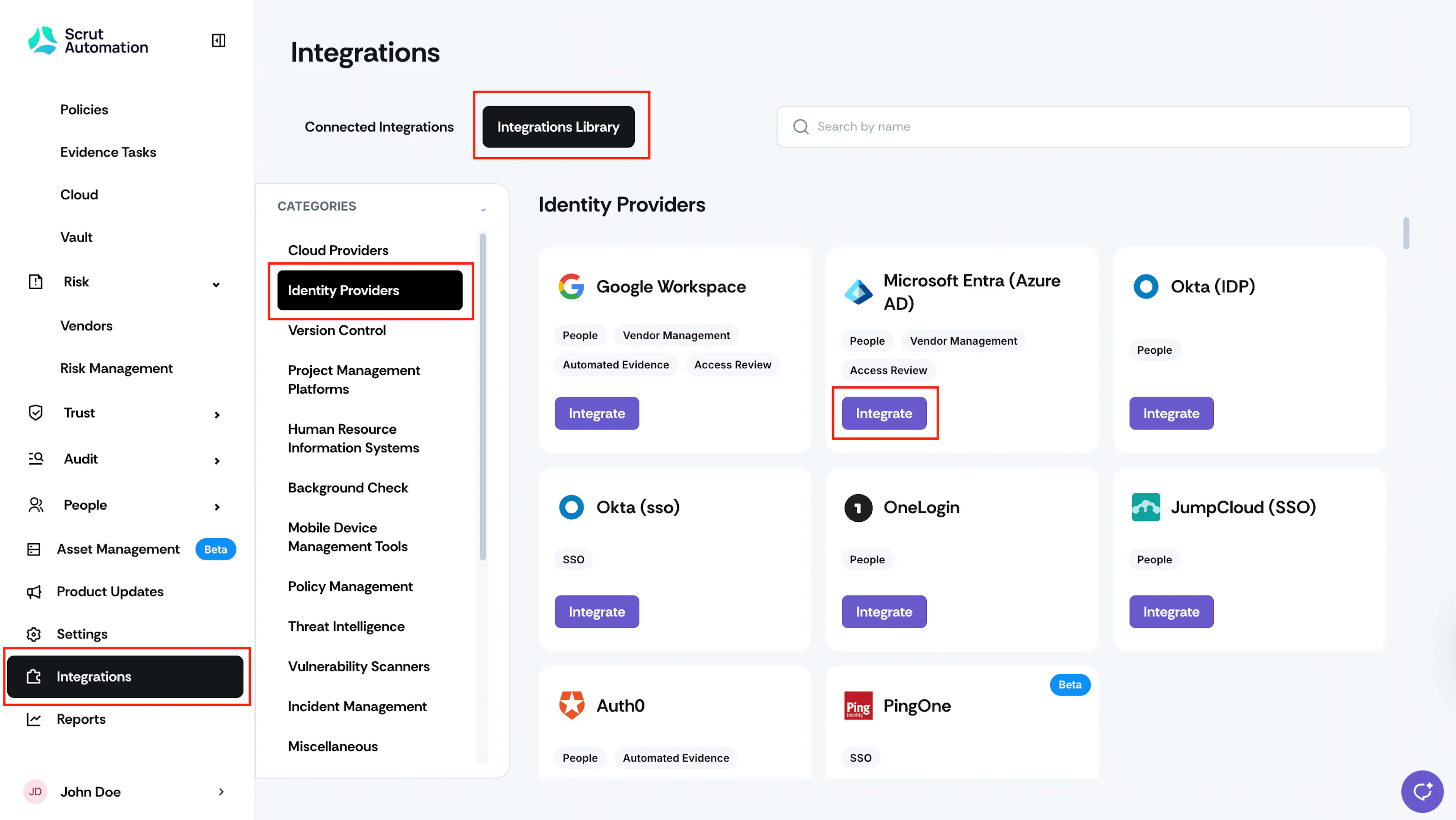
Sign in to Scrut and click Integrations on the left navigation panel.
-
Click the Integrations Library tab and navigate to Identity Providers in the Categories section.
-
Locate the Microsoft Entra (Azure AD) integration tile and click Integrate.
-
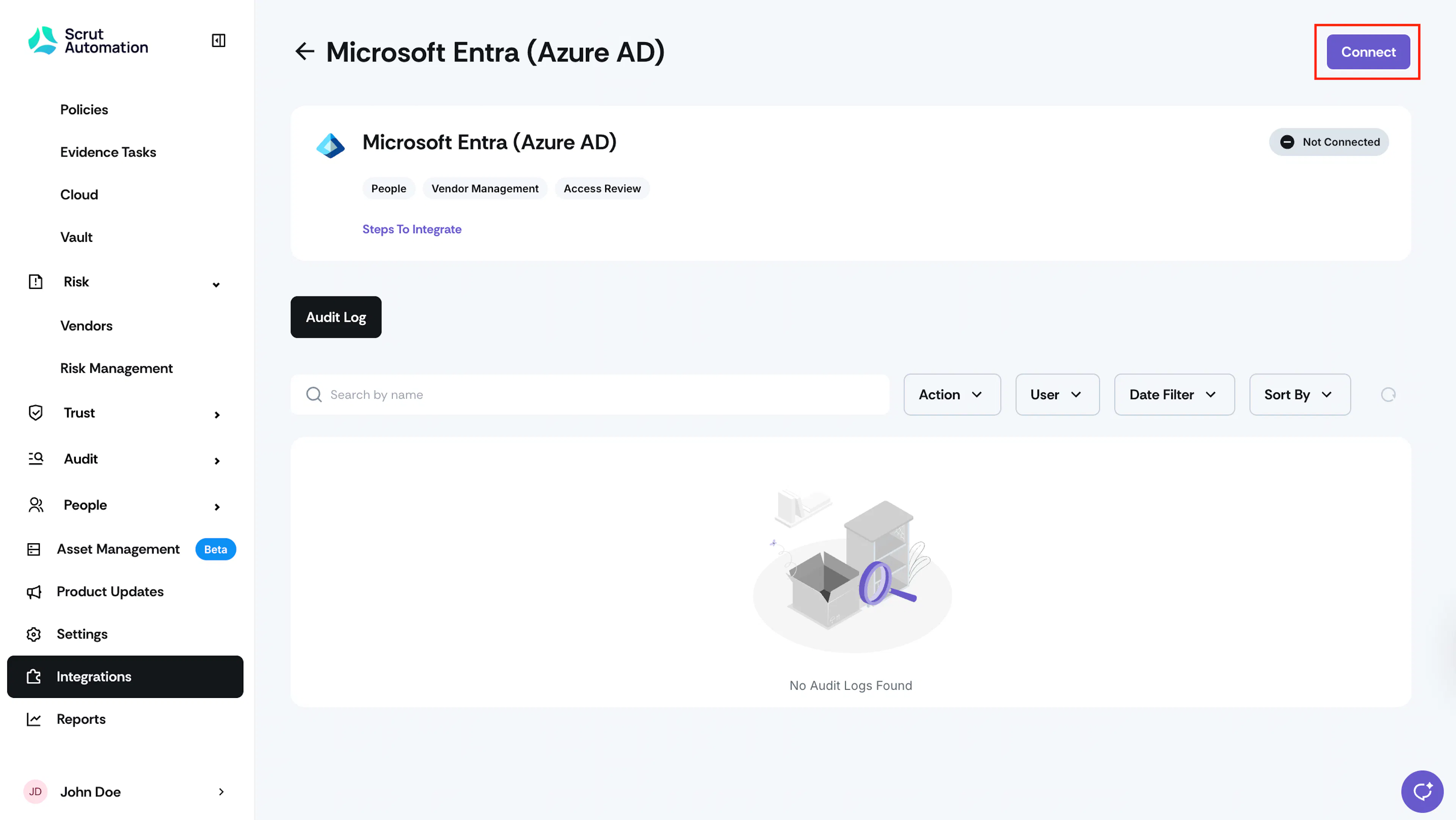
Click the Connect button on the Microsoft Entra (Azure AD) integration page.
Step 2: Authorize the Integration
-
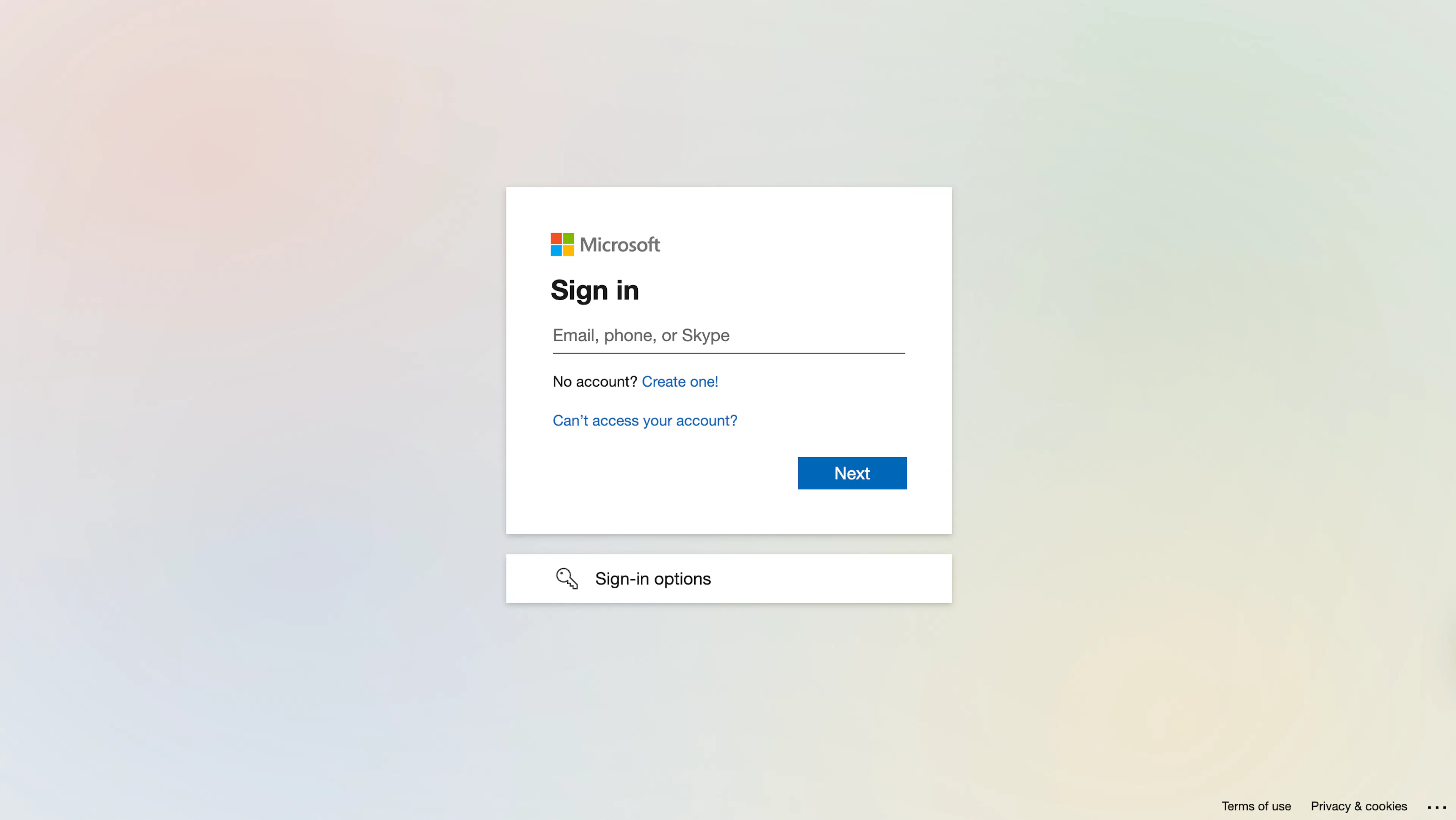
You will be redirected to Microsoft's authentication page.
Note: If you haven’t signed into your Microsoft account, you’ll be prompted to complete the sign-in process. Sign in with your Microsoft administrator account if prompted.
-
Review the permissions requested on the Microsoft OAuth screen and click Accept.
-
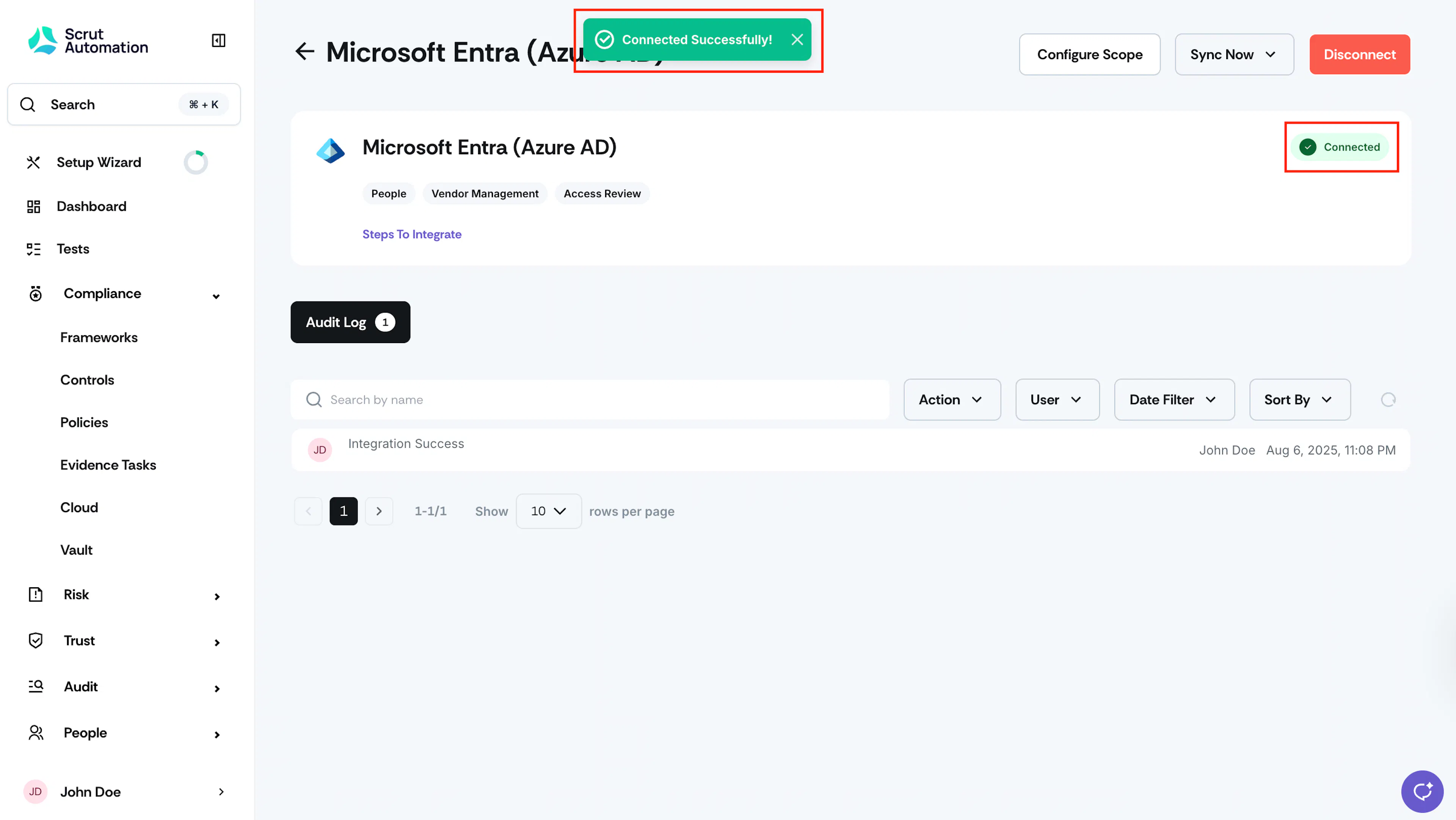
You will be redirected back to Scrut. The integration status updates to Connected.
Step 3: Configure Scope
-
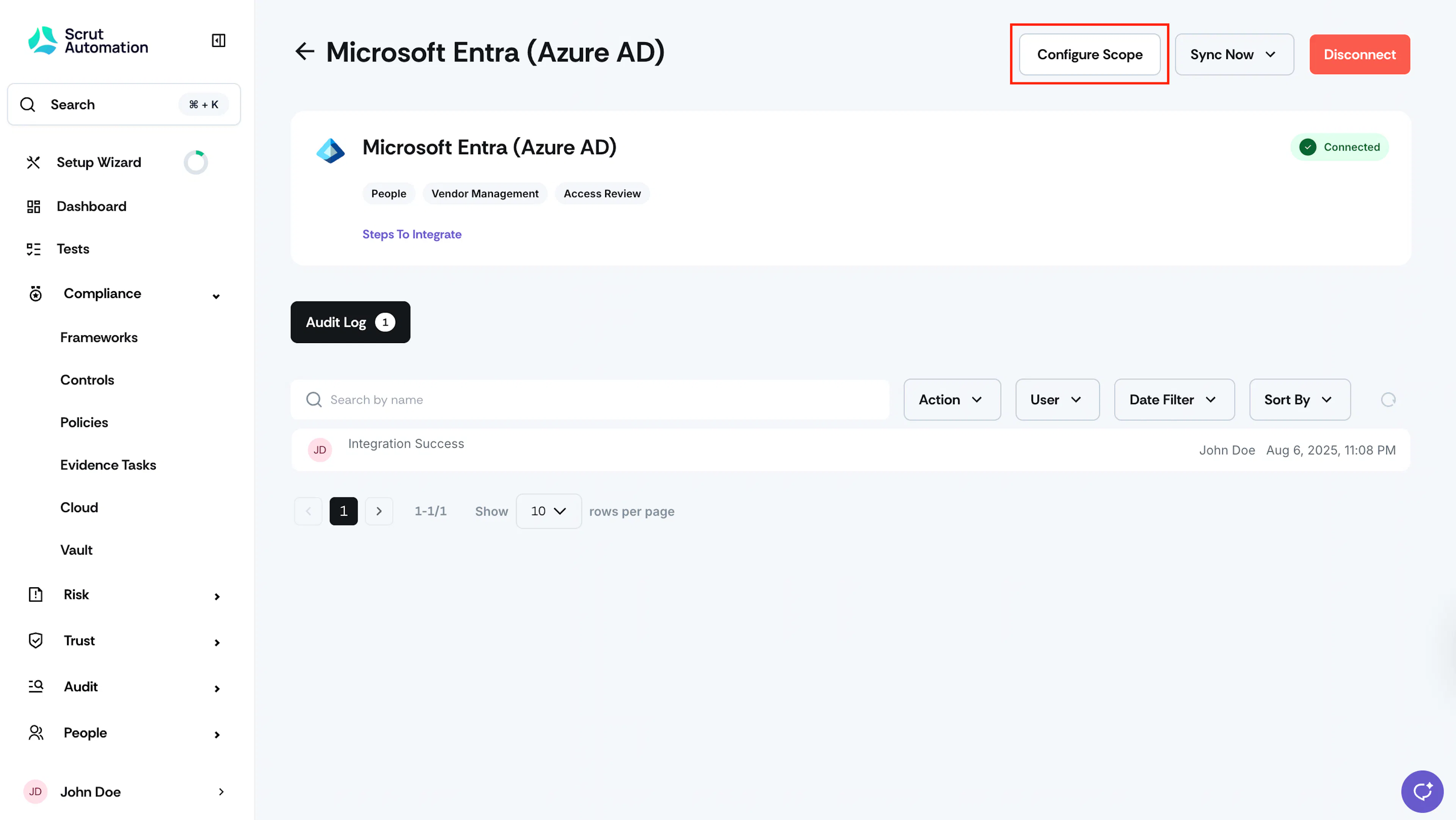
Click Configure Scope. A list of licenses available in your Office 365 account will be displayed.
-
The Configure License feature allows you to sync employees associated with preferred license(s).
-
A list of licenses available in your Office 365 account will be displayed.
-
Toggle on the licenses for which you want to sync employees.
-
Click Save to confirm your selections.
-
Once the licenses are configured, the employee information corresponding to the selected licenses will be populated in the People → Employees module.
Heads Up!
It may take a few minutes after saving for employee data to begin populating in the People module. Check the Audit Log on the integration page to monitor sync status.
What Happens Next?
Initial data sync
Scrut begins syncing employee data from your Microsoft Entra (Azure AD) account immediately after the integration is connected, and your license scope is saved. You can monitor sync progress and history in the Audit Log on the Microsoft Entra (Azure AD) integration page.
Manual sync
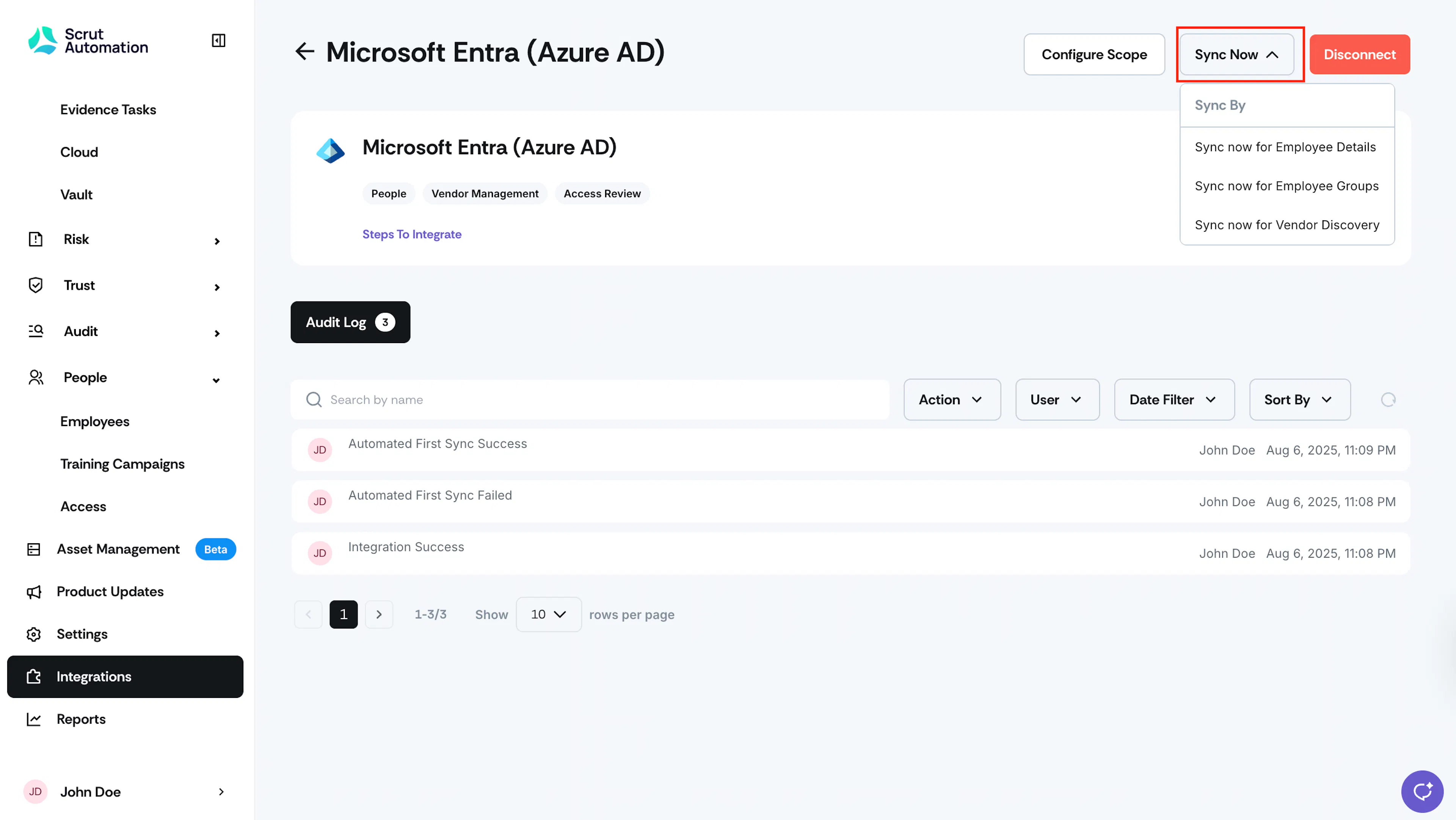
If you need to sync data before the next scheduled run, click Sync Now on the integration page. Select from the available sync options:
- Sync Now for Employee Details
- Sync Now for Employee Groups
- Sync Now for Vendor Discovery
Review synced data
Once the initial sync is complete, verify that data has landed correctly in the following locations:
- Navigate to People → Employees to view synced employee records, including name, email, joining date, and Administrative Unit.
- Navigate to Risk → Vendors → Onboarding → Discovered from Integration to review applications surfaced as prospective vendors.
- Navigate to Tests to view automated test results tied to your Azure AD configuration. Filter by Application to view tests for Azure AD.
Common Errors & Troubleshooting
Integration not connecting
Possible solutions:
- Confirm you are signing in with an account that has Global Administrator permissions in Microsoft Entra (Azure AD).
- Ensure your organization allows third-party OAuth applications. Check your Entra app consent settings.
- Try signing in to your Microsoft account in a separate browser tab, then reattempt the OAuth flow in Scrut.
Employee data not appearing after sync
Possible solutions:
- Confirm that the correct licenses are toggled on under Configure Scope. Employees not covered by a selected license are not synced.
- Allow a few minutes after saving scope changes before checking the People module.
- Check the Audit Log on the integration page.
- Try triggering a manual sync using Sync Now.
Administrative unit showing as blank
Possible solutions:
- Confirm that Administrative Units are configured in your Microsoft Entra (Azure AD) account and that the synced users are assigned to one. Users without an AU assignment will show a blank value in Scrut.
Vendor data not appearing
Possible solutions:
- Trigger a manual Sync Now for Vendor Discovery from the integration page.
- Confirm that your Microsoft Entra (Azure AD) account has application data associated with users. If no applications are registered or assigned, the Vendor Management module will not populate.