

Integrate Confluence
Connecting Confluence with Scrut lets you automatically import and sync policy documents into the Scrut Policies module, so your compliance program always reflects the latest versions maintained in Confluence.
What This Integration Does in Scrut
- Policy Management: Fetches policy documents into the Policies module in Scrut. These policies can be assigned to employees for review and acceptance.
Prerequisites
Before setting up this integration, make sure you have:
- An active Confluence account with administrator access.
- Policies in Confluence tagged with the relevant labels you intend to sync.
Permissions and Access Requirements
For Confluence
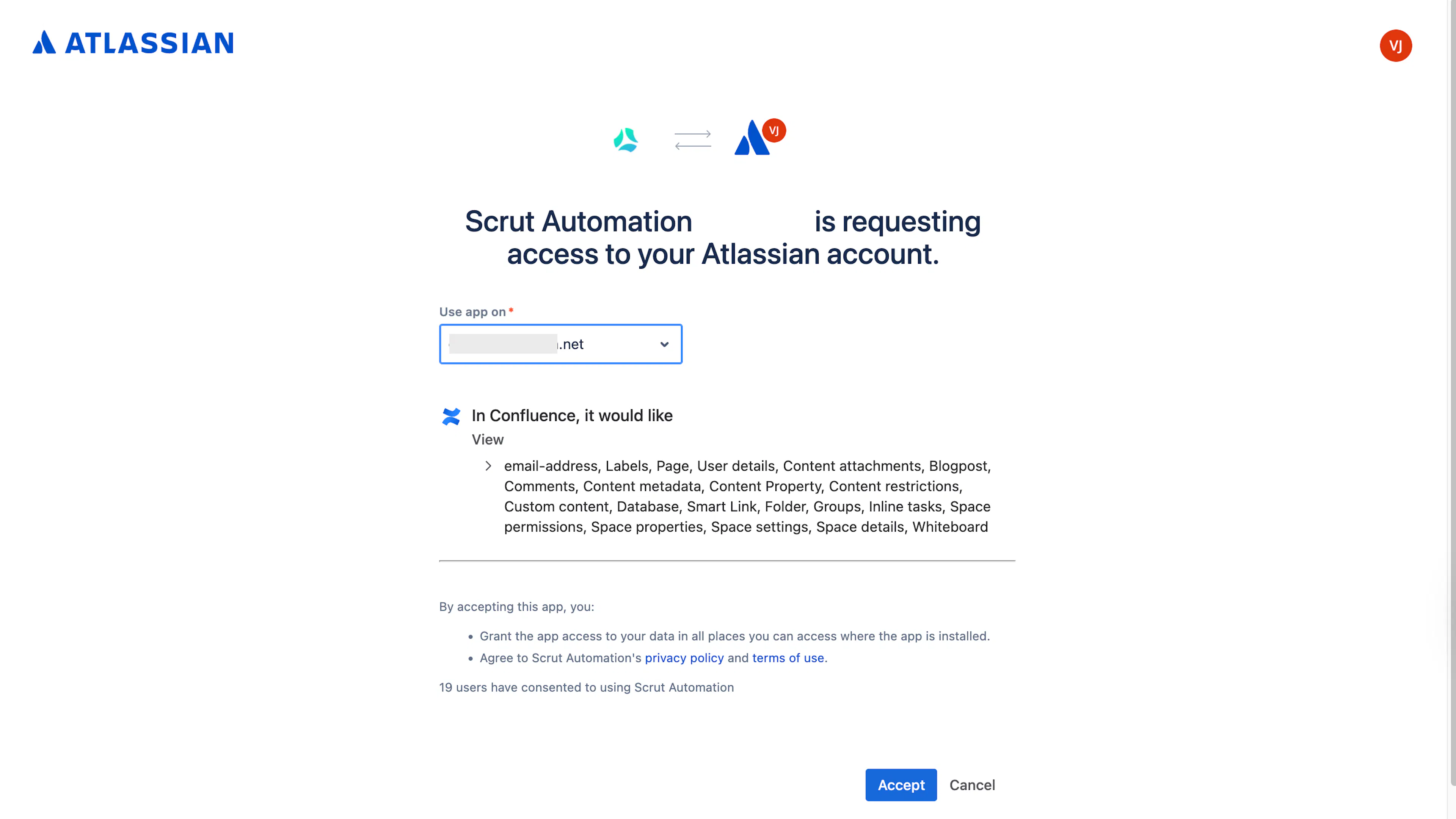
Scrut requests the following OAuth scopes during authentication:
- read:page:confluence - View page content
- read:label:confluence - View labels associated with content or spaces
- read:user:confluence - View user information for OAuth identity verification during setup
- read:email-address:confluence - View email addresses of Confluence users
- read:content-details:confluence - View detailed content metadata
- offline_access - Maintain access without requiring repeated re-authentication
For Scrut
- Admin access to Scrut, or Contributor access with the Integration module enabled.
Limitations
- Confluence API v1 and v2 are supported. Confluence Server (self-hosted) is not supported.
- Images embedded in Confluence documents are not displayed in the policy preview within Scrut.
- Only Confluence pages tagged with the labels you configure in Scrut are eligible for sync. Pages without a matching label are not available for selection.
Data Collected
- Policy document: Confluence page content (Only pages with configured labels are synced)
- Policy name: Confluence page title (Displayed as the file name in Scrut)
- Sync metadata: Last modified timestamp (Used to detect new versions and prompt re-sync)
Sync Frequency
Data is synced automatically once every 24 hours. You can also manually trigger a sync from the Confluence integration settings page by clicking Sync Now.
Integration Setup
Step 1: Connect Confluence to Scrut
-
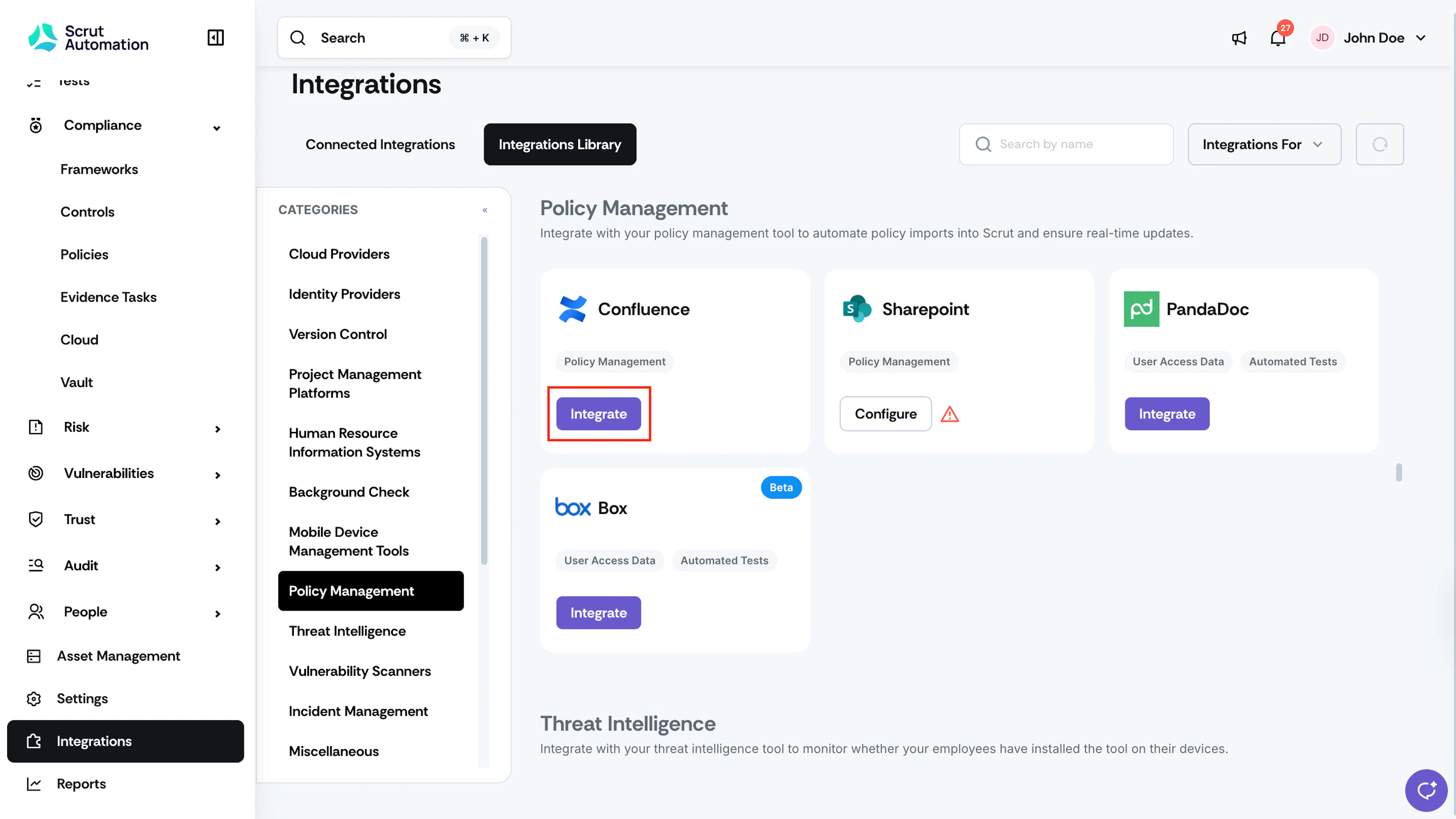
From the left navigation panel, select Integrations.
-
Navigate to the Integrations Library tab.
-
Scroll to the Policy Management section and locate Confluence.
-
Click Integrate.
-
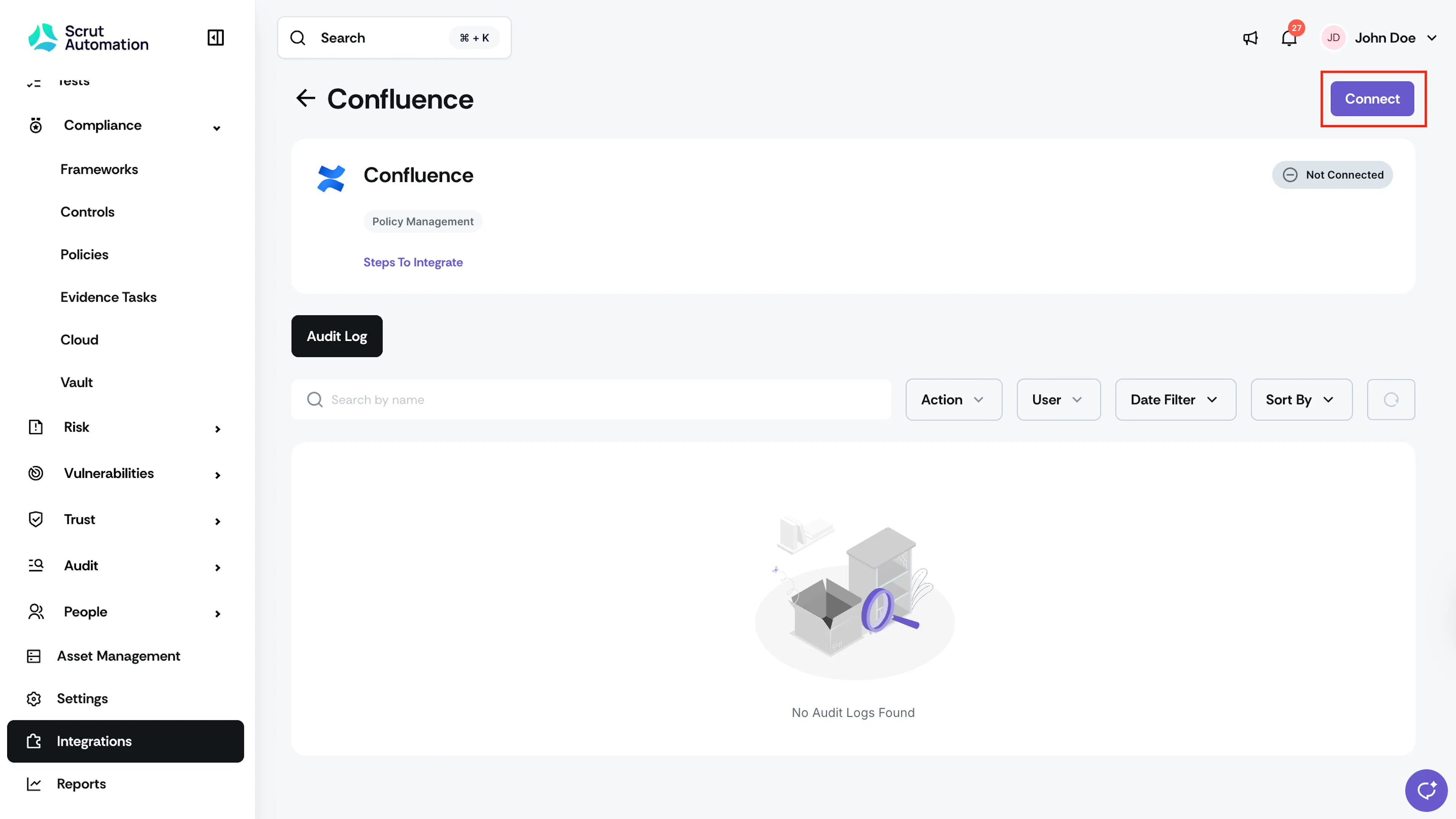
On the Confluence integration page, click Connect. You are redirected to Confluence's OAuth authorization page.
-
If prompted, log in to your Confluence account.
-
Review the access permissions Scrut is requesting and click Accept.
-
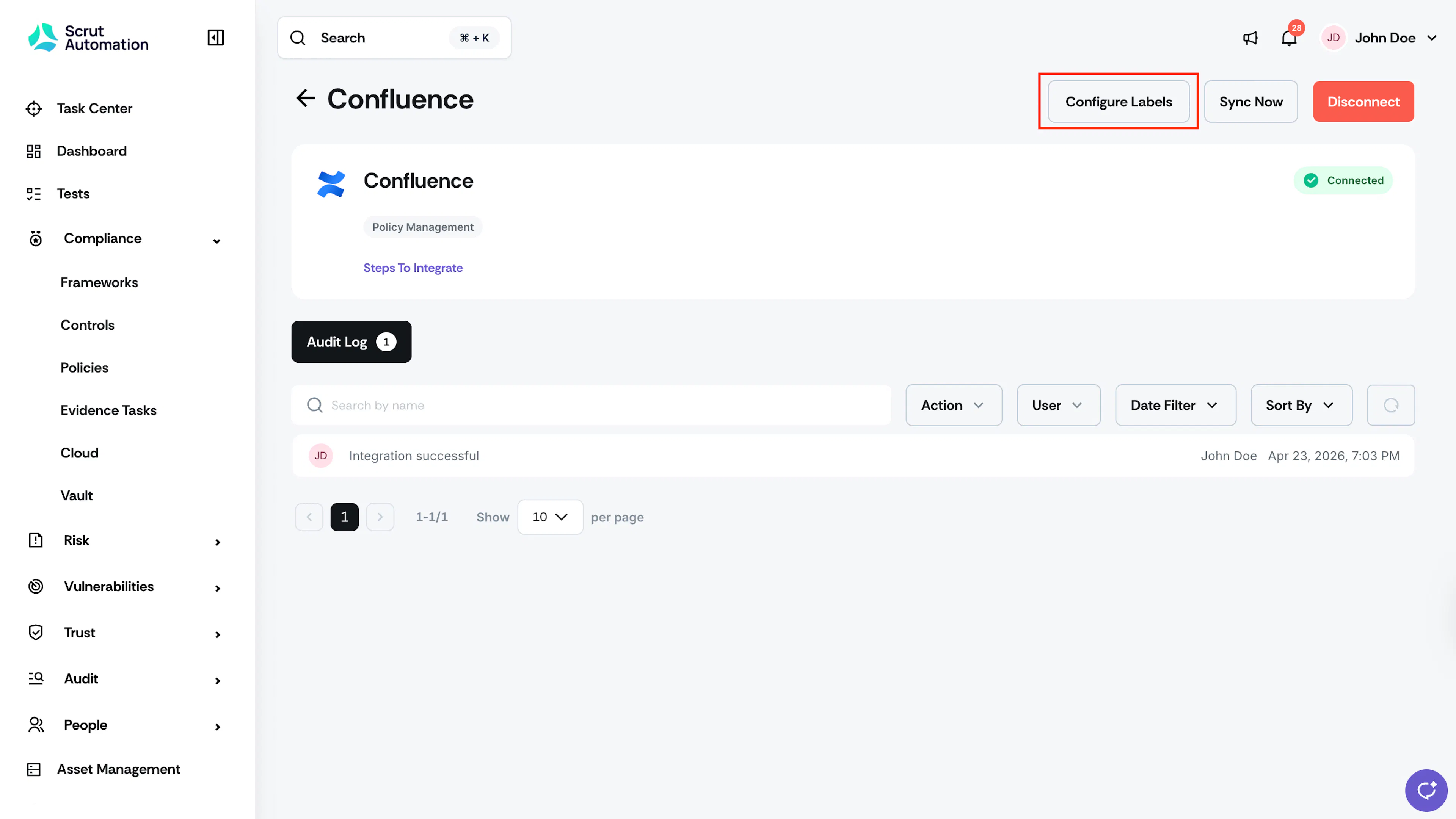
After a successful authorization, you are redirected back to Scrut. The integration status updates to Connected.
Note: Scrut requests read-only access to Confluence. It does not modify any content in your Confluence account.
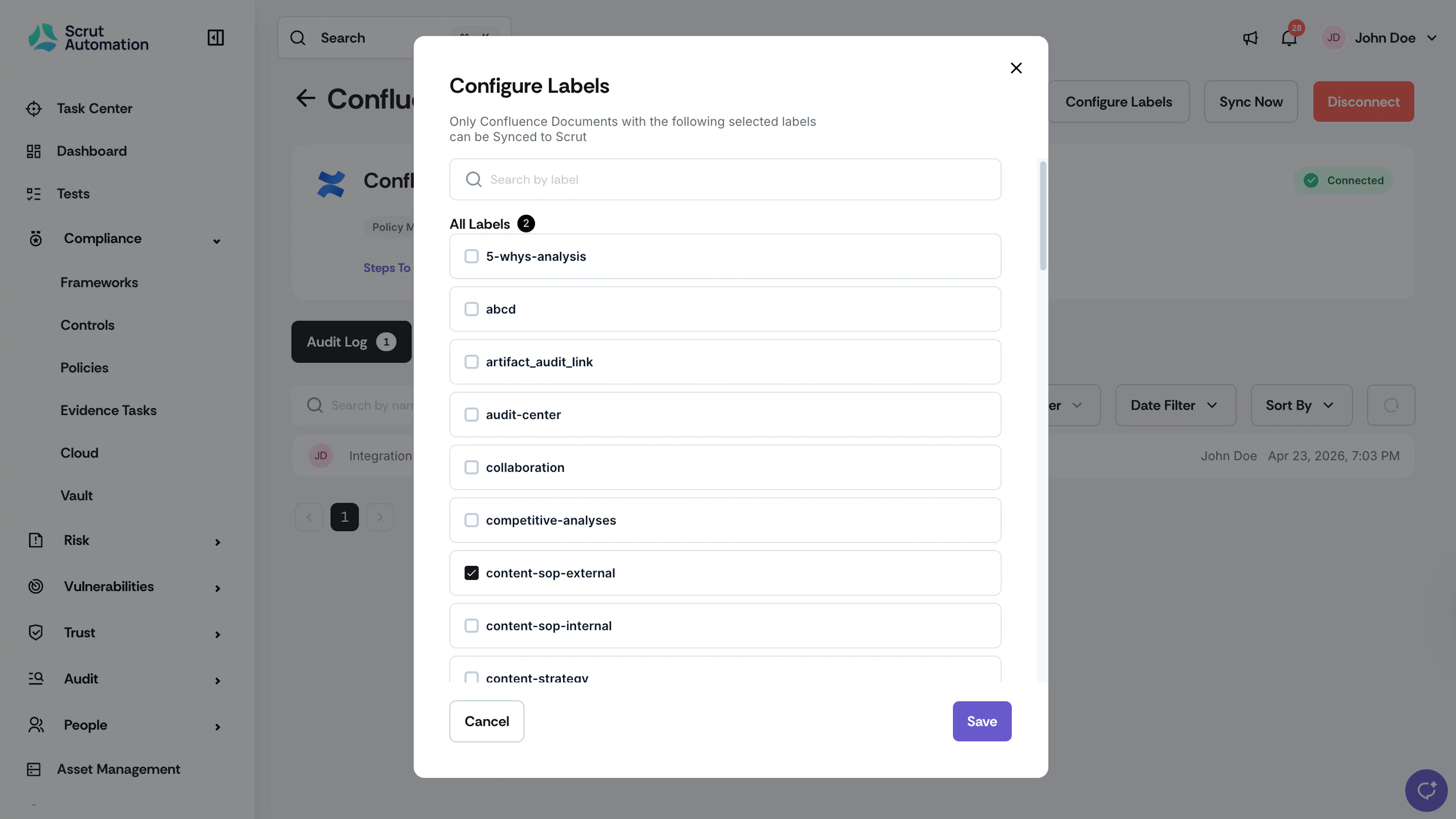
Step 2: Configure Sync Labels
After connecting, you need to specify which Confluence labels determine which pages are available for syncing into Scrut.
-
On the Confluence integration page in Scrut, click the three-dot menu in the top-right corner.
-
Select Configure Labels.
-
Select the labels that correspond to the Confluence pages you want to make available in Scrut.
-
Click Submit.
Pro Tip!
Use a dedicated Confluence label (such as "scrut-sync") for pages you want to sync. This makes it easier to control the scope and avoid inadvertently making unrelated pages available.
What Happens Next?
Initial Data Sync
After the integration is connected and labels are configured, Scrut begins syncing user data automatically. You can monitor sync activity by clicking Audit Log on the Confluence integration settings page.
Syncing a Policy from Confluence
After the integration is connected and labels are configured, you can sync individual Confluence pages to policies in Scrut.
-
Navigate to Compliance → Policies.
-
Open the policy you want to attach a Confluence document to.
-
Under Start Your Policy, click Upload Policy Document.
-
In the Upload Policy Document dialog, select Sync via Integration.
-
From the Integration type dropdown, select Confluence.
-
Use the search field to find the Confluence page you want to sync, then select it.
-
Under How would you like to set up this policy?, choose one of the following:
- Open in editor (Recommended): The document opens in Scrut's policy editor. Formatting is preserved where possible and versions are tracked automatically.
- Save as attachment: The document is saved as a read-only attachment. It cannot be edited in Scrut.
-
Optionally, add context in the Note field. This note is visible to approvers during the review process.
-
Click Save. The policy status changes from Not Uploaded to Draft.
Heads Up!
After syncing, the policy goes through the standard workflow in Scrut before it can be published.
Handling Policy Updates from Confluence
When a published policy's source document is updated in Confluence, Scrut detects the change and notifies you.
-
On the policy page, you will see the message: "New version of policy is available in Confluence." Click View Policy to preview the updated content.
-
Choose one of the following:
- Sync: The policy status reverts from Published to Draft and goes through the approval process again.
- Skip: The current published version is retained and the update is dismissed.
Common Errors and Troubleshooting
Integration Not Connecting
Possible solutions:
- Confirm you are logged in to the correct Confluence account before clicking Connect.
- Ensure you have administrator access on the Confluence account being authorized.
- Clear your browser cache and cookies, then try the OAuth flow again.
No Pages Appearing When Syncing a File
Cause: No Confluence pages match the labels configured in Scrut, or no labels have been configured. Possible solutions:
- Go to the Confluence integration settings, open Configure Labels, and confirm the correct labels are selected.
- In Confluence, verify that the pages you want to sync have at least one of the configured labels applied.
Policy Not Updating After a Sync
Possible solutions:
- Confirm the page in Confluence has been saved after the most recent edit.
- Wait for the next automatic sync (every 24 hours) or trigger a manual sync by clicking Sync Now on the integration settings page.
- Check the Audit Log for any error entries associated with the most recent sync attempt.
Images Not Showing in the Policy Preview
Cause: Confluence document images are not available in the Scrut policy preview by design. Possible solutions:
- Download the synced policy file to view the full document with images.
- If auditors need to see embedded images, share the Confluence page link alongside the synced document.
FAQs
Reach out to support@scrut.io or contact your CSM for further assistance.