

Integrate SharePoint
Connect SharePoint with Scrut to import your policy documents and keep them in sync automatically. Any updates made to policies in SharePoint are reflected in Scrut within 24 hours.
What This Integration Does in Scrut
- Policy Management: Fetches policy documents into the Policies module in Scrut. These policies can then be assigned to employees for review and acceptance.
Prerequisites
Before starting the integration, make sure you have the following:
- An active Microsoft SharePoint account with administrator access
- Policies stored in a folder within the root drive of your SharePoint site (the default root drive is Documents)
Permissions and Access Requirements
For SharePoint
Scrut requires an administrator-level role in your Microsoft tenant to grant tenant-wide, read-only permissions. This can be a Global Administrator, Application Administrator, or Cloud Application Administrator role.
The following read-only OAuth scopes are requested during setup:
openidSites.Read.Alloffline_access
For details on what each scope covers, refer to Microsoft's permissions documentation.
For Scrut
- Admin access to Scrut, or Contributor access with the Integration module enabled
Data Collected
- Policy document - Synced from the selected folder within the SharePoint site's root drive
Sync Frequency
Data is synced automatically once every 24 hours. You can also manually trigger a sync from the SharePoint integration page in Scrut.
Integration Setup
Step 1: Connect SharePoint to Scrut
Pro Tip!
Log in to your SharePoint account before starting this step to avoid being redirected mid-setup.
-
Sign in to Scrut and click Integrations in the left navigation panel.
-
Click the Integrations Library tab.
-
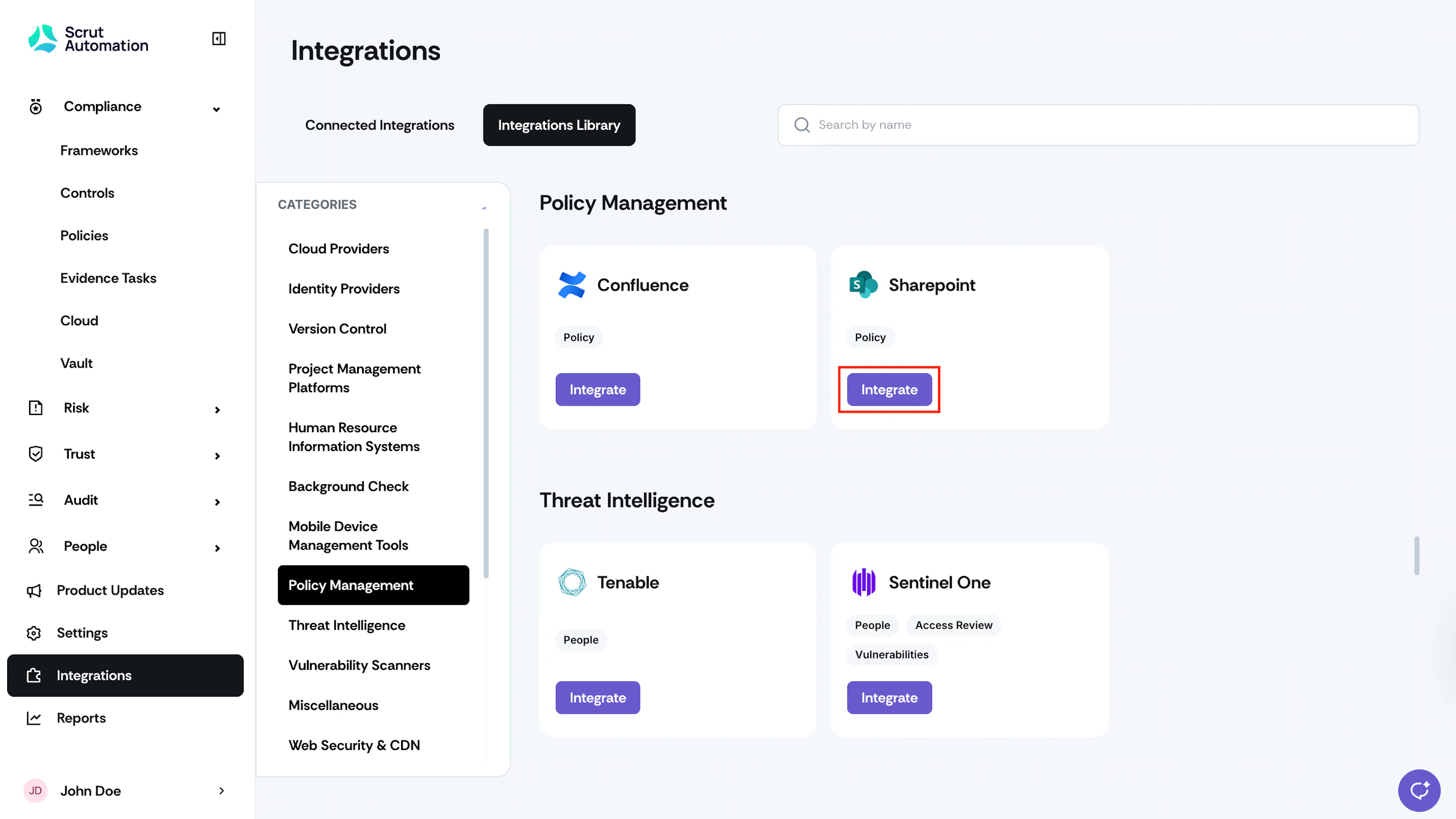
Select Policy Management from the Categories section.
-
Locate the SharePoint tile and click Integrate.
-
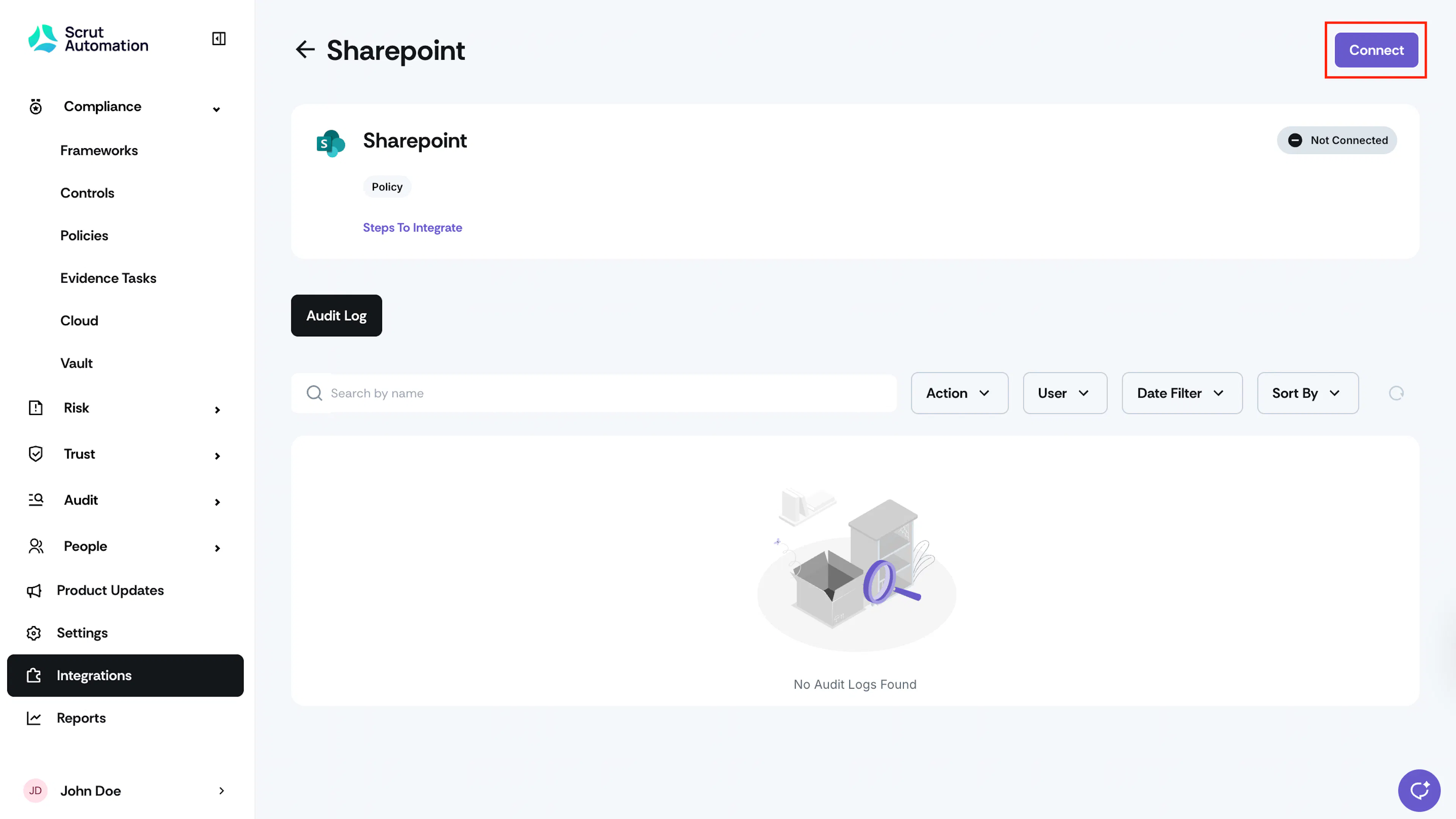
On the SharePoint integration page, click Connect.
-
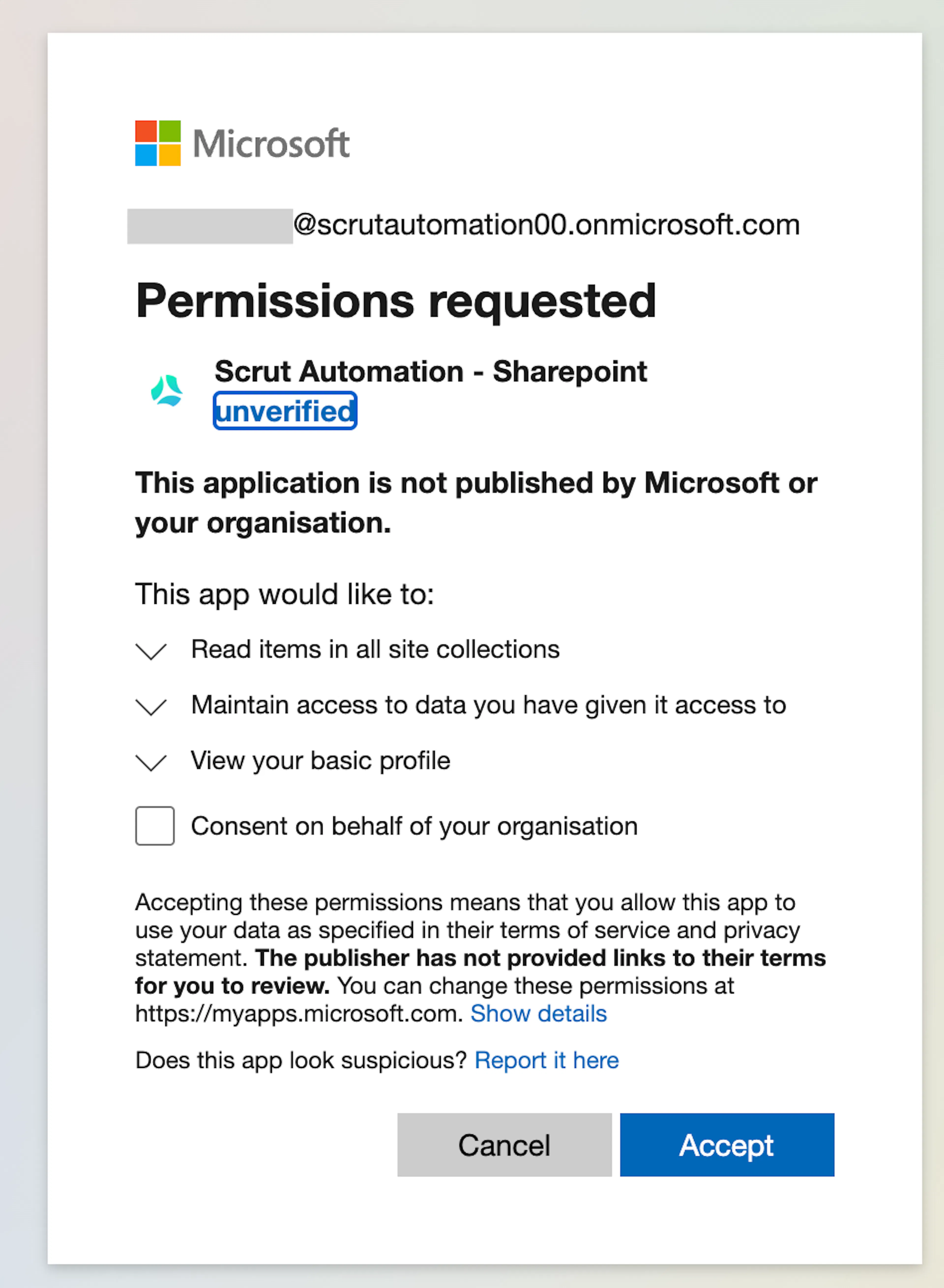
If you are not already logged in, Scrut redirects you to the Microsoft login page. Enter your credentials and authenticate.
-
Review the permissions requested and click Accept.
-
Confirm the "Connected Successfully" notification appears and that the status shows Connected.
Step 2: Link Policies from SharePoint
-
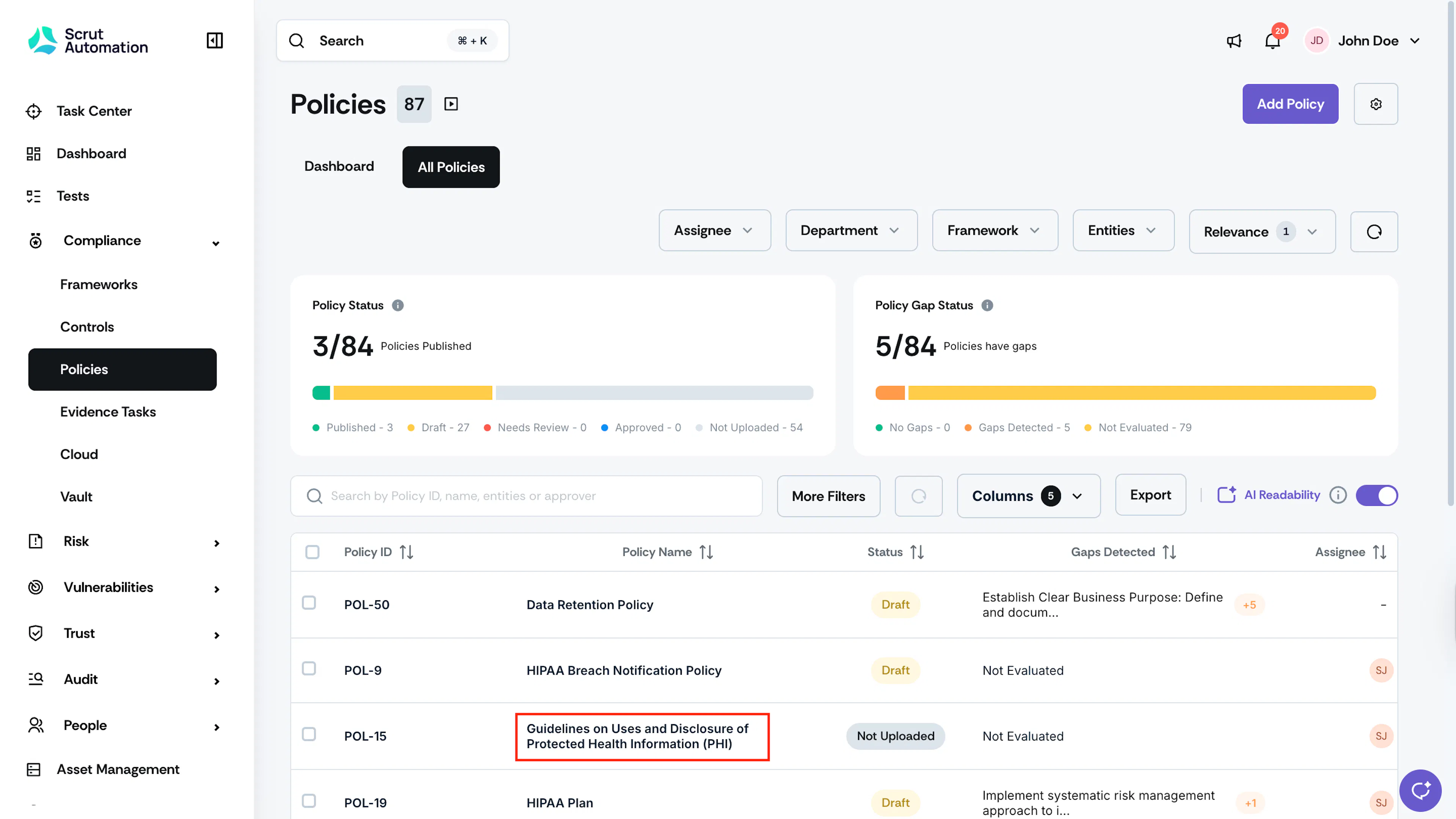
In Scrut, navigate to Compliance → Policies using the left panel.
-
Click the policy you want to link to a SharePoint file.
-
Click Link Policy.
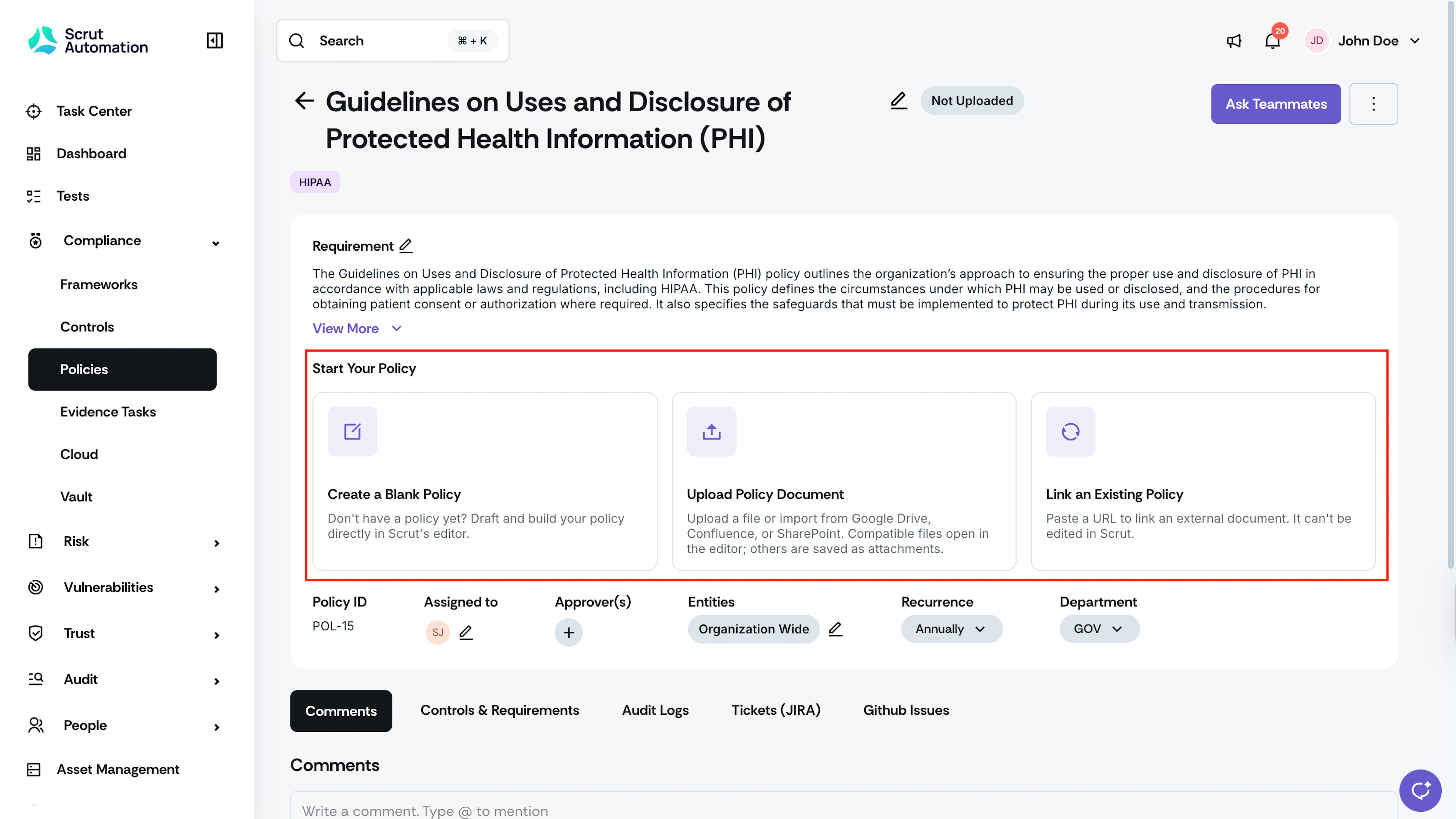
-
In the Integration dropdown, select SharePoint.
-
Select your SharePoint site from the dropdown.
-
Navigate through the folder hierarchy within the root drive to locate the folder containing the policy file.
-
Select the file and click Submit.
The policy is now linked. Scrut tags it as "Synced from SharePoint, {datetime}" and keeps it synced going forward.
What Happens Next?
Initial data sync
After connecting, Scrut begins gathering data from SharePoint. You can monitor sync activity in the Audit Log tab on the SharePoint integration page.
Review synced data
- Navigate to Compliance → Policies to view linked policies and their sync tags.
- Open any linked policy to see the sync datetime tag and version history.
Note: When a policy is updated in SharePoint, Scrut sets its status to Draft and notifies users that a new version is available. Users can then choose to sync the latest version.
Common Errors and Troubleshooting
Authentication failure
Possible solutions:
- Confirm that the account used to connect has Global Administrator, Application Administrator, or Cloud Application Administrator privileges in Microsoft.
- Disconnect and reconnect the integration using the correct admin account.
- Ensure you are logging into the correct Microsoft tenant.
Policy file not visible during linking
Possible solutions:
- Confirm that the policy file is stored inside a folder within the root drive of the SharePoint site. Files placed directly at the root level are not displayed.
- Verify the account has Sites.Read.All permissions granted for the tenant.
Policy not syncing after update
Possible solutions:
- Check that the file was saved and is accessible in SharePoint.
- Use the Sync Now button on the SharePoint integration page to trigger a manual sync.
- Review the Audit Log for any sync errors.
Integration shows “Not Connected”
Possible solutions:
- Click Connect again and complete the authentication flow.
- If the issue persists, disconnect the integration and reconnect.
FAQs
Reach out to support@scrut.io or contact your CSM for further assistance.