

Integrate Island Browser
Learn how to connect Island Browser with Scrut.
Connect Island Browser with Scrut to bring administrator access data and managed device records into Scrut for access reviews, asset tracking, and compliance monitoring.
What This Integration Does in Scrut
- User Access Data: Fetches user details, roles, and permissions from Island Browser for Access Reviews.
- Asset Management: Populates the Asset Management module with discovered assets and supports collecting asset-related compliance evidence.
- User Endpoint Devices: Fetches employee device details, including security posture and installed software. These devices are mapped to employees and visible in their profile under People → Employees → Technical.
- Automated Tests: Runs automated checks that evaluate Island Browser against your applicable compliance frameworks.
Prerequisites
- An active Island Browser account with access to the Island Management Console
- Administrator access (Admin or System Admin) in the Island Management Console to generate an API key
- Devices enrolled and managed in Island Browser, if you want device records to sync to Scrut
Permissions and Access Requirements
For Island Browser
- Admin or System Admin access to the Island Management Console
- An API key generated with the Full Admin role
For Scrut
- Admin access to Scrut (or Contributor with access to the Integrations module)
Limitations
- Scrut fetches only active administrator-level users from Island Browser.
- Archived (decommissioned) devices are excluded from the device records that sync to Scrut.
Data Collected
User Access Data
- User name
- User email
- User role (Assigned role in Island Browser; Multiple roles are shown as a comma-separated list)
Devices
| Scrut Field | Source Field / Data | Notes |
|---|---|---|
| Device ID | Unique device identifier | |
| Device Name | Computer name | |
| Status | Device status | Archived devices are excluded. |
| Last Connected | Last connected timestamp |
Sync Frequency
Data syncs automatically every 24 hours. You can also manually trigger a sync from the integration settings page.
Integration Setup
Step 1: Generate an API Key in Island Browser
- Log in to the Island Management Console as an administrator.
- Navigate to Modules → Platform Settings → System Settings → Integrations → API.
- Click + Create.
- Enter a name for the API key, for example, Scrut Integration.
- Under Role, select Full Admin. Note: Island Browser also offers a Read Only role when you generate a key. Select Full Admin, as it's the role confirmed to support all the read operations this integration uses across users, roles, and devices.
- Click Generate API Key.
- Copy the API key and store it securely.
- Click Save.
Step 2: Connect Island Browser in Scrut
- Log in to Scrut and navigate to Integrations → Integrations Library.
- Under Categories, select Mobile Device Management Tools. You can also search for Island Browser using the Search by name field.
- On the Island Browser card, click Integrate.
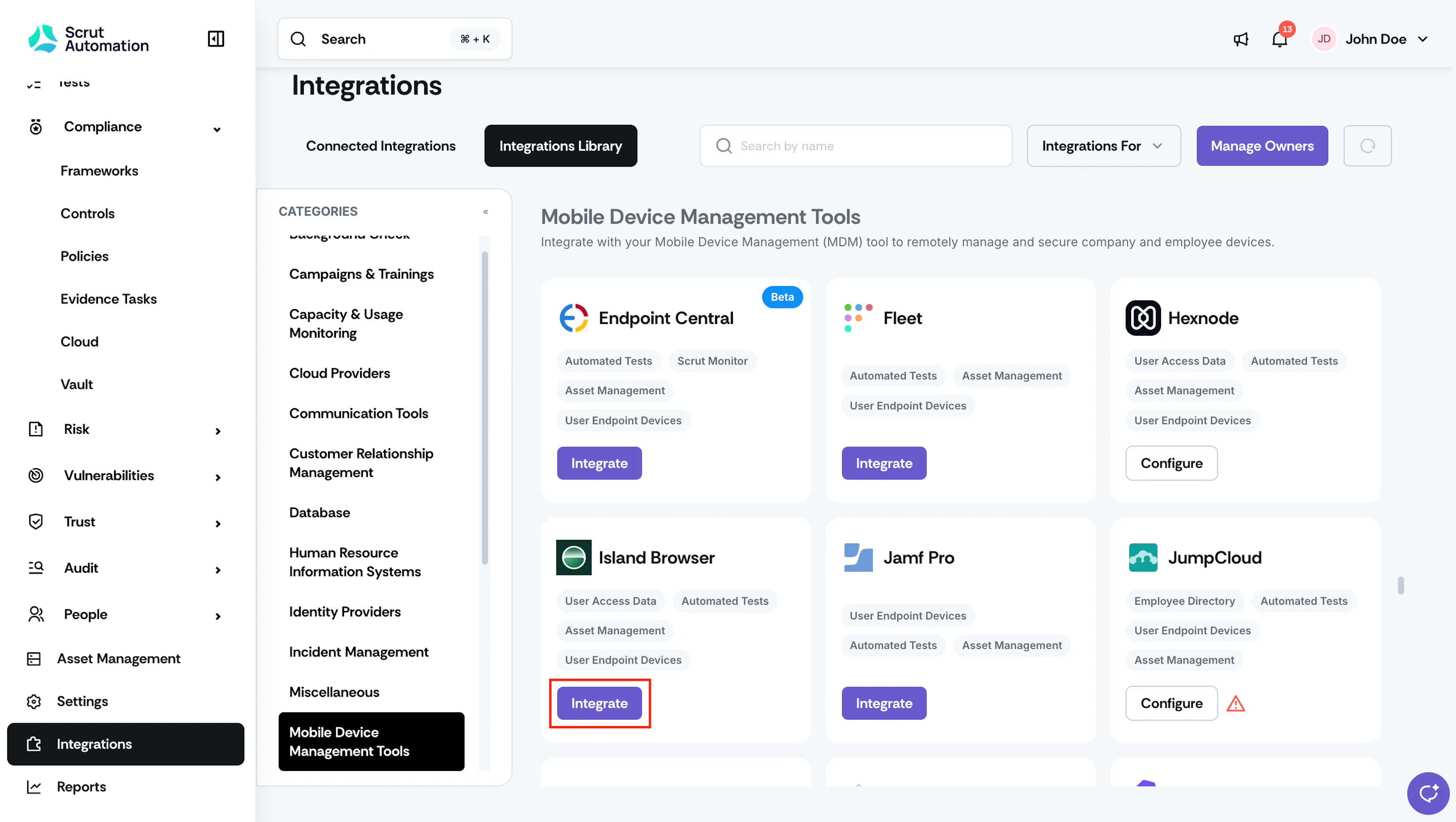
Integrations Island Browser - Optionally, under Owner, click + to assign an owner for the integration.
- On the Details tab, under Credentials, paste the API key into the API Key field.
- Click Submit.
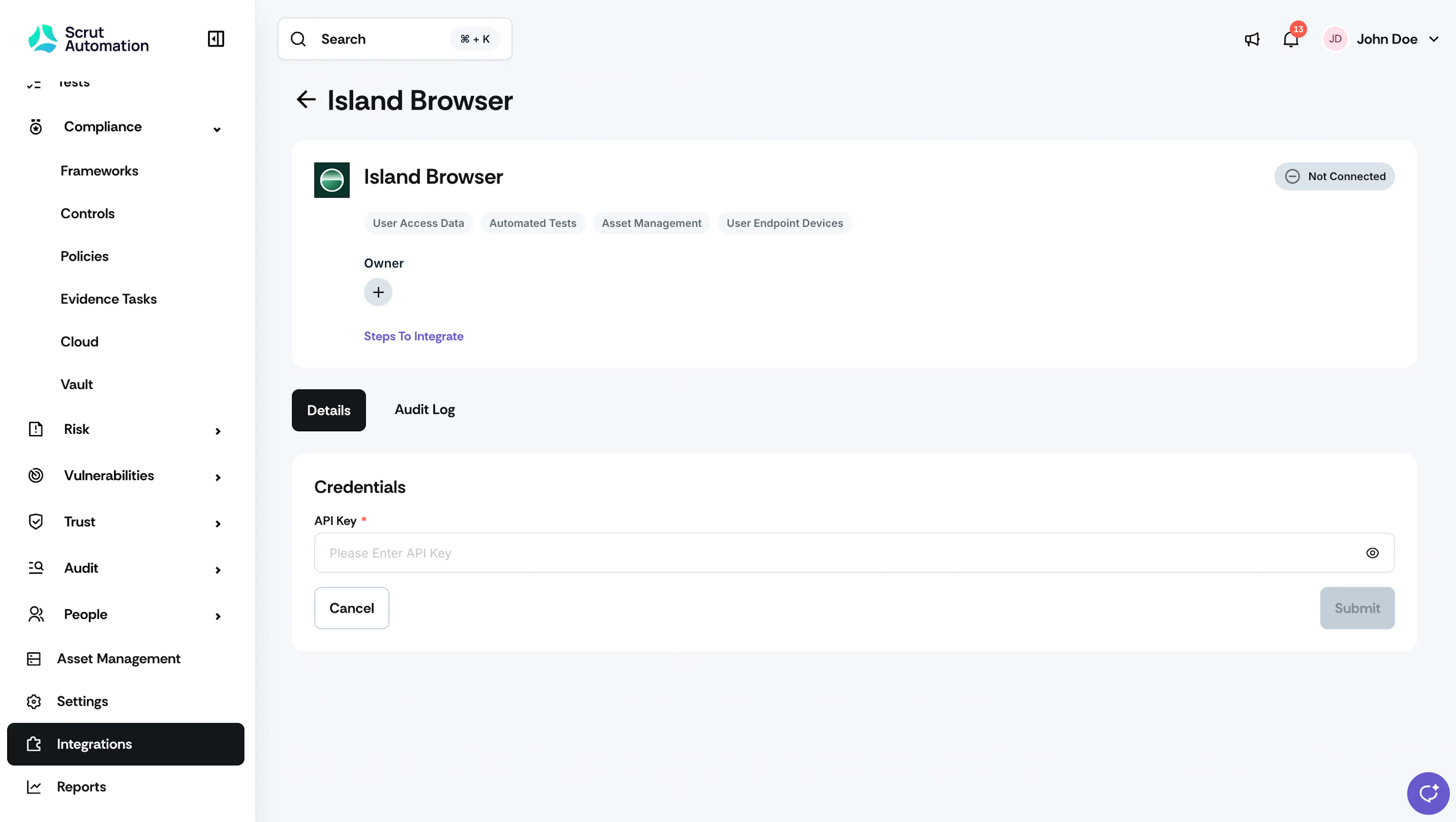
Integrations Island Browser Connect
What Happens Next?
Initial Data Sync
The initial data sync starts automatically after you connect the integration. Depending on the number of users and devices in your Island Browser account, it can take some time to complete. To monitor the sync status, open the Audit Log tab on the Island Browser integration page.
Review Synced Data
- Navigate to People → Access Reviews → Applications to view Island Browser users and their roles.
- Navigate to Asset Management to view managed devices discovered from Island Browser.
- Navigate to People → Employees → Technical to view the devices mapped to each employee.
- Navigate to Tests to view the automated tests for Island Browser.
Common Errors and Troubleshooting
FAQs
Contact support@scrut.io or your CSM for further assistance.
Was this page helpful?