

Mitigation Task Approval Workflow
Who can use this feature
- Supported on Growth and Scale plans
Overview
The Mitigation Task Approval Workflow adds a formal approval step to your mitigation task process:
-
The Assignee completes the task and uploads supporting artifacts
-
The Approver then reviews the work and either:
- Approves it (or)
- Requests a revision before it is marked as Completed
This ensures proper validation of mitigation efforts and strengthens governance within your organization.
When the Approval Workflow is Enabled
When the Mitigation Task Approval Workflow is enabled, an additional approval step is introduced. The assigned Approver reviews the mitigation task before it can be marked as Completed. The workflow adds two new statuses—Under Review and Needs Revision—to the standard task lifecycle.
How to Enable the Mitigation Task Approval Workflow
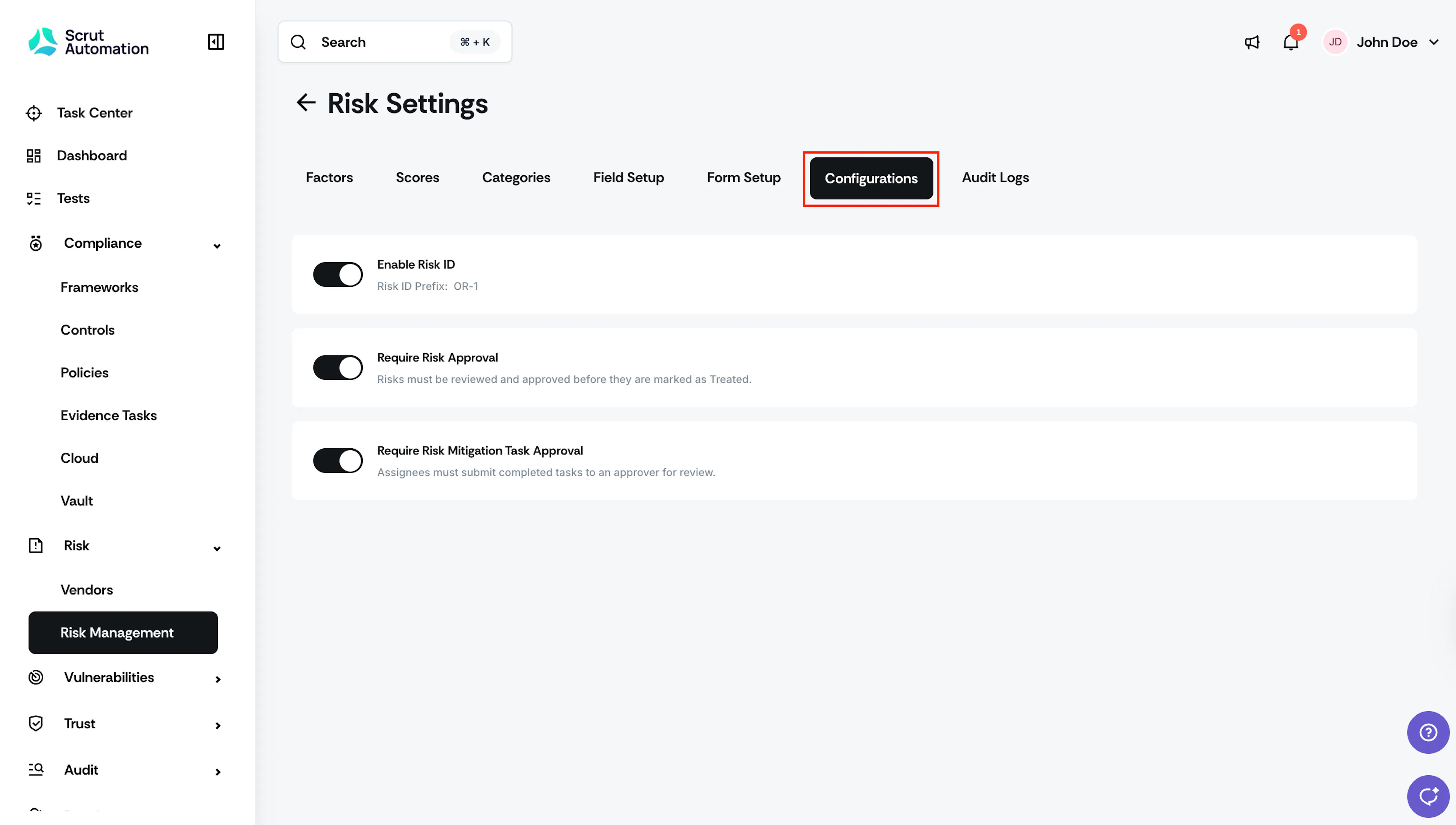
- Go to Risk → Risk Management and click the Settings icon on the top right.
- Navigate to the Configurations tab.
- Turn on the Mitigation Task Approval Flow toggle.
Once enabled, all open mitigation tasks will require approval before they can be marked as Completed.
How to Assign a Mitigation Task Approver
You can assign an Approver when creating the task or update it at any time from the task detail page.
Default Approver
When creating a mitigation task, the Approver field is pre-filled as follows:
- If a Risk Assignee exists: The Approver field defaults to the Risk Assignee.
- If no Risk Assignee is set: The Approver field defaults to the task creator.
Heads Up!
Scrut recommends assigning a different Approver than the task Assignee to ensure an independent review. You can still proceed with the same person in both roles if needed.
Updating the Approver After Submission
The Approver can be changed at any time, even after the task has been submitted for Review.
- If you change the Approver while the task is in the Under Review status, the new Approver is notified immediately—without waiting for any further action.
- The previous Approver's action buttons are hidden once they are removed.
[For Assignees] How to Submit a Mitigation Task for Review
Once the Assignee has completed the task and uploaded the required artifacts, they can submit the task for approval.
- Open the mitigation task from Risk → Risk Management → Mitigation Task.
- Upload the supporting artifacts as evidence of task completion.
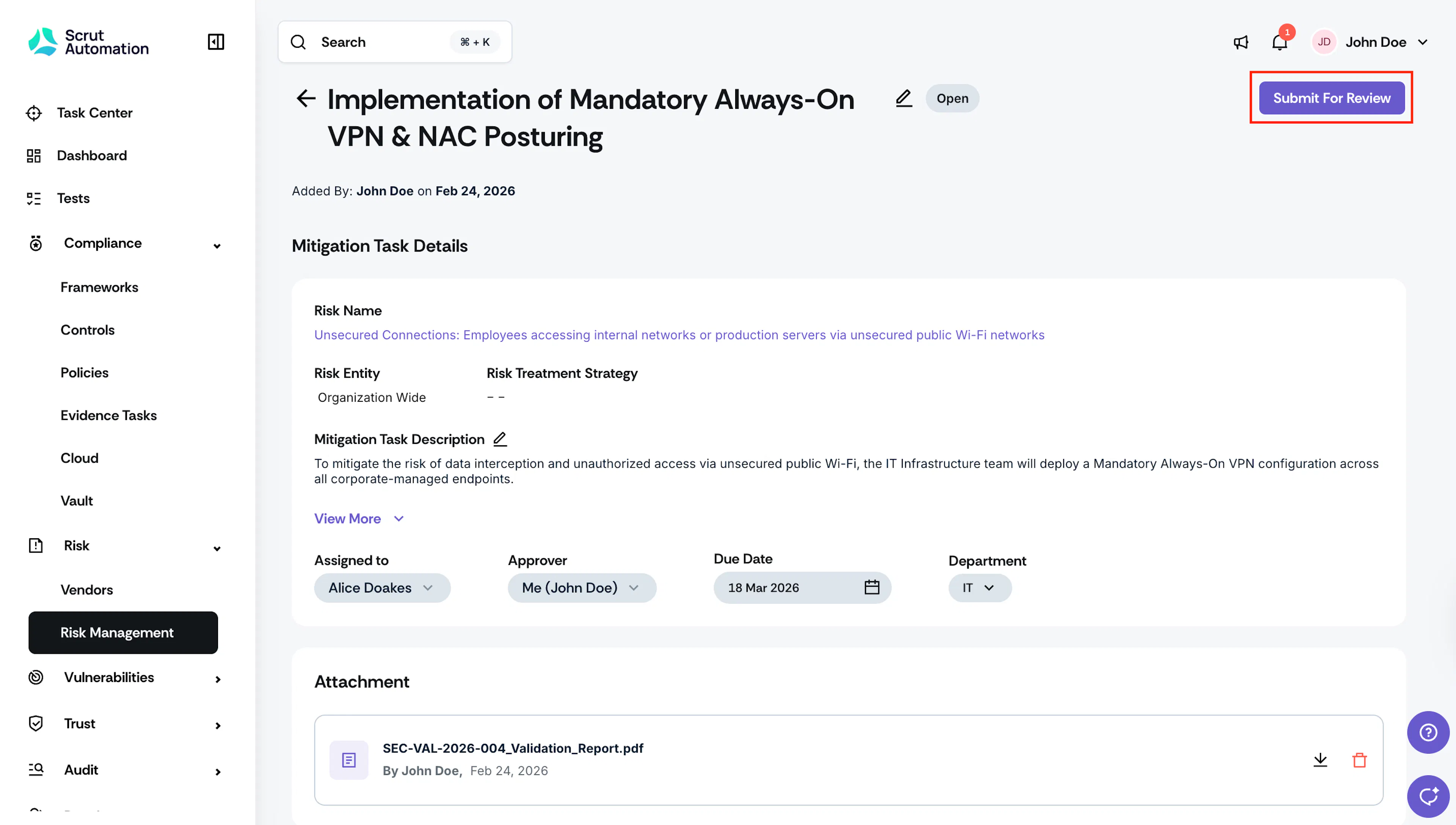
- Click Submit for Review.
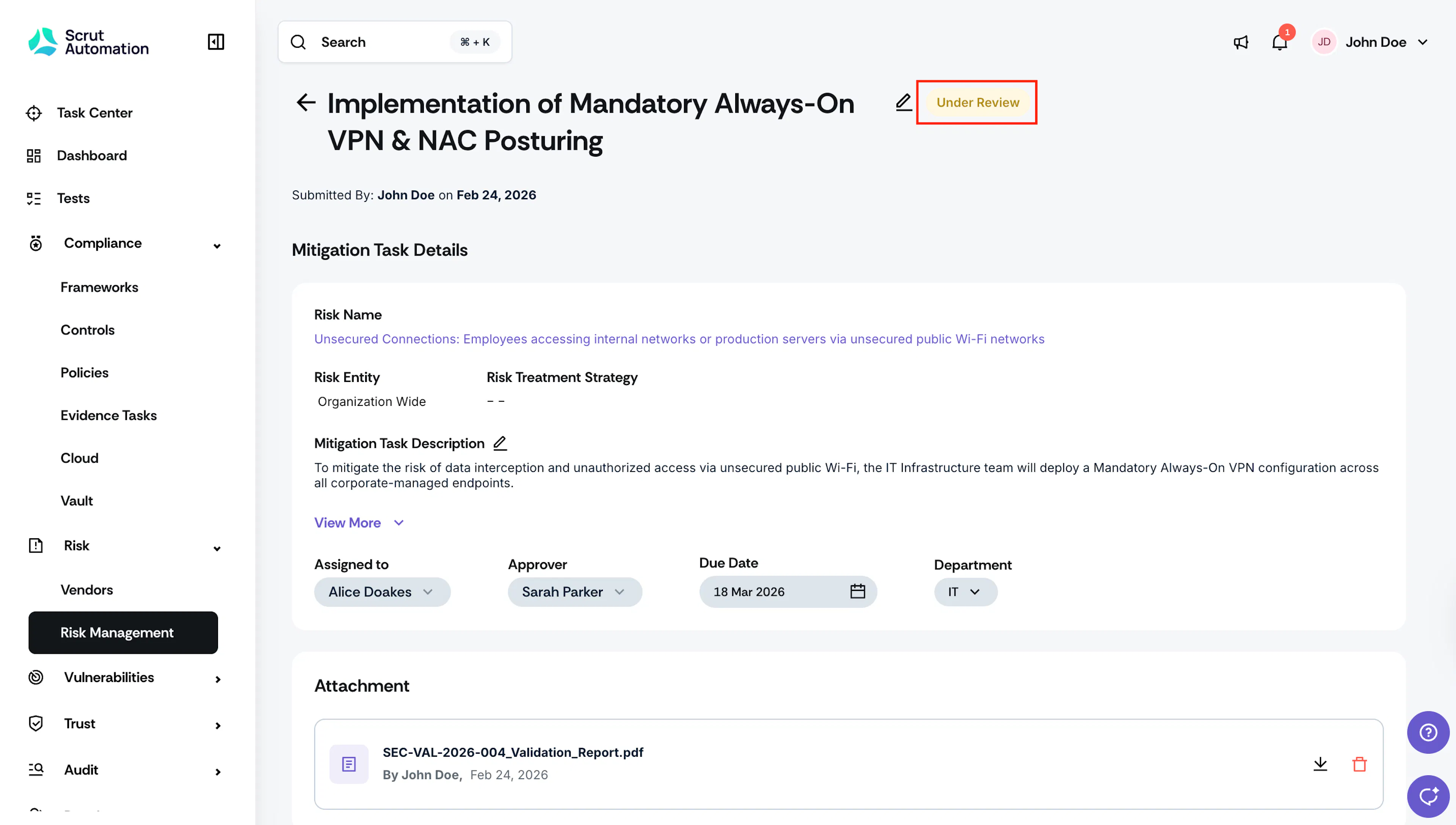
The task status changes to Under Review, and the Approver receives an email notification.
Heads Up!
The Submit for Review button is only active when an attachment is present and an Approver is selected.
[For Approvers] Reviewing a Mitigation Task
When a mitigation task is submitted for your Review, you will receive an email notification.
- Click the link in your notification email, or go to the Notification Center and click View Details to open the task.
- Review the task details, attached artifacts, and any supporting notes.
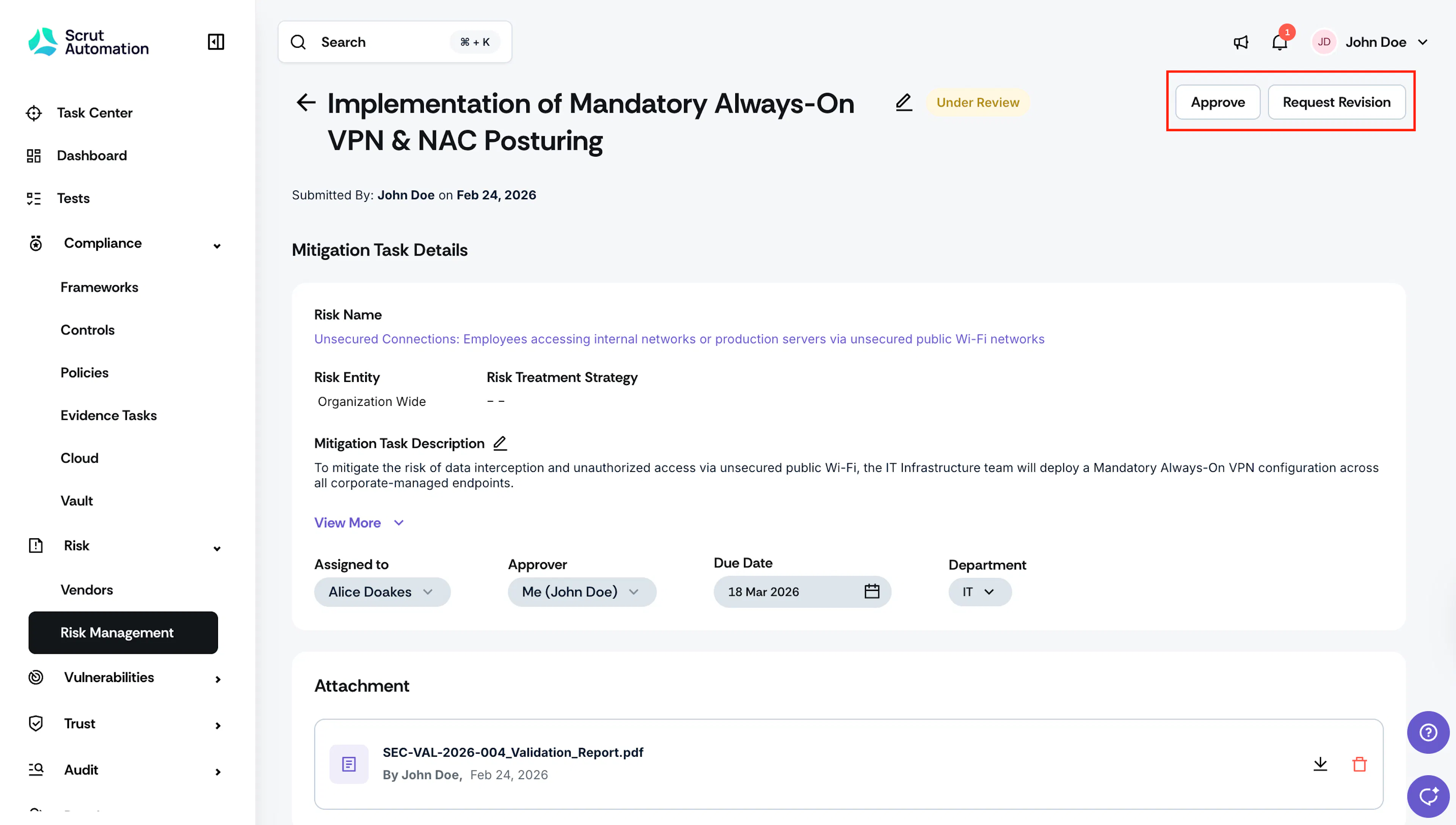
- Choose one of the following actions:
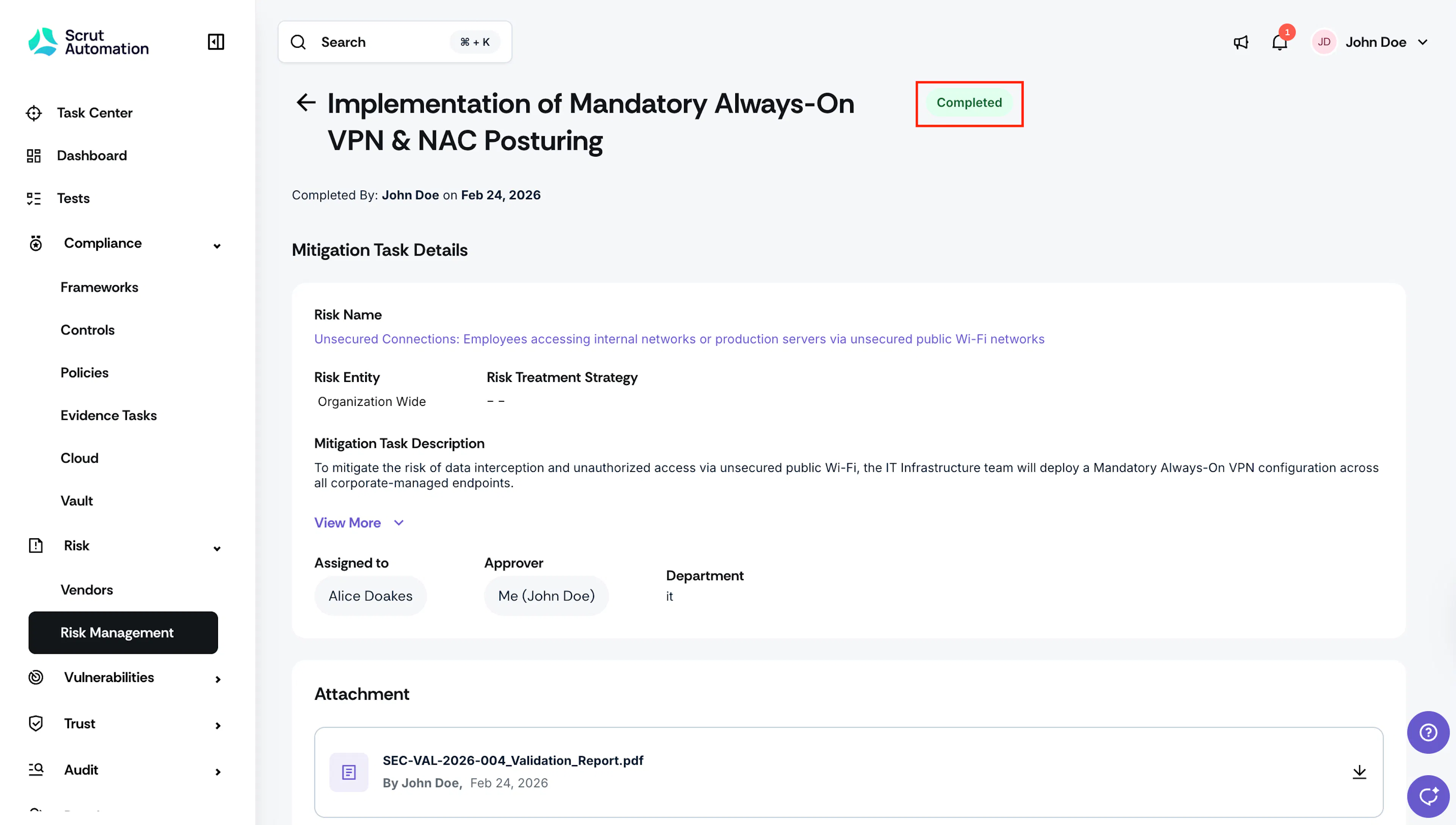
Approve the Task
- If the task is complete and satisfactory, click Approve.
- The mitigation task status changes to Completed.
- No further edits can be made to the task details or attachments once approved.
Request a Revision
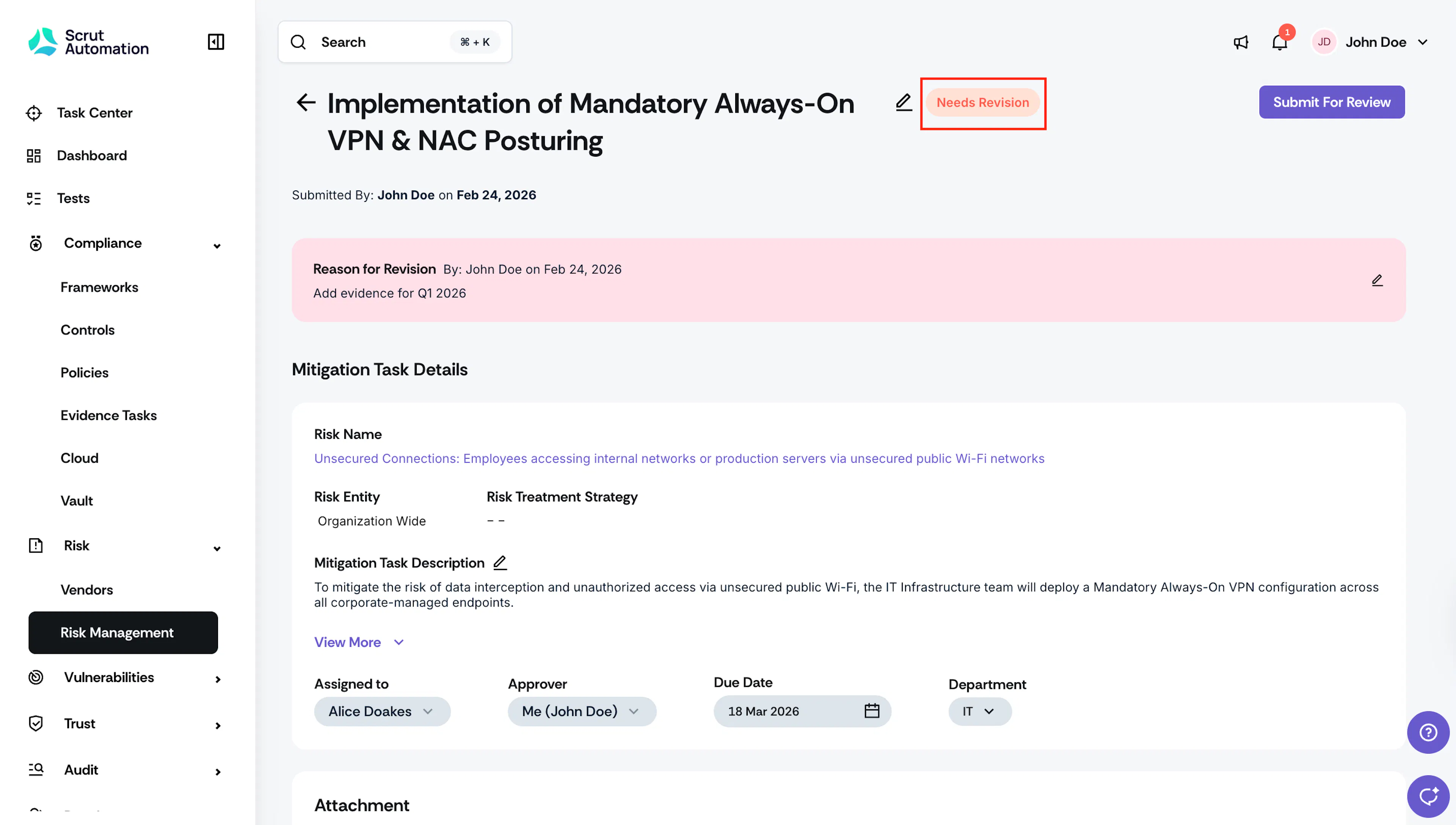
- If the task needs changes, click Request Revision.
- Enter a reason for the revision request in the text field. Provide clear, actionable feedback—explain what is missing and what needs to be done.
- The task status changes to Needs Revision.
Once a revision is requested:
- The task is returned to the Assignee with the status set to Needs Revision.
- The Assignee receives a notification to revisit and update the task.
[For Assignees] Resubmitting After a Revision Request
The Assignee makes the necessary changes based on the Approver's feedback and resubmits the task for Review. The approval workflow repeats as many times as needed until the Approver is satisfied and approves the task.
What Happens When the Approval Workflow is Toggled Off
If you disable the Mitigation Task Approval Workflow, the following changes apply:
- Tasks that were Under Review or Needs Revision revert to Open or Overdue, based on their due date.
- The Approver field is removed from the task detail page, and the Approver column is removed from the mitigation task table.
- Only three statuses remain: Open, Overdue, and Completed.