

Notification Center: Walkthrough
The Notification Center in Scrut helps you keep track of important updates in one single place. You can quickly see what needs attention and take action.
How To Access the Notification Center
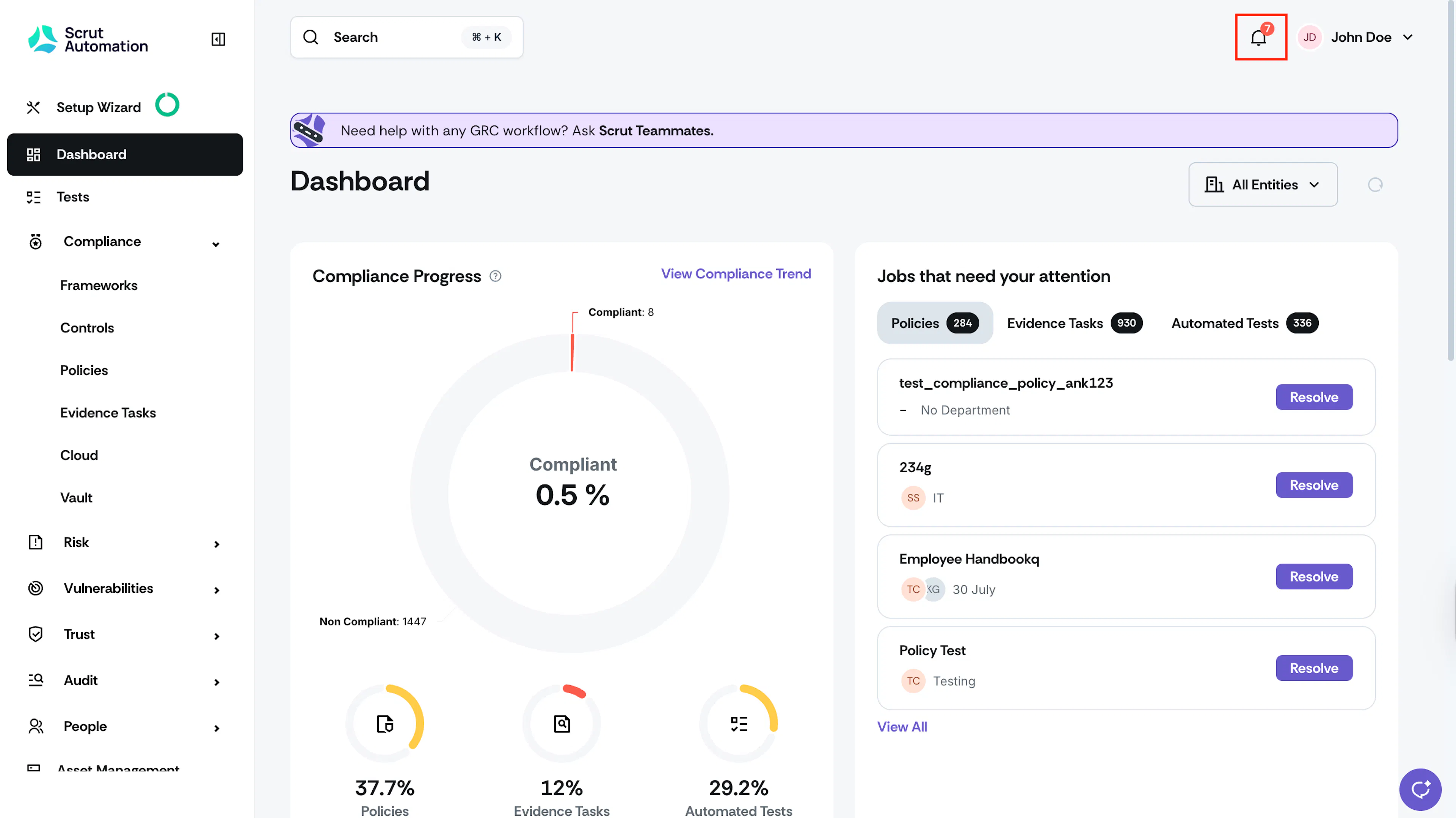
Once you’re signed in to Scrut, click the bell icon in the top right next to your profile name. The red badge shows the number of unread notifications.

Points To Know
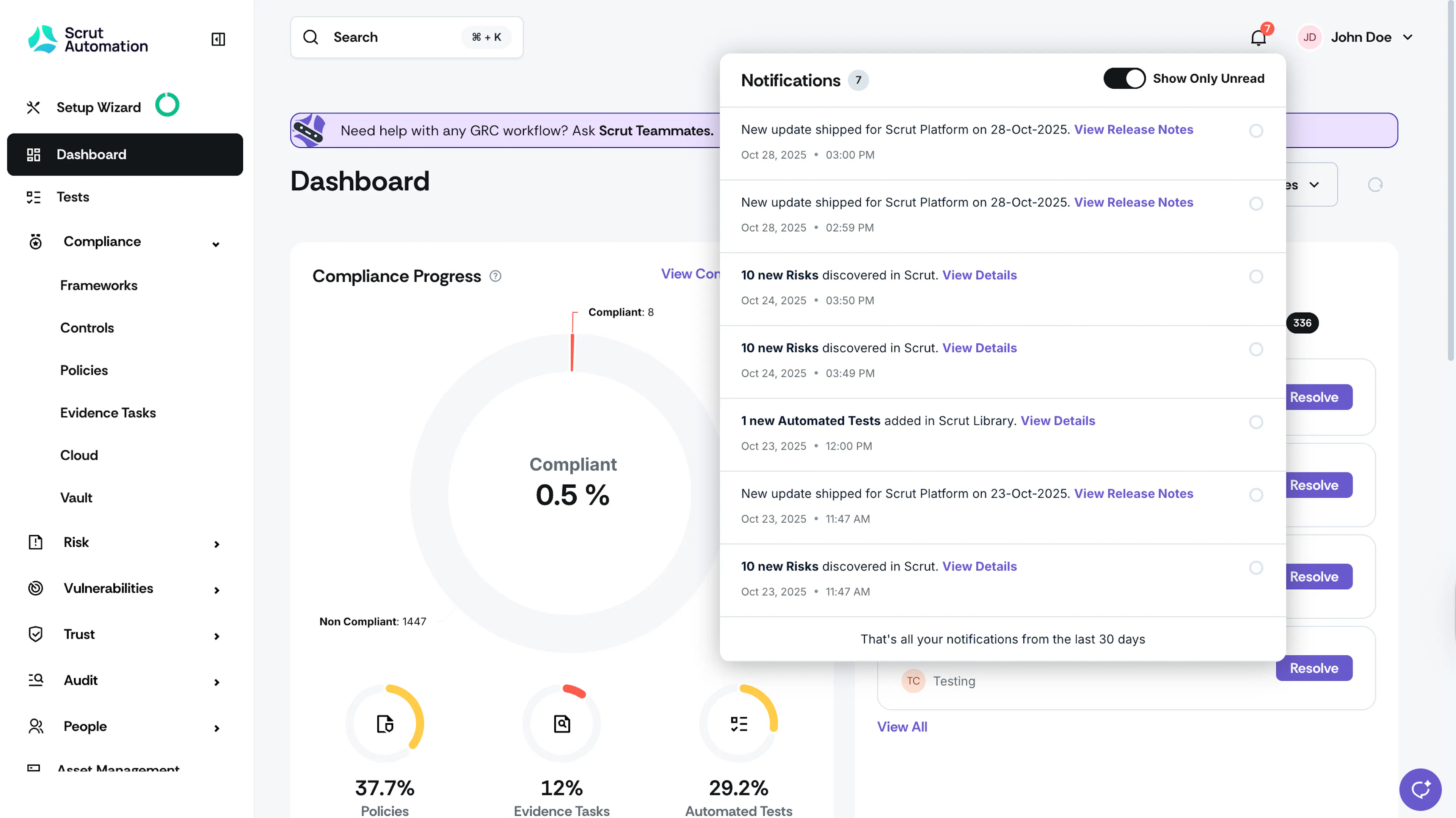
- You’ll see notifications about billing updates, platform maintenance, integration updates, product announcements, etc.
- Notifications are ordered by priority. The most important ones always appear first. Others are sorted from newest to oldest. Critical notifications (like billing or downtime) remain visible until addressed.
- Notifications include CTAs that take you directly to the corresponding modules in Scrut.
- Click the circle to the right of a notification to mark it as read.
- Use the “Show Only Unread” toggle to focus on new items.
- Notifications are unique to your account and role, so you’ll only see what’s relevant to you.
Was this page helpful?