Complete Onboarding Tasks
Welcome to Scrut! We’re excited to have you here! This guide will walk you through the onboarding process, step by step.
Scrut is a web-based platform; you don’t need to download any additional applications or software to access it.
What You’ll Complete During Onboarding
The onboarding flow helps you:
- Set up your organization details and logo
- Configure user login options
- Assign department owners
- Select your organization's tech stack and assign integration owners
Step 1: Pre-Onboarding Questions
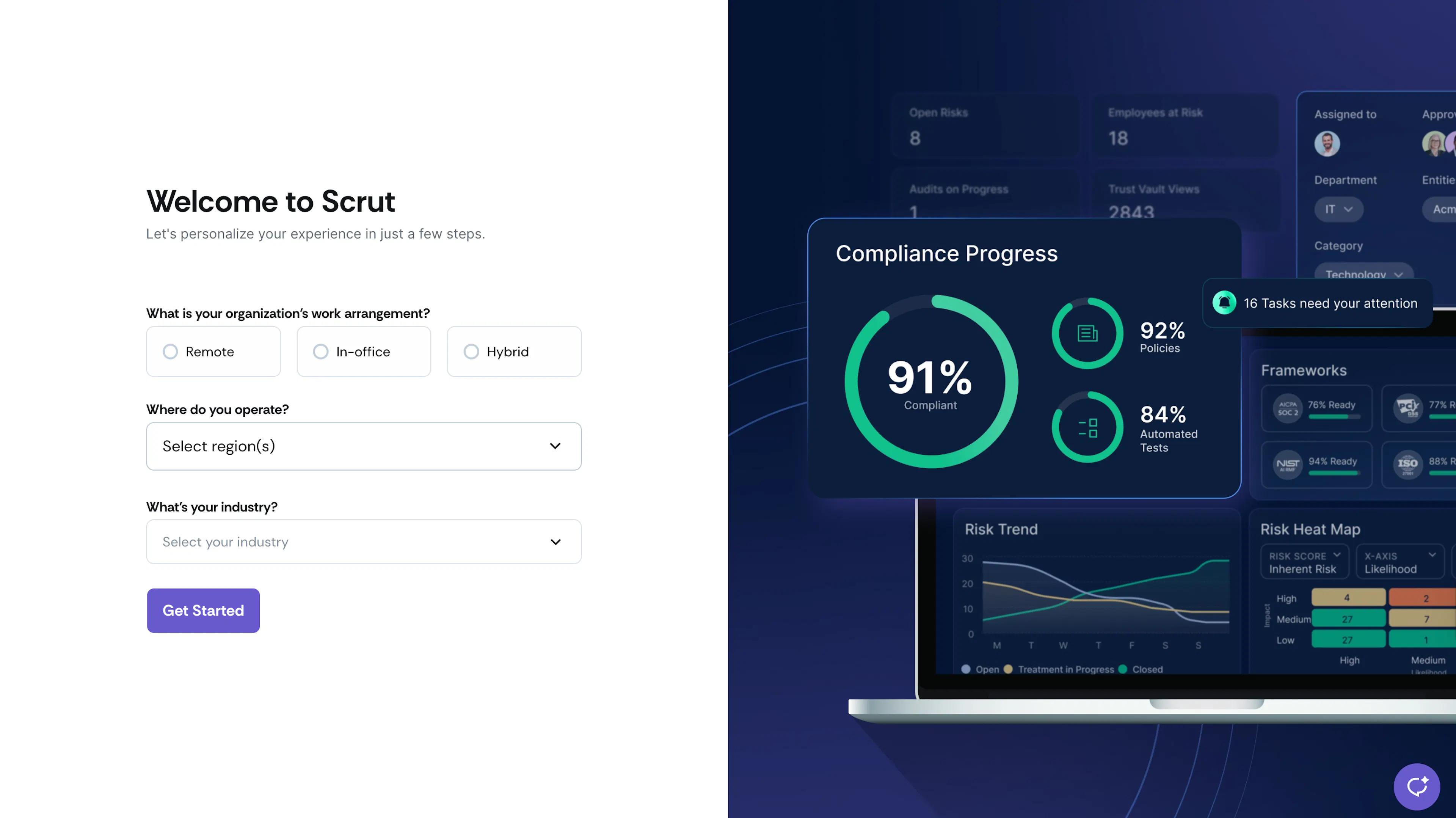
When you or someone from your organization signs in to Scrut for the very first time, you'll be asked a few questions to customize your Scrut experience.
Questions You’ll See
- Work Arrangement
- Choose from: Hybrid, Remote, or In-office
- This helps Scrut determine which policies and evidence tasks are relevant to your organization.
- Note: If you select "Remote," certain physical security policies and evidence tasks will automatically be marked as not relevant for your organization.
- Geographic Scope
- Select the countries where your organization operates
- Industry/Vertical
- Choose from: Financial Services, Healthcare, Information Technology, Retail and E-commerce, Government and Public Sector
- If you belong to another industry, select “Other” and enter a custom value.
What Happens If You Skip?
No problem! Any skipped questions will appear as pending items in your Task Center, which you can complete later.
Step 2: Task Center Setup
After the pre-onboarding screen, you’ll be taken to the Task Center, where you’ll complete essential setup tasks. These include:
Task 1: Configure Organization Information
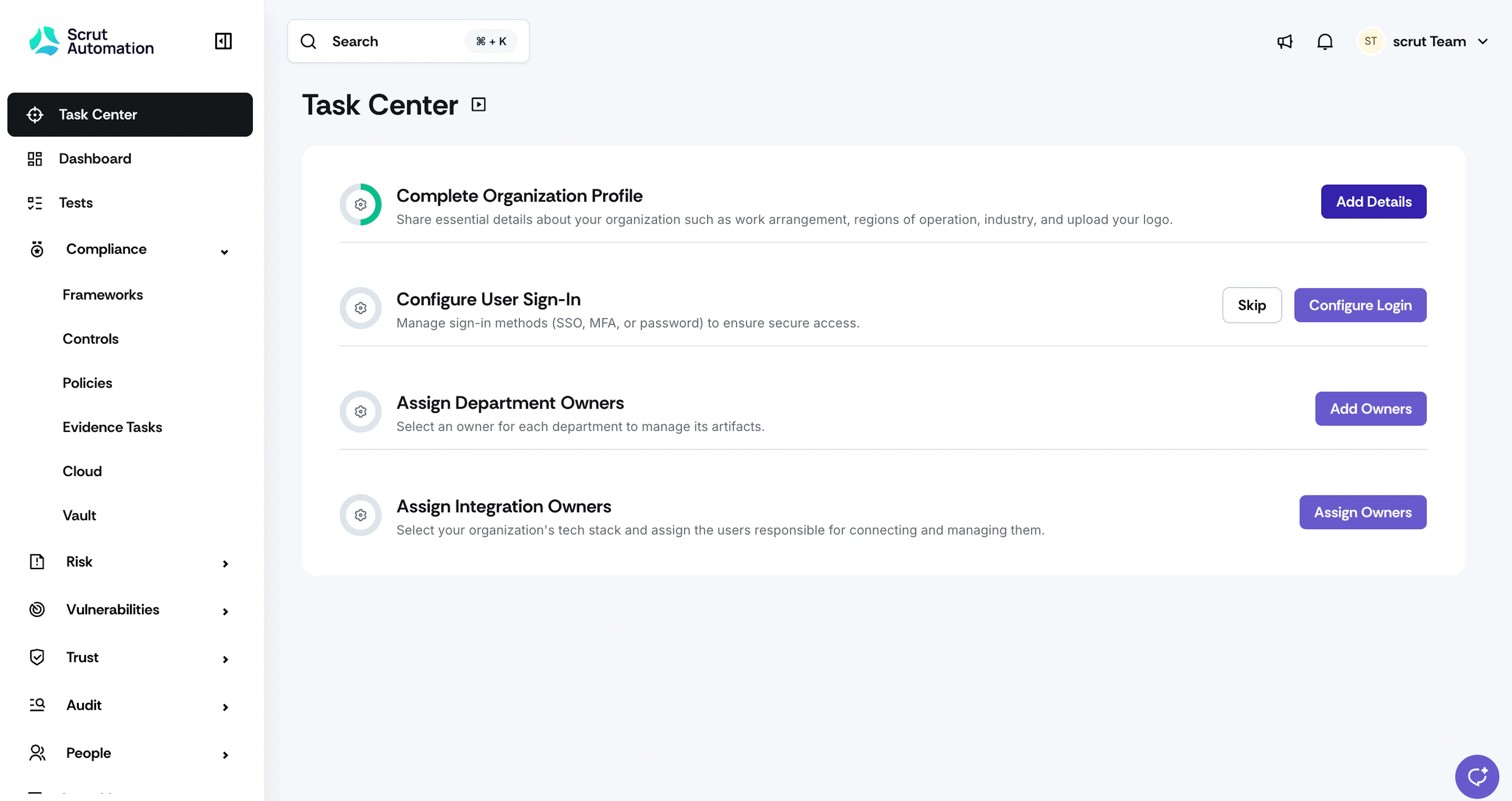
Click the Add Details button to enter and complete all the mandatory fields on the organization information page.
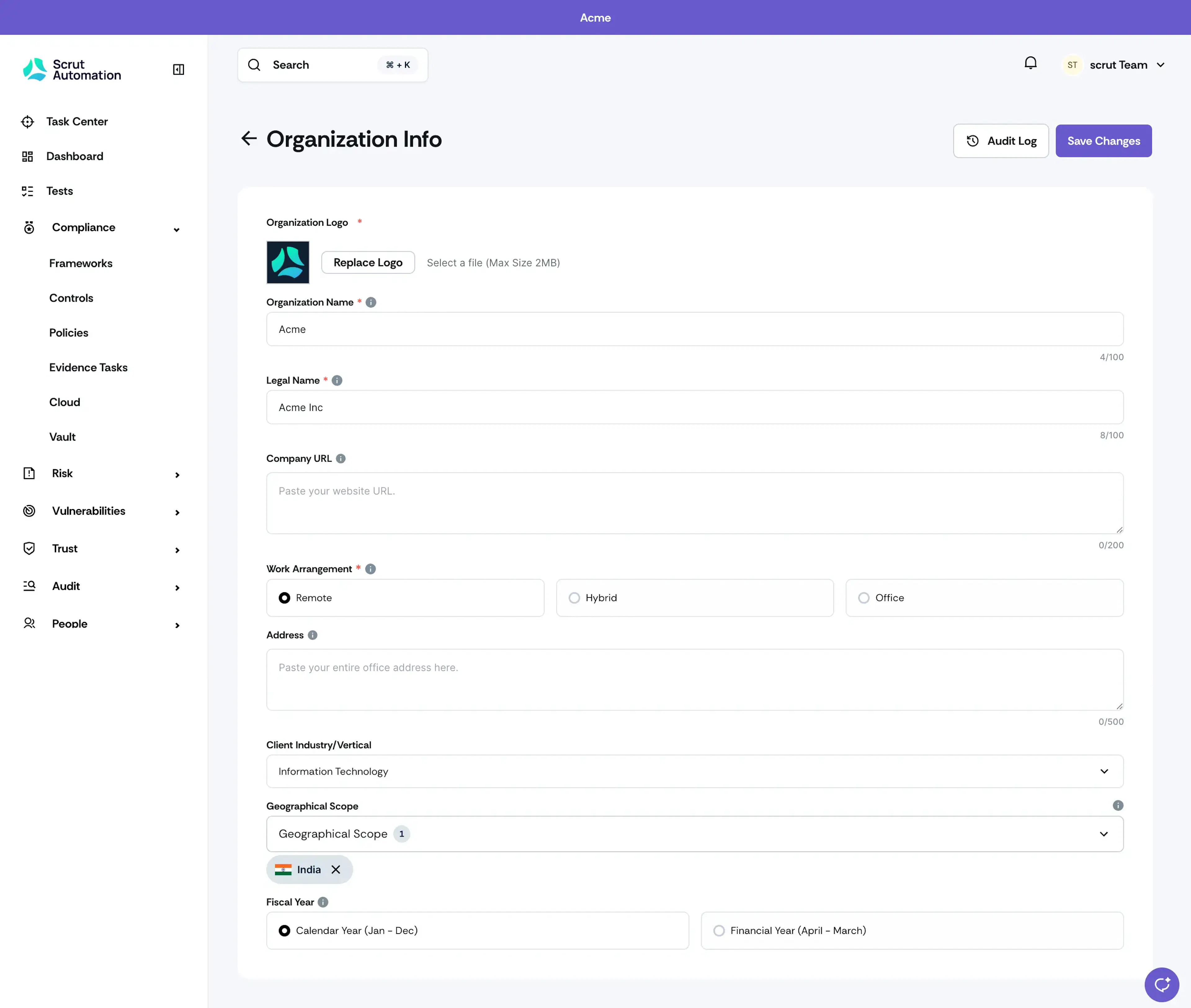
Mandatory Fields
- Organization Logo: Upload your company’s logo. Ensure that the file size does not exceed 2 MB.
- Organization Name: Provide the name that you commonly use for your business.
- Legal Name: Enter the official legal name of your business as registered.
- Work Arrangement: Select the work setup your organization uses. You can choose from:
- Remote: All employees work from home or off-site
- Hybrid: A combination of remote and in-office work
- Office: All employees work on-site at a physical location
Optional Fields
- Company URL: Input the official website URL for your organization.
- Address: Enter your legally registered business address.
- Client Industry/Vertical: Choose the industry sector that your business primarily operates in (e.g., Information Technology, Healthcare, Finance).
- Geographical Scope: Select all countries where your business operates.
- Fiscal Year: The default setting is the Calendar Year, which runs from January to December. If your financial year differs (e.g., April to March), please update this selection accordingly.
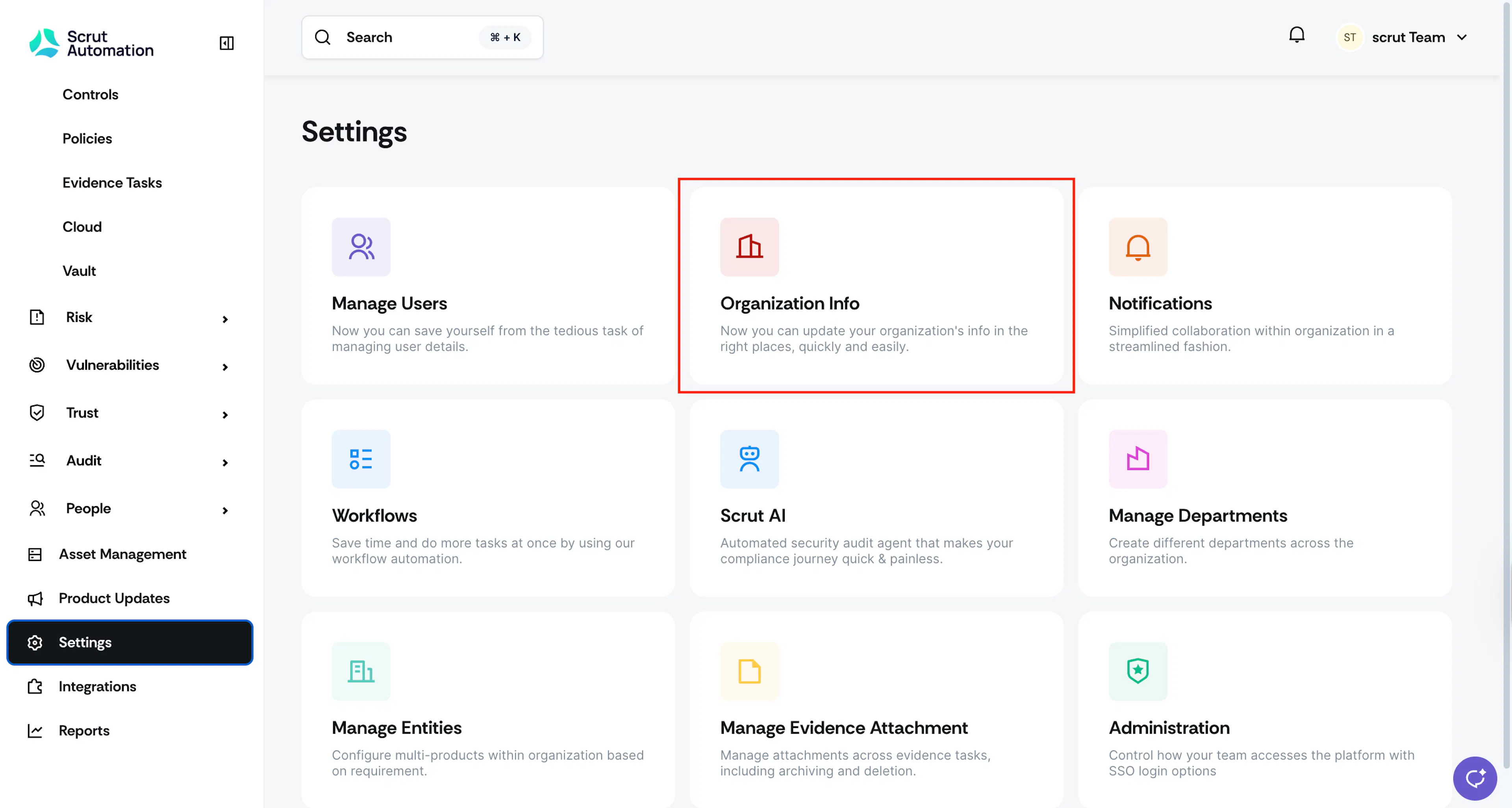
If required, you can edit the organization details later by navigating to Settings → Organization Info.
Task 2: Configure User Sign-In
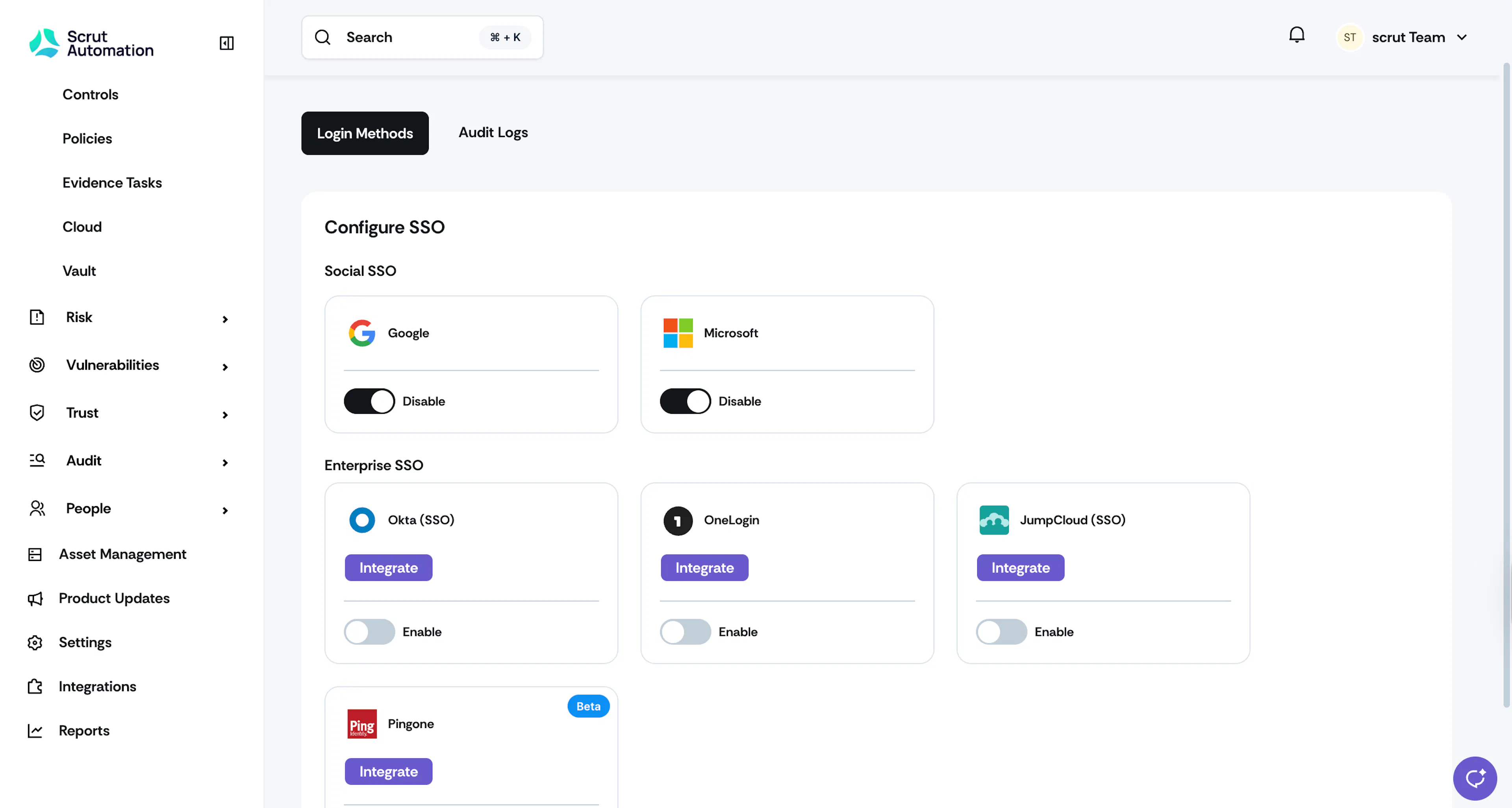
Next, configure the login methods your organization’s users will use to access Scrut. By default, Social SSO options such as Google and Microsoft login are enabled. You can turn them off if you don’t need them.
You can also set up additional enterprise SSO solutions such as Okta, OneLogin, JumpCloud, and PingOne. To enable these sign-in options, complete the integration for the corresponding tool with Scrut. Refer to the integration guides for detailed instructions on connecting with your IdP. Once done, enable the toggle for the enterprise SSO you want to set up.
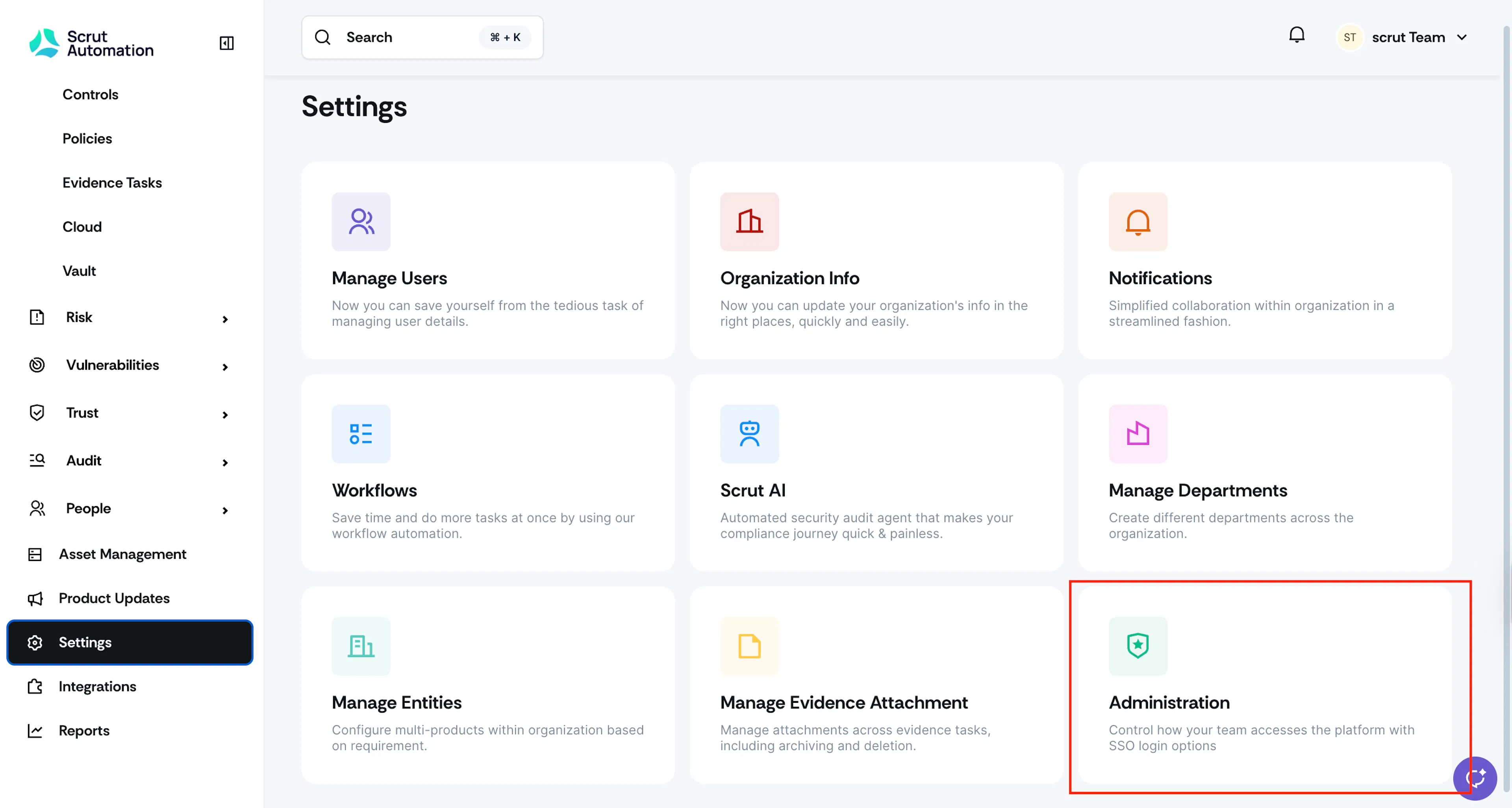
You can edit the sign-in options at any time by navigating to Settings → Administration.
Task 3: Assign Department Owners
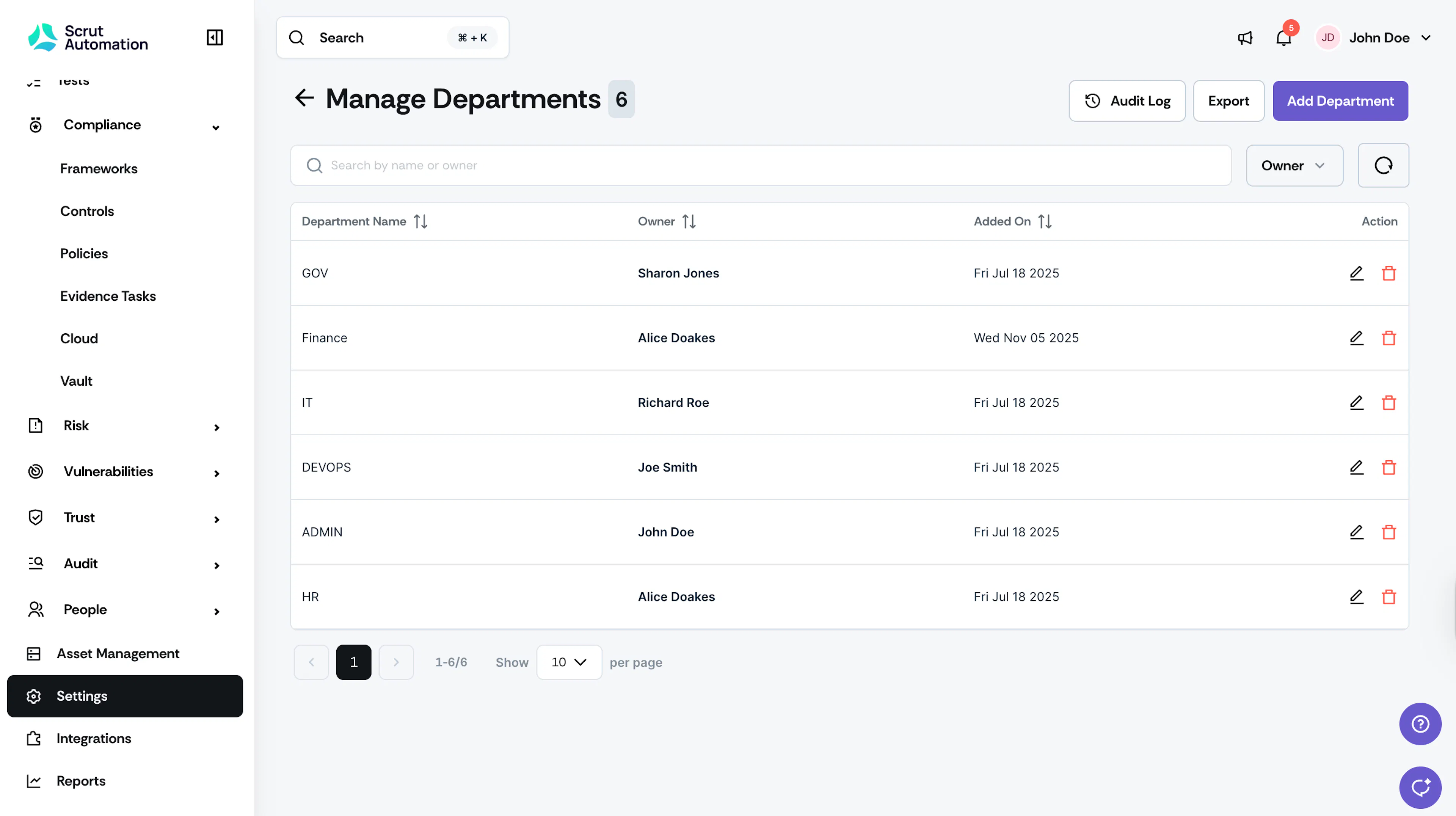
Each department in Scrut needs an active department owner. The designated owner will be responsible for overseeing and managing all artifacts (policies, evidence, risks, etc.) associated with that department. This ensures accountability and streamlines compliance management.
Why this matters
- Department owners are automatically assigned as primary owners for policies, evidence tasks, and risks related to their department.
- Scrut automatically assigns the department owner as the Primary Assignee when:
- A new framework or artifact (policy, evidence, risk) is created
- You bulk import risks without a risk owner
Click the edit icon next to each department to select its owner.
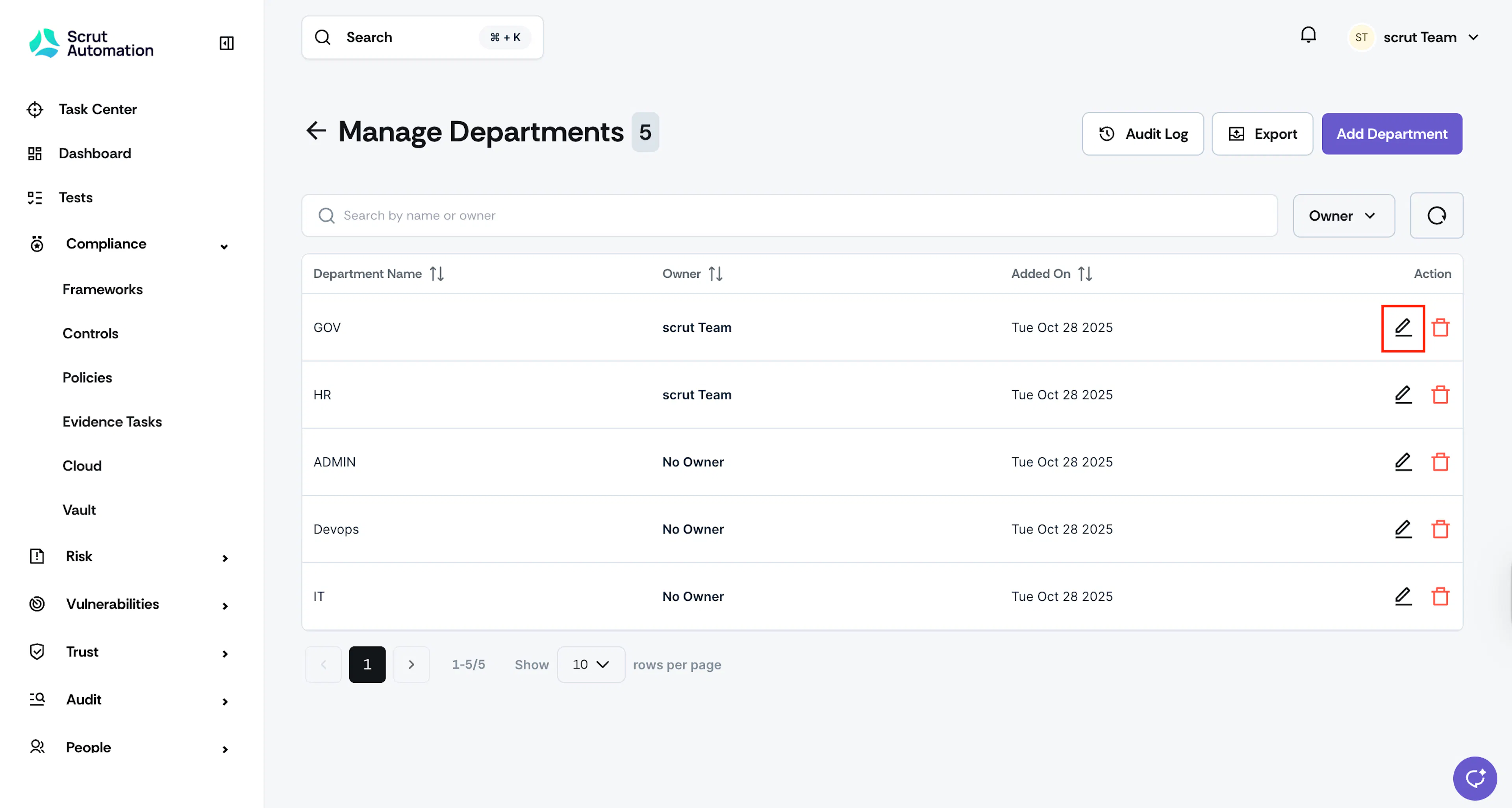
Note that even if your organization does not have all the departments listed here, you must still assign an owner for each department. This requirement exists because Scrut artifacts are linked to these departments, and proper management is essential for organization and clarity.
You may assign the same individual as the owner for multiple departments if needed. However, each department may have only one designated owner to ensure clear accountability. You can also add new departments based on your organizational structure.
You can also modify owners later if needed. Go to Settings → Manage Departments to change owners, as needed.
Task 4: Assign Integration Owners
Tell Scrut which tools your organization uses, and name the person responsible for connecting and managing each one. This is usually the tool's administrator, such as your DevOps lead for a cloud provider or your HR lead for an HRIS.
Why this matters
- Each Integration Owner gets a task in their Task Center to connect the integration, so you don't have to relay setup requests yourself.
- Connection and sync alerts for an integration go to its owners. If no owner is set, all admins receive them.
- Click Assign Owners.
- Click the Integrations dropdown and select the tools your organization uses. Note: Integrations that are already connected in your workspace are selected automatically and cannot be removed.
- Click Save & Continue.
- For each integration, enter the owner's details:
- Search or enter a name: Search for an existing user or employee, or type the name of someone new.
- Email address: Enter the owner's work email address if they're not already in Scrut.
- Click Assign Owners.
What happens after you assign owners
- If the owner isn't a Scrut user yet, Scrut sends them a platform invite.
- Each owner gets a Connect <integration> task in Task Center → My Tasks. After they connect the integration, a Configure <integration> task appears for integrations that need additional setup.
- Connection and sync alerts for that integration go to its owners.
- You can add, change, or remove owners later. Go to Integrations and click Manage Owners.
You’re All Set
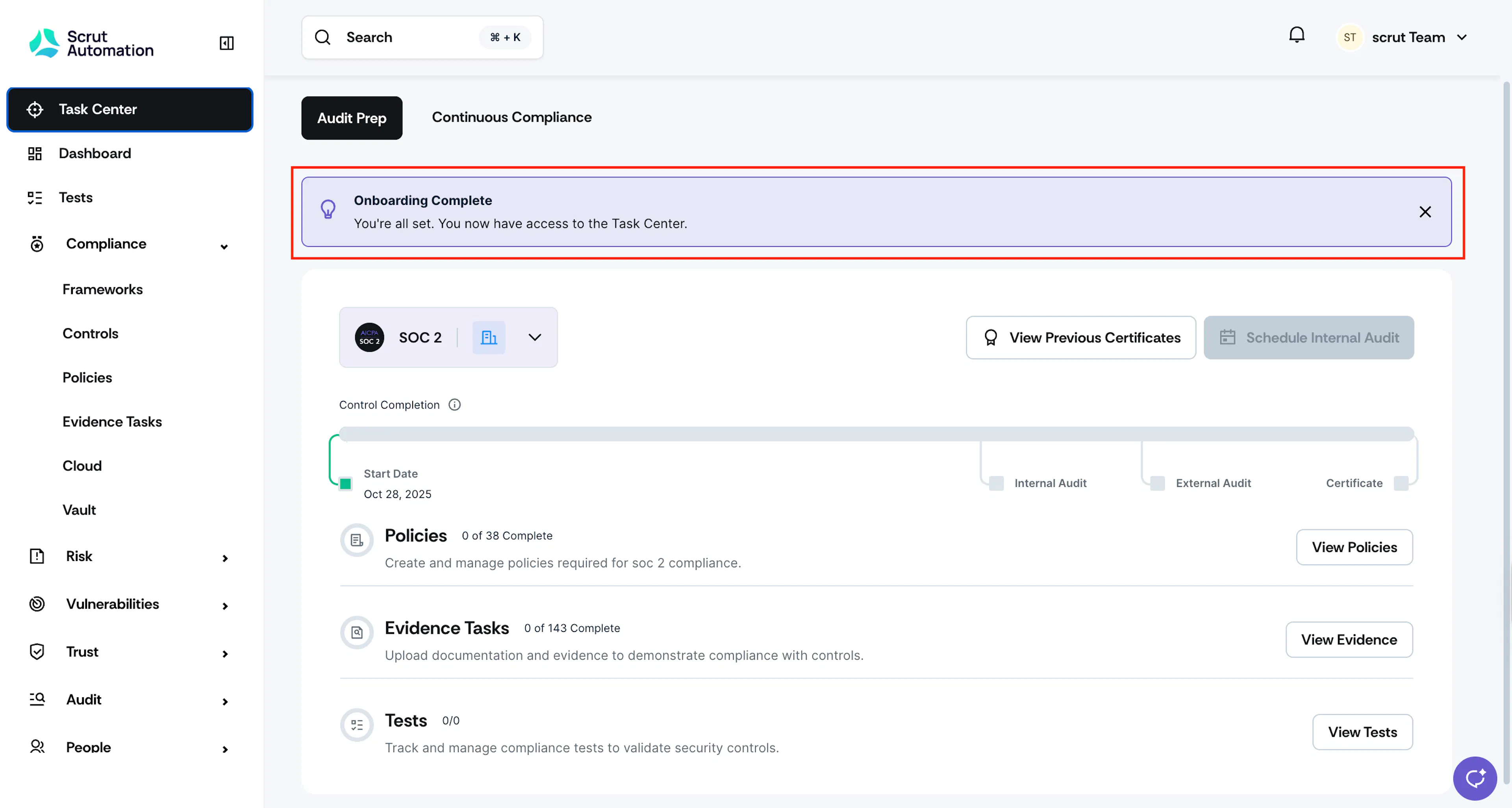
Once you’ve completed the onboarding tasks, you’ll see an Onboarding Complete banner in the Task Center. Your Scrut workspace is ready, and you can now explore the rest of the platform and get started on your compliance journey!