Risk Assessment Workflow
Who can use this feature
- Supported on Foundation, Growth, and Scale plans
Risk assessment is the process of assessing a risk based on the risk factors and scores configured in risk settings. In this article, we explain the steps to assess risks in Scrut.
How To Assess a Risk in Scrut
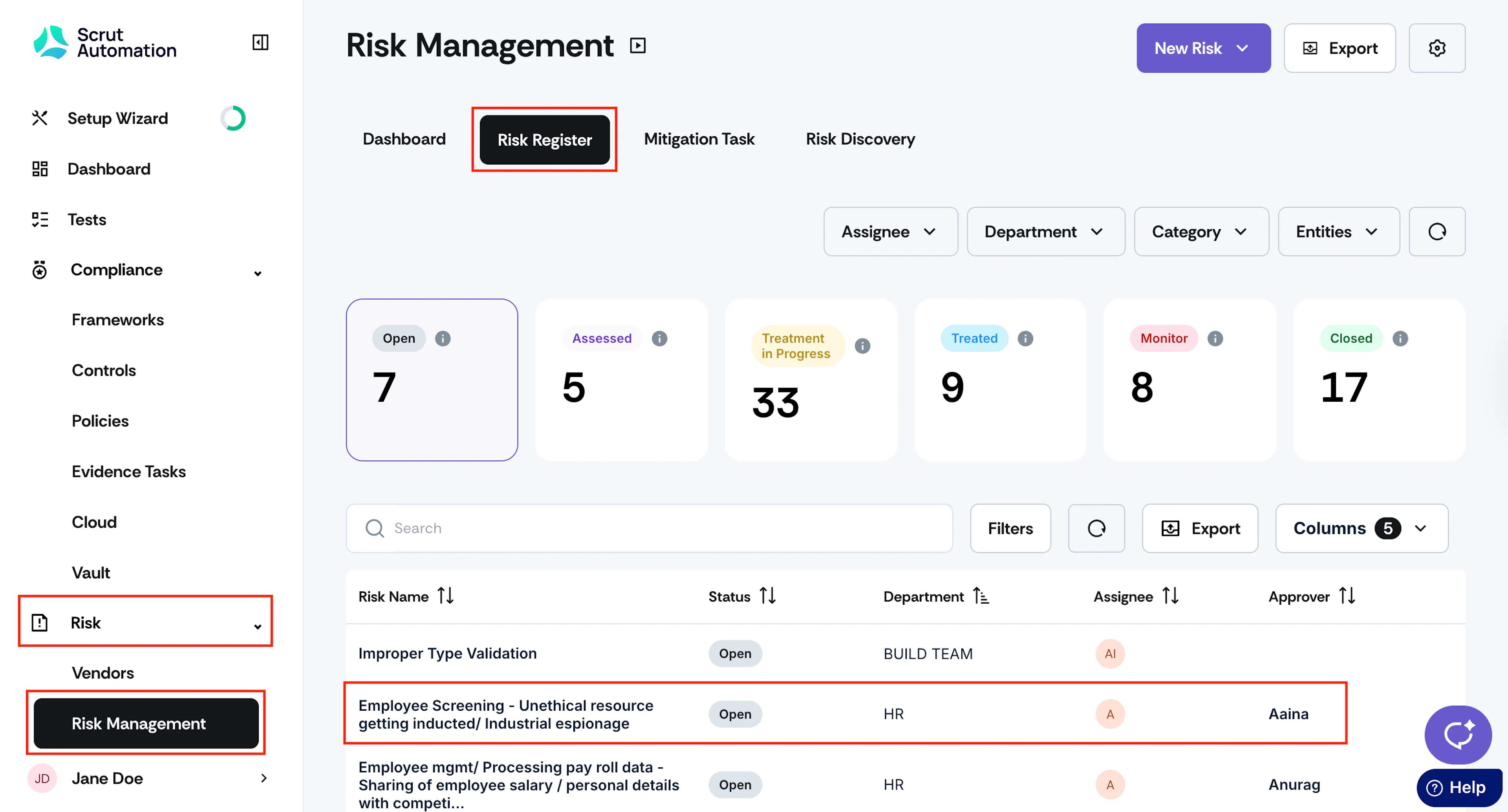
- Sign in to Scrut, and click Risk → Risk Management on the left navigation panel.
- Go to the Risk Register tab, and click on the risk that you want to assess.
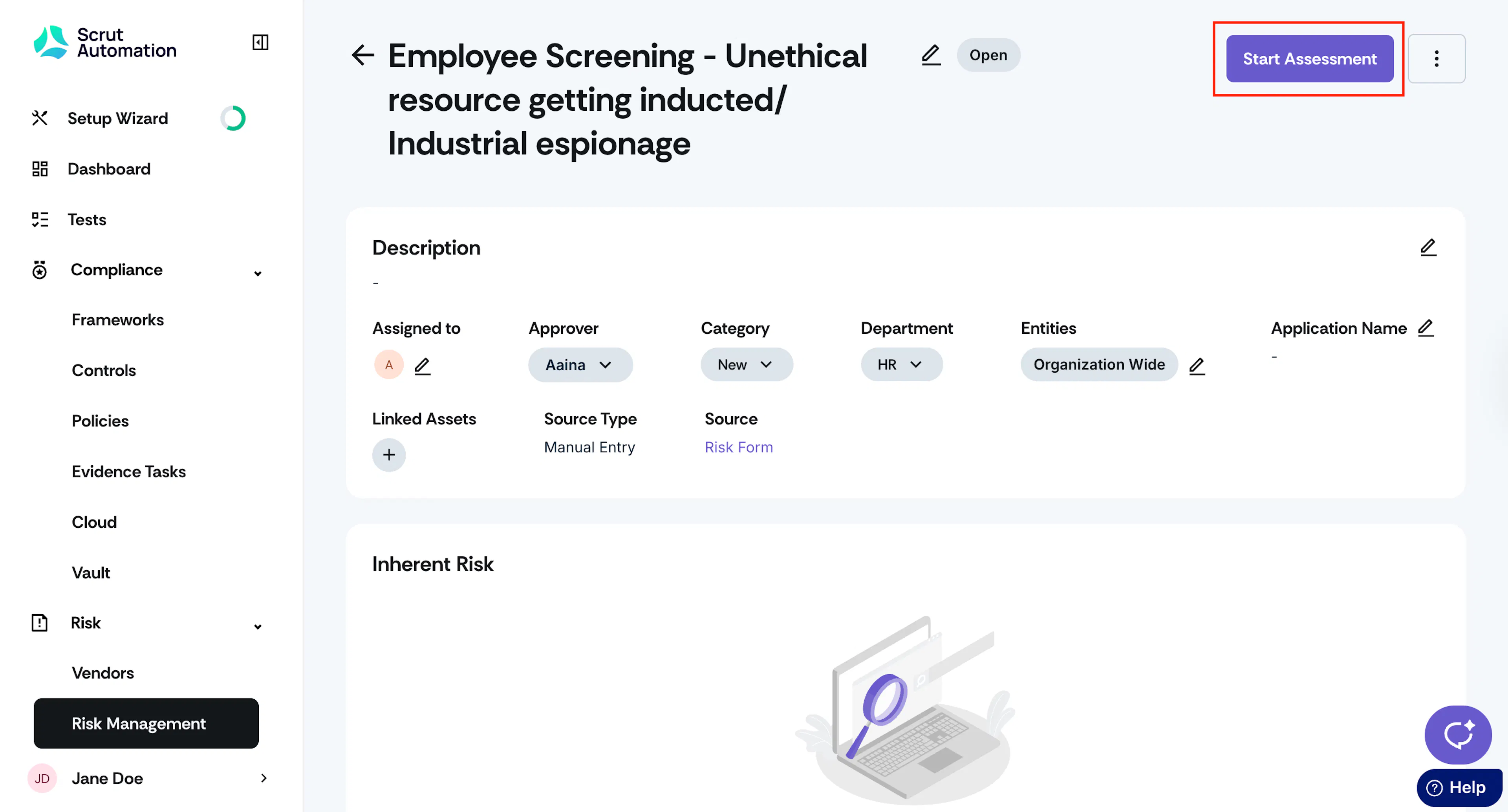
- Click Start Assessment.
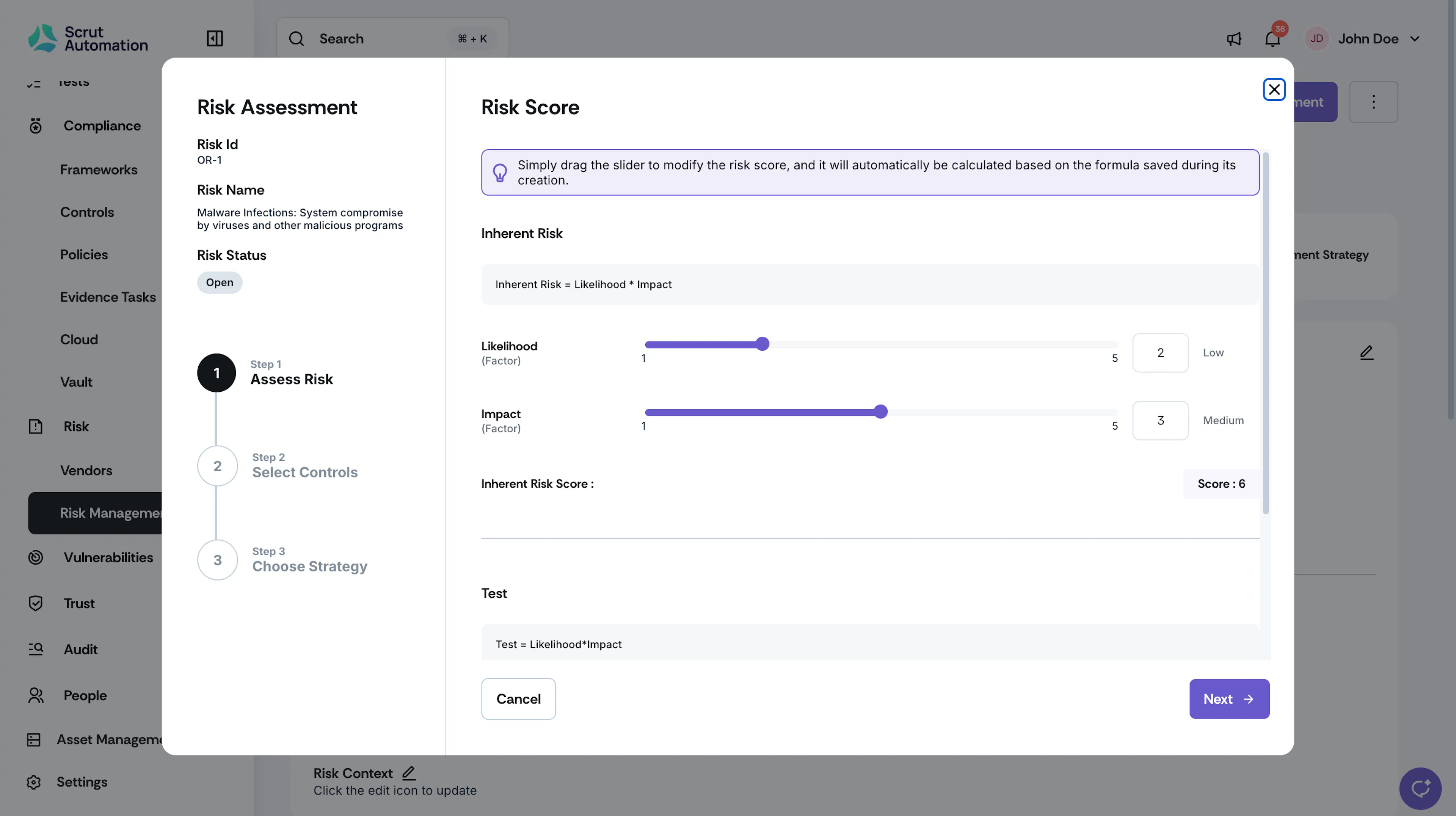
The risk assessment window opens.
Step 1: Calculate the Inherent Risk score
Drag the slider for each factor to modify its value, and the risk score will be automatically calculated based on the formula saved during its creation. Click Next.
Note:
The risk status changes from Open to Assessed after this step.
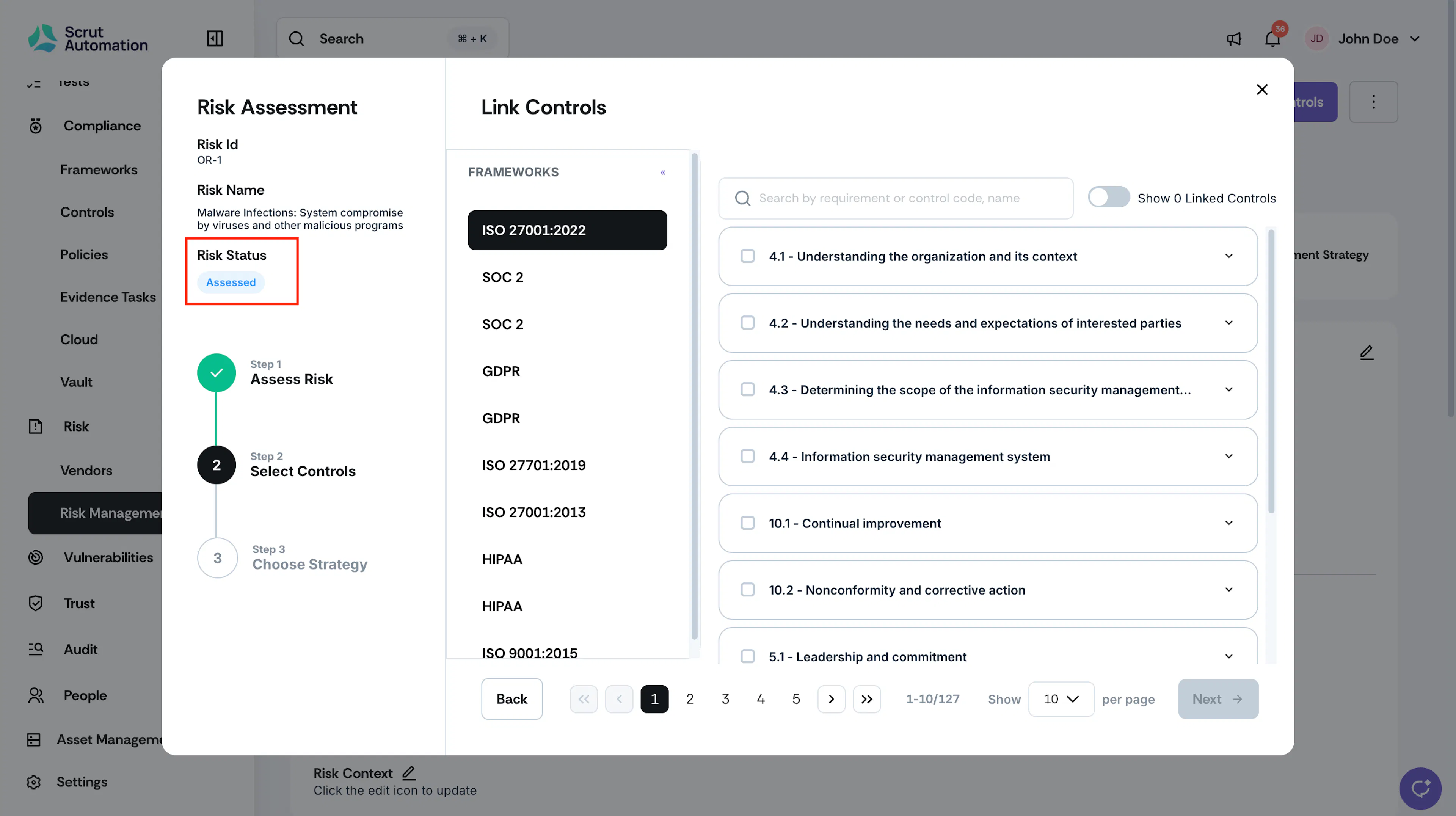
Step 2: Select Controls & Requirements
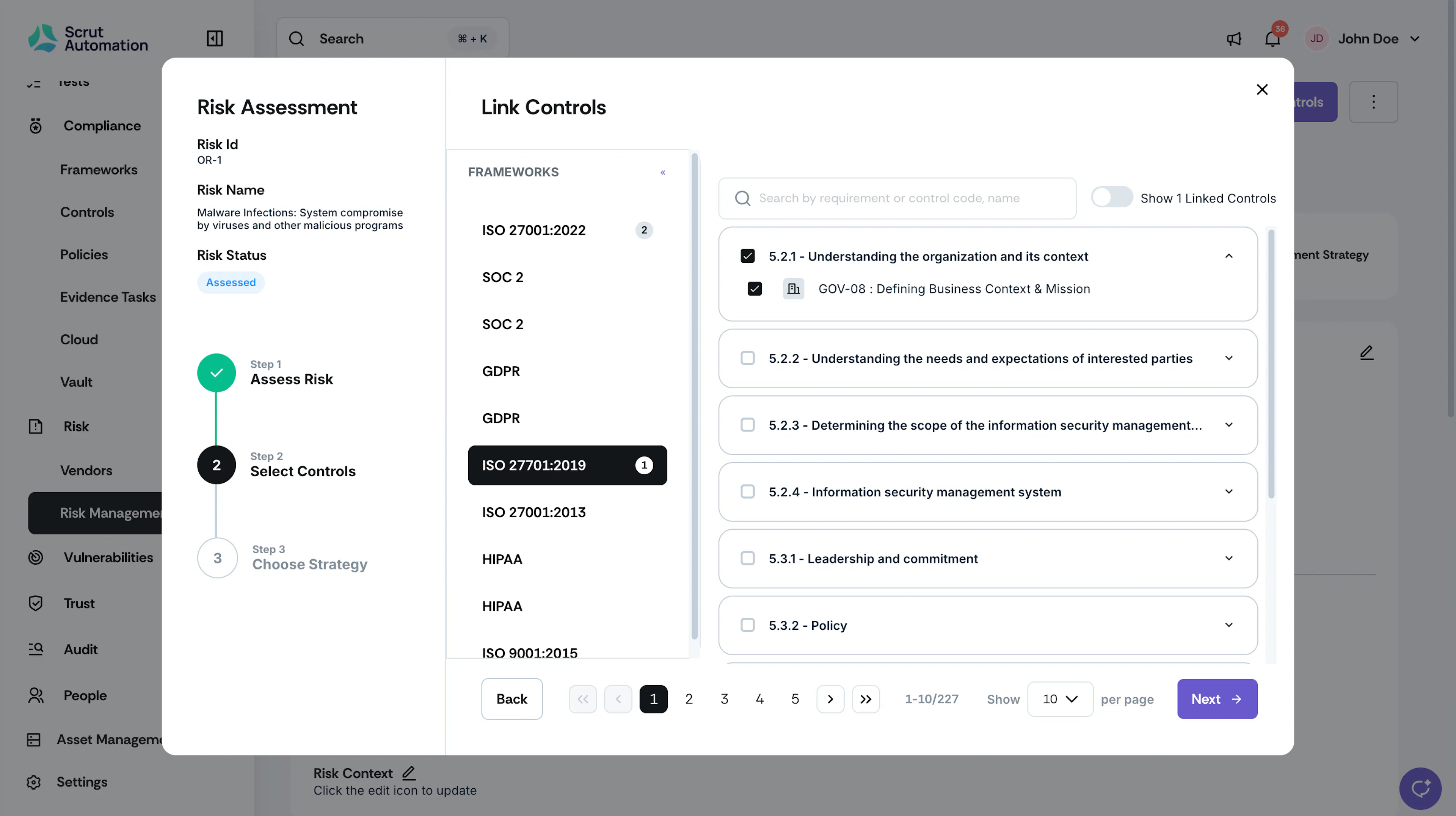
In this step, you will select controls that are specific actions or measures designed to mitigate the identified risk according to the chosen treatment strategy. Select the checkboxes that correspond with the controls you want to link. Click Next.
Pro Tip!
Use the searchbar to quickly find specific controls. You can search by control or requirement name or code.
Step 3: Select the Treatment Strategy
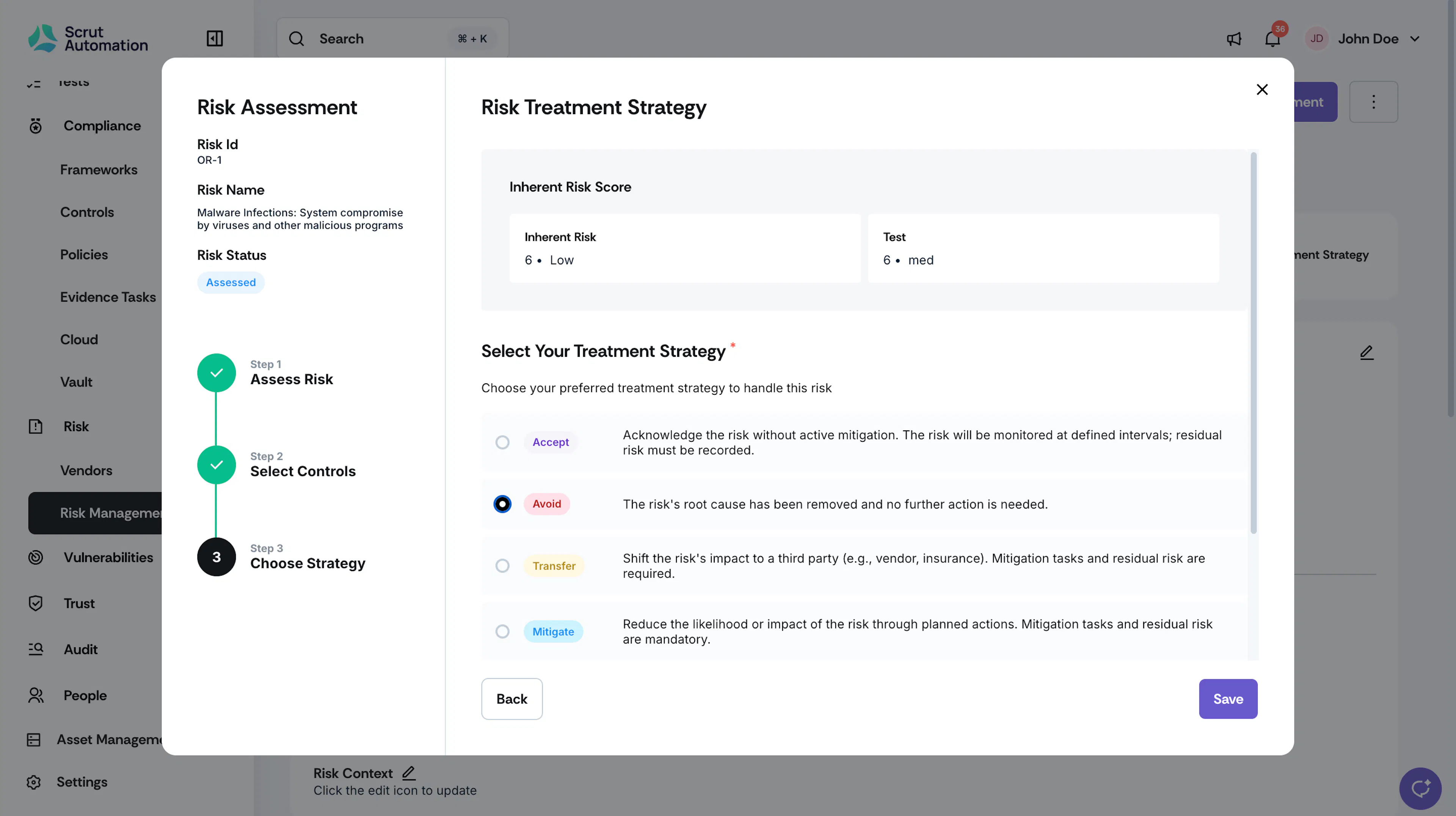
Once you have linked the controls and requirements, the next step is to determine the appropriate treatment strategy. The treatment strategy outlines how your organization plans to address the identified risk.
- Select an appropriate Risk Treatment Strategy from the following options:
- Accept: Acknowledge the risk without active mitigation. The risk will be monitored at defined intervals; residual risk must be recorded.
- Avoid: The risk’s root cause has been removed, and no further action is needed.
- Transfer: Shift the risk’s impact to a third-party (e.g., vendor, insurance). Mitigation tasks and residual risk are required.
- Remediate: Reduce the likelihood or impact of the risk through planned actions. Mitigation tasks and residual risk are mandatory.
- [Optional] Add a note justifying your choice of a specific risk treatment strategy.
- Heads up! If you choose the Transfer or Mitigate treatment strategies, you must add a mitigation task.
- Enter the task details: Name, Department, Due date, Assignee, Approver, and Description.
- Click Save.
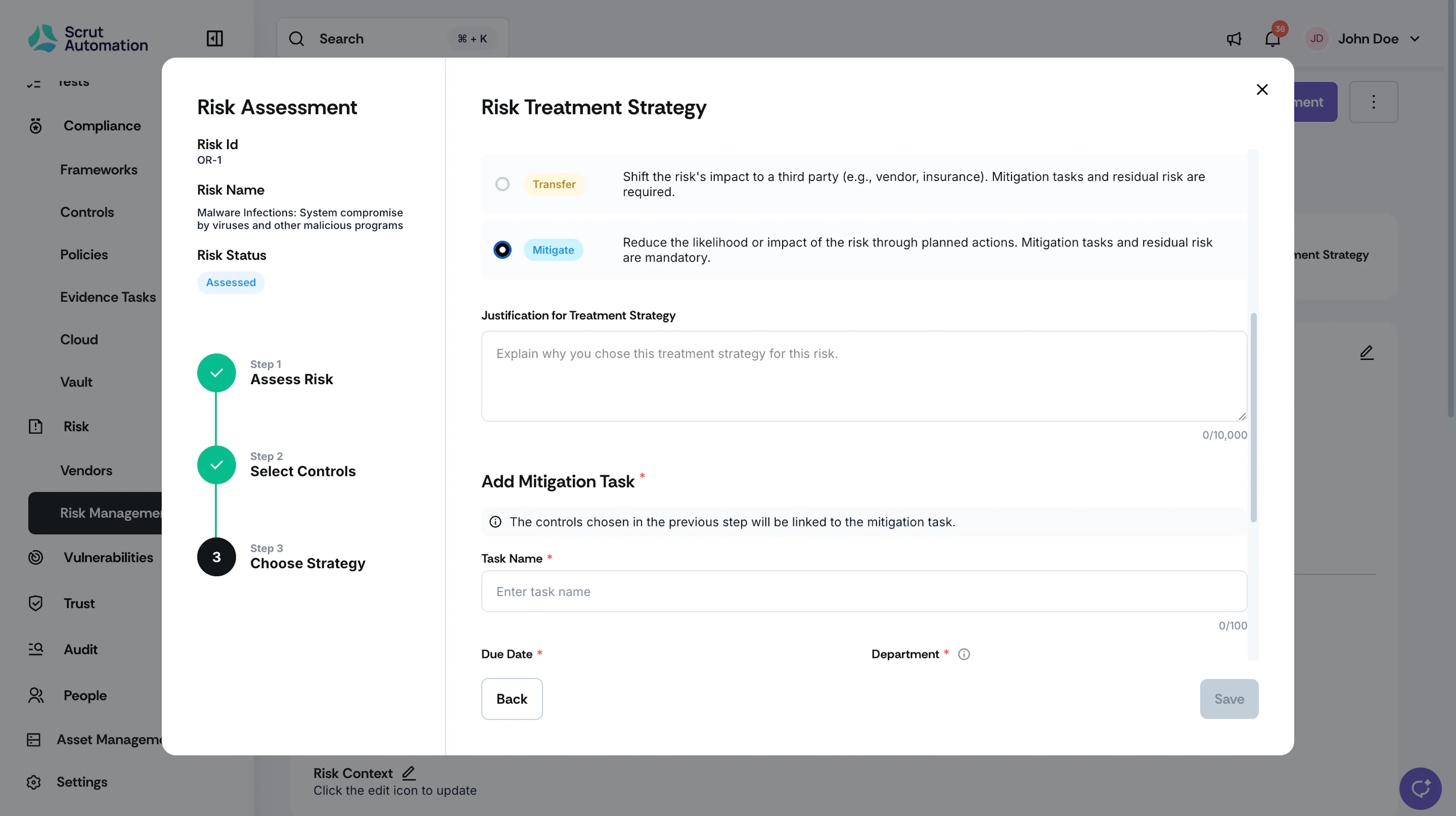
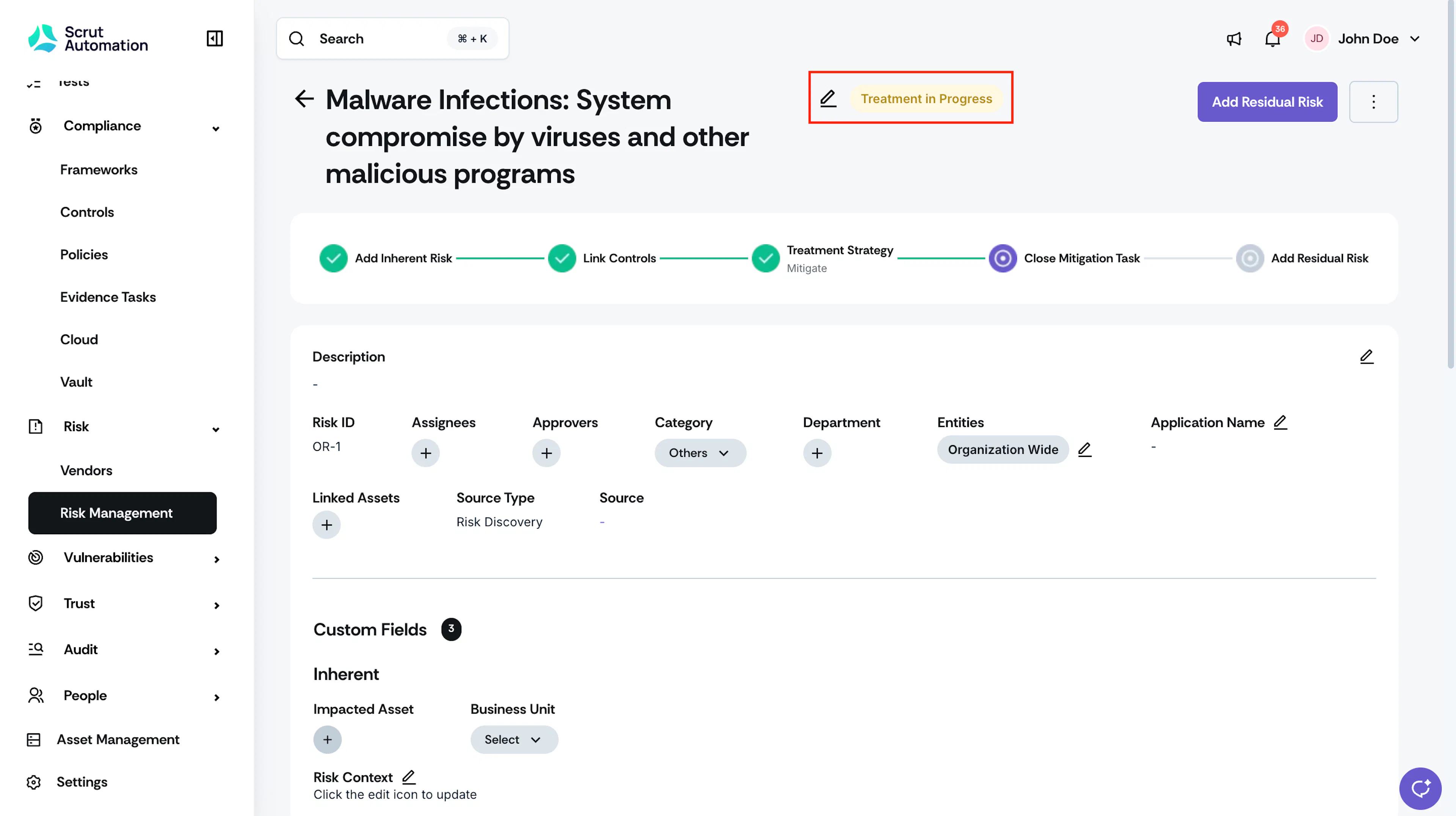
The risk status changes from Assessed to Treatment in Progress.
Viewing Mitigation Tasks
Scroll to the Mitigation Task tab on the risk detail page to view the mitigation task created during risk assessment.