

Track & Complete Audit Prep Tasks
Heads Up!
This feature is currently in closed beta. Reach out to your CSM to know more.
The Audit Prep tab guides you through the key activities needed to prepare for your compliance audit. It provides a centralized view of audit preparation tasks across modules, tracks your progress, and helps you understand what needs to be done before you're ready for internal and external audits.
Exploring the Audit Prep tab
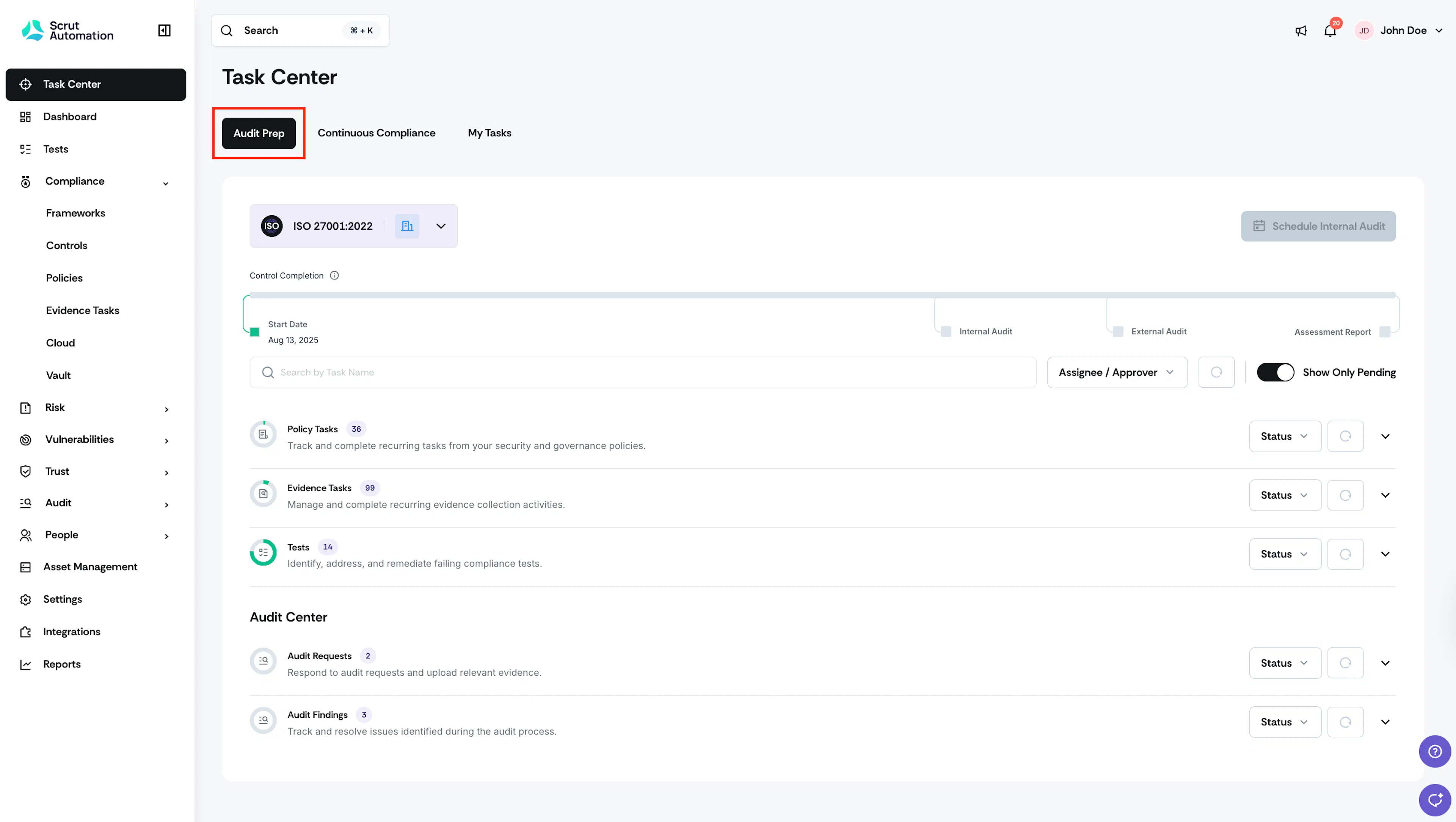
Navigate to Audit Prep
Click the Task Center on the left navigation panel, and click the Audit Prep tab.
Select a Framework and Entity
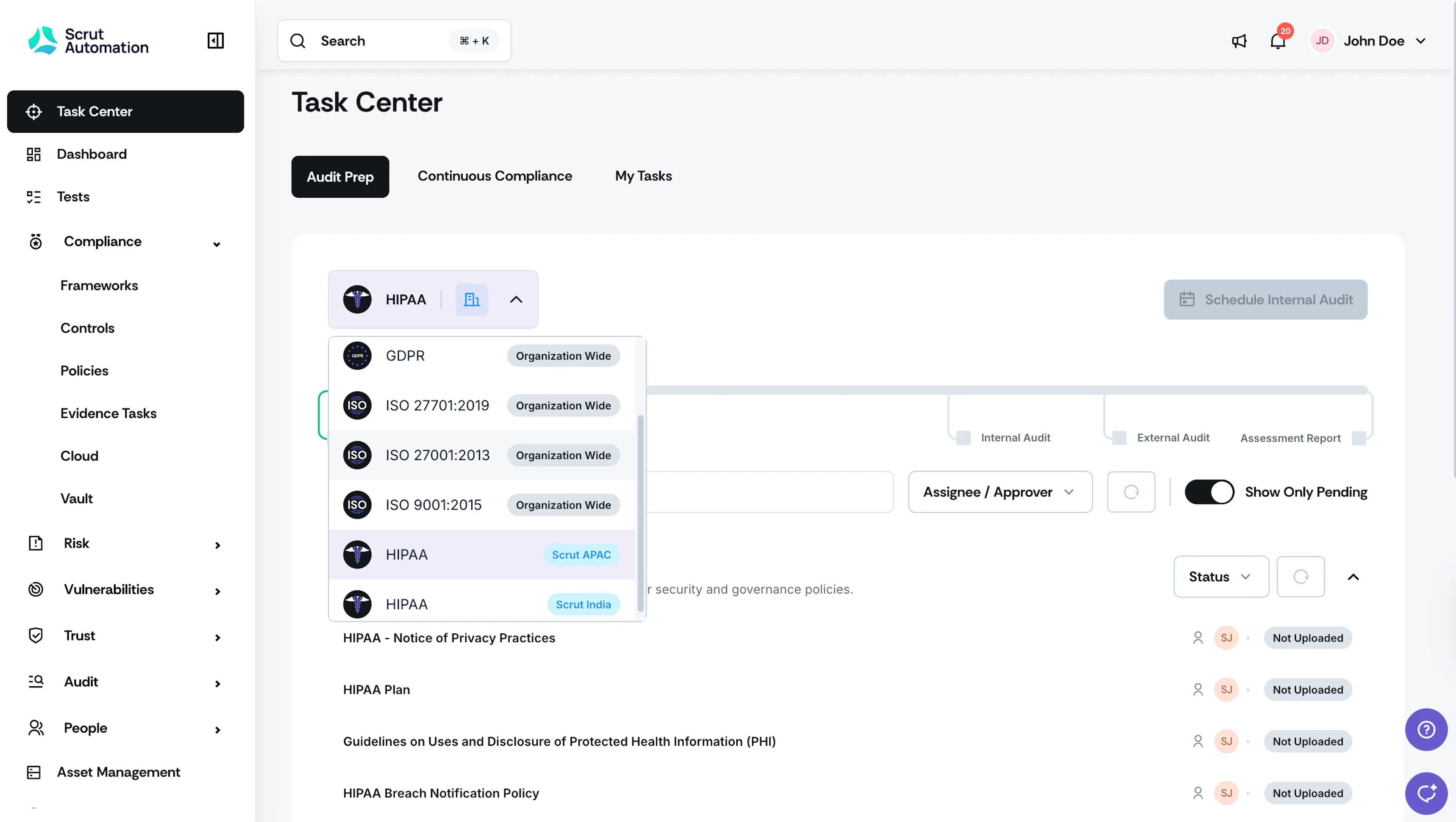
Use the selector at the top of the page to:
- Switch between your frameworks (if you're working towards multiple frameworks, such as SOC 2, ISO 27001, GDPR, etc.)
Note: If your organization has multiple entities, you will find the framework repeated once for each entity. Each framework/entity combination maintains its own progress tracking, audit schedule, assessment reports, and timeline.
Track Your Progress
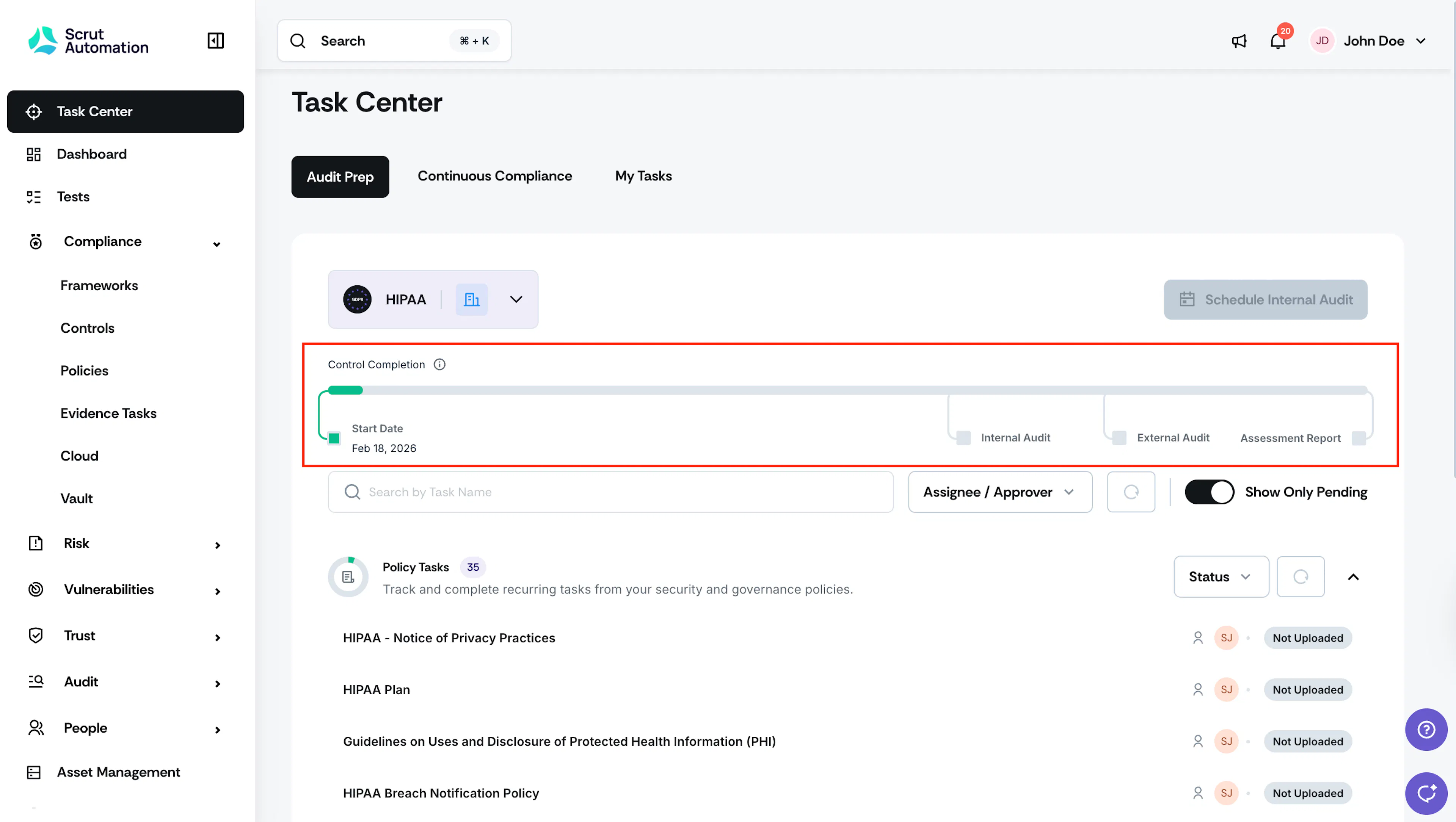
The Progress Bar at the top of the tab shows your compliance progress. It indicates how close you are to audit readiness based on your control completion rates.
Heads Up!
The progress percentage is calculated based on control completion linked to your selected framework. Progress on individual artifacts (like publishing a policy or uploading evidence) does not directly impact this calculation.
Timeline
The timeline shows key milestones in your certification journey:
- Start Date: When your audit cycle begins (typically when you complete onboarding or on your last renewal date)
- Internal Audit Date: Populated after scheduling the internal audit
- External Audit Date: Populated after scheduling the external audit
- Assessment Report: When the audit assessment report is generated
Note:
When you initiate framework renewal, a new cycle starts automatically.
Use Filters & Search

Search
Use the search bar to find a specific task. Start typing the task name (min 3 characters), and the list updates automatically to match your search.
Tip: You don’t need to type the full task name — partial matches work.
Assignee / Approver Filter
Use the Assignee / Approver dropdown to filter tasks by person. Select a name to view only the tasks assigned to or requiring approval from that person.
Tip: Identify unassigned tasks using the Unassigned option in the Assignee filter, and assign tasks to team members.
Reset
Click the Reset icon to clear your search and filters. This restores the full task list view. Use this when you want to start fresh.
Turn on Show Pending Items
Use the Show Pending Items toggle to filter out completed tasks and focus only on what's still open. This is the fastest way to zero in on remaining work.
How To Complete Audit Prep Tasks
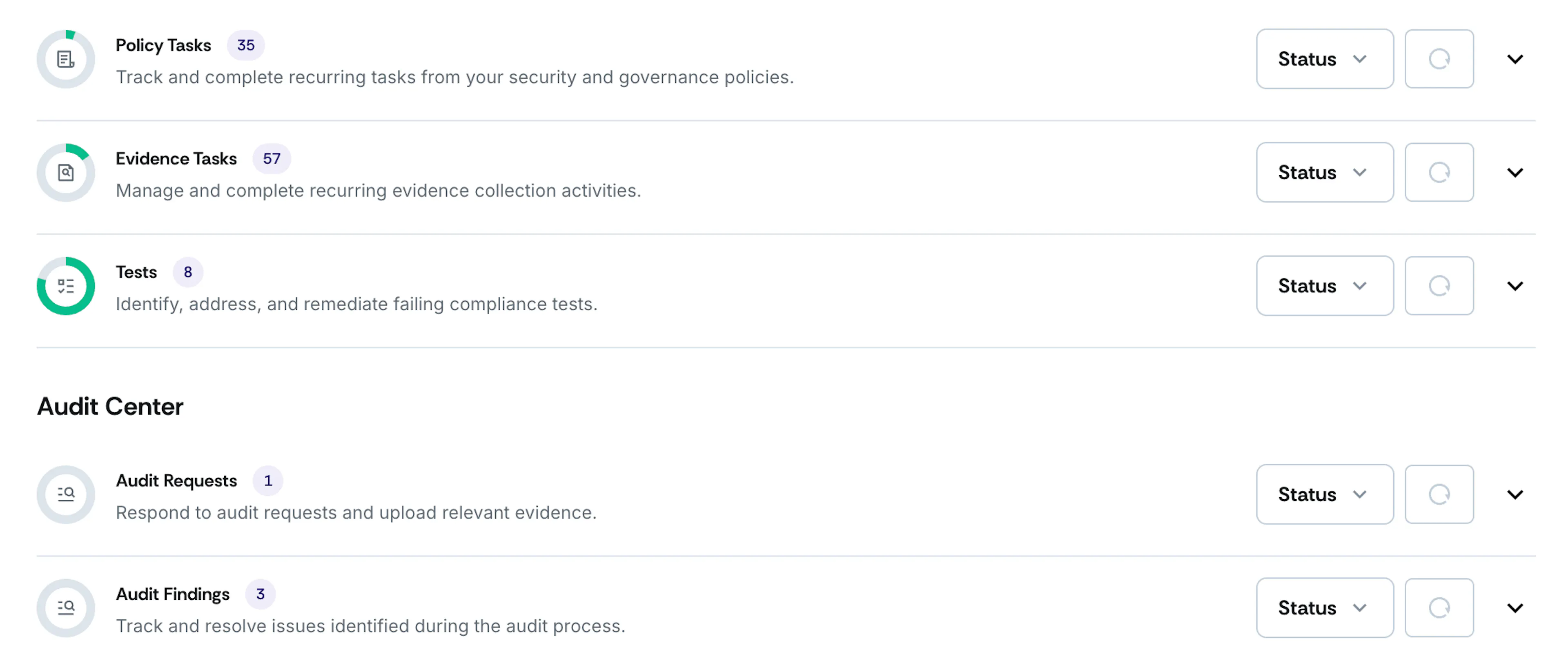
Each section in the Audit Prep tab shows your current progress and specifies which tasks are pending.
Publish Policies
The Policy Tasks section shows the number of pending tasks related to your organizational policies.
How to make progress: Your goal is simple: Ensure every required policy moves to Published status by coordinating with the right contributors.
- Open any unpublished policy.
- Assign it to the appropriate team member.
- Get it reviewed and published once it’s ready.
- Repeat until all required policies are published.
Upload Evidence
The Evidence Tasks section shows how many tasks are pending due to incomplete documentation.
How to make progress: Ensure assignees upload clear, complete documentation for each pending task in this section.
- Open a pending evidence task.
- Assign the task to the appropriate team member.
- Ensure integrations are connected or files are uploaded.
- Confirm the task is marked as Uploaded once sufficient evidence is provided.
Fix Failing Tests
This section highlights tests that are failing or require attention.
How to make progress: Ensure responsible teams investigate and resolve underlying issues.
- Open any failing test.
- Assign remediation to the relevant owner.
- Ensure the underlying issue is fixed.
- Confirm the test passes and returns to Ok status.
Heads Up!
Audit Requests and Findings are visible in the Task Center only when an audit is in progress.
Respond to Audit Requests
This section displays requests from auditors during an active audit.
How to make progress: Coordinate responses and ensure timely submission of accurate information.
- Open each request.
- Assign the request to the appropriate stakeholder.
- Ensure relevant evidence or documentation is uploaded.
- Add necessary context or explanations.
- Confirm the request is fully addressed.
Take Action on Audit Findings
This section shows compliance issues identified during an audit.
How to make progress: Ensure findings are addressed systematically and resolved properly.
- Open each finding.
- Assign corrective actions to the appropriate owner.
- Ensure remediation is implemented and documented.
Pro Tips!
- Each module displays a progress indicator and task count so you know exactly where things stand.
- Use the Status filter to filter tasks by specific statuses for each module.
When to Schedule an Audit
When your progress reaches certain milestones, the Task Center unlocks key actions:
- When your progress reaches 90%, you can schedule an Internal Audit.
- When your progress reaches 100% and the internal audit is done, you can schedule an External Audit.
Heads Up!
When you click Schedule an Audit it sends an email to your assigned CSM. It doesn't create the audit automatically in Scrut. Your CSM will coordinate with you for the next steps.
Tips for Success
- Check the Task Center daily to stay on top of your progress.
- Use the Show Pending Items toggle to filter out completed artifacts and focus only on what's still open. This is the fastest way to zero in on remaining work.
- Use the Assignee/Approver filter to track who's responsible for what.
- Identify unassigned tasks early by using the unassigned option in the Assignee filter, then assign them to team members.
- Use the search to find specific items quickly. Search applies across all modules simultaneously, so you don't need to expand each one individually.
- Switch between frameworks (and entities) as needed if you're working toward multiple certifications.
- Track progress per module. The donut chart next to any module shows pending vs. total artifact count.
What Happens After an External Audit is Completed?
Congrats! You've achieved certification for your selected framework!
After you have successfully completed your external audit, your Assessment Report will appear on the timeline. The audit cycle is complete, and a new cycle begins for renewal.
Pro Tip!
Switch to the Continuous Compliance tab to complete recurring compliance tasks and maintain your compliance posture between audit cycles.