

Track & Complete Continuous Compliance Tasks
Heads Up!
This feature is currently in closed beta. Reach out to your CSM to know more.
Compliance isn't just an audit-time activity — it's a year-round commitment. The Continuous Compliance tab gives you a single place to track and act on all ongoing compliance tasks across your organization. Use it to stay on top of open tasks, catch issues early, and ensure nothing falls through the cracks between audit cycles.
What's in it?
Click Task Center on the left navigation panel, and click the Continuous Compliance tab to open it.
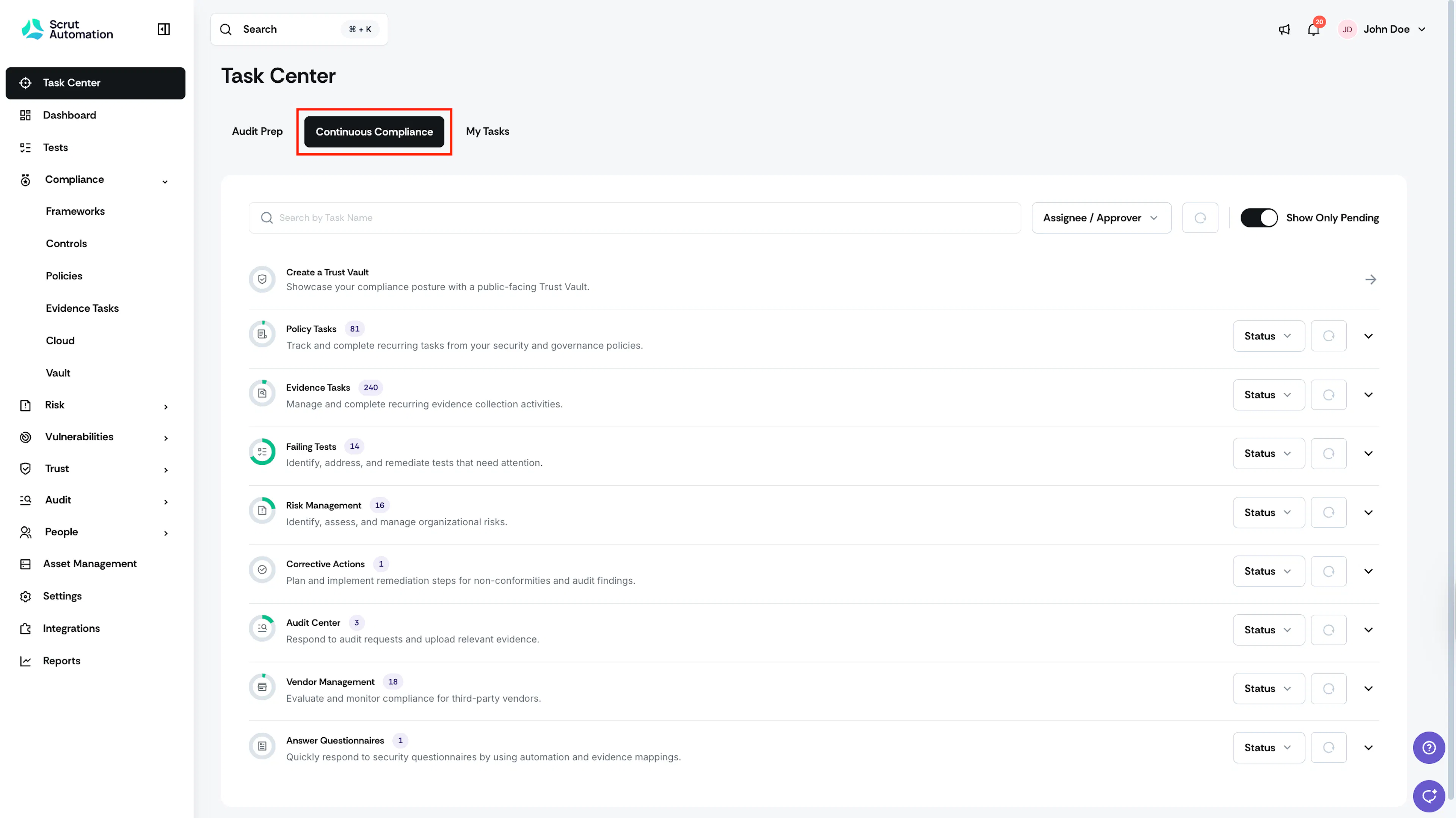
The tab lists all active compliance modules and their tasks. Here's what it covers:
- Create a Trust Vault: Set up a public-facing Trust Portal to showcase your compliance and security posture to customers and stakeholders.
- Policy Tasks: Track and complete recurring tasks from your organizational policies.
- Evidence Tasks: Manage recurring evidence-collection activities to keep your controls up to date.
- Failing Tests: Identify and remediate failing control tests that require your attention.
- Risk Management: Track and act on active risks across your organization.
- Corrective Actions: Implement remediation steps to resolve non-conformities, audit findings, or other compliance gaps.
- Audit Center: Respond to auditor requests and upload relevant supporting evidence.
- Vulnerabilities: Track and address open security issues.
- Vendor Management: Evaluate and monitor compliance requirements for your third-party vendors.
- Answer Questionnaires: Respond to incoming security questionnaires using automation and evidence mappings.
How to use the Continuous Compliance tab
Focus on what’s open
Toggle on Show Only Pending to see open tasks across modules. This gives you a clear picture of what needs to be done.
Expand a module to see the details
Click the arrow on any module to expand it and view individual tasks. Each task shows its name, assigned owner, approver (if applicable), and current status. Click a task to go directly to its detail page and take action.
Filter by team member
Use the Assignee / Approver filter to see all tasks assigned to or awaiting approval from a specific person. This is especially useful for team check-ins or managing overdue items.
Search for a specific task
Use the search bar to find a task by name. It searches across all modules at once.
Tips for success
- Make it a routine. A quick review of this tab once every week (or more frequently as needed) helps you stay on track.
- Keep an eye on pending task counts. Each module shows a count of pending tasks next to its name. Scan the list to see where work is piling up and prioritize accordingly.
- Assign ownership clearly. Unassigned tasks are easy to miss. Use the Assignee/Approver filter to surface any unassigned items and route them to the right person.