

Track & Complete Your Tasks in Scrut
The My Tasks tab in the Task Center serves as your personal control center for keeping track of all your tasks in Scrut. Instead of hunting through different modules to find what needs your attention, everything assigned to you appears right here, making it easy for you to prioritize tasks and take action quickly.
Recommended Workflow
We recommend adopting this workflow to get the most out of the My Tasks tab and complete your tasks on time:
1: View your tasks
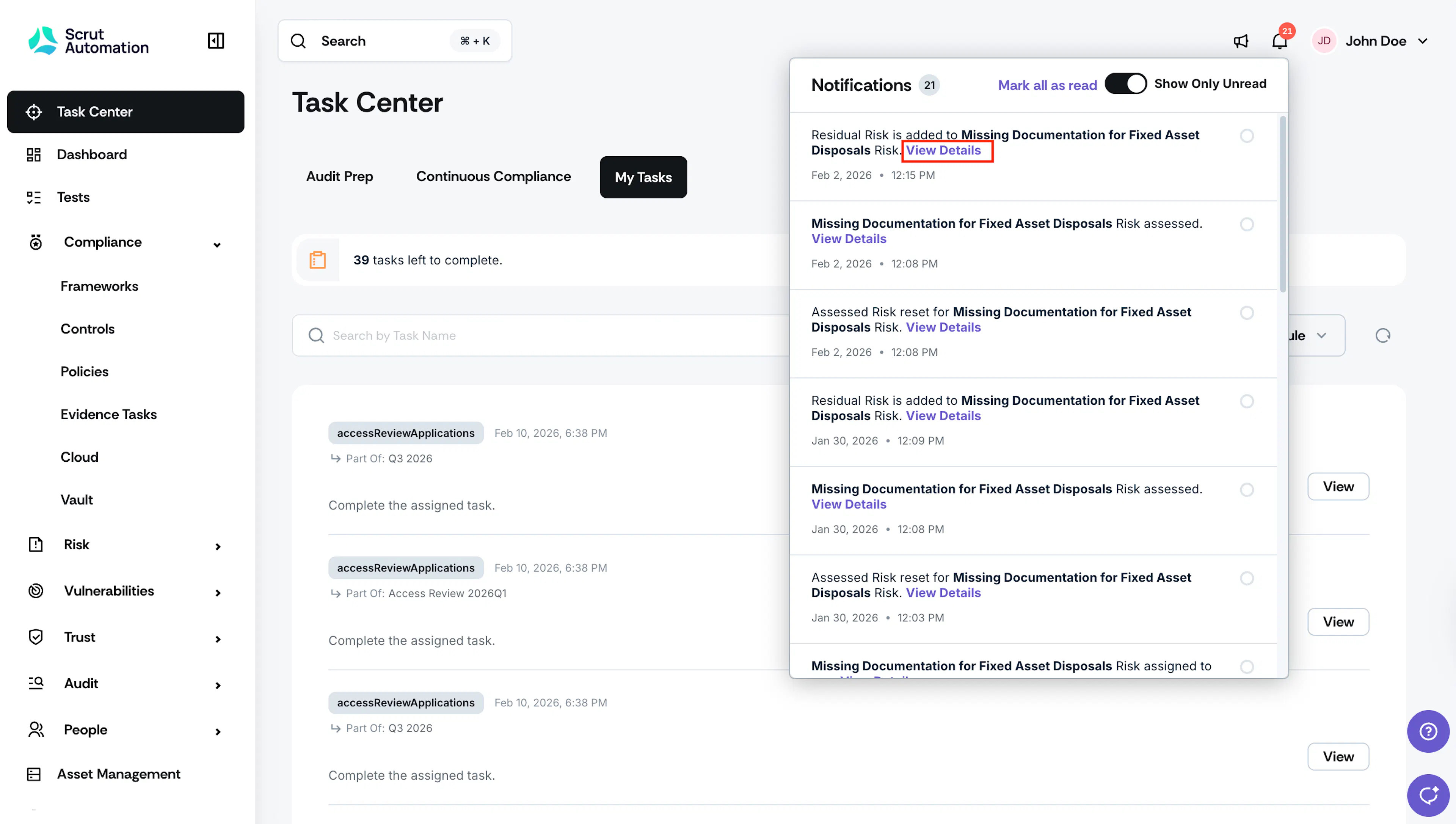
Whenever a task is assigned to you, you’ll receive real-time notifications in the Notification Center. Click View Details on any notification to go directly to the specific task.
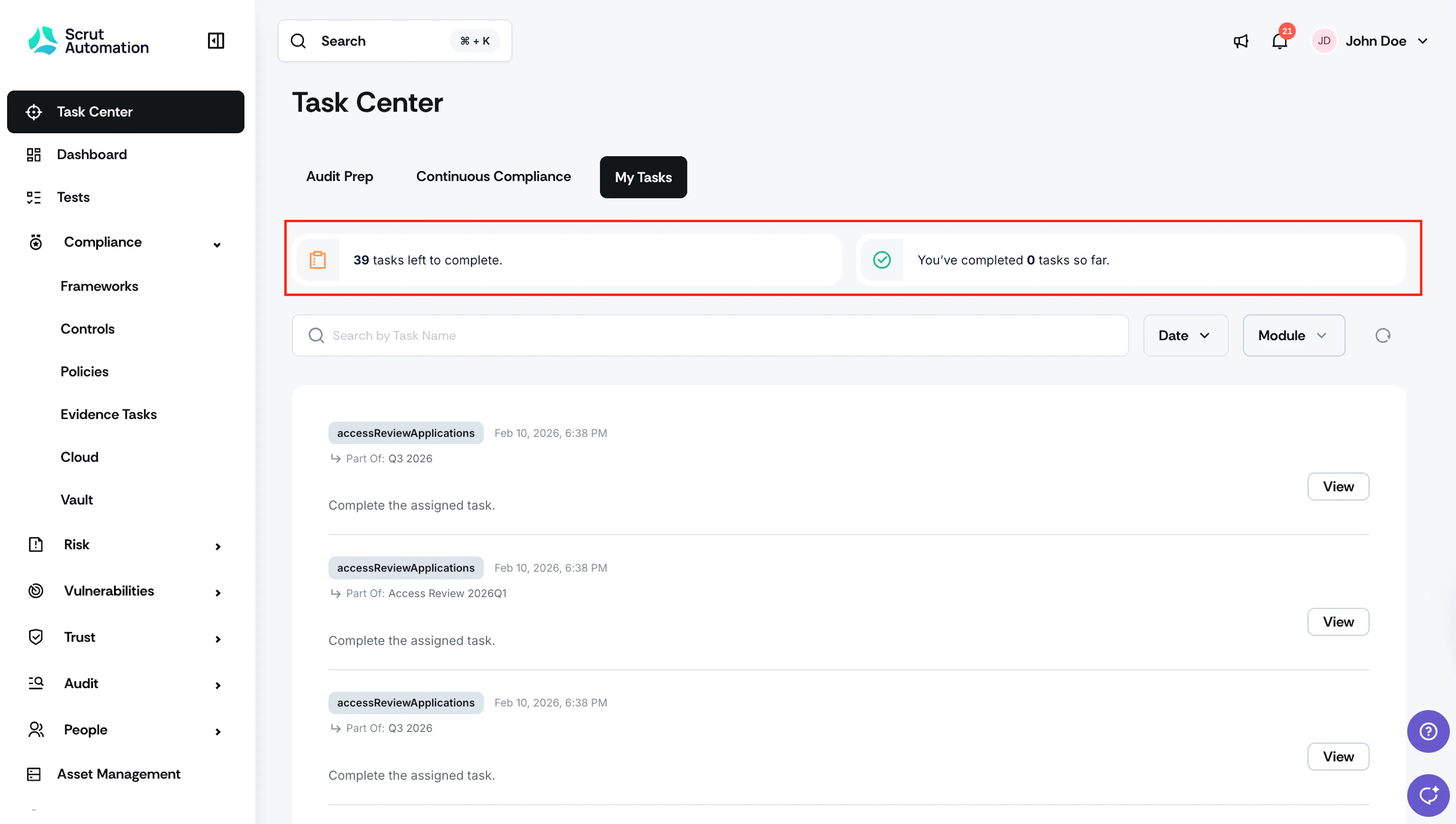
Alternatively, you can navigate to Task Center → My Tasks from the left navigation panel anytime to view all tasks assigned to you. The counter at the top of the page shows how many tasks are pending and how many you've completed, giving you a quick snapshot of your workload.
2: Focus your view
Pro Tip!
Tasks are sorted newest first, so scan the top of the list to identify recently assigned work that may need immediate attention.
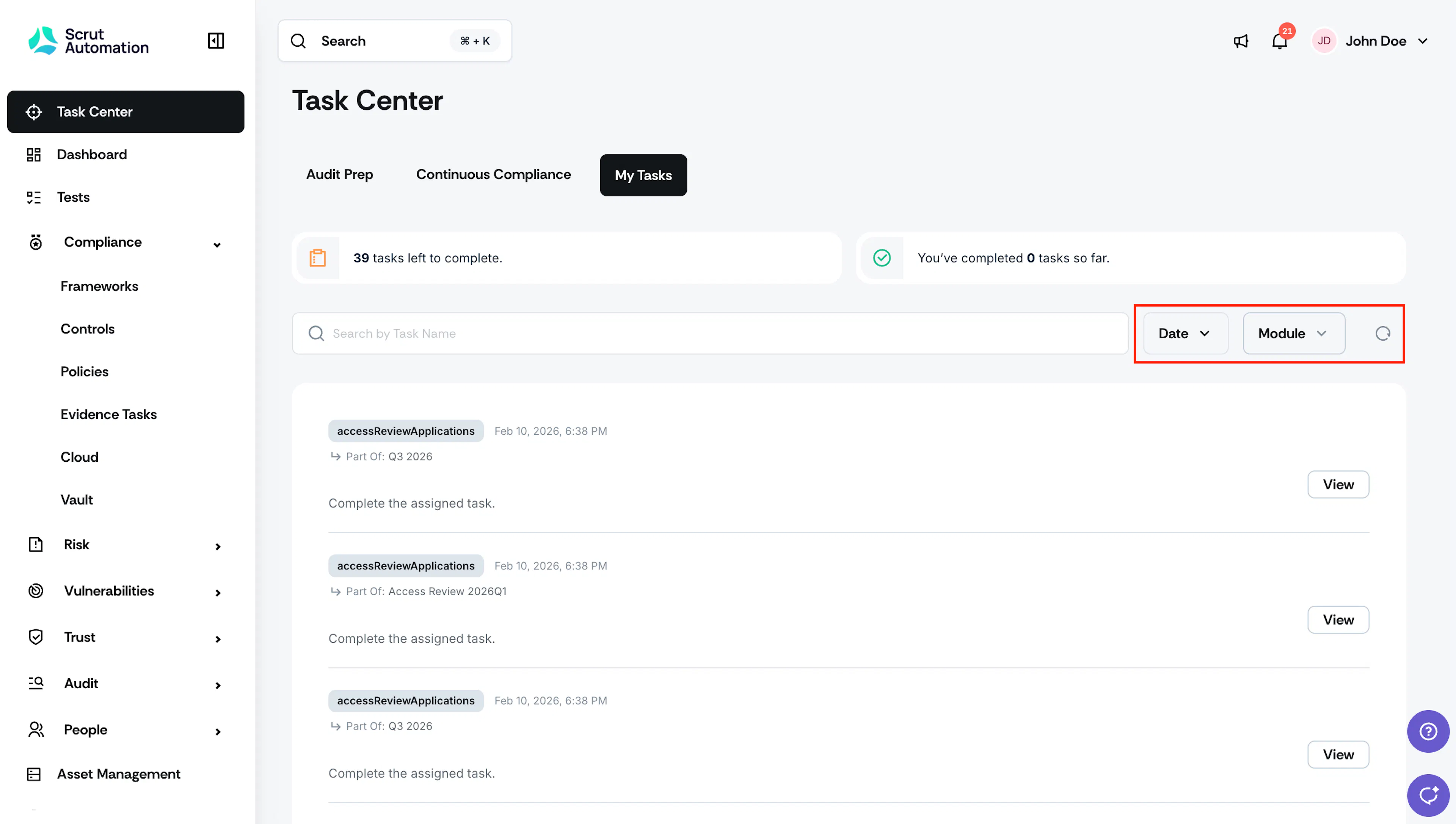
Use filters to narrow down your task list based on your current priorities:
-
Filter by module to focus on a specific compliance area (Policies, Risks, Access Review, etc.)
-
Filter by date to review tasks assigned within a specific timeframe
-
Use search (minimum 3 characters) to find specific tasks by name
-
Combine filters and search for precise results
-
Click the reset icon to remove applied filters

3: Review task details
Each task shows:
- Task name and description (what needs to be done)
- Timestamp (when it was assigned)
- Module context (where it belongs, e.g., Policy, Risk Management)
- Action button (when available based on your permissions)
4: Take action
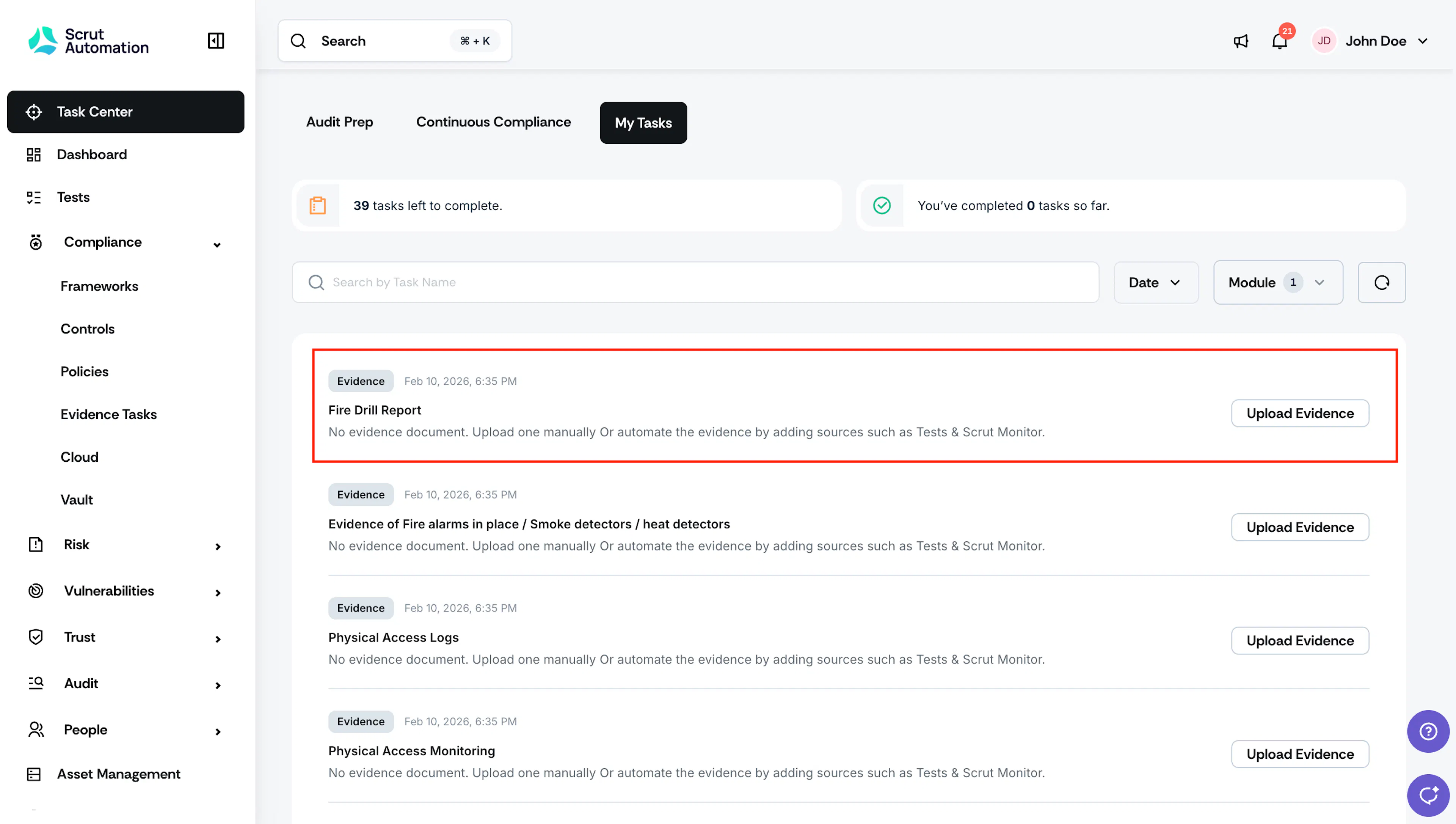
Use the action button (like "Draft Policy", "Upload Evidence", or "Submit for Review") to go directly to the corresponding module to complete the task.
5: Track your progress
After completing tasks, watch your completed task count increase.
Pro Tip!
Make My Tasks part of your daily compliance routine. Check in regularly to stay ahead of compliance deadlines and avoid last-minute rushes. Watching your completed task count grow is not only satisfying, but ensures nothing falls through the cracks.
Points to Know
- Tasks appear based on your permissions; you'll only see what's assigned to you.
- Some tasks automatically disappear when the related item is completed (like approved risks).
- Tasks are updated in real time as work is assigned to you.