Learn how to access your invoice history and outstanding payments in Scrut.
View Outstanding Payments
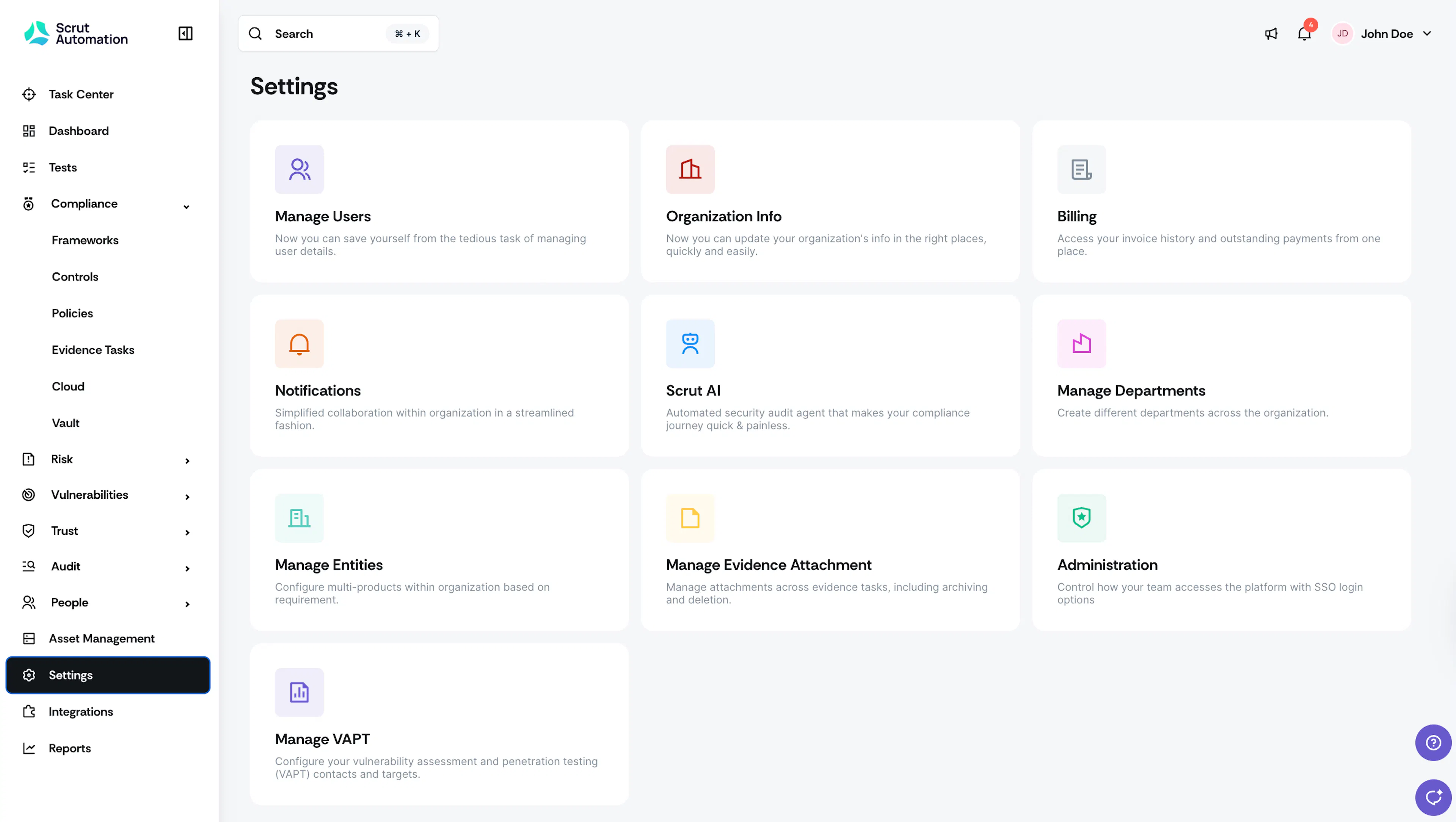
Log in to Scrut and click Settings in the left navigation panel.
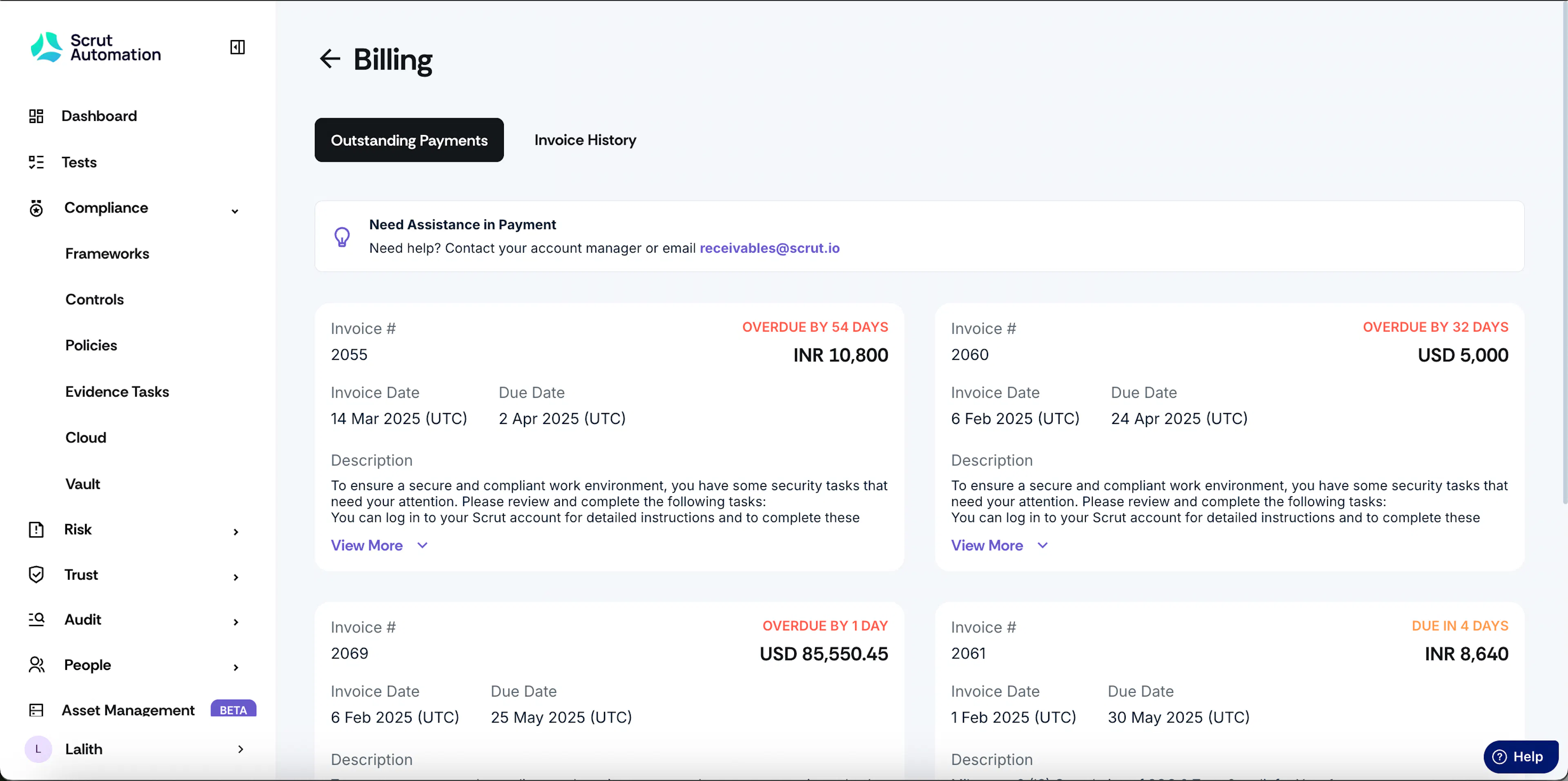
Click on the Billing card to access the Outstanding Payments tab.
This tab shows upcoming and overdue payments.
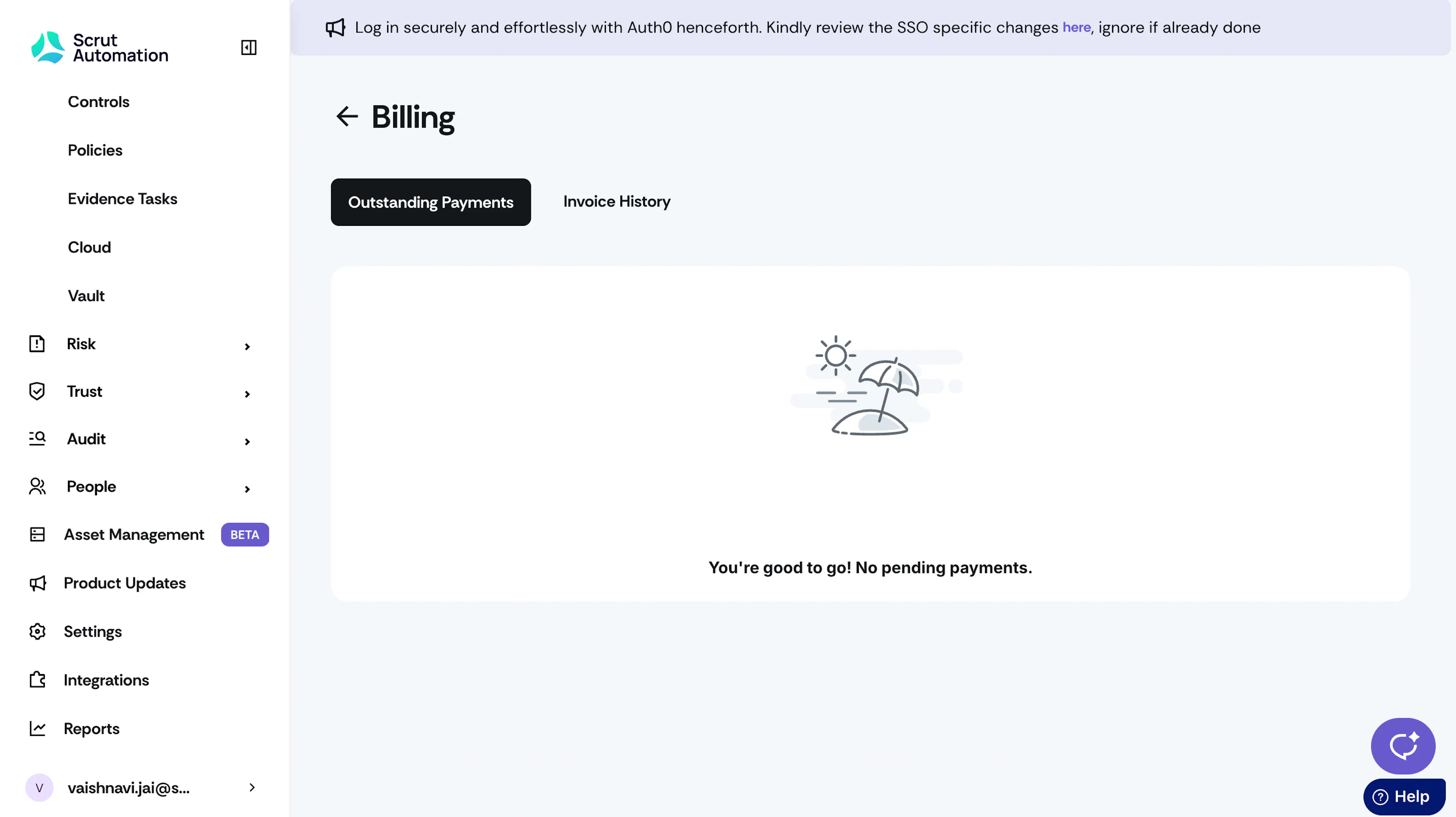

Sample Outstanding Payments
Heads up!
If an invoice remains unpaid 30 days past its due date, all users, including admins, contributors, and auditors, will lose the ability to download and export data until the invoice is cleared. Invoices overdue by 60 days or more may also result in a temporary deactivation of your Scrut account. To avoid disruption, please settle any outstanding payments promptly.
View Your Invoice History
Go to Settings → Billing.

Click the Invoice History tab to view your current and past invoices.
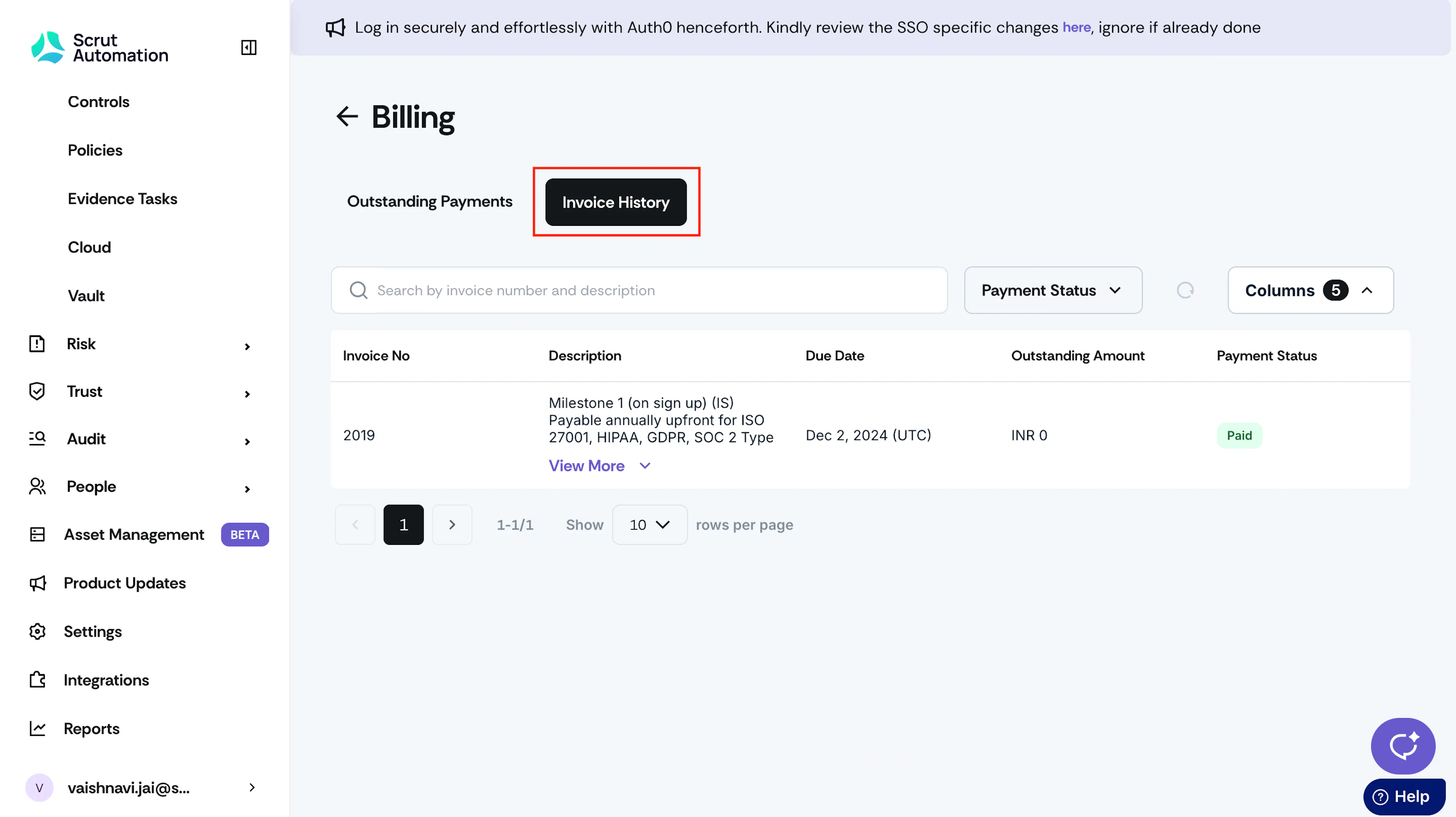
The table displays invoice details.
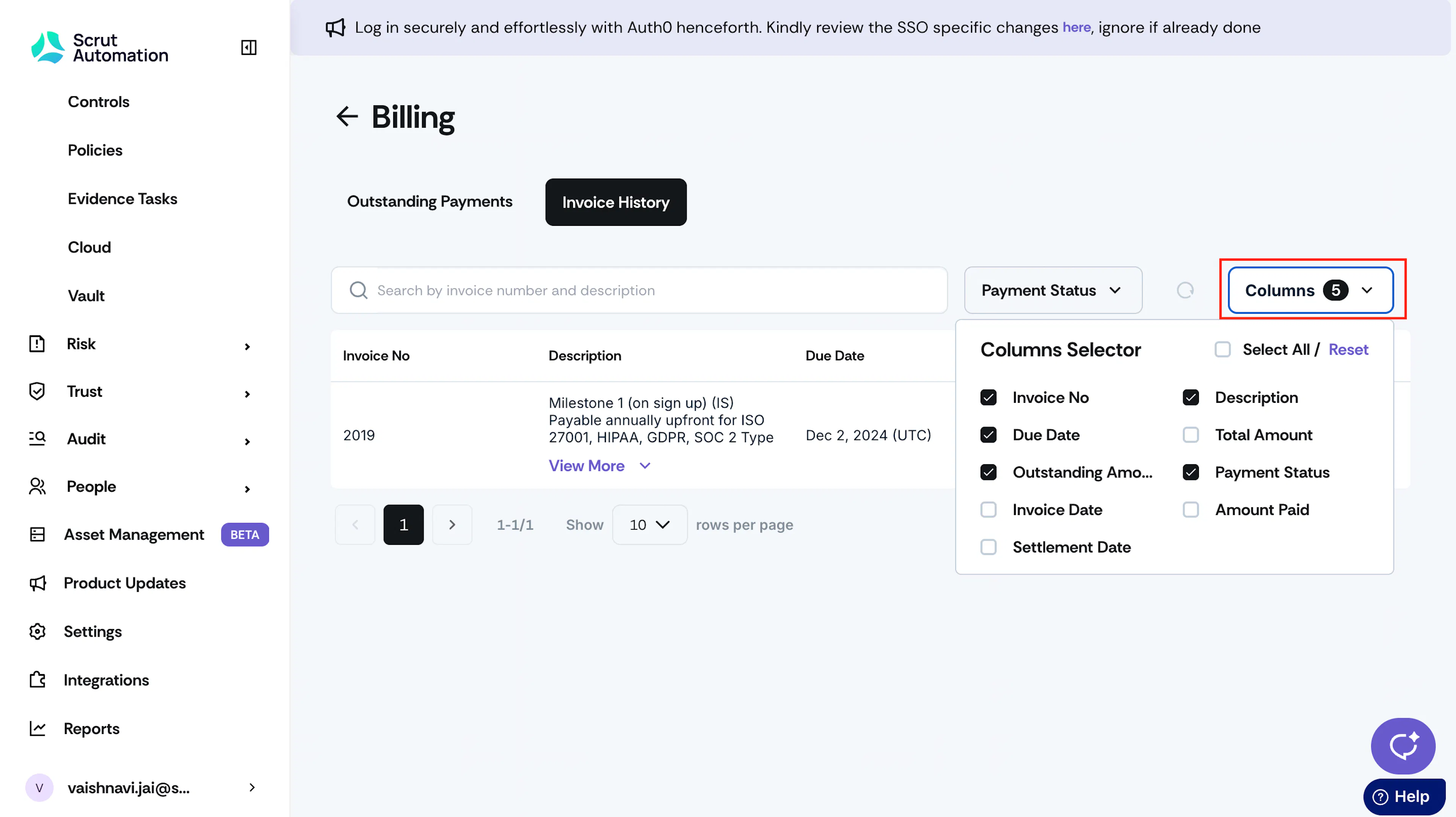
Use the Columns Selector dropdown to choose which fields to display: invoice number, description, due date, total amount, outstanding amount, payment status, invoice date, amount paid, and settlement date.
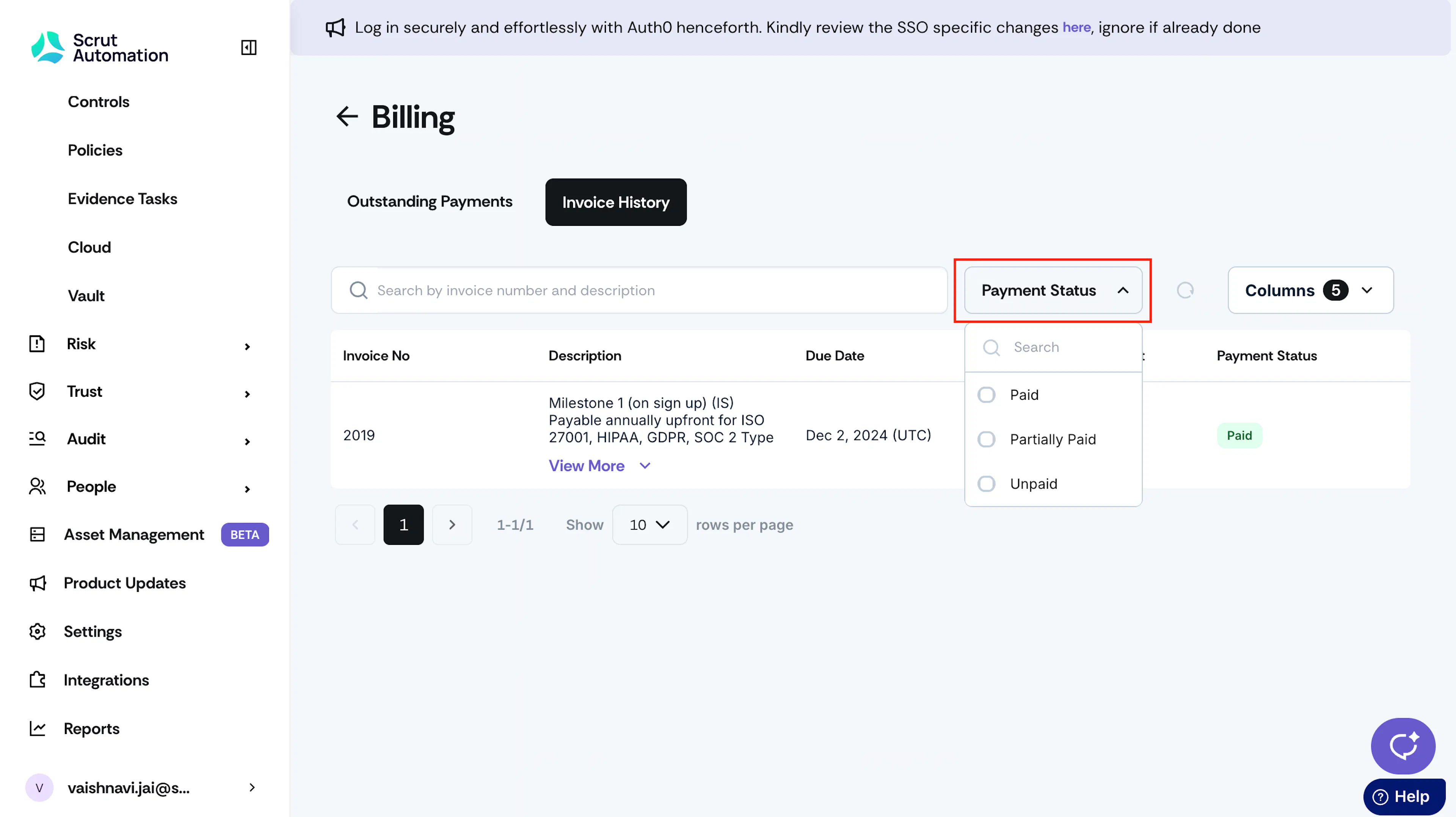
Apply the Payment Status filter to filter invoices based on the payment status: Paid, Partially Paid, or Unpaid.
FAQs and Troubleshooting
1: I’ve made a payment. Why is it not showing in Scrut?
Payment settlement typically takes 2 to 3 business days to reflect in your Scrut account. Please allow time for your payment details to update. If you notice any discrepancies, please reach out to your account manager or contact receivables@scrut.io.
2: How do I download a past invoice?
Currently, you cannot download your invoice directly in Scrut. Please contact your account manager or email receivables@scrut.io for assistance.
3: How do I update my billing details?
Currently, you cannot update your billing details directly in Scrut. (We’re working on bringing this functionality soon.) In the meantime, please contact your account manager or email receivables@scrut.io for assistance.
4: What happens when payments are overdue?
Depending on the number of days past due, you will experience the following scenarios:
Days Past Due | What happens | Who | User Impact |
|---|---|---|---|
Day 0 to Day 59 | Payment due banner alert |
| The payment overdue banner is visible at the top across the platform. Cannot be closed or minimized. |
Day 30 to Day 59 | Export functions disabled | All users (Admin, Contributor, Auditor) | Cannot export or download data or reports across the platform. |
Day 46 to Day 54 | Pop-up notification on login or when the first page loads | All users (Admin, Contributor, Auditor) | The user must manually close the pop-up notification to use the platform. |
Day 55 to Day 59 | Recurring pop-up every 10 minutes | All users (Admin, Contributor, Auditor) | Disruptive notification. The user must manually close the pop-up notification every 10 minutes to continue using the platform. |
Day 60 | Account deactivated | All users (Admin, Contributor, Auditor) | Complete platform lockout and automatic logout of all users. Users will not be able to log in to the platform. |