

How To Use the Vendor Portal
Who can use this feature
- Supported on Foundation, Growth, and Scale plans
Scrut's vendor portal helps you respond to security questionnaires sent by your customers and prospects who use Scrut for vendor risk assessments. From a single portal, you can respond to questionnaires, track mitigation tasks, and manage your team's access.
How To Log In to the Vendor Portal
-
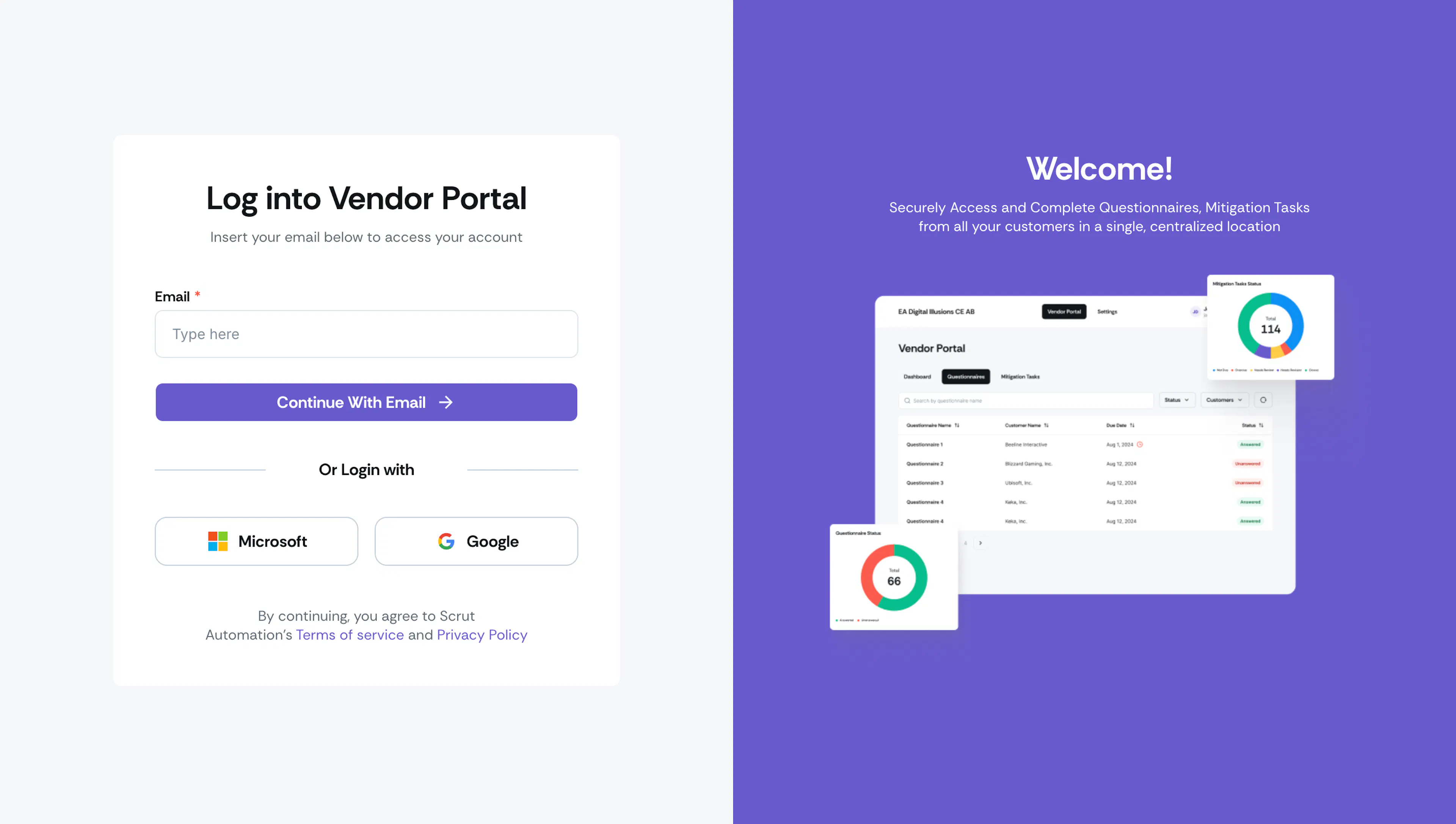
Navigate to vendor.scrut.io and enter the email address you use to log into Scrut.
-
Enter the email you use to sign in to Scrut. Alternatively, log in with your Microsoft or Google account.
-
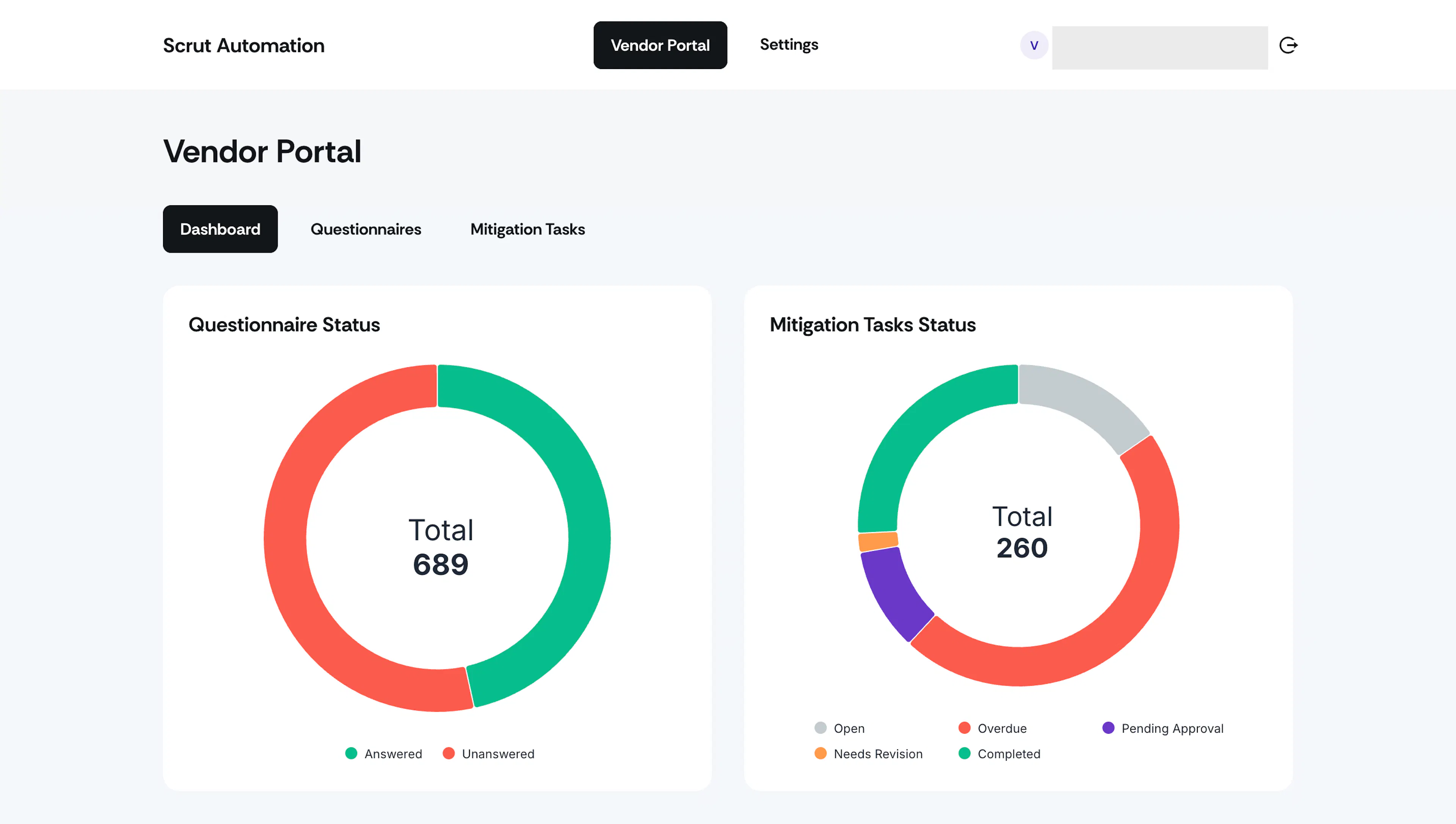
Complete the authentication, and you will land on the Dashboard.
Note:
If you have received questionnaires from multiple users, the dashboard gives you access to all of them from one centralized portal.
Understand the Vendor Portal Dashboard
The dashboard gives you an at-a-glance summary of activity across your account.
- The Questionnaire Status chart shows how many questionnaires have been answered and how many are still unanswered and need your input.
- The Mitigation Tasks Status chart shows your task workload broken down by status: open, overdue, pending approval, needs revision, and completed.
Pro Tip!
Check the dashboard regularly to stay on top of pending work.
Manage Questionnaires
-
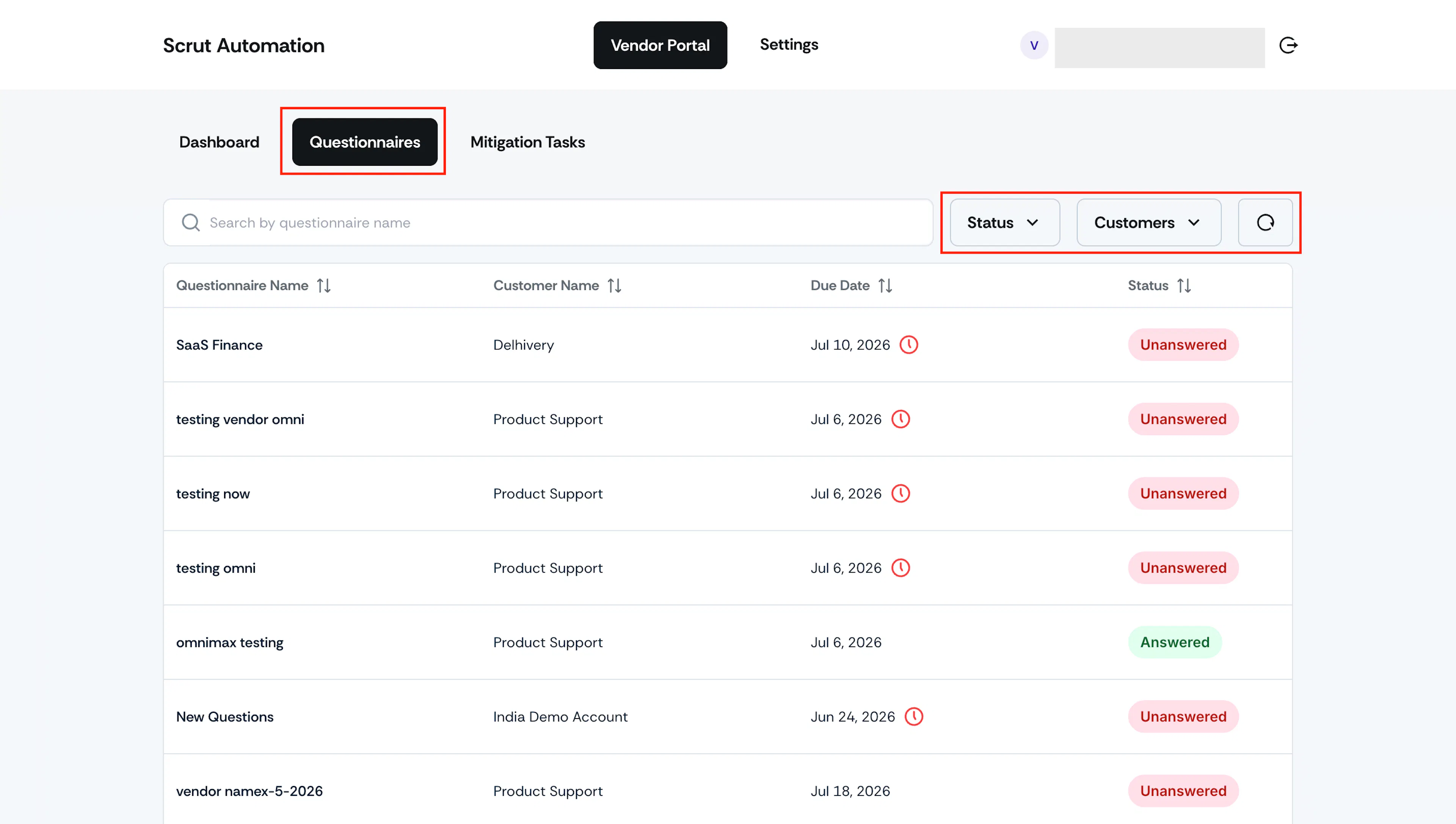
The Questionnaires tab displays every questionnaire you've received from your customers or prospects.
-
Use the Status filter to quickly find all answered or unanswered questionnaires.
-
The Customer filter helps you to quickly find questionnaires from a specific customer.
-
Click a questionnaire to open it and view the full list of questions.
-
Upload supporting attachments for each question as part of your response.
-
Add comments to a question to provide additional context or clarification to your customer.
-
Use the filters to sort questions by status if you're working through a long questionnaire.
-
Click Submit Questionnaire once you've completed all required fields.
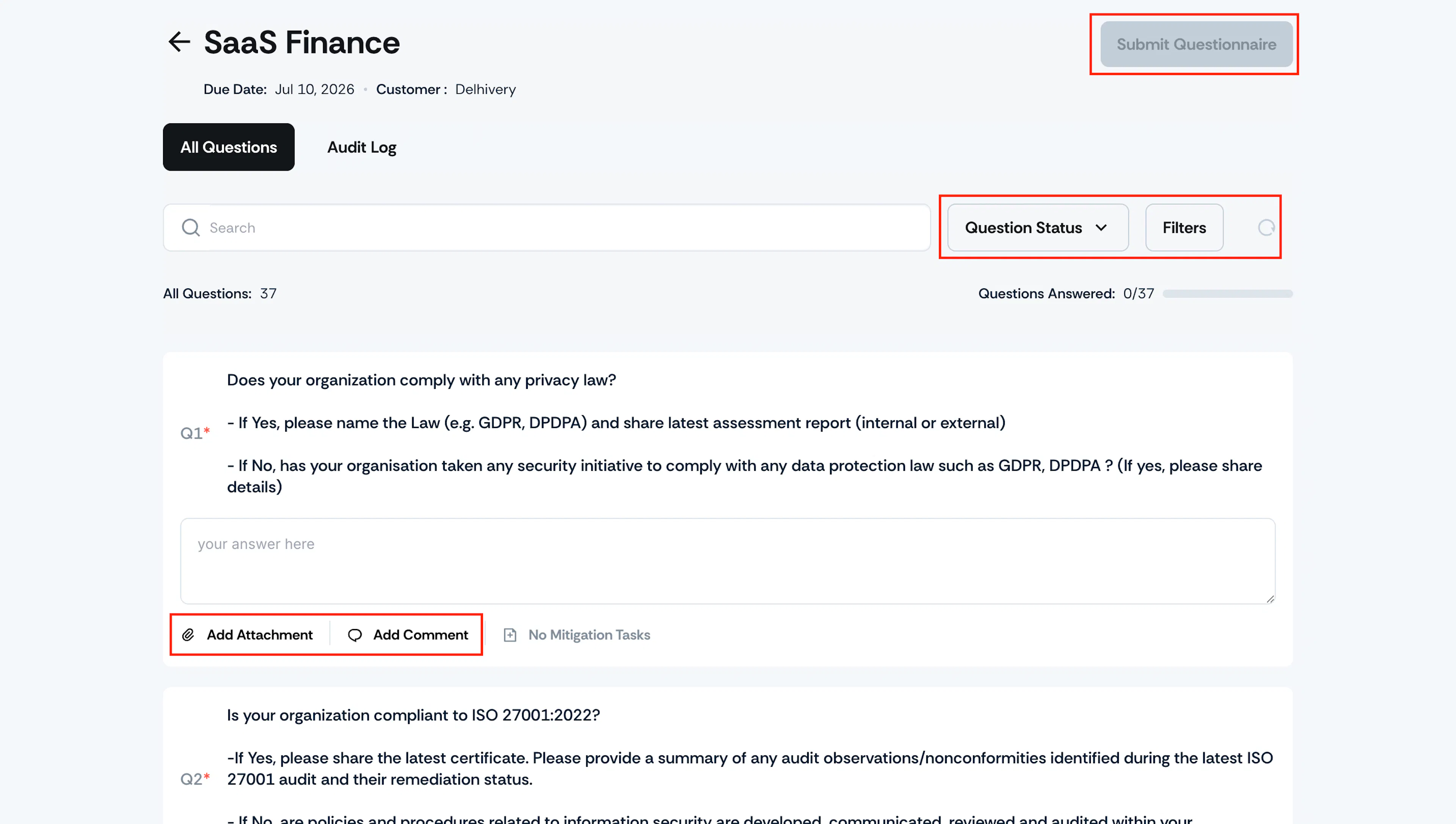
Your customer receives the submission and can begin their review.
Manage Mitigation Tasks
-
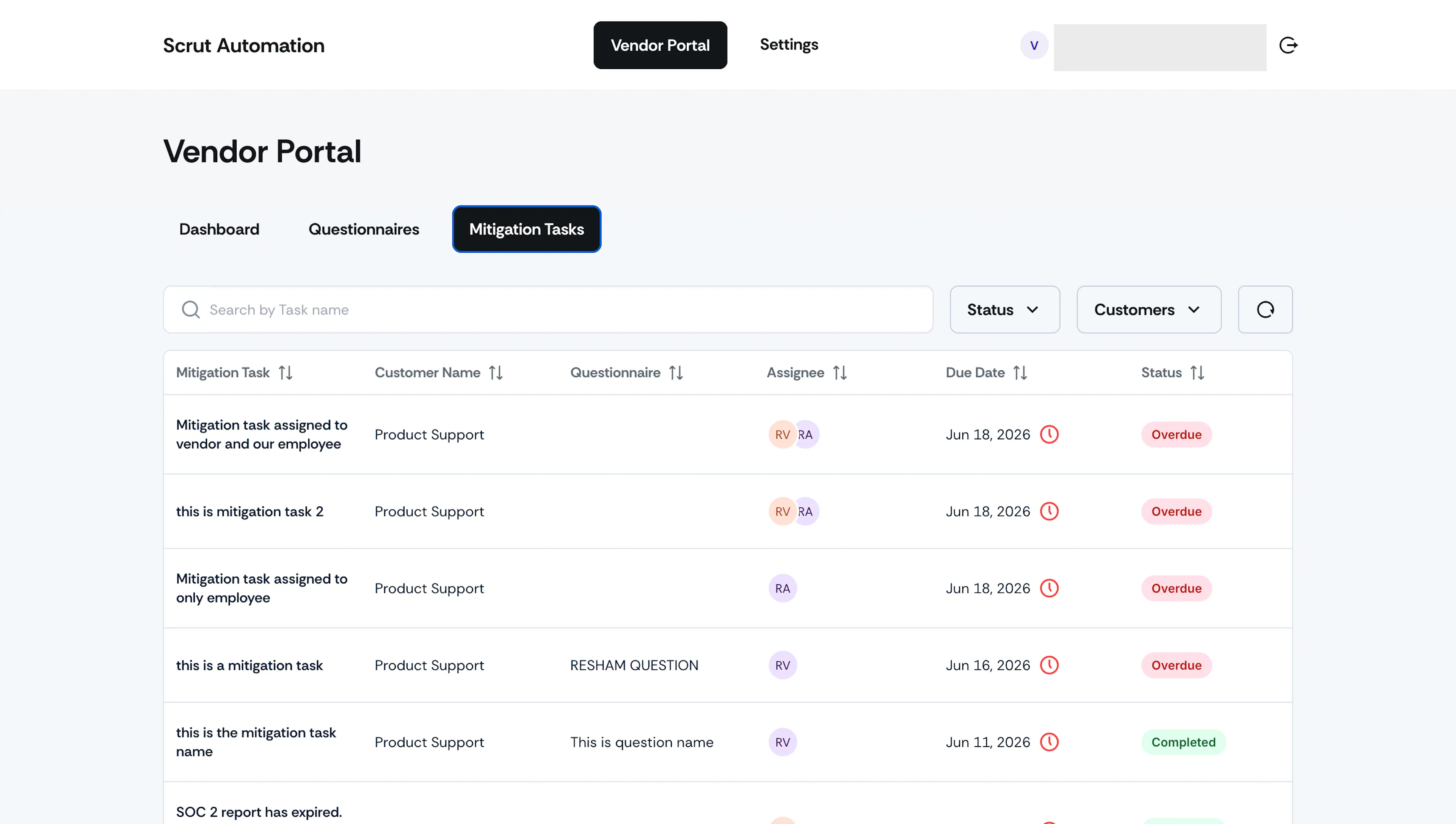
The Mitigation Tasks tab shows tasks your customer has assigned to you, typically requesting additional information or updated documents.
-
Click a task to open it.
-
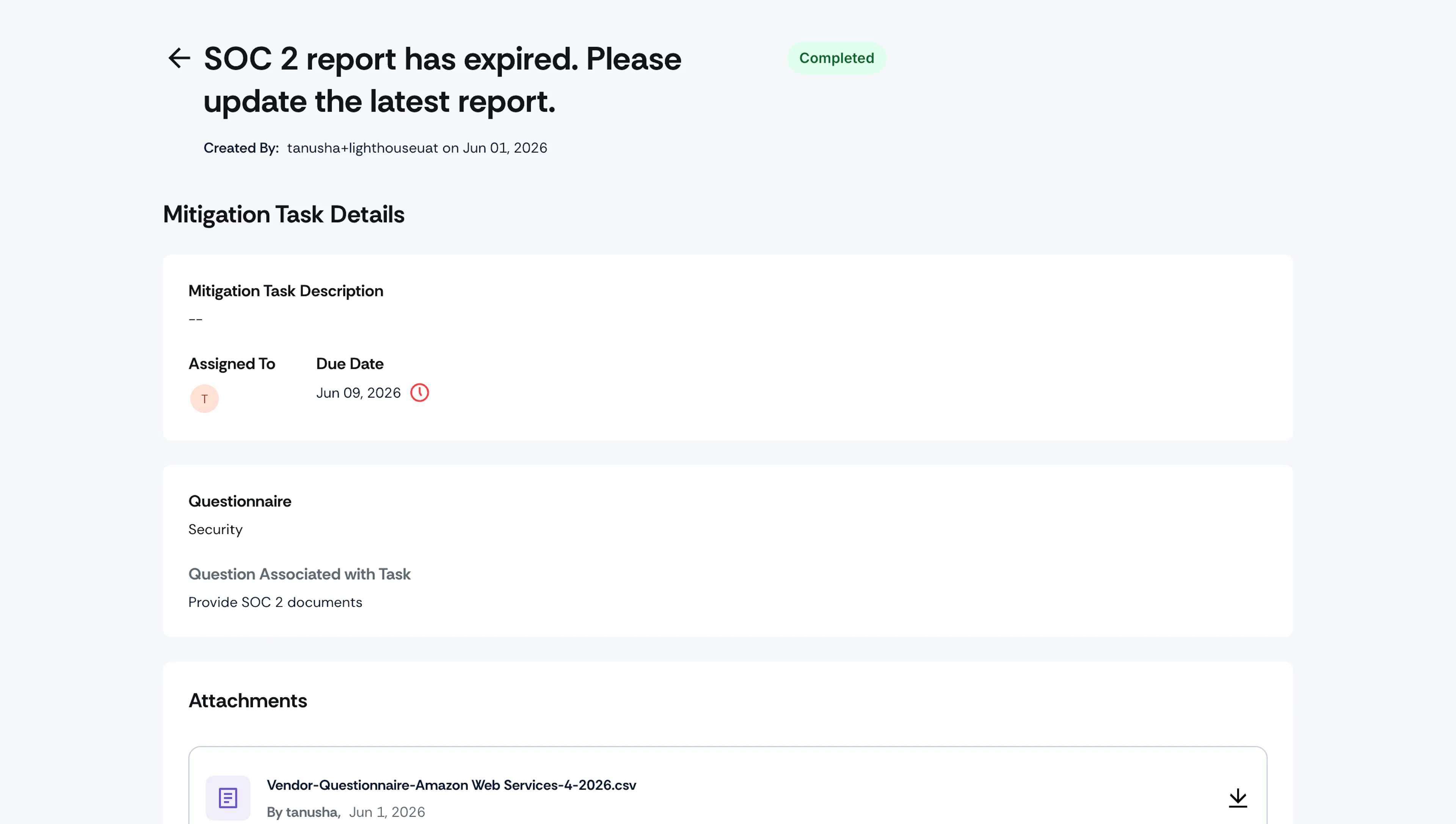
Review the request and upload the correct files.
-
Click Submit for Review.
Note:
- The task status changes to Pending Approval once submitted. You can also add comments and check the task history in the Audit Log.
- If your customer requests changes, the task status changes to Needs Revision, and their comments appear on the task. Review the feedback, upload the updated documents, and resubmit for approval.
- Once your customer approves the submission, the task status changes to Completed.
Invite Team Members to the Vendor Portal
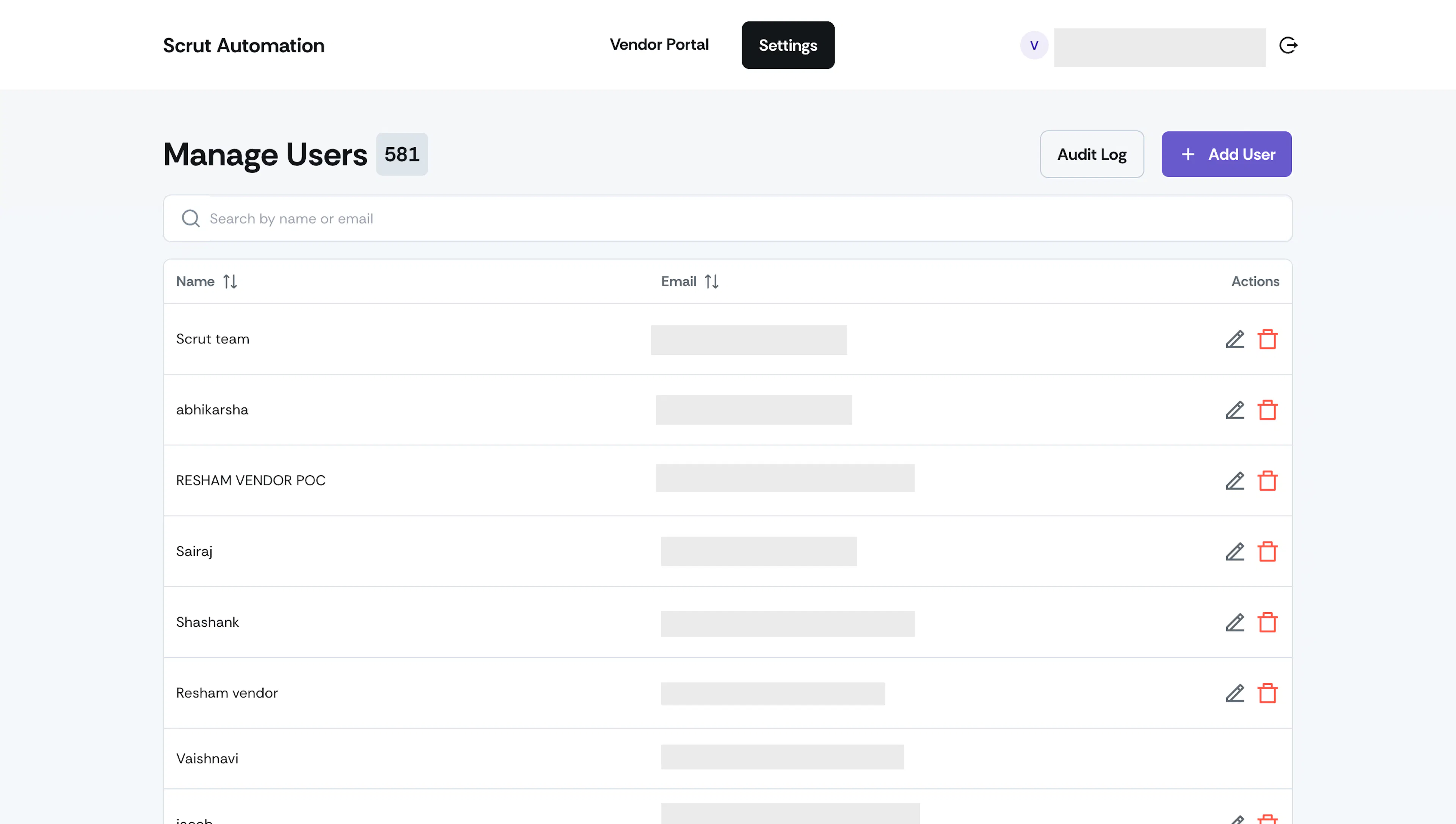
If a team member helps you respond to vendor questionnaires or complete mitigation tasks, you can add them to the vendor portal. Use the Settings section to manage which team members in your organization can access the vendor portal.
-
Navigate to the Settings tab.
-
Click Add User.
-
Enter the team member's name and email address.
-
Click Add User to confirm.
The new team member gets access to the portal immediately. You can edit or remove a user's access at any time from the same section.
Reach out to support@scrut.io or contact your CSM for further assistance.