Trust Portal: Walkthrough
The Trust Portal is a public-facing repository that showcases your organization's certifications, policies, credentials, and security posture in real time. This powerful tool lets you easily share compliance and data security information with customers, prospects, vendors, auditors, and other stakeholders, building trust and credibility.
In this guide, we walk you through the user experience, highlighting key sections and the actions users can take on the Trust Portal page.
Organization Description
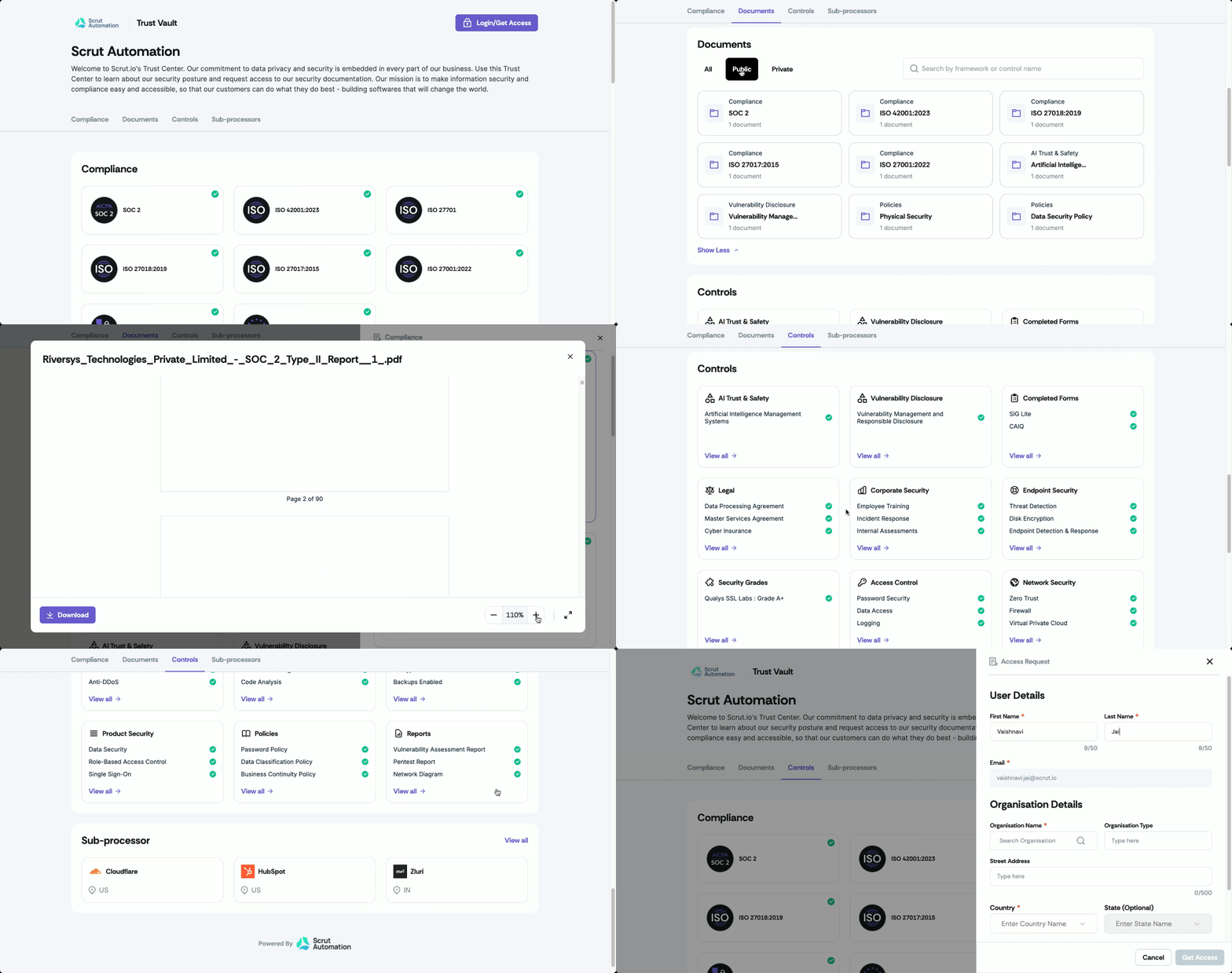
This is the topmost section of your Trust Portal and provides a concise overview of your company's security policies and strategies. All users can access it, regardless of login status.
Learn how to update the organization description.

Compliances
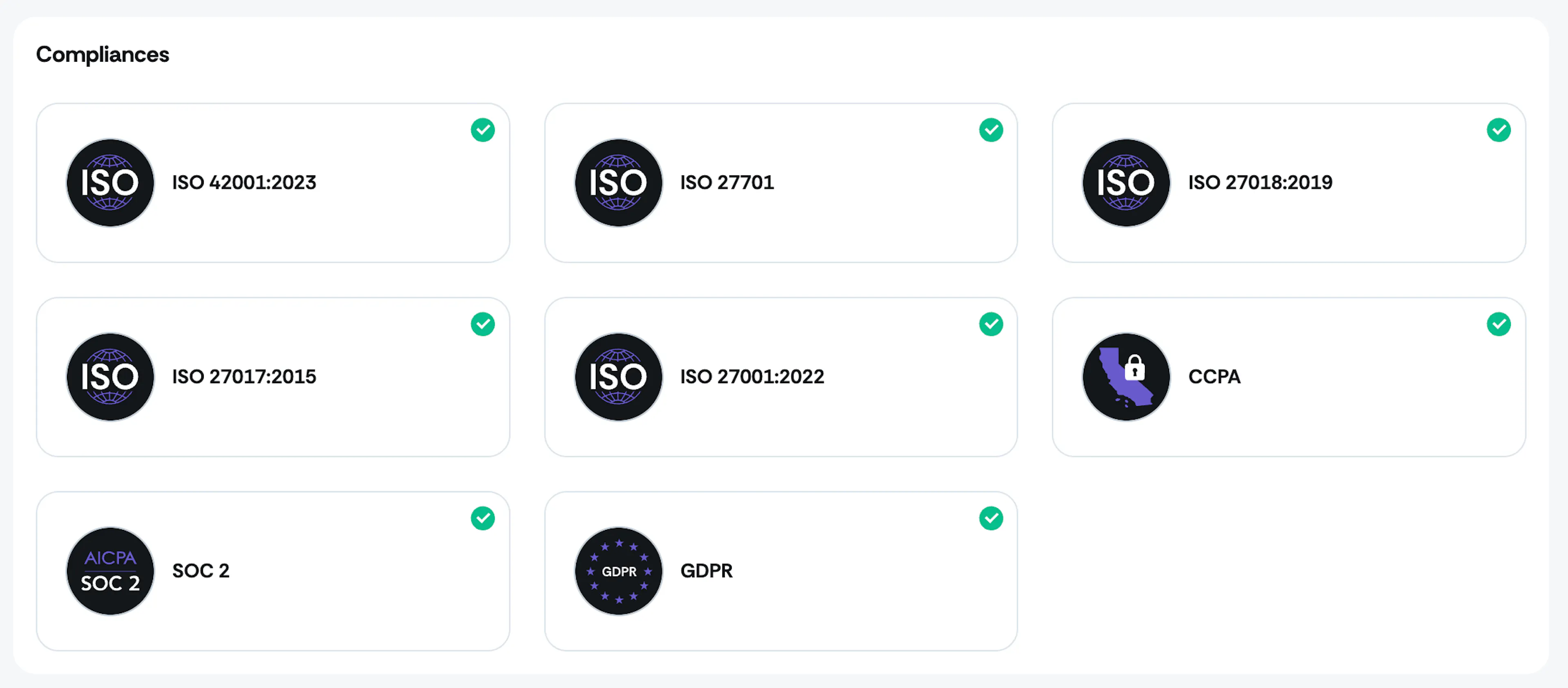
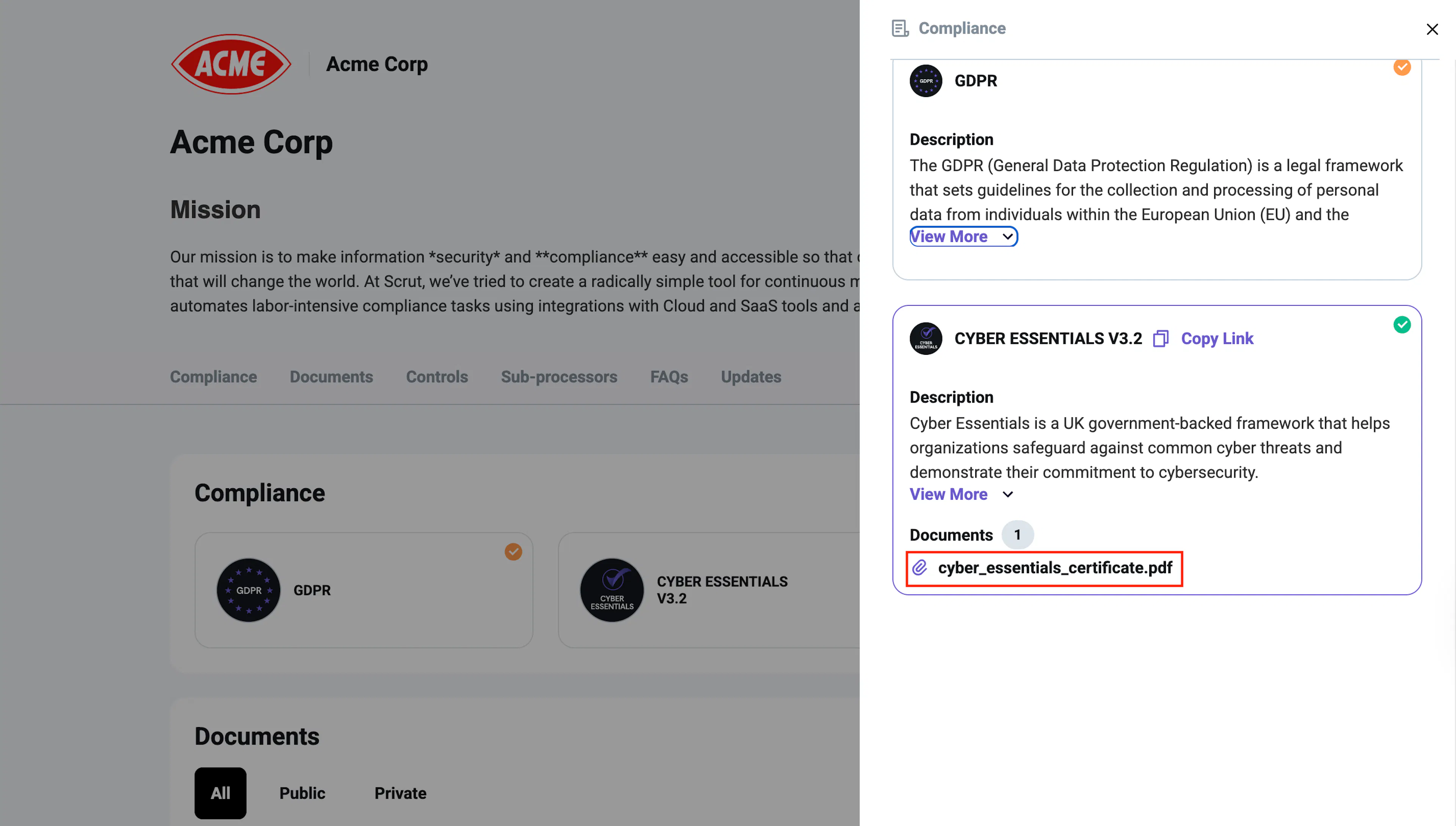
This section features all the frameworks you’ve listed on the Trust Portal. Users can click on any framework card to view detailed information. This opens a side panel where users can view the framework auditor's details and access any relevant documents you’ve uploaded.
Previewing Documents
Users can click on any document in the portal to preview it.
Note: If a document is private, the user must request access to view it.
Note:
Preview is available only for the following file formats: .xlsx, .xls, .csv, .eml, .doc, .docx, .ppt, .pptx, .pdf, .jpg, .jpeg, .png, .mp4, .md, and .yaml/.yml. For other file formats, previews aren't available; however, you can download them.
Downloading Documents
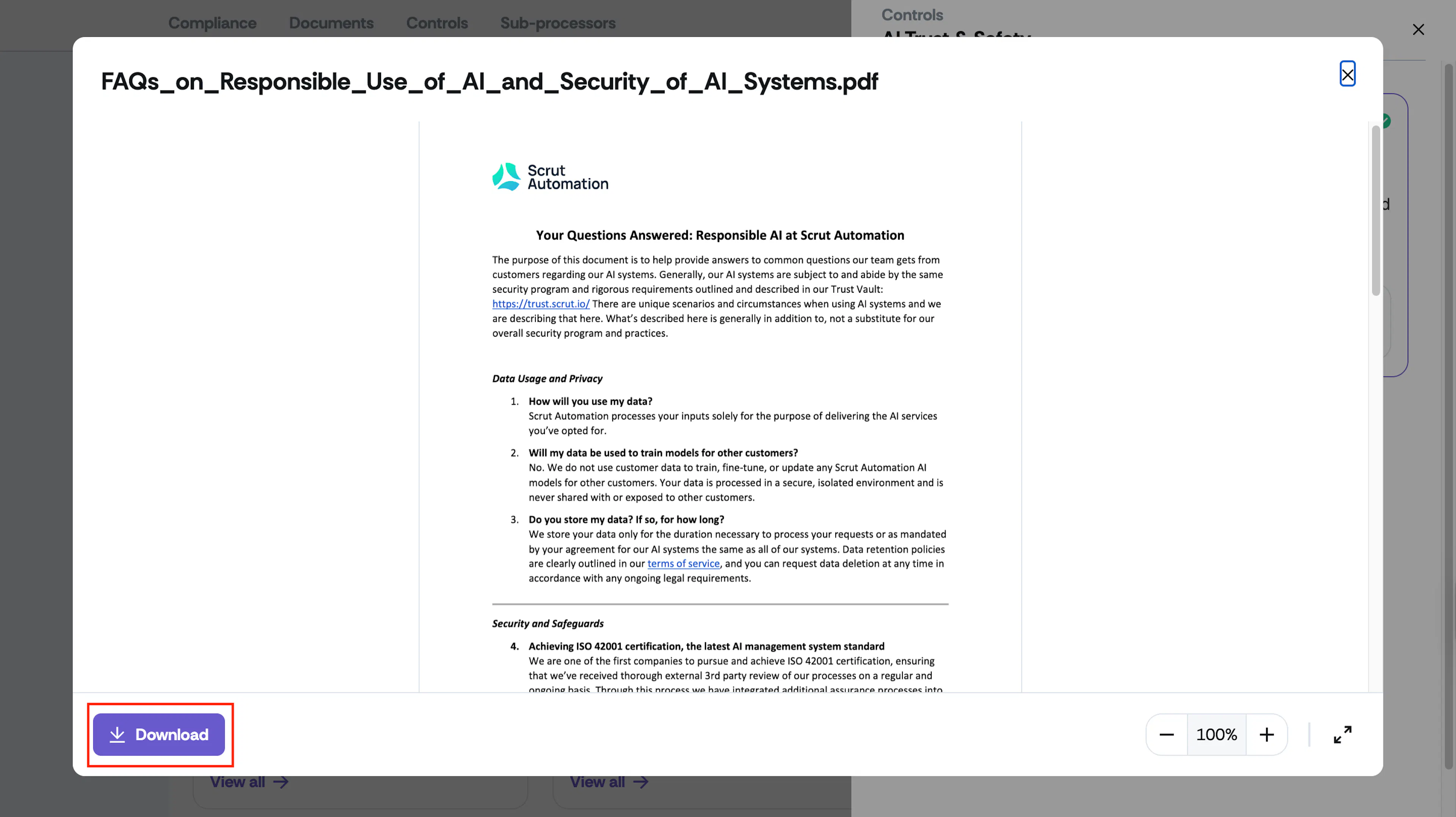
Users can click the Download button on the preview screen to download documents that they have access to.
Requesting Access
When you mark a framework as private, a lock icon appears next to its documents, indicating that access to those documents is restricted. Users can request access by clicking the Get Access button next to the lock icon. Once a request is made, you can approve or decline their access request.
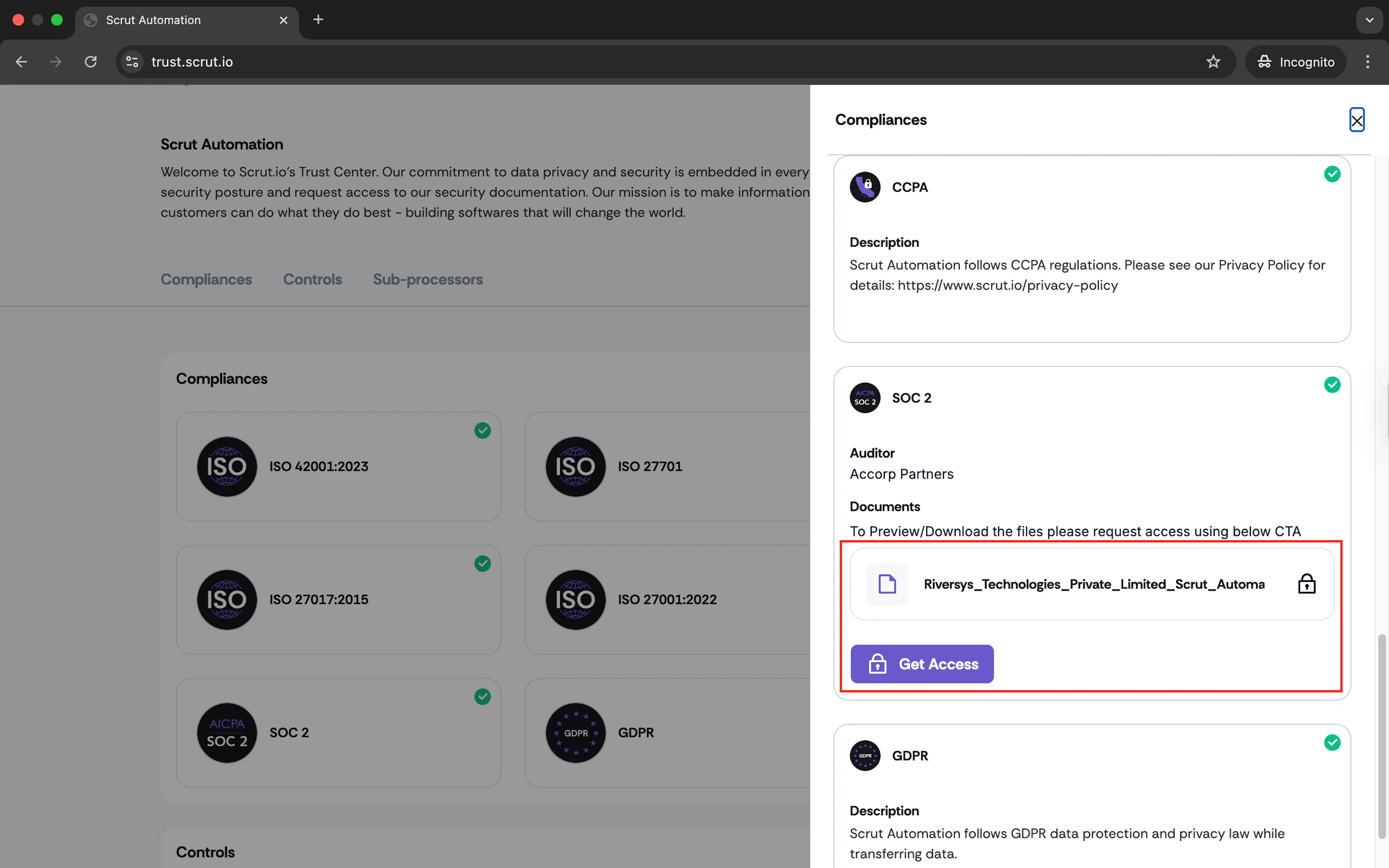
If you approve their request, the user will receive an email with a link to view the trust portal. In this email, they can click the Login Now button, which will direct them to the login page. After logging in, they can access the locked documents on the page. This ensures that only authorized users can view sensitive information while providing a clear process for requesting and granting access.
Documents
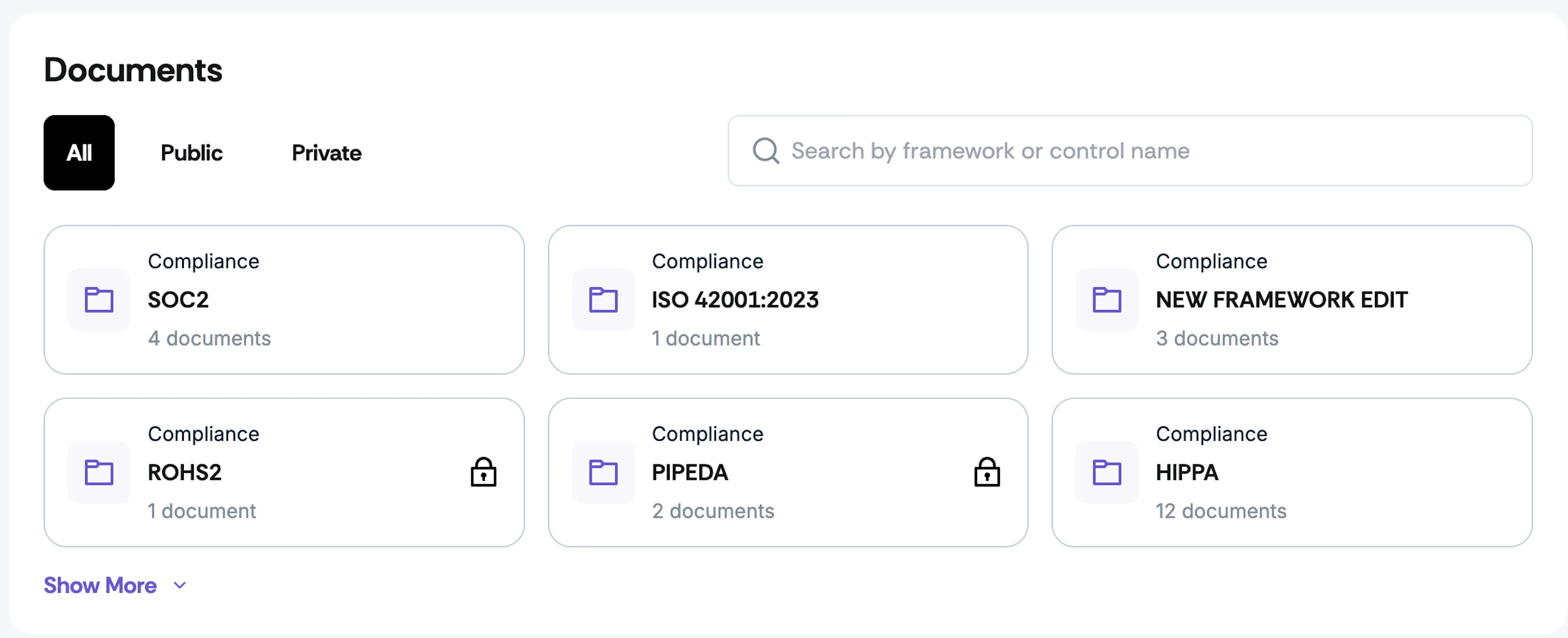
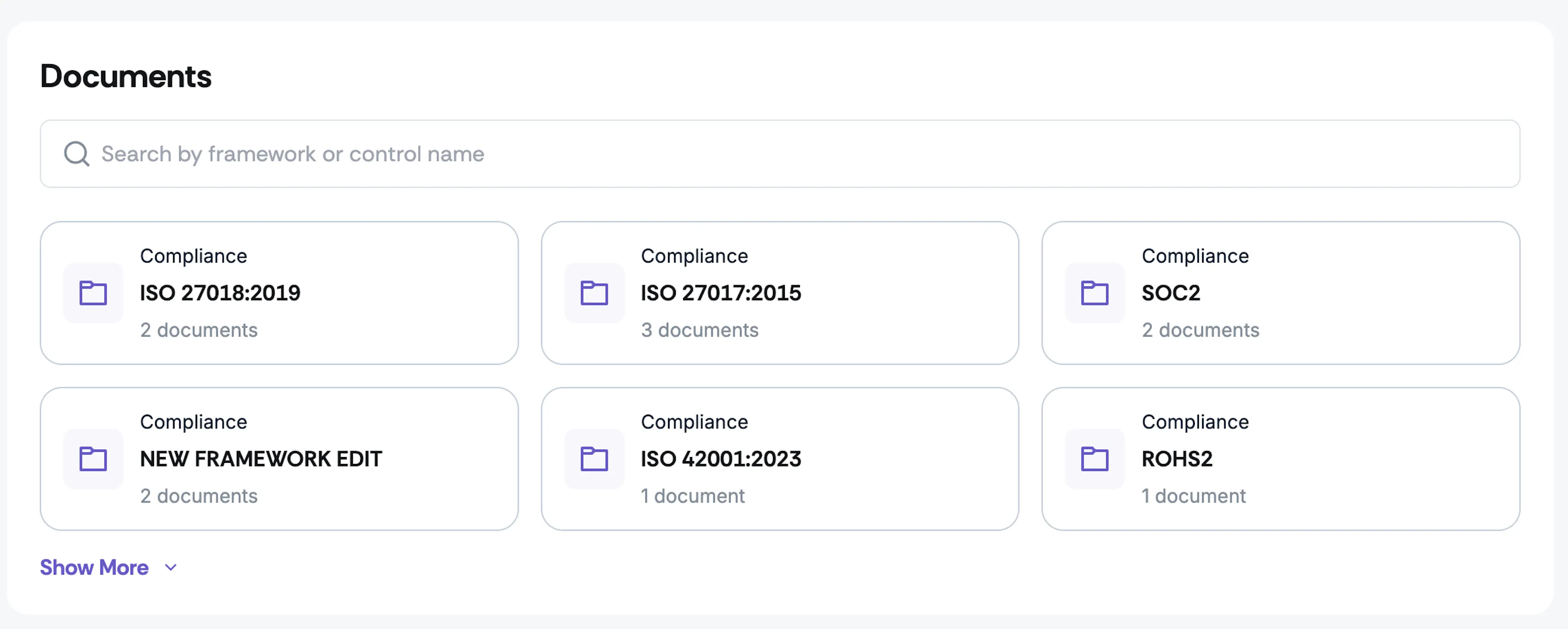
This section is a collection of all documents you’ve added to the Compliance and Controls sections of the Trust Portal. It makes it easier for users to quickly search and find documents relevant to specific frameworks or controls. It displays compliance framework documents first, followed by those from the controls section. Additionally, the layout of this section adapts based on whether a user is logged in to your portal or browsing anonymously.
Note:
- If no documents are associated with a specific framework or control, it will not appear in the Documents section.
- If all your documents are exclusively public or private, the All, Public, and Private tabs won't appear.
- The Public tab displays all public documents.
- Private documents are visible but locked, with an option to request access.
- The filtering tabs (All, Public, Private) let users browse by access level.
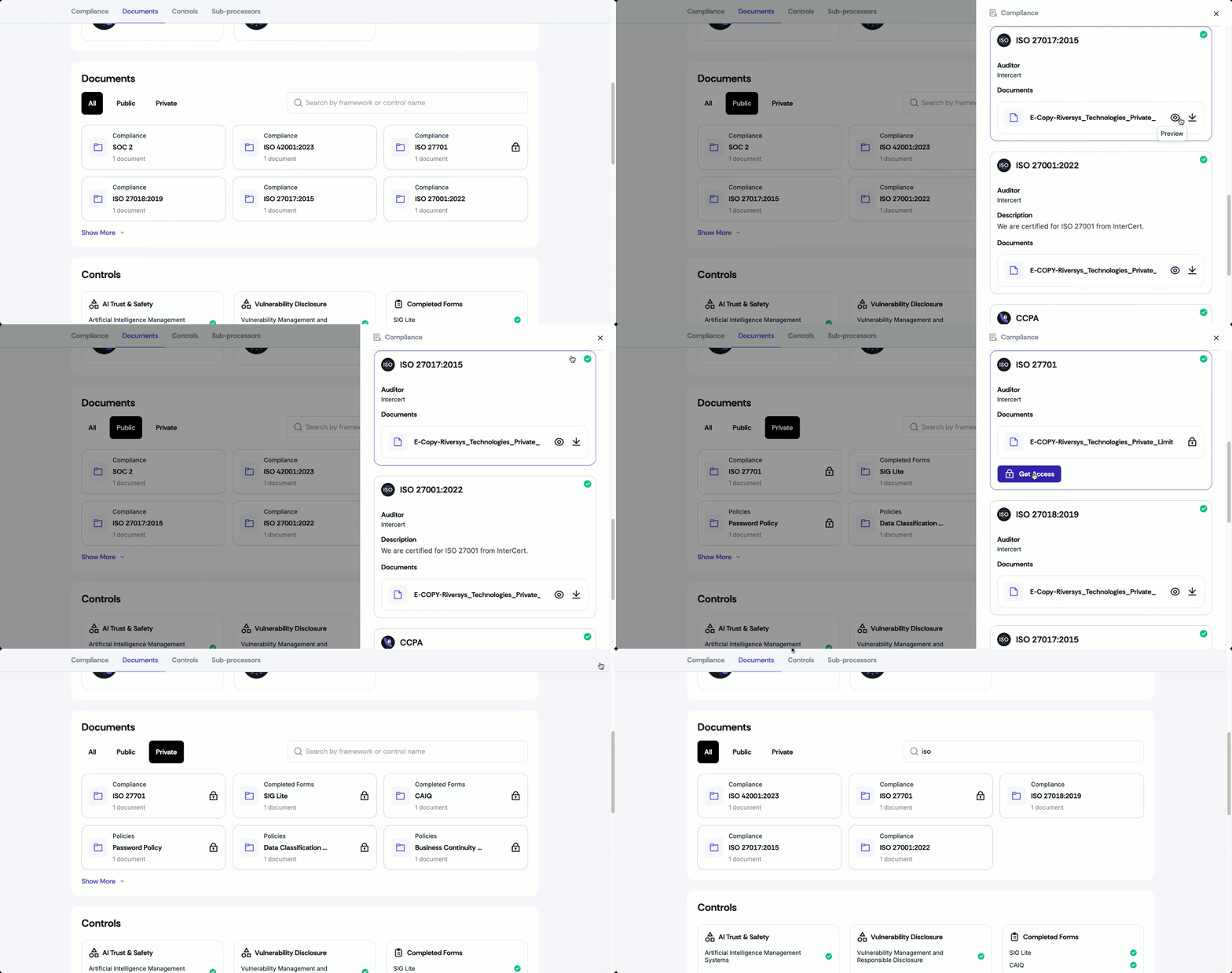
- The Documents section displays only frameworks and control documents that they have permission to access.
- If they've been granted access to specific private documents, these will be accessible.
- The All, Public, and Private tabs aren’t visible.
Controls
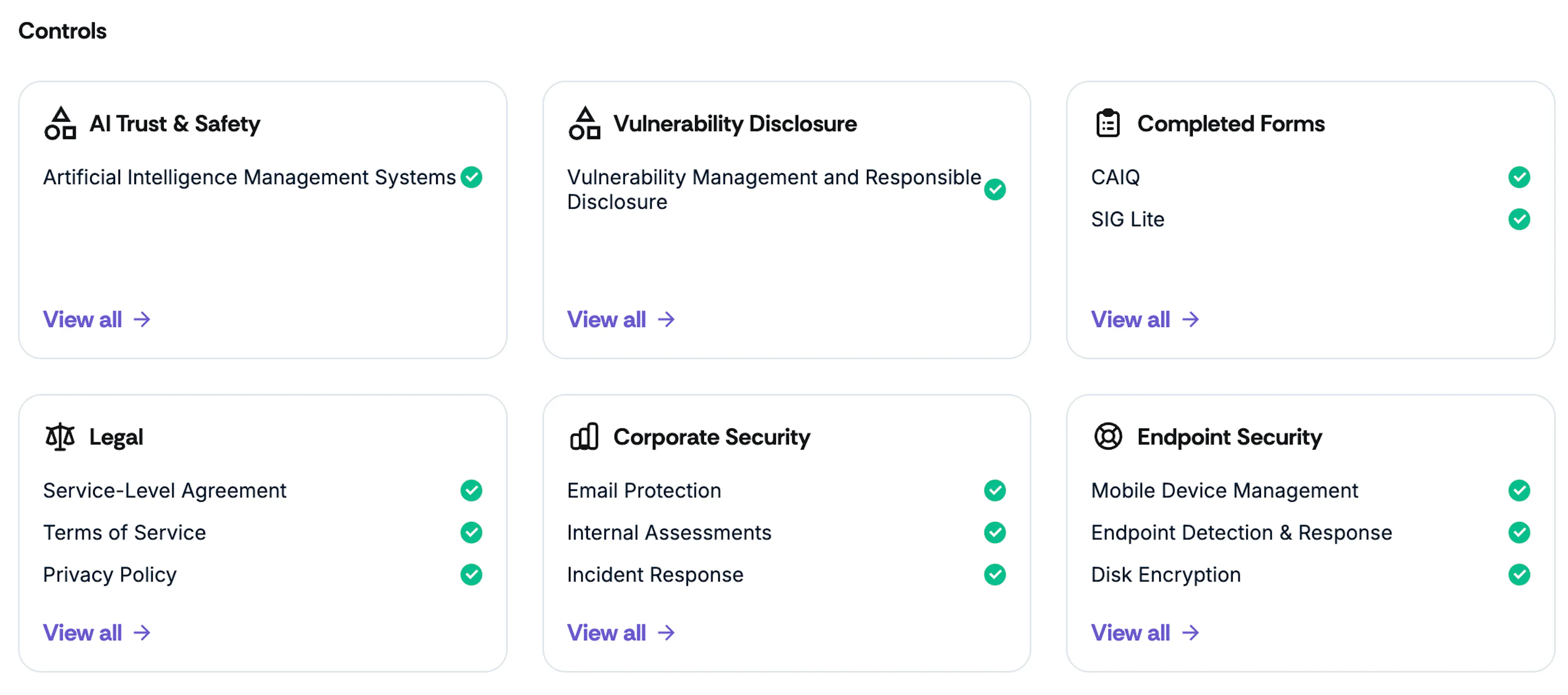
This section lists the policies, procedures, and technical measures your organization has implemented to safeguard assets and comply with relevant regulations. Scrut provides a robust selection of thirteen pre-defined controls, all of which can be customized to suit your organization's specific needs. In addition, you can create and modify your own controls, tailoring them to your operational requirements.
Learn how to add, edit, and customize the controls.
Sub-processors
You can use this section to display your organization’s sub-processors that handle customer data. Examples include cloud storage providers, payroll processors, customer support service providers, etc. Listing sub-processors is critical for building trust with customers and partners.
Learn how to add sub-processors.

FAQs
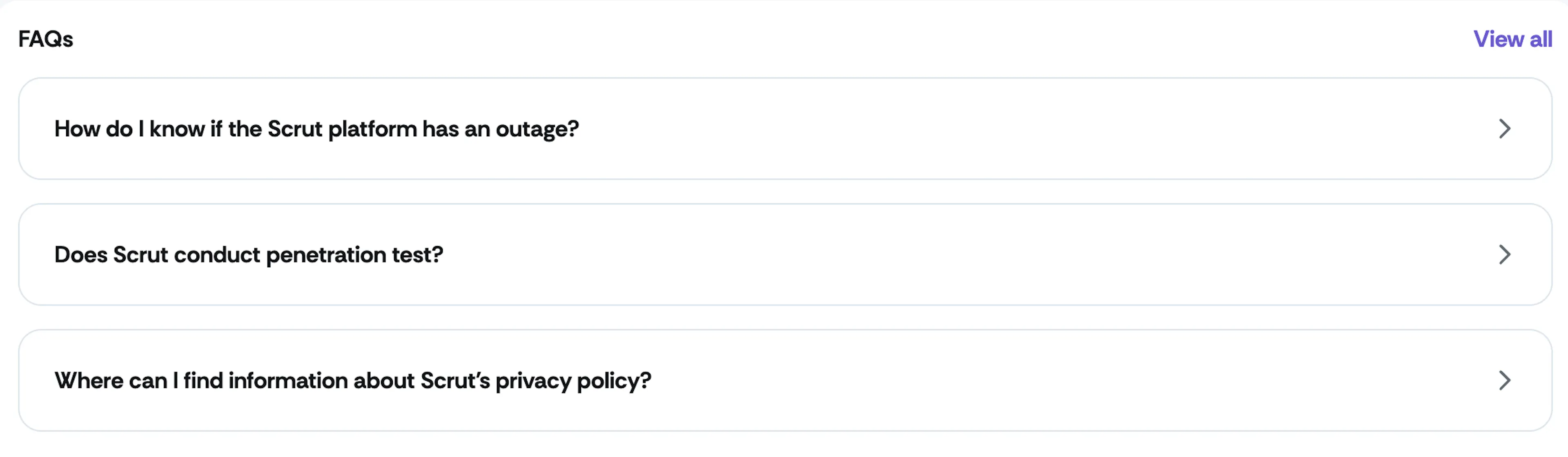
Use this section to provide comprehensive answers to the most common questions users may have regarding your organization's security practices and policies. This could include inquiries about data protection measures, incident response protocols, etc. By addressing these questions, you can build credibility and earn stakeholders' trust.
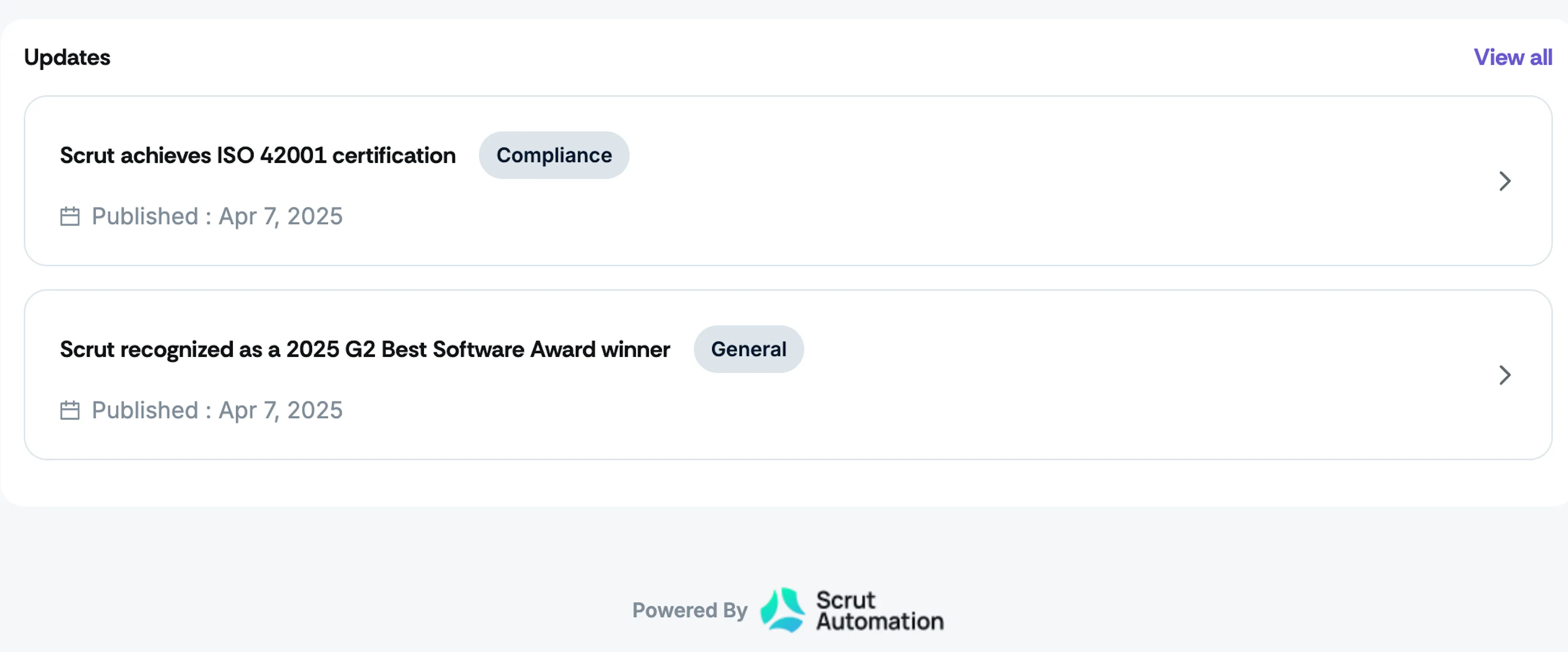
Updates
This section notifies customers, prospective clients, and other stakeholders about security-related updates from your organization. Whether it's a new security feature, a vulnerability disclosure, or an enhancement to existing practices, timely updates ensure transparency and build trust.