

Add Sub-Processors
Who can use this feature
- Supported on Foundation, Growth, and Scale plans
Learn how to add, edit, and delete sub-processors on your Trust Portal.
What are Sub-Processors?
Sub-processors are third-party vendors your organization uses to deliver products and services, such as cloud storage providers, email services, payroll processors, analytics tools, etc. These vendors handle sensitive customer data on your behalf.
Scrut offers a dedicated section on your Trust Portal to showcase your sub-processors (aka vendors). You can use this section to list third-party vendors you use to deliver your services. This helps to nurture stakeholder trust, support compliance efforts, demonstrate transparency, and enhance customer confidence.
Add Sub-Processors to Your Trust Portal
-
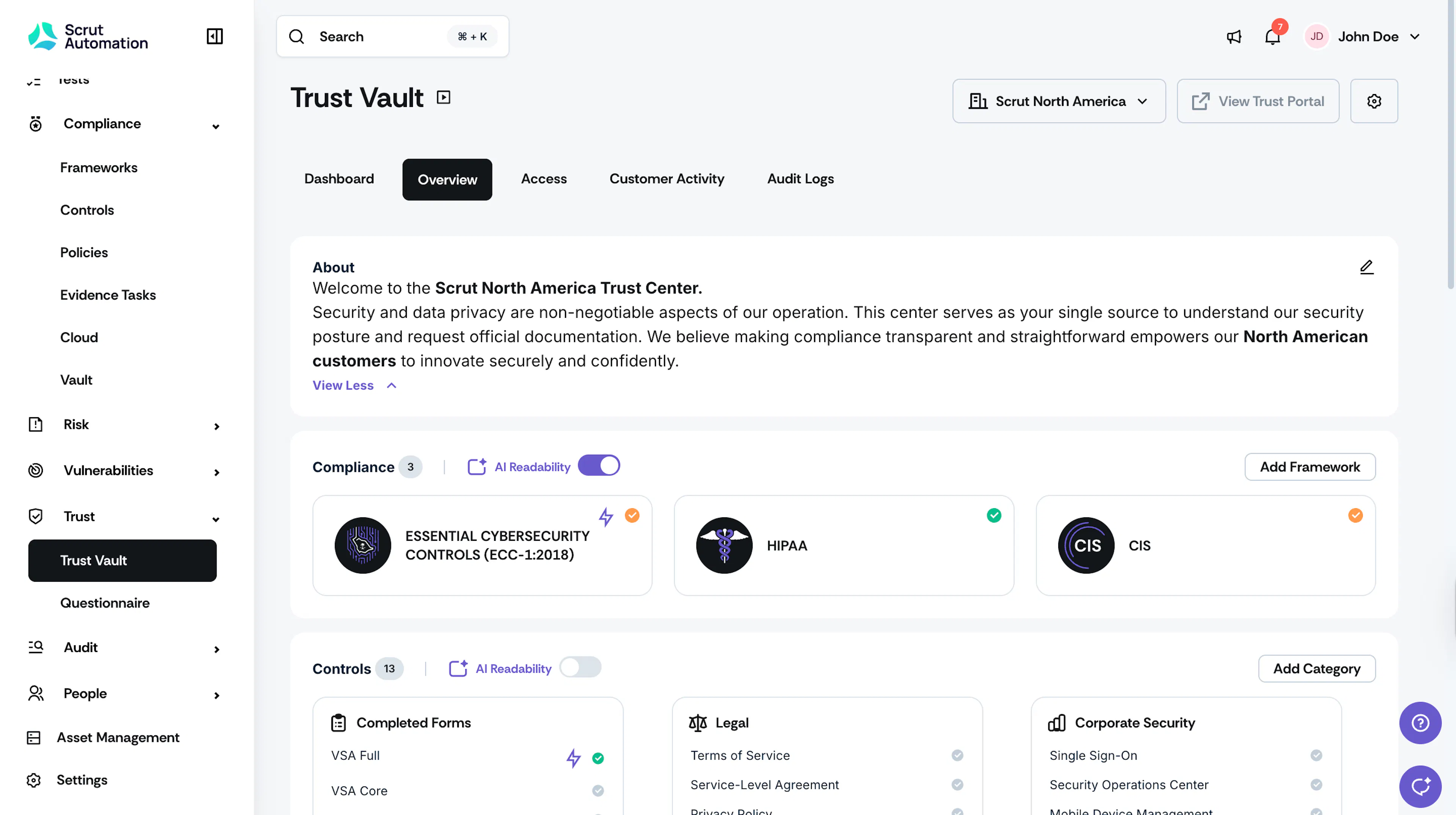
Sign in to Scrut and navigate to Trust → Trust Vault using the left side panel.
-
Click the Overview tab.
-
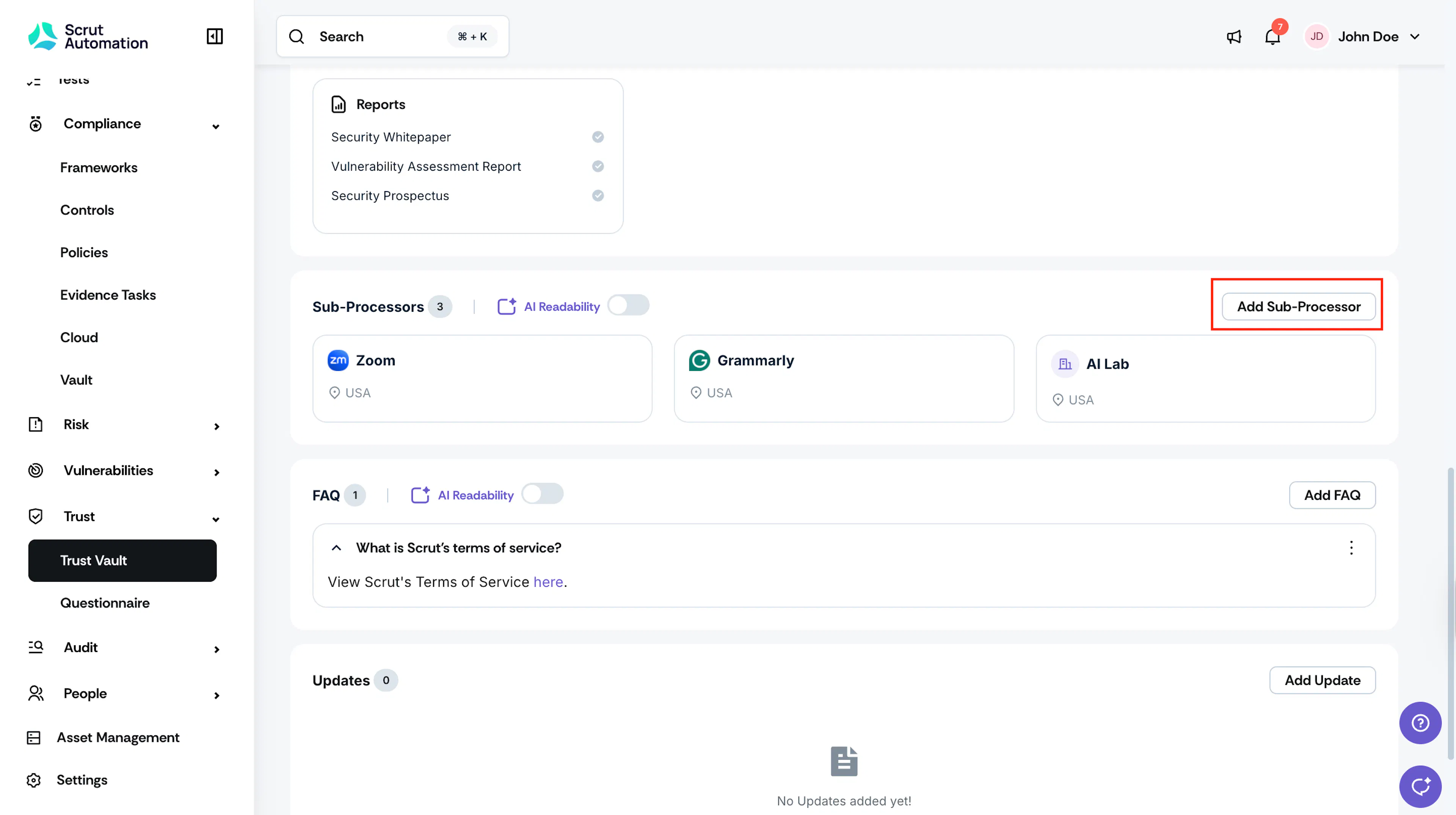
Scroll to the Sub-Processors section and click the Add Sub-Processor button.
-
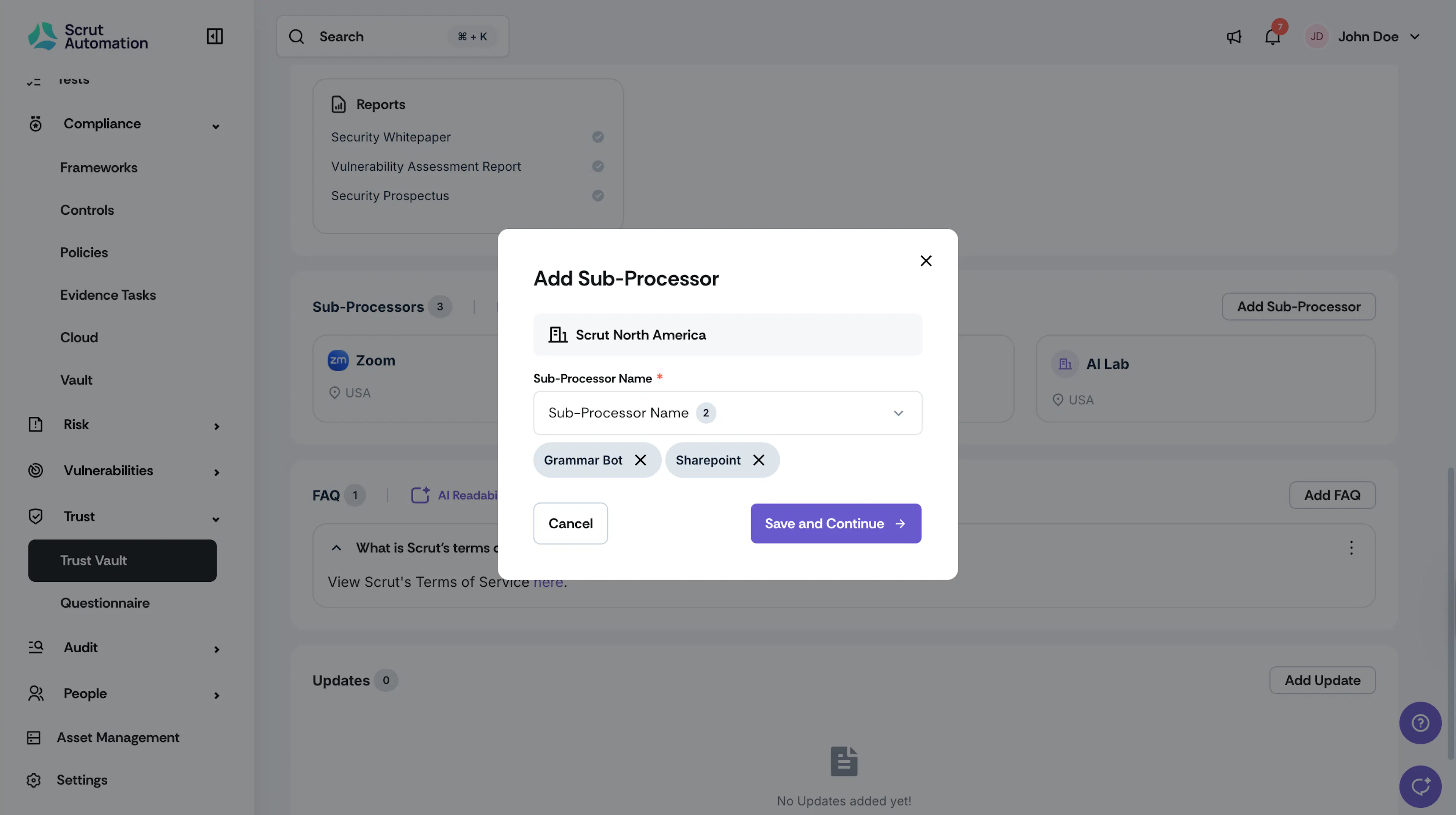
In the dropdown, search and select vendors from your existing vendor list. These are vendors already added to your Scrut organization that you want to publicly display as sub-processors on your Trust Portal.
Note: You can select and add multiple sub-processors.
-
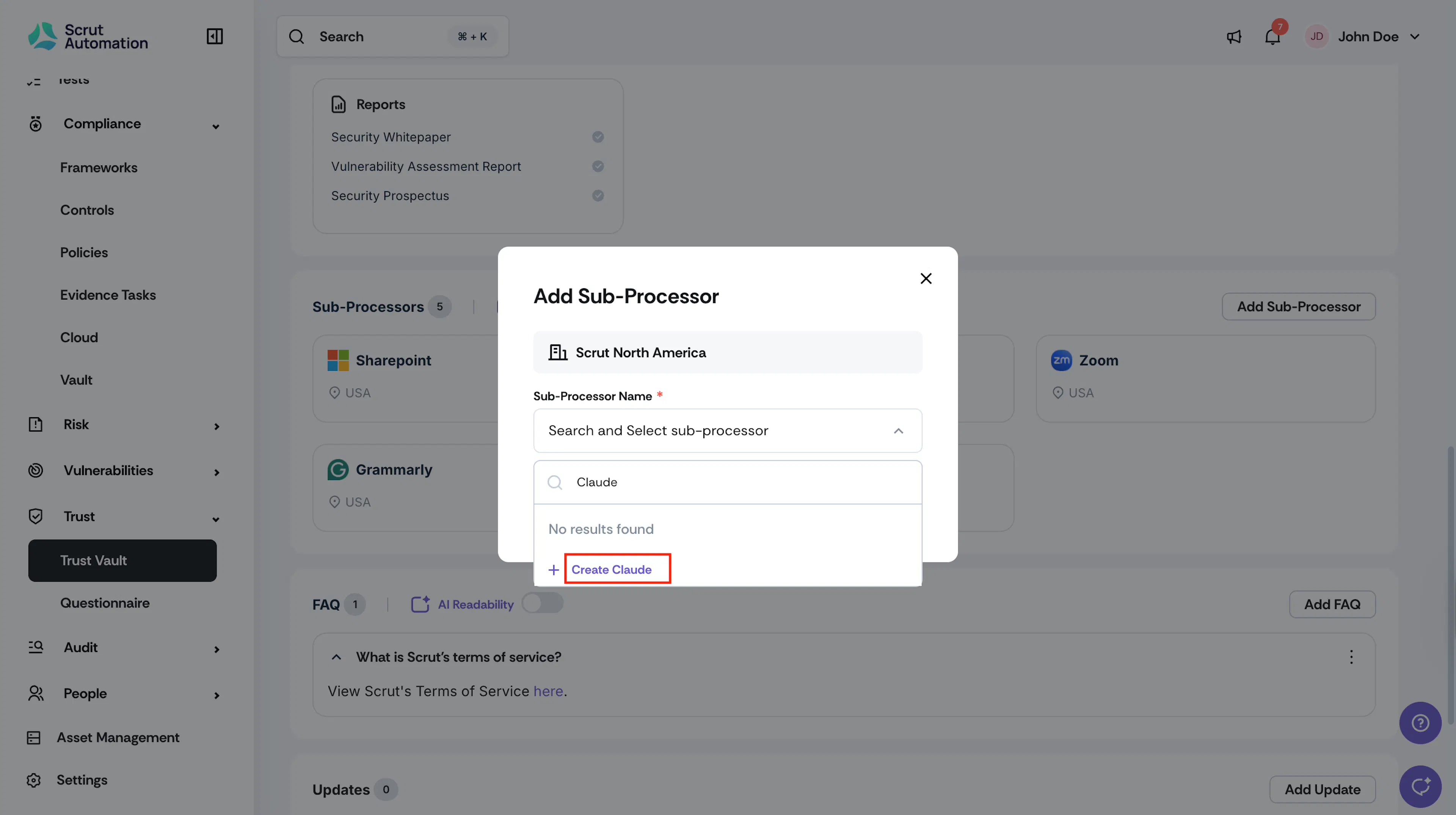
To add a new vendor that's not in the list:
-
Type the vendor name in the search field
-
Click the +Create [Vendor Name] button that appears
-
Enter the vendor Name, select a Category, and choose relevant Entities
-
Click Add
Note:
New vendors created here are automatically added to your vendor list in Risk → Vendors for ongoing vendor management.
-
-
Click Save and Continue.
-
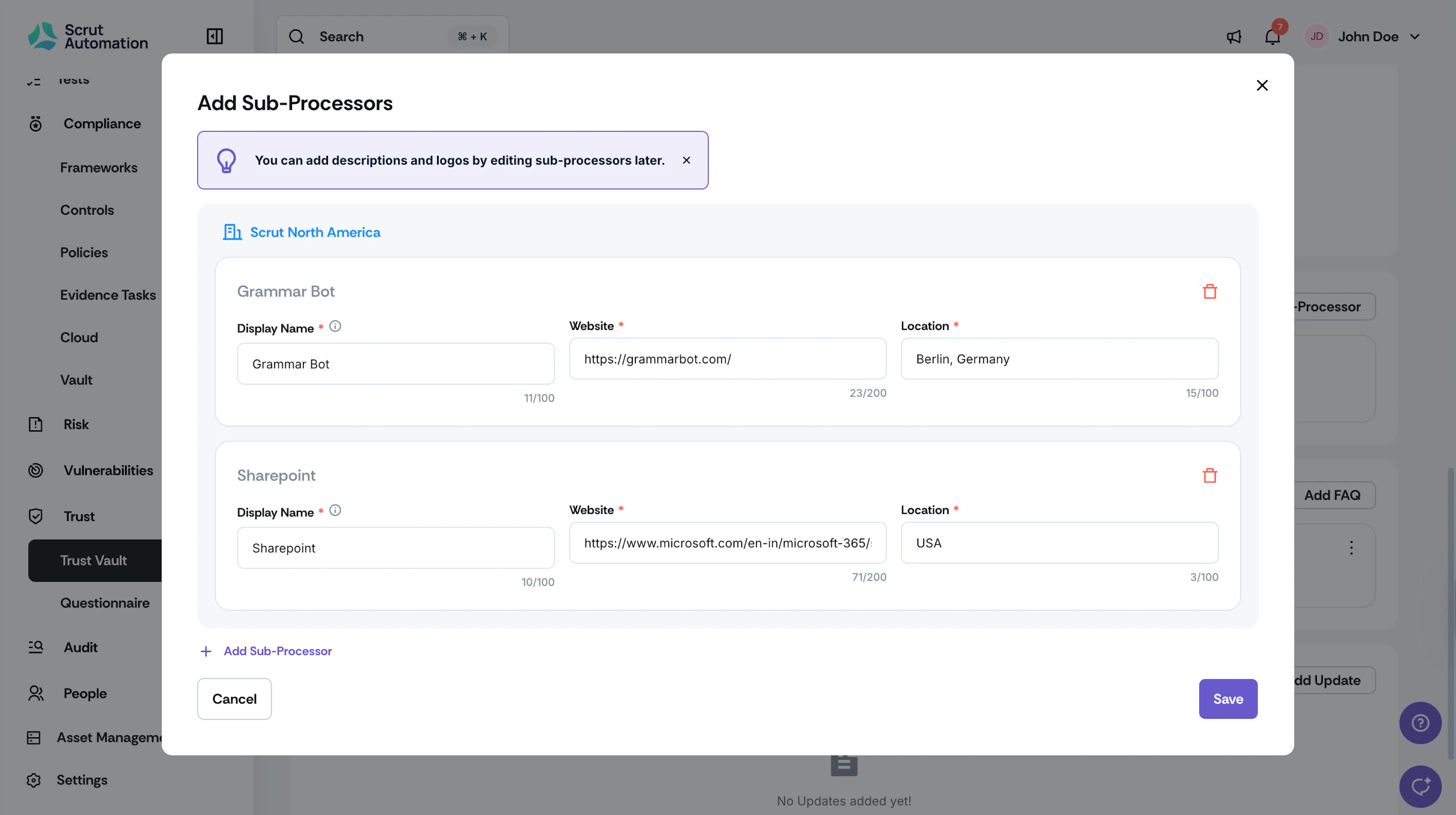
For each selected sub-processor, provide the following information:
-
Display Name (required): How the vendor appears on your Trust Portal
-
Website (required): The vendor's official URL
-
Location (required): Geographic location for compliance tracking
Pro Tip!
You can add logos and descriptions later by editing the sub-processor.
-
-
Click Save. Your sub-processors are now visible in the Trust Vault.
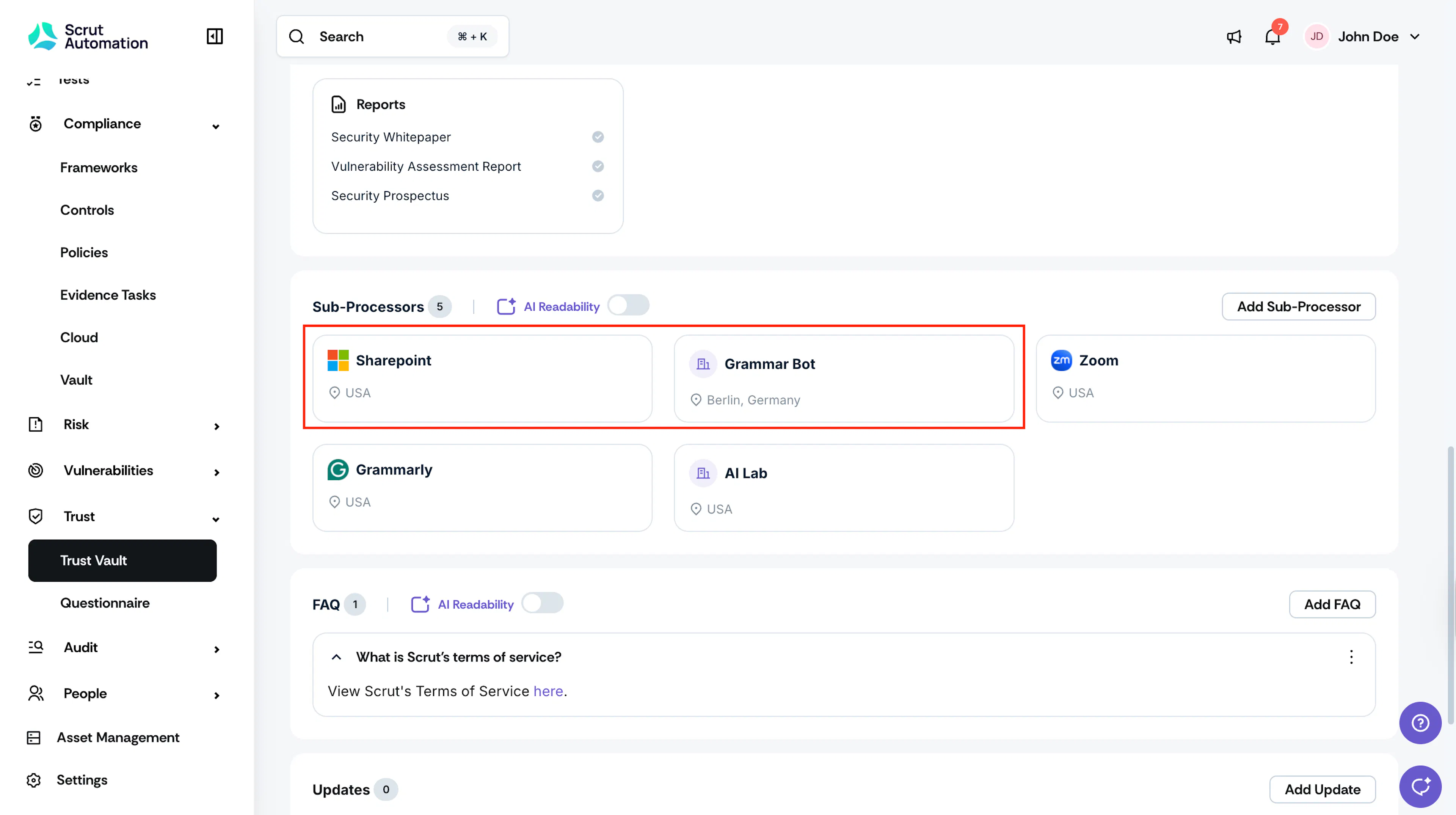
-
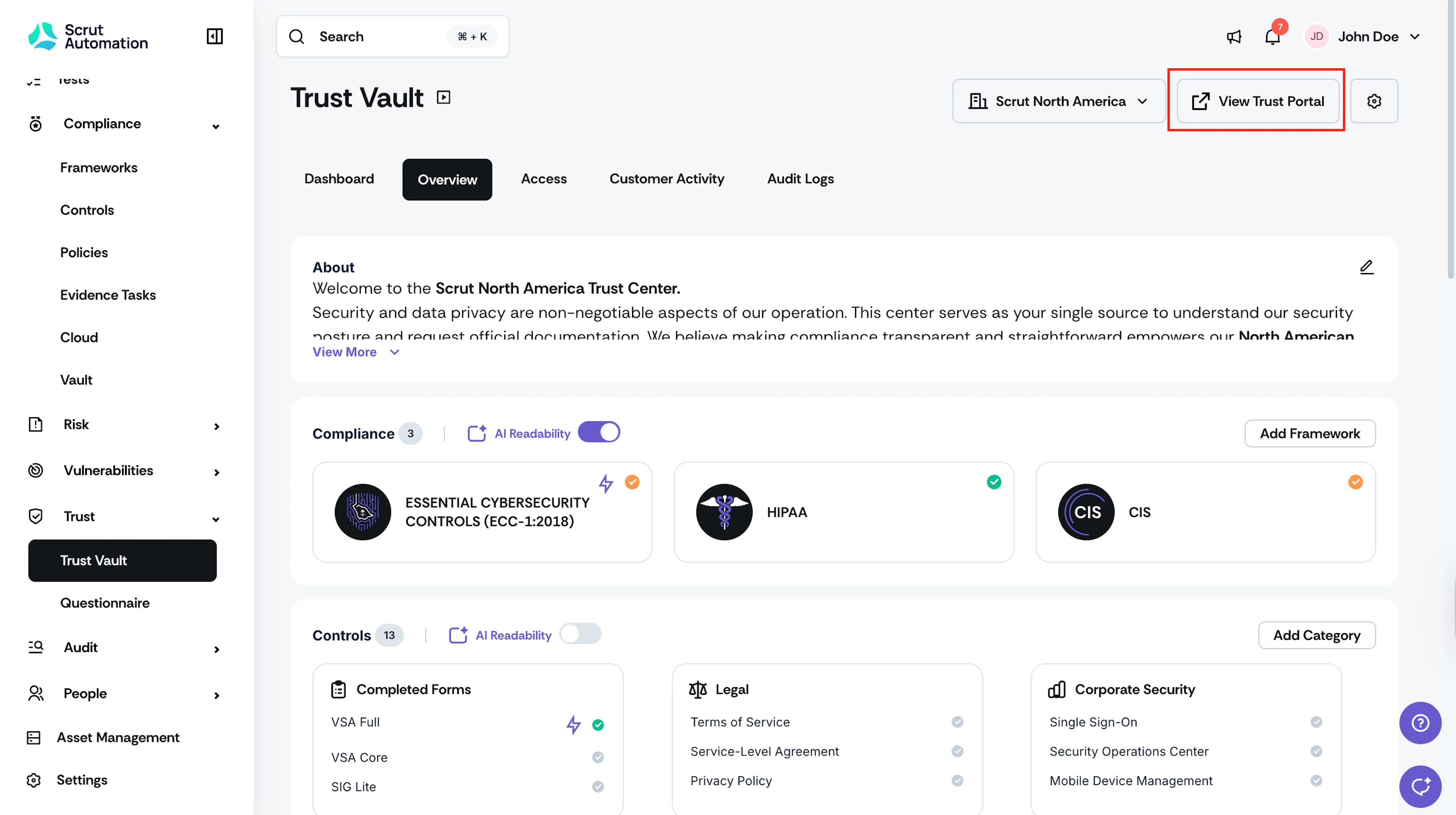
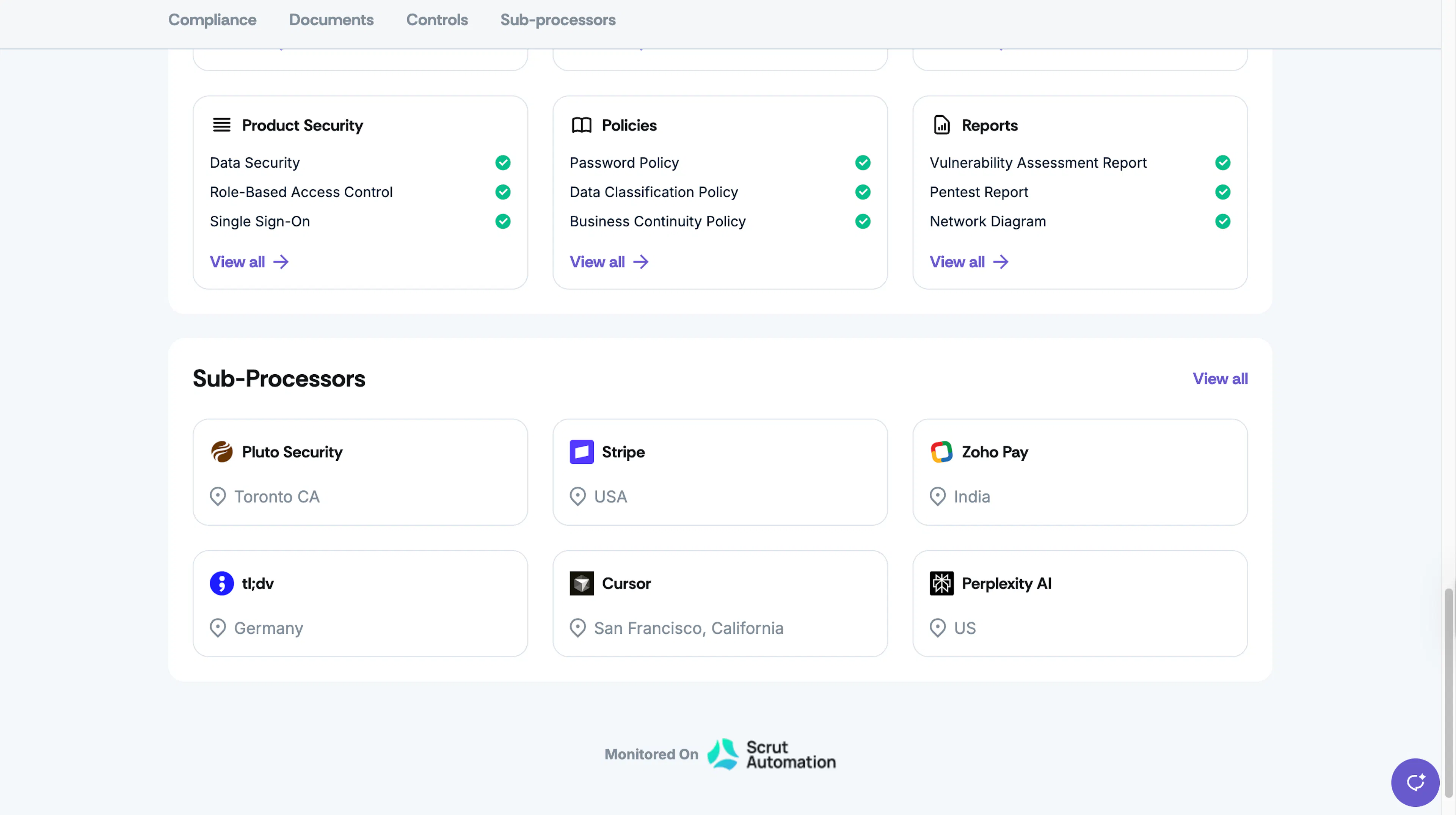
Click the View Trust Portal button at the top of the Overview tab to see how the sub-processors appear on your public Trust Portal.
Edit Sub-Processor Details
You can update sub-processor information at any time to keep your Trust Portal up to date.
-
Go to Trust → Trust Vault → Overview.
-
Scroll to the Sub-Processors section and click the sub-processor you want to edit.
-
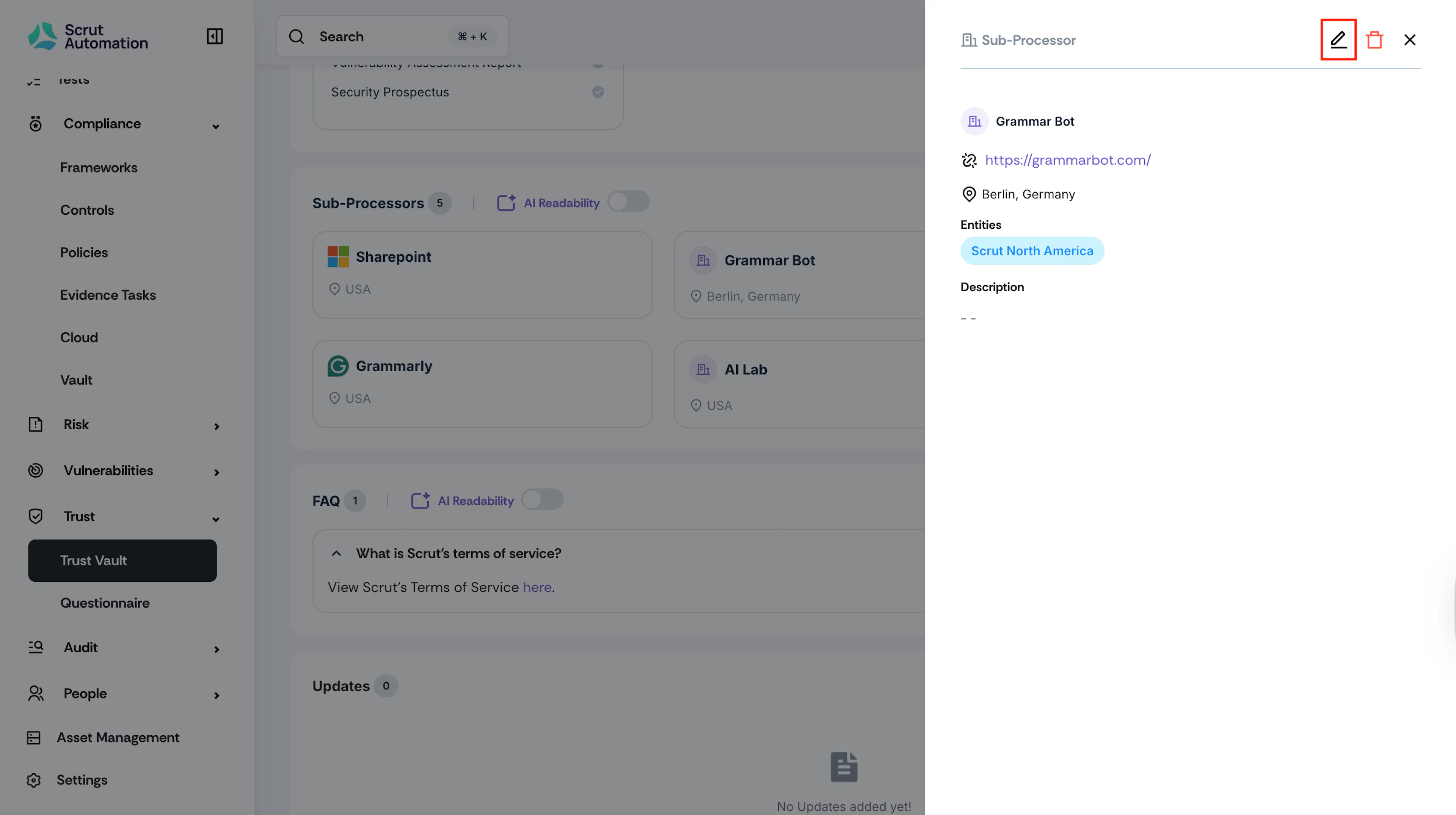
Click the Edit icon in the side drawer.
-
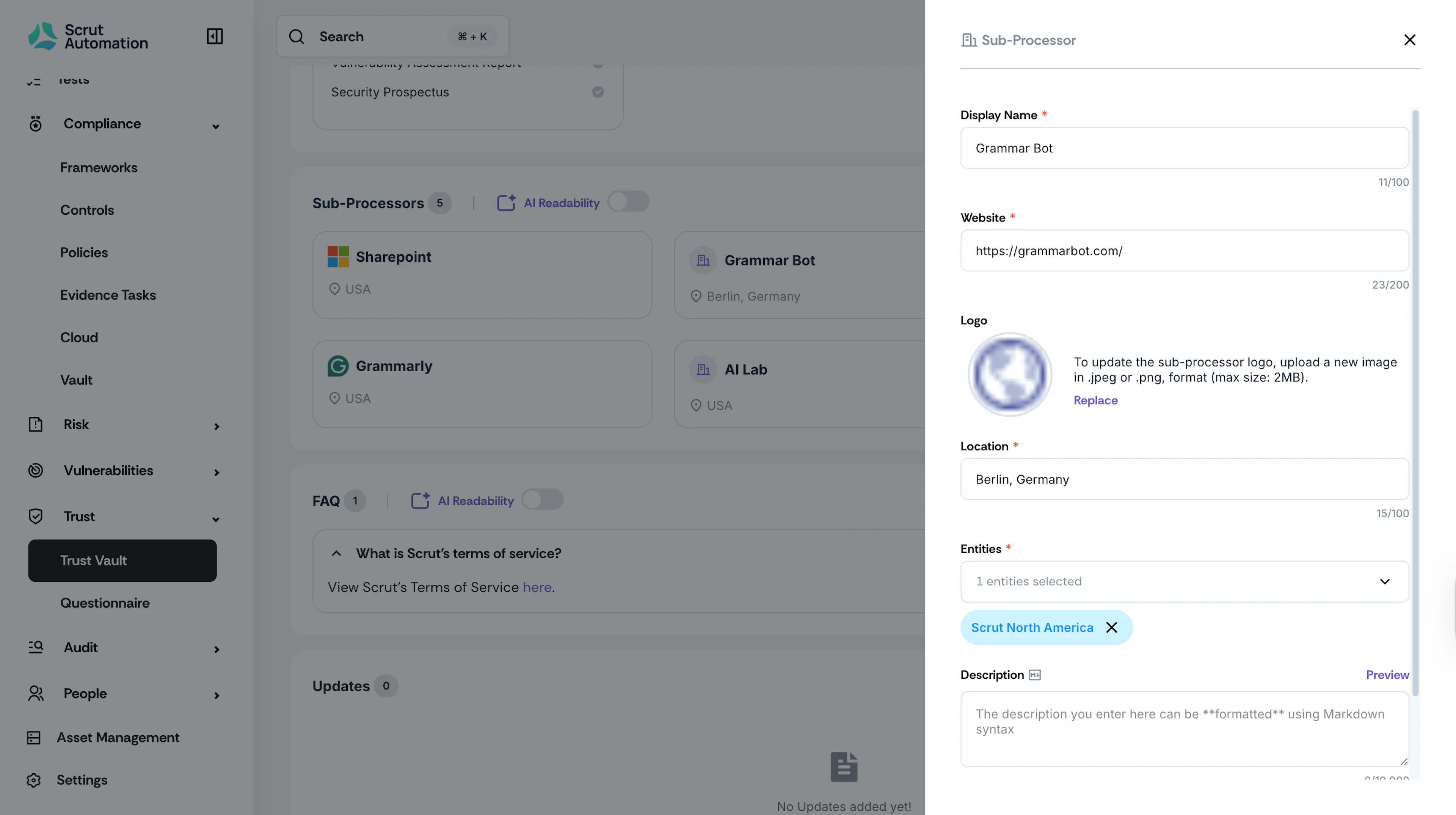
Update any of the following details:
- Display Name: How the sub-processor appears publicly
- Website: Official vendor URL
- Logo: Upload the vendor's logo (JPEG or PNG, max 2 MB)
- Location: Geographic location for compliance purposes
- Description: A brief description of the vendor's role, services, and relevant certifications or compliance standards
Pro Tip!
A clear description helps stakeholders understand why you use this vendor and what data it handles.
-
Click Save to save your changes to the Trust Portal.
Remove Sub-Processors
When you no longer work with a vendor, remove them from your Trust Portal to keep information accurate.
-
Go to Trust → Trust Vault → Overview.
-
Scroll to the Sub-Processors section and click the sub-processor you want to remove.
-
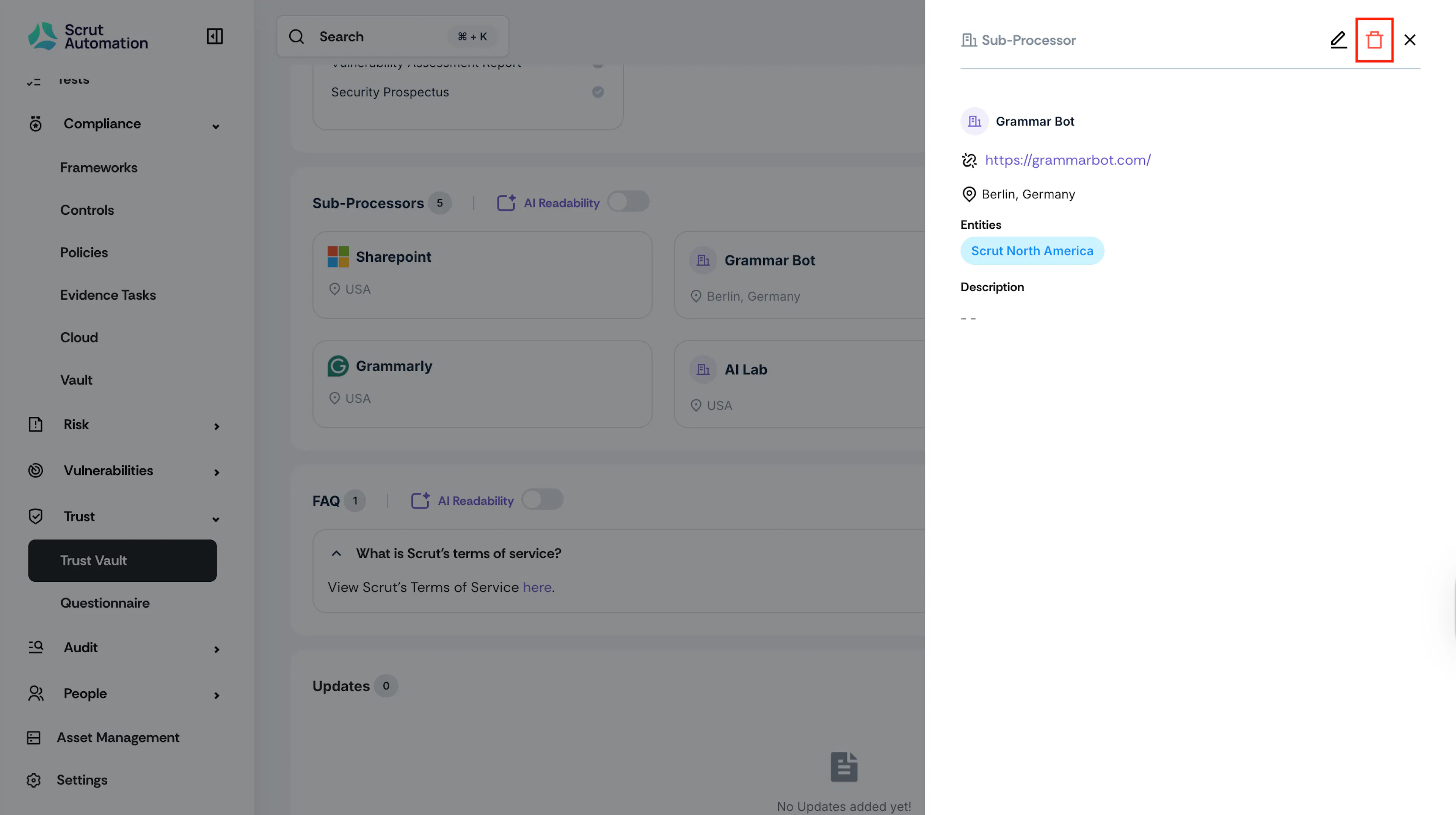
Click the Delete icon in the side drawer.
-
Confirm the deletion.
Note:
Removing a sub-processor only removes it from your public Trust Portal. The vendor remains in your internal vendor list (Risk → Vendors) for record-keeping purposes.