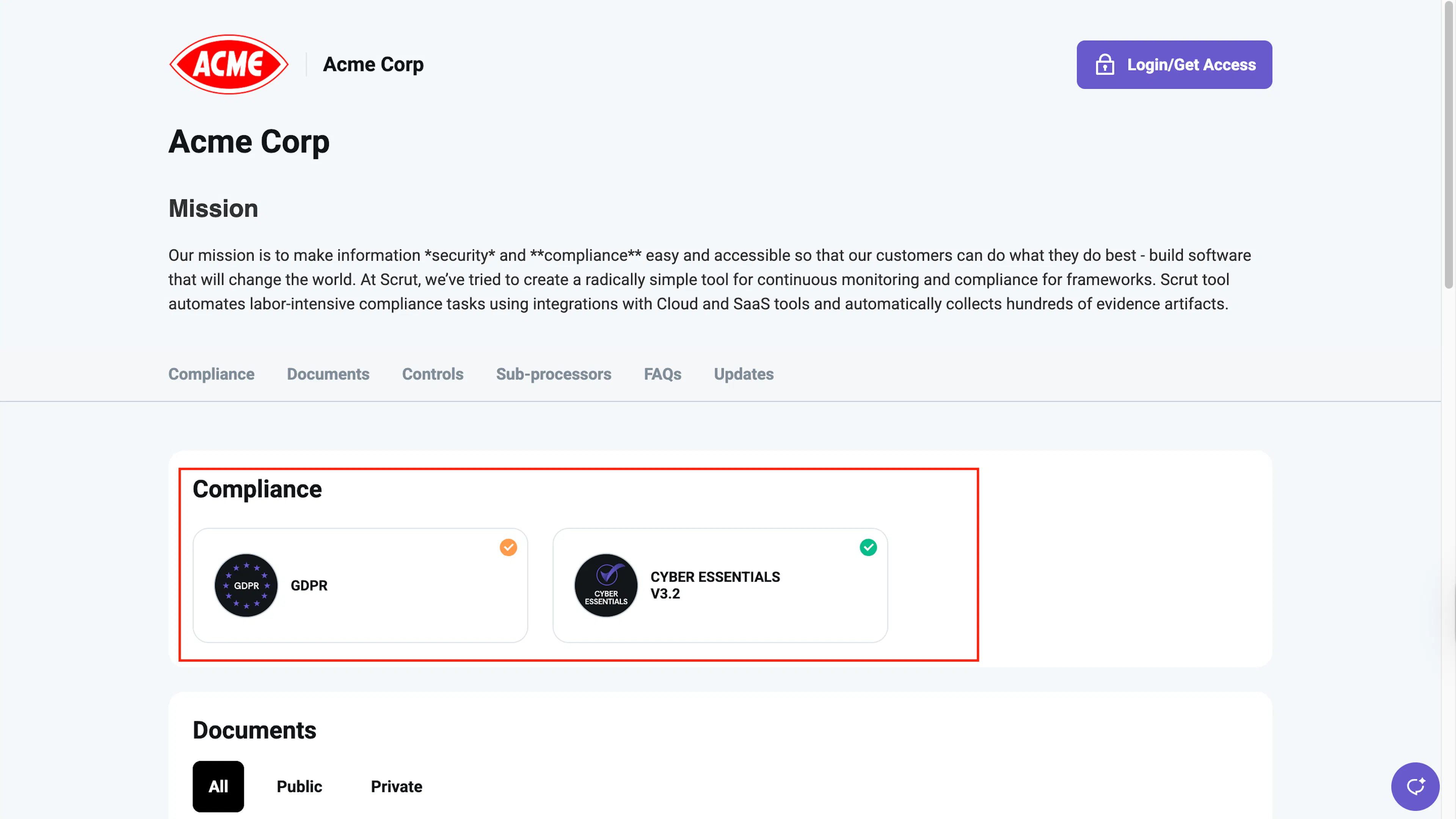
Add Compliance Frameworks
Who can use this feature
- Supported on Foundation, Growth, and Scale plans
In this guide, we'll explain how to add compliance frameworks (implemented, in progress, and yet to be implemented) to your Trust Portal.
You can use your Trust Portal to showcase the compliance frameworks and certifications your organization has achieved or is pursuing. This demonstrates your adherence to industry standards such as SOC 2, ISO 27001, HIPAA, GDPR, and more, thereby building trust with prospects and customers who require you to have specific compliance credentials.
How to Showcase a Framework on your Trust Portal
-
Log in to Scrut using your credentials.
-
From the left navigation panel, expand the Trust menu and click Trust Vault.
-
Navigate to the Overview tab.
-
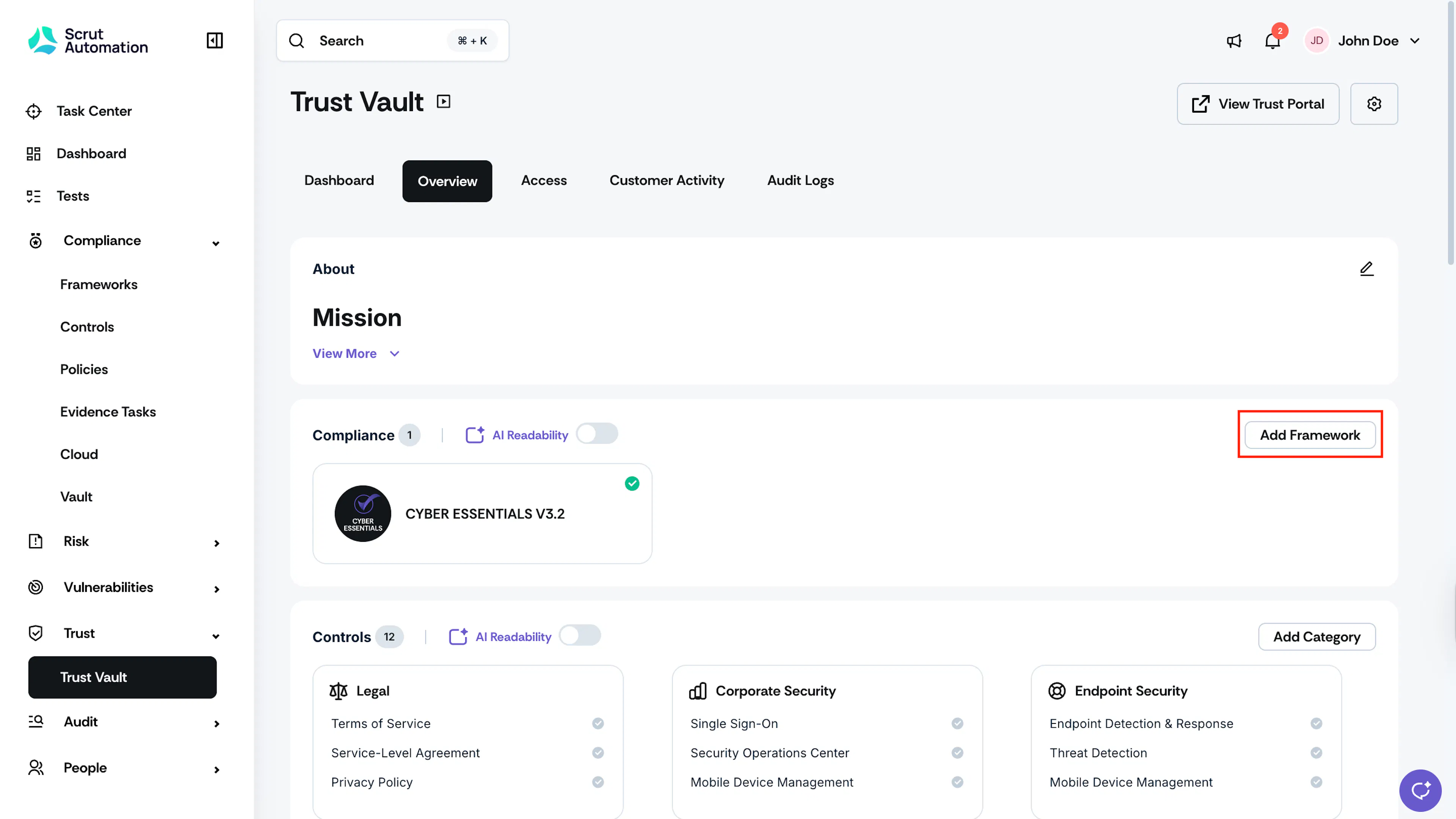
Click the Add Framework button in the Compliance section.
-
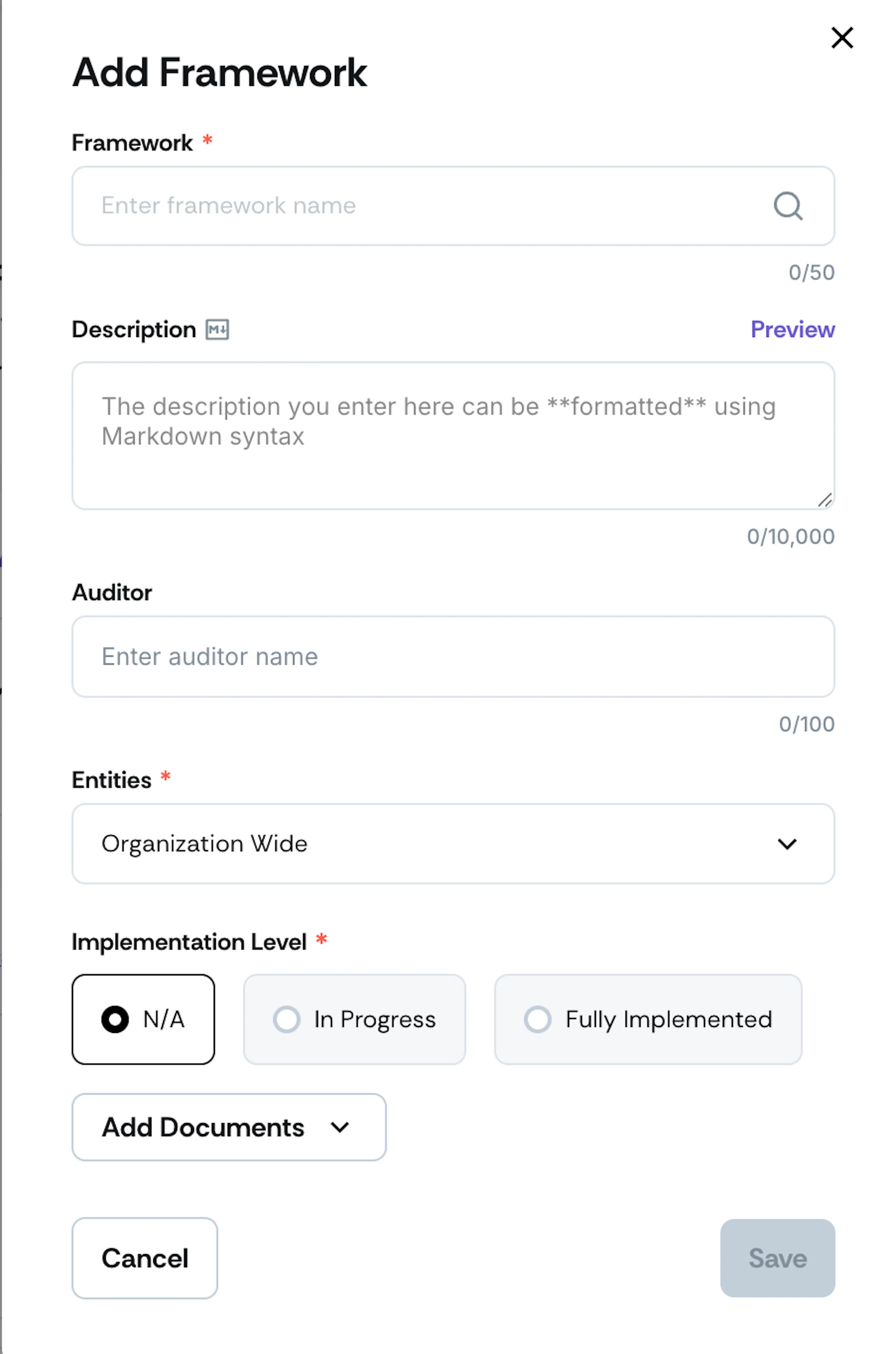
The Framework dropdown includes all default and custom frameworks you've added to Scrut. Search and select your required framework.
-
Scrut automatically fetches the framework's logo and description. You can replace the logo or edit the description as required.
-
[Optional] Enter the name of the audit firm that performed the compliance audit for this framework.
-
If you have a multi-entity Trust Portal, select the entities for which you want to add this framework.
-
Select the Implementation Level:
- N/A: Choose this option if you have not yet implemented this compliance.
- In Progress: Choose this option if the compliance is in progress.
- Fully implemented: Choose this option if you have completed the compliance.
-
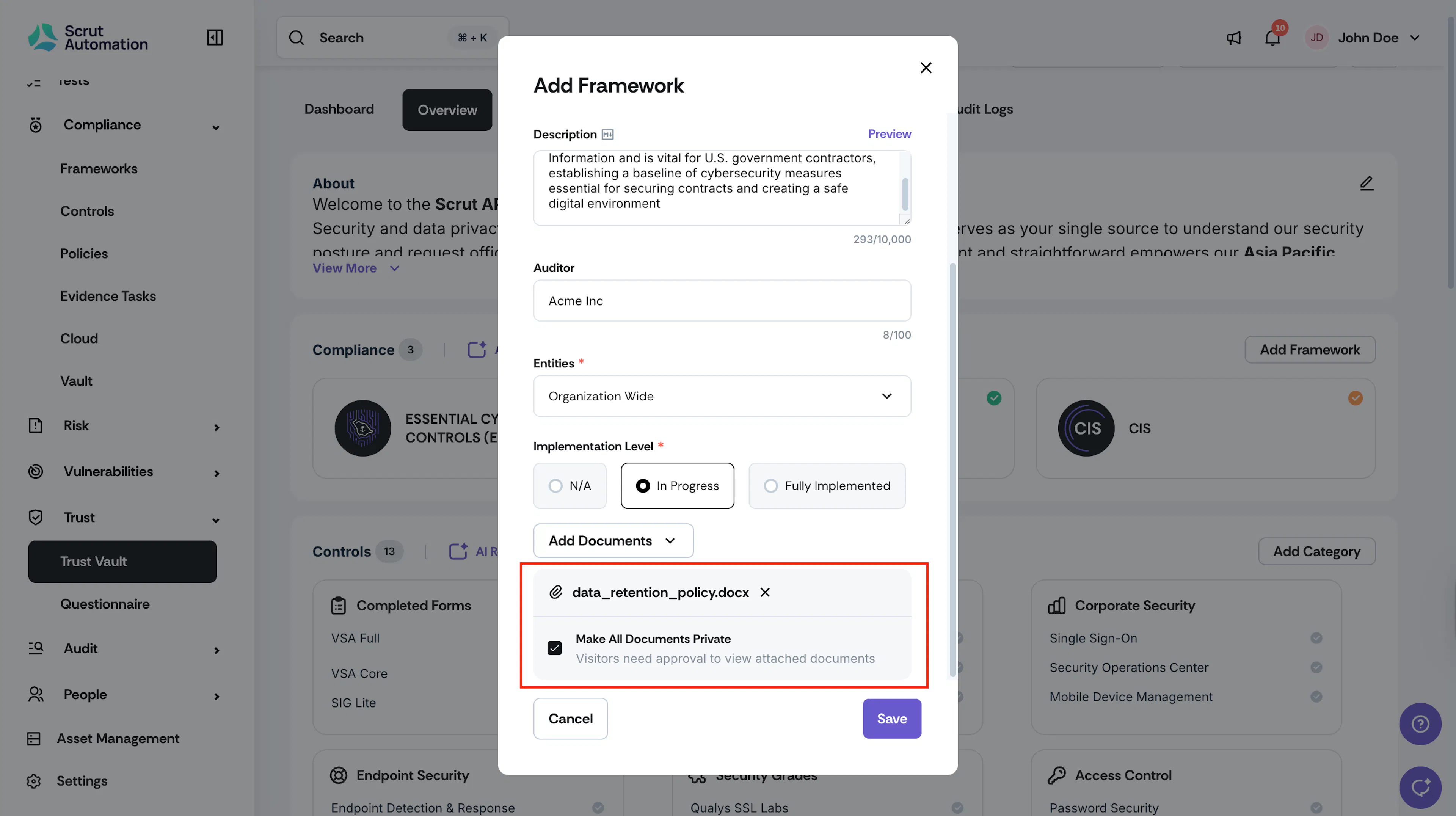
[Optional] Click Add Documents to upload compliance certification, reports or other relevant documents.
-
Select the Make All Documents Private checkbox if you want visitors to require authorization to view attached documents.
Note:
If this checkbox is left unselected, visitors will be able to view the framework documents publicly without any request for access authorization.
-
Click the Add button to add the chosen framework to the trust vault.
Once you click Add, the framework appears in the Compliance section of your trust vault.