

Add Updates in Trust Vault
Who can use this feature
- Supported on Foundation, Growth, and Scale plans
- Note: Subscriber limits apply based on your plan
Learn how to add and manage updates on your Trust Portal.
The Updates section in your Trust Portal helps to keep stakeholders informed about your latest security improvements, policy changes, compliance achievements, and other important changes. Regular updates build confidence in your security posture and demonstrate your commitment to security.
With Trust Portal Subscriptions, you can notify subscribed stakeholders automatically whenever you publish or re-publish an update.
Before You Begin
- Ensure Trust Portal Subscriptions are turned on in Trust Vault → Settings
How to Add an Update to the Trust Portal
-
Log in to Scrut and navigate to Trust → Trust Vault using the left side panel.
-
Click the Overview tab.
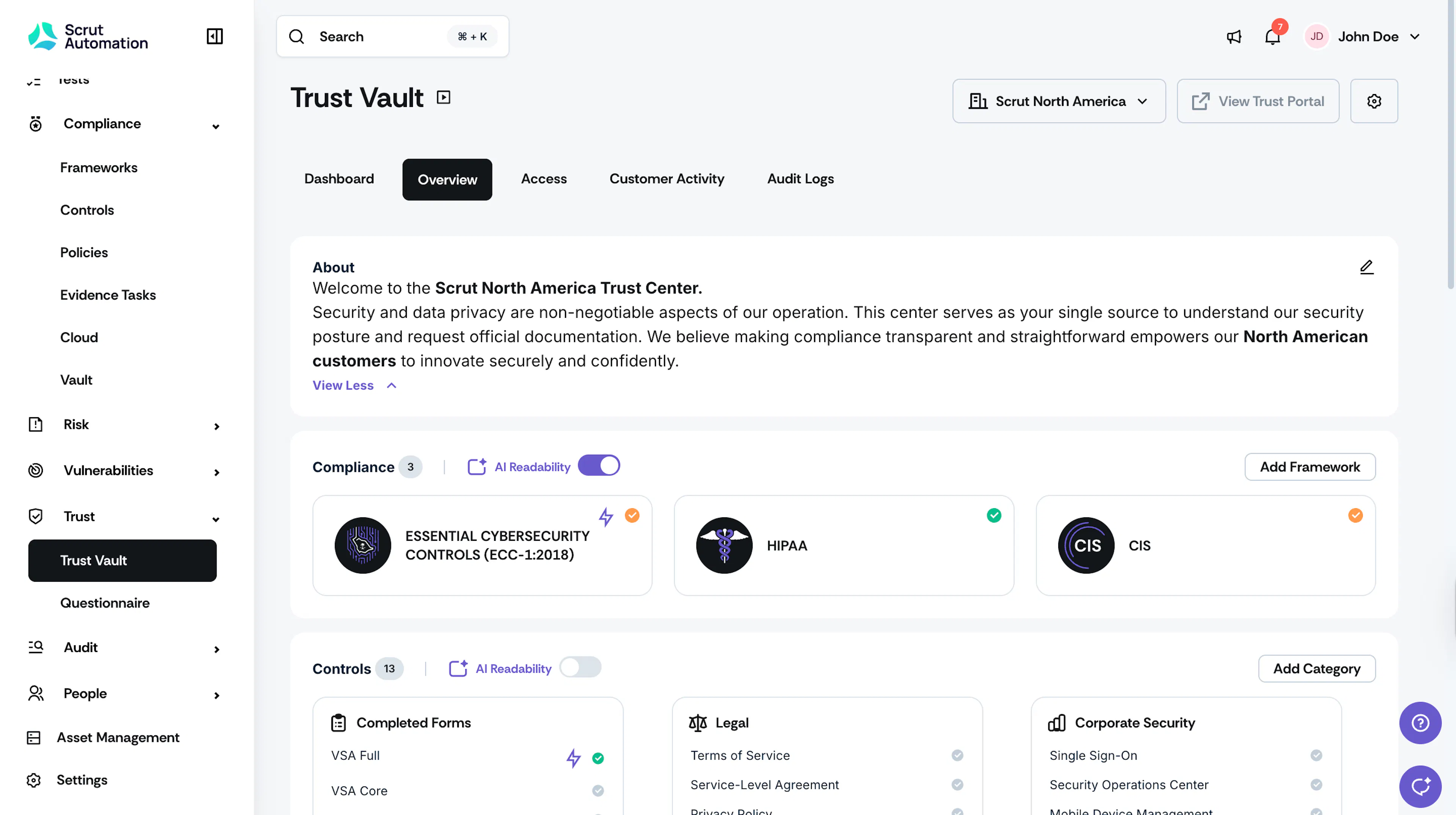
-
Scroll to the Updates section and click the Add Update button.
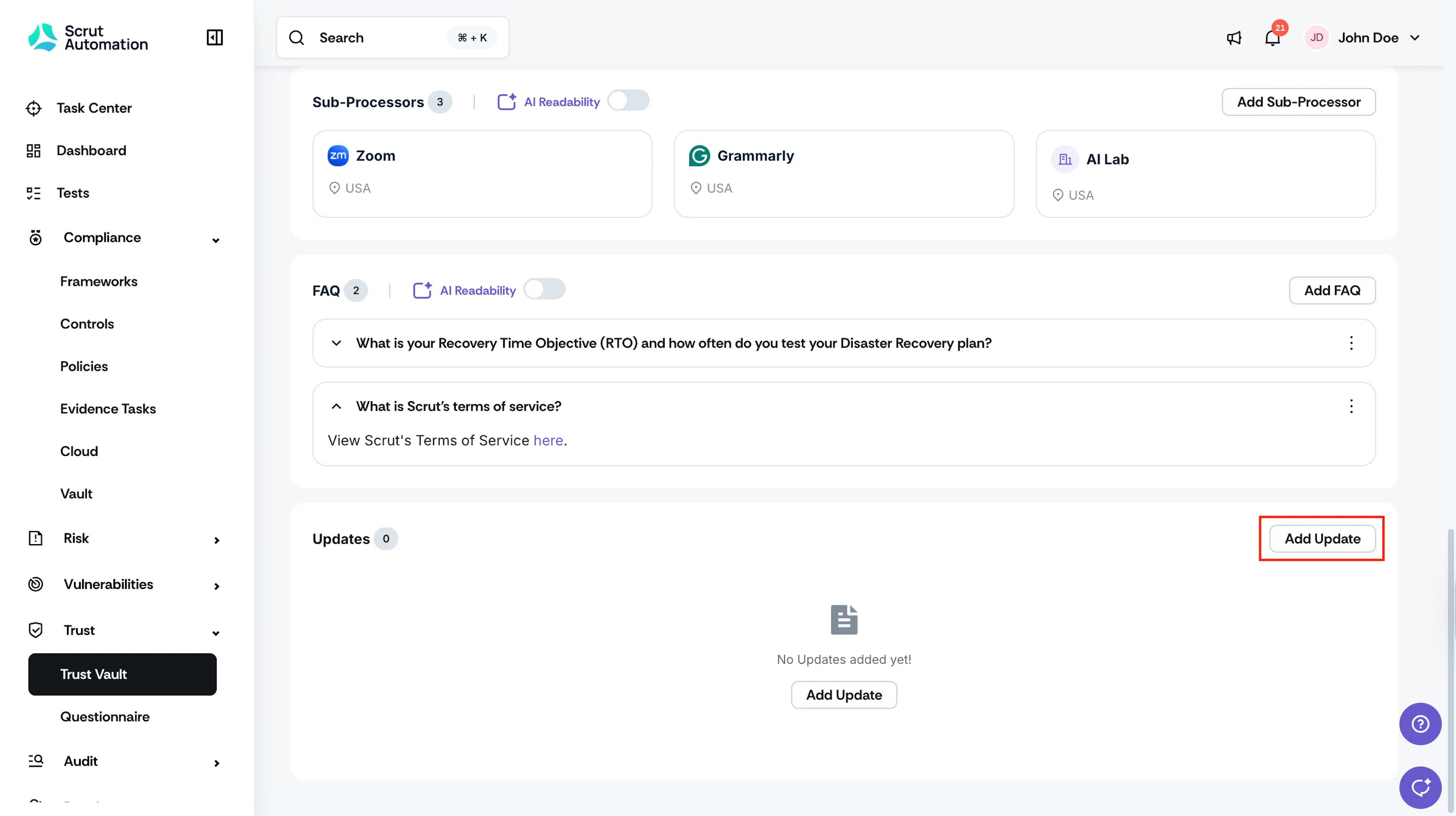
-
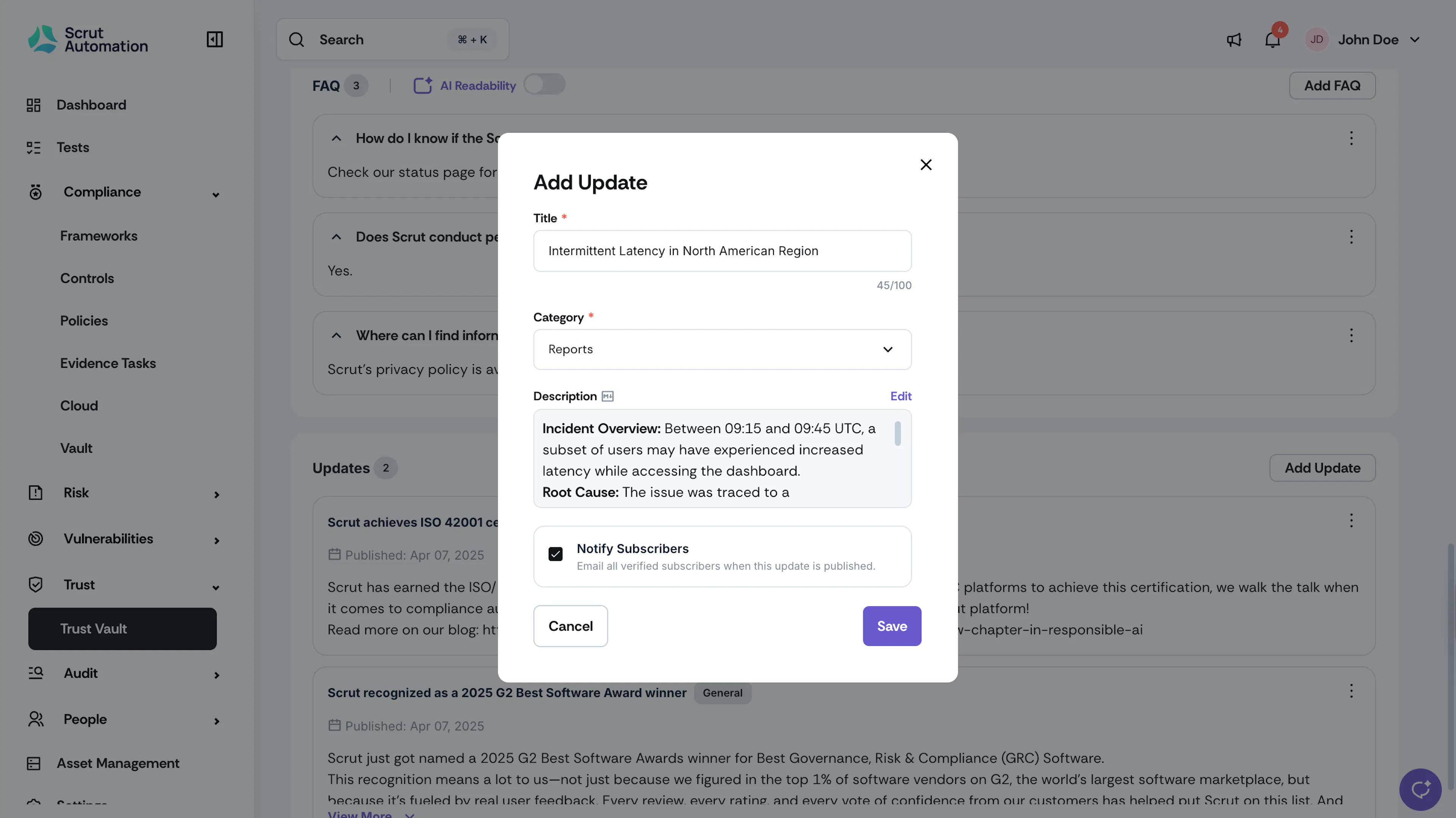
Enter a clear and descriptive Title for the update.
-
Select a Category from the dropdown. (e.g., Legal, Corporate Security, Endpoint Security, Compliance, General, etc.).
-
Entity (if applicable) – If you use multi-entity Trust Vault, select the entities to which you want to post this update. Choose organization-wide to post it across all your entities.
-
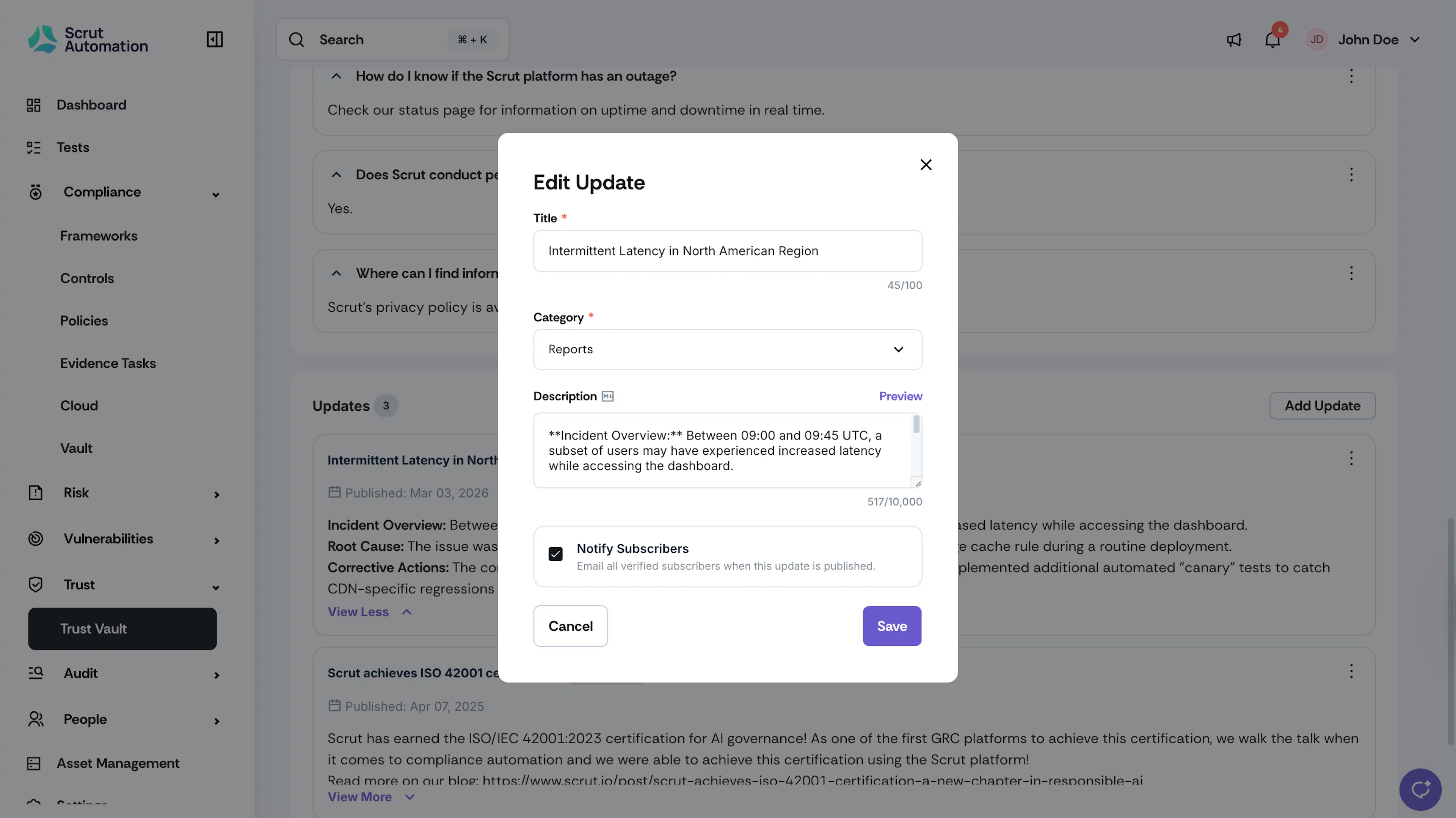
Add a description of the update. You can format the description using Markdown. Click Preview to view how the update will appear with the formatting applied.
-
If subscriptions are enabled, you will see a Notify subscribers toggle.
- If you select this checkbox, all verified subscribers receive an email notification.
- If left unselected, the update is published without sending notifications.
-
Click Save.
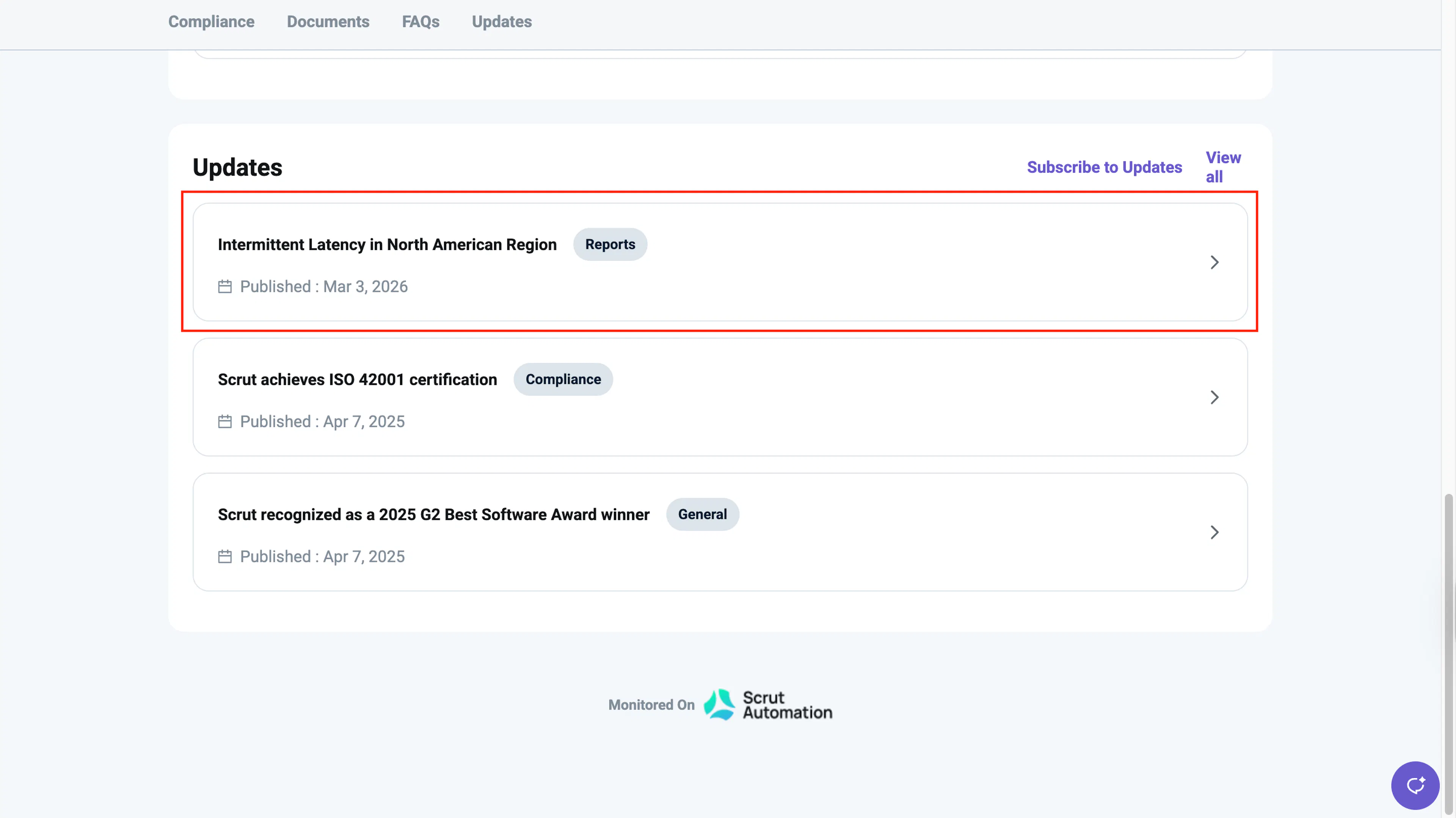
Edit an Existing Update
To make any changes to existing updates:
-
Go to Trust → Trust Vault → Overview.
-
Scroll to the Updates section.
-
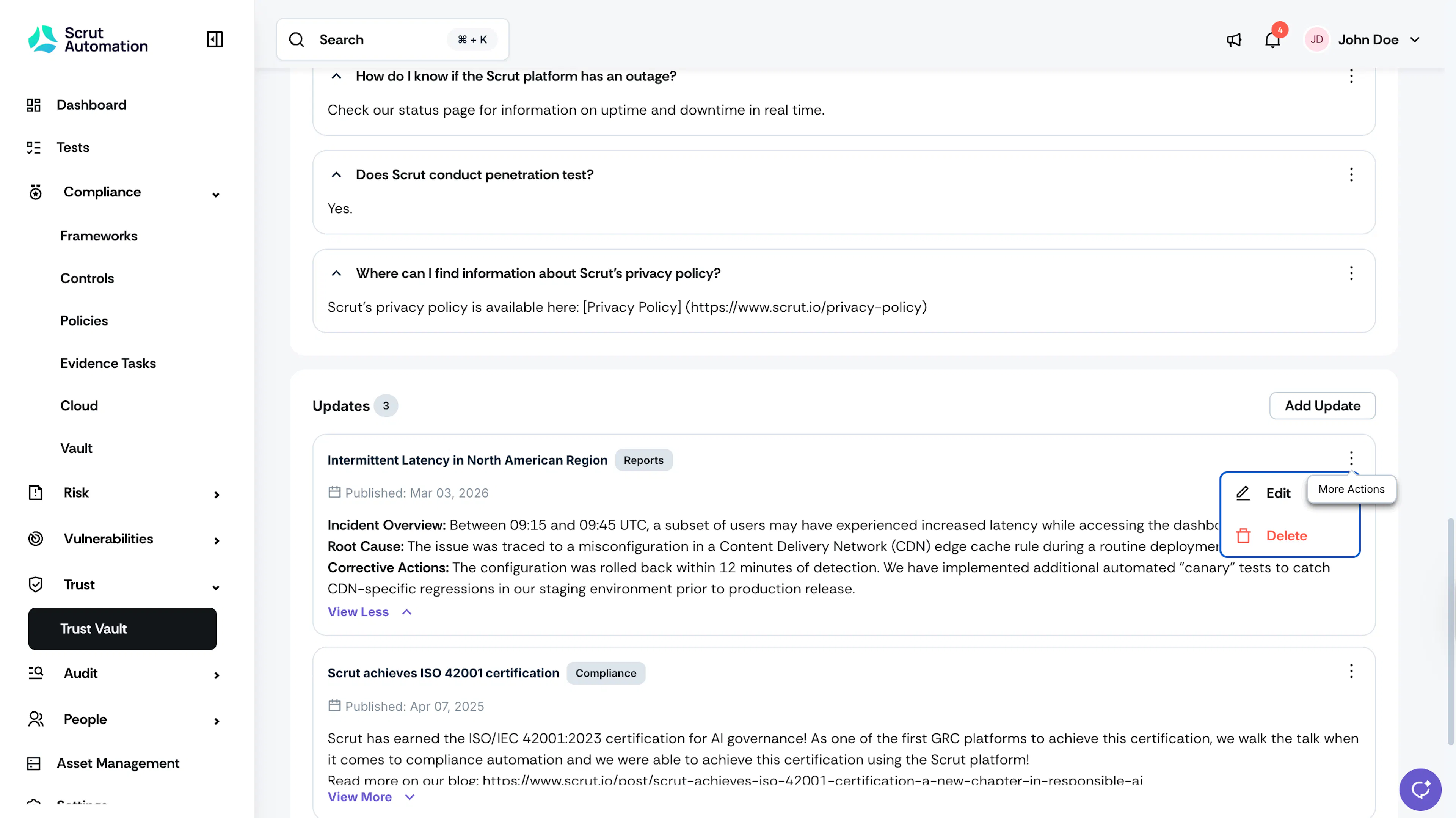
Click the three-dot menu next to the update.
-
Select Edit.
-
When saving your edit, you can:
- Notify Subscribers: Select the checkbox Send notification to subscribers again. A new email notification is sent to verified subscribers.
- Skip resending the notification: Leave the checkbox unselected. The update is saved without sending another notification.
-
Click Save.
Best Practices
- Maintain a consistent format across updates.
- Use clear and direct language that readers can follow easily.
- Post timely updates to keep stakeholders informed of important changes.
- Categorize updates appropriately to help users find relevant information.
- Use Markdown to enhance the readability of descriptions.
- Enable notifications only for meaningful updates to avoid email fatigue.