Edit Vendor Details
Learn how to update vendor information.
Edit Details of a Single Vendor
To edit the details of a single vendor:
-
Sign in to Scrut, expand the Risk menu on the left panel, and click Vendors.
-
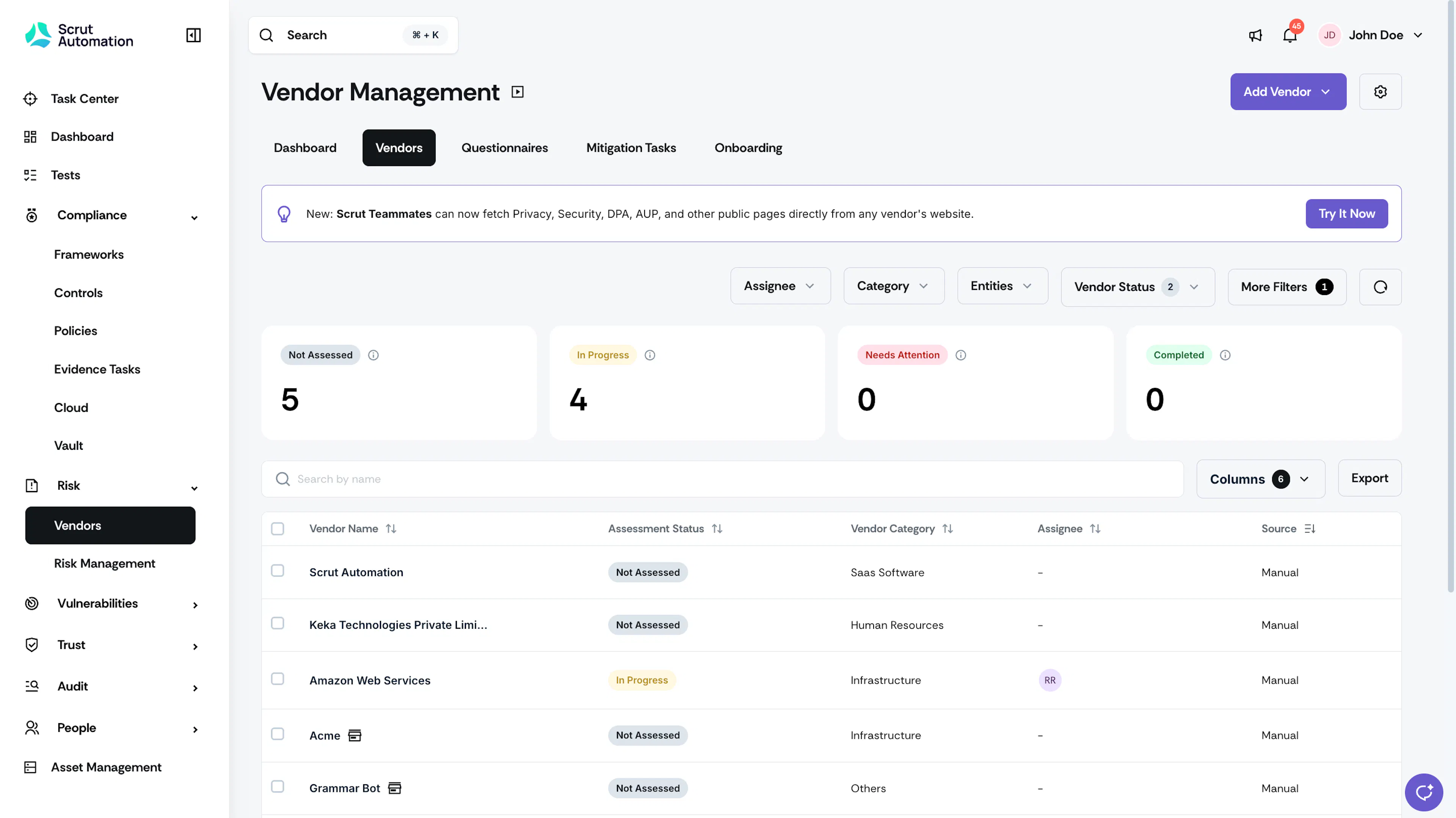
Navigate to the Vendors tab and click the vendor you want to edit from the table on this page.
-
This opens the vendor details page.
-
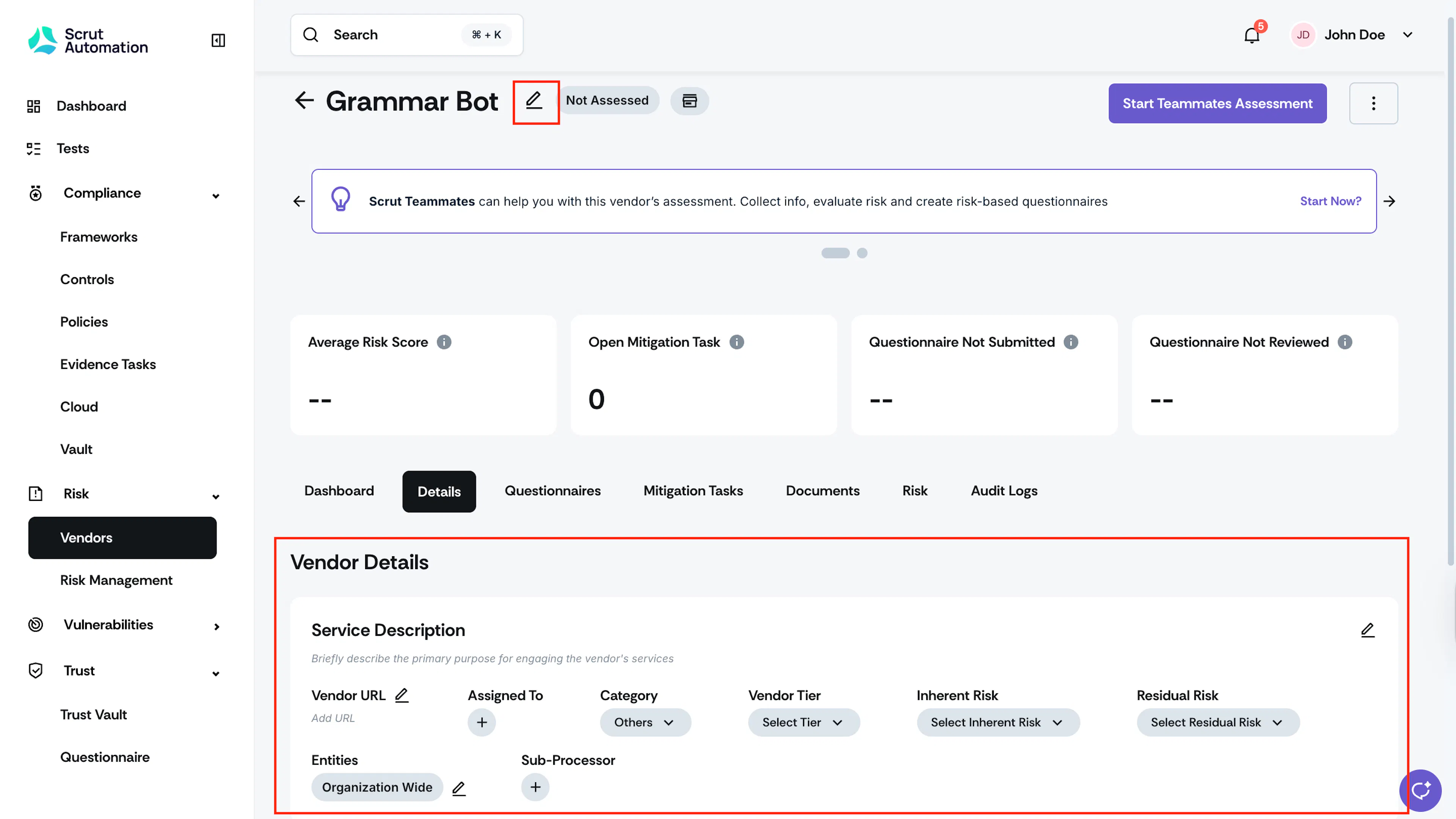
Click the pencil icon next to the vendor name to change it.

-
Navigate to the Vendor Details section to edit other vendor details, including:
-
Service Description: Enter the reason for engaging this vendor’s services.
-
Vendor URL: The vendor's official website link.
-
Assigned To: Select the team member responsible for managing the vendor relationship.
-
Category: Select a suitable category that best describes the vendor’s services or products.
-
Vendor Tier: Choose a vendor tier based on their risk levels or business impact (e.g., Tier 1, Tier 2, or Tier 3).
-
Inherent Risk: Select the level of inherent risk associated with the vendor, reflecting factors such as the nature of the services provided and potential impacts on your organization. (e.g., Low, Medium, High, or Critical).
-
Residual Risk: Select the vendor's residual risk level (e.g., Low, Medium, High, or Critical).
-
Entities: Choose the entities to which the vendor applies.
-
Sub-Processor: Add the vendor as a sub-processor.
Heads Up!
Even if you add a sub-processor here, you must go to the Trust Vault → Overview page to display the sub-processor in your Trust Vault. The sub-processor will not be shown in your Trust Vault until you explicitly complete this step.
-
-
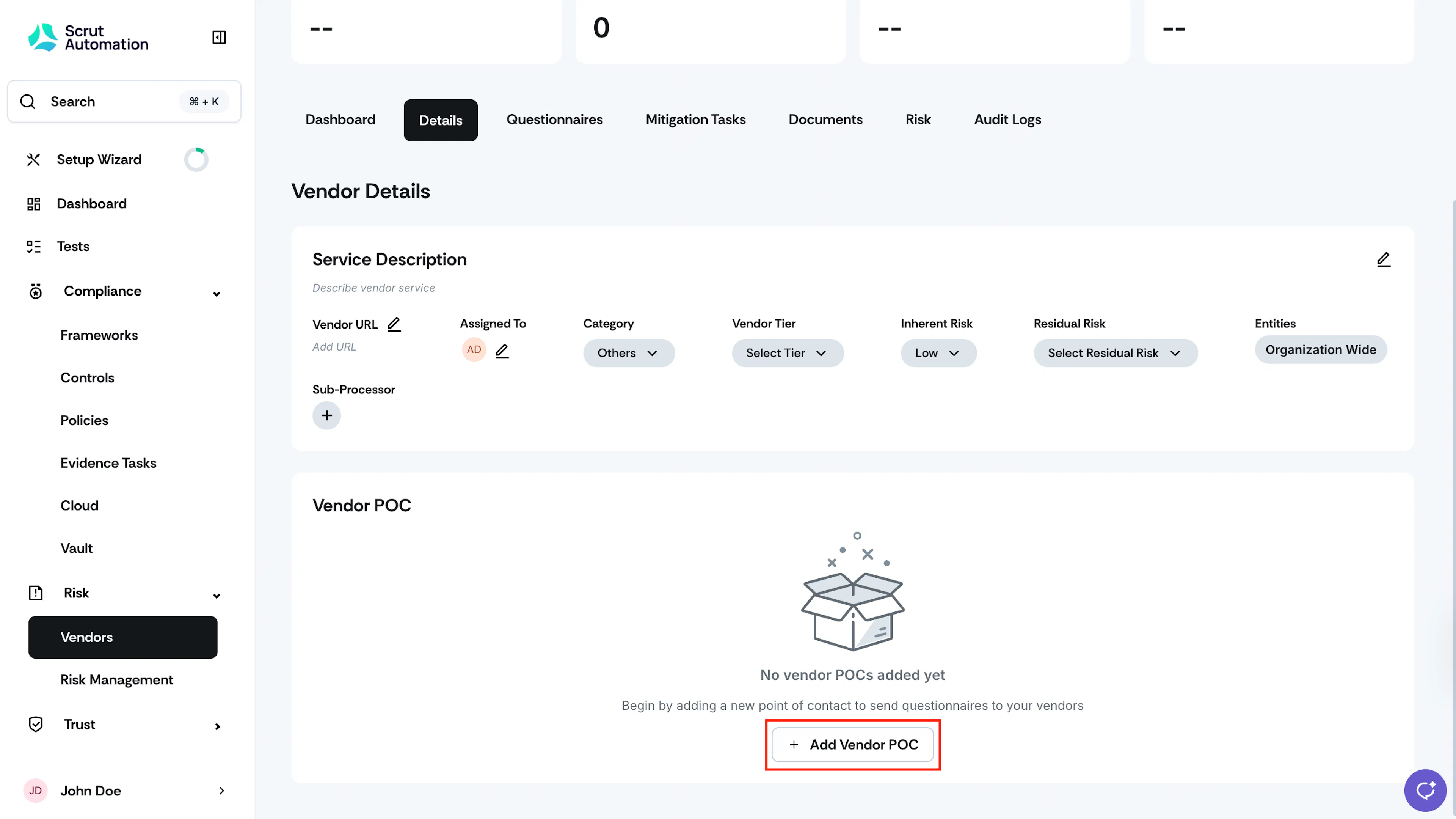
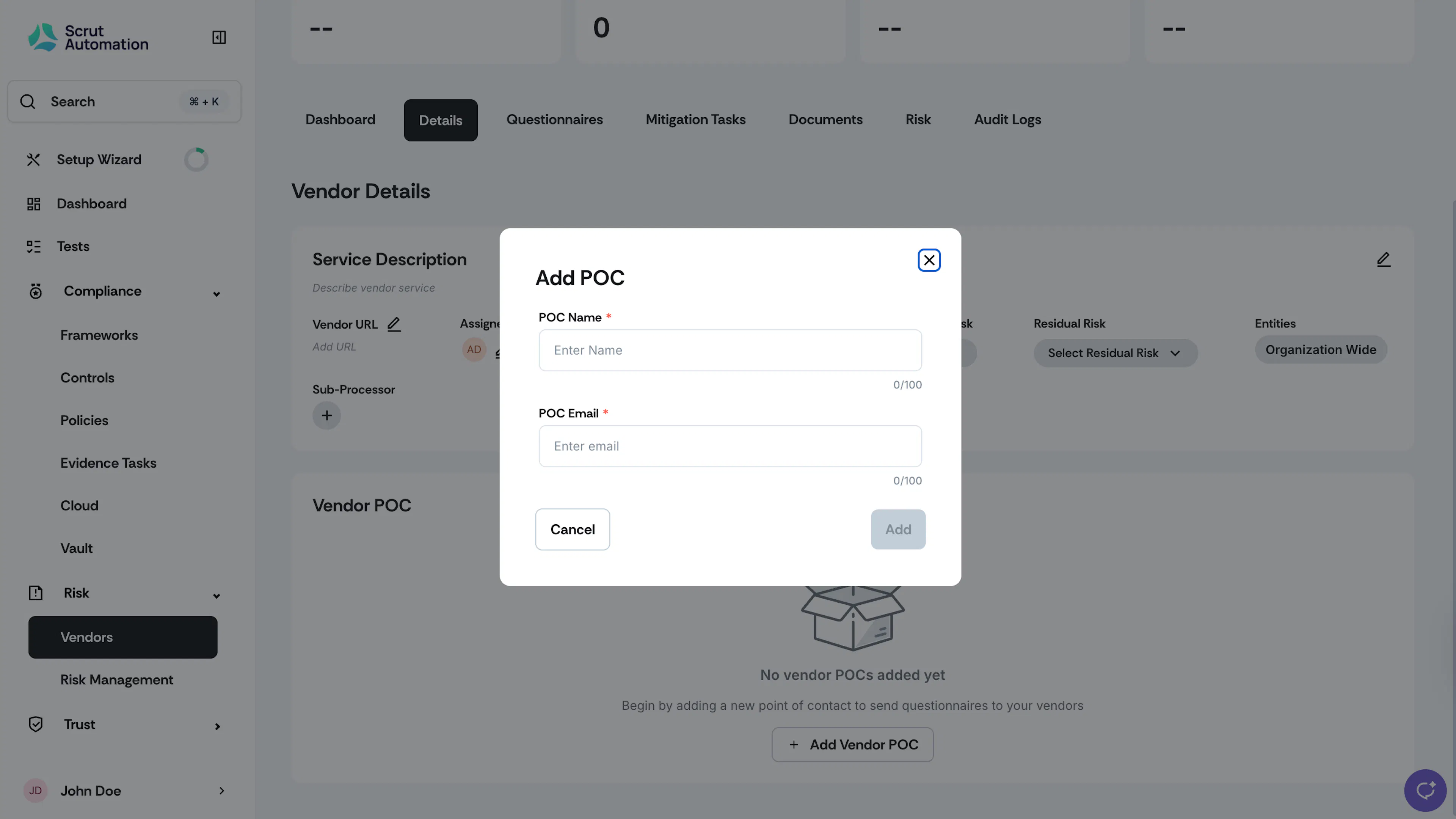
Scroll to the Vendor POC section and click +Add Vendor POC to add a new point of contact to send questionnaires.
-
Enter the POC Name and Email and click Add.
Edit Details of Multiple Vendors
-
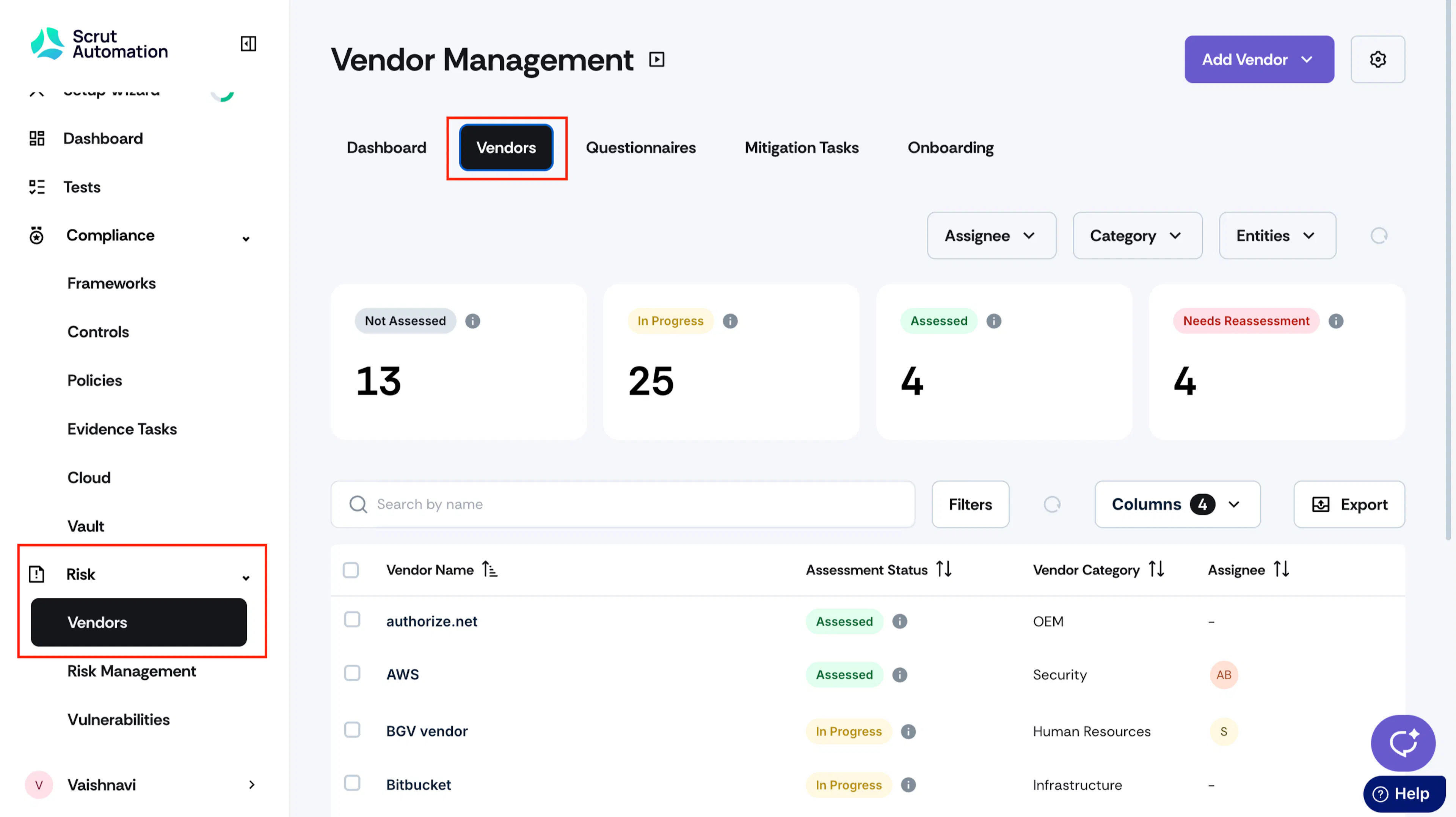
Sign in to Scrut, expand the Risk menu on the left panel, and click Vendors.
-
Go to the Vendors tab.
-
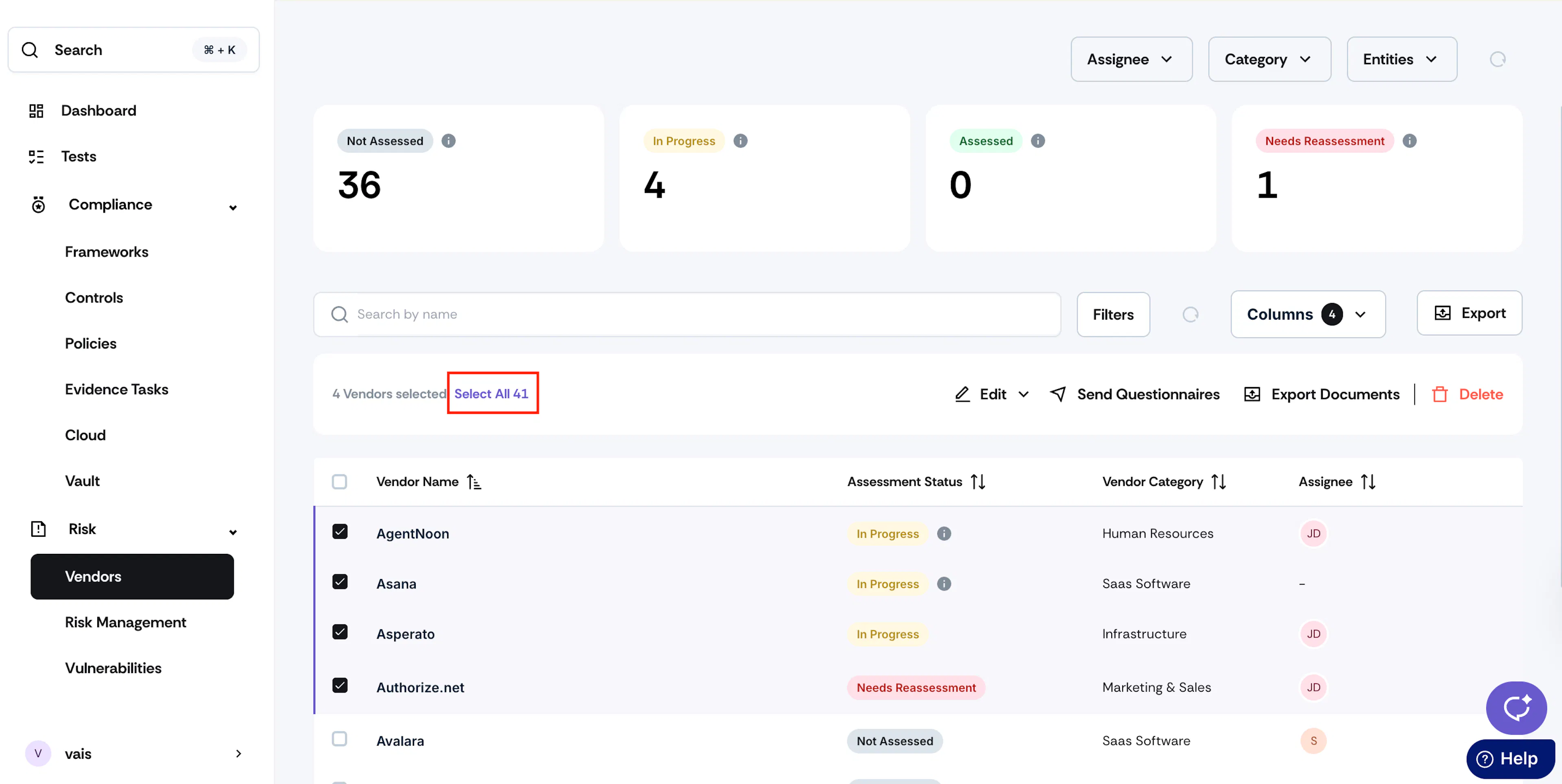
Select the vendor(s) you want to edit.
Note:
You can select more than one vendor, and update their details simultaneously via a single action.
-
To select all vendors, click the Select All button at the top of the vendor table.
-
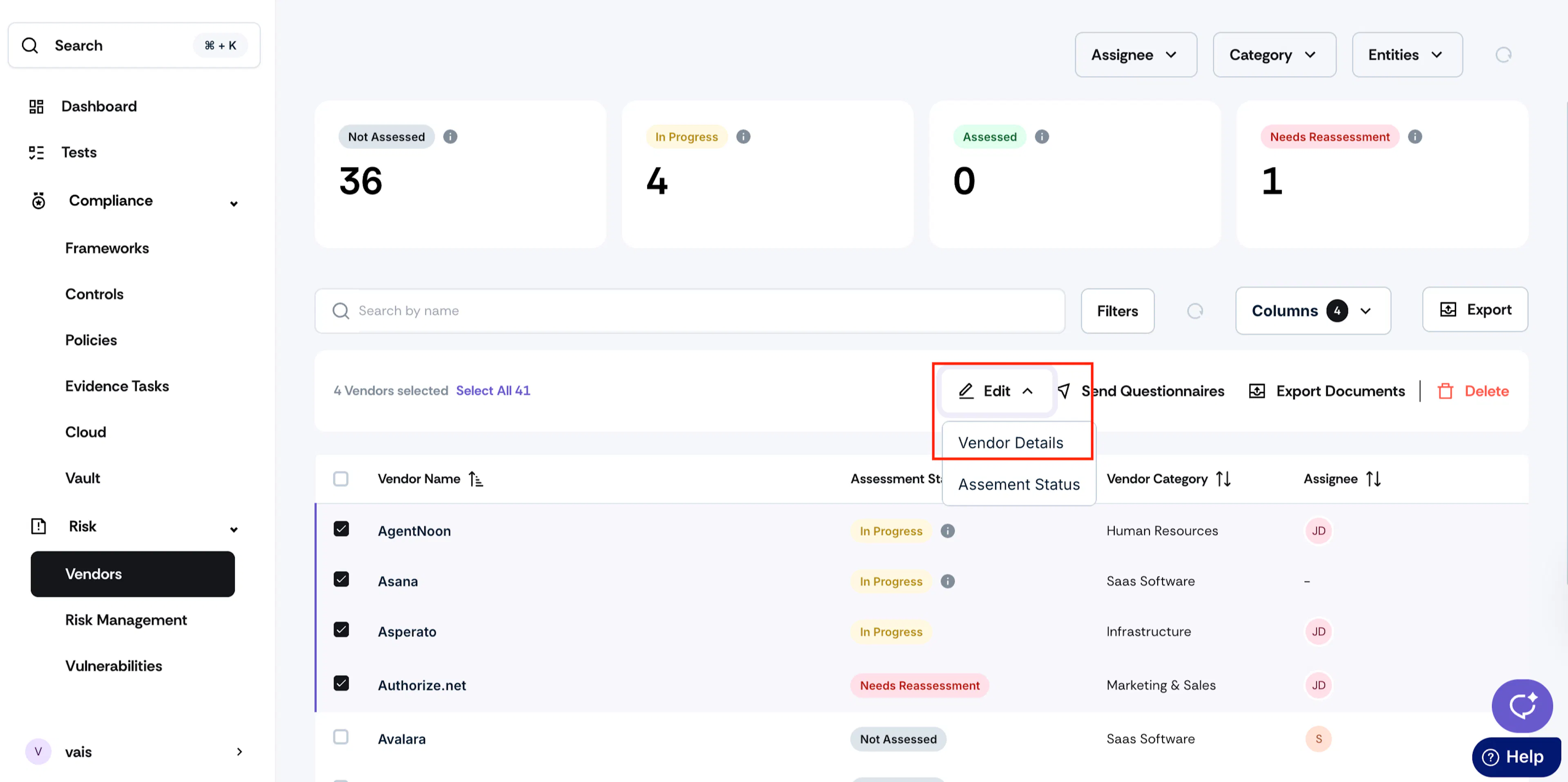
Click the Edit button and select Vendor Details.
-
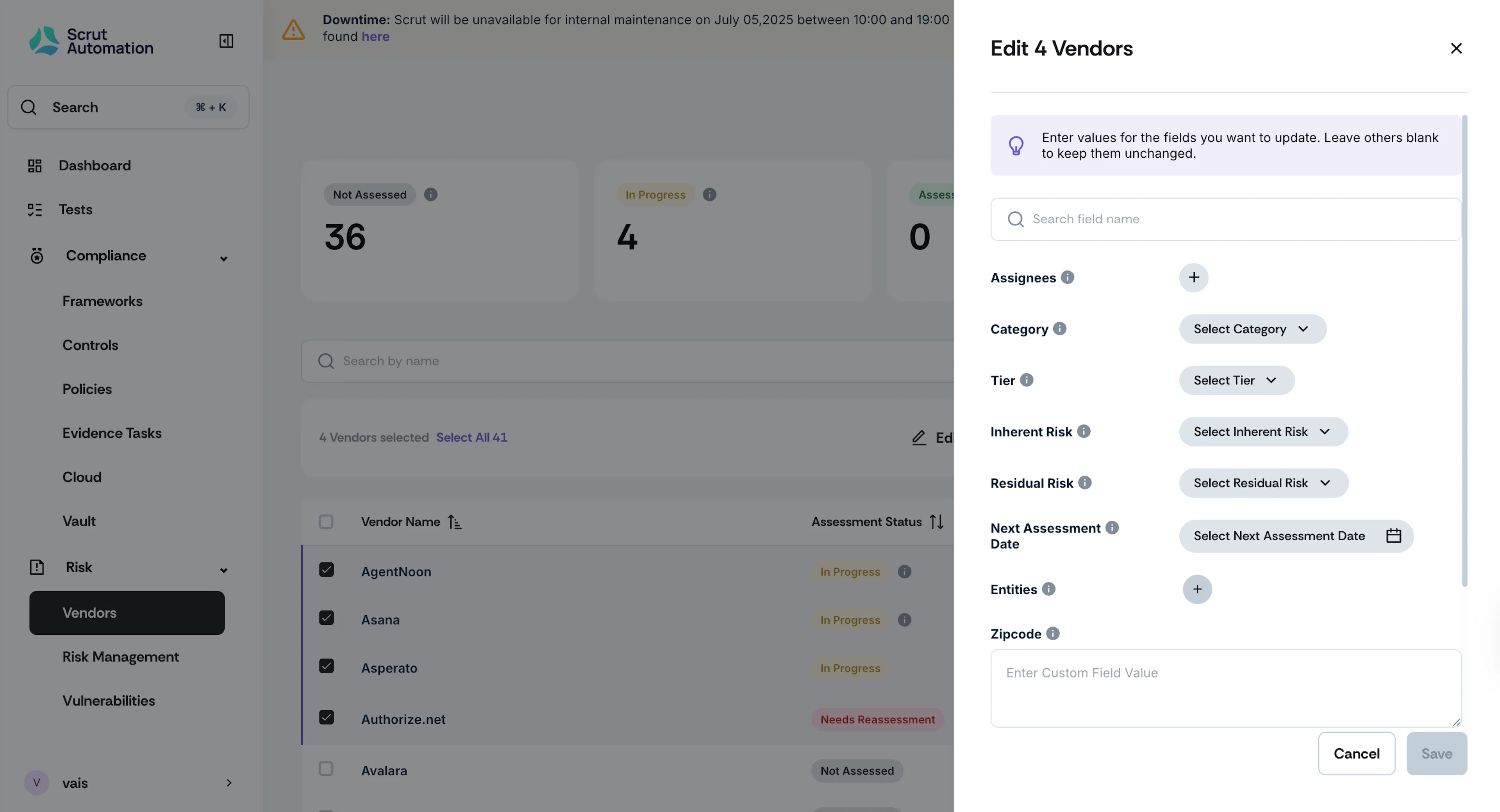
Use the sidebar to edit vendor details such as assignees, vendor category, tier, risks, assessment date, entities, and any other custom fields you’ve included.
Note:
If you don’t select a value for a particular field, then no updates will be made for that specific field. Existing details will remain unchanged for this field.
-
Make the necessary edits and click Save.