

Create a Vendor Questionnaire Manually
Who can use this feature
- Supported on Foundation, Growth, and Scale plans
Sending a questionnaire is a key step in actively assessing a vendor in Scrut. You can create the questionnaire manually using a template or let Scrut Teammates generate one based on the vendor's profile and your compliance requirements.
Before You Begin
Scrut sends the questionnaire to the vendor's Point of Contact (POC) via email. Make sure you've added a POC to the vendor's profile before sending. If you haven't, you can add one directly from the Send Questionnaire window.
How to Create and Send a Questionnaire
-
Navigate to Risk → Vendors on the left navigation panel.
-
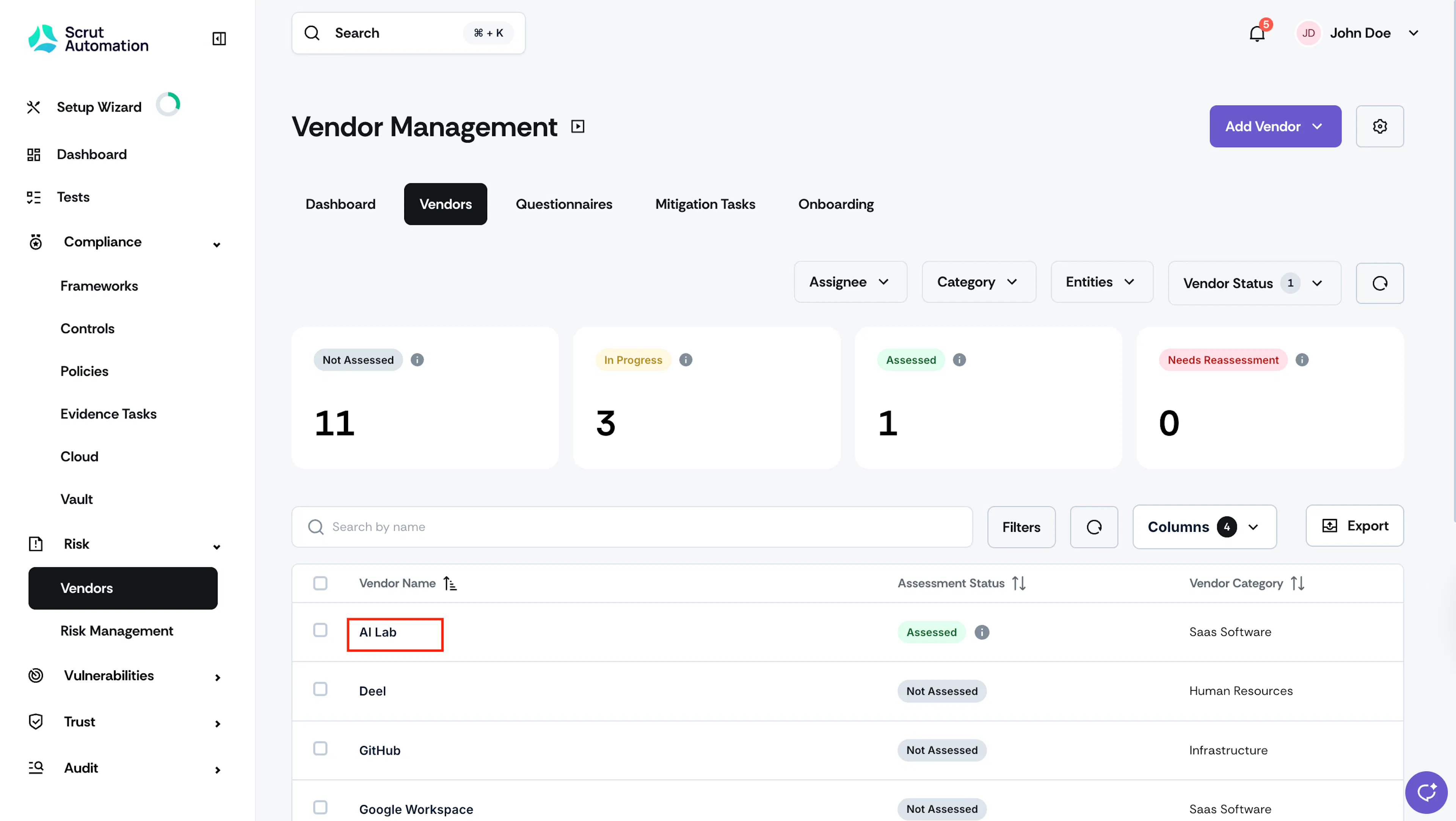
Go to the Vendors tab and click the vendor you want to assess.
-
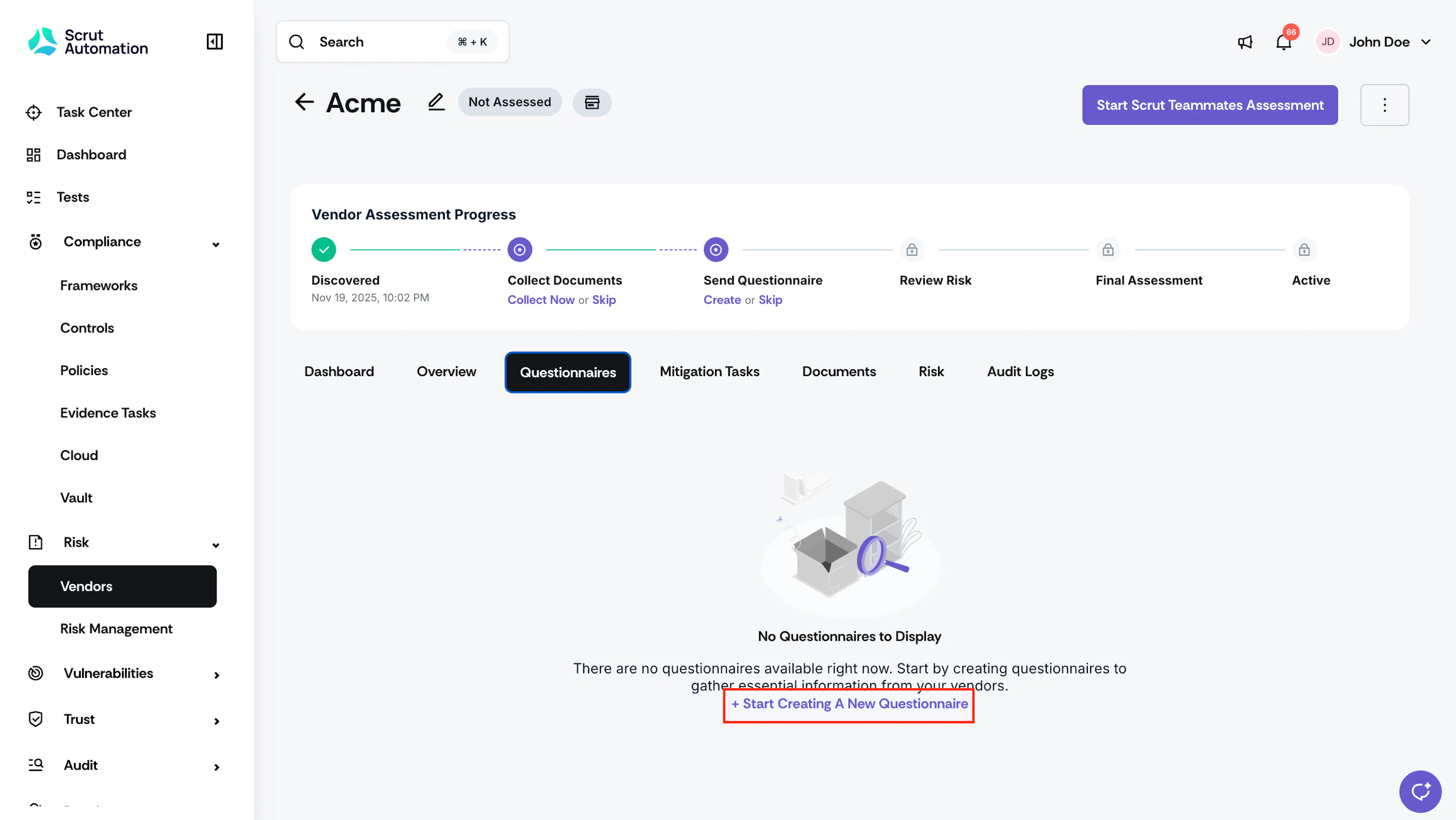
Go to the Questionnaires tab.
-
Click + Start Creating a New Questionnaire or Add Questionnaire (if you already have existing questionnaires for this vendor).
-
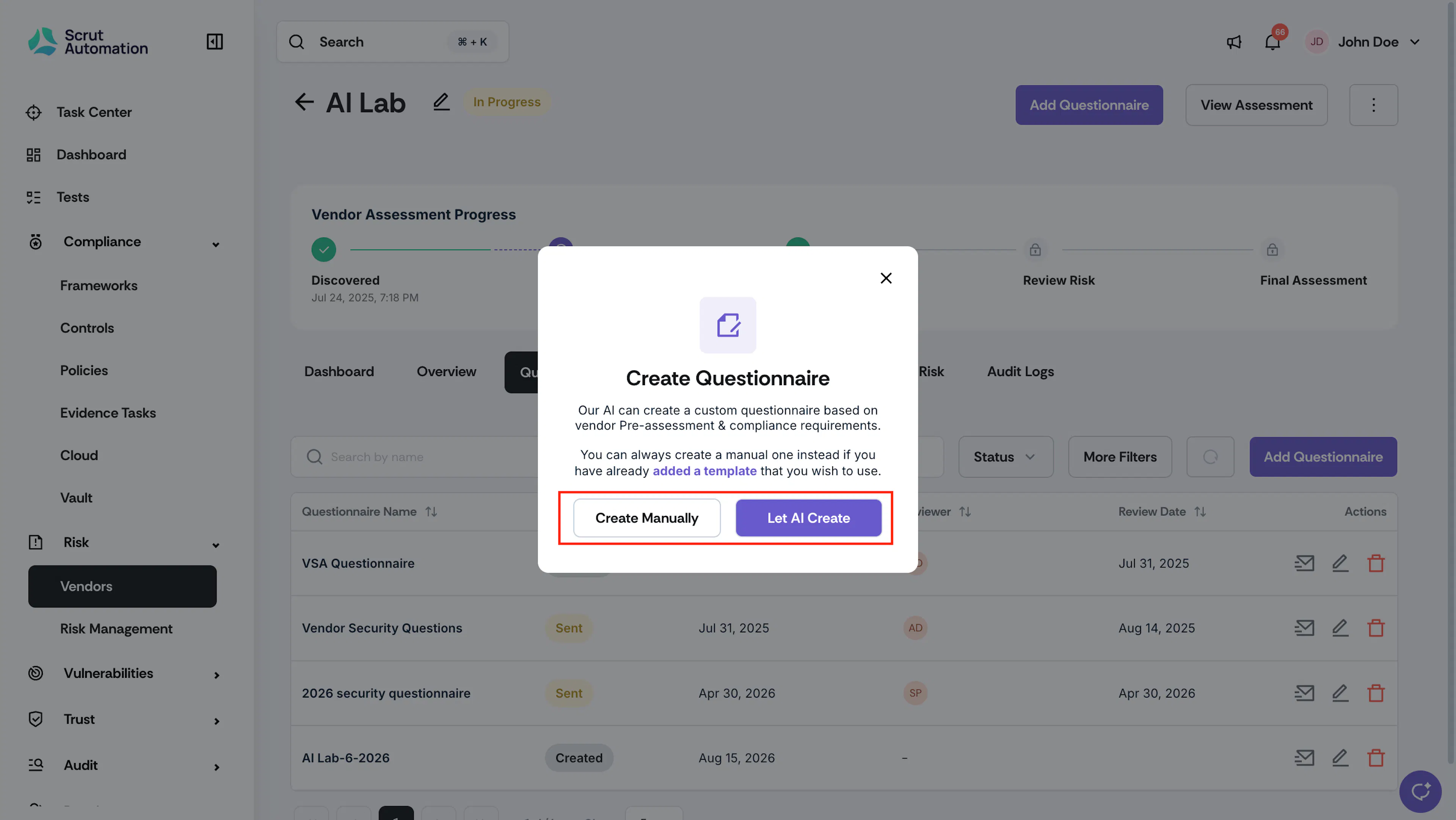
Choose how you want to create it.
-
Create Manually: Select Create Manually to build the questionnaire using a template from your organization's library or the default VSA template.
- Enter a name for the questionnaire.
- Set the Submission Deadline, the date by which the vendor POC must be submitted.
- Set the Review Date, the date by which the reviewer must complete the evaluation.
- Select a Reviewer from the dropdown. Scrut automatically notifies the reviewer about the assignment.
- From the Select a Questionnaire Type dropdown, choose a template from your organization's library, select VSA to use the default template, or select Custom to build a new template.
- Click Create Questionnaire & Continue.
-
Let AI Create: Select Let AI Create to have Scrut Teammates generate a tailored questionnaire based on the vendor's profile, data access, vendor type, and your compliance requirements. See Vendor Risk Assessment with Scrut Teammates for the full AI assessment workflow.
-
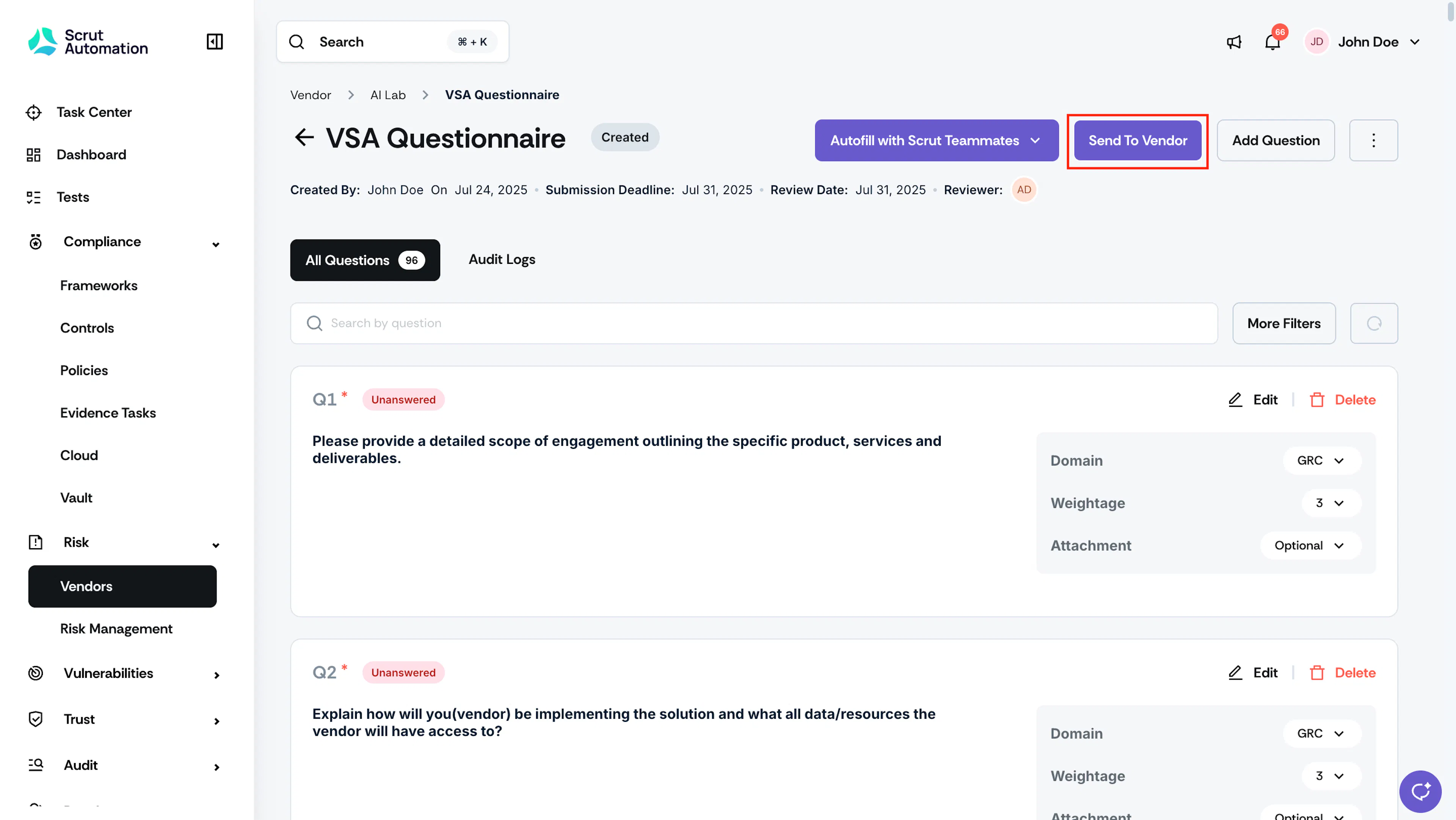
Once the questionnaire is ready, click Send to Vendor on the questionnaire page.
-
Alternatively, you can also send the questionnaire by clicking the email icon on the questionnaire table in the Vendors page.
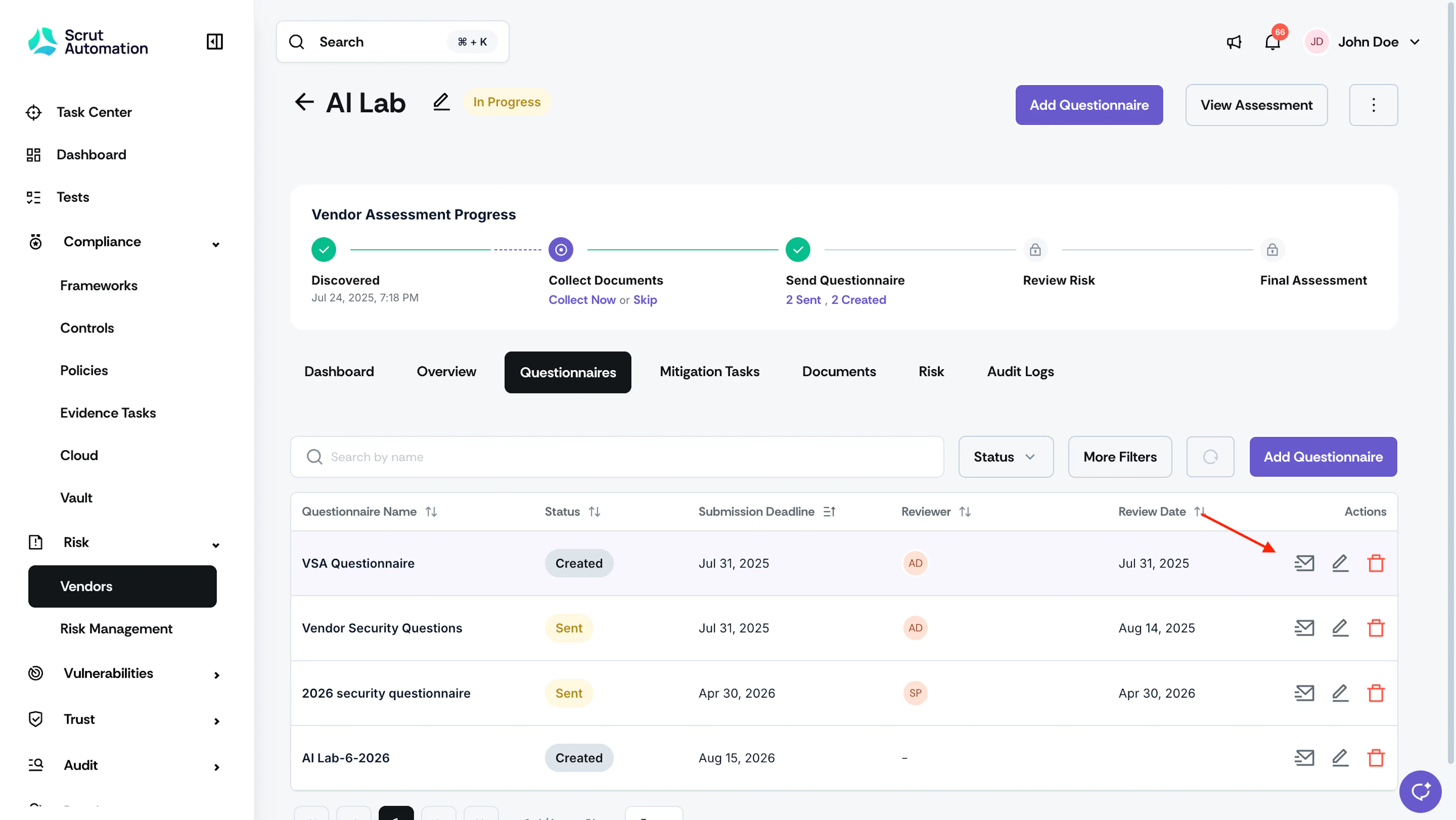
-
In the Send Questionnaire window, select the recipient from the Recipient Emails dropdown. If you haven't added a POC yet, click + Add POC to add one.
-
Review the prefilled Email Subject and Body. Edit the content if needed to match your requirements.
Note: The Email Body field supports Markdown formatting. Click Preview to see how the email will appear to the recipient before sending.
-
Click Send.
The questionnaire status changes to Sent. The vendor POC receives an email with a link to the Scrut Vendor Portal, where they can log in and complete the questionnaire.
Sending a Questionnaire to Multiple Vendors
-
Navigate to Risk → Vendors and go to the Vendors tab.
-
Select the vendors you want to assess.
-
Click Send Questionnaires.
Note: Scrut sends the questionnaire only to vendors with an assigned POC. Vendors without a POC will be skipped.
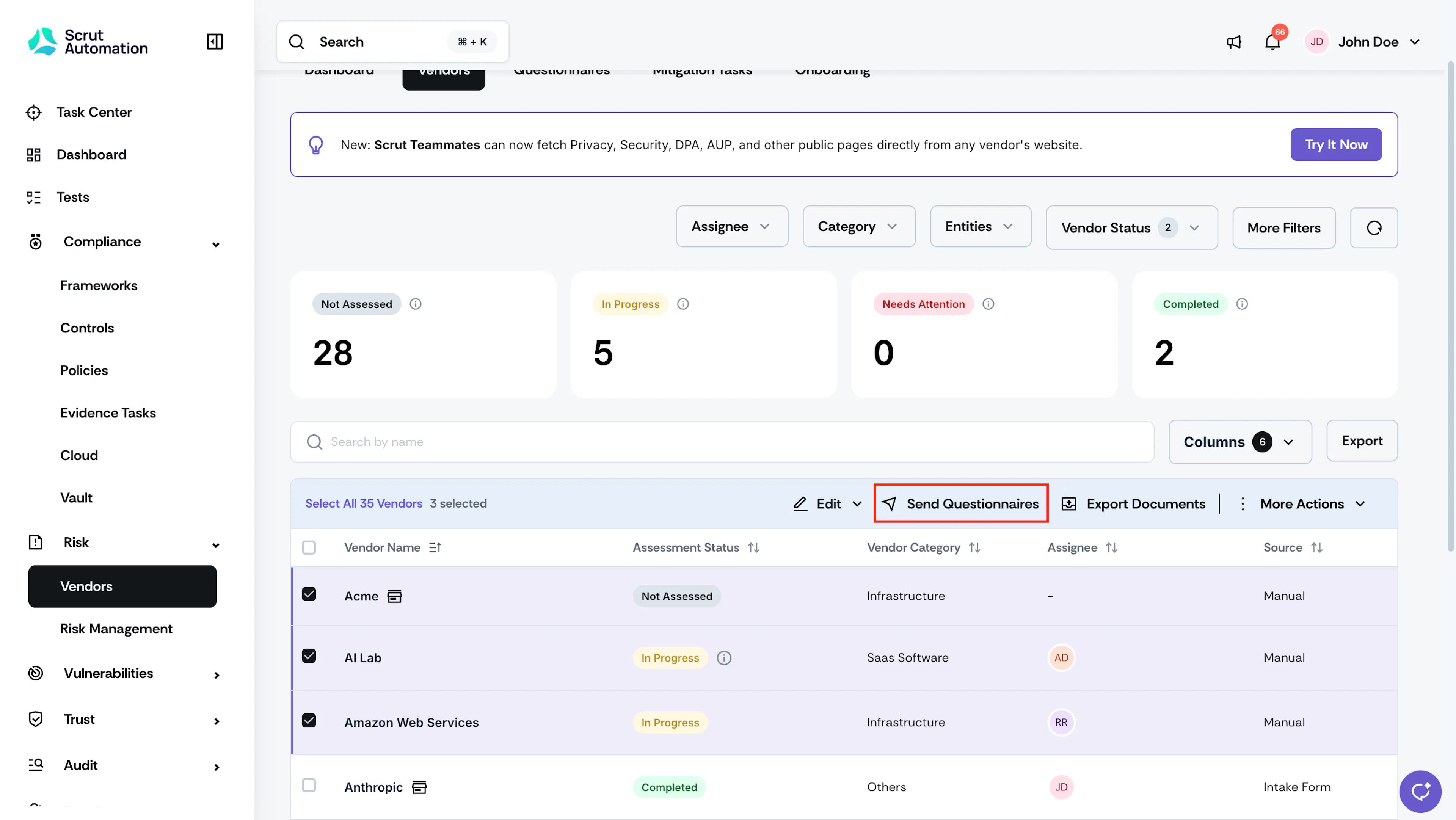
-
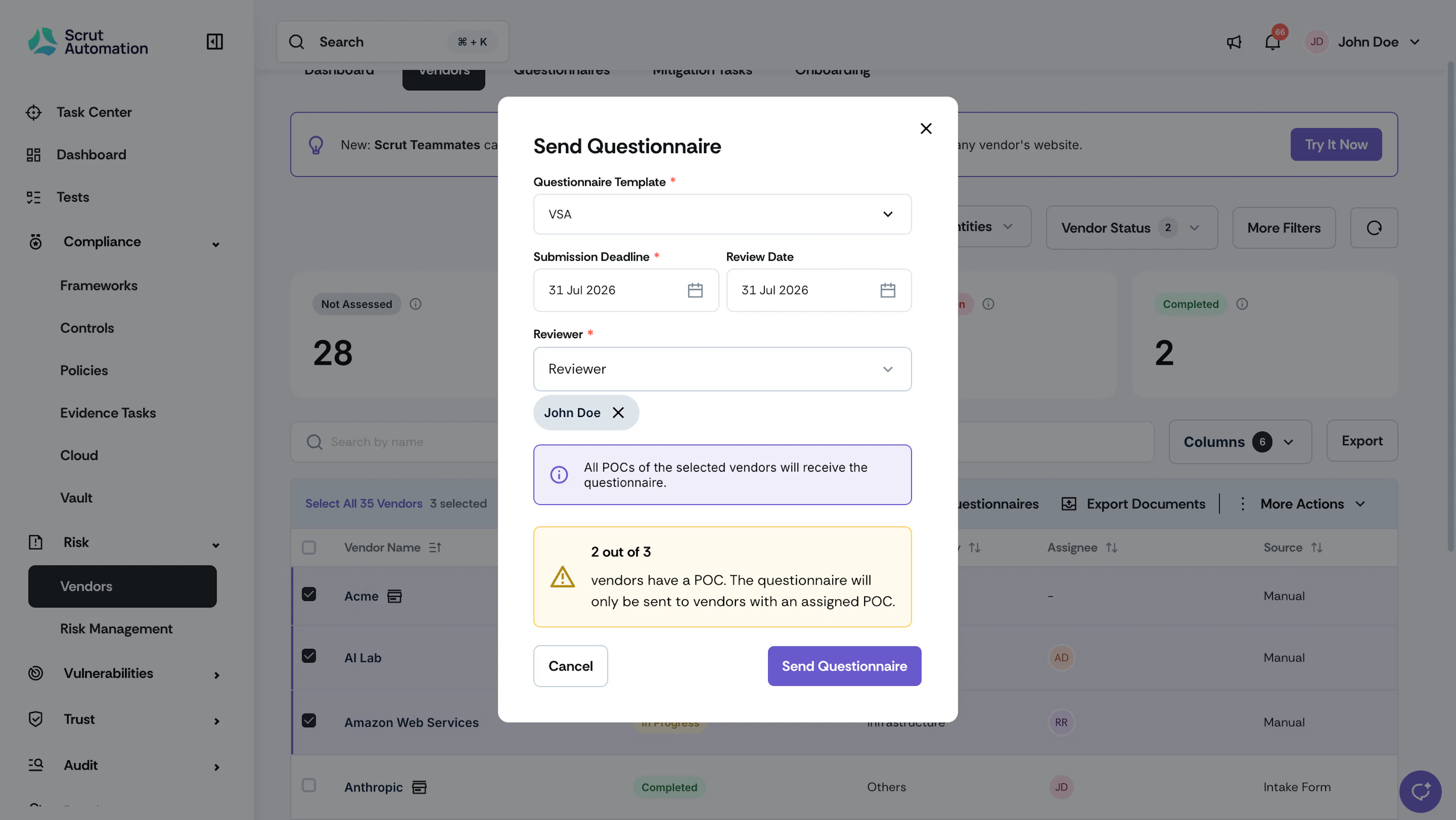
Select the Questionnaire Template and set the Submission Deadline and Review Date.
-
Select the Reviewer(s) who will evaluate the responses once the vendor submits.
-
Click Send Questionnaire.
Scrut emails the questionnaire to the POCs of all selected vendors.
What Happens Next?
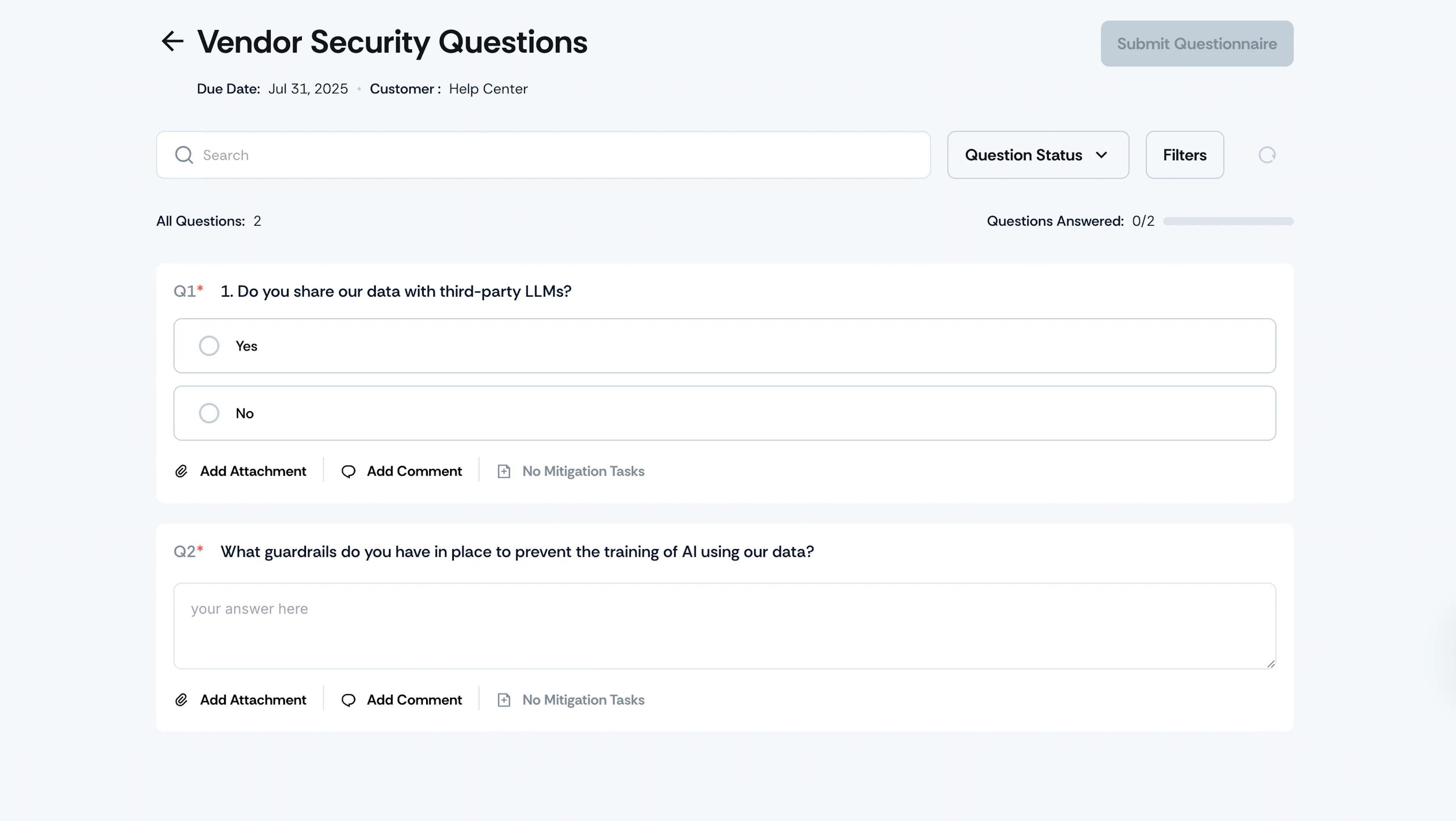
The Vendor Point of Contact (POC) will receive an email notifying them of the questionnaire.
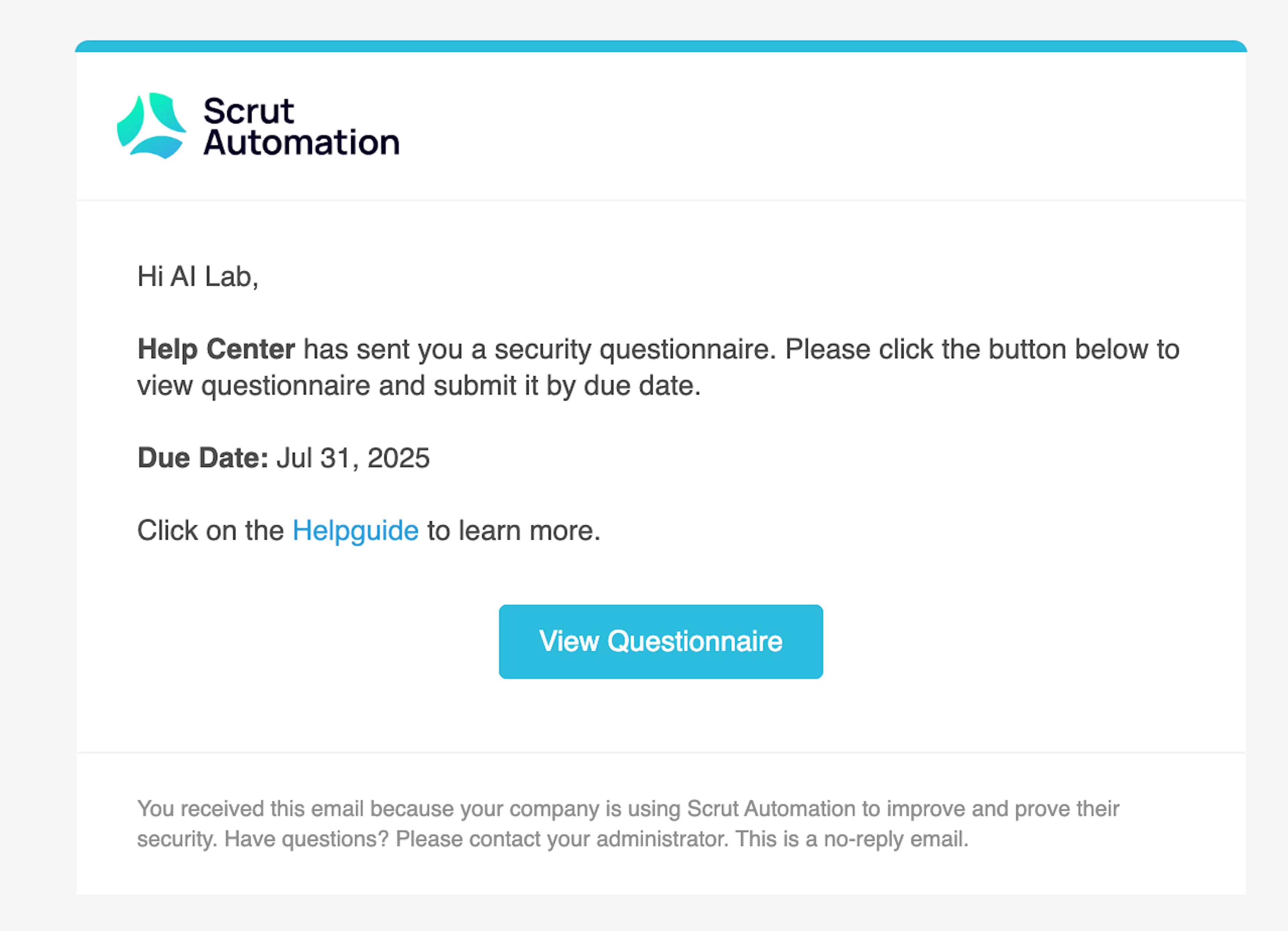
When they click the View Questionnaire button, they will be directed to the Scrut Vendor Portal. They can log in to the portal using their email address and complete the questionnaire.
FAQs
Reach out to support@scrut.io or contact your CSM for further assistance.