Track Vendor Assessment Progress
Who can use this feature
- Supported on Foundation, Growth, and Scale plans
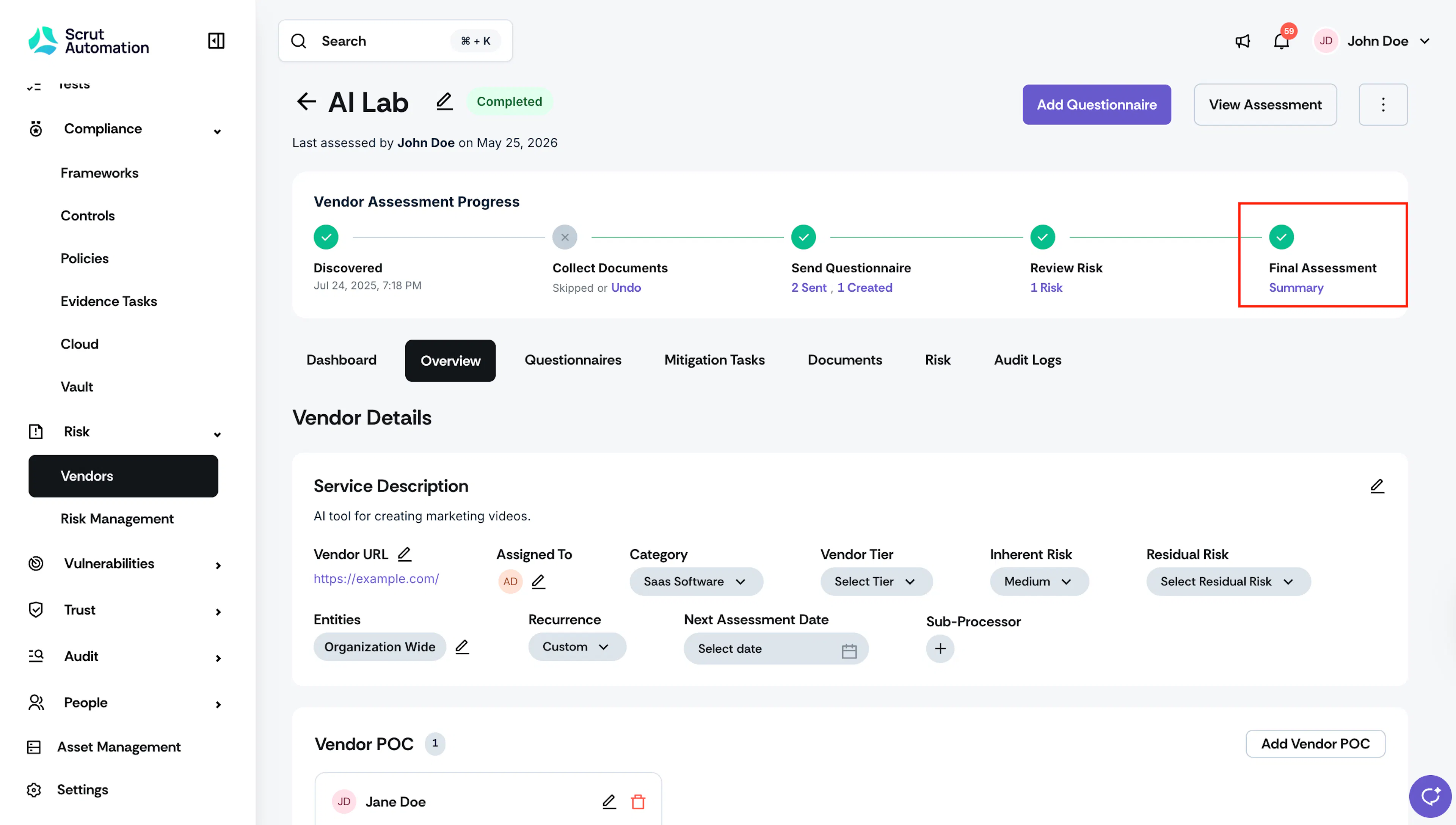
The Vendor Assessment Progress timeline provides a structured view of where each vendor stands in your assessment workflow. It appears at the top of every vendor's detail page and guides you through five sequential steps, from initial discovery to final assessment sign-off.

Vendor Assessment Steps
Each step builds on the previous one, and the timeline shows you what's completed, what's in progress, and what comes next.
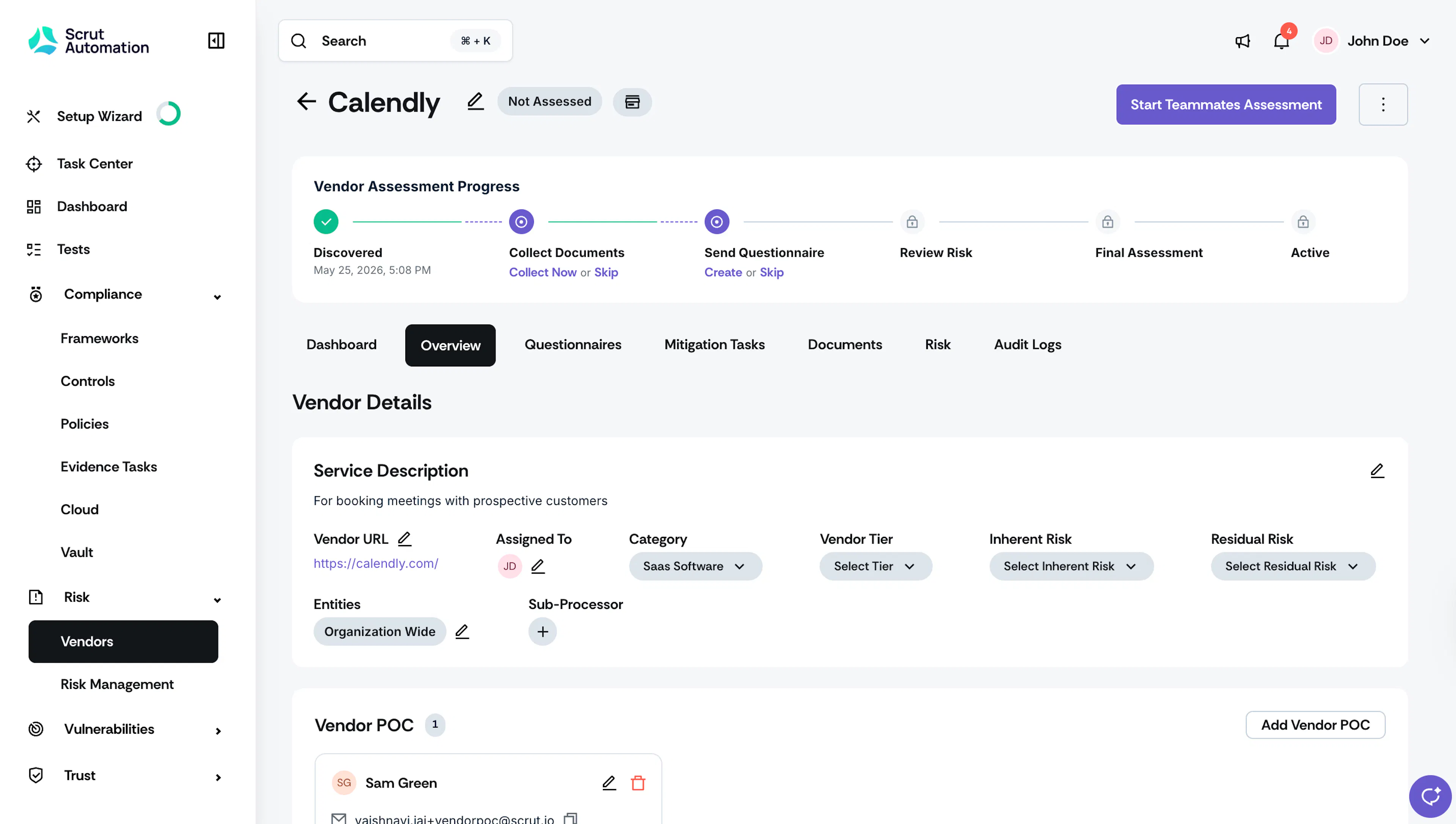
Discovered
This step is completed automatically when a vendor is added to Scrut, either manually, through an integration, or via the Vendor Intake Form. No action is required from you. Navigate to Risk → Vendors and open a vendor to view the assessment timeline on the vendor details page.
Collect Documents
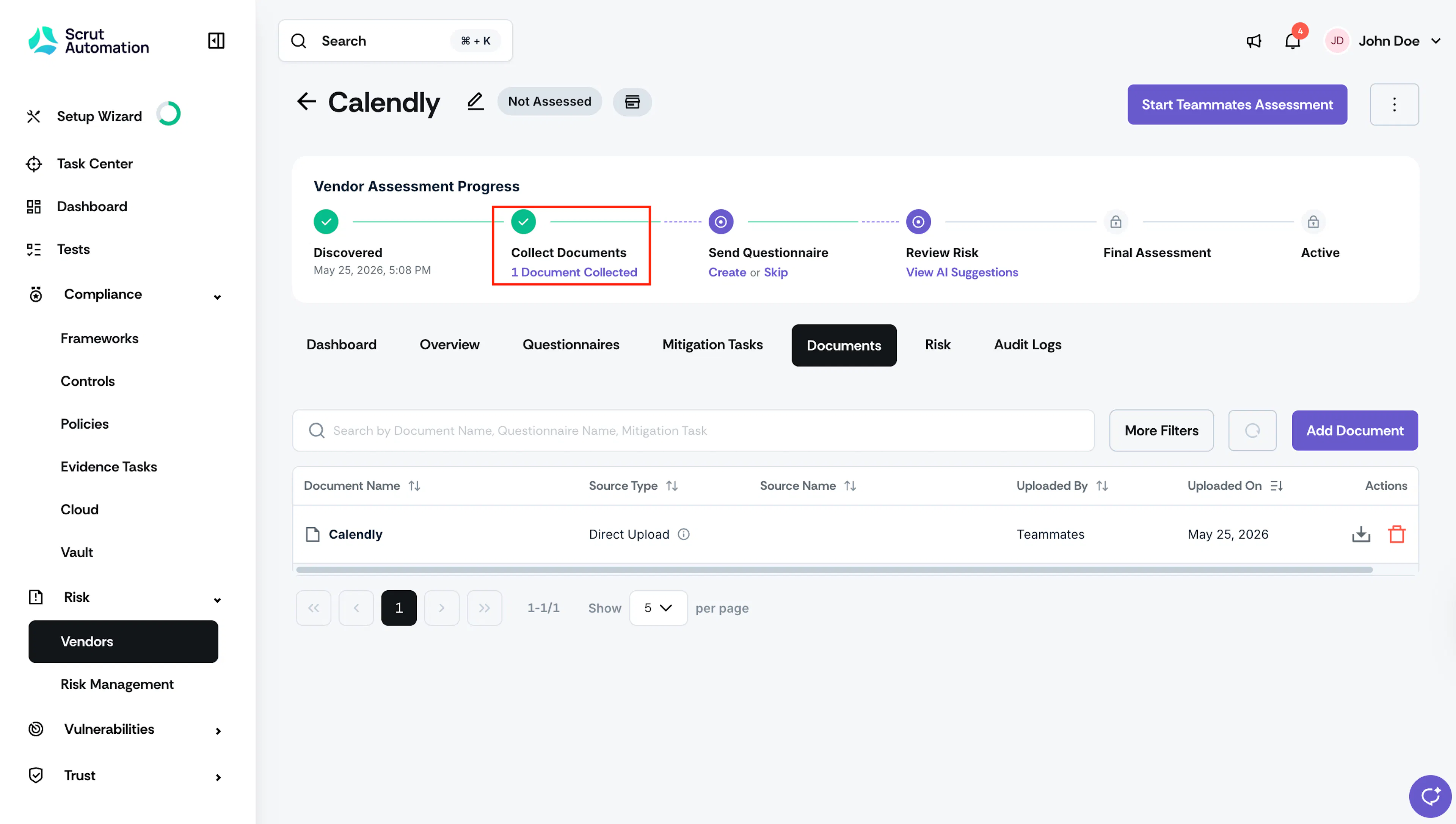
Gather the documentation you need to evaluate the vendor's security and compliance posture. You can collect documents in two ways:
- Upload documents manually to the Documents tab.
- Use Scrut Teammates to auto-fetch publicly available documents, such as the Consensus Assessments Initiative Questionnaire (CAIQ), and discover links to the vendor's public security and privacy pages, such as their Trust Center or Security page.
This step can be skipped if you don't need to collect documents before proceeding.
Send Questionnaire
Send the vendor a questionnaire to collect responses relevant to your assessment. From this step, you can create a new questionnaire, send an existing one, or use Scrut Teammates to autofill questionnaire responses where applicable.
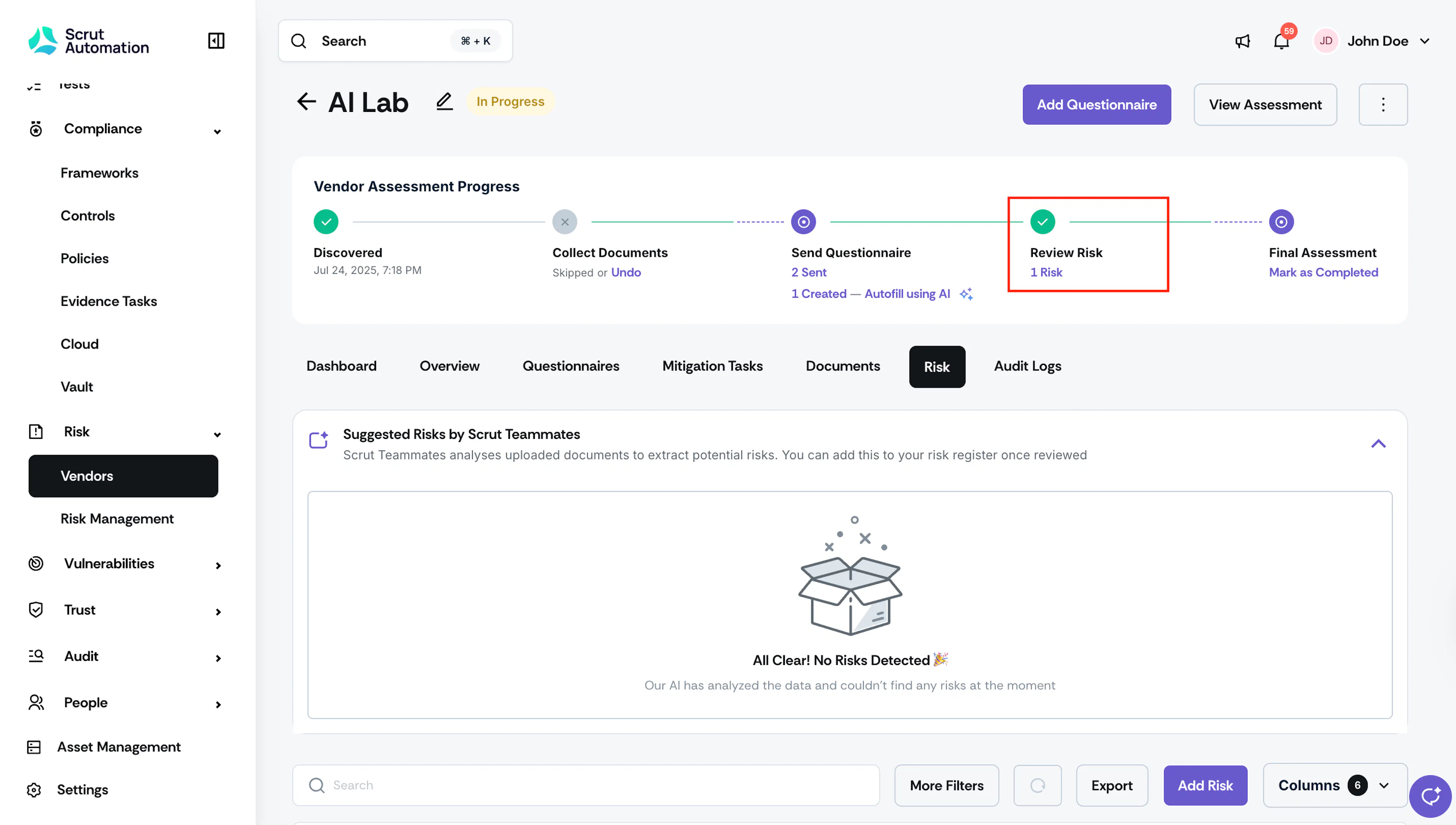
The step shows the current status of your questionnaires (for example, "3 Sent, 2 Created") so you always know where things stand without switching tabs. This step can also be skipped if questionnaires aren't part of your assessment process for this vendor.
Review Risk
Review the risks and mitigation tasks identified during your assessment. From this step, you can navigate to the Risk tab to add risks manually or review AI-suggested risks.
Pro Tip!
The Review Risk step unlocks as soon as either Collect Documents or Send Questionnaire is complete or skipped. You don't need to finish both before you can start reviewing risks.
The step is marked complete when at least one risk or one mitigation task exists for the vendor. Unlike the document and questionnaire steps, Review Risk cannot be skipped.
What you'll see on the Review Risk step depends on the current state of your assessment:
- If risks and mitigation tasks exist, the step shows the count of each (for example, "4 Risks | 3 Mitigation Tasks").
- If no risks have been added yet, an Add Risks link appears, letting you navigate to the Risk tab.
- If Scrut Teammates ran but found no risks and no mitigation tasks exist, you'll see an Add Risks link. You can still mark the vendor as Assessed at this point, and the step will reflect "No risks added" once the assessment is complete.
Final Assessment
This is where you confirm that the vendor's assessment is complete. Marking a vendor as Assessed is always a manual action taken at this step.
Heads Up!
Vendors are not automatically marked as Assessed when questionnaires are accepted or submitted. You need to manually mark a vendor as assessed to complete this step.