Create a System Description
Who can use this feature
- Supported on Foundation, Growth, and Scale plans
- Only available to accounts with the SOC 2 framework added
A System Description is a required component of your SOC 2 attested report. In Scrut, you can:
- Use Scrut Teammates to generate a System Description with AI assistance, drawing on your organization’s information already available in Scrut.
- Upload an existing System Description document, if you have one, and then review and approve it before it's included in your audit package.
What Is a System Description?
A System Description outlines the scope of your SOC 2 report, covering your infrastructure, people, and processes. It’s a formal document that explains how your organization's systems work, what services they provide, and how you secure them. It covers your infrastructure, system boundaries, security controls, and customer commitments.
It provides auditors with a clear picture of your organization's boundaries, infrastructure, and controls for your SOC 2 attestation. Auditors use it as the foundation for your SOC 2 report, and it's shared externally as part of your attested report.
Create a System Description
Heads Up!
Each audit supports only one System Description. If the audit you want already has one, even an In Progress draft, you cannot generate a new one.
- Sign in to Scrut and navigate to Frameworks → SOC2 Framework → System Description.
- Choose one of the two methods below to continue.
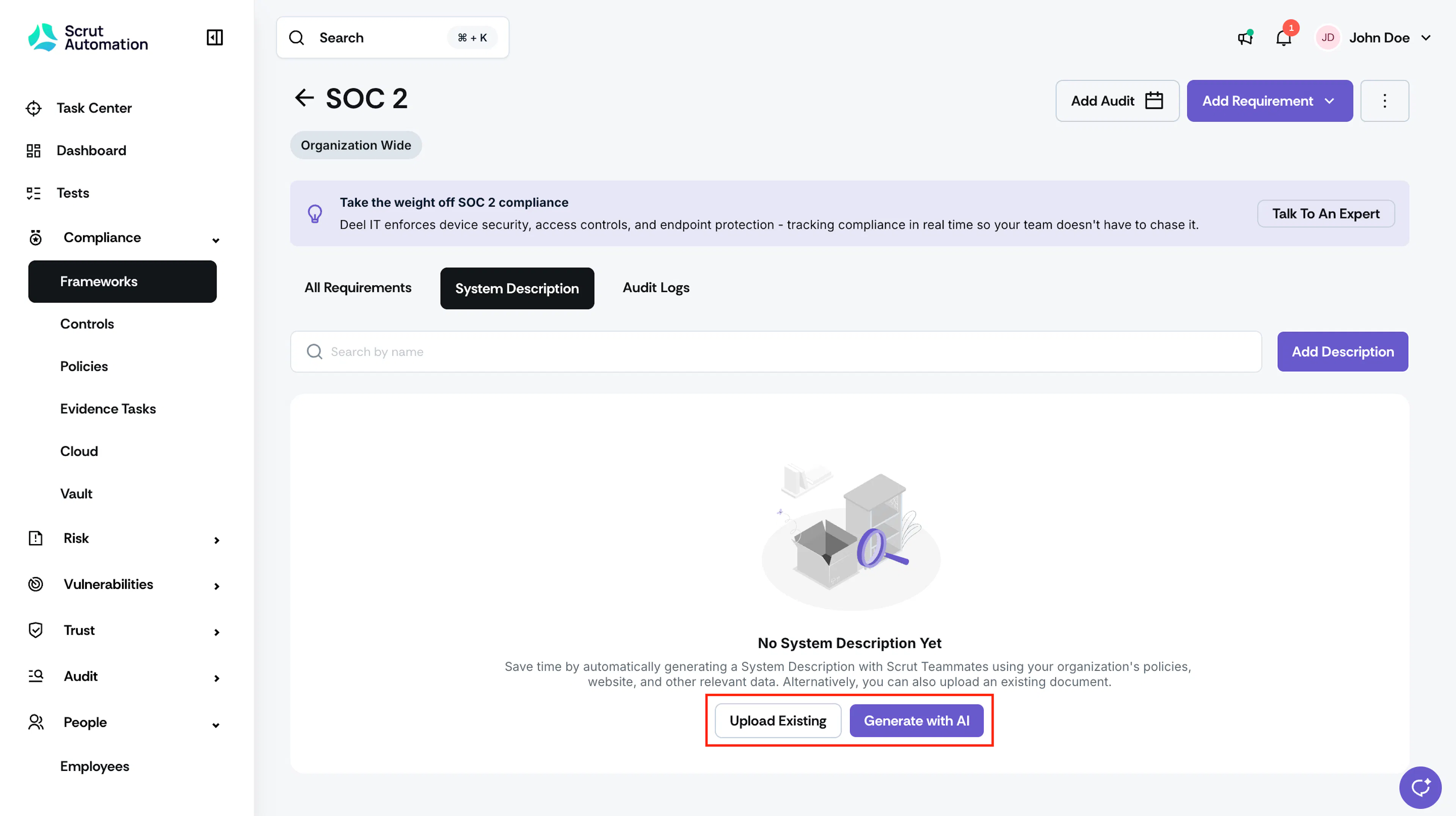
Generate with AI
-
Select Generate with AI.
-
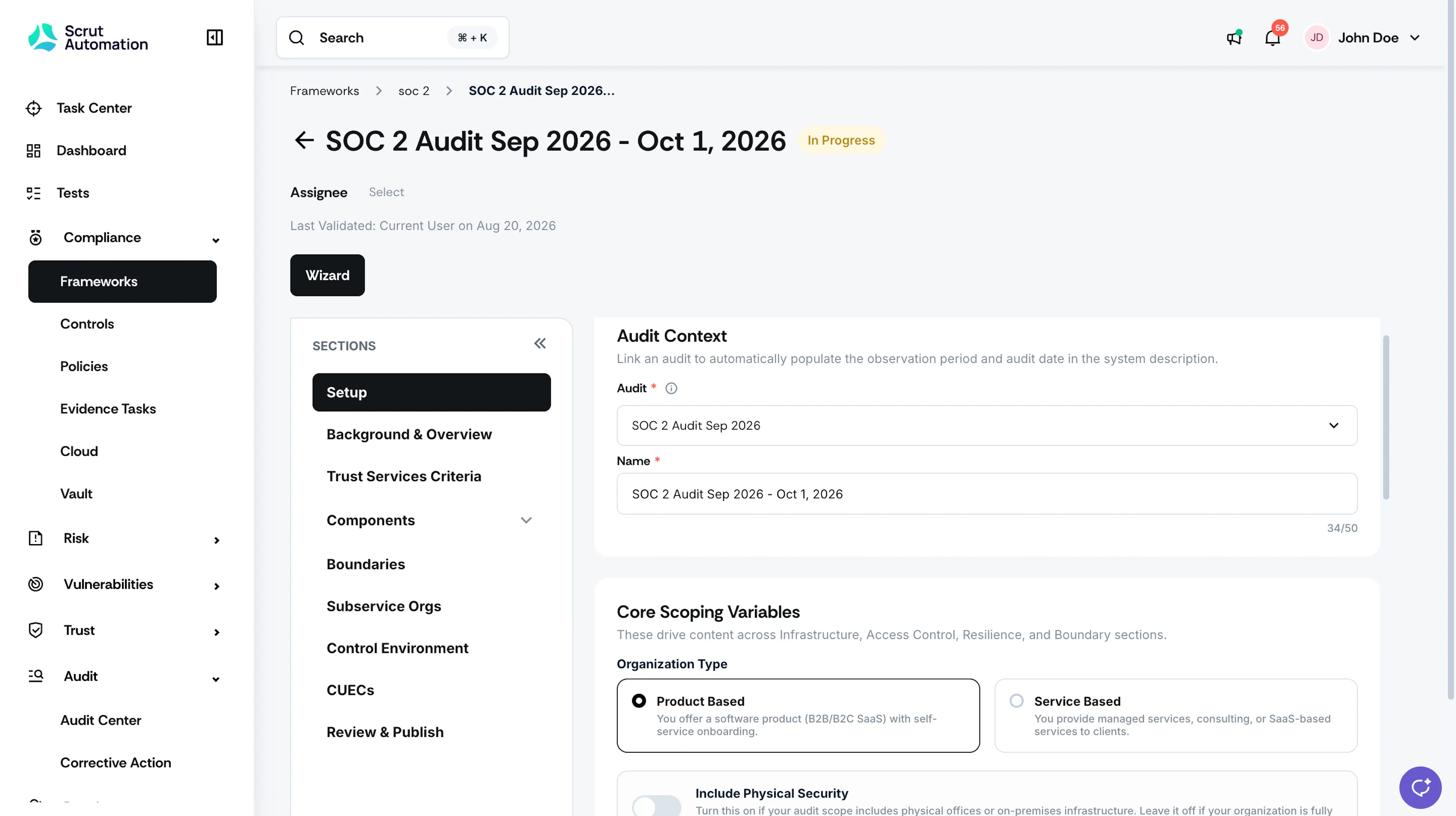
In the Setup section, fill in the required fields covering your audit context, organization type, trust services criteria, and company details.
-
Click Generate with AI.
-
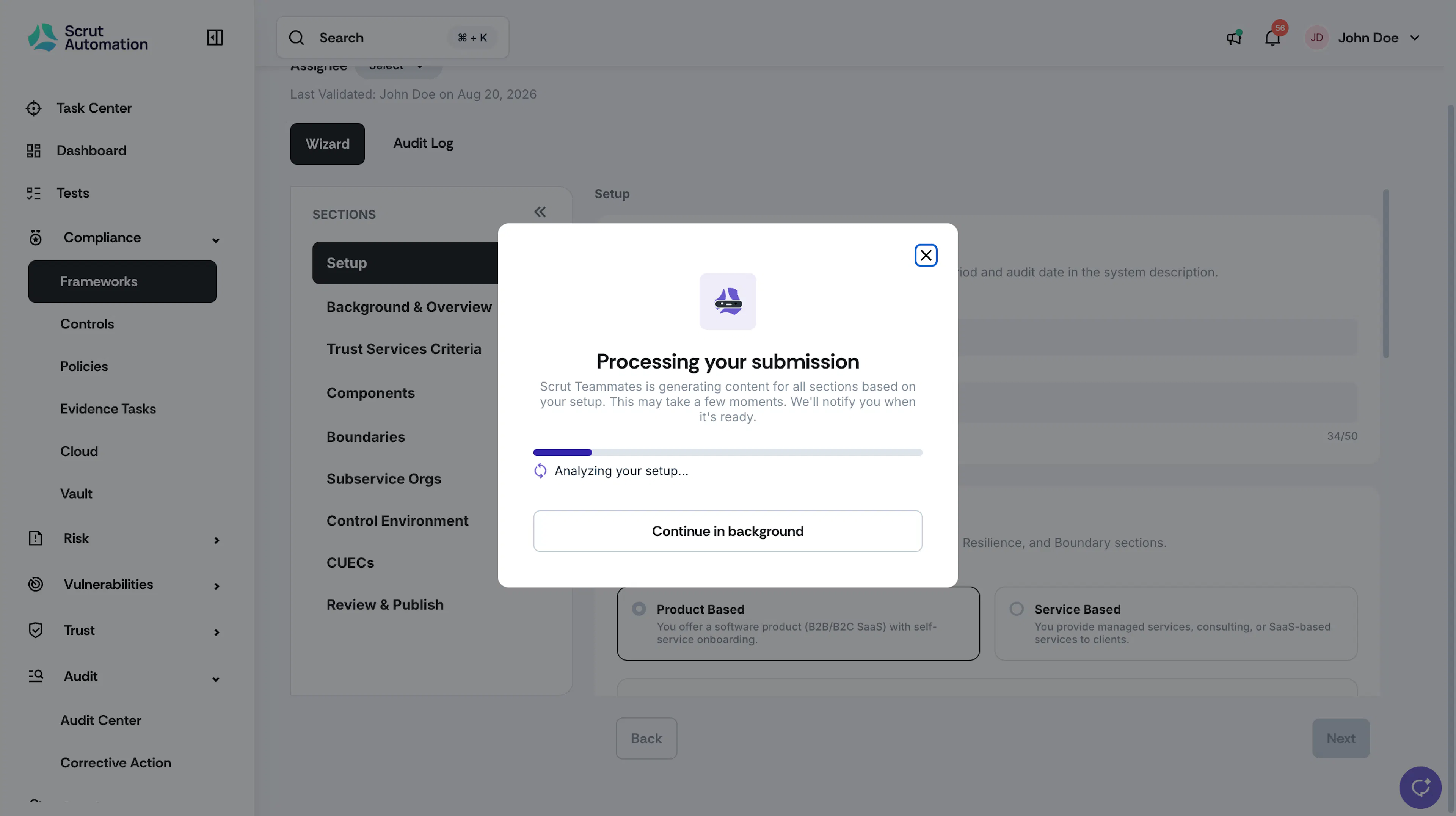
It takes a few minutes for Scrut Teammates to process your information and generate the draft.
-
You can safely leave this page and return later.
-
Once the draft is ready, review each section.
-
Scrut automatically populates them using your Setup inputs along with other organization data already available in Scrut.
-
Review the auto-populated content in each section and edit it as needed.
Note: Every field is fully editable. Use the edit control on any section to overwrite the AI-generated content with your own.
-
Complete each section and move to the next. If you exit the wizard before finishing, the system automatically saves your progress.
-
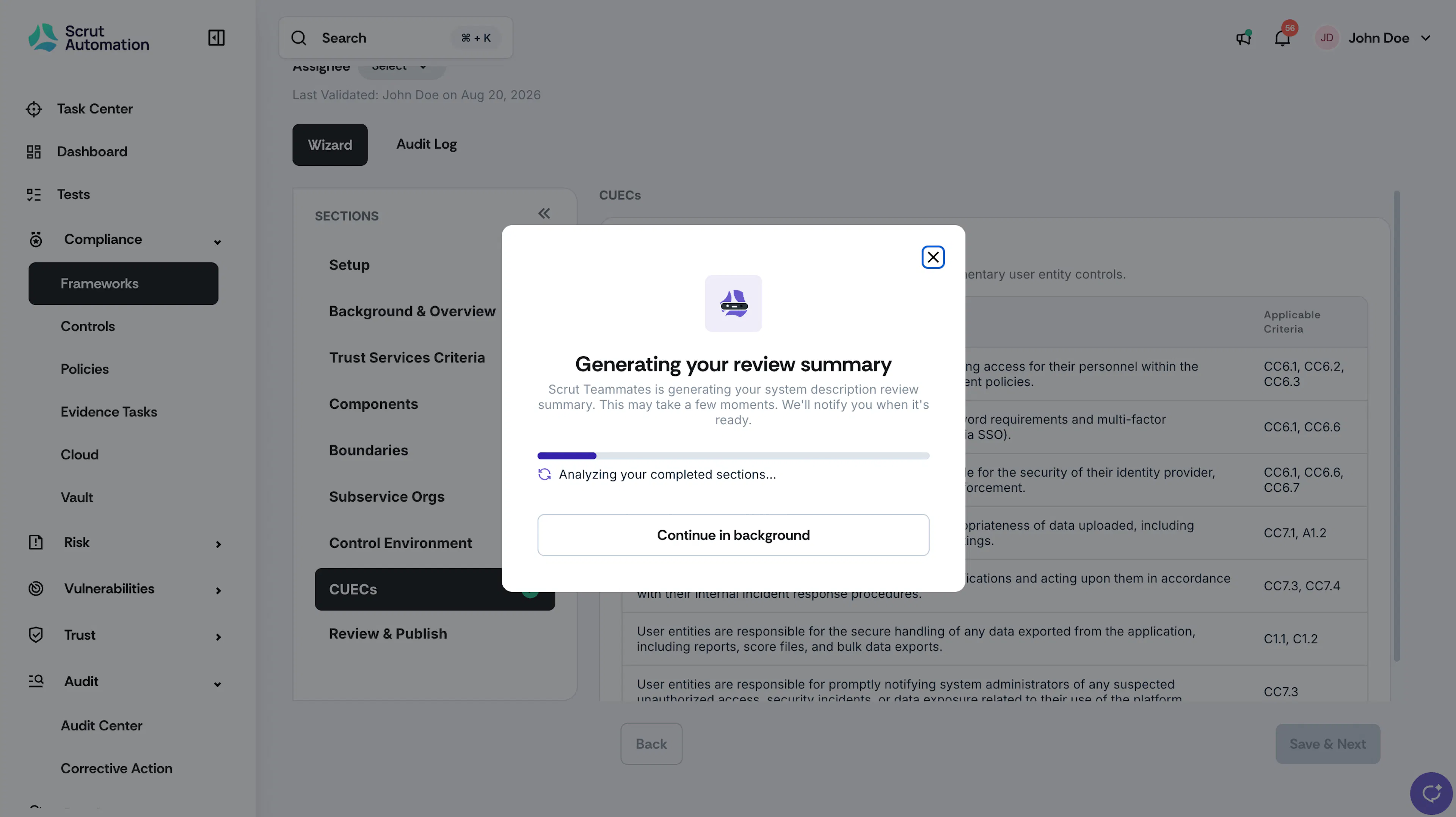
On the final step, it takes a few moments for Scrut Teammates to generate the review summary. You can leave this page and return later.
-
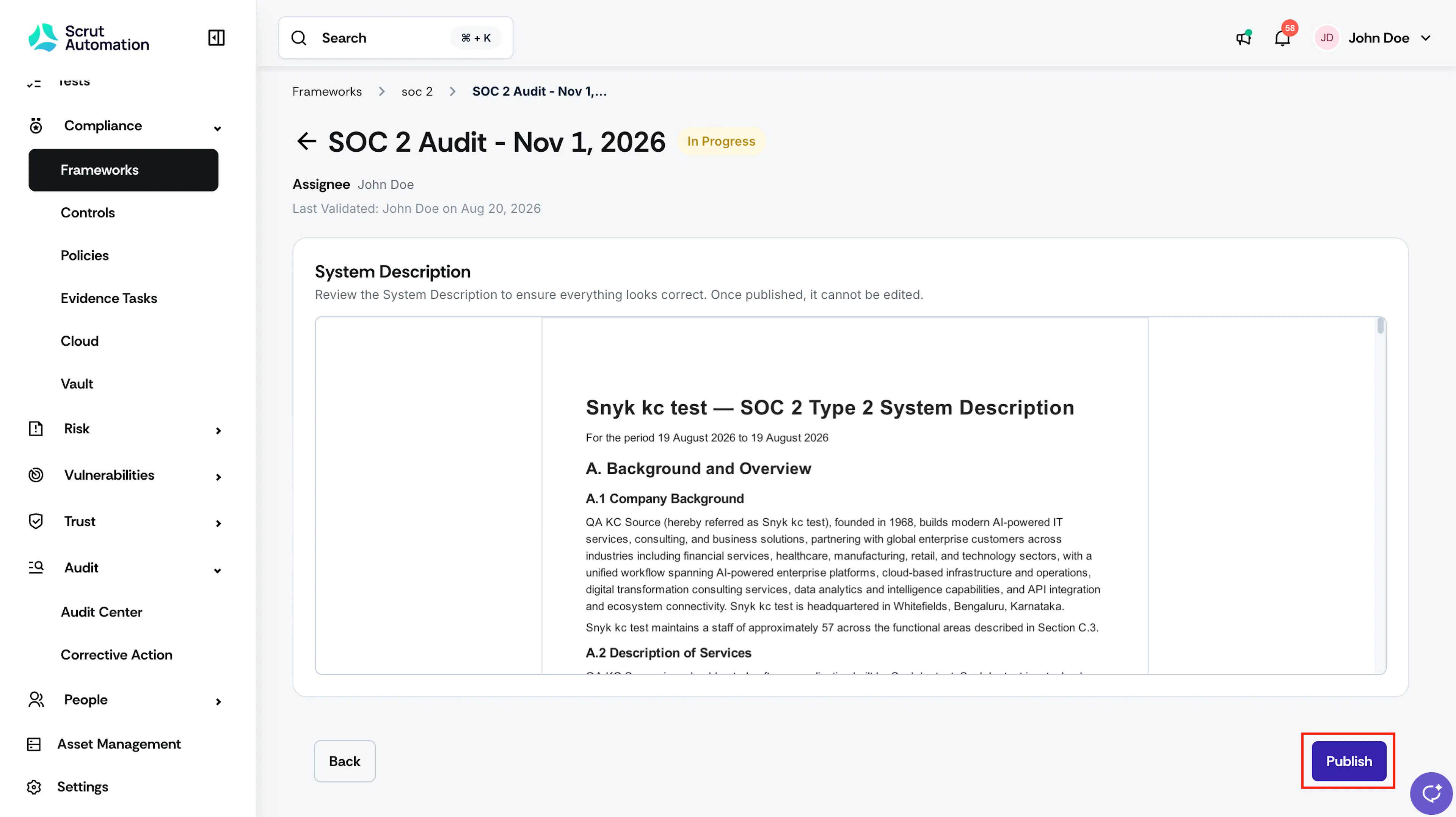
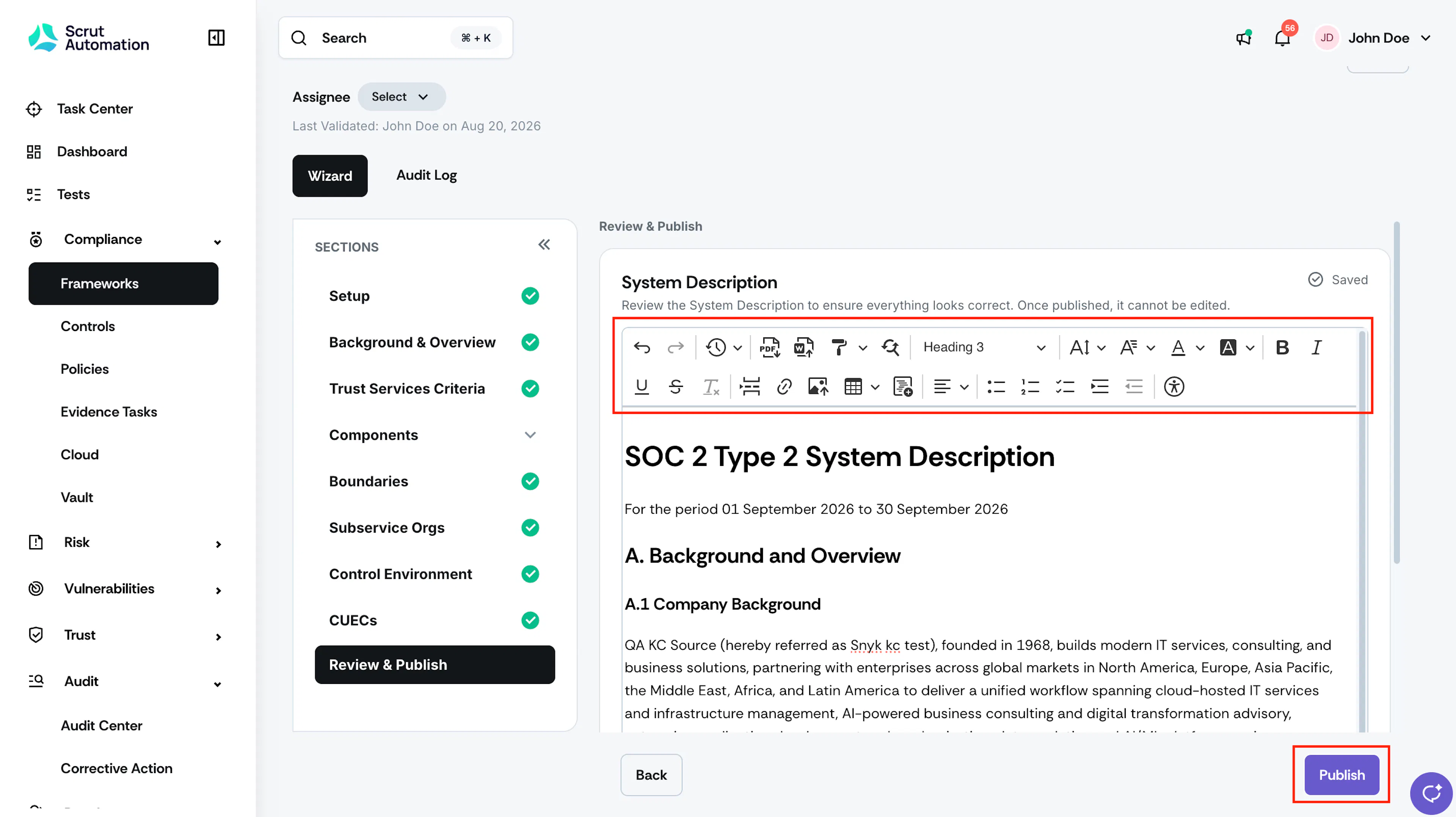
In the Review & Publish section, use the toolbar to make any needed formatting changes, such as headings, bold or italic text, lists, tables, images, etc.
-
Once done, click Publish to finalize the document.
-
Once published, the System Description is included in the audit package for that audit. If you publish a document more than once, only the most recent published version is included.
Upload an Existing One
-
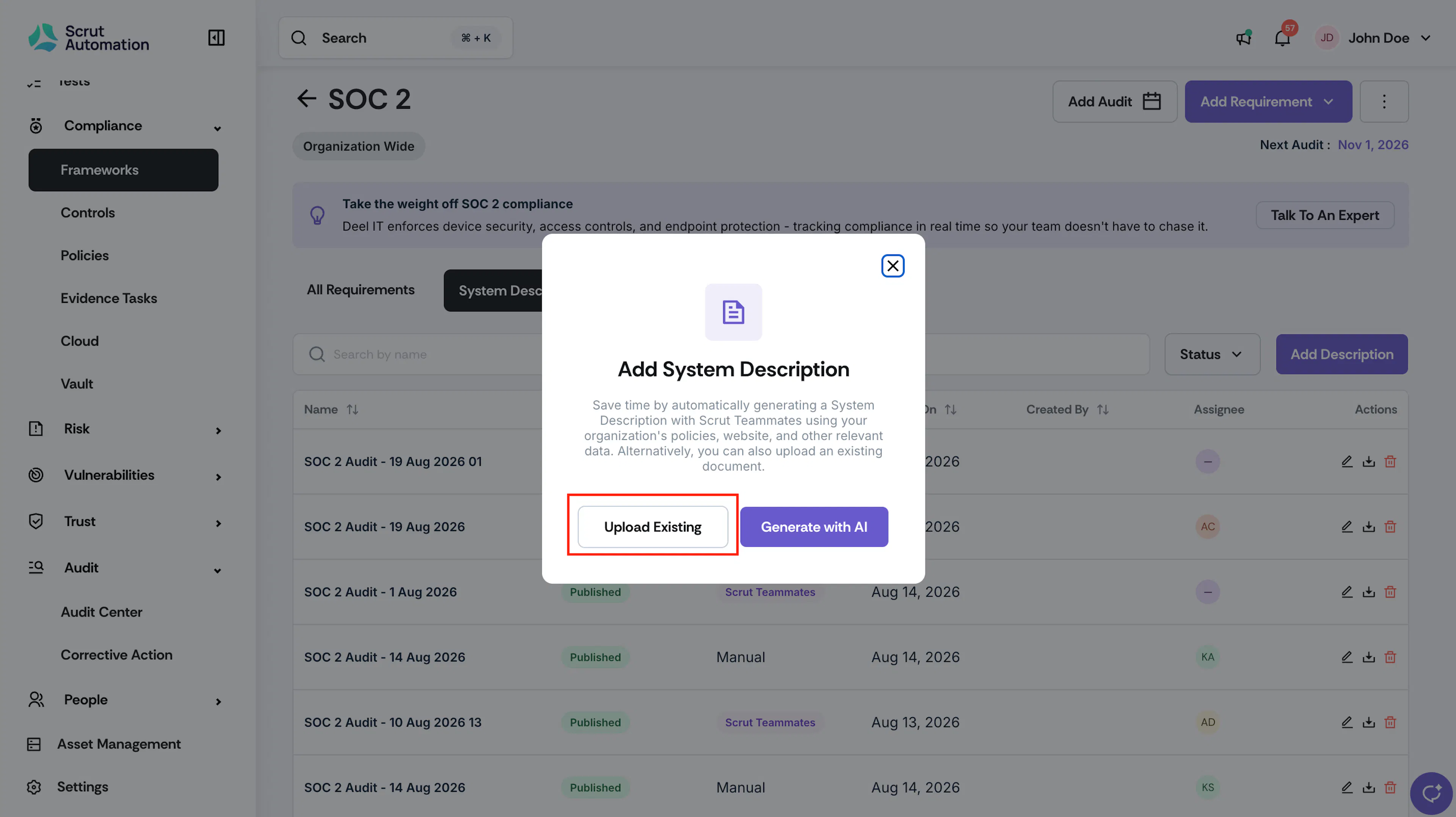
Select Upload Existing.
-
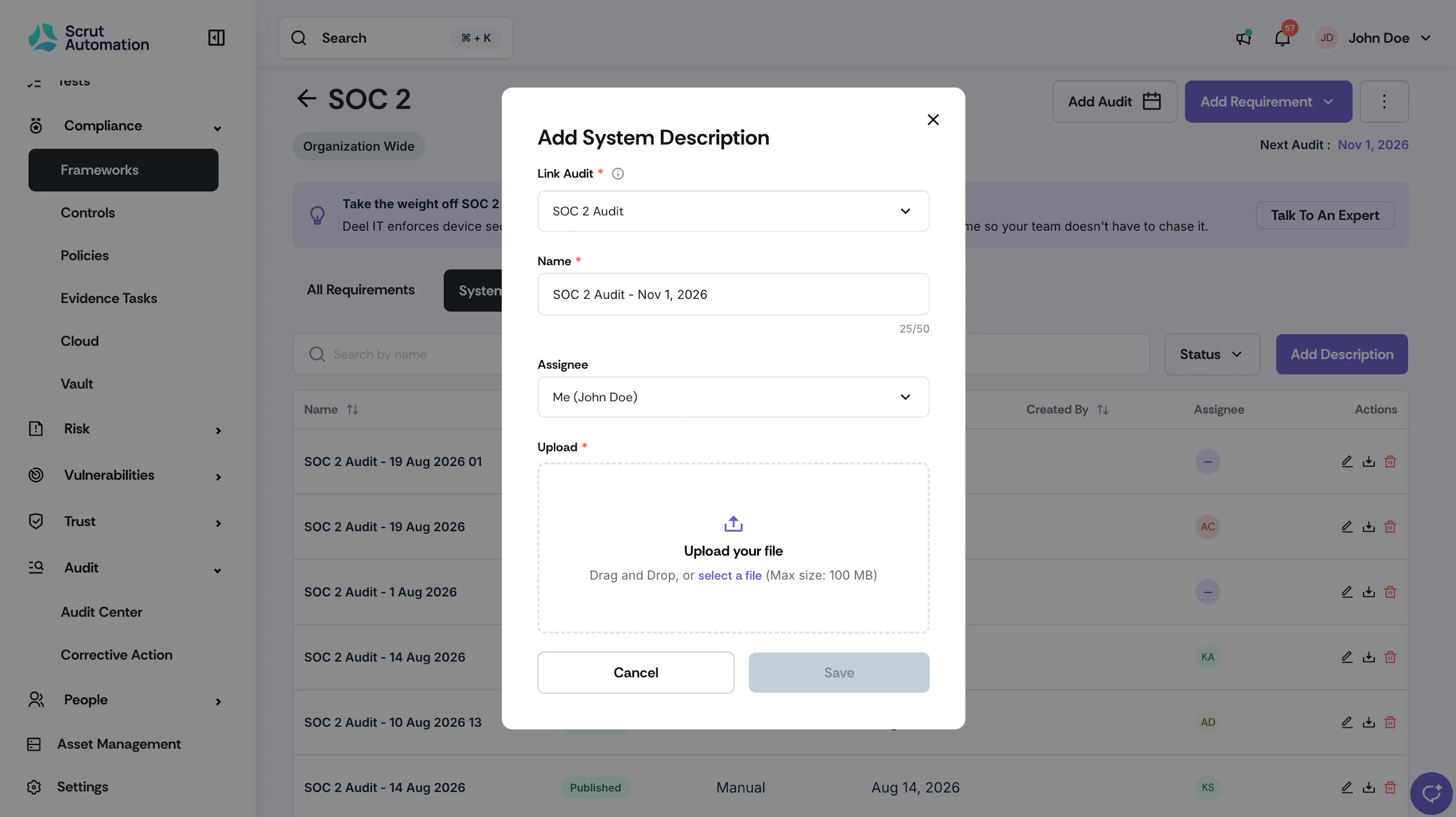
Upload your file and select the corresponding audit.
-
Choose an assignee.
-
Click Publish to include it in the audit package.