Quick Start Guide: Scrut Agent
Once installed, you can perform the following actions on the Scrut Agent.
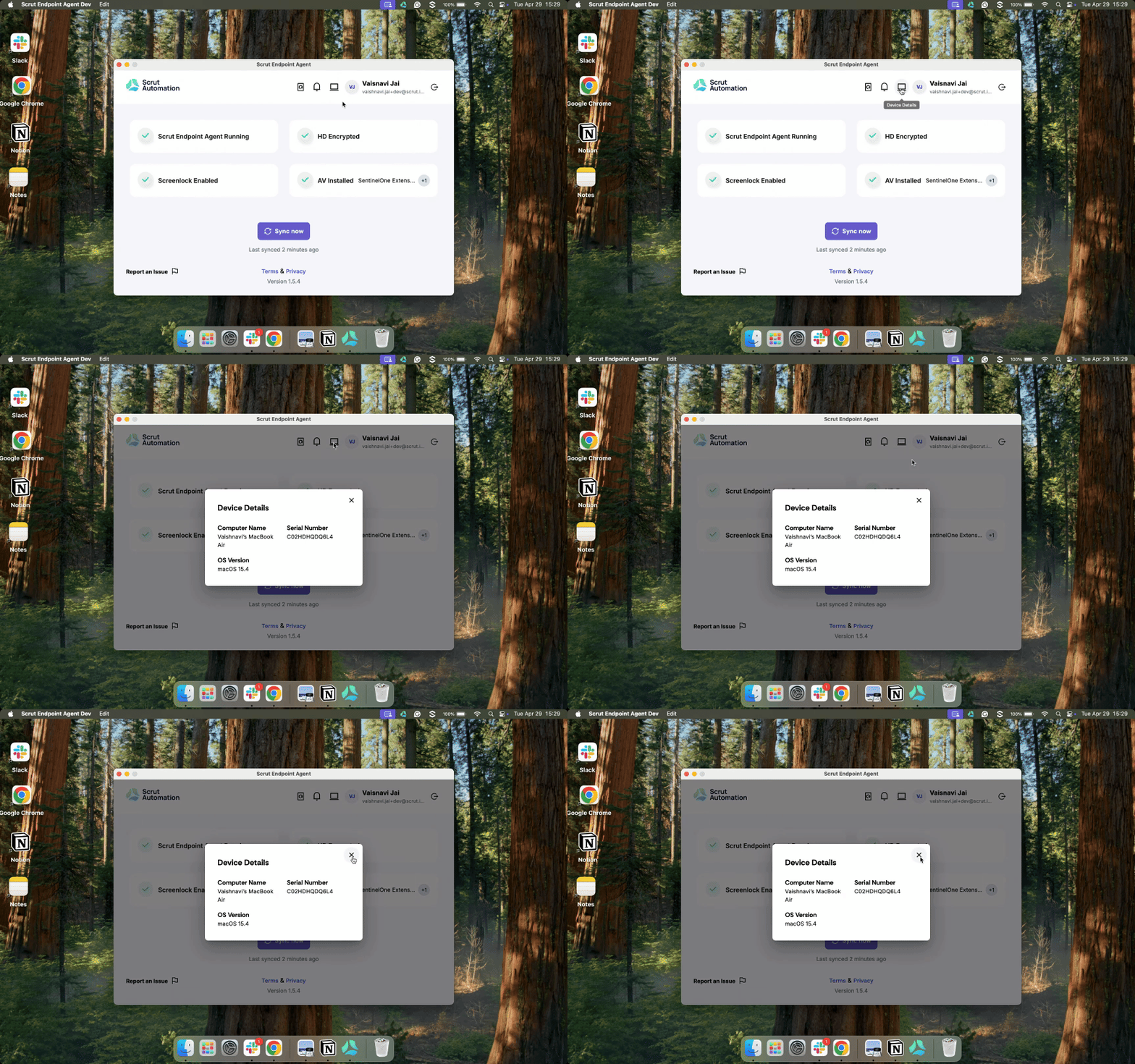
View Device Details
Clicking the Device Details icon reveals the essential device identifiers monitored by Scrut Agent, including:

- Computer Name
- Serial Number
- OS Version
Manual Sync
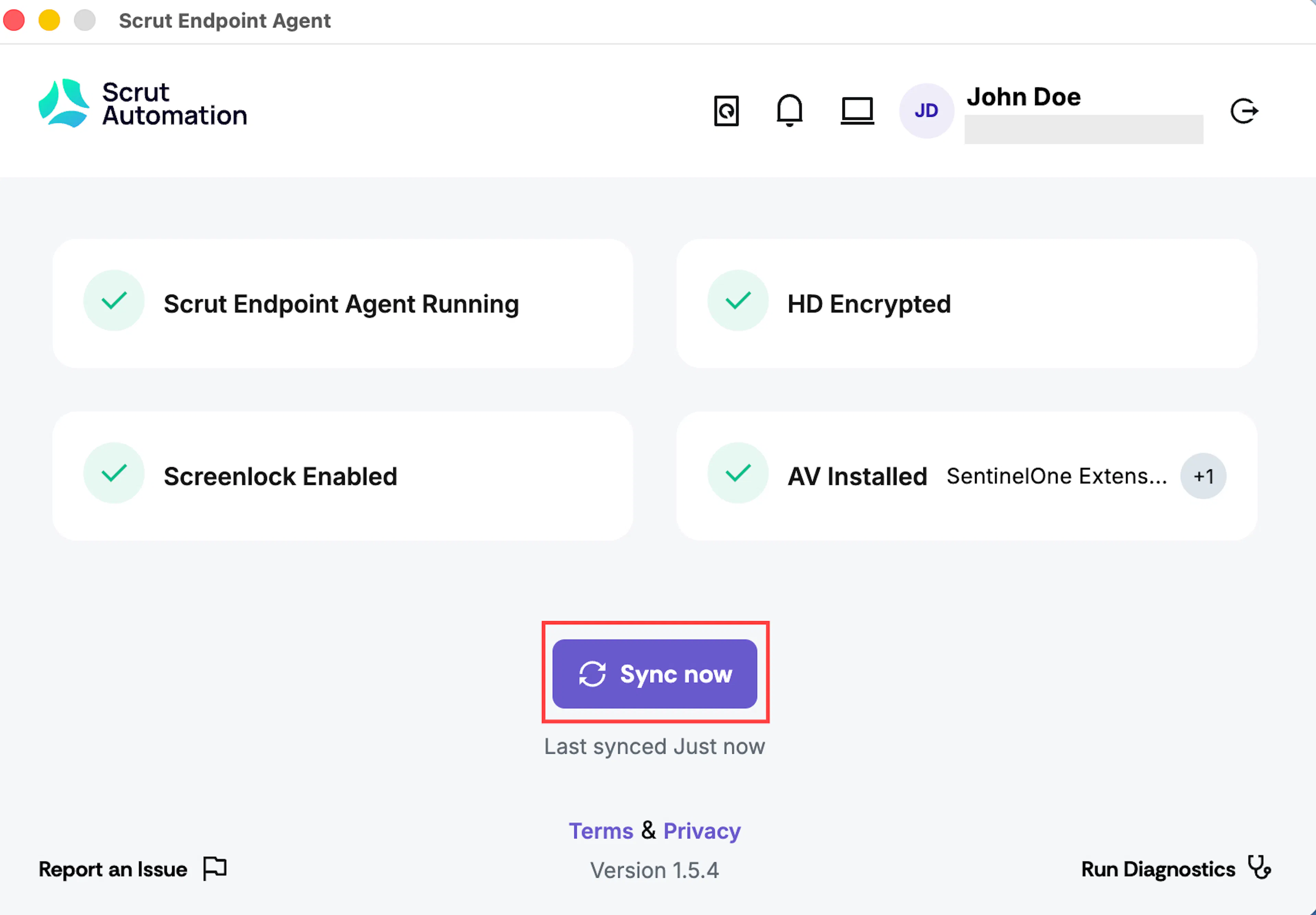
The Scrut Agent performs automatic, periodic background syncs between your device and Scrut. However, you can also initiate an immediate manual sync by clicking the Sync Now button. This allows for real-time updates, giving you complete control, especially when you need it most, such as before audits or compliance reviews.
View Notifications History
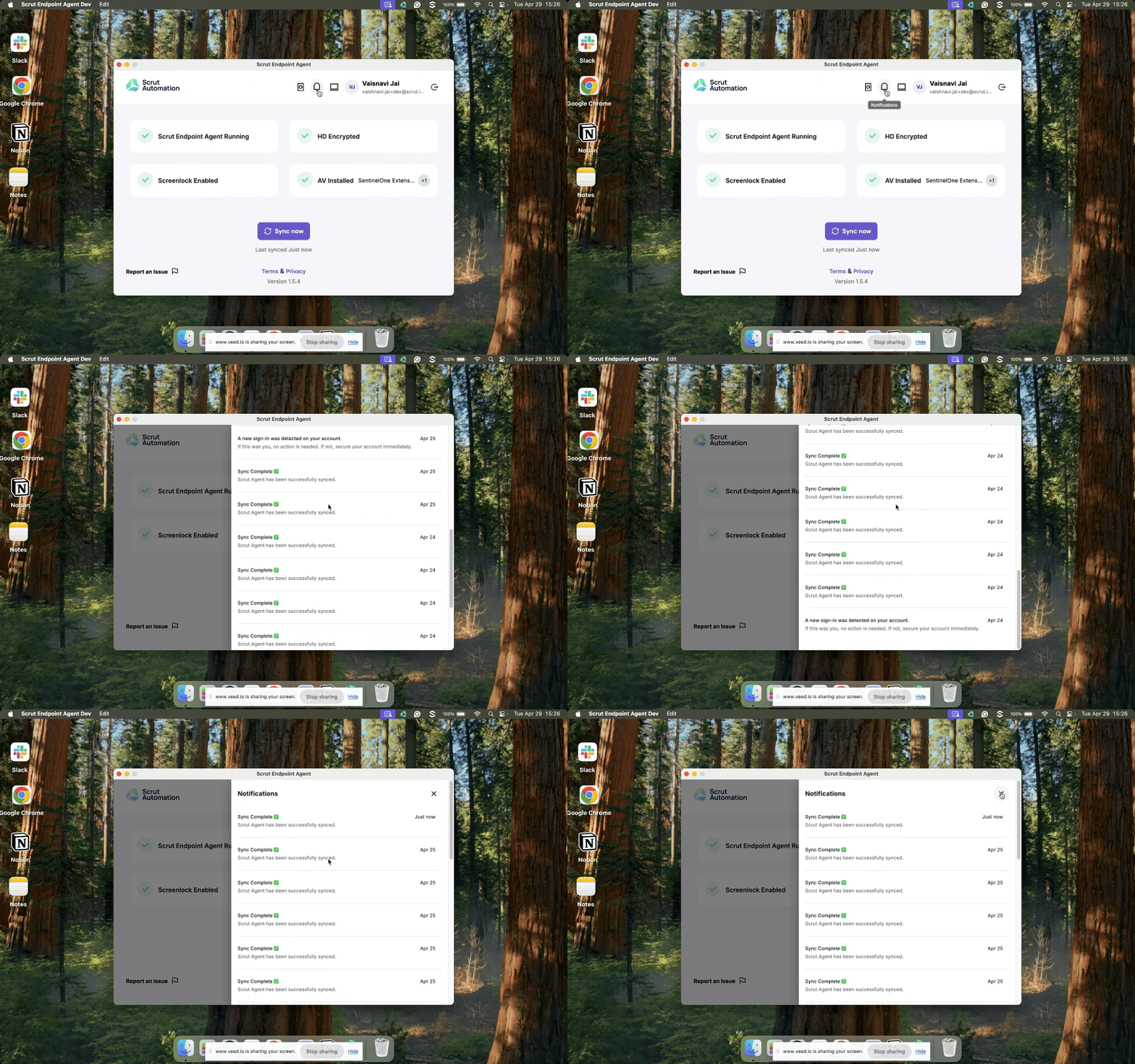
The notifications panel provides a chronological log of all activities, helping you stay informed and updated on all activities happening in Scrut Agent.
Click the Notifications Bell icon to review your complete activity history, including:

- Successful logins
- Unexpected logouts
- Scheduled and manual sync completions
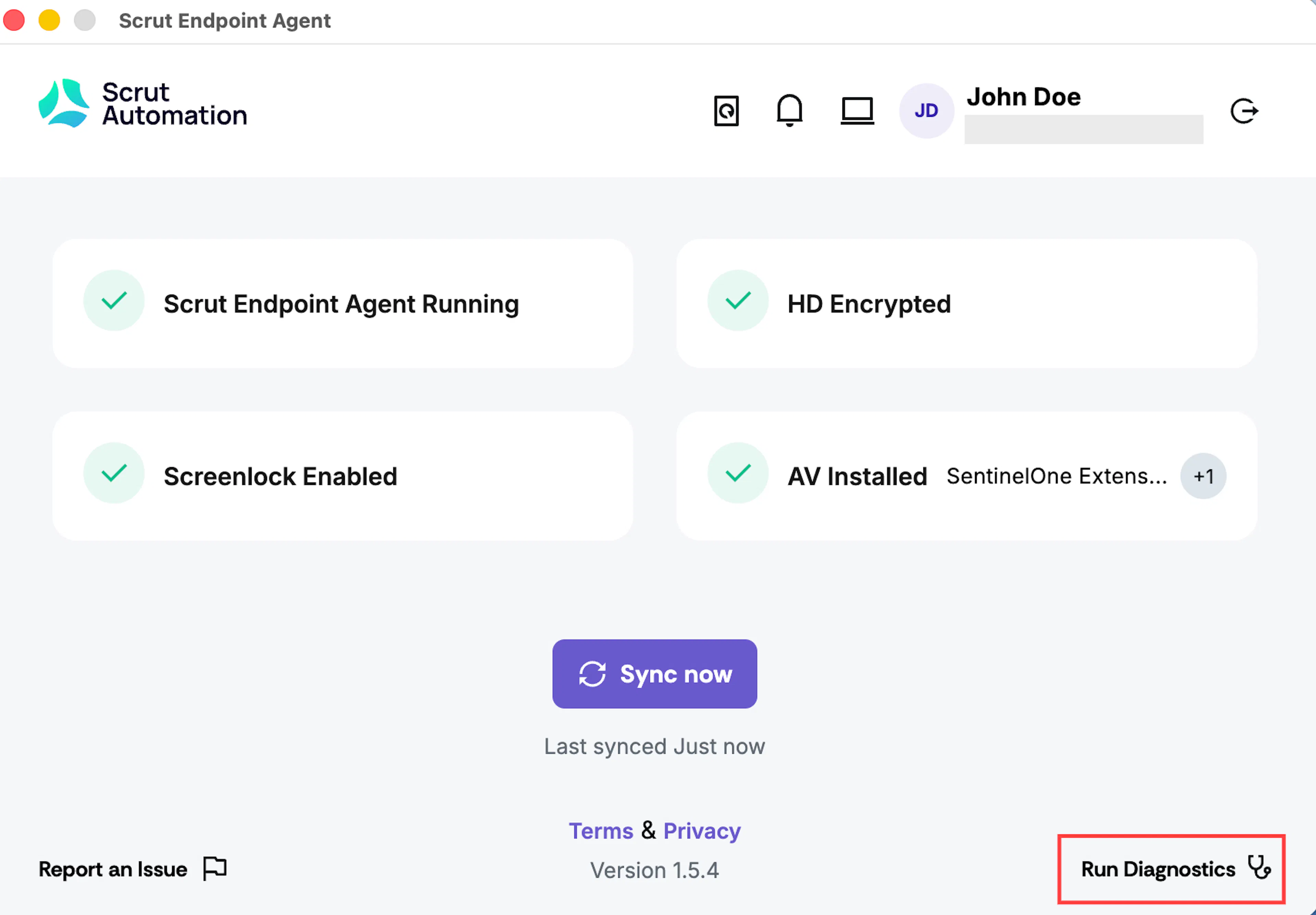
Run Diagnostics
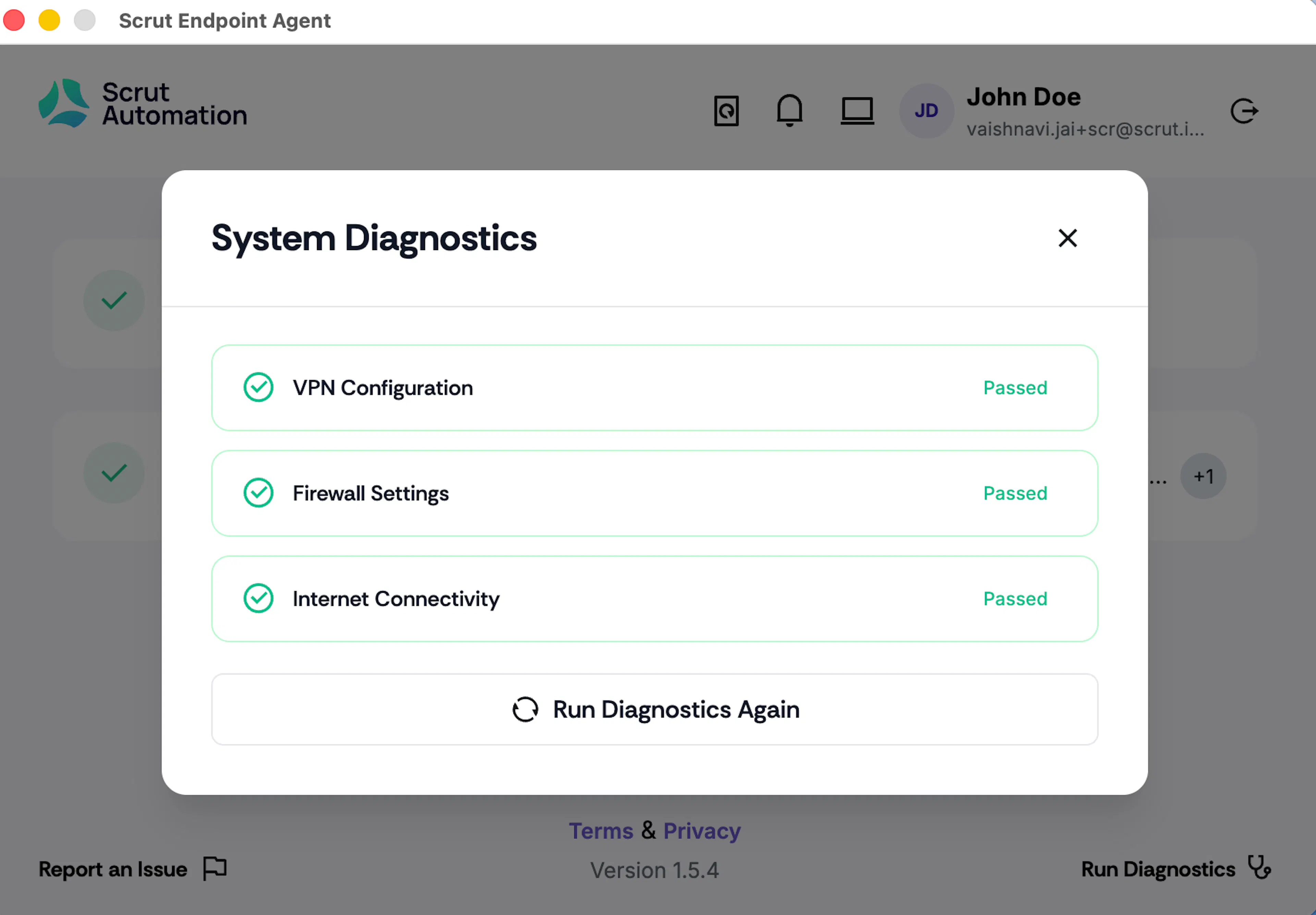
Scrut Agent automatically runs the following diagnostic checks on your device during installation and once every 3 days thereafter.
- VPN Configuration: Checks for existing VPN setups that might interfere with connectivity.
- Firewall Settings: Verifies firewall rules to ensure unblocked communication.
- Internet Connectivity: Validates the system's connection to the internet
Additionally, you can manually trigger the diagnostics check by clicking the Run Diagnostics button at the bottom right.
Check for Updates
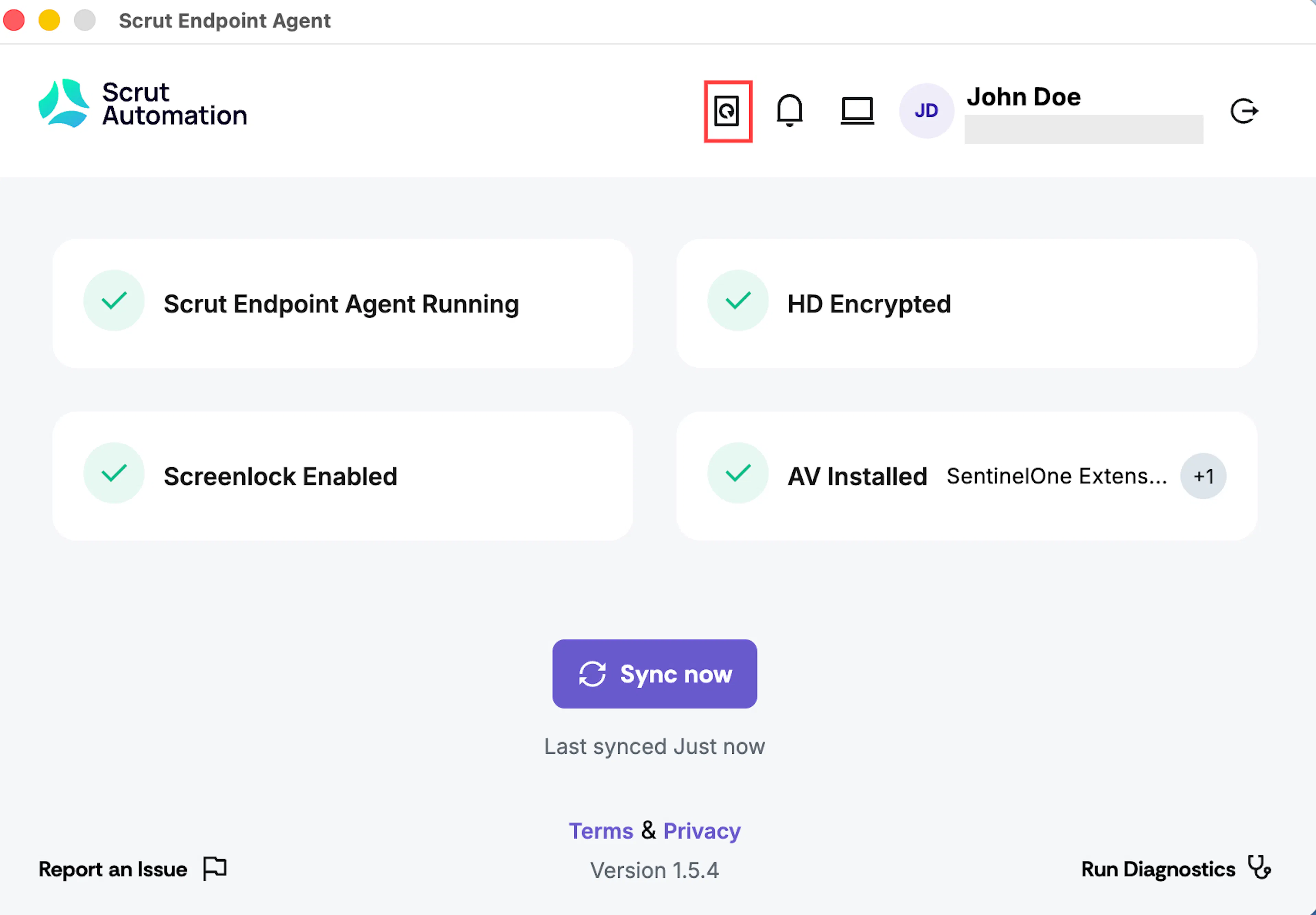
Scrut automatically updates Scrut Agents installed on employee devices to the latest version. We do this as a security best practice. However, you can also manually update it by clicking the Check for Updatesicon. This ensures you always run the latest version with the most current security patches and updates.

Pro Tip!
To ensure that the Agent functions as intended, we suggest logging out and then signing back in after an update.
View Account Details
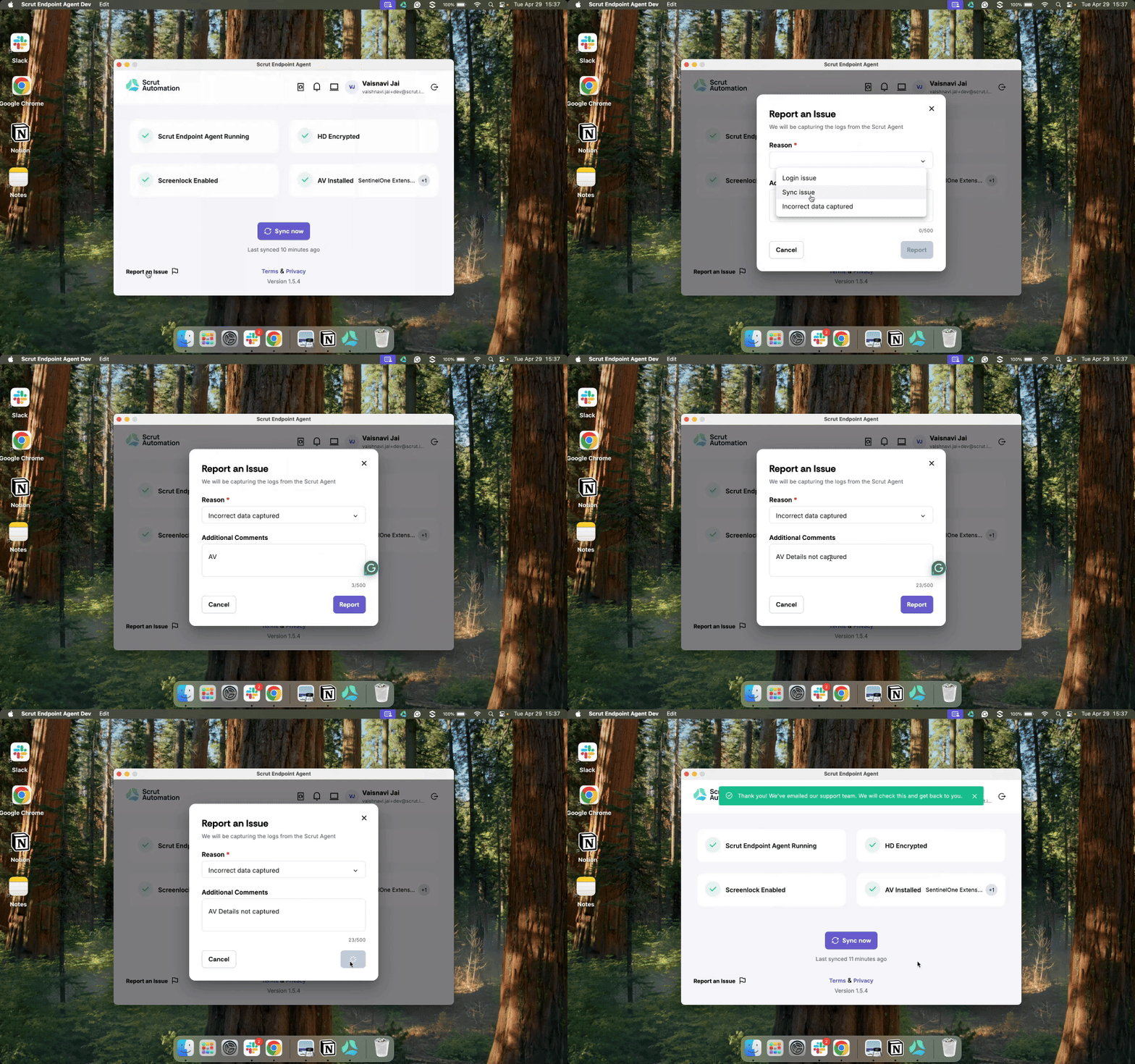
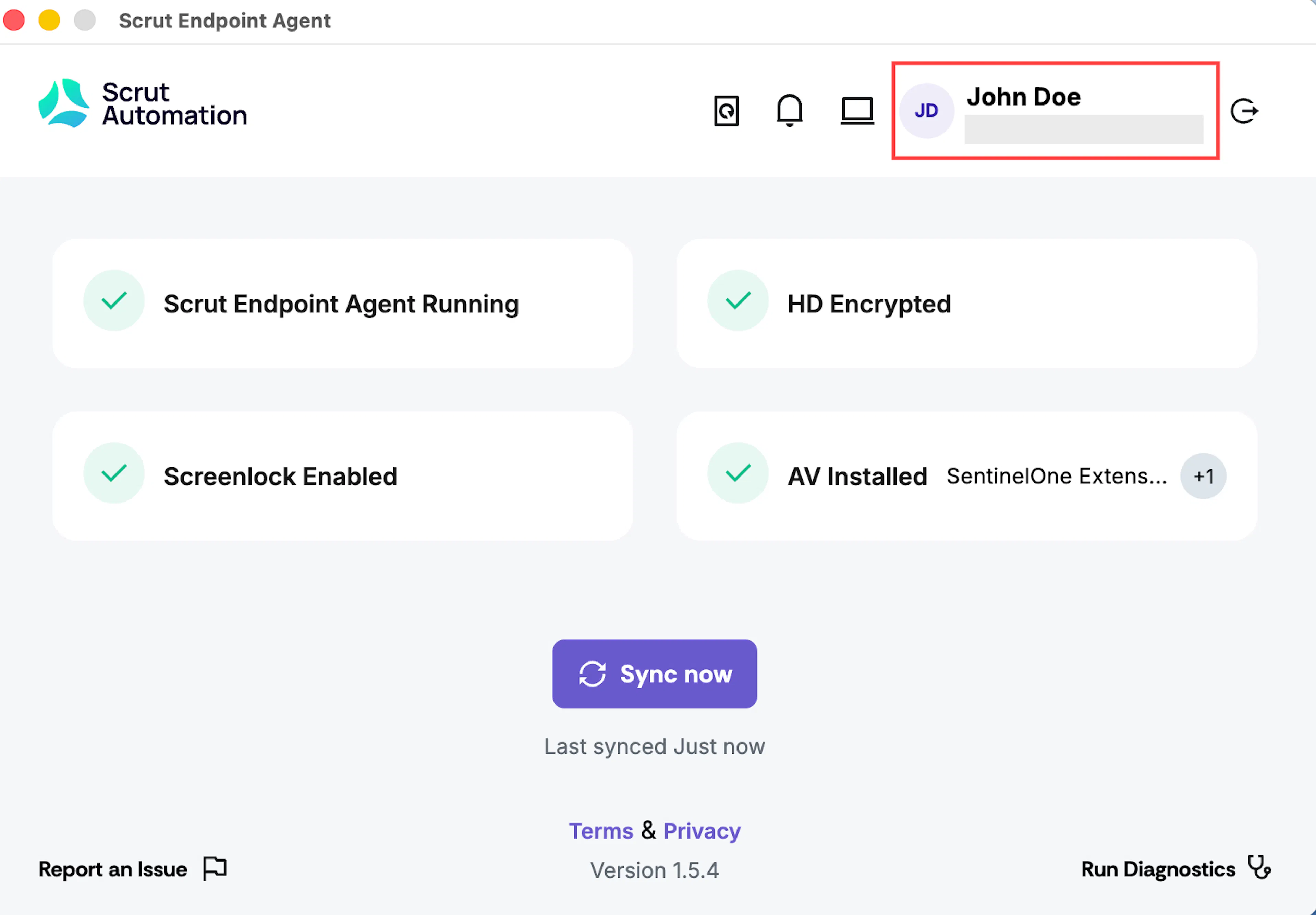
Your username and email address are prominently displayed on the top right for easy account identification. Additionally, if you want to log out of the Scrut Agent, click the icon to initiate a manual log out.

Report an Issue
The Report an Issue button on the bottom left provides a direct communication channel to the Scrut Support team when you encounter any problems with the Scrut Agent.
- Click the Report an Issue button.
- Select the type of issue you’re facing: Login issue, Sync issue, or Incorrect data captured.
- Add any additional comments and click Submit.
This captures diagnostic information automatically and provides the Scrut support team with contextual data about your device, reducing resolution times and eliminating the need for multiple back-and-forth communications.