

Integrate CrowdStrike
Learn how to connect your CrowdStrike Falcon environment with Scrut to automatically collect user access, endpoint device, and prevention policy data as continuous compliance evidence.
What This Integration Does in Scrut
- User Access Data: Fetches user details, roles, and permissions from CrowdStrike for Access Reviews.
- User Endpoint Devices: Fetches employee device details, including security posture and installed software. These devices are mapped to employees and visible in their profile under People → Employees → Technical.
- Automated Tests: Runs automated checks that evaluate CrowdStrike for security misconfigurations and applicable compliance checks against your compliance frameworks.
Prerequisites
- An active CrowdStrike Falcon account with permission to create API clients
- The Falcon sensor installed on the employee workstations you want to monitor
- A Falcon Discover license to fetch device owner, disk encryption, hardware, and installed software details
Permissions and Access Requirements
For CrowdStrike
Create an API client with the following Read scopes:
| Scope | Used for |
|---|---|
| User Management | Users, emails, and assigned roles |
| Hosts | Device details and login history |
| Assets | Device owner, encryption, hardware, and installed software (Falcon Discover) |
| Zero Trust Assessment | Zero Trust Assessment (ZTA) score and screen lock signals |
| Prevention Policies | Prevention policy assignments and settings |
For Scrut
- Admin access to Scrut (or Contributor with access to the Integration module)
Limitations
- Scrut fetches only workstations that have checked in with CrowdStrike in the last 30 days. Servers and inactive devices are not synced.
- Device owner, disk encryption, hardware, and installed software details are available only with a Falcon Discover license.
- CrowdStrike does not always expose screen lock status. When it isn't available, the field shows as unavailable in Scrut rather than disabled.
Data Collected
User Access Data
| Scrut Field | Source Field / Data | Notes |
|---|---|---|
| Name | first_name, last_name | |
uid | CrowdStrike stores the user's email in uid. | |
| Role | Role display name | A user with multiple roles appears once per role. |
User Endpoint Devices
| Scrut Field | Source Field / Data | Notes |
|---|---|---|
| Hostname | hostname | |
| Serial Number | serial_number | Also used to match devices with your MDM. |
| Form Factor, Manufacturer, Model | form_factor, system_manufacturer, system_product_name | Requires Falcon Discover. |
| OS Version | os_version | |
| OS End of Life | os_is_eol | |
| Disk Encryption | unencrypted_drives_count | Marked encrypted when no drives are unencrypted. |
| Endpoint Protection Version | agent_version | The installed Falcon sensor version. |
| Screen Lock | Zero Trust Assessment signals | Shows as unavailable if CrowdStrike doesn't report it. |
| Zero Trust Score | ZTA overall score | |
| Installed Software | Application name and version | Requires Falcon Discover. |
| Browser Extensions | Extension name, version, and browser | Requires Falcon Discover. |
| First Seen, Last Seen | first_seen, last_seen | |
| Owner | Device owner email | See How does Scrut identify the owner of a device? in FAQs. |
Sync Frequency
Data syncs automatically every 24 hours. You can also manually trigger a sync from the integration settings page.
Integration Setup
Step 1: Create an API Client in CrowdStrike
- Log in to your CrowdStrike Falcon console.
- Navigate to Support → API clients and keys.
- Click Add New API client.
- Configure your API client.
- Enter a Client name (for example,
Scrut Integration) and an optional Description. - Select Read for the following scopes:
- User Management
- Hosts
- Assets
- Zero Trust Assessment
- Prevention Policies
- Enter a Client name (for example,
- Click Create.
- Copy the Client ID and Client Secret and store them securely.
CrowdStrike displays the Client Secret only once. If you lose it, reset the secret from the API client and use the new value in Scrut. Learn more: CrowdStrike Developer Docs.
Step 2: Connect CrowdStrike in Scrut
- Log in to Scrut and navigate to Integrations → Integrations Library.
- Search for CrowdStrike and click Integrate.
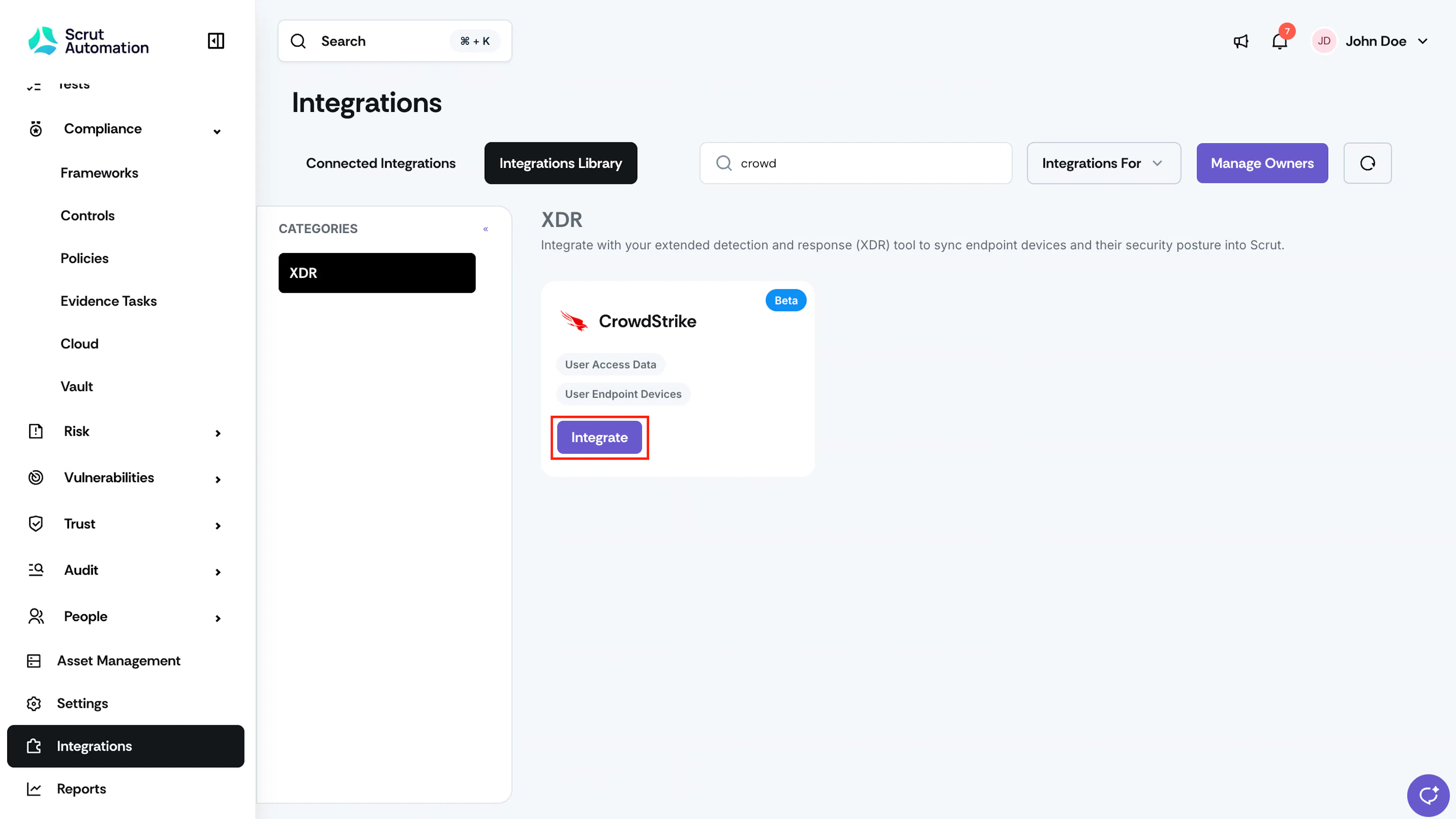
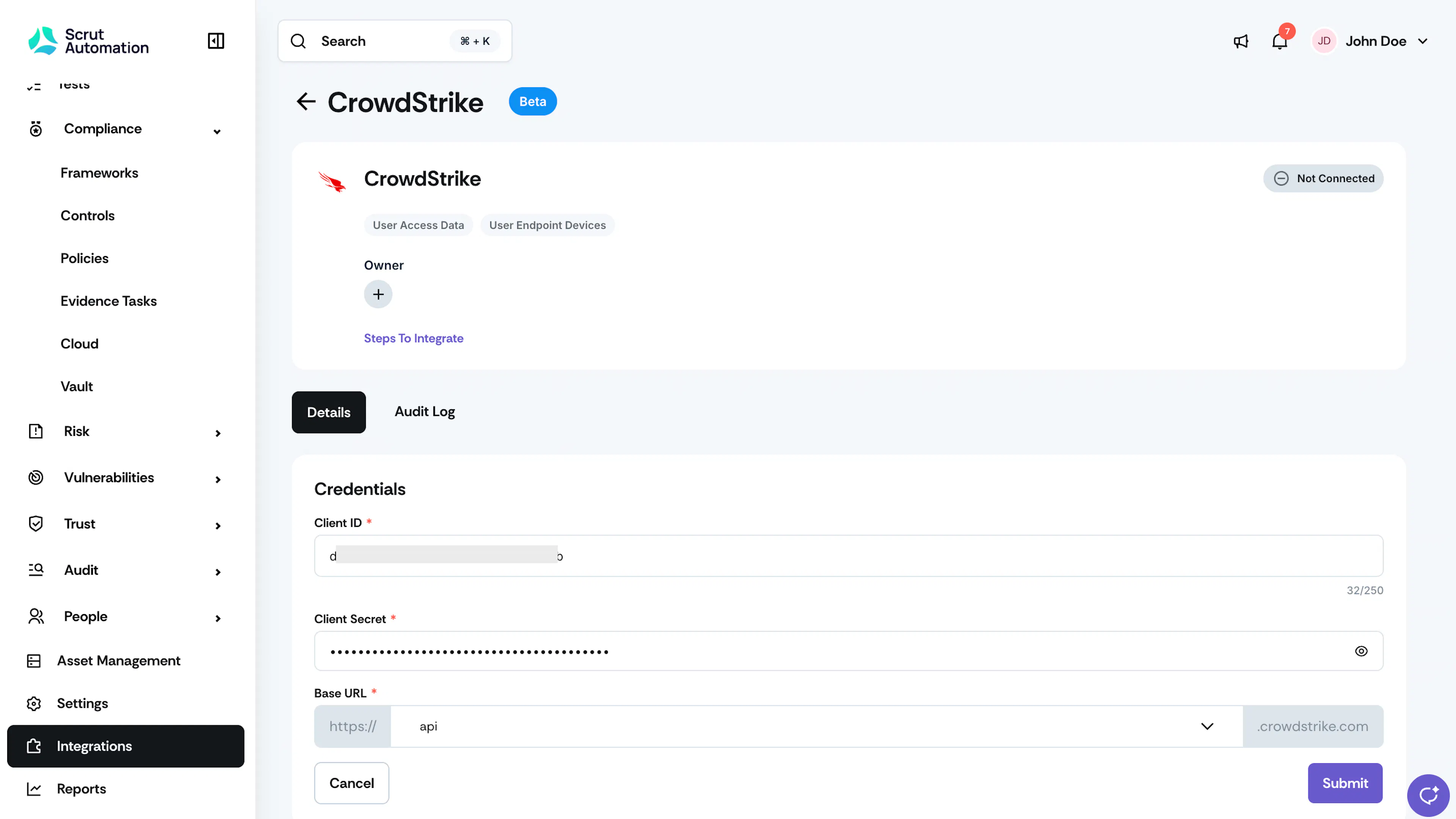
Integration CrowdStrike - Enter the Client ID and Client Secret you copied in Step 1.
- Select the Region of your CrowdStrike environment.
- Click Connect.
Pro Tip! Not sure which region to select? Check the URL of your Falcon console. For example, falcon.crowdstrike.com is US-1, falcon.us-2.crowdstrike.com is US-2, and falcon.eu-1.crowdstrike.com is EU-1. See More.
What Happens Next?
Initial Data Sync
The initial sync begins automatically after you connect the integration. Depending on the number of users and devices in your environment, it can take some time to complete. You can monitor the sync status in Audit Logs in the integration settings.
Review Synced Data
- Navigate to People → Employees → Technical to view employee device records.
- Navigate to Access Reviews to review CrowdStrike users and their roles.
- Navigate to Tests and search for Ensure All Active Hosts Have a Non-Empty Prevention Policy to view test results.
- This test passes for a host when it has a prevention policy assigned and that policy has prevention settings turned on. It fails when a host has no policy assigned or its policy has all prevention settings turned off.
Common Errors and Troubleshooting
FAQs
Contact support@scrut.io or your CSM for further assistance.