

Integrate Qualys
In this article, we explain how to integrate your Qualys account with Scrut.
How To Integrate Qualys With Scrut
Step 1: Create a Service Account in Qualys
To integrate with Qualys, you will need to create a service account. You need to set up a dedicated email for this account.
-
Access the Qualys Vulnerability Management, Detection, and Response (VMDR) tool. You can find your app URL on this page.
-
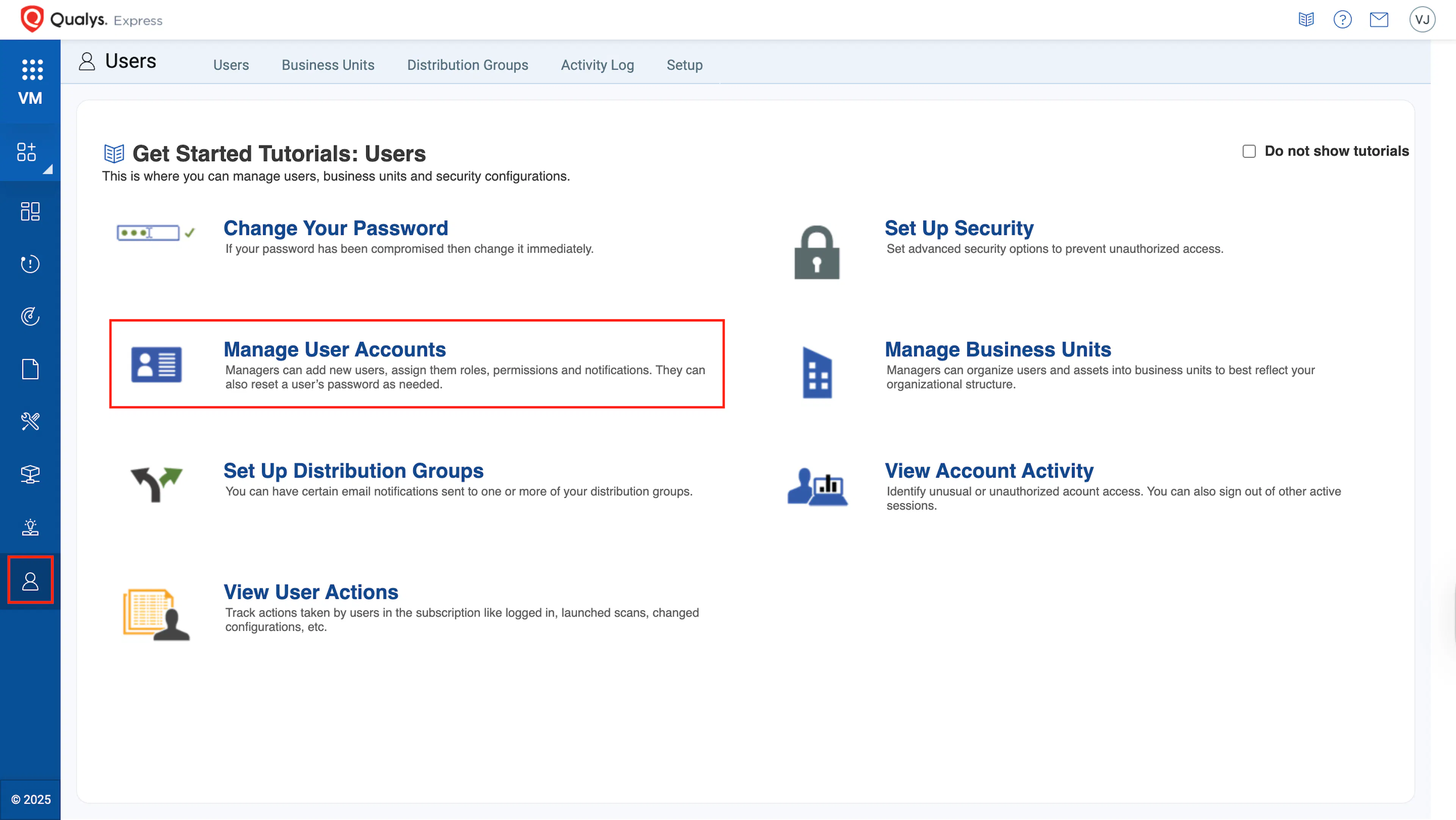
Navigate to the Users → Manager User Accounts.
-
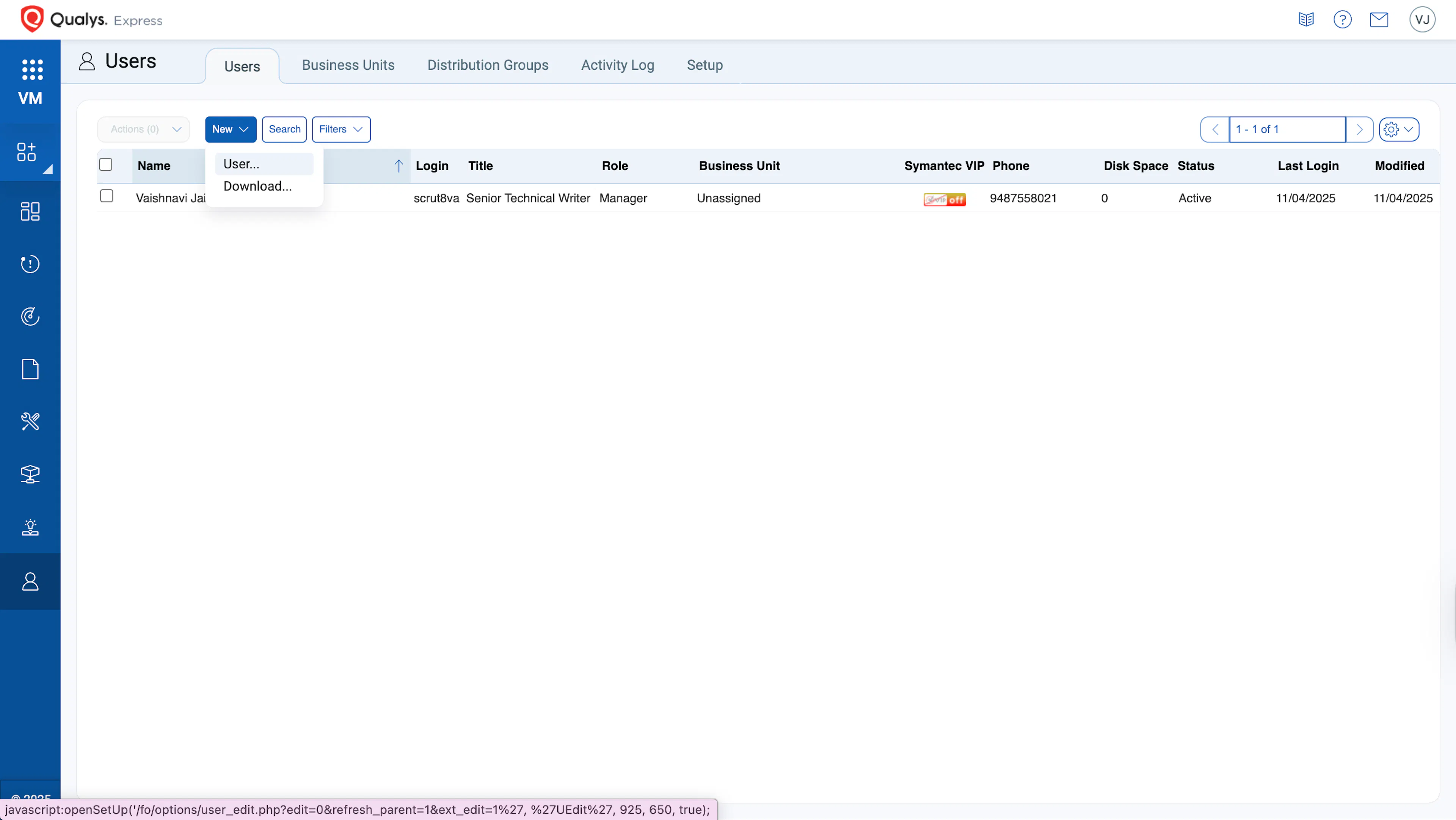
Click New → User.
-
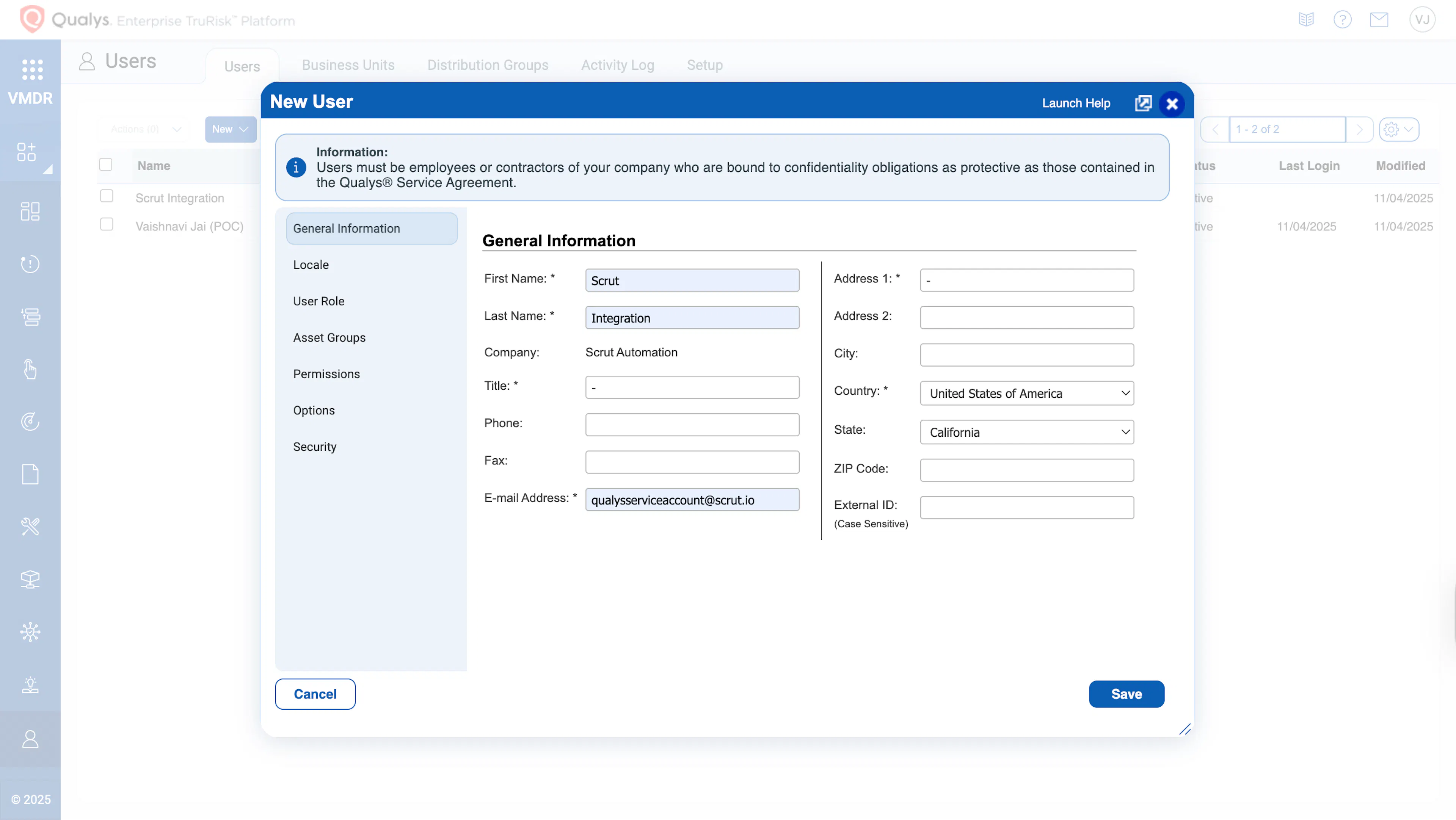
Fill out the user information form with the following details:
- First Name: Scrut
- Last Name: Integration
- Title: - (hyphen)
- Phone: - (hyphen)
- Address 1: - (hyphen)
- Country: United States of America
- Email Address: [Enter dedicated service account email address]
- State: California
-
In the Locale Section:
- Language: English
- Date Format: ISO Format (yyyy-mm-dd)
- Time Zone: Select your time zone
-
In the User Role Section:
- User Role: Reader
- Allow Access to: Check both "API" and "GUI" options.
- Business Unit: Select the target business unit for monitoring.
-
In the Notifications Section:
- Disable all notifications (set to "None", "Off", or "No notification").
-
Save the new user.
-
Check the provided email address for an email from Qualys. Follow the instructions to set a password, and enter it in Scrut in the next step.
Step 2: Navigate to Integrations in Scrut
-
Sign in to Scrut and click Integrations on the left navigation panel.
-
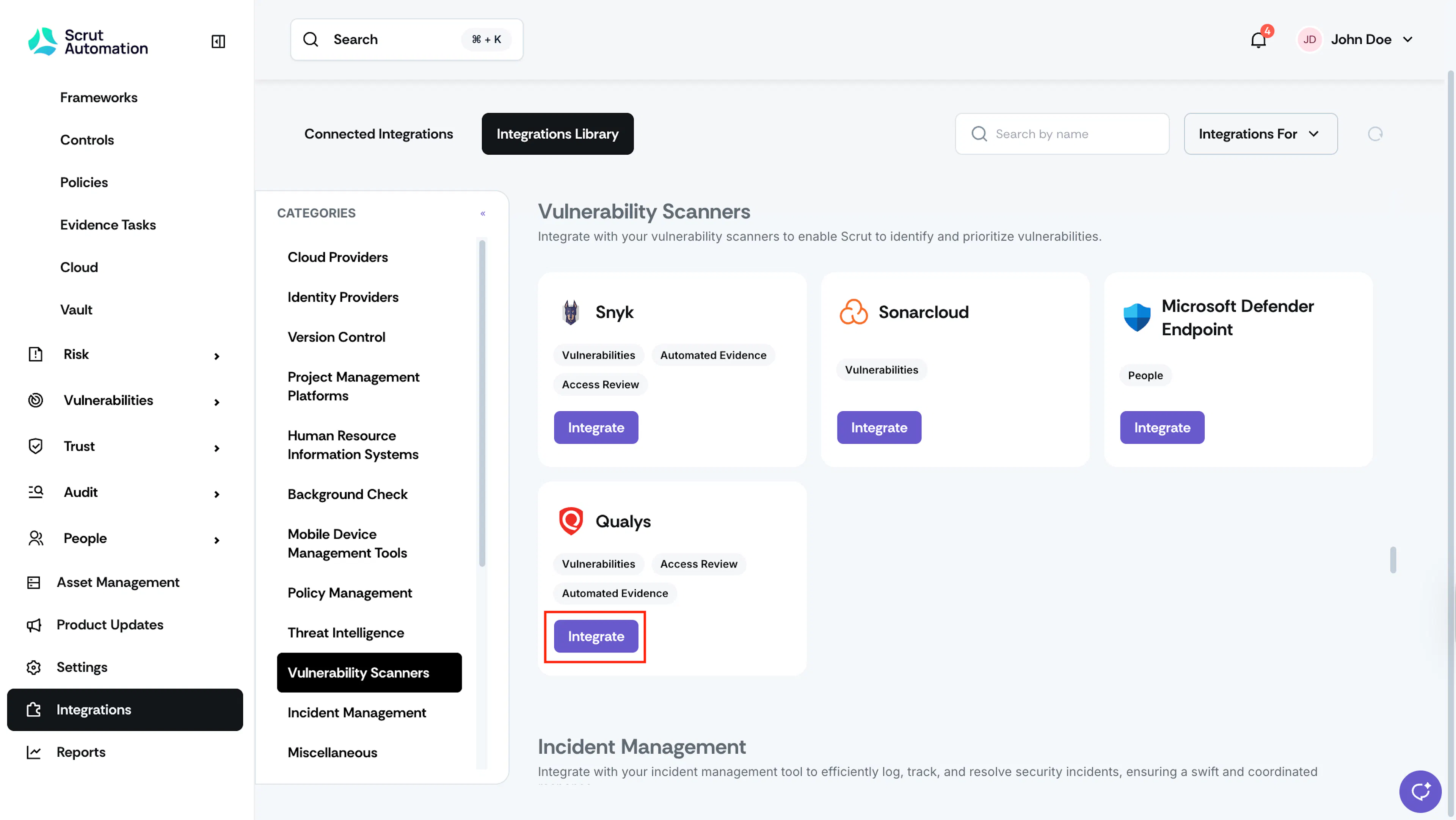
Go to the Integrations Library tab, and click Vulnerability Scanners in the Categories section.
-
Search for and find the Qualys tile and click Integrate.
-
Enter the following details:
- Username: Enter your Qualys username.
- Password: Enter the password that is generated in your Qualys service account.
- Region: Select the region of your Qualys account.
-
Click Submit.
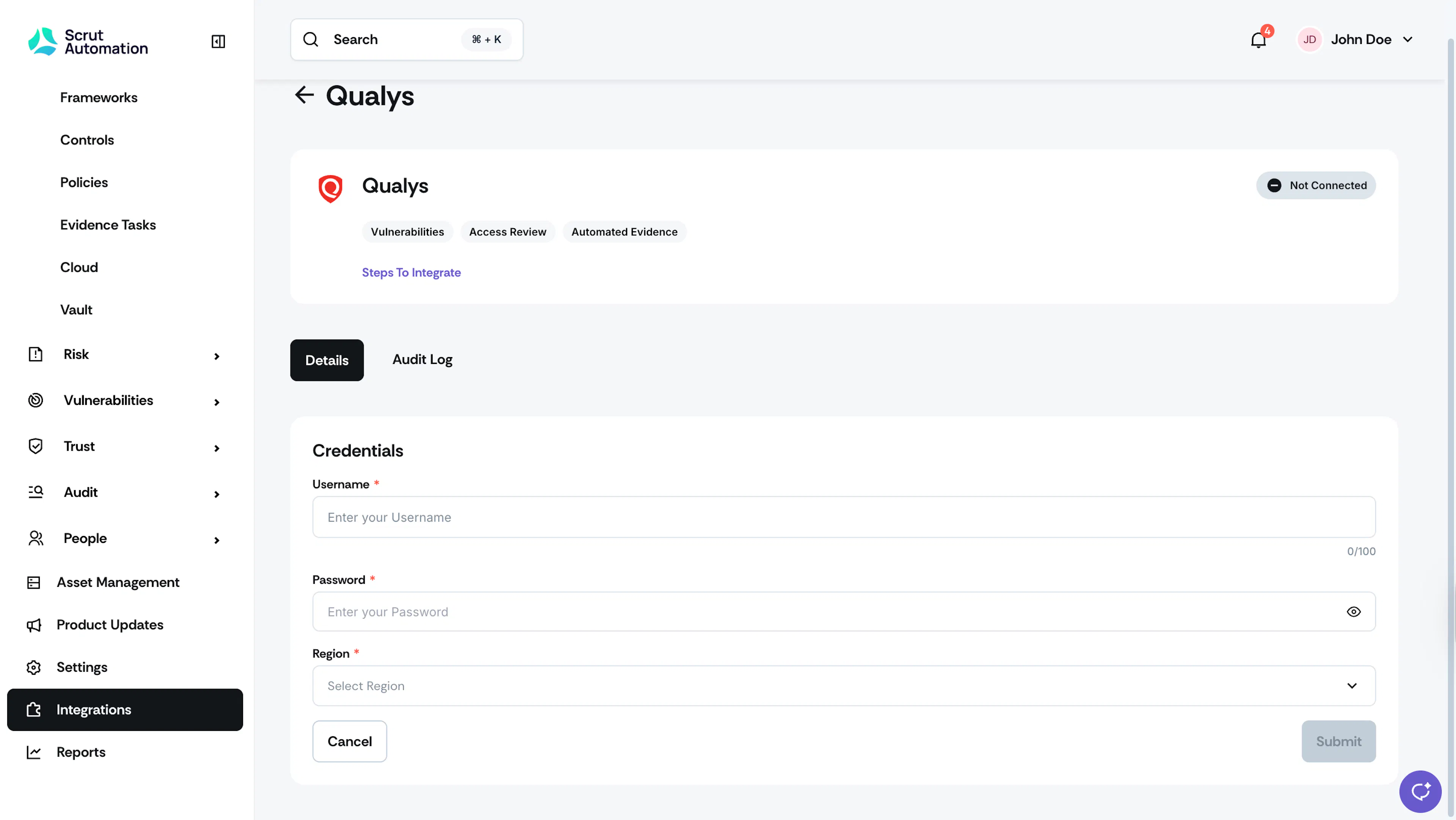
Watch out for the "Connected" status flag.