

Integrate Tenable
Connect your Tenable.io (Tenable Vulnerability Management) account with Scrut to fetch your vulnerability findings and affected assets into Scrut for centralized tracking and compliance reporting.
What This Integration Does in Scrut
- Vulnerability Management: Ingests vulnerability and affected asset data from your Tenable account into the Vulnerabilities → Third-Party Scans page in Scrut, enabling end-to-end vulnerability tracking, assignment, and remediation.
Prerequisites
- An active Tenable.io (Tenable Vulnerability Management) subscription
- A Tenable user account with the Basic role (minimum) and Can View permission on assets
- API Access enabled for your Tenable user account
Permissions and Access Requirements
For Tenable
- Basic role or higher
- Can View permission on assets
- API Access enabled for the account generating the keys
Note: If you use a dedicated service account (recommended), an Administrator must create the account and grant it these permissions.
For Scrut
- Admin access to Scrut, or Contributor access with access to the Integrations module
Limitations
- Custom Tenable.io URLs, including FedRAMP or dedicated instances (for example, fedcloud.tenable.com), are not supported in this version of the integration.
- Vulnerabilities with an accepted risk status in Tenable are mapped to Acknowledged in Scrut. Tenable does not have a direct equivalent for Scrut's Ignored status, so these findings are not automatically mapped.
- The Steps to Reproduce field in Scrut is populated using Tenable's plugin detection output, which reflects scan evidence rather than manual reproduction steps.
Data Collected
Vulnerability Data
| Scrut Field | Tenable Field | Notes |
|---|---|---|
| Vulnerability name/title | plugin.name | |
| Status | state, severity_modification_type | OPEN/REOPENED map to Open • FIXED maps to Closed • accepted maps to Acknowledged |
| Severity level | severity | critical/high/medium/low map to Critical/High/Medium/Low; info findings are excluded by default |
| Source integration | Set to Tenable | |
| CVE ID | plugin.cve | Array is converted to a comma-separated string |
| CVSS Score | plugin.cvss3_base_score (or plugin.cvss_base_score) | CVSSv3 is used where available, with CVSSv2 as fallback |
| Fix availability | plugin.has_patch | true maps to Available, false maps to Not Available |
| First Seen date | first_found | Converted to Scrut date format |
| Last Scanned On date | last_found | Converted to Scrut date format |
| Description | plugin.description | |
| How to Fix | plugin.solution | Reference URLs appended where available |
| Report Link | Constructed URL | Links back to the finding in Tenable.io |
Asset Data
| Scrut Field | Tenable Field | Notes |
|---|---|---|
| Asset identifier | asset.fqdn, asset.hostname, or asset.ipv4 | Priority order is FQDN, then hostname, then IPv4 |
| Asset type | asset.device_type or plugin.family | Captured as a tag |
| Tags | asset.tags plus derived tags | Includes source, asset type, plugin family, VPR score, and exploit availability |
| Asset status | Derived from the vulnerability state | If the related vulnerability is Fixed, the asset may be marked remediated; otherwise, it shows as Active |
Scrut also retains Tenable's prioritization and threat-intel fields, including VPR score, exploit code maturity, threat intensity, public exploit availability, malware exploitation status, and end-of-life software flags, so you keep Tenable's context alongside your Scrut vulnerability data.
Sync Frequency
The first sync after you connect the integration pulls all available vulnerability and asset data. After that, Scrut runs an automated sync once every 24 hours to fetch new and updated findings. You can also trigger a manual sync from the integration settings page.
Integration Setup
Step 1: Generate API Keys in Tenable
Scrut supports two approaches for generating your Tenable API keys. Method 1 uses a dedicated service account and is recommended for production environments, as it isn't affected by key rotation on other user accounts. Method 2 uses your existing Tenable user account and is faster to set up, but regenerating keys later will affect any other integrations using the same account.
Method 1: Using a dedicated service account (Recommended)
-
Log in to Tenable.io at cloud.tenable.com as an Administrator.
-
Click the Menu icon in the upper left, then go to Settings → Access Control.
-
Click the Users tab, then click Create User.
-
Enter an email address (for example, a shared mailbox like scrut-integration@yourcompany.com), a name such as Scrut Integration, and select the Basic role.
-
Click Save, then complete account activation using the email sent to that address.
-
Go back to Settings → Access Control → Users and click on the new user.
-
Toggle API Access to On, then click Save.
-
Go to Settings → Access Control → Permissions and click Create Permission.
-
Name the permission Scrut Integration - View Assets, select the service account under Users/Groups, set Objects to All Assets, and check Can View under Permissions.
-
Click Save.
-
Log in to Tenable.io as the service account.
-
Click your profile icon in the upper right, then click My Account.
-
Click API Keys in the left panel, then click Generate.
-
Click Continue in the warning dialog.
-
Copy the Access Key and Secret Key and store them securely.
Important: The Secret Key is displayed only once. Copy it before navigating away from the page.
Method 2: Using an existing user account
- Confirm your account has the Basic role or higher, Can View permission on assets, and API Access enabled. Check with your Tenable Administrator if you're not sure.
- If you already have API keys saved, use those and skip to Step 2 below.
- If you need to generate new keys, log in to Tenable.io, click your profile icon, then My Account → API Keys, and click Generate, then Continue.
- Copy the Access Key and Secret Key and store them securely.
Note: Generating new keys invalidates any existing keys tied to that account. If those keys are used by other applications, those integrations will stop working until they're updated.
Step 2: Connect Tenable.io to Scrut
-
Log in to Scrut.
-
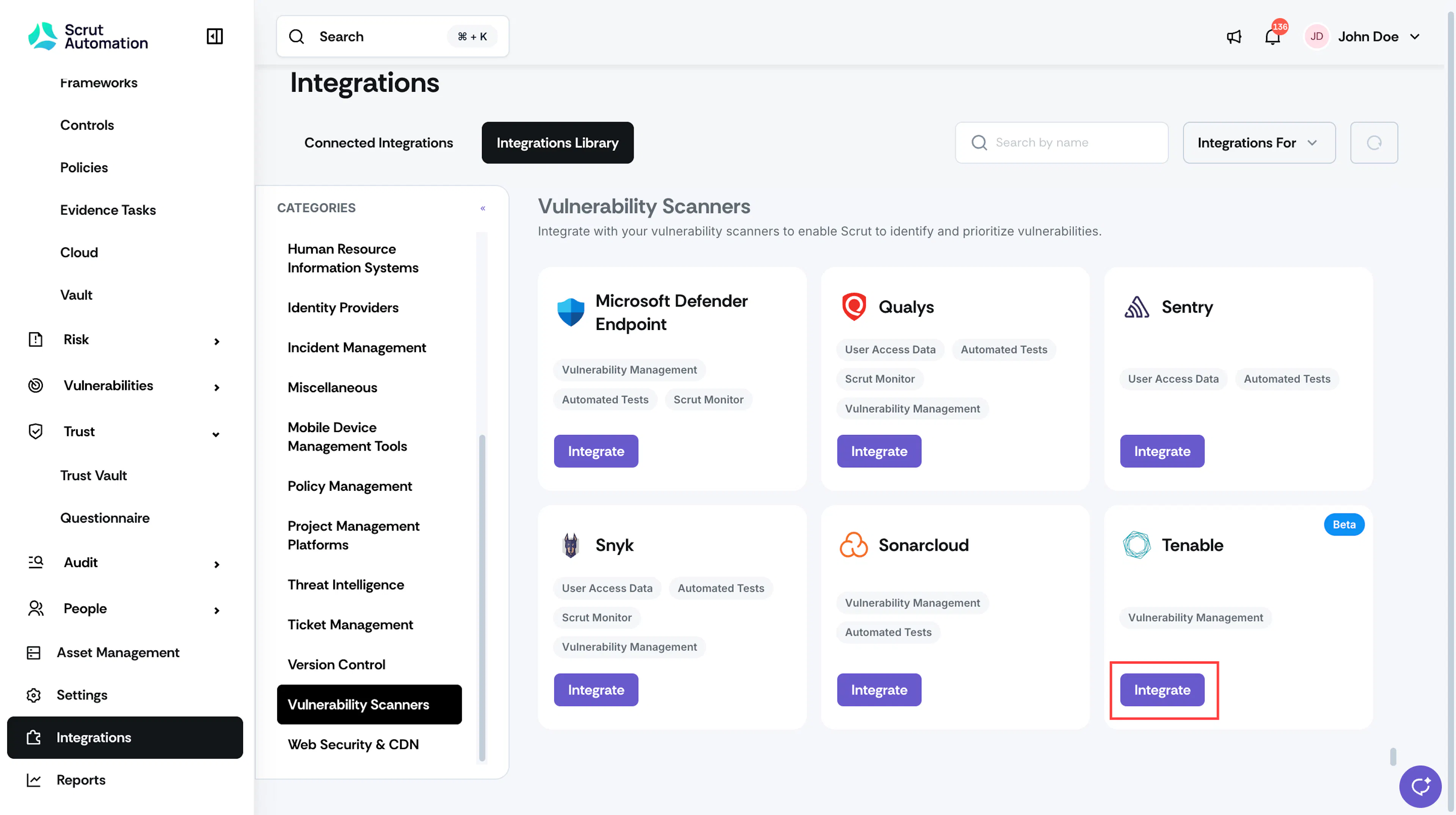
Navigate to Integrations → Integrations Library.
-
Under Vulnerability Scanners, find Tenable and click Integrate.
-
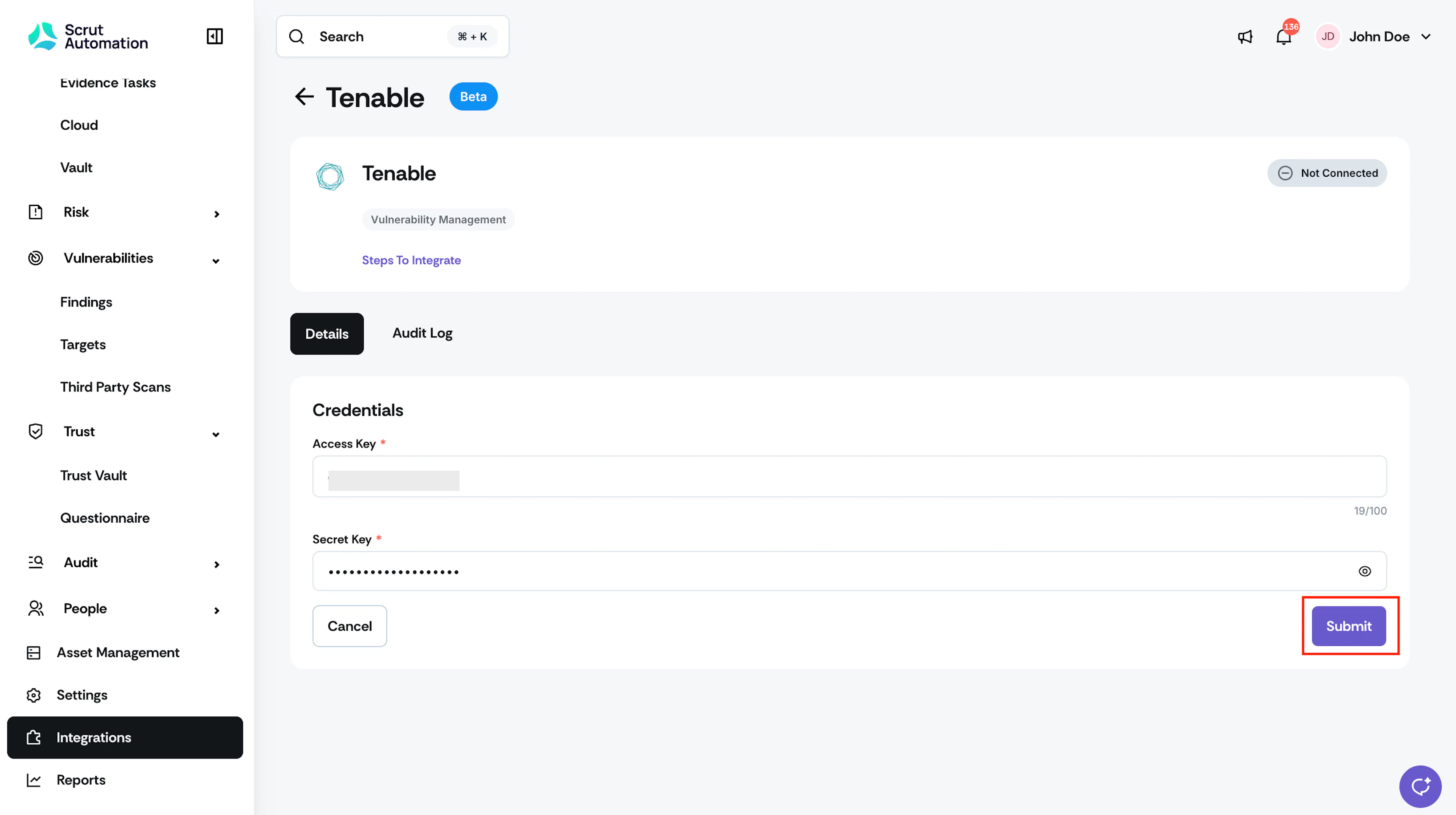
Enter the Access Key and Secret Key you generated in Step 1.
-
Click Submit.
-
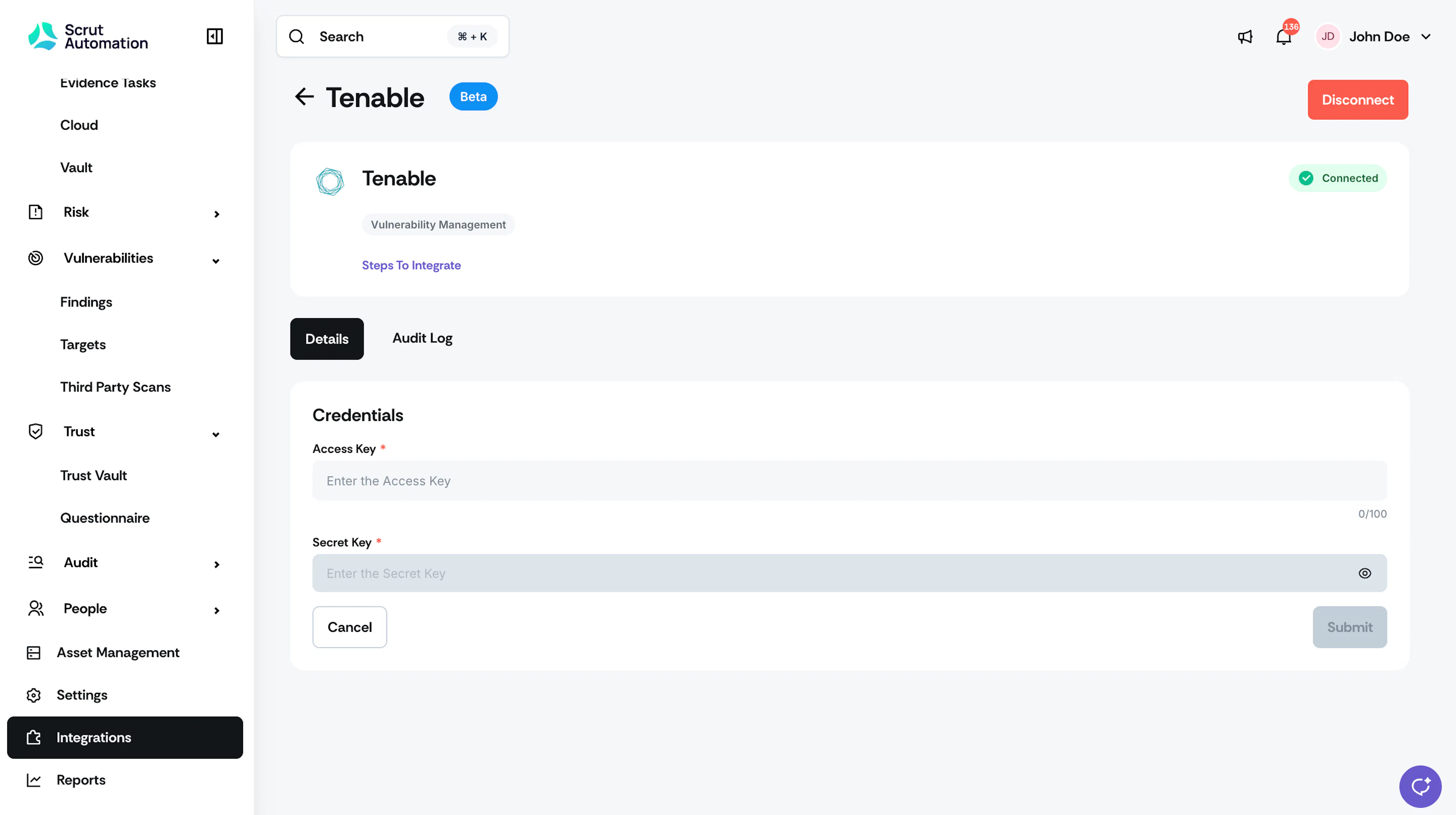
Confirm the integration status shows as Connected.
What Happens Next?
Initial data sync
Once connected, Scrut automatically runs a test connection and, on success, starts the initial vulnerability and asset sync in the background. Large environments with a high asset count may take longer to complete. You can monitor sync progress from the Audit Logs in the integration settings.
Review synced data
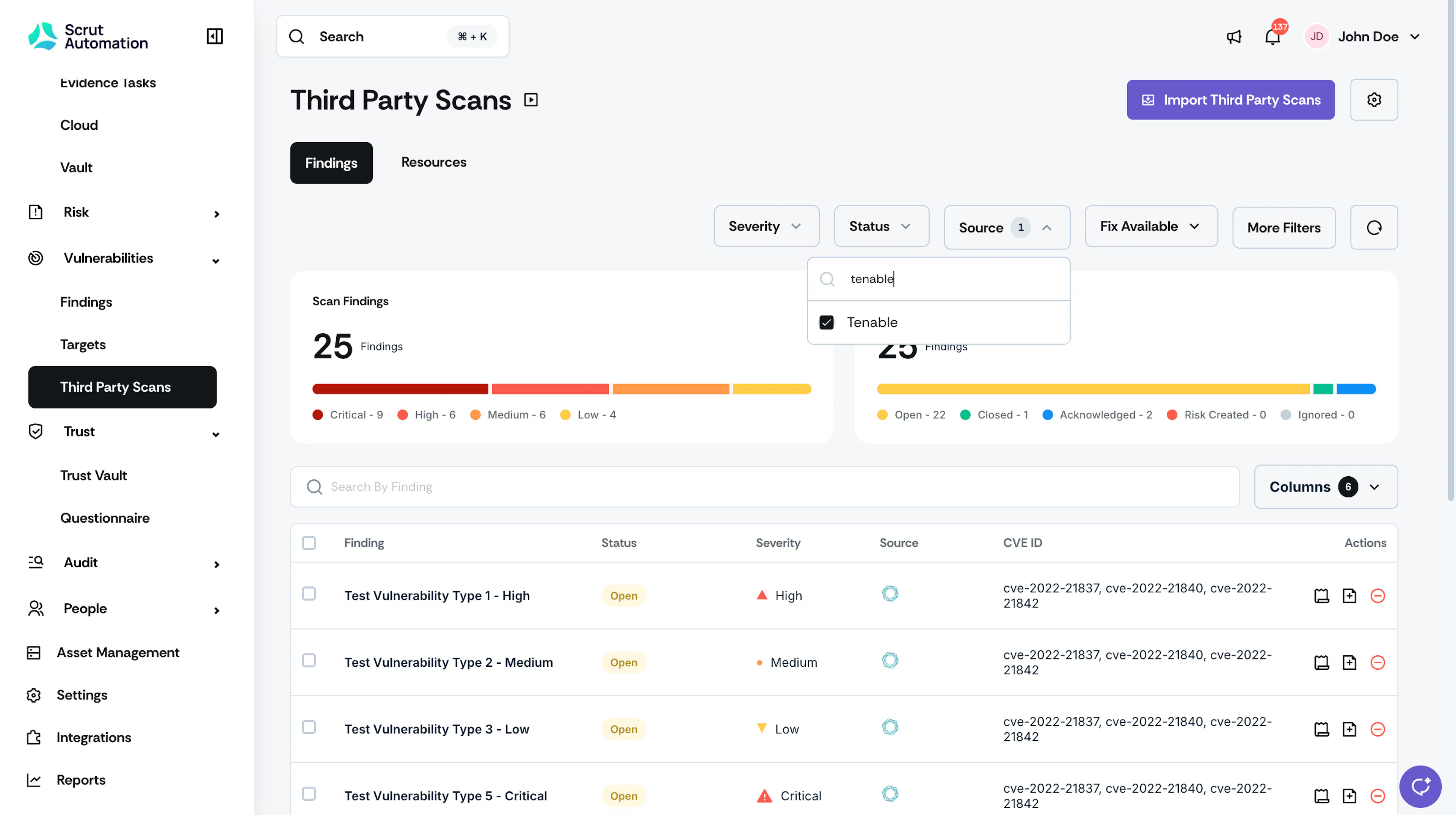
Navigate to Vulnerabilities → Third-Party Scans and filter by Source: Tenable to view synced findings. Confirm that vulnerabilities appear with names, severities, CVEs, and affected assets.
Common Errors and Troubleshooting
Invalid API Credentials
Cause: The Access Key or Secret Key entered doesn't match what's active in Tenable, or the keys were regenerated after being copied.
Possible solutions:
- Recheck the keys for extra spaces or typos.
- Confirm the keys haven't been regenerated in Tenable since you copied them.
- Generate a fresh set of keys and reconnect if needed.
Insufficient Permissions
Cause: The account used to generate the keys doesn't have the required role or asset permissions.
Possible solutions:
- Confirm the account has the Basic role or higher.
- Confirm the account has Can View permission on assets.
Generate Button Is Inactive in Tenable
Cause: API Access hasn't been enabled for the account.
Possible solutions: Ask your Tenable Administrator to enable API Access for the account.
No Vulnerabilities Appearing in Scrut
Possible solutions:
- Wait for the initial sync to complete, this can take time for larger environments.
- Confirm the connected account has visibility into assets that have vulnerabilities.
- Check the Audit Logs for any sync errors.
FAQs
Reach out to support@scrut.io or contact your CSM for further assistance.