

Integrate Slack
In this article, we walk you through connecting your Slack workspace to Scrut.
What This Integration Does in Scrut
- Messaging and Communications: Sends Scrut notifications and messages to employees and admins, including task reminders, real-time alerts, task summaries, and compliance digests.
- User Access Data: Fetches user details, roles, and permissions from Slack for Access Reviews.
- Automated Tests: Runs automated compliance checks that continuously evaluate your Slack workspace configurations against applicable compliance frameworks.
Prerequisites
Before you begin, make sure you have:
- An active Slack workspace with Administrator access (Admin permissions are required for MFA enforcement verification)
Permissions and Access Requirements
For Slack
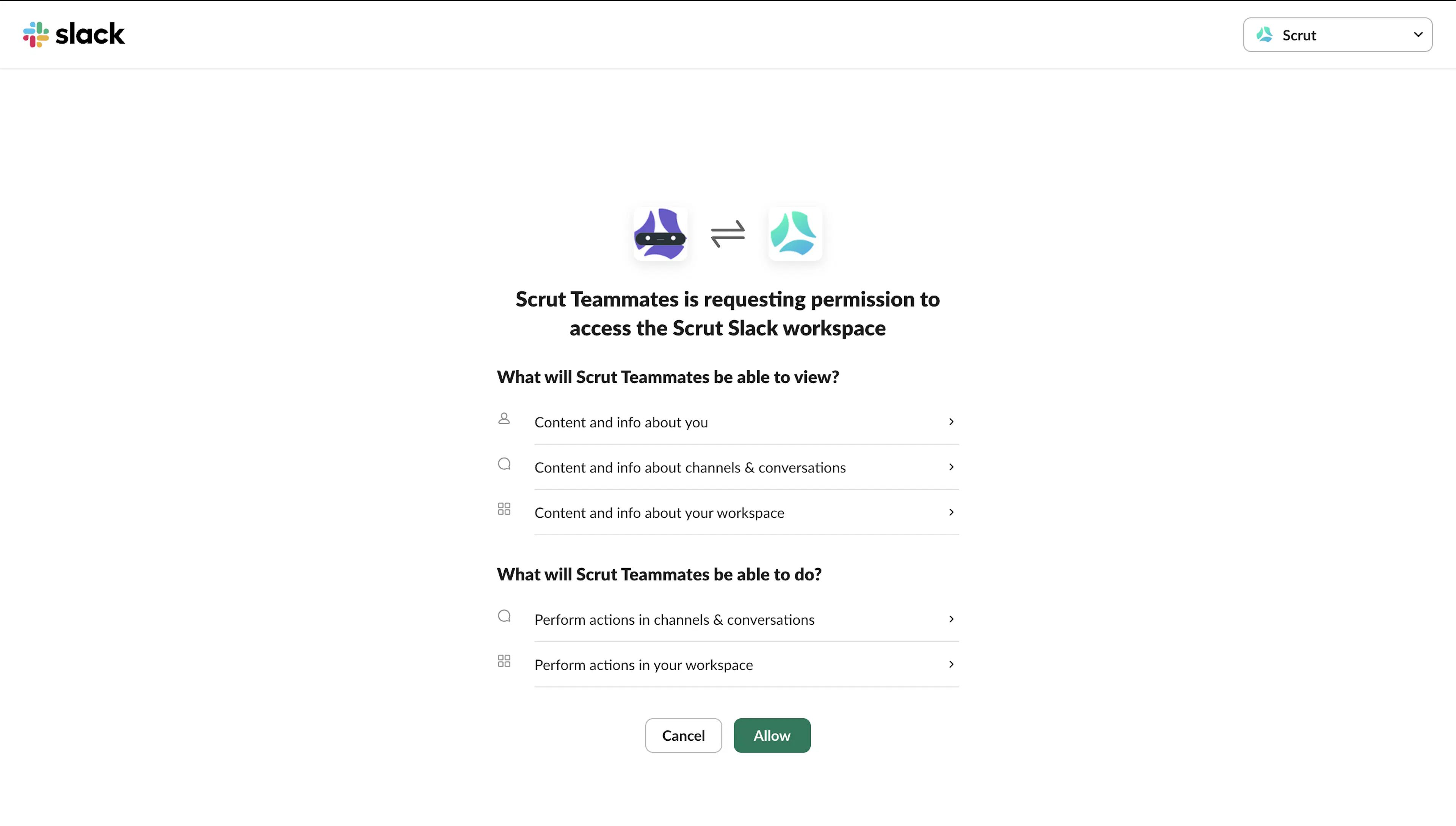
Scrut requires the following OAuth scopes to connect with your Slack workspace:
- app_mentions:read
- channels:history
- channels:join
- channels:read
- chat:write commands
- groups:history
- groups:read
- im:read
- im:history
- im:write
- mpim:read
- team:read
- users:read
- users:read.email
For Scrut
- Admin access to Scrut (or Contributor Role with access to the Integration module)
Data Collected
- User records (Includes all active users in the workspace)
Sync Frequency
Data syncs automatically every 24 hours. You can also trigger a manual sync from the integration settings page at any time.
Integration Setup
Step 1: Locate the Slack Integration in Scrut
-
Sign in to Scrut and click Integrations in the left navigation panel.
-
Click the Integrations Library tab.
-
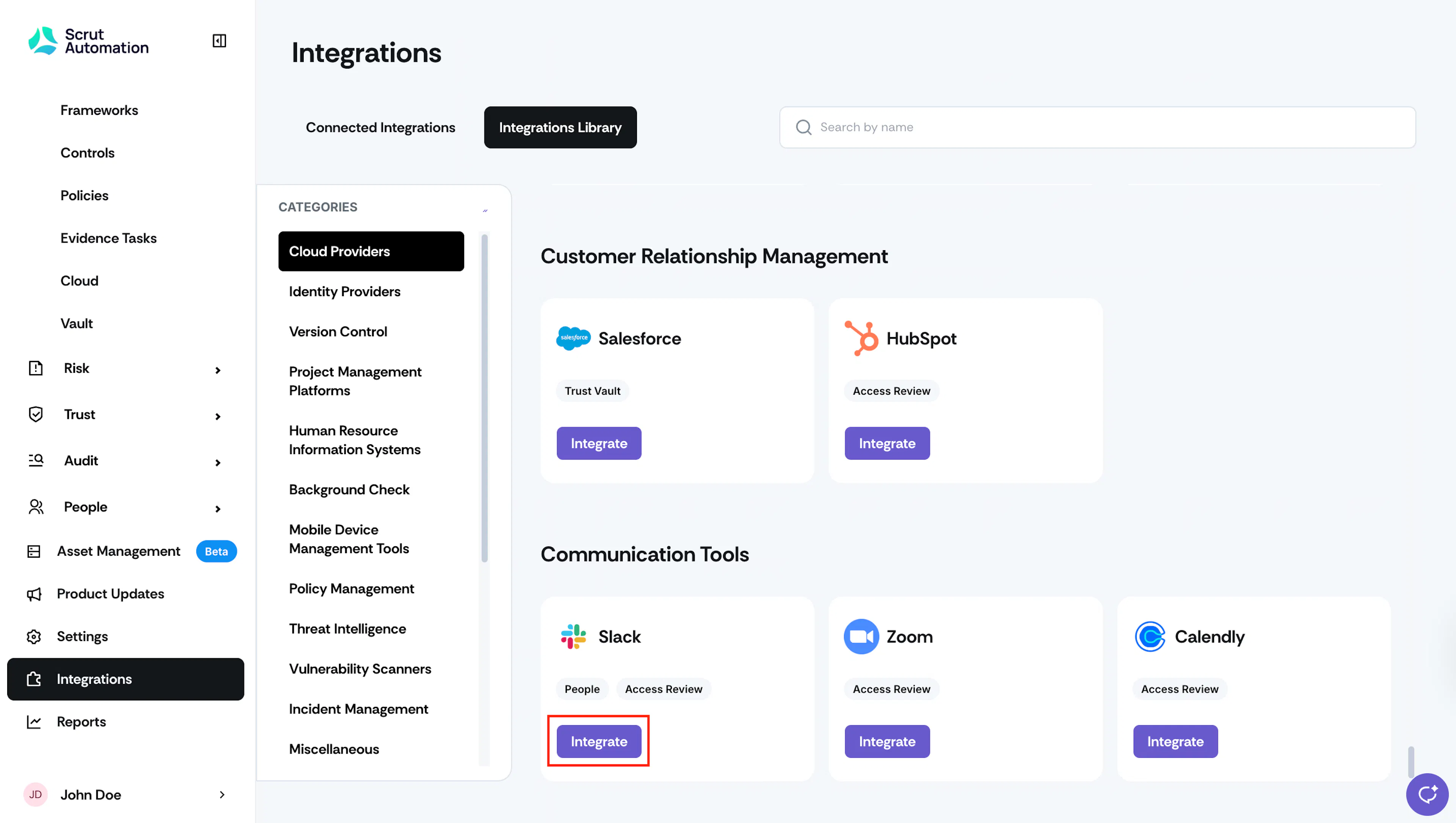
In the Categories section, select Communication Tools.
-
Locate the Slack tile and click Integrate.
-
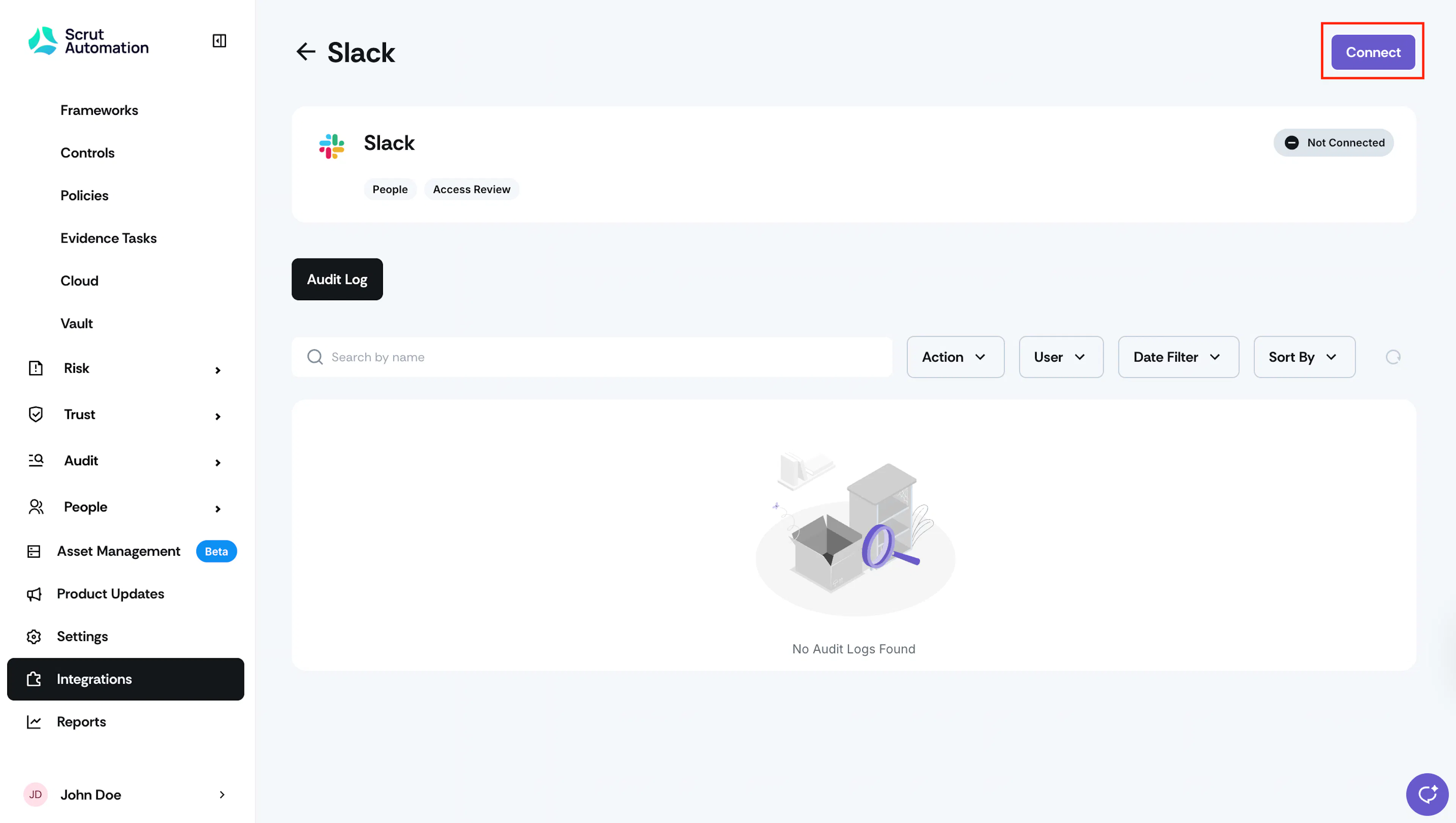
On the Slack integration page, click Connect in the top-right corner.
Step 2: Authenticate with Slack
-
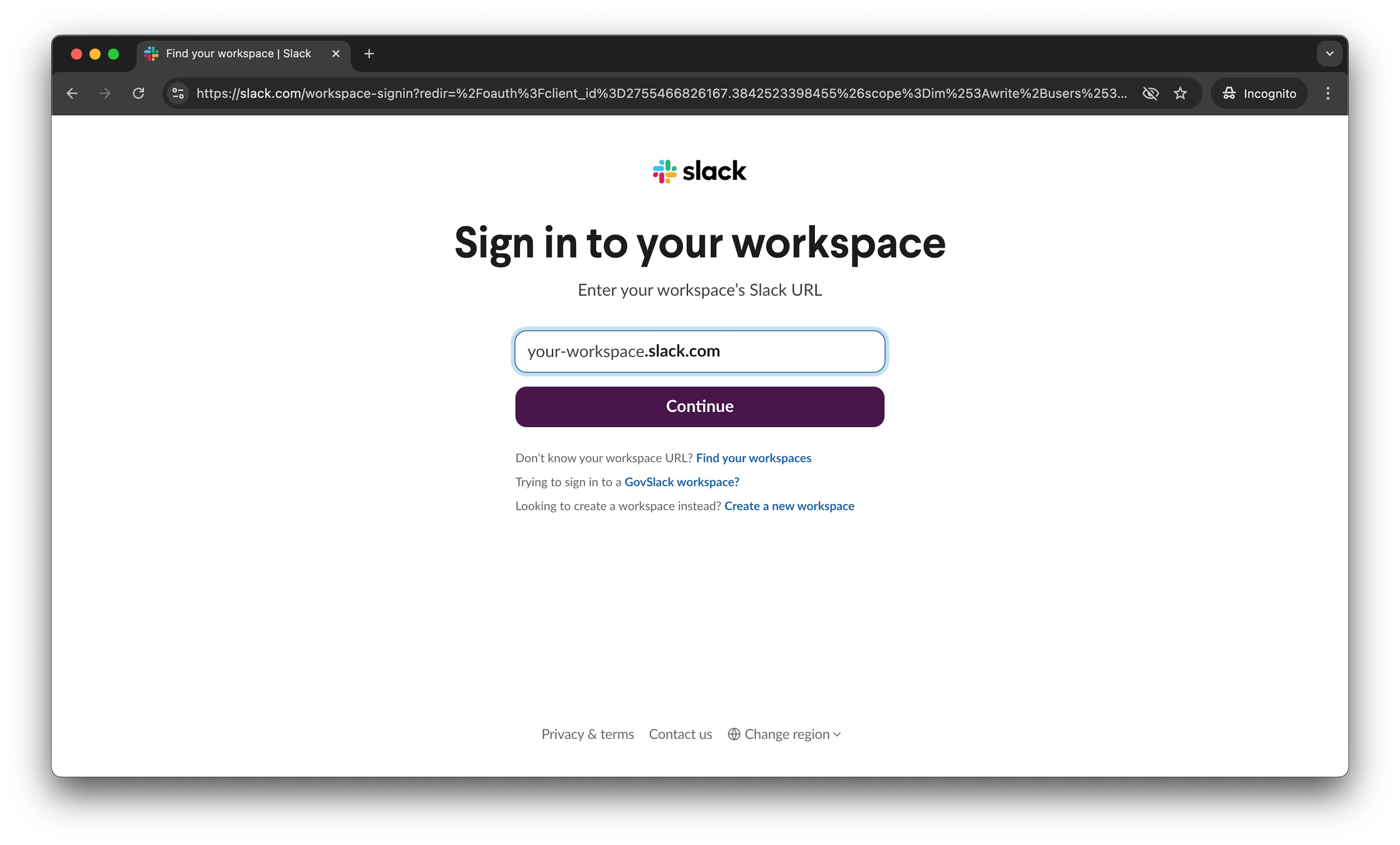
Enter your workspace's Slack URL and click Continue.
-
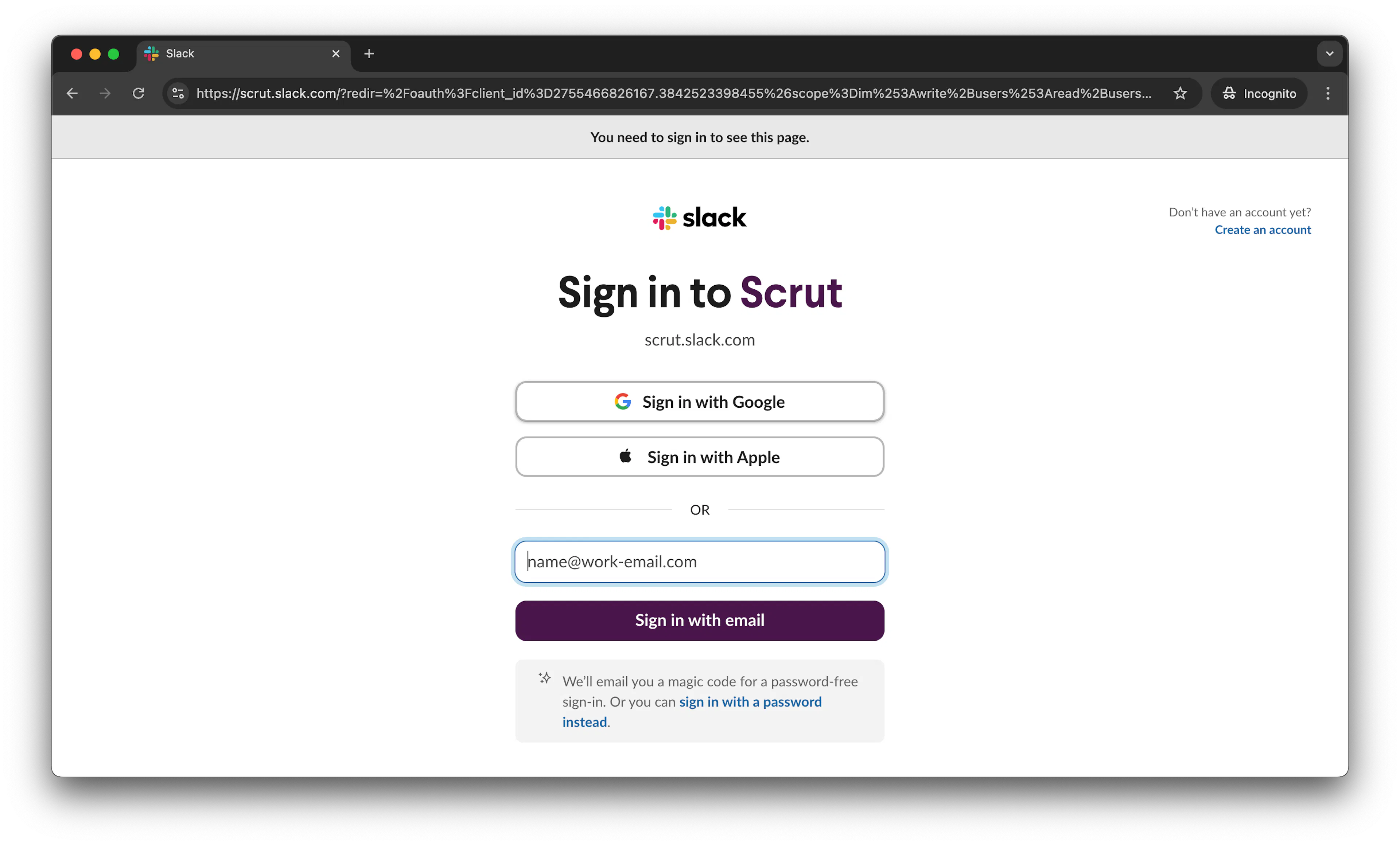
Enter your work email address and sign in to your Slack workspace.
-
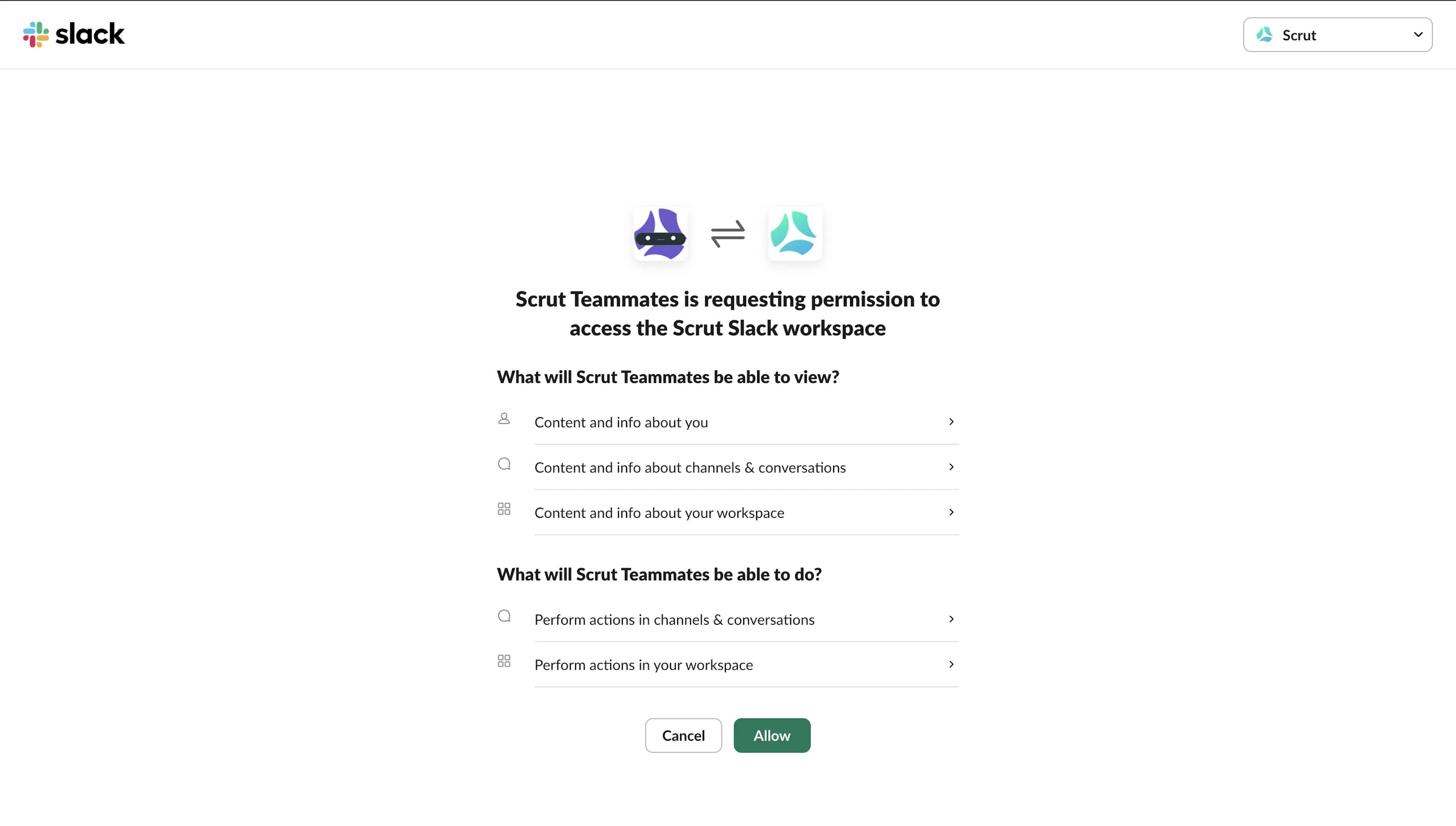
Review the permissions Scrut is requesting and click Allow to grant access.
Note: You must have admin permissions in Slack to complete the authorization. This is required for Scrut to run the MFA Enforcement compliance check on your workspace.
- Once authorization is complete, the status on the Slack integration page updates to Connected.
What Happens Next?
Initial data sync
Scrut begins syncing data from your Slack workspace automatically after the integration is connected. You can monitor sync activity in the Audit Log on the Slack integration page.
Review synced data
On successfully integrating with Slack, you can perform the following tasks in Scrut:
1: Configure Reminders and Alerts
- Reminders: Send employees timely reminders about incomplete security tasks directly in Slack.
- Real-time alerts: Receive instant notifications for critical events like Trust Vault requests, test and integration failures, comment mentions, and more.
- Task Summaries: Receive a direct message from Scrut with a summary of your pending security tasks.
- Digests: Stay in the loop with a Scrut digest that reflects your organization's overall compliance status.
2: Conduct Access Reviews
Include Slack in scope for Access Reviews to verify that user accounts are mapped to valid identities and that deprovisioned accounts are removed promptly. For guidance, refer to the Access Reviews help documentation.
3: Automate Compliance Checks
Scrut runs the following automated tests on Slack to improve your compliance and security posture.
| Test Name | What it checks |
|---|---|
| Slack accounts associated with users | Verifies that all Slack accounts are mapped to valid users in Scrut, ensuring activity is traceable to accountable identities. |
| Slack accounts deprovisioned when personnel leave | Verifies that Slack accounts linked to removed employees are deprovisioned. |
| Slack MFA Enforcement Check | Verifies that multi-factor authentication is enabled for all Slack user accounts to reduce the risk of unauthorized access. |
4: Ask Compliance and Security Questions to Scrut Teammates
Use the Scrut Teammates bot in Slack to ask compliance and security questions and get instant, contextual answers.
Common Errors and Troubleshooting
Integration fails to connect
Possible solutions: Confirm that you are signed in to Slack with admin credentials. Non-admin accounts cannot authorize the OAuth flow. Check that your Slack workspace URL is correct before clicking Continue. If you see an authorization error, try disconnecting and reconnecting the integration.
Data not appearing after sync
Possible solutions: Wait for the initial sync to complete. Check the Audit Log on the Slack integration page for sync status. Trigger a manual sync using the Sync Now button on the integration page. Confirm that users in your Slack workspace have email addresses that match their records in Scrut.
MFA enforcement test showing unexpected results
Possible solutions: Confirm that MFA is configured at the workspace level in Slack, not just for individual users. Note that admin-level Slack access is required for Scrut to read MFA enforcement status. If the integration was connected with non-admin credentials, reconnect using an admin account.
Slack notifications not being delivered
Possible solutions: Verify that the Scrut Teammates app has not been removed from the relevant Slack channels. Check that the chat:write and im:write scopes were granted during authorization. If not, disconnect and reconnect to re-authorize.