

Configure Slack Notifications
You can receive compliance updates, critical alerts, and task reminders directly on your preferred communication platforms, such as Slack. You can configure these notifications to receive:
- Reminders: Send employees timely reminders about their incomplete security tasks.
- Real-time alerts: Get instant notifications for critical events like Trust Vault requests, test and integration failures, comment mentions, and more.
- Task Summaries: Get customized summaries of your pending security tasks as a direct message from Scrut.
- Digests: Stay in the loop with the Scrut digest that encapsulates your organization’s compliance status.
Pro Tip!
Each notification contains hyperlinks that lead directly to the relevant task or page in Scrut, allowing the recipient to take action or follow up easily.
This article explains how to customize Scrut notifications to suit your specific requirements.
Prerequisites
Connect your preferred communication tool with Scrut to receive notifications. For step-by-step instructions, refer to these guides:
1: Employee Reminders
You can send private reminders to employees about their pending Scrut tasks. Here are a few benefits of sending employee reminders:
- Personalized Delivery: Each employee will receive an individual reminder listing their pending tasks.
- No Redundant Notifications: Employees without pending tasks won’t receive any unnecessary reminders.
To turn on employee reminders:
-
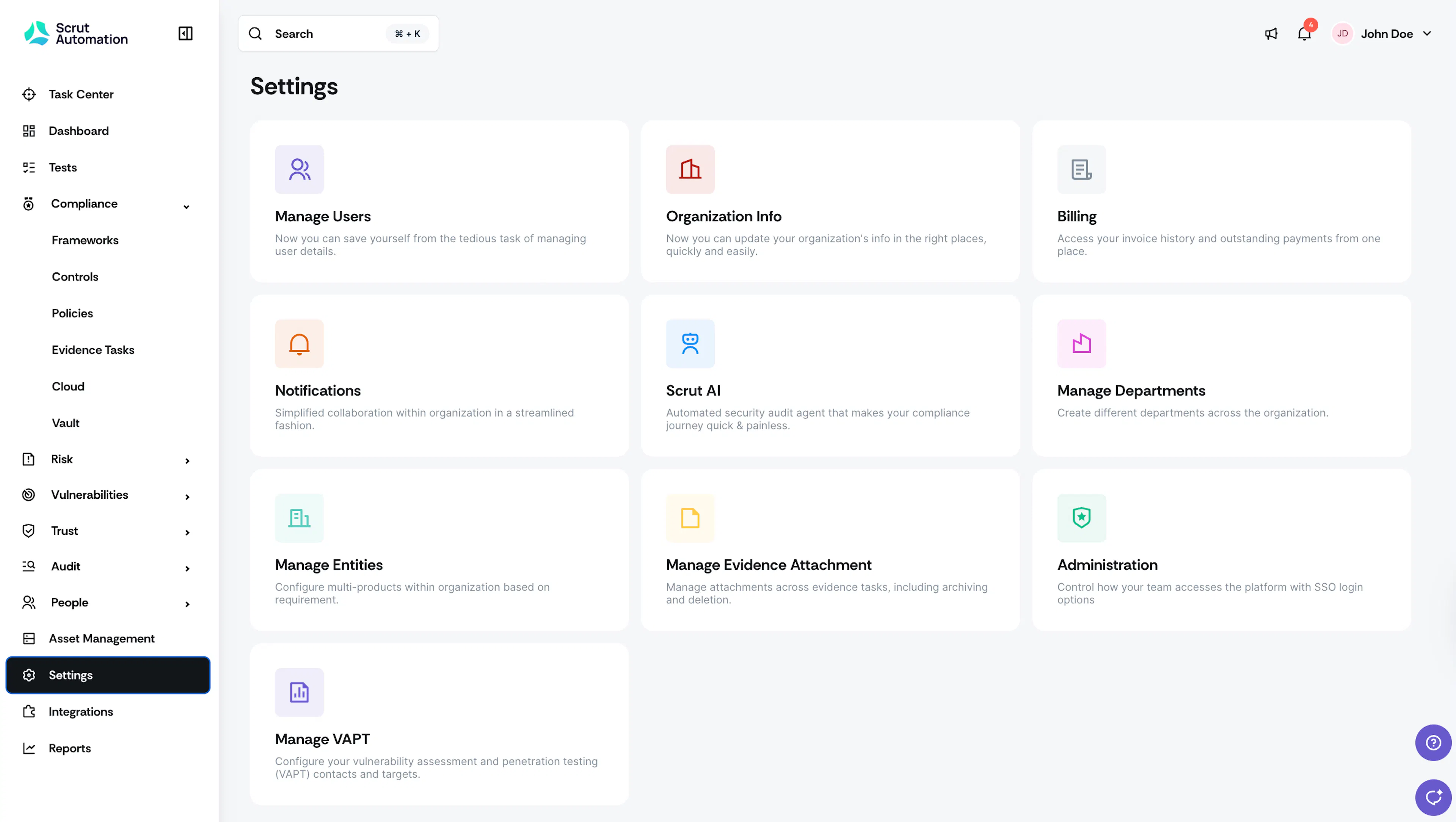
Sign in to Scrut, and go to Settings → Notifications.
-
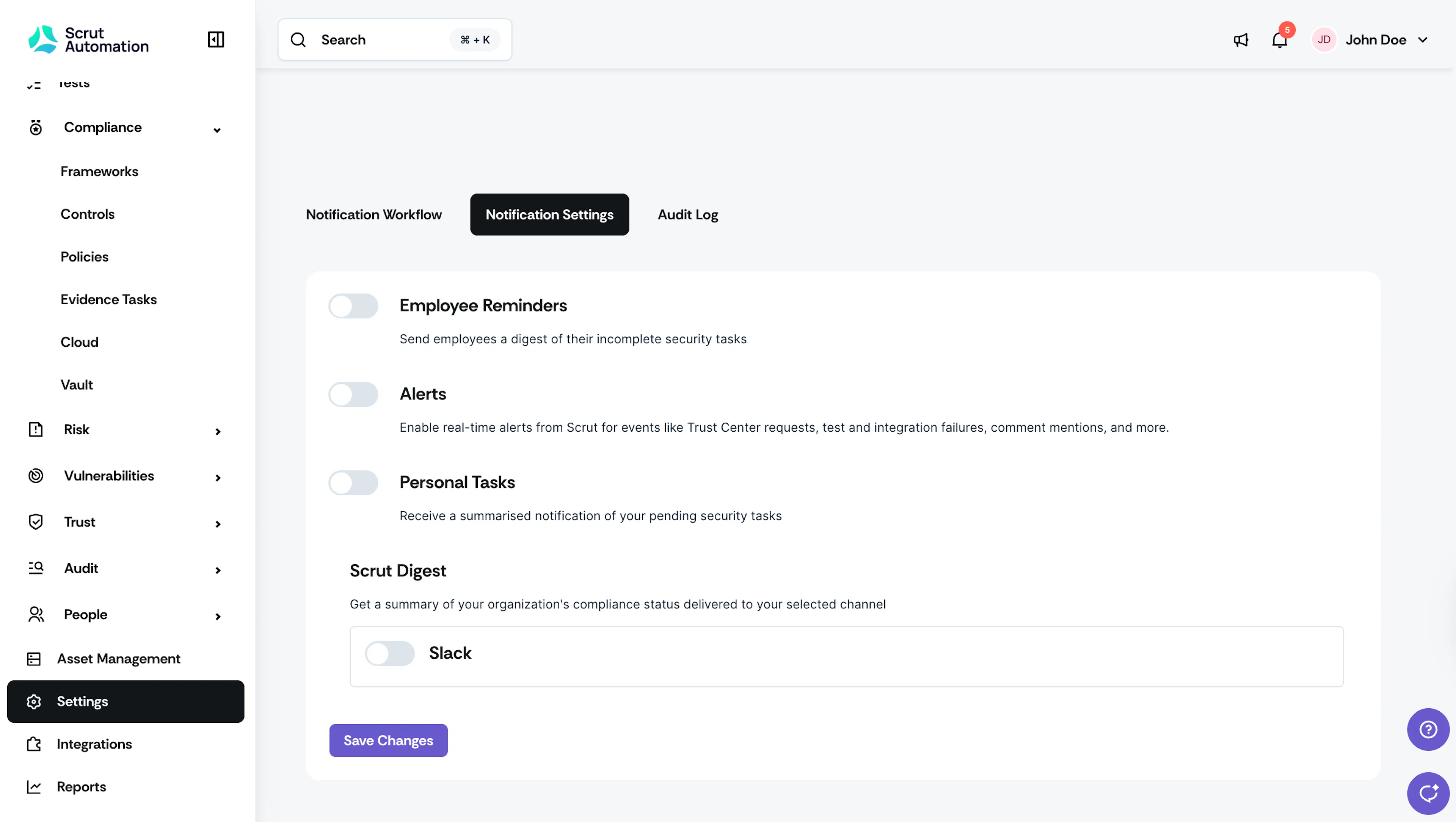
Go to the Notification Settings tab.
-
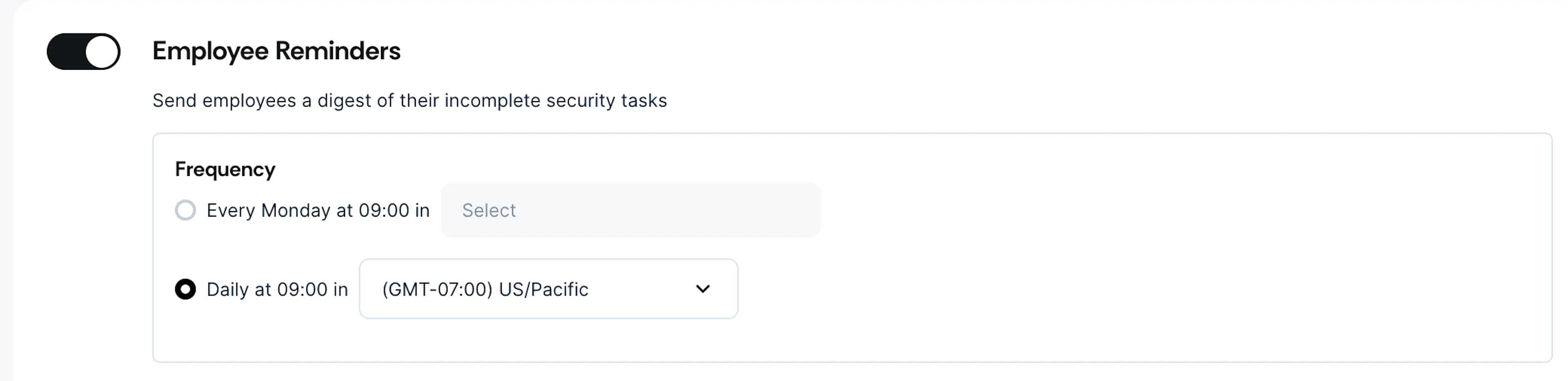
Turn on the Employee Reminders toggle, and choose the delivery time: Every Monday (or) Daily at a specific time based on your team’s time zone.
-
Click Save Changes.
2: Alerts
Alerts enable you to communicate critical updates and notifications from Scrut to the appropriate recipients in real-time. Scrut triggers alerts for various events, including Trust Vault requests, test and integration failures, comment mentions, and more.
Examples of Alerts:
- Security Report Ready: Admins and relevant recipients are instantly notified when a security report is ready for review.
- Trust Vault Requests: Alerts are sent to the admin and primary assignee when a Trust Vault request is made.
- Comment Notifications: When someone is tagged in a comment, an alert is sent directly to the mentioned individual, keeping them in the loop.
To turn on alerts:
-
Sign in to Scrut, and go to Settings → Notifications → Notification Settings.
-
Turn on the Alerts toggle.
-
Click Save Changes.

3: Personal Tasks
With Personal Tasks, Scrut sends a summarized notification of your pending security tasks as a private message in Slack. You’ll receive reminders for:
- Pending tasks (Overdue, Due Soon, and Pending Approval)
- Vendors you need to assess (Not Assessed and In Progress)
- Questionnaires you need to review (Submitted)
- Vendor onboarding requests you need to review (Review Pending)
- Mitigation tasks you need to complete (Not Due, Overdue, and Needs Revision)
- Mitigation tasks you need to review (Needs Review)
To turn on reminders for personal tasks:
- Sign in to Scrut, and go to Settings → Notifications → Notification Settings.
- Turn on the Personal Tasks toggle, and choose the delivery time: Every Monday (or) Daily at a specific time based on time zone.
- Click Save Changes.
4: Scrut Digest
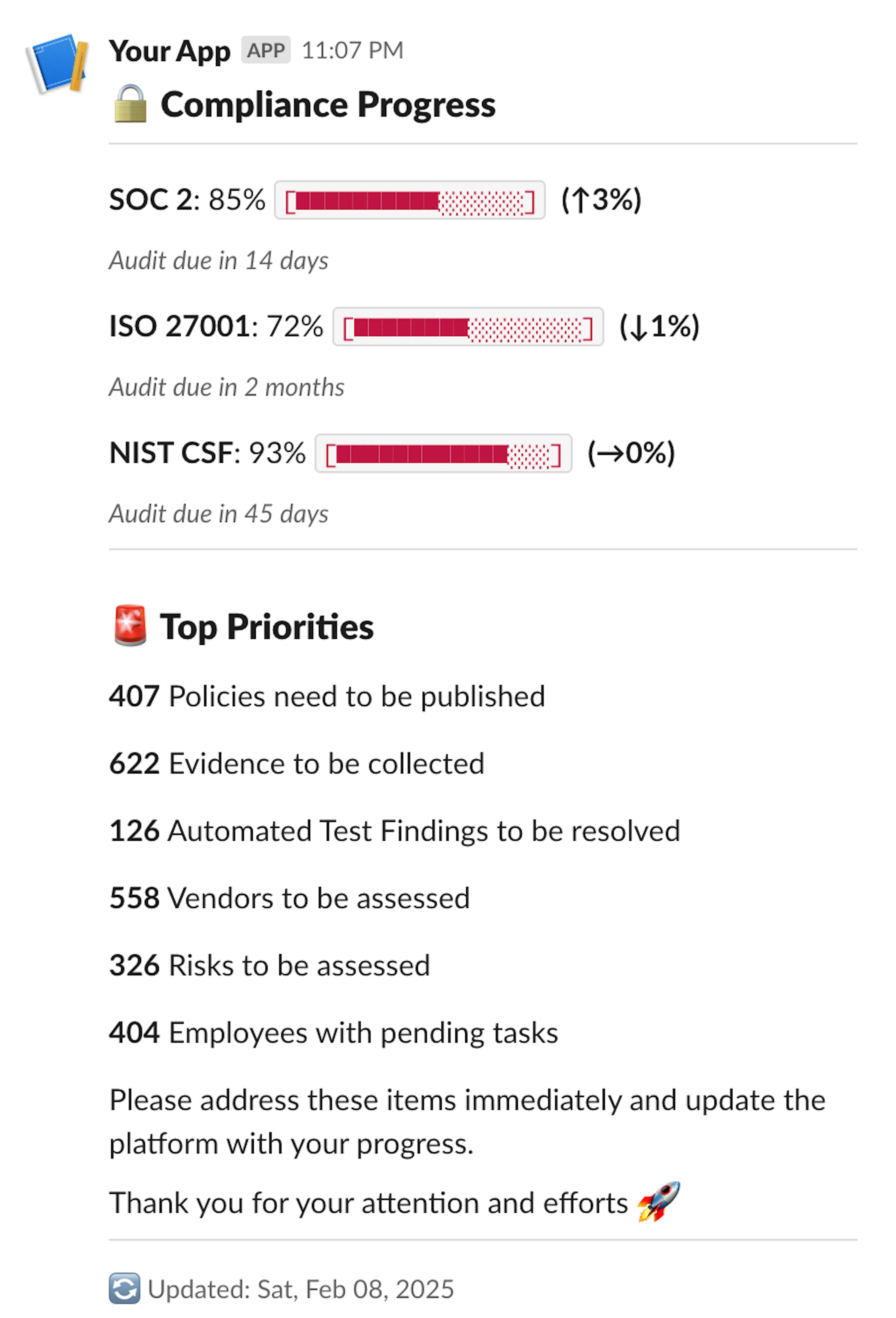
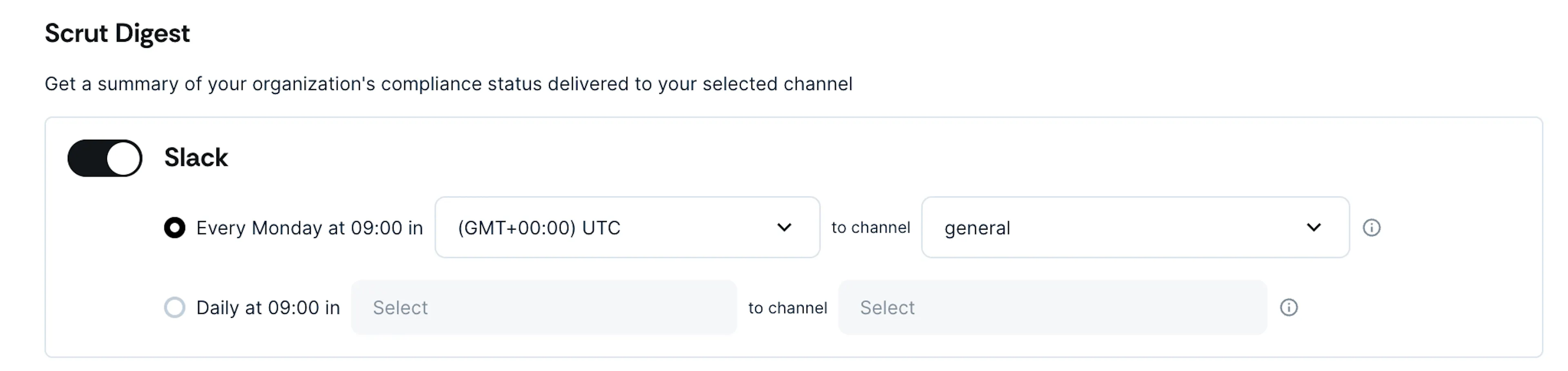
The Scrut Digest summarizes your organization’s compliance progress and top priorities. It includes the compliance summaries for all external audit frameworks, their due dates, and the list of pending items in artifacts. You can receive the digest message in a:
- Public or private Slack channel
- Private Slack group
To configure digest settings:
-
Sign in to Scrut, and go to Settings → Notifications → Notification Settings.
-
Scroll to the Digest section. Choose the corresponding delivery time: Every Monday (or) Daily at a specific time based on time zone.
-
Select your preferred channel.
Heads up!
However, Slack will let you select a private channel. To learn how to do this, see here.
-
Click Save Changes.
Adding the Scrut Bot to a Private Slack Channel
To receive the Scrut digest on a private Slack channel, you must first add the Scrut bot to it. Follow these steps to add the Scrut bot:
-
Go to your preferred private Slack channel.
-
Type /invite @scrut and choose the Scrut bot.

-
Click Enter to add the bot to the channel.

-
Once the bot is added, you can select this private channel in Scrut → Settings → Notifications → Notification Settings → Digest → Scrut channel dropdown.