

Audit Center: Walkthrough
Overview of the Audit Center module
The Audit Center in Scrut is a central hub for managing both internal and external audits. Use it to create audits and add auditors. Auditors can raise requests and report findings directly in the audits they are added to. This ensures clear communication and transparency throughout the audit process.
How To Access the Audit Center
Click Audit → Audit Center on the left navigation panel. This takes you to the Audits tab, where you can view all internal and external audits you created in Scrut, along with their statuses and other metadata.
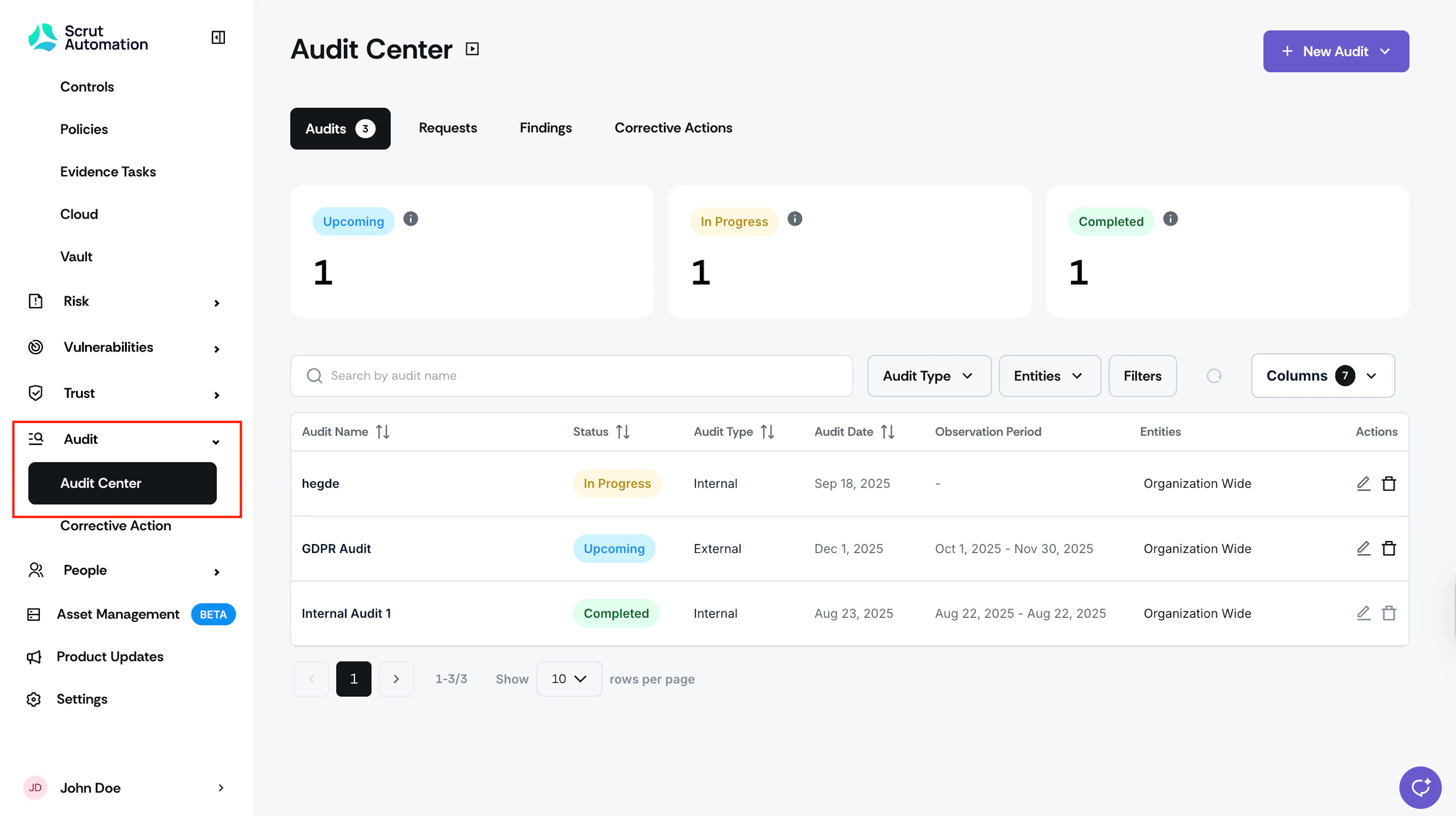
The Audit Center has four key sections:
Audits
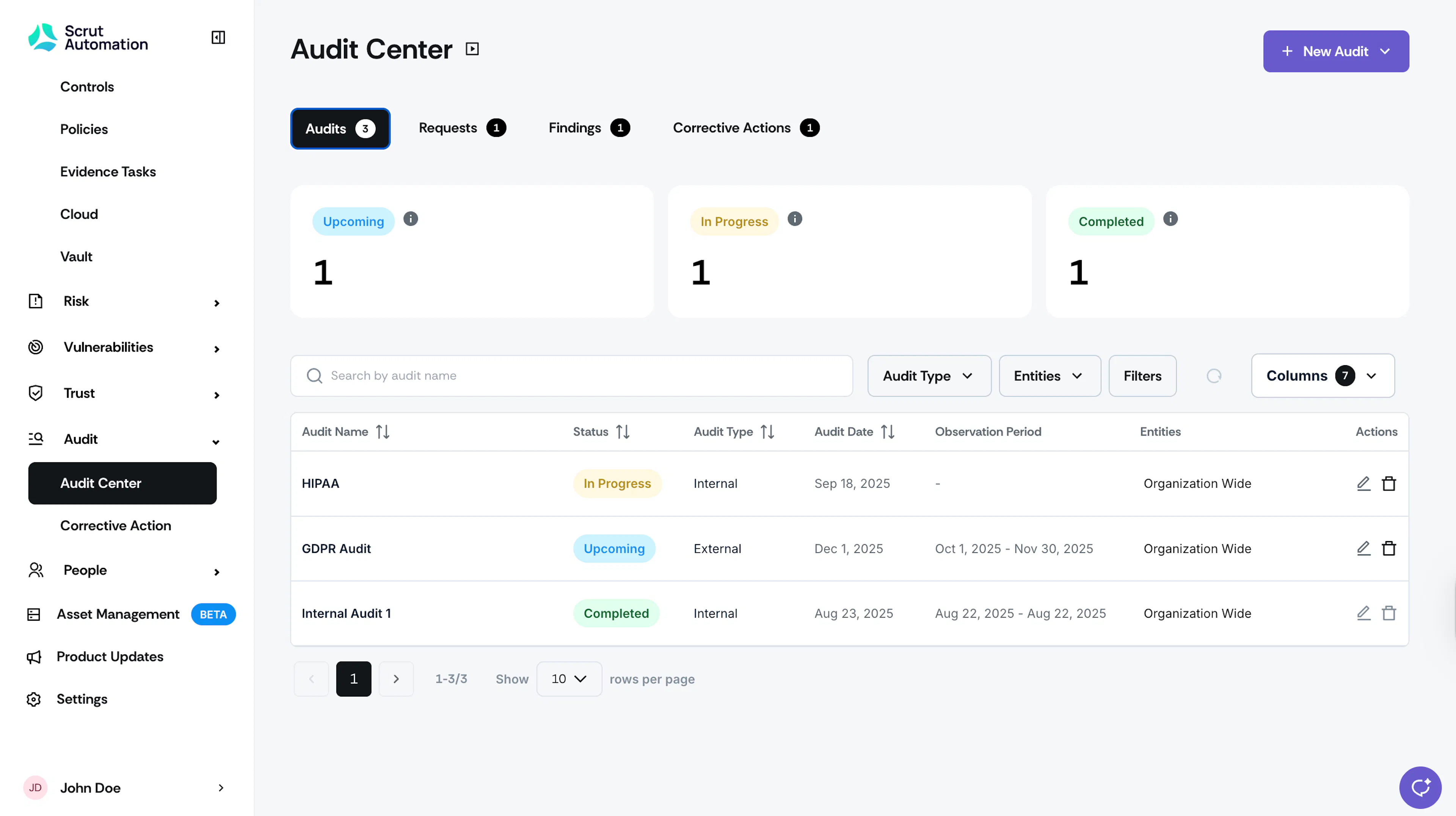
This tab provides a comprehensive overview of all the audits you've created in Scrut, displayed in a table. At the top, you'll find status cards reflecting the current state of your audits:
- Upcoming: Audits scheduled for a future date, with no findings or requests added yet.
- In Progress: When auditors begin to add findings or requests to an audit, its status automatically updates to "In Progress." Also, when the audit date goes live, the status automatically changes to "In Progress."
- Completed: This status is manually set by you when you mark an audit as completed.
The main table provides essential details for each audit, such as its name, type, scheduled date, observation period, and the entities involved. If you click on any audit listed in the table, you will be directed to the detailed Audit page, where you can see more in-depth information.
Pro Tip!
To tailor the data to your needs, use the filters at the top of the table. These filters let you sort and refine the audit list based on criteria relevant to you.
Requests
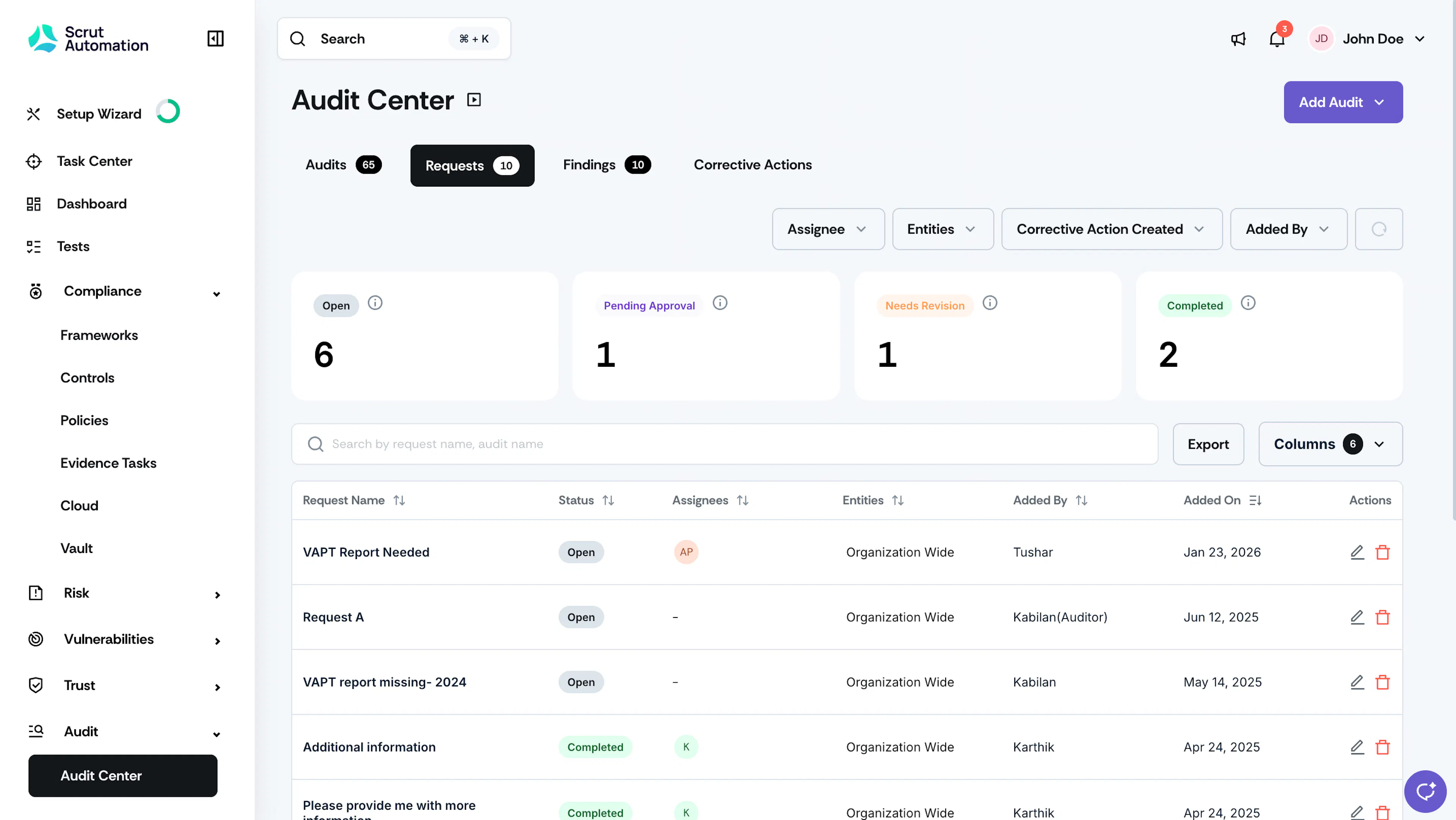
The Requests tab provides a comprehensive overview of all requests raised by auditors during audits. At the top of the tab, you will find status cards that categorize the requests into four distinct statuses:
- Open: Number of requests that are awaiting action from the assigned individual (the assignee).
- Pending Approval: The number of requests the assignee has submitted and that are awaiting the auditor's review.
- Needs Revision: Requests labeled with this status indicate that the auditor has reviewed the submitted work and is requesting specific changes or additional information from the assignee.
- Completed: This status shows the number of requests that have been fully completed and finalized, indicating that all necessary actions have been taken.
Below the status cards, a detailed table presents key information for each request, including its name, assignee, added date, added by, the audit it pertains to, and other relevant metadata. To take further action on a specific request, click it to open the request details page, where you can view more information and take the necessary steps.
Findings
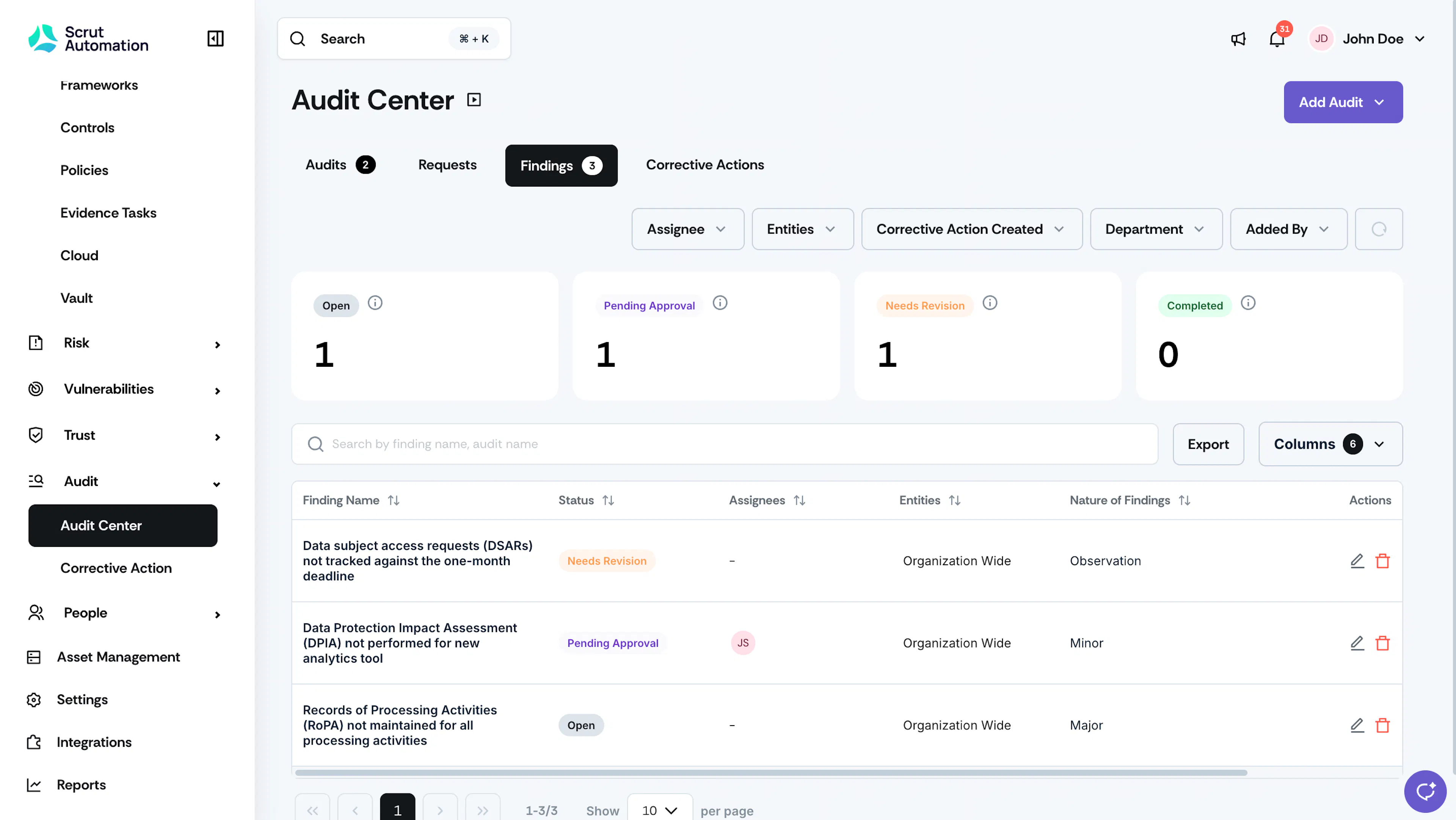
The Findings tab provides a comprehensive overview of all audit findings recorded by auditors during the audit process. At the top, you will find status cards that display the different stages of these findings. Here's what each status means:
- Open: Number of findings that have been submitted by the auditor and are pending action from the assignee.
- Pending Approval: The number of findings the assignee has submitted and that are awaiting the auditor's review.
- Needs Revision: This denotes findings for which the auditor has requested changes or improvements to the submitted documentation or artifacts.
- Completed: This shows the number of findings that have been addressed and finalized.
Beneath the status cards, a detailed table presents essential information for each finding. The table includes key details such as the finding name, the assignee (the person responsible for taking action), the nature of the finding, the relevant department, the creation date, the creator and other relevant metadata. To take further action on a specific finding, click it to open the finding details page, where you can view more information and take the necessary steps.
Corrective Actions
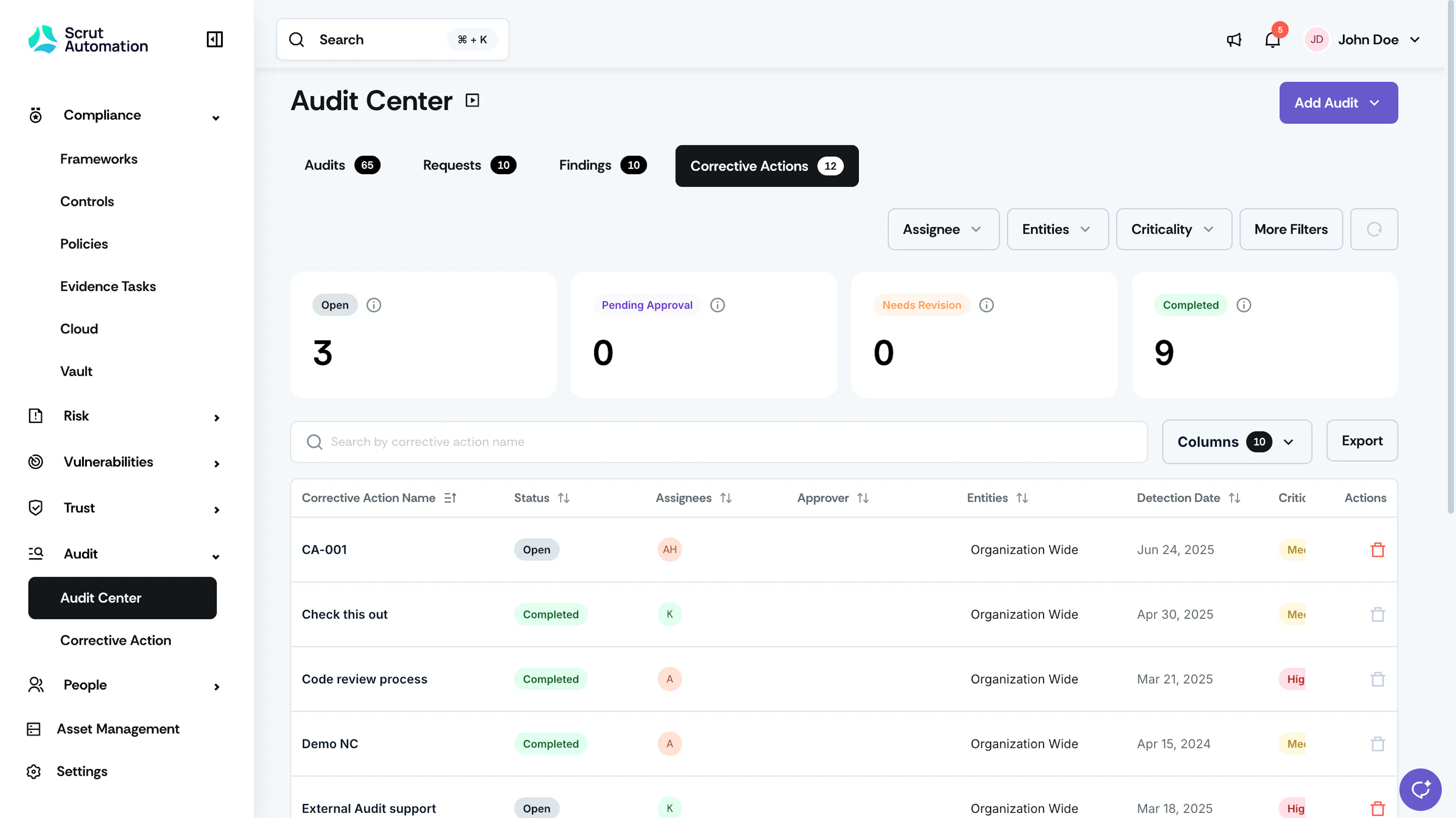
The corrective actions tab provides a comprehensive overview of all corrective actions created in response to audit findings and requests. At the top of the tab, you’ll find status cards that display the statuses of these actions, such as:
- Open: Number of corrective actions currently open and still pending resolution.
- Pending Approval: Number of corrective actions pending approval.
- Needs Revision: Number of corrective actions that need changes.
- Completed: Number of corrective actions successfully resolved.
Beneath the status cards, a detailed table presents essential information for each corrective action. The table includes key details such as the corrective action name, assignee, criticality rating, detection date, source name and type, and other relevant metadata. For further actions related to a specific corrective action, click it to go to the corrective action details page, where you can view more information and take the necessary steps.