

Add Policy Approvers
Before You Begin
- Make sure that the Policy Approval toggle is enabled in Policy Settings.
How to Add Policy Approvers
-
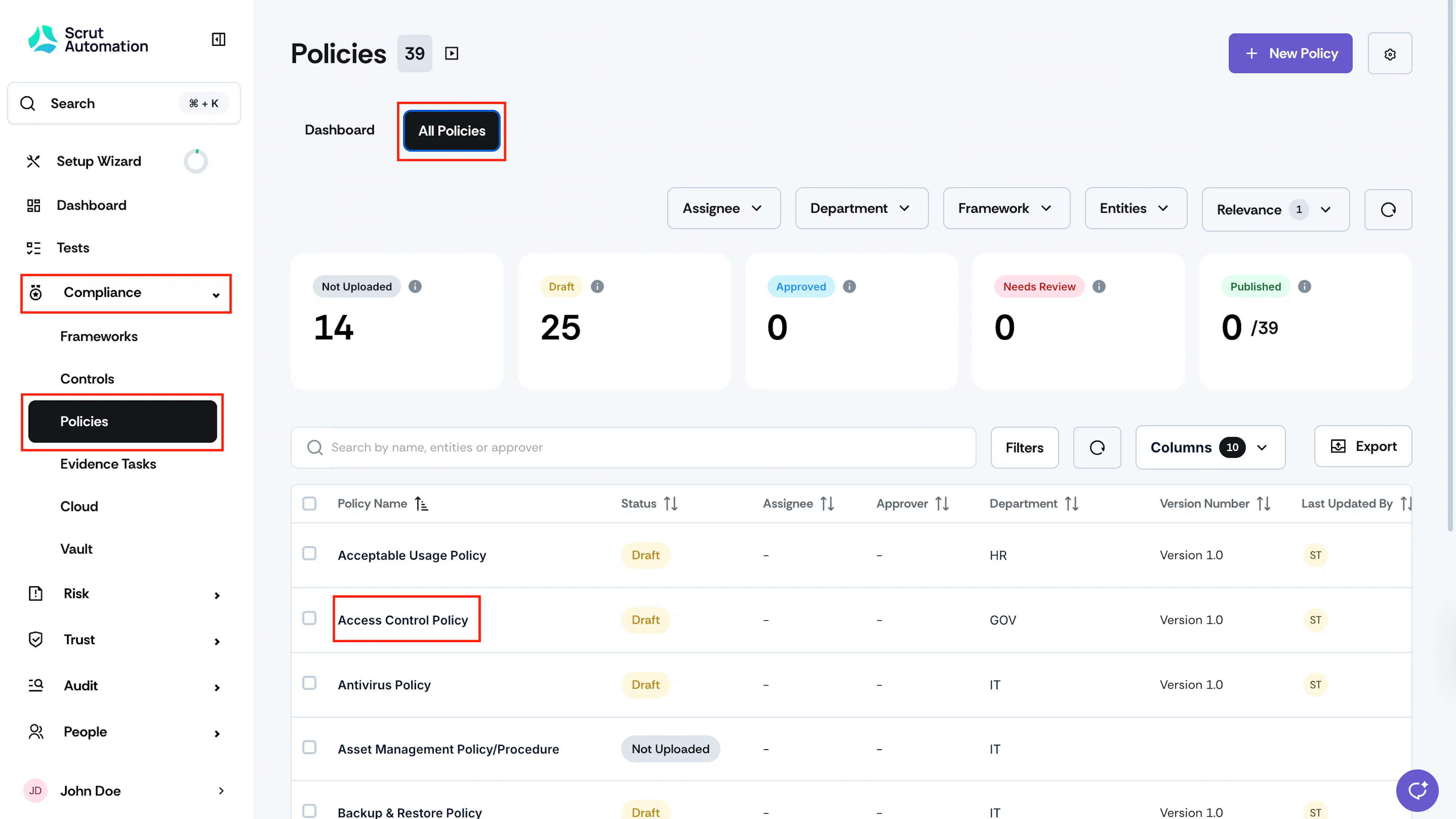
Click Compliance → Policies on the left navigation panel, and go to the All Policies tab.
-
Click on the policy to which you want to add approver(s).
-
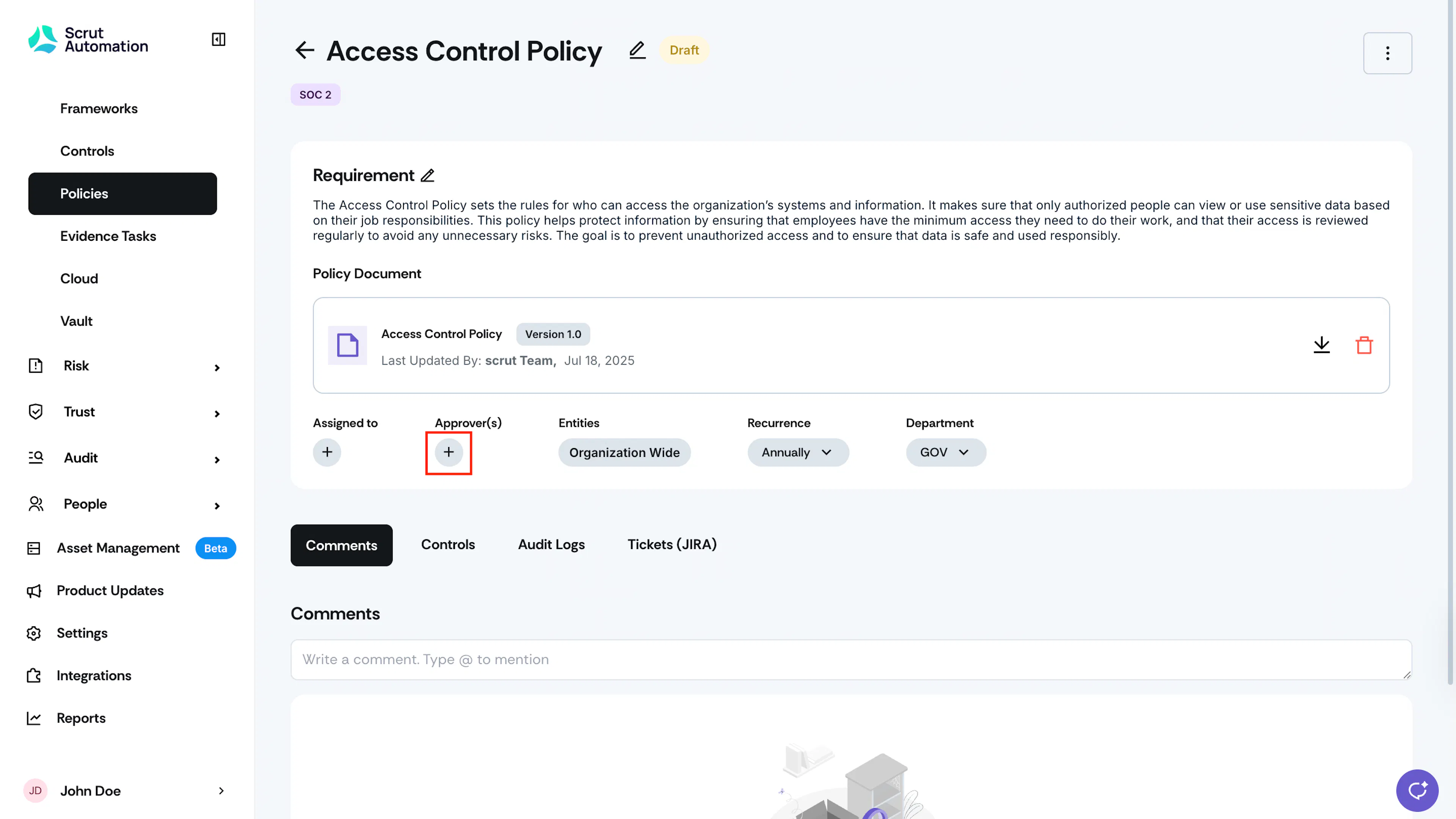
On the policy detail page, click + in the Approver(s) section.
-
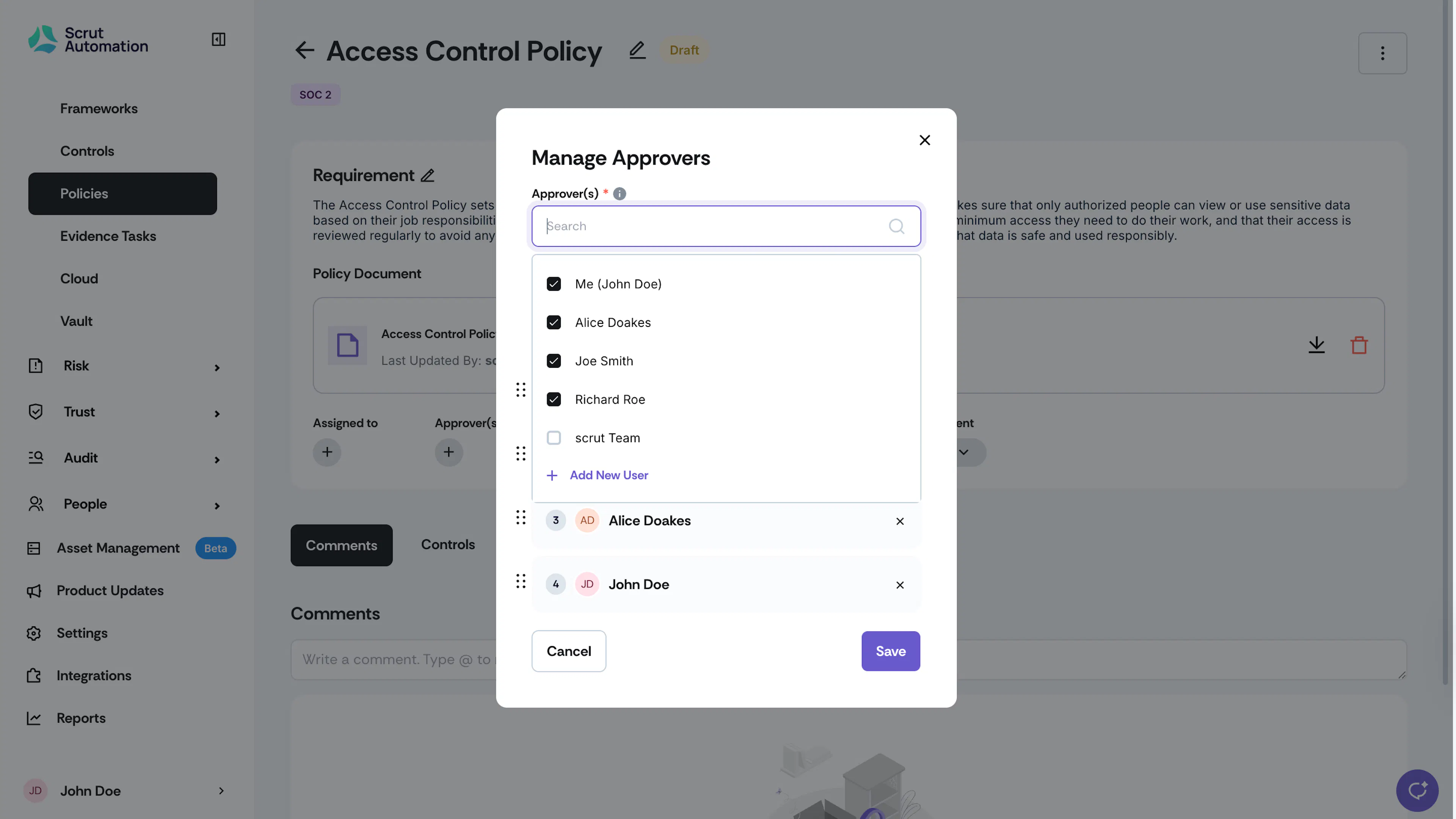
Select the Approver(s) from the dropdown.
Note:
You can add up to a maximum of 5 approvers per policy.
- Adjust the hierarchy of approvers by dragging and arranging the names as required.
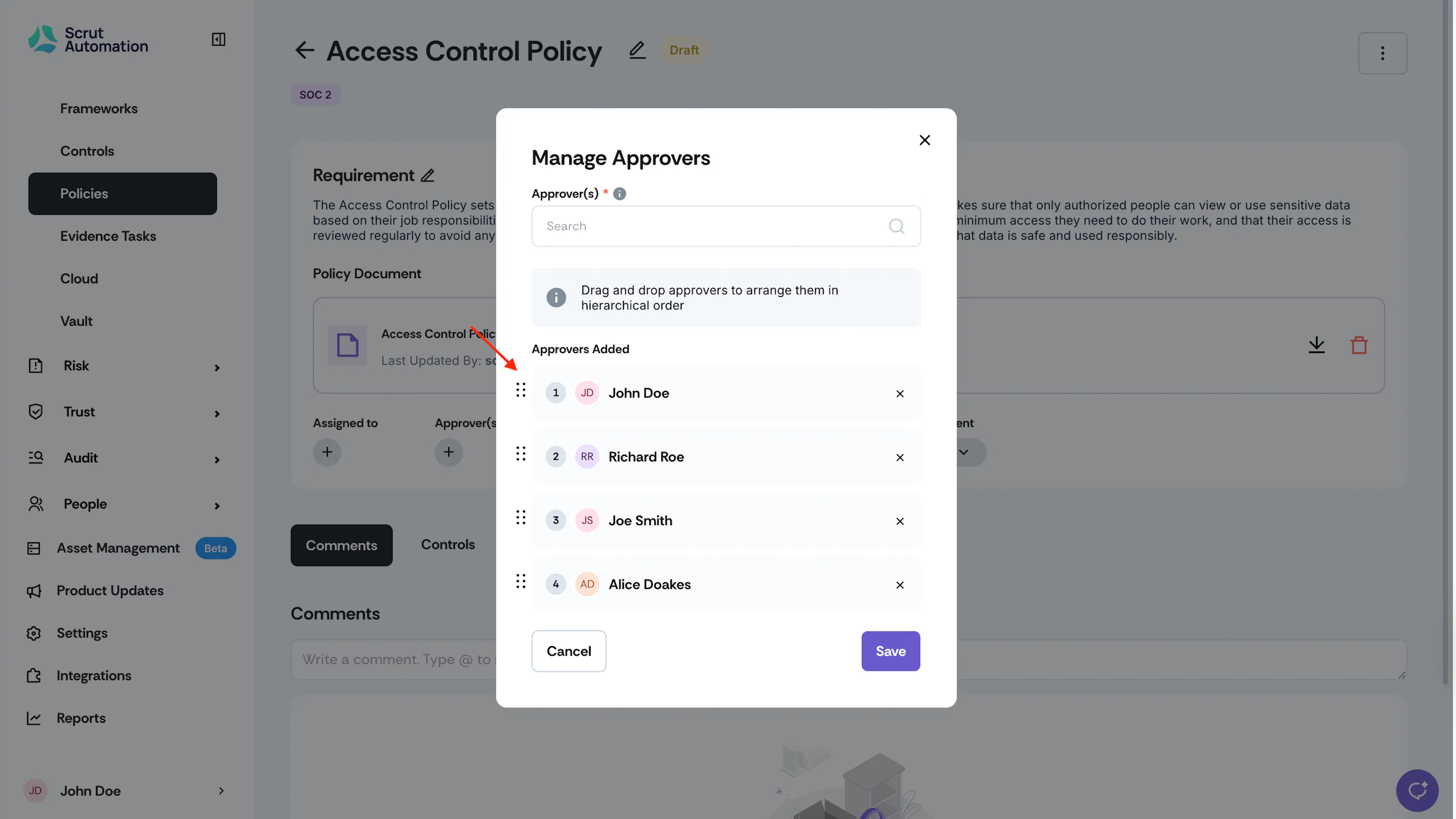
- Click Save.
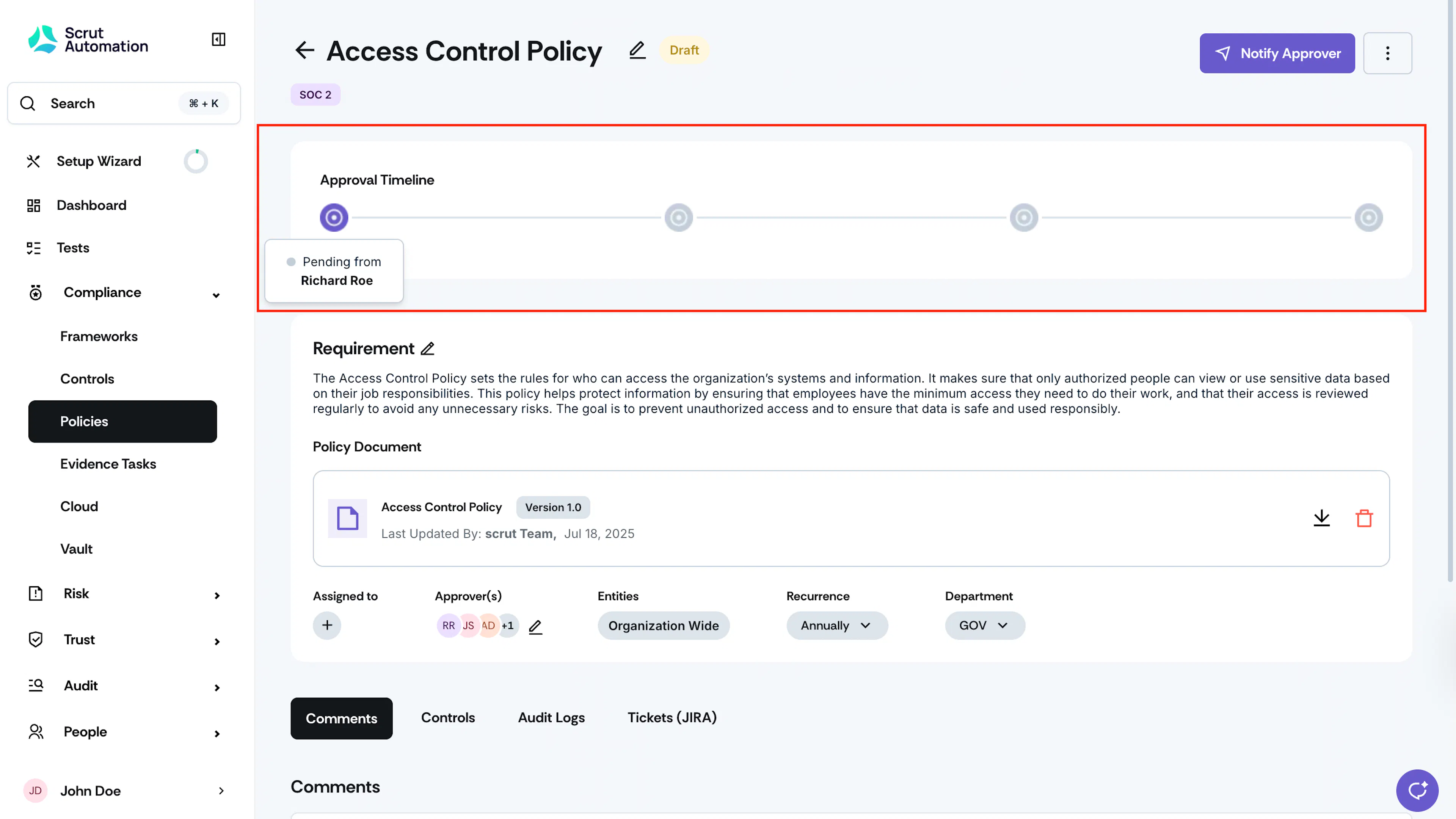
- Once preferences are saved, you can view the approvers and their order on the Approval Timeline.
Note:
All approvers must approve the policy for it to be published by the admin/assignee. We do not support the use case where at least one approval is sufficient for publication; instead, we ensure a unified and comprehensive endorsement from all approvers.
-
When you add approvers, Scrut will automatically send them email notifications based on the order you set. The first approver receives the email first. After the first approver approves the policy, the next approver in line will be notified, and this process continues until all approvers have been notified.
-
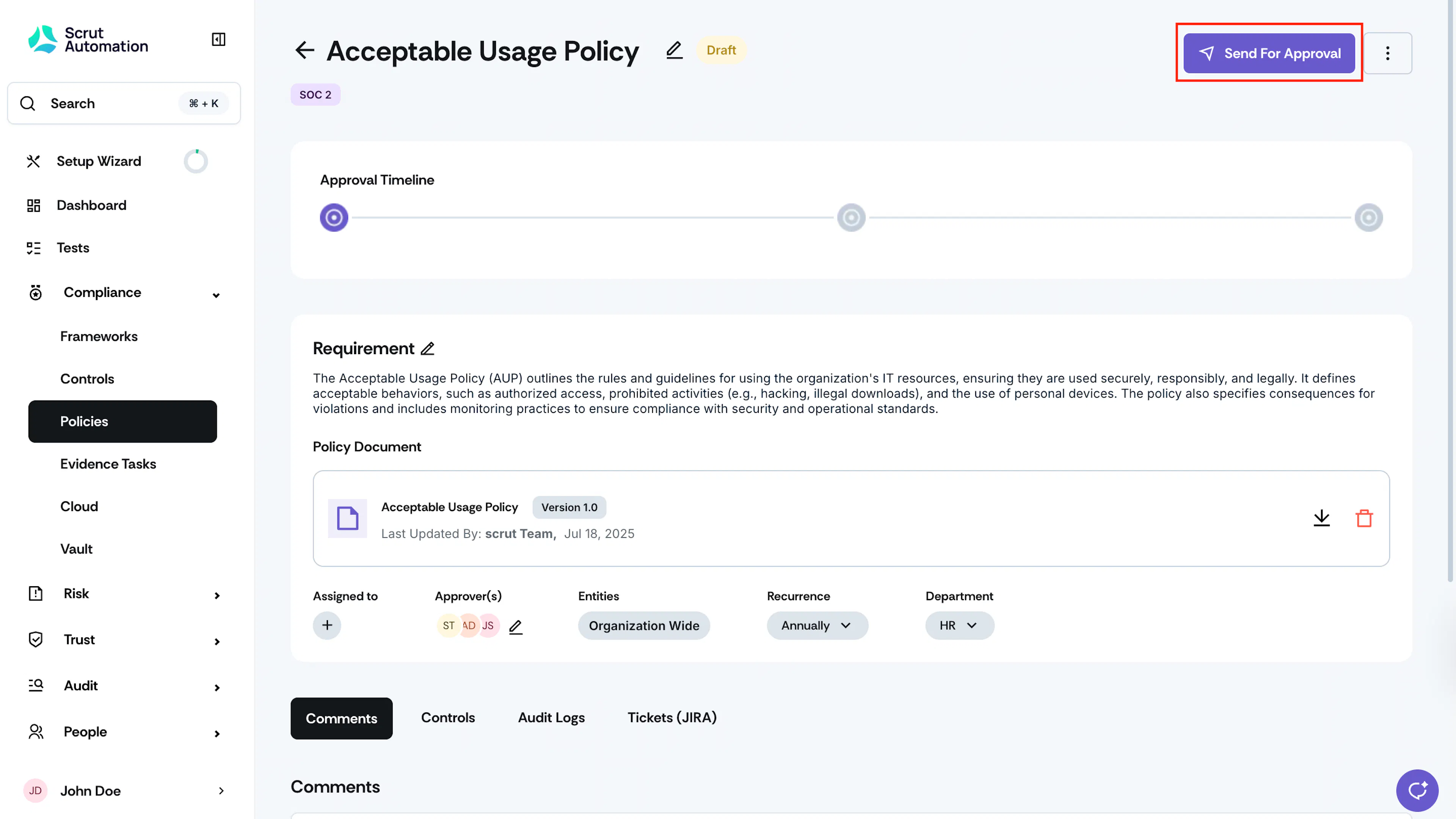
Additionally, you can escalate the approval flow by sending manual reminders to the next approver. Click the Send for Approval button on the policy details page to remind the next approver in line to complete the task.
-
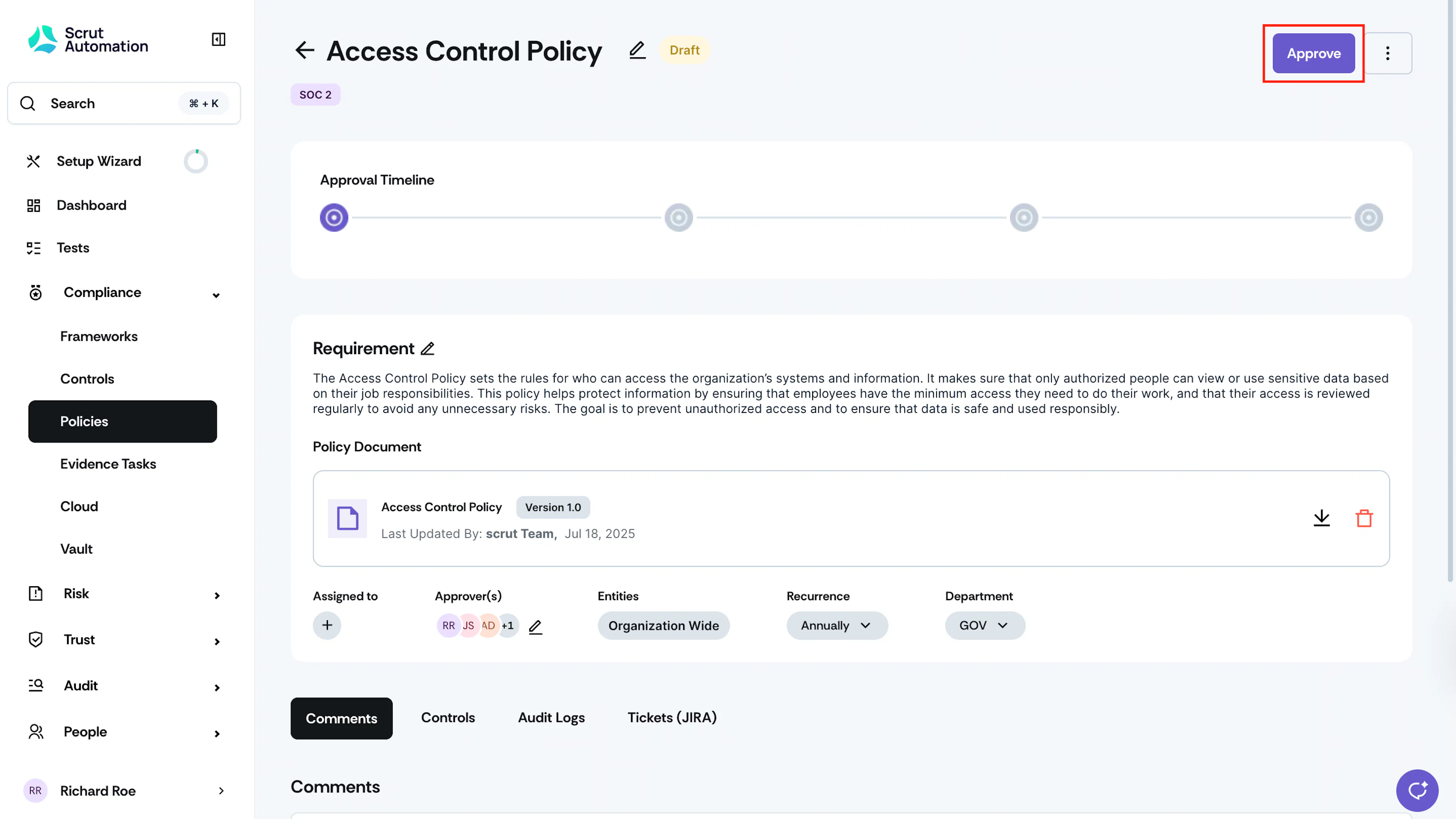
After reviewing the policy, the approver needs to click the Approve button to complete the action.
-
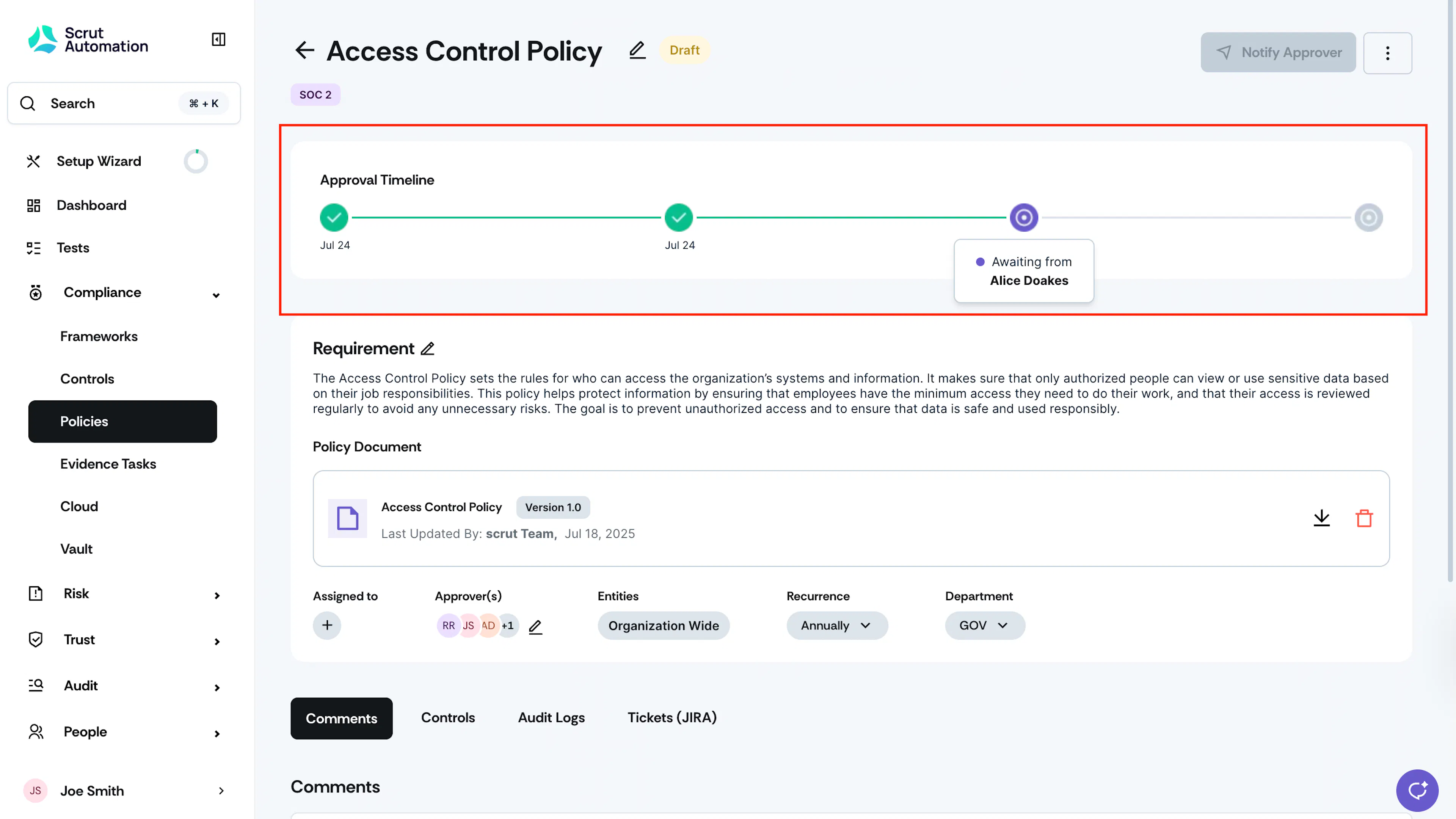
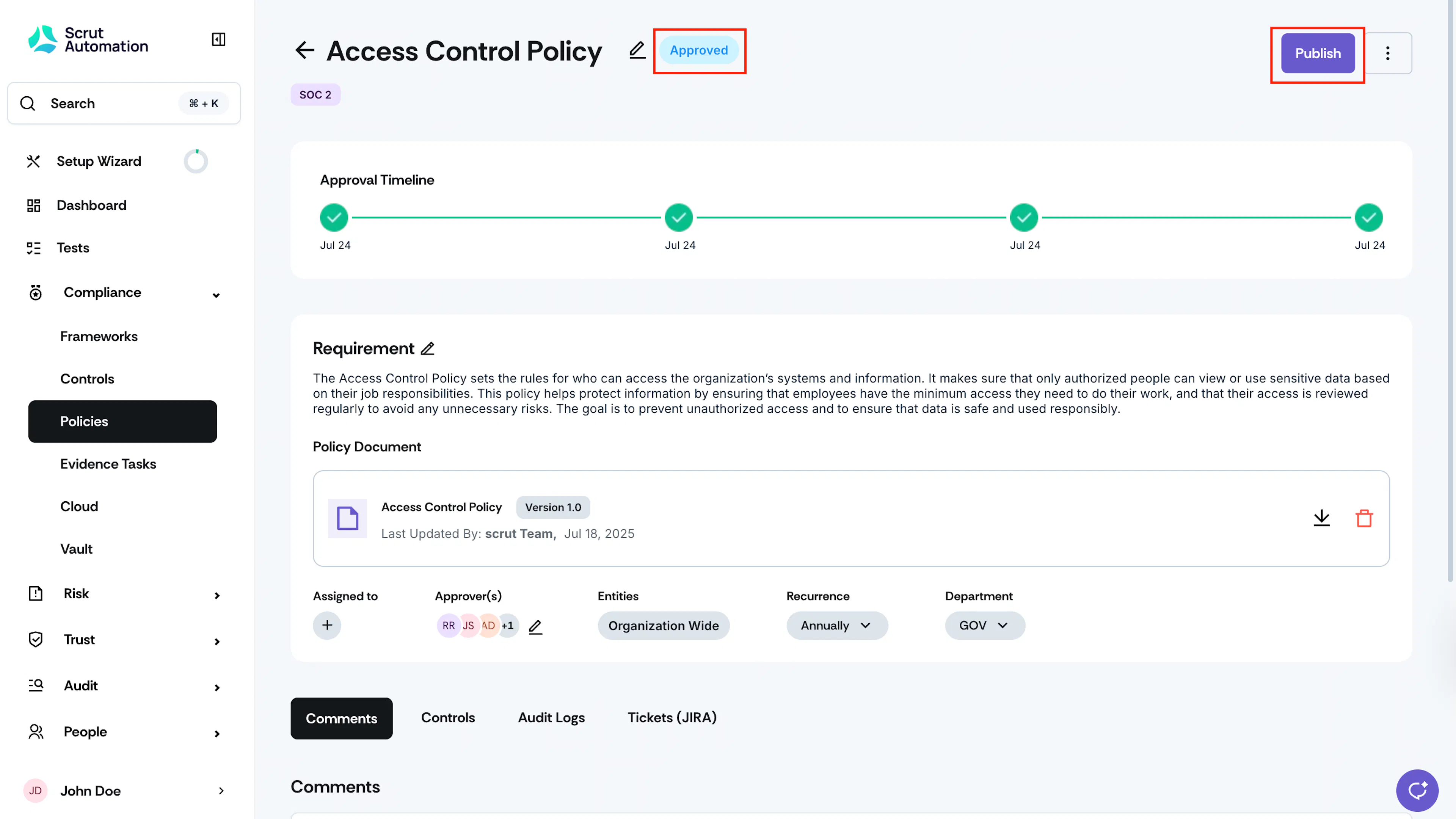
Use the approval timeline to track who has approved the policy and the date of approval.
-
Once all approvals are completed, the policy will move to the Approved status, and the Publish button will become available.
-
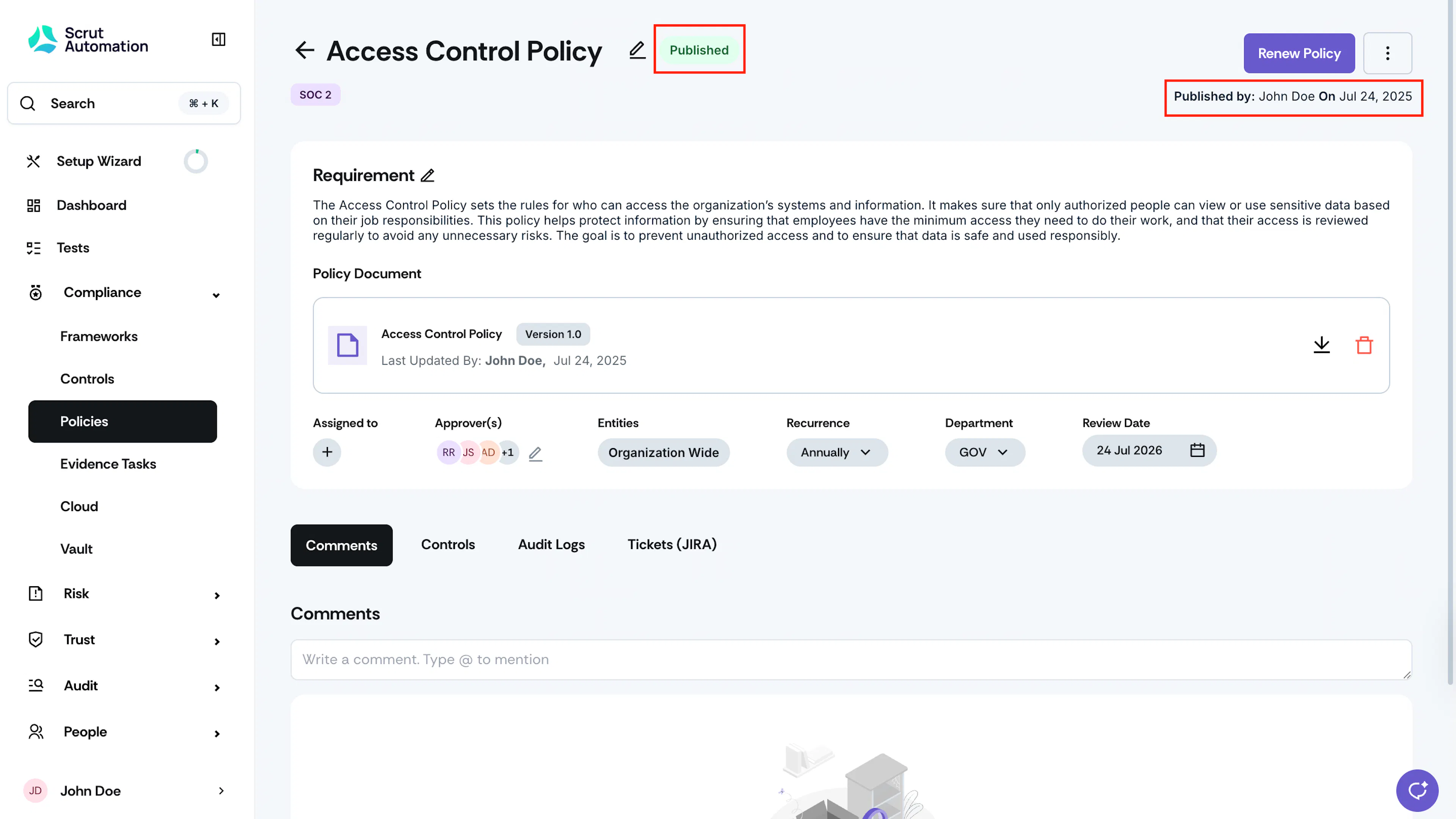
Admins or Policy Assignee(s) can publish it.
- Once published, the policy moves to the Published status.
Note:
When it’s time to renew the policy, the progress bar will be reset, and you will need to go through the same workflow again.