

Audit Requests Closure Workflow
Who can use this feature
- Supported on Foundation, Growth, and Scale plans
During an audit, auditors may request additional documentation or evidence via an Audit Request. Once the request is created in Scrut, your goal is to provide the requested data to close the request. This action signifies that the necessary corrective measures have been taken and the request no longer poses a risk or requires further attention.
How Does the Request Closure Workflow Work?
The Audit Request closure process in Scrut follows a structured, multi-step approach that ensures thorough documentation, review, and resolution. Below is a detailed breakdown of each stage:
Step 1: Creating an Audit Request
What happens: Auditors or the audit team create an audit request in Scrut.
Who performs this action: The auditor or audit team
Key details:
- See here for step-by-step instructions on creating an audit request.
- The request begins with an initial status of “Open.”
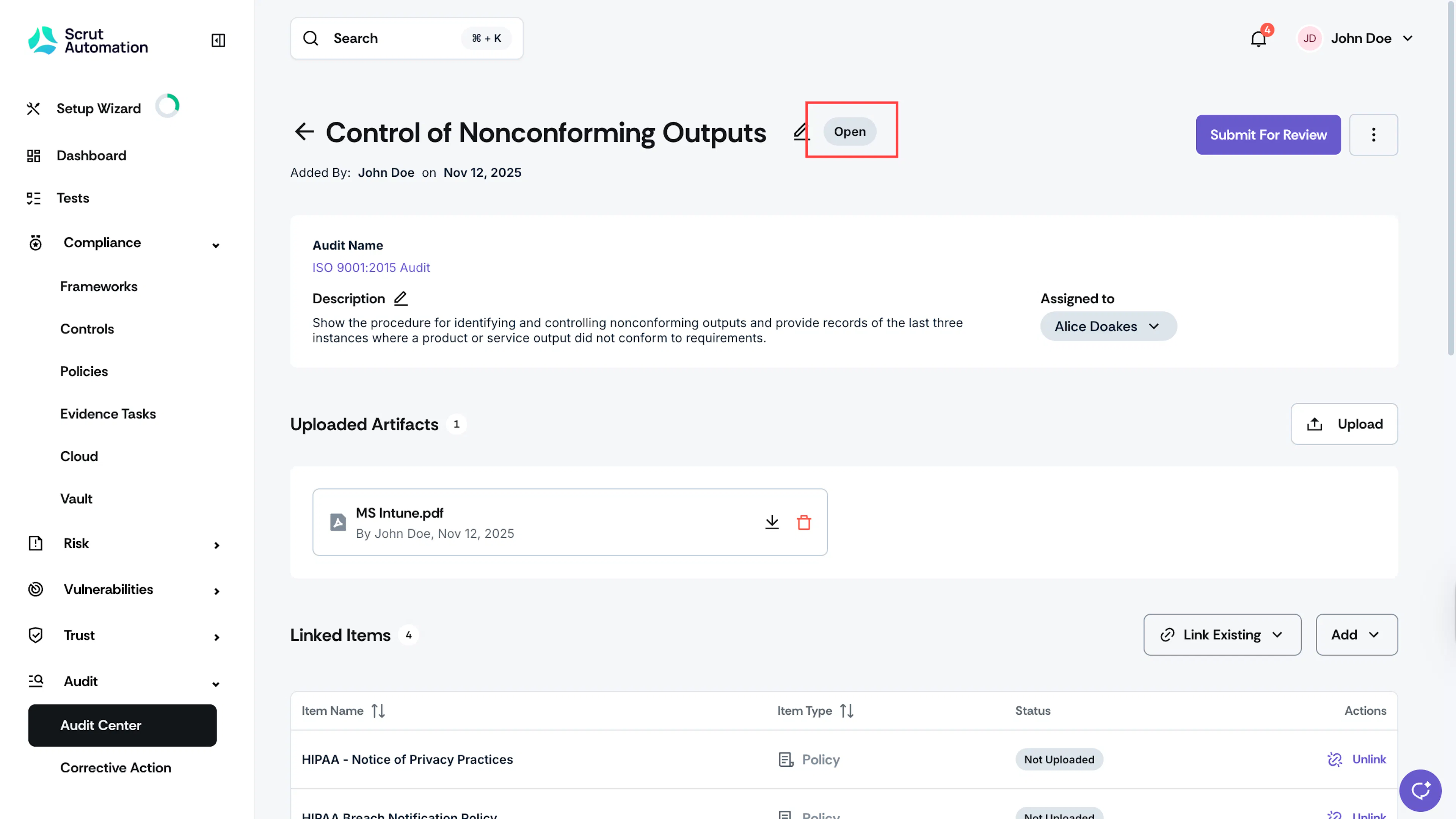
Step 2: Assignees Take Action
Once the request is created, the assignee is responsible for resolving it. They can either:
-
Upload a relevant artifact
- Attach supporting documents, screenshots, reports, or other evidence directly related to the request.
- When to use: When you have existing files that demonstrate compliance or resolution.
- How to do it: See here
-
Link an existing artifact
- Link artifacts that already exist in Scrut.
- When to use: When relevant evidence has already been uploaded to Scrut.
- How to do it: See here
-
Create a new artifact and link it
- Create a new artifact in Scrut and link it with the request.
- When to use: When you need to create documentation specifically for this request.
- How to do it: See here
-
Create a Corrective Action
- Initiate formal corrective action plans when the request requires specific remediation steps, process changes, or ongoing monitoring.
- When to use: When resolution requires multiple steps, involves cross-functional teams, or needs tracking over time.
- How to do it: See here
Step 3: Submitting for Auditor Review
What happens: Once the assignee has gathered the missing evidence and completed necessary actions, they then submit it for auditor review.
Who performs this action: Generally, the assignee or other admins in Scrut
Key details:
- Review all uploaded artifacts and corrective actions to ensure completeness
- Verify that all evidence adequately addresses the audit request
- Click the Submit for Review button located at the top right of the request details page
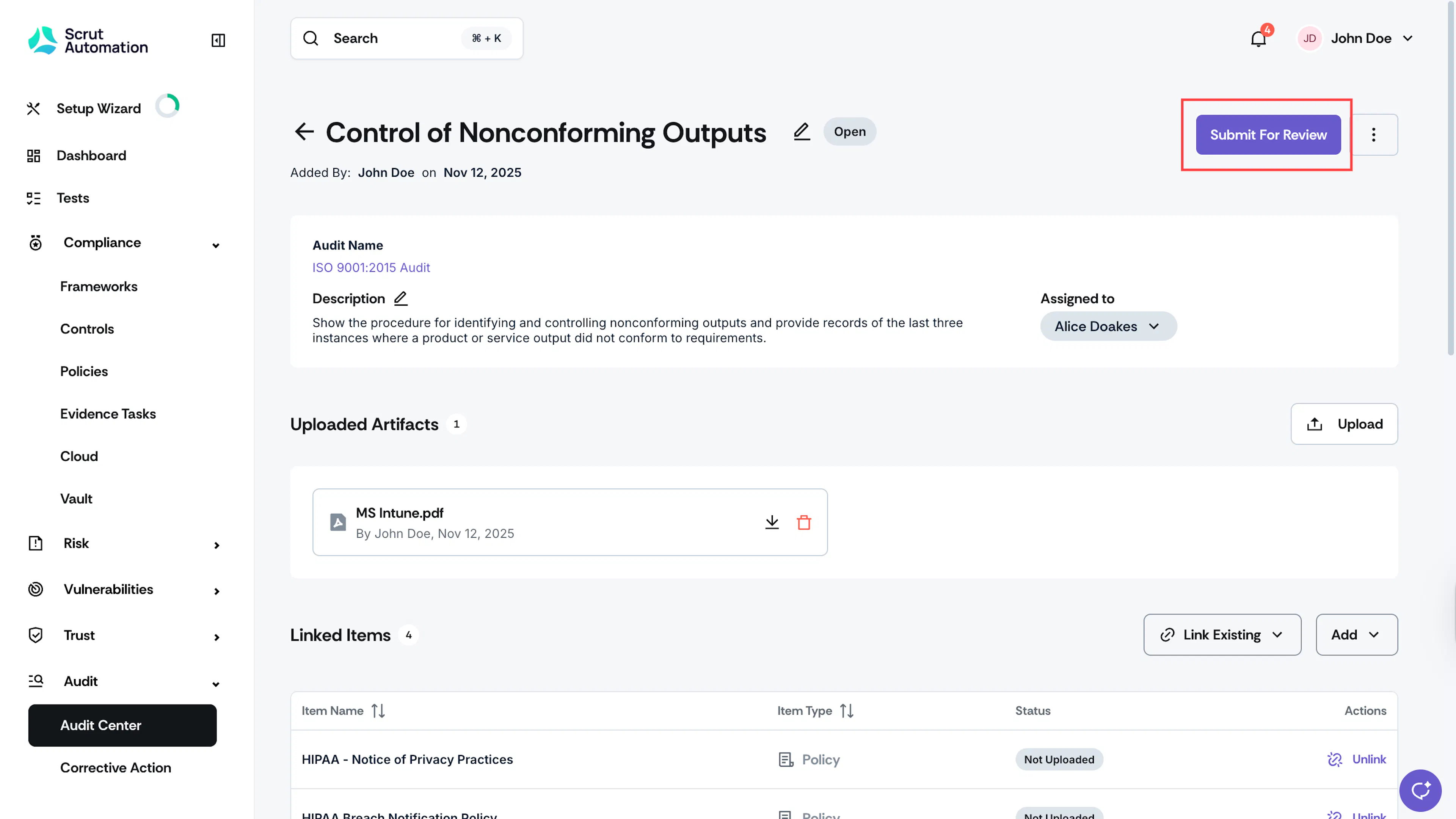
What happens next:
- Scrut sends an email notification to the assigned auditor.
- The request status automatically changes to "Needs Review."
Step 4: Auditor Review
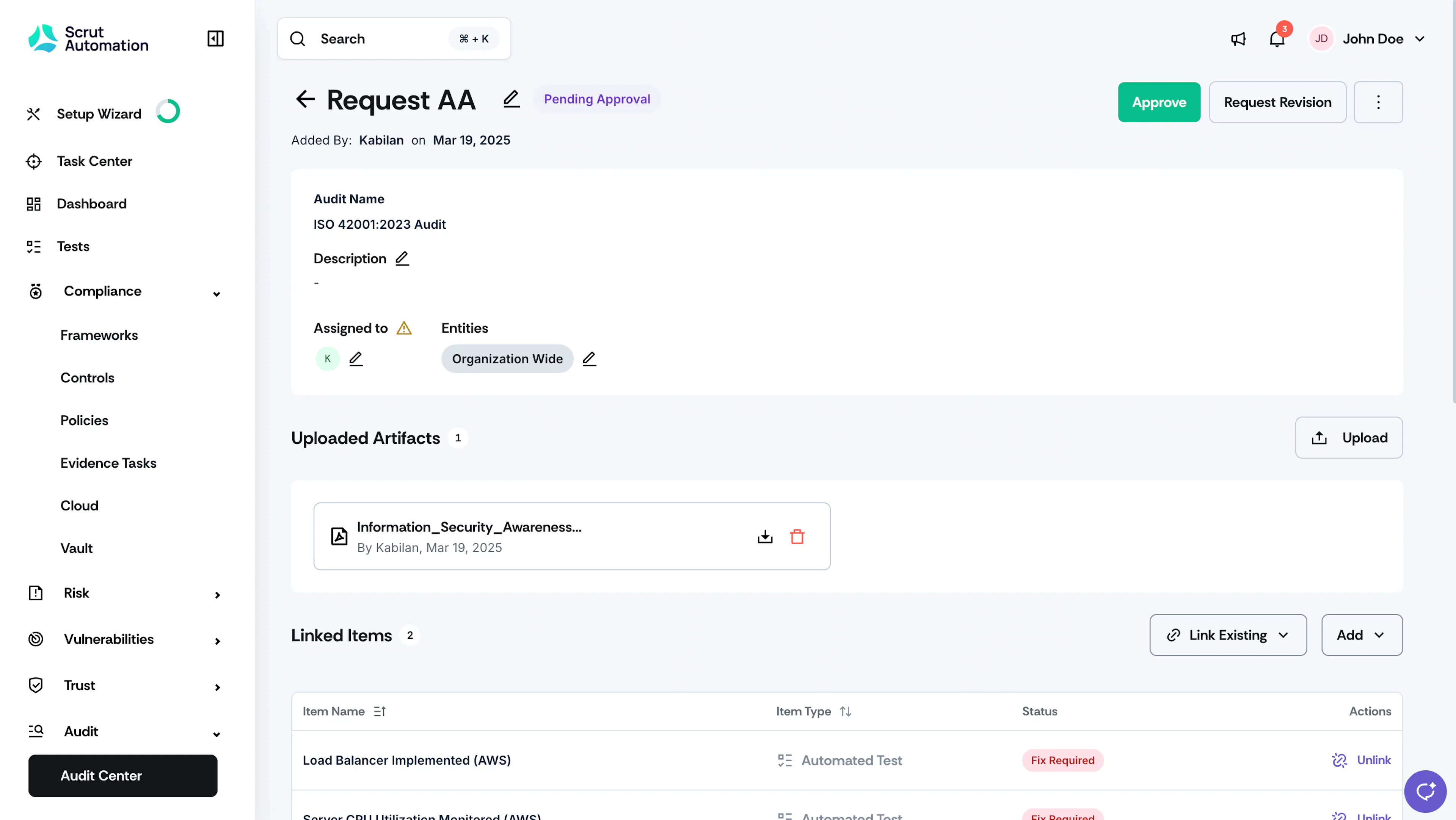
What happens: The auditor examines the submitted evidence, artifacts, and corrective actions to determine if the request has been adequately resolved. The auditor can then:
Close the request
If the auditor determines that the submitted evidence fully addresses the request and adequately mitigates the identified risk, they click the Close request button at the top of the request page. The request status changes to “Closed.”
Request Revision
If the auditor determines that the evidence is insufficient, incomplete, or doesn't fully address the request, they can click the Request Revision button at the top of the request page. In the Request Revision dialog window, the auditor enters additional information, such as corrections or whether different evidence is required. The request status changes to “Needs Revision,” and Scrut sends an email to the assignee.
Step 5: Revision Cycle and Final Closure
After receiving a revision request, the assignee addresses the feedback and resubmits for review. After the assignee uploads the revised artifact and clicks the Submit for Review button, the status changes back to Needs Review. Once the auditor approves the revision, the request goes to Closed status.
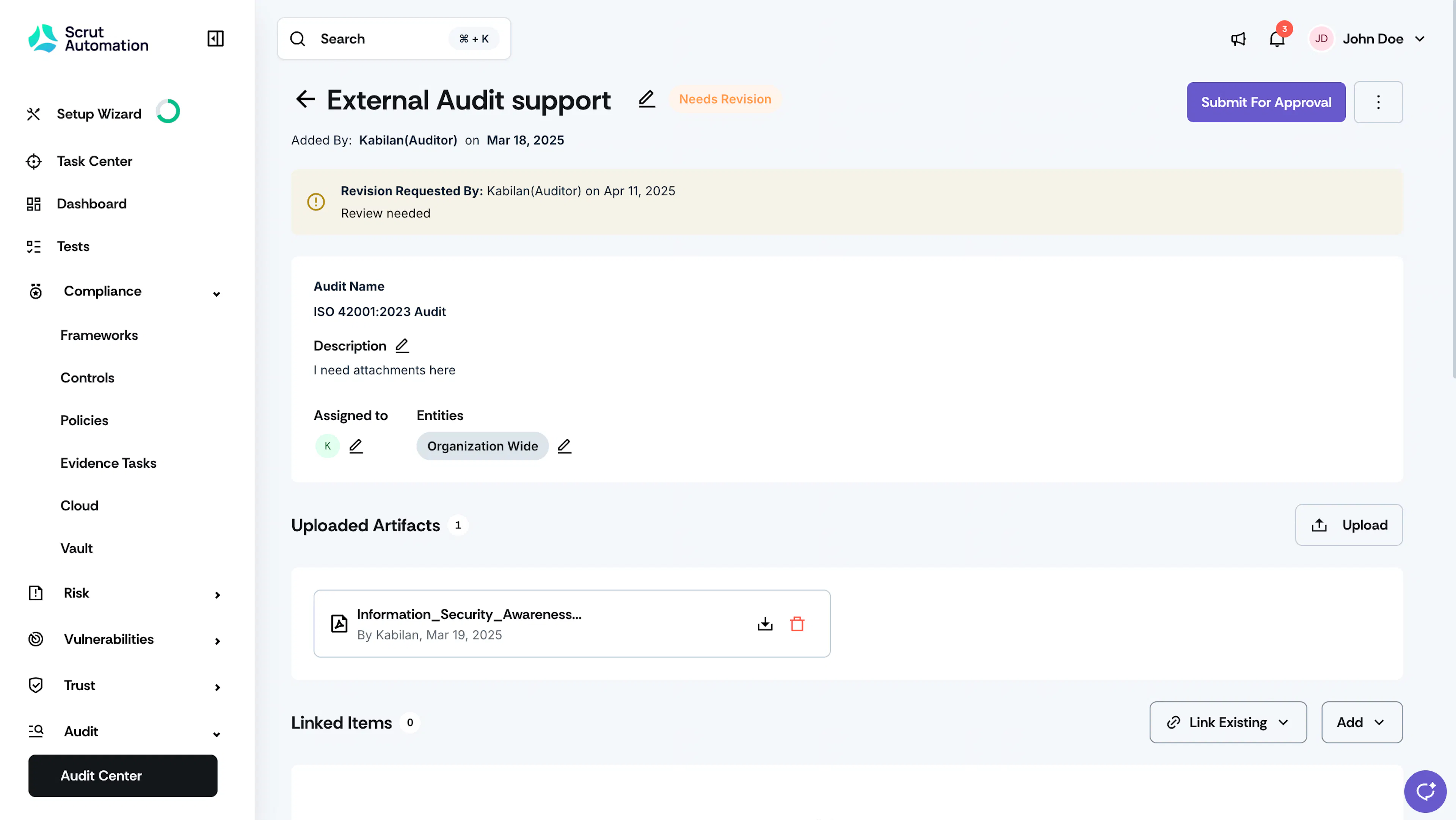
Note: The revision cycle can repeat as many times as necessary until the request is satisfactorily resolved. The complete list of submissions and revisions is captured in the audit log.
Status Summary
For quick reference, here are all the possible request statuses throughout the workflow:
| Status | Meaning |
|---|---|
| Open | Request has been created |
| Needs Review | The assignee has submitted the request for auditor review |
| Closed | The request has been resolved and accepted |
| Needs Revision | The auditor has requested additional work |