Create an Audit Request
Who can use this feature
- Supported on Foundation, Growth, and Scale plans
There are two primary ways to create an audit request:
Create a Single Audit Request
-
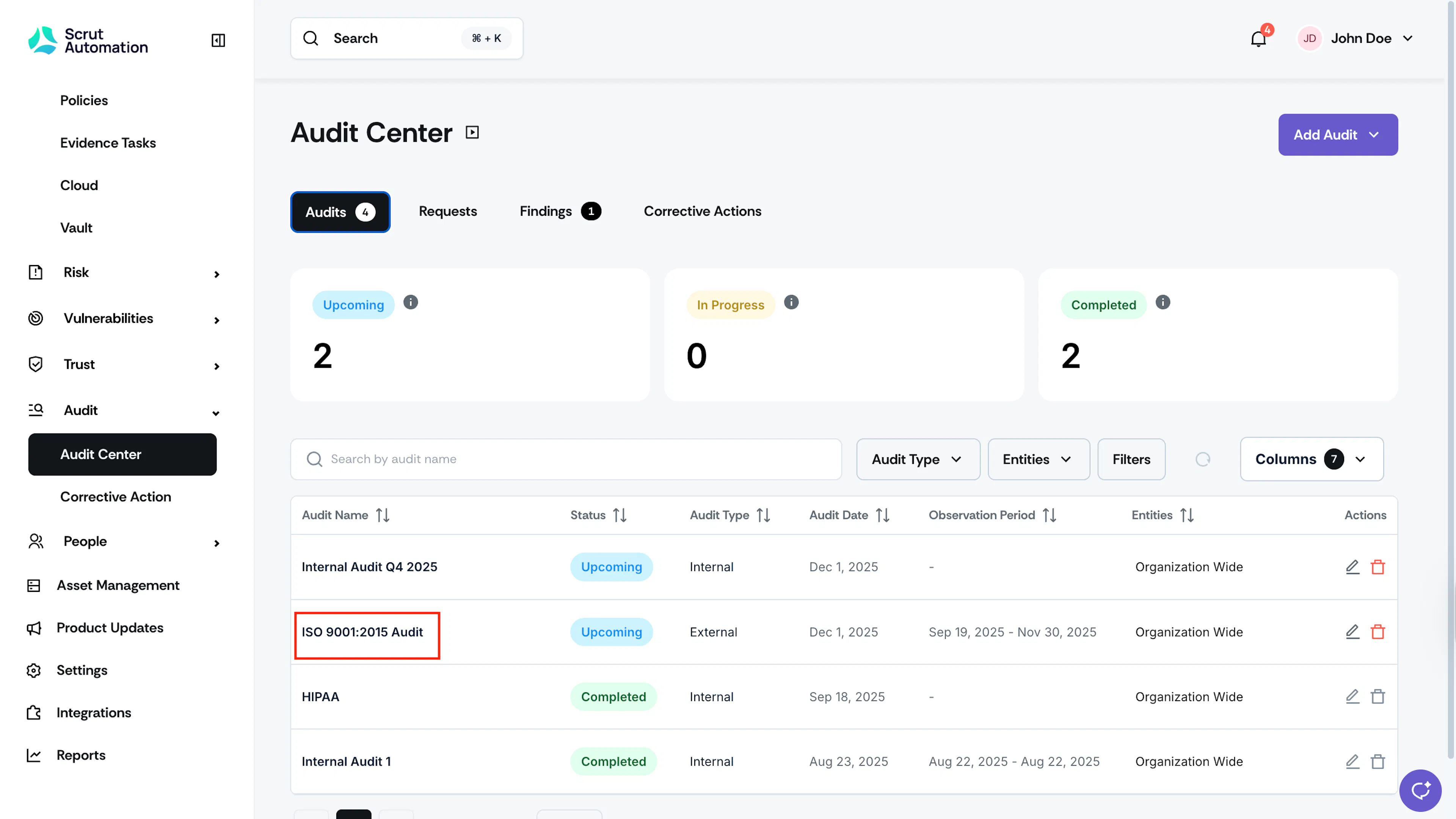
Sign in to Scrut, and click Audit → Audit Center.
-
Click on the audit for which you want to create a request.
-
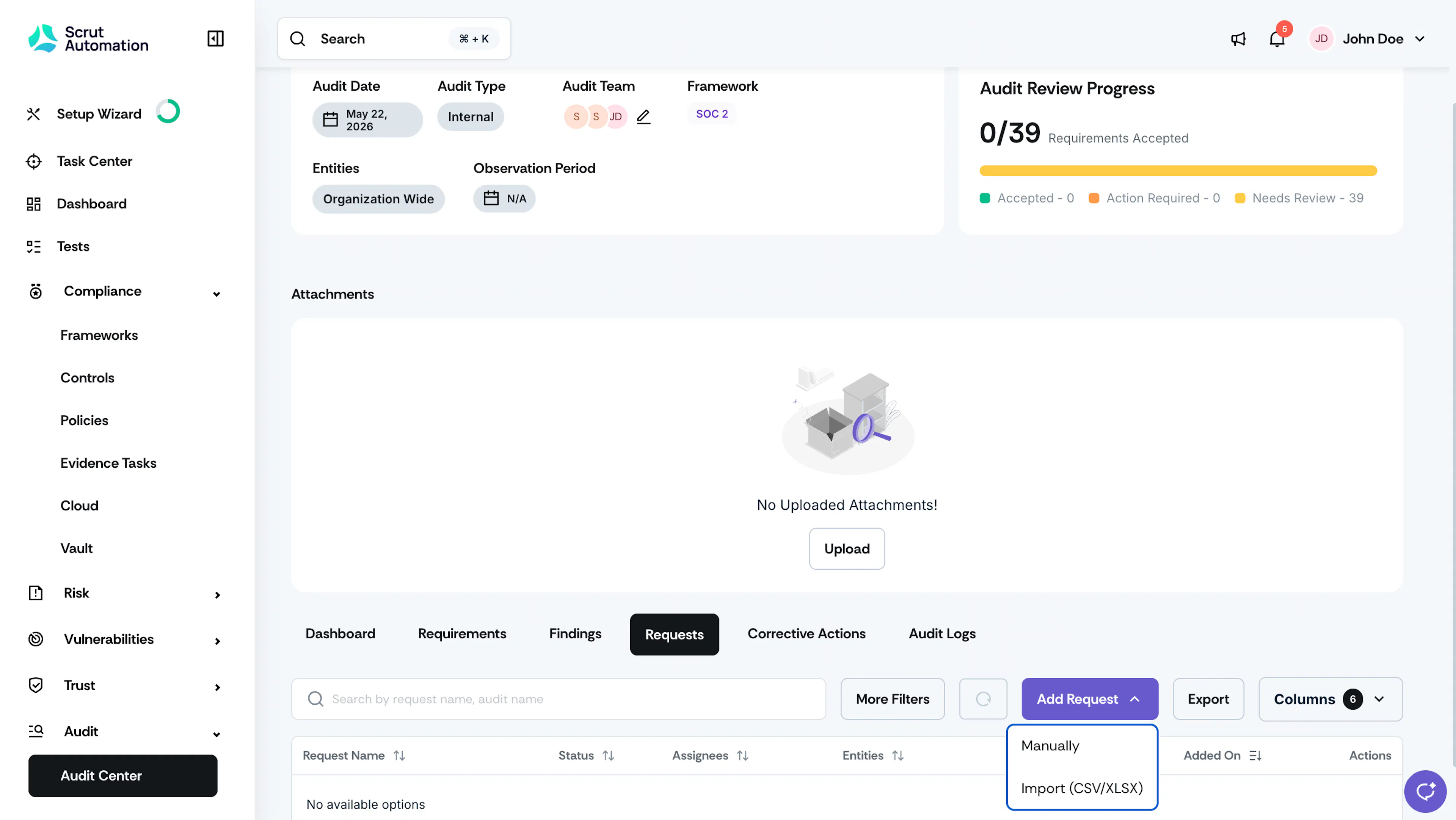
Scroll and click the Requests tab.
-
Click the Add Requests button and select Manually.
-
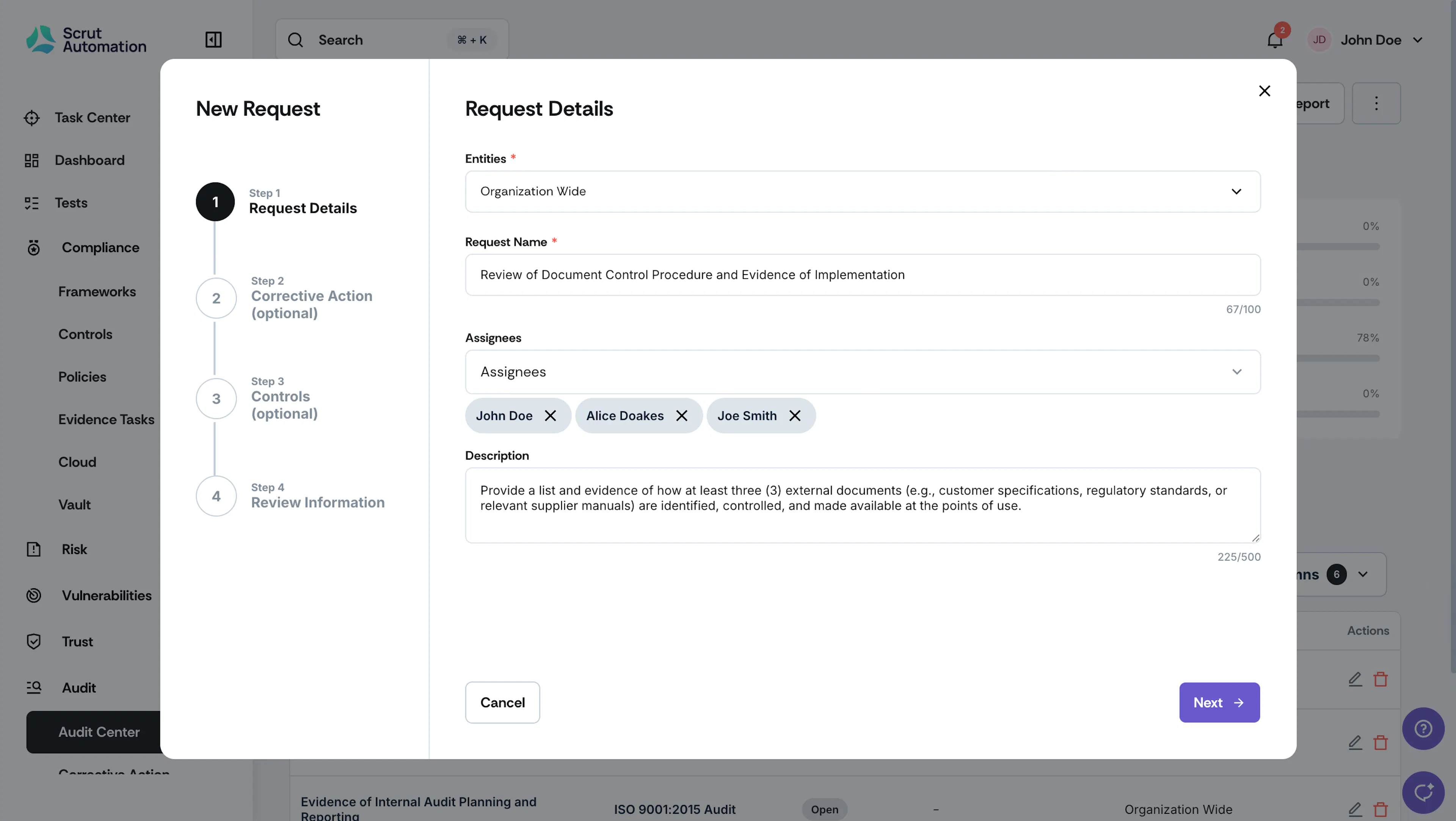
Enter the required details, such as:
-
Entities: Select the entities to which the Audit Request applies. Choose Organization Wide if you want to apply this to all entities.
-
Request Name: Provide a clear and descriptive name that accurately reflects the request.
-
Assignees: Select the user responsible for handling the request. Choose No Assignee if you’re unsure who to assign it to.
Note: Scrut will notify assignees via email regarding the task.
-
Description: Optionally, add details that will help the assignee better understand the request.
-
-
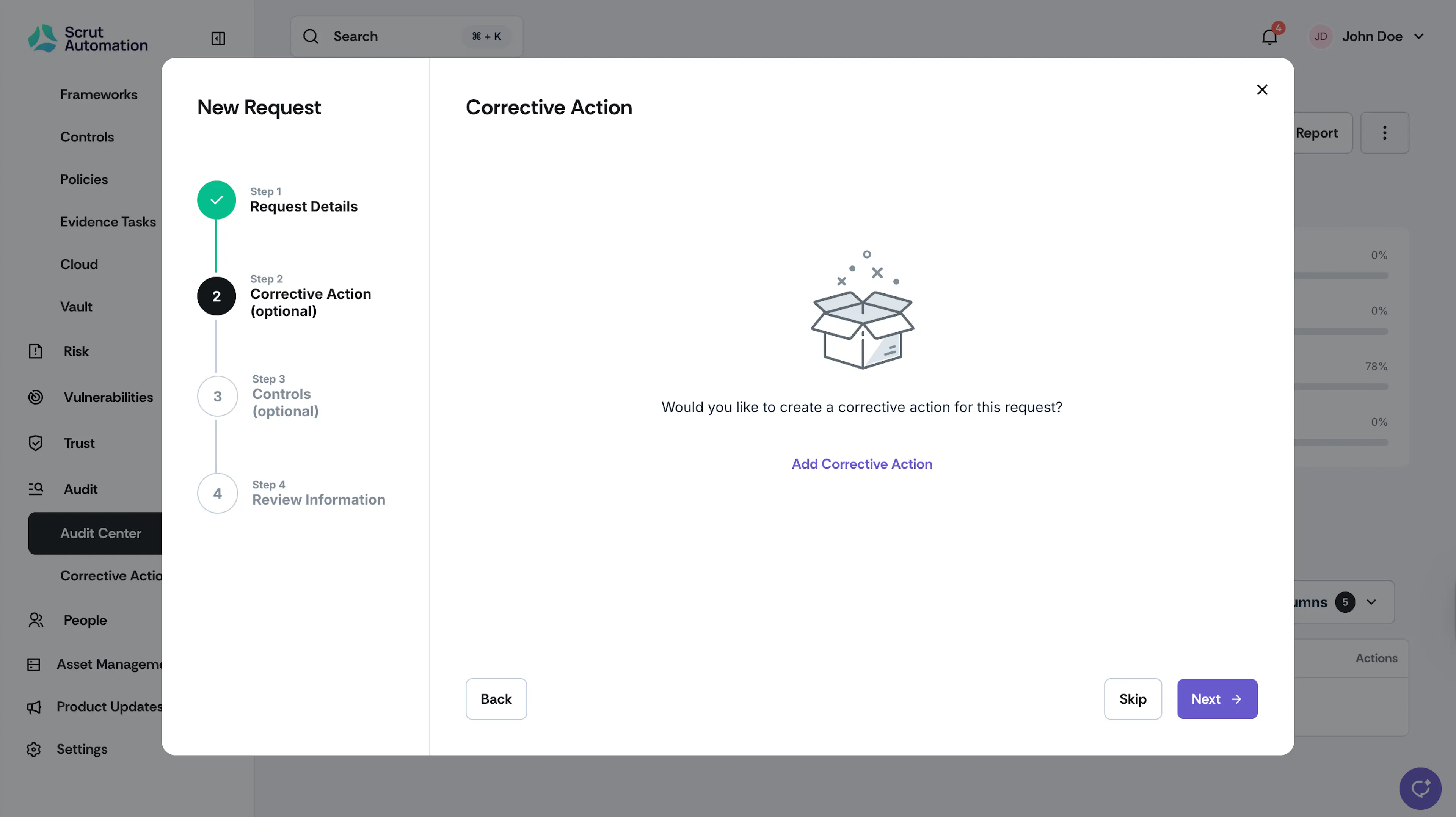
In the next step, you can create a corrective action for the request. Feel free to skip this if it's not applicable.
Note: You can also create a corrective action for the request later, if required.
-
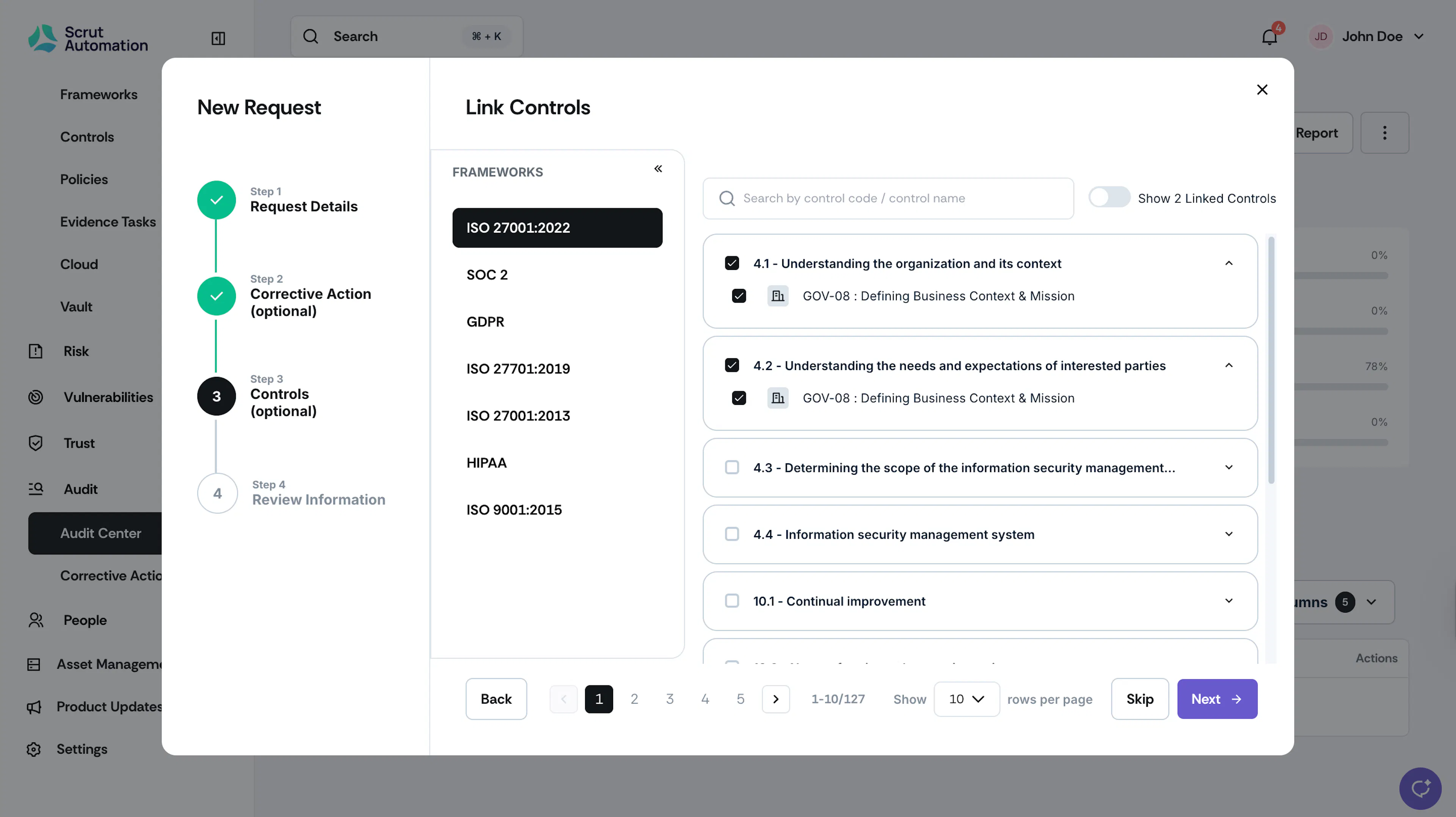
Next, link or unlink any relevant controls to the finding. Feel free to skip this step if it is not applicable.
-
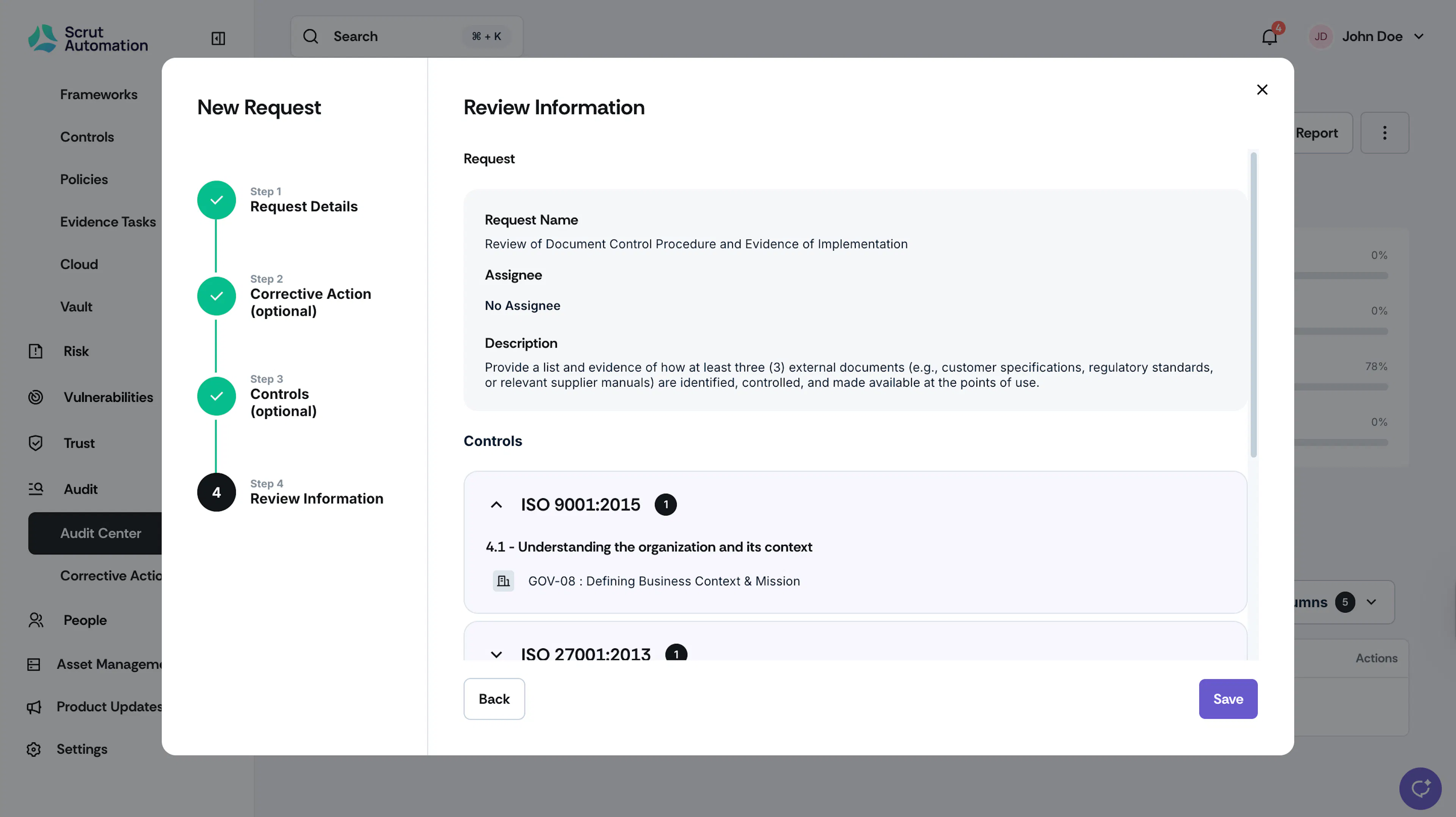
Finally, review all the information you've entered to ensure accuracy, and then click Save.
Bulk Import Multiple Requests
You can add multiple requests simultaneously by bulk importing them. Follow these steps:
-
Sign in to Scrut, and click Audit → Audit Center.
-
Click on the audit for which you want to create a finding.
-
On the audit page, scroll and click the Requests tab.
-
Click the Add Requests button and select Import (CSV/XLSX).
-
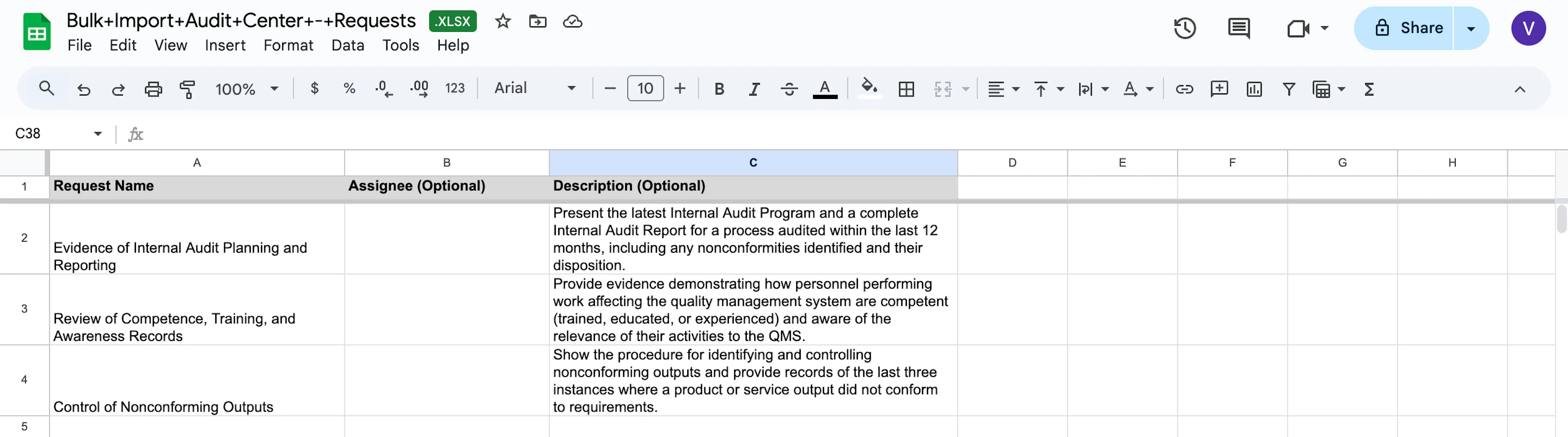
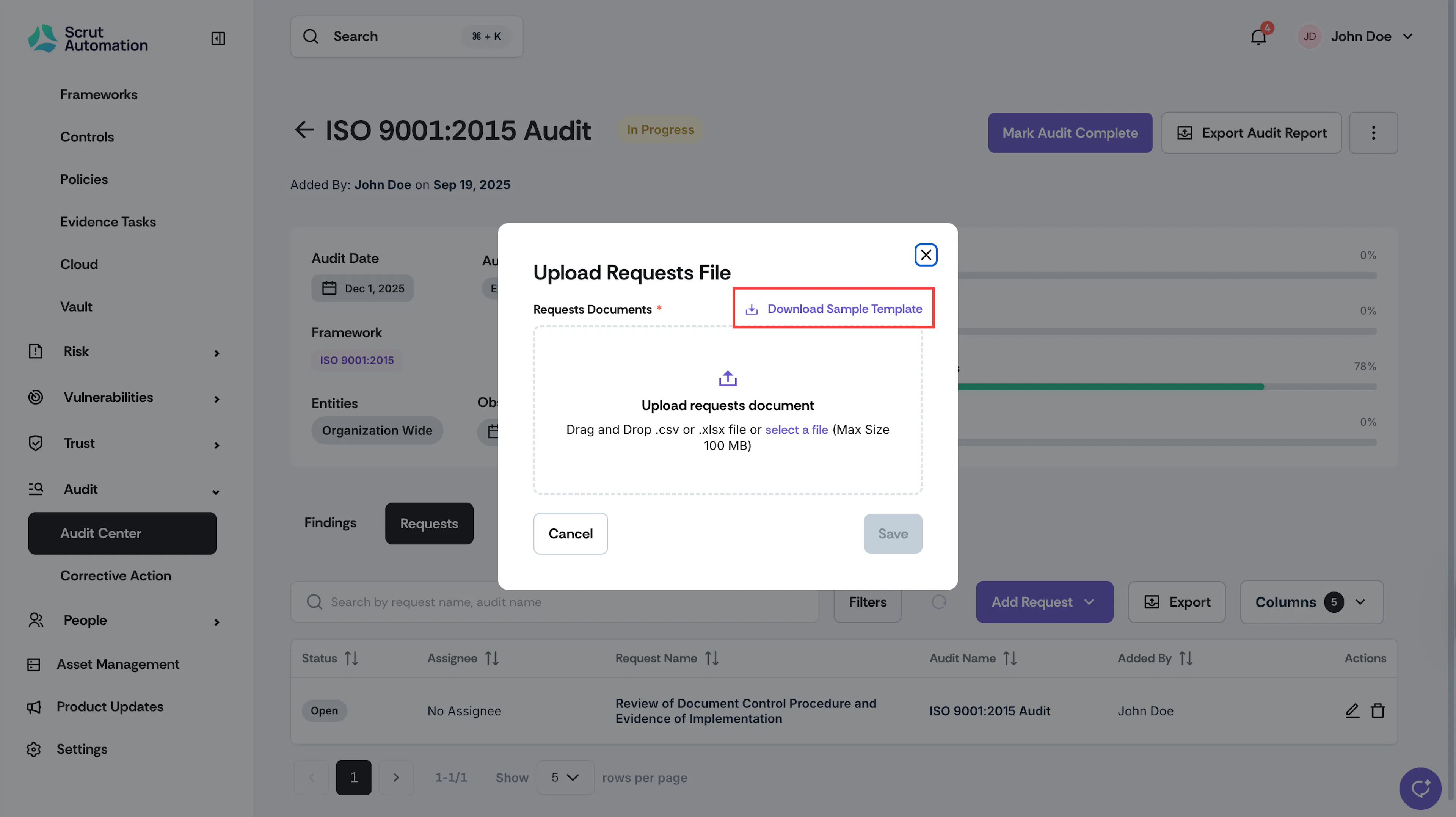
Click Download Sample Template. Replace the contents of the file with your list of requests.
-
Upload the filled template by dragging and dropping it or selecting it from your device.
Pro Tip!
See here for instructions on filling the template.
-
Click Save.
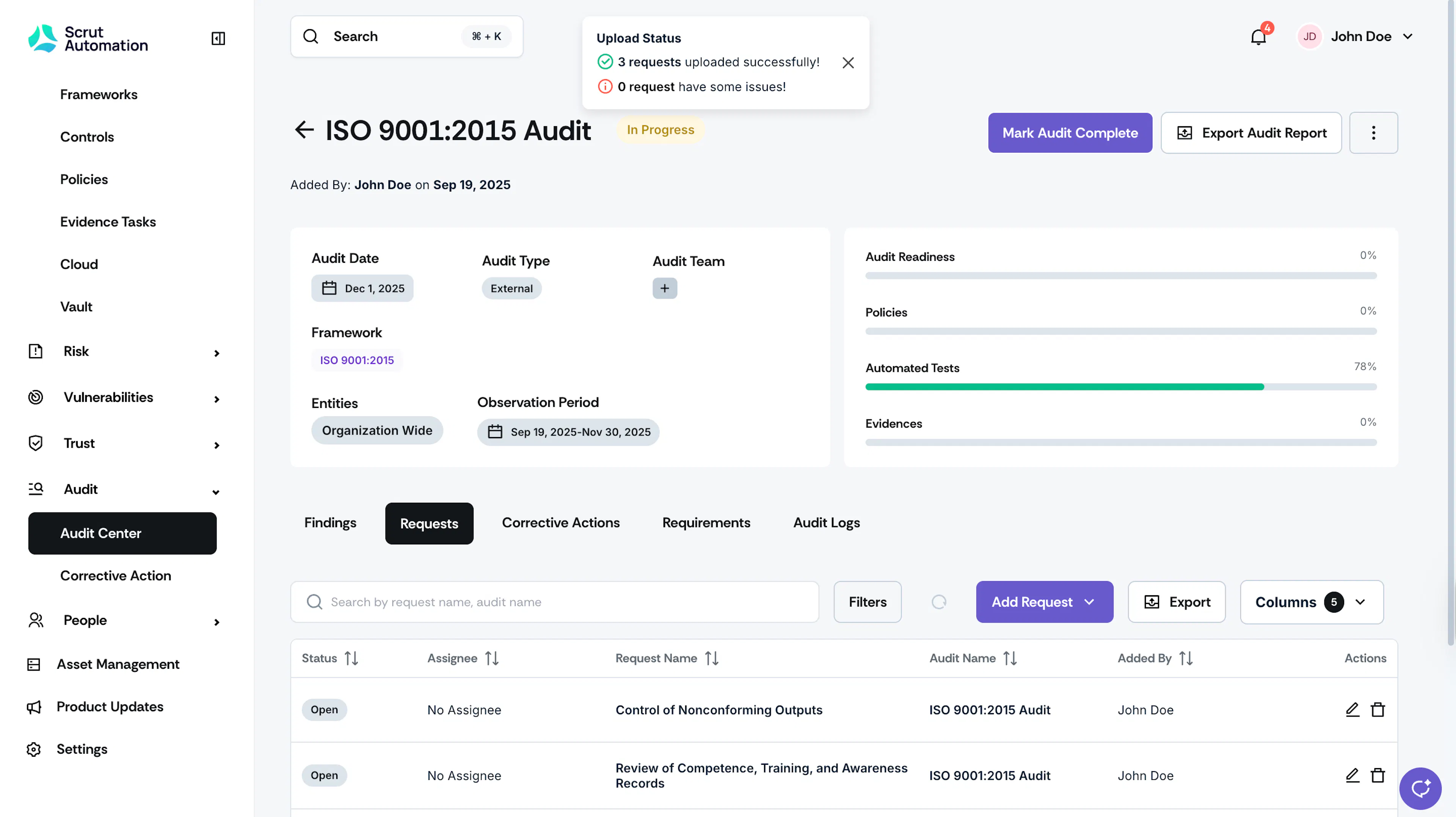
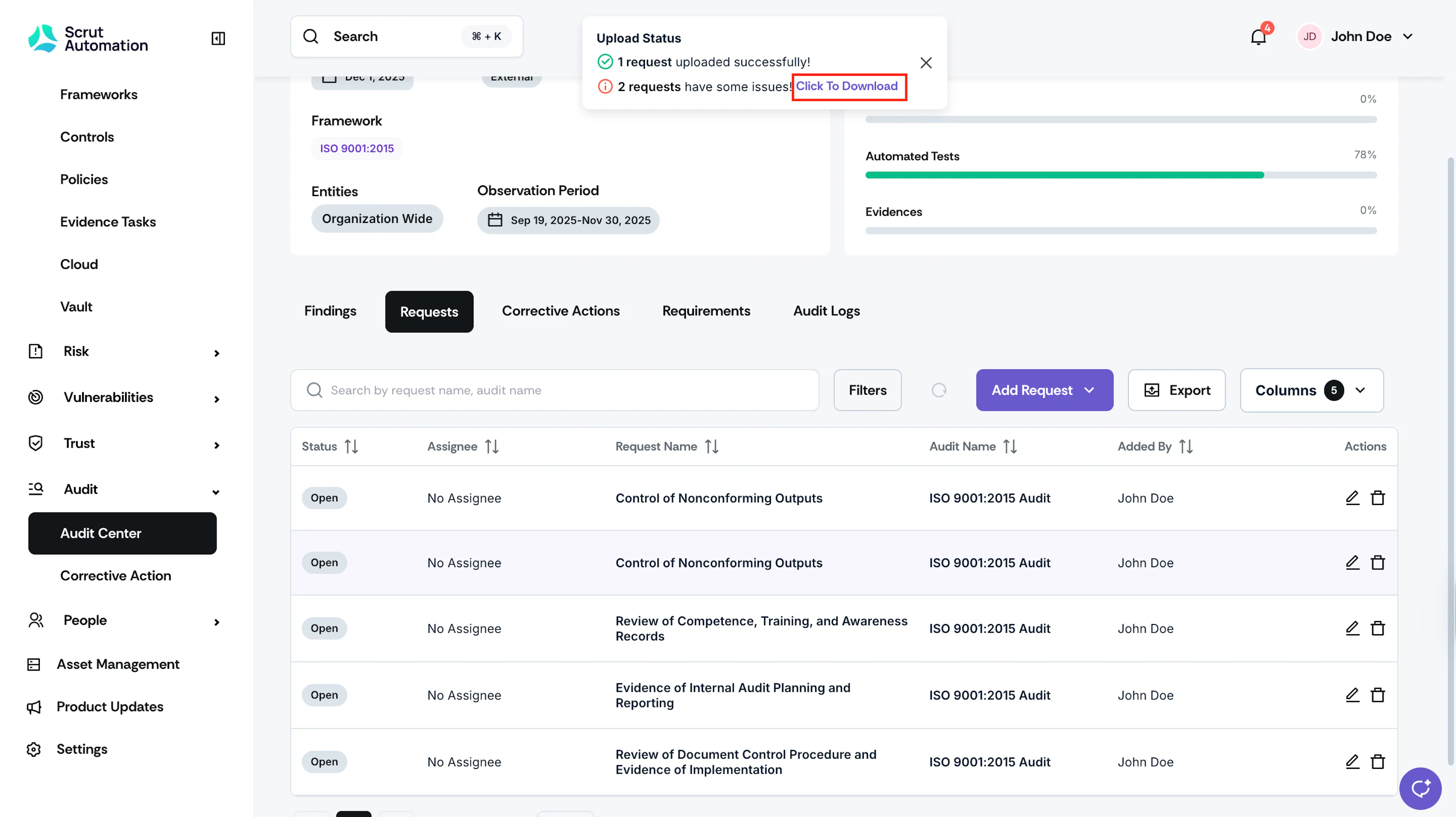
Scrut checks the template file's format to ensure there are no errors. If any errors are detected, download the spreadsheet from the Upload Status message to view them. Fix the spreadsheet and reupload it.
Tips for Using the Template
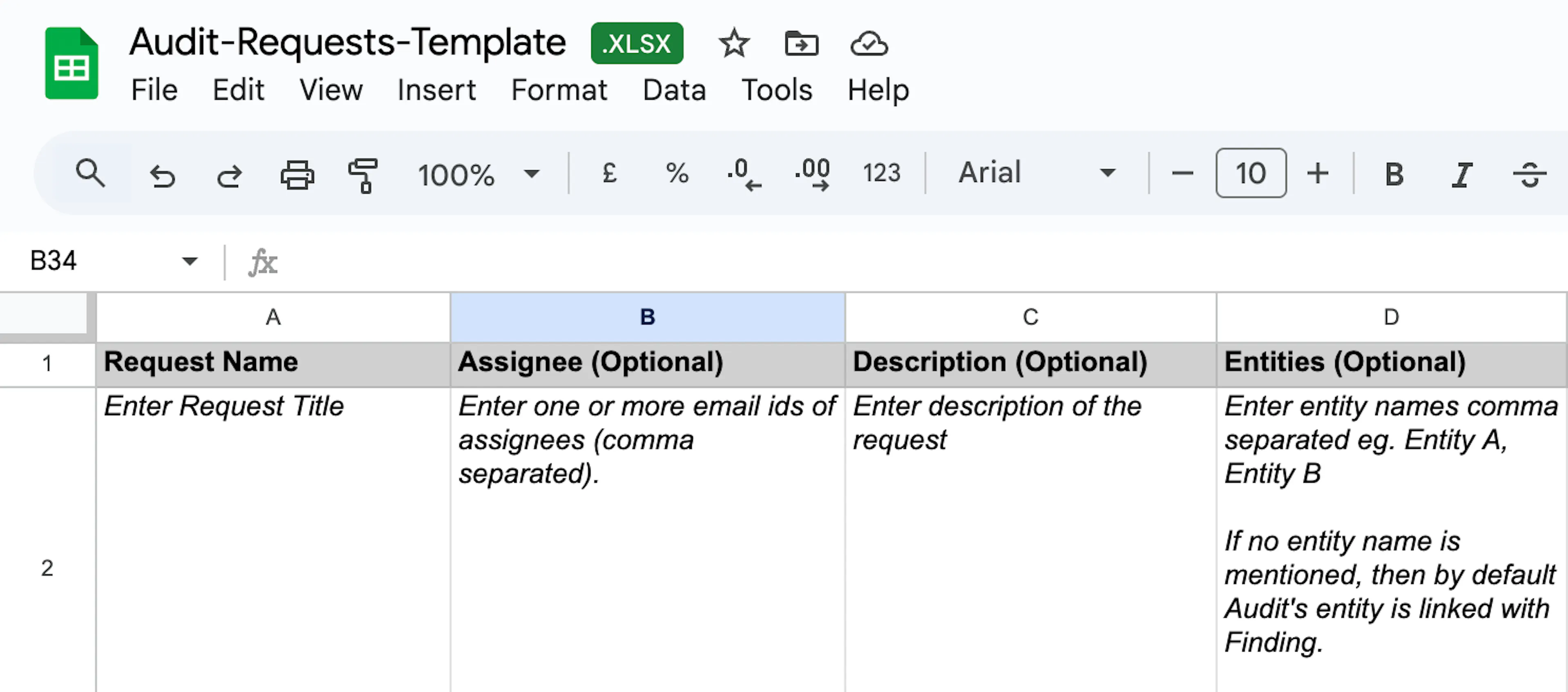
- Do NOT remove the first row as it contains column headers.
- You can enter the request details from the second row.
- Create a row for each request.
- Mandatory fields: Request Name. All other fields are optional.
- For the Assignees field, enter the assignees' email addresses, separated by commas. Email should match the assignees’ emails in Scrut.