

Edit and Delete an Audit Request
Who can use this feature
- Supported on Foundation, Growth, and Scale plans
Editing and deleting an audit request in the audit center allows you to modify or remove a previously recorded observation or issue identified during an audit. This feature allows auditors and authorized users to make necessary updates to the information associated with a specific request.
How to Edit an Audit Request
-
Sign in to Scrut, and click Audit → Audit Center on the left navigation menu.
-
Select the audit corresponding to the request.
-
Once you’re on the audit page, scroll to the requests tab, and open the request that you want to edit.
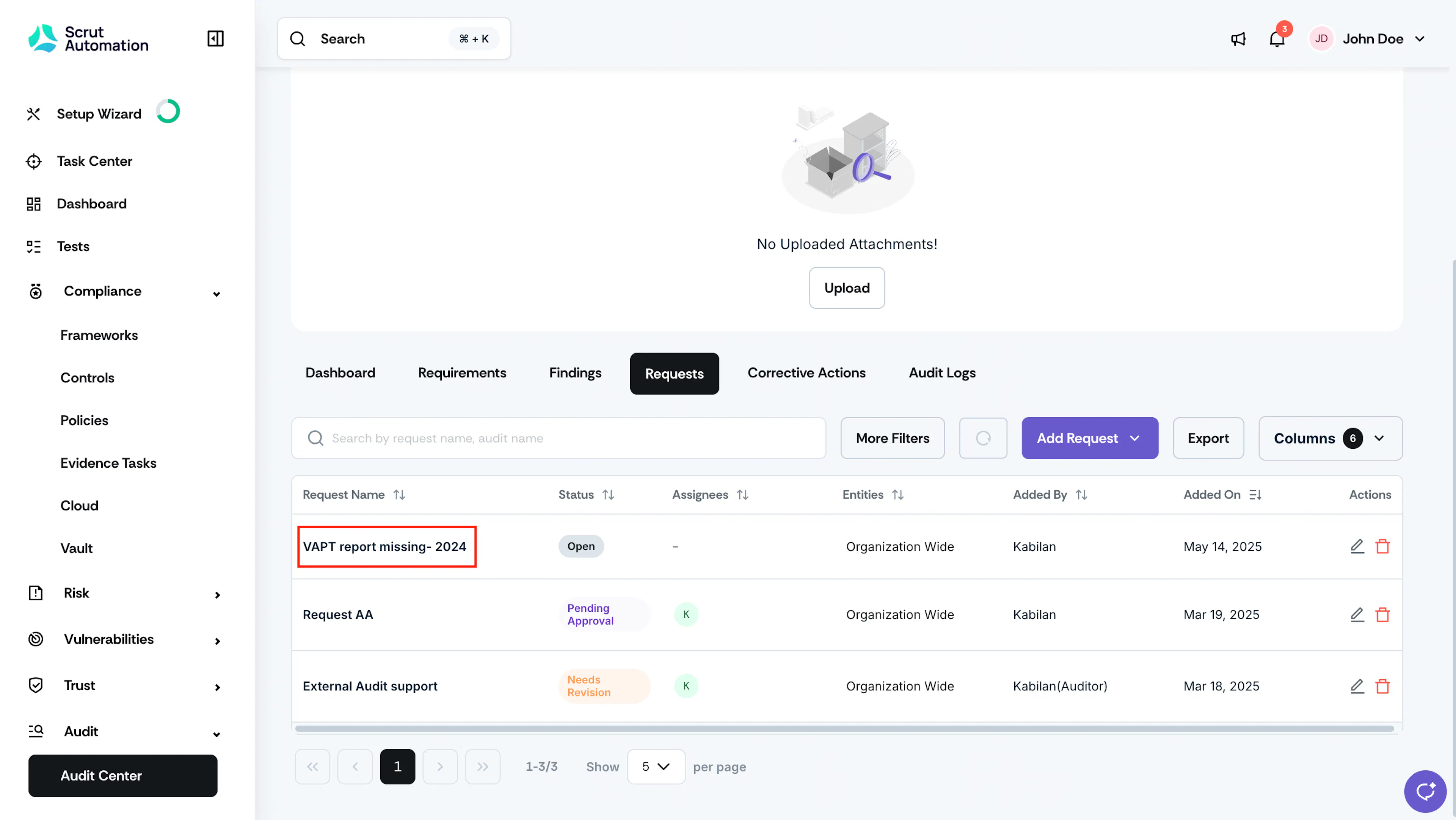
-
Alternatively, you can directly navigate to Audit → Audit Center → Requests tab and open the request you want to edit.
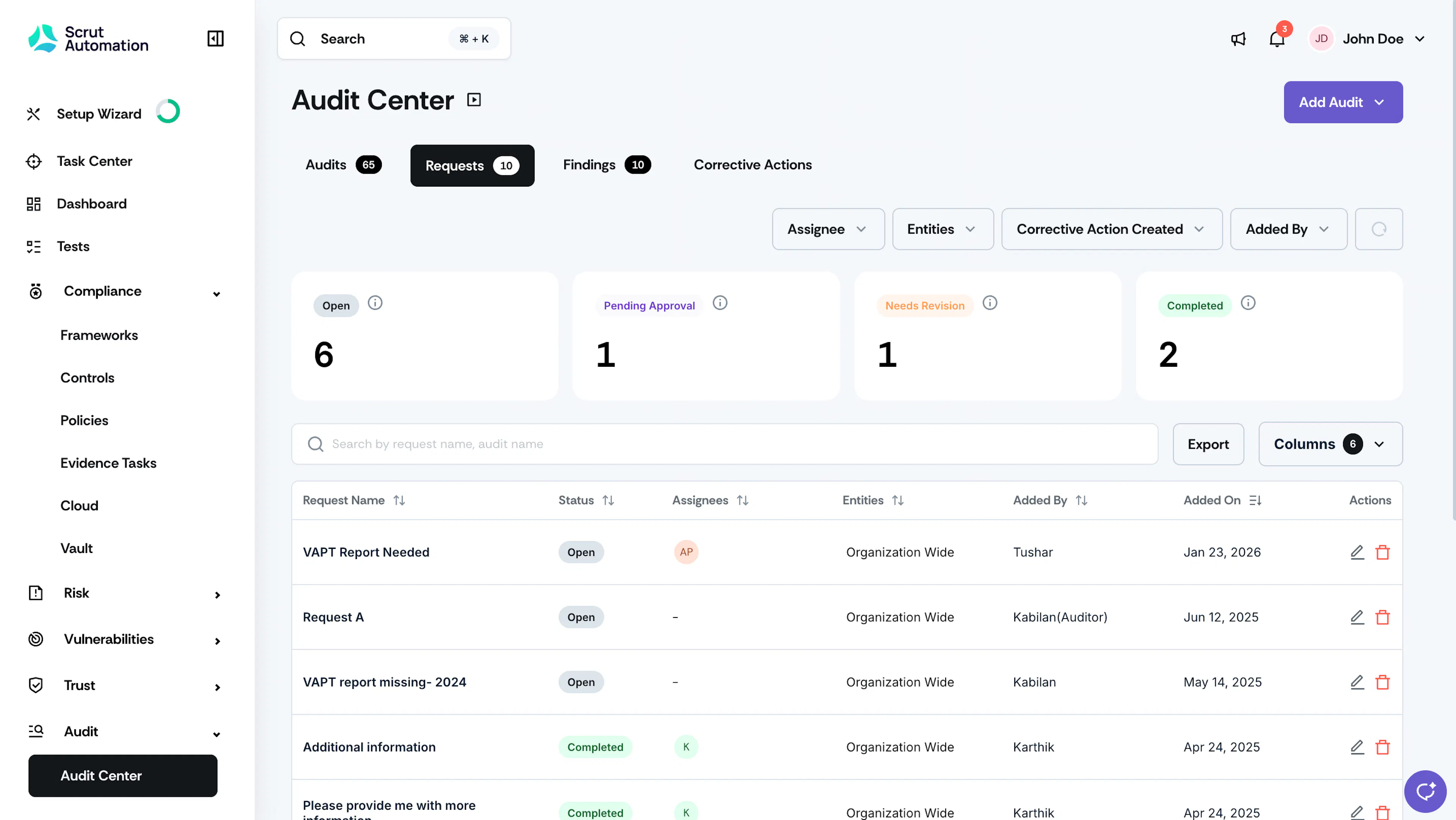
-
Click the edit icon next to the field you want to edit. You can modify the following details:
- Request Name
- Description
- Assignees
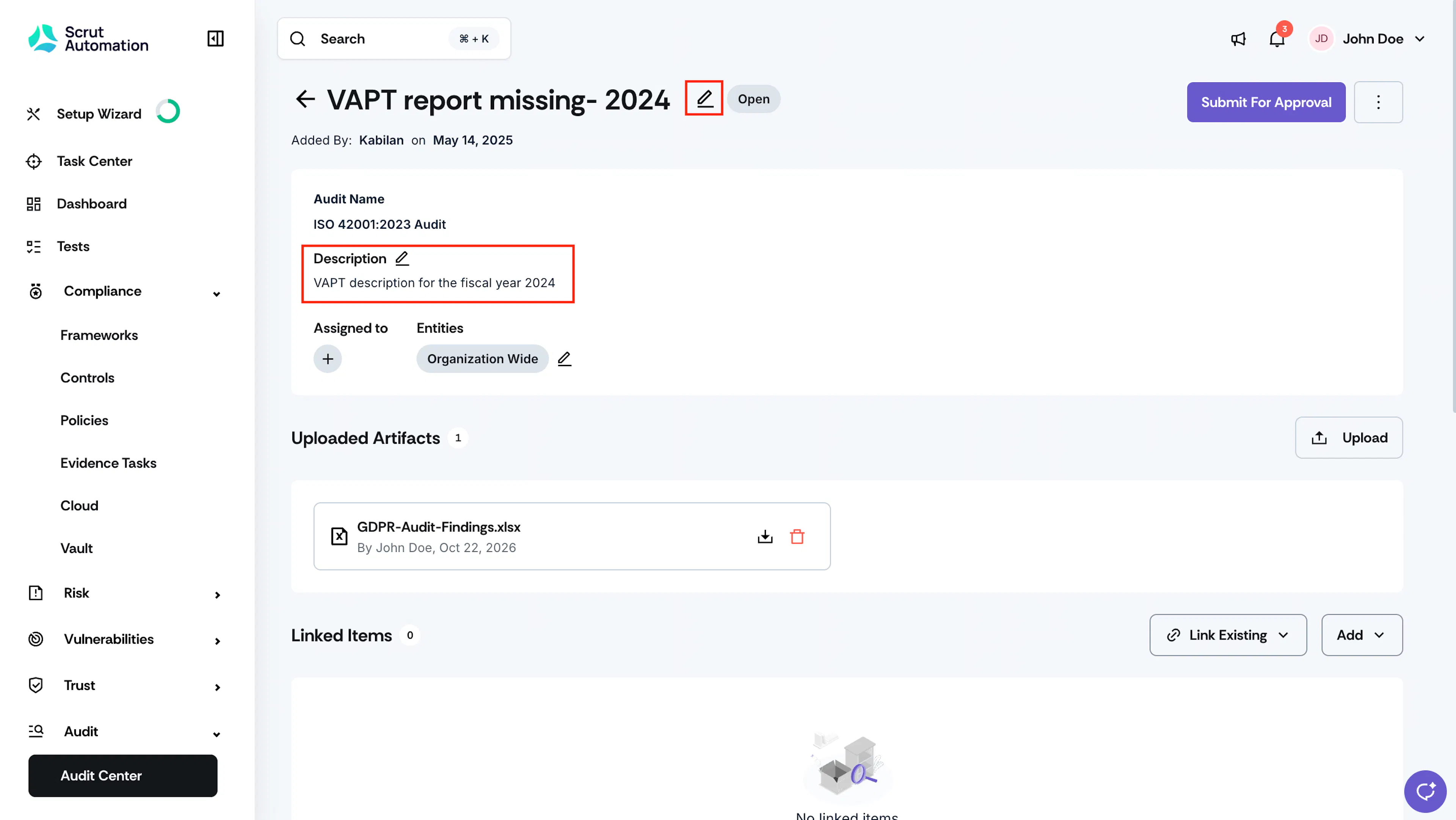
-
Make the necessary changes and click Save.
How to Delete an Audit Request
Heads Up!
Deleting a request involves permanently removing it from the audit record. So, proceed with caution.
-
Sign in to Scrut, and click Audit → Audit Center on the left navigation menu.
-
Select the audit corresponding to the request.
-
Once you’re on the audit page, scroll to the Requests tab, and click the delete icon next to the request you want to delete.
-
Click Delete to confirm.
Note:
When you delete an audit request, Scrut will unlink the controls linked to it and the status of the controls will revert accordingly.