

Integrate KnowBe4
Connecting KnowBe4 with Scrut automatically collects evidence of employee security awareness training, saving your team hours of manual evidence gathering across compliance workflows.
What This Integration Does in Scrut
- Employee Training Campaigns: Fetches employee training data from KnowBe4 and displays it in People → Employees → Training.
- Automated Tests: Runs automated compliance checks that continuously evaluate your configurations against applicable compliance frameworks.
Prerequisites
Before setting up this integration, make sure you have the following in place:
- An active KnowBe4 account on a Diamond or Platinum plan (required for Reporting API Access)
- A KnowBe4 API key with Reporting API Access enabled
- At least one training campaign configured in KnowBe4 with enrolled employees
Permissions and Access Requirements
For KnowBe4
- Reporting API Access must be enabled in your KnowBe4 account. This feature is available only on Diamond and Platinum plans.
- You must have permission to access Account Settings and generate API keys.
For Scrut
- Admin access to Scrut, or Contributor access with permissions to the Integrations module.
Supported Versions / Limitations
- Reporting API Access is available only on KnowBe4 Diamond and Platinum plans. Users on other plans cannot complete this integration.
- Only training campaigns that are explicitly selected during scope configuration are synced to Scrut. Campaigns that are not selected are excluded.
Data Collected
- Campaign name
- Campaign ID (KnowBe4 campaign identifier)
- Employee enrollment status
- Completion status
Sync Frequency
Data is synced automatically once every 24 hours. You can also manually trigger a sync from the integration settings page.
Integration Setup
Step 1: Retrieve Your KnowBe4 API Key
- Log in to your KnowBe4 account.
- Go to Account Settings.
- Navigate to the API section.
- Copy your existing API key, or select Generate New Key to create one.
Important: Reporting API Access must be enabled before you generate or use the API key. If this option is not visible, confirm that your account is on a Diamond or Platinum plan.
Step 2: Connect KnowBe4 in Scrut
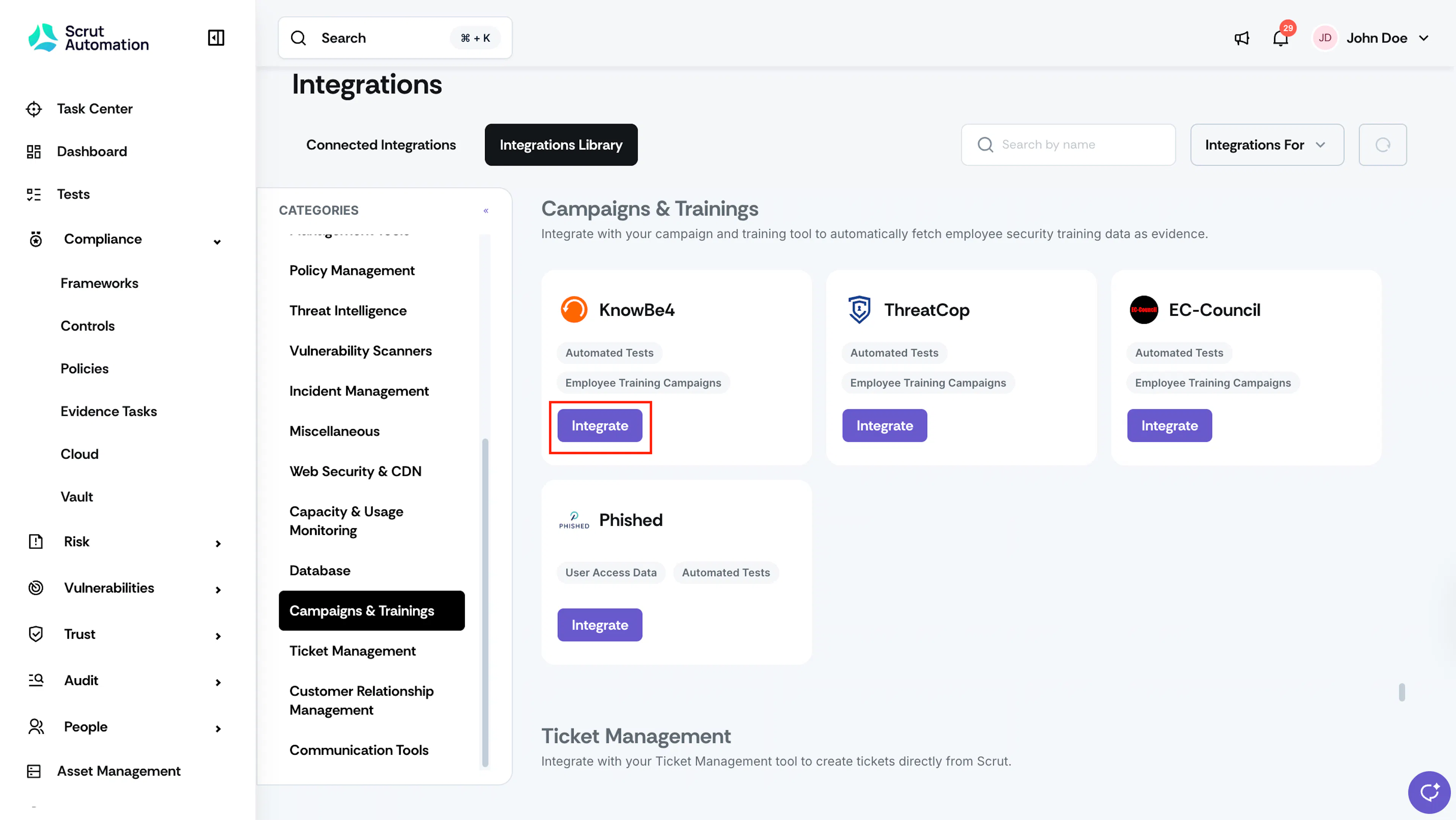
- In Scrut, select Integrations from the left navigation panel.
- Navigate to the Integrations Library tab.
- Scroll to the Campaigns & Training section and locate KnowBe4.
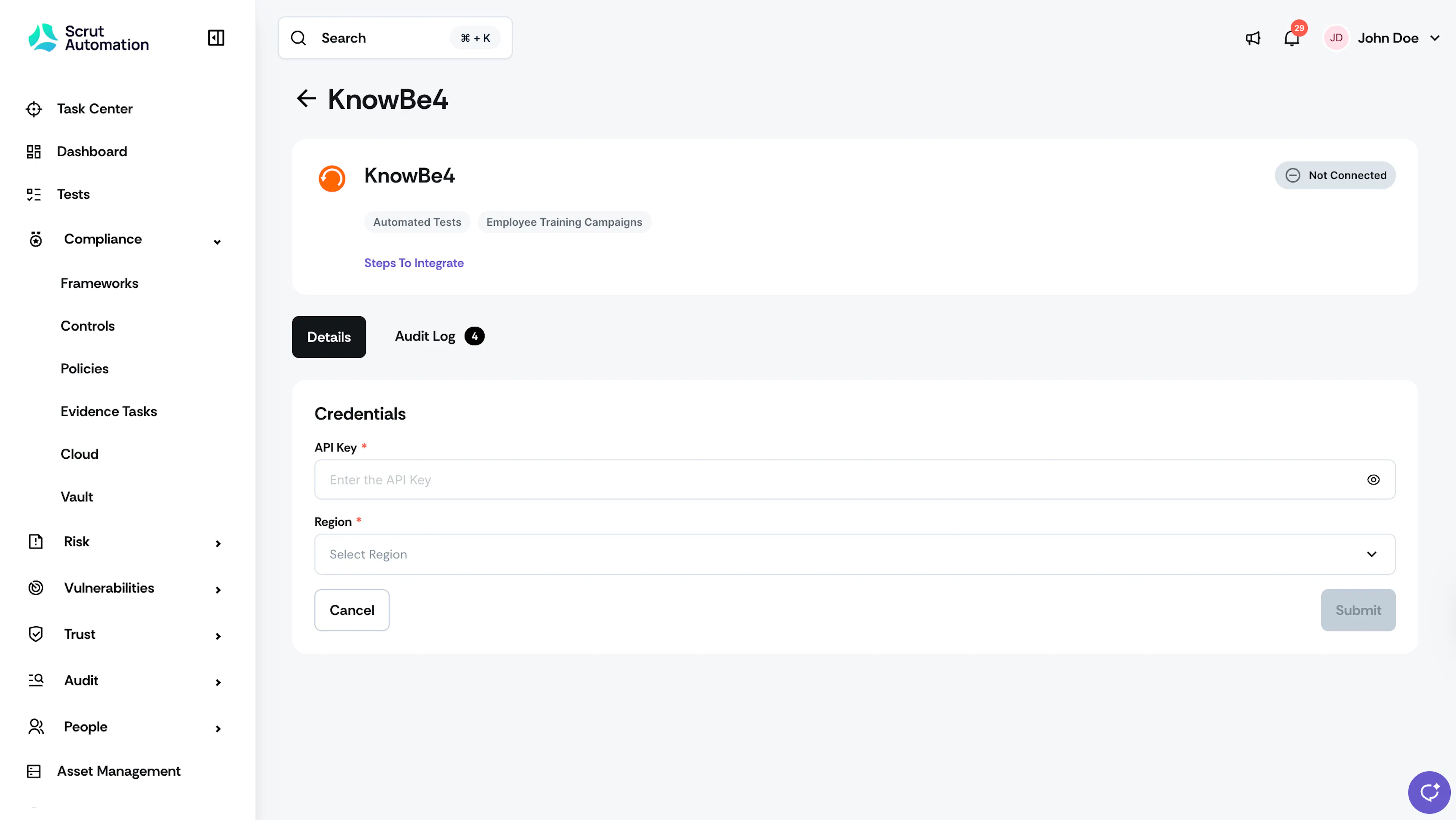
- Select Integrate. You are redirected to the KnowBe4 integration details page.
- Under Credentials, enter your API key in the API Key field.
- Select your account region from the Region dropdown.
- Select Submit to connect.
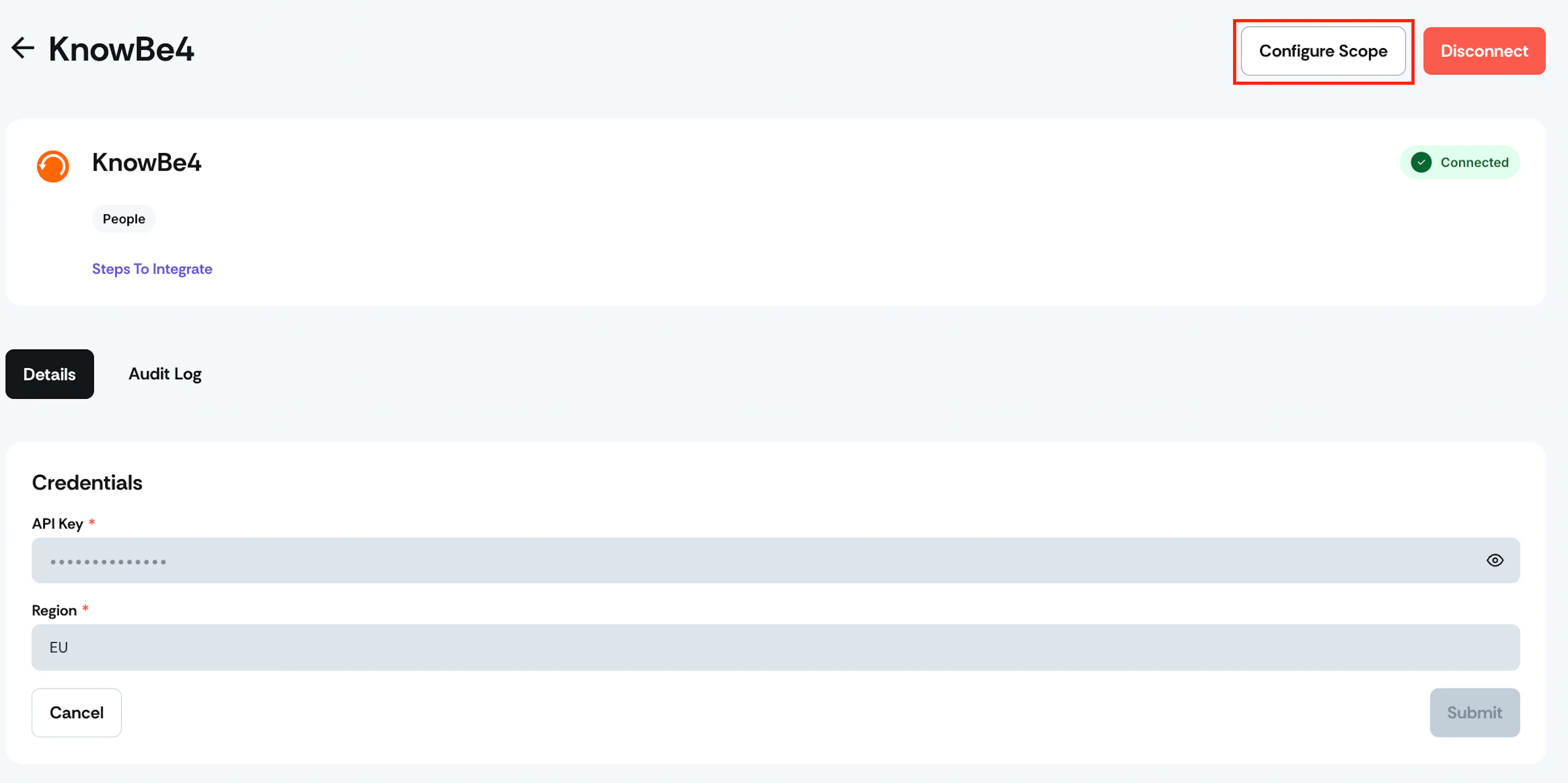
- After the integration status shows as Connected, select Configure Scope.
- In the Configure Campaigns panel, select the training campaigns you want to sync employee data for.
- Select Save.
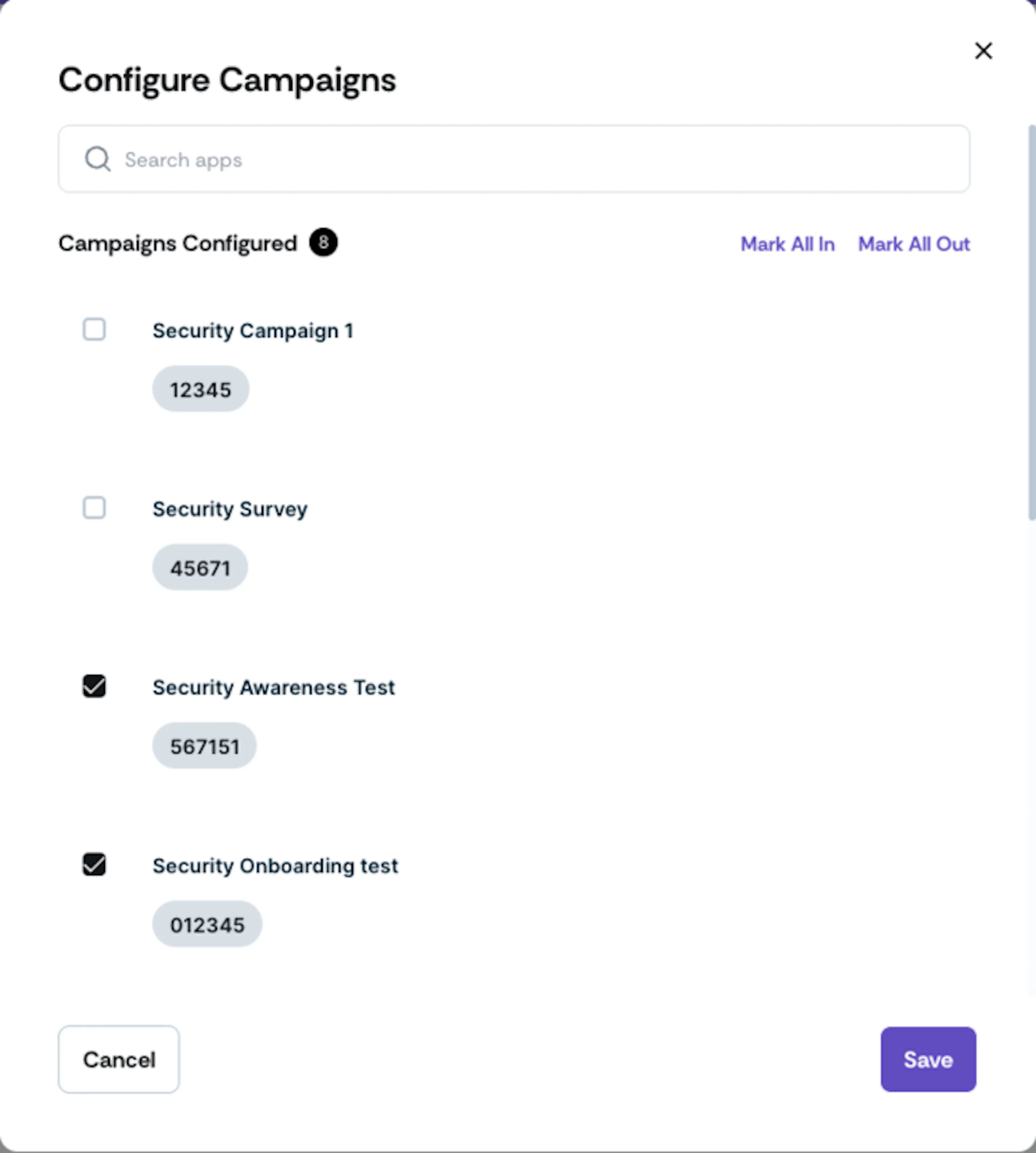
Note: You can return to Configure Scope at any time to add or remove campaigns from the sync.
What Happens Next?
Initial data sync
After you save your campaign scope, Scrut begins syncing data from KnowBe4 automatically. The first sync may take a few minutes to complete. To monitor sync activity, go to the KnowBe4 integration page and select Audit Log.
Review synced data
Once the sync is complete, you can review the data in the following locations:
- Navigate to People → Employees → Training to view campaign enrollment and completion data for each employee.
- Navigate to Tests → Automated Tests to review the test results automatically collected from the synced campaigns.
Common Errors and Troubleshooting
Invalid API Key
Possible solutions:
- Verify that you copied the full API key from KnowBe4 Account Settings > API without extra spaces or characters.
- Generate a new API key in KnowBe4 and re-enter it in Scrut.
- Confirm that Reporting API Access is enabled in your KnowBe4 account settings.
Integration Not Connecting
Possible solutions:
- Confirm that your KnowBe4 account is on a Diamond or Platinum plan, as Reporting API Access is required.
- Check that you selected the correct region to match your KnowBe4 account.
- Try disconnecting and reconnecting the integration.
Training Data Not Appearing in Scrut
Possible solutions:
- Confirm that the relevant campaigns are selected in Configure Scope. Only selected campaigns are synced.
- Wait for the next scheduled sync, or manually trigger a sync from the integration settings page.
- Verify that the employees are enrolled in the selected campaigns in KnowBe4.
FAQs
Reach out to support@scrut.io or contact your CSM for further assistance.