Integrate ServiceDesk Plus
The Scrut - ServiceDesk Plus integration enables you to create tickets for compliance tasks and issues directly from Scrut in your ServiceDesk Plus account. This article offers a step-by-step guide to help you connect your ServiceDesk Plus account with Scrut.
Prerequisites
Before starting the integration, ensure you have the following permissions for your ServiceDesk Plus account:
-
Account Information: Login credentials for your ServiceDesk Plus account
-
Permissions: Scrut requires the following permissions:
- Create new requests
- Read all requests
Pro Tip:
We recommend logging into your ServiceDesk Plus account before starting the integration to avoid doing so later.
How To Integrate Scrut With ServiceDesk Plus
Step 1: Copy the Service Domain URL and Portal Name from ServiceDesk Plus
-
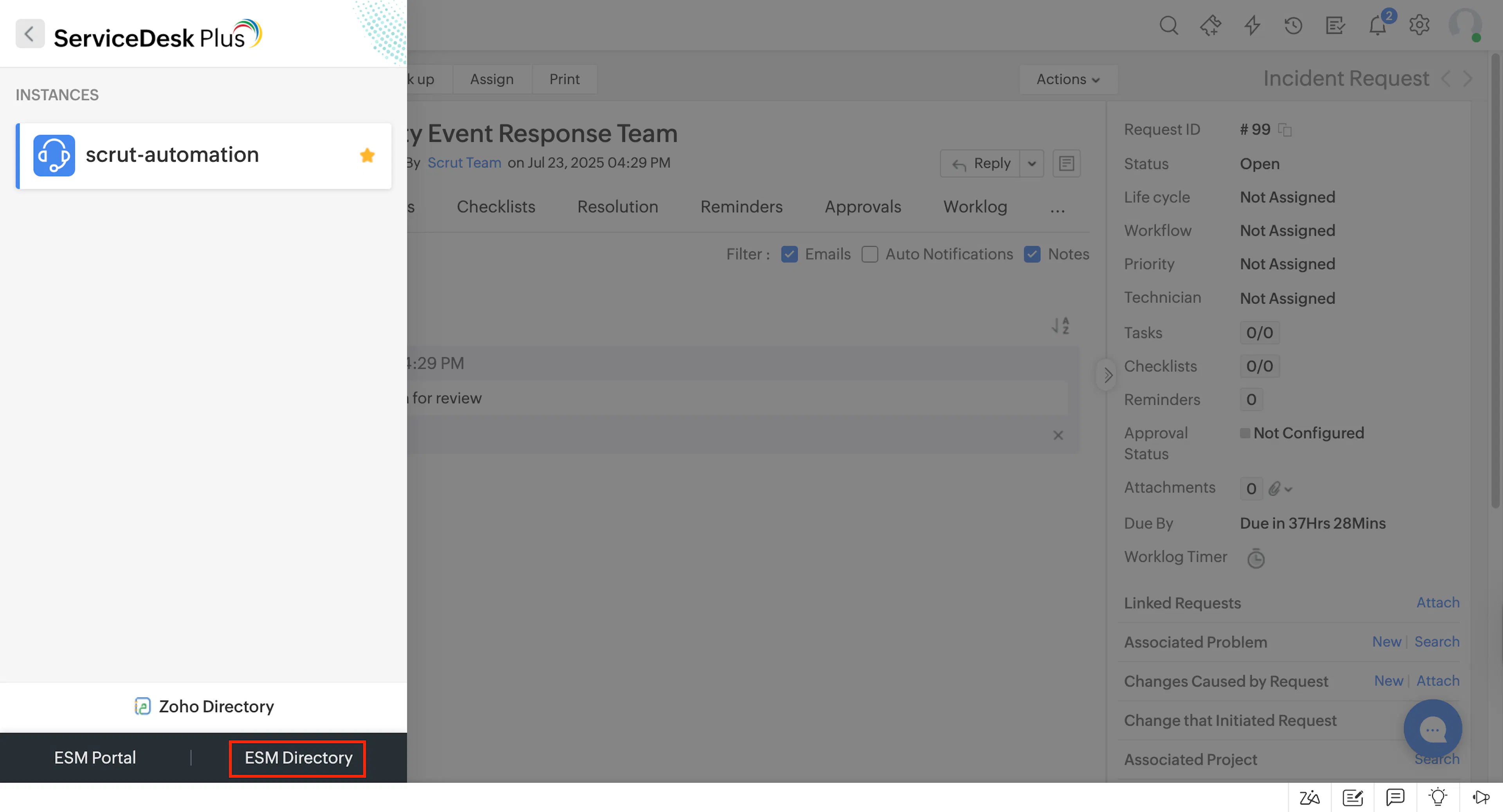
Log in to your ServiceDesk Plus account, and click the hamburger icon on the top-left and select ESM Directory.
-
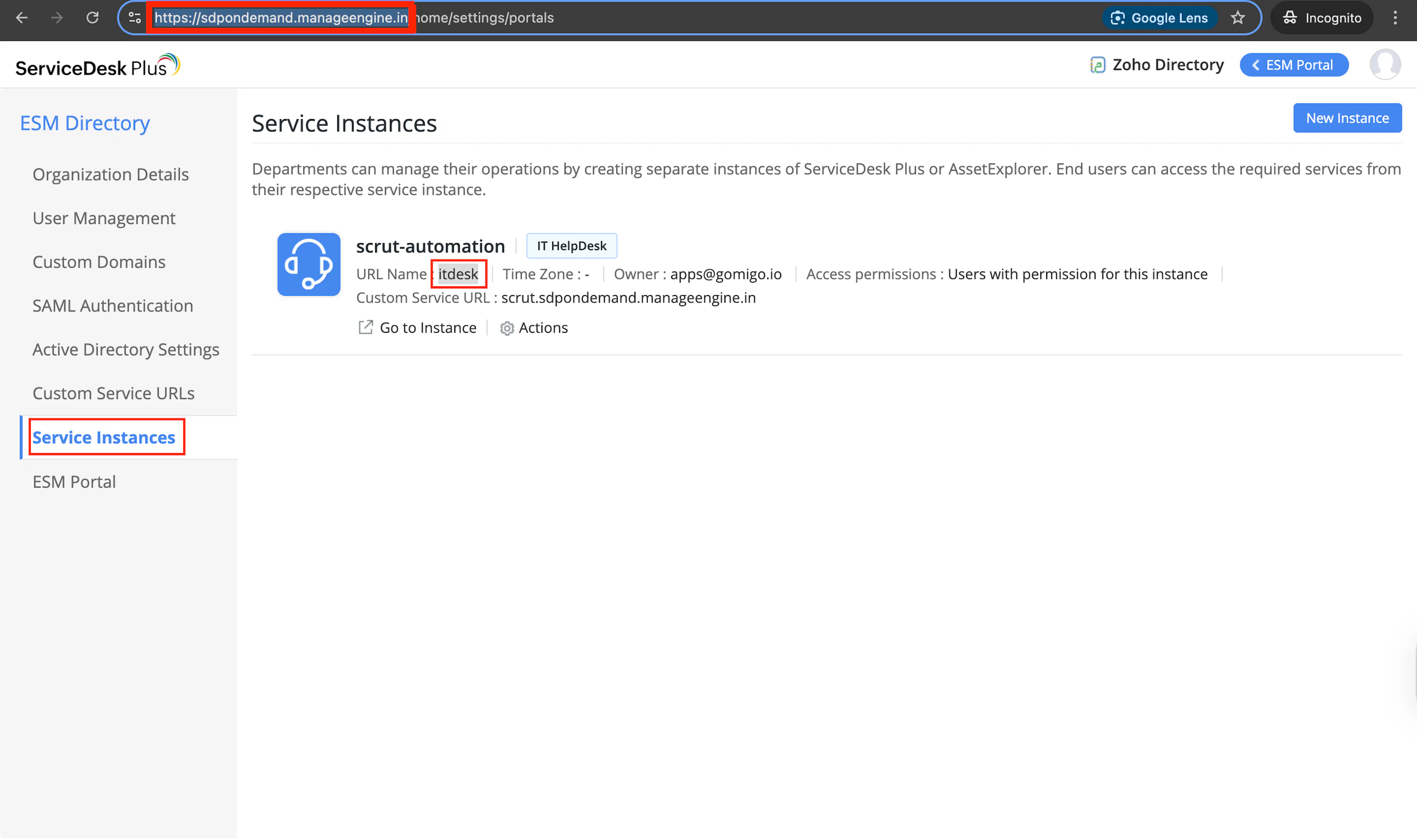
Click Service Instances on the left menu.
-
Copy the Service Domain URL and Portal Name. In this example:
-
Service Domain URL: https://sdpondemand.manageengine.in
Note: Do not include the trailing slash when copying the domain URL.
-
Portal Name: itdesk
-
-
You’ll need to enter these details in the next step.
Step 2: Integrate Your ServiceDesk Plus Account in Scrut
-
Sign in to Scrut and click Integrations on the left side panel.
-
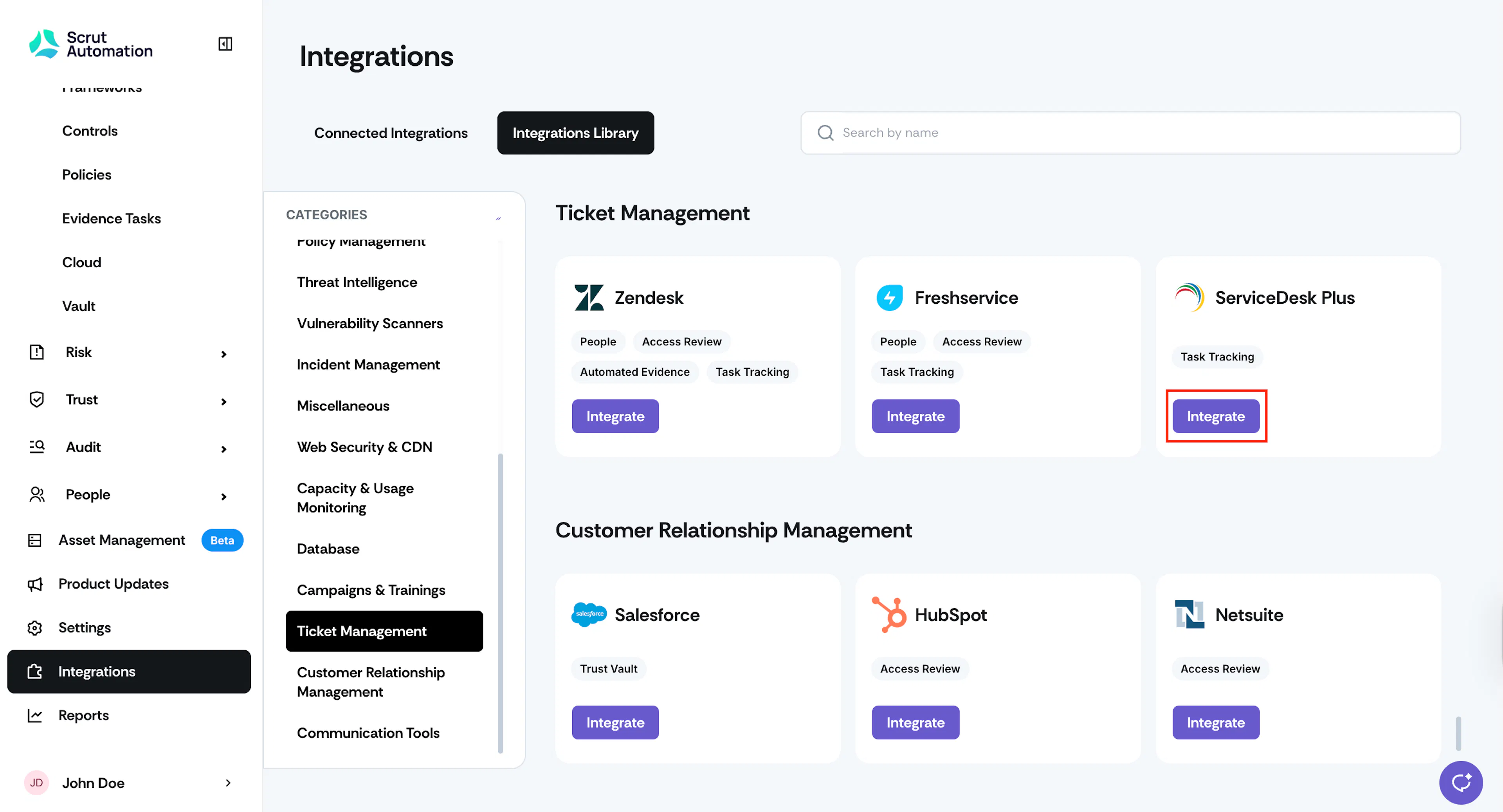
Navigate to the Integrations Library tab, and in the Categories section, scroll to Ticket Management. Alternatively, you can search for ServiceDesk Plus using the search bar at the top of the page.
-
Click the Integrate button in the ServiceDesk Plus tile.
-
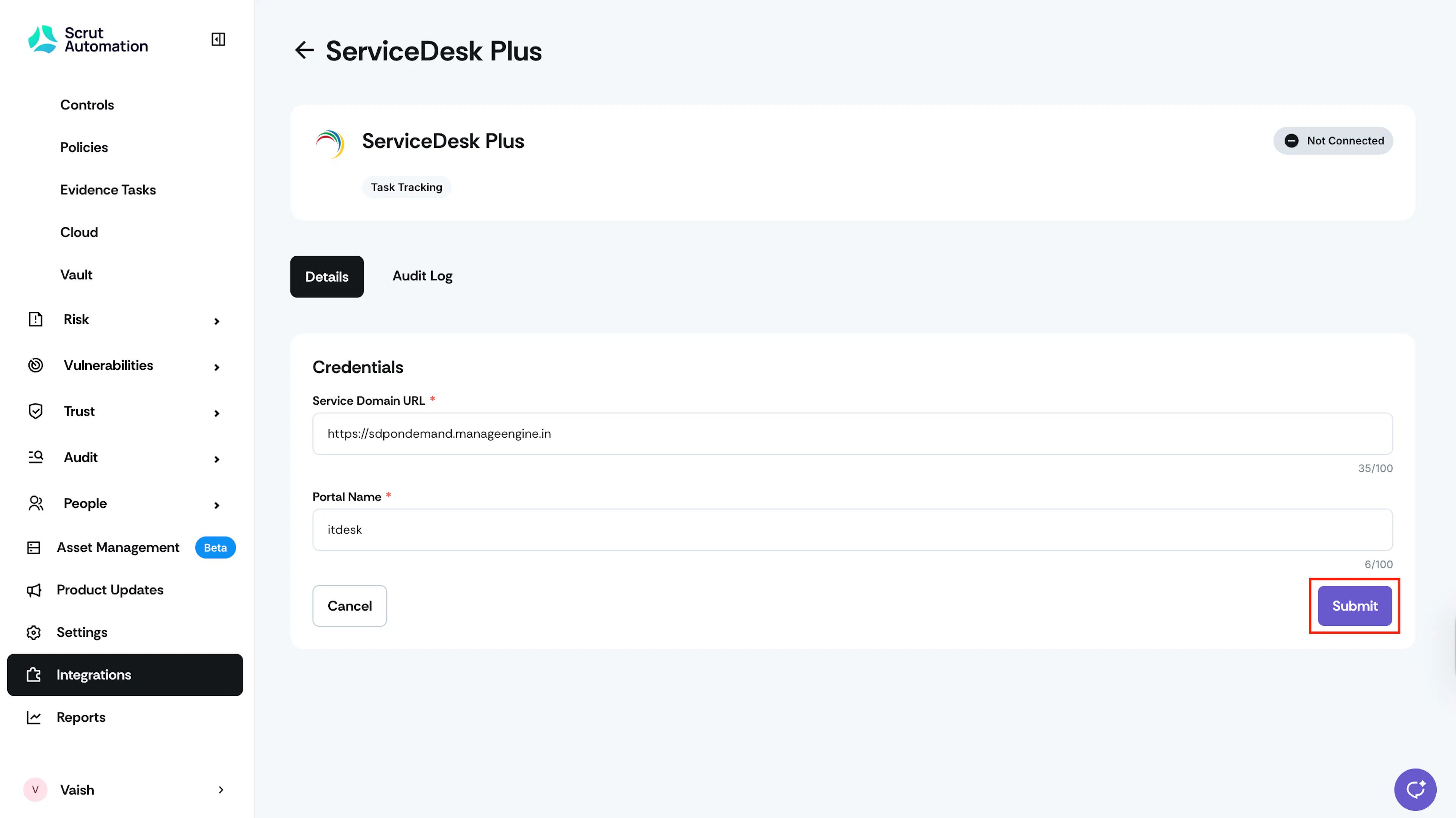
On the ServiceDesk Plus integration page, enter the Service Domain URL and Portal Name you copied in the previous step and click Submit.
-
If you haven’t logged in to ServiceDesk Plus, Scrut will prompt you to complete the login process.
-
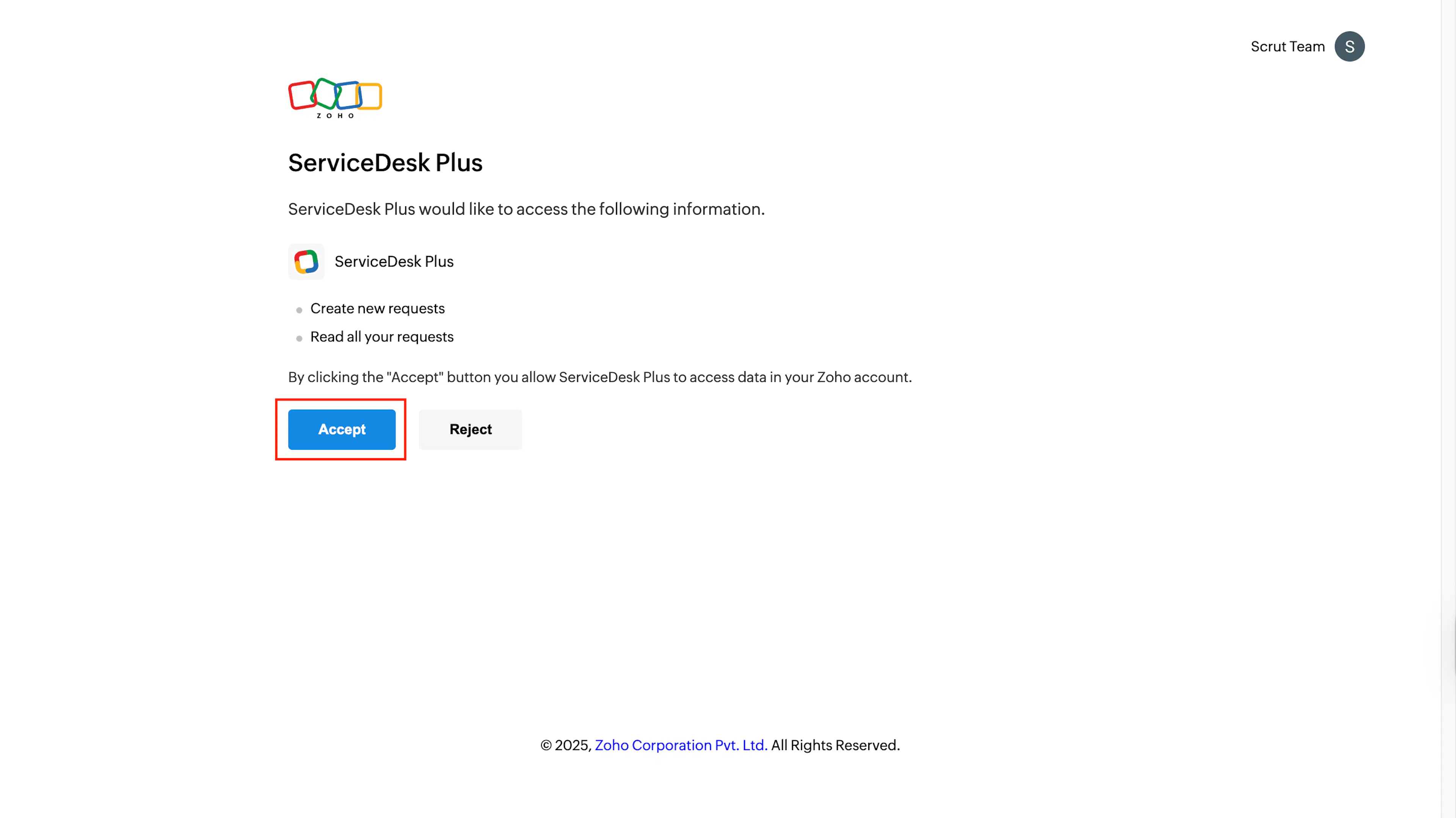
Next, click Accept to grant Scrut the requisite permissions for the integration.
-
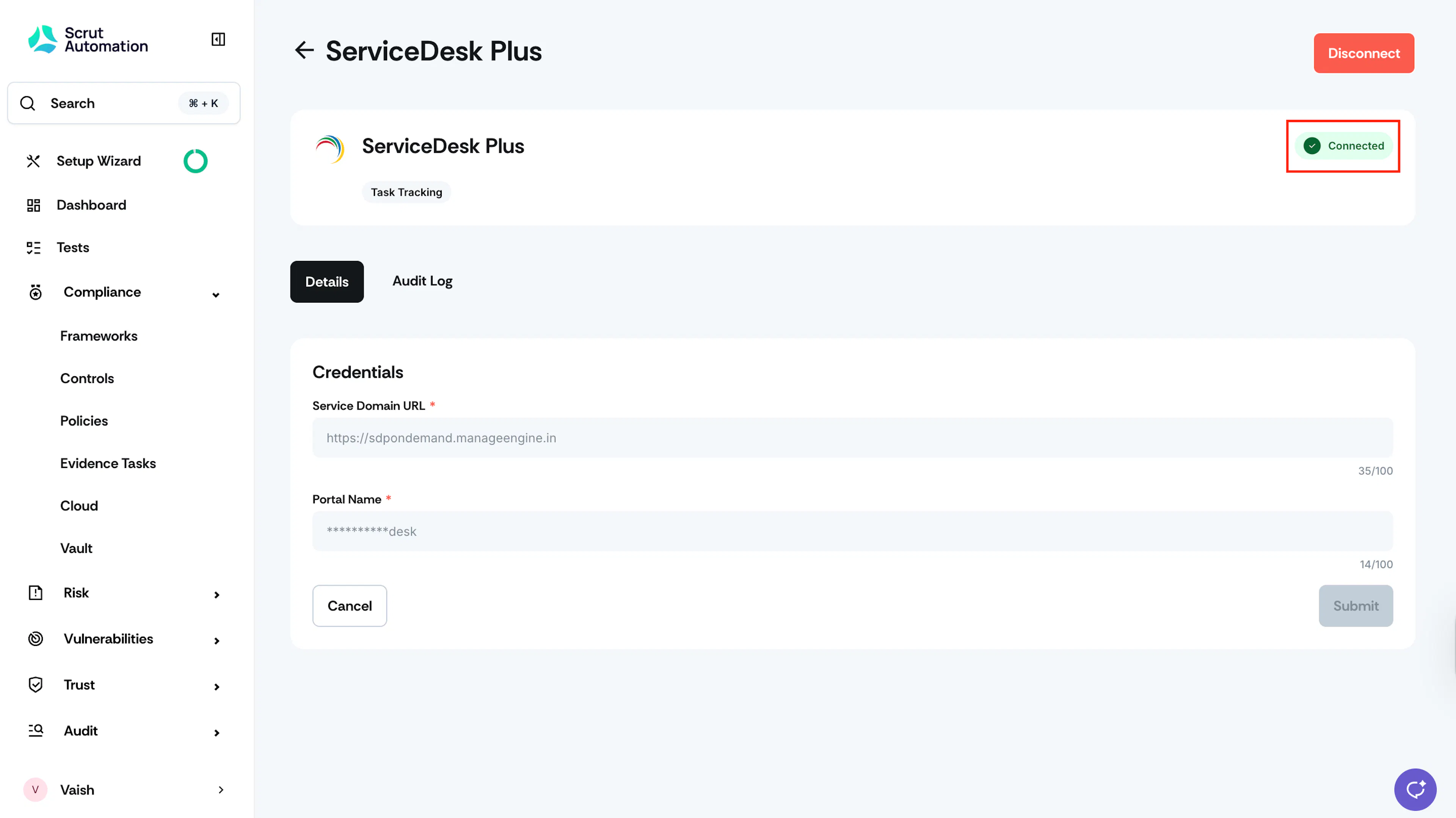
Watch out for the success notification and the Connected flag.
Creating a ServiceDesk Plus Ticket in Scrut
Once you have completed the integration, you can create ServiceDesk Plus tickets directly from Scrut. You can create and manage tickets across all modules, including:
- Policies
- Evidence Tasks
- Tests
- Cloud
- Risk Management
- Audit → Audit Center → Requests
- Audit → Audit Center → Findings
- Audit → Audit Center → Corrective Actions
- Vulnerabilities → Findings
To create a ticket:
-
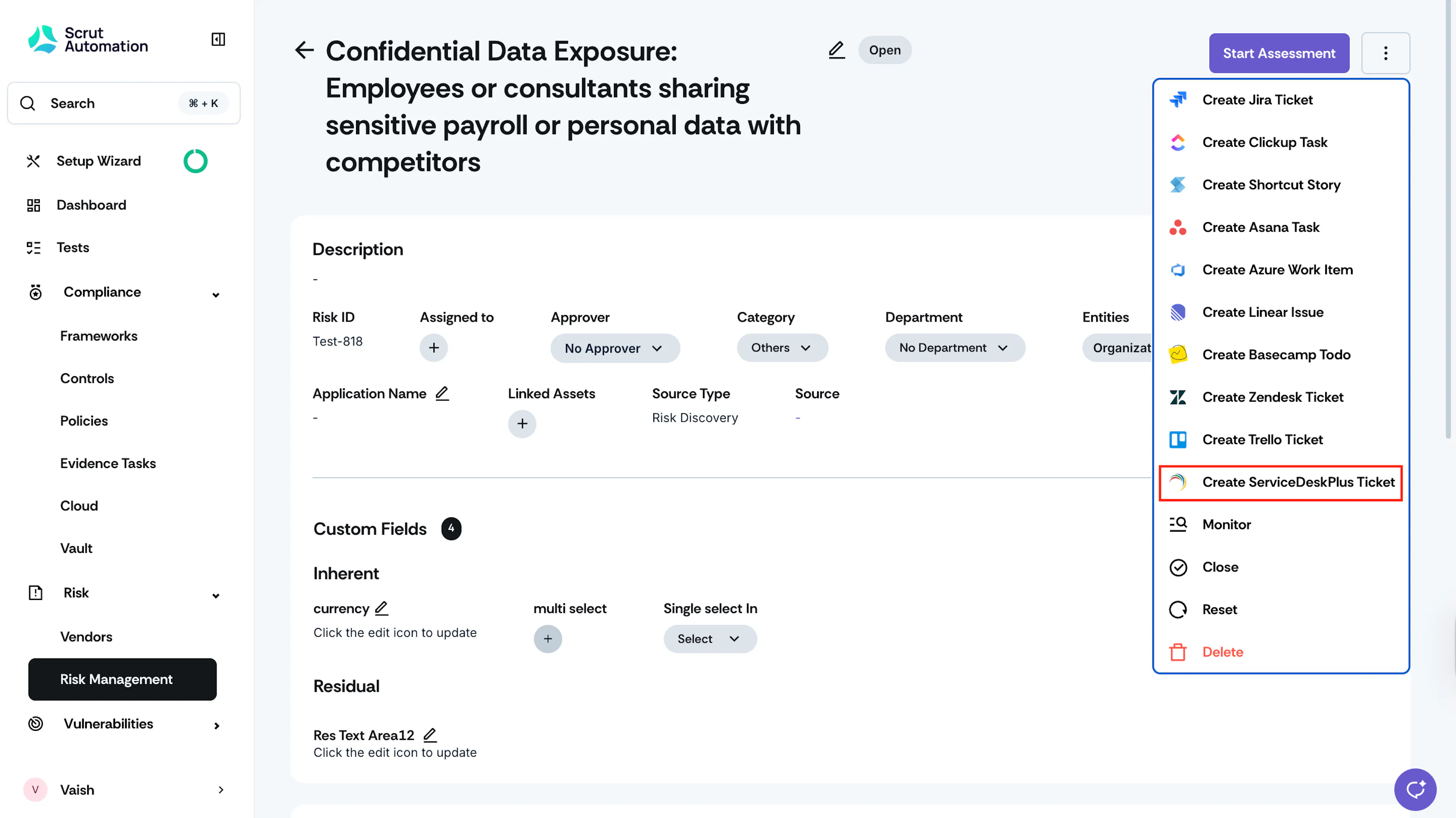
Navigate to your desired artifact page, click the three-dot icon on the top-right, and select Create ServiceDesk Plus Ticket.
-
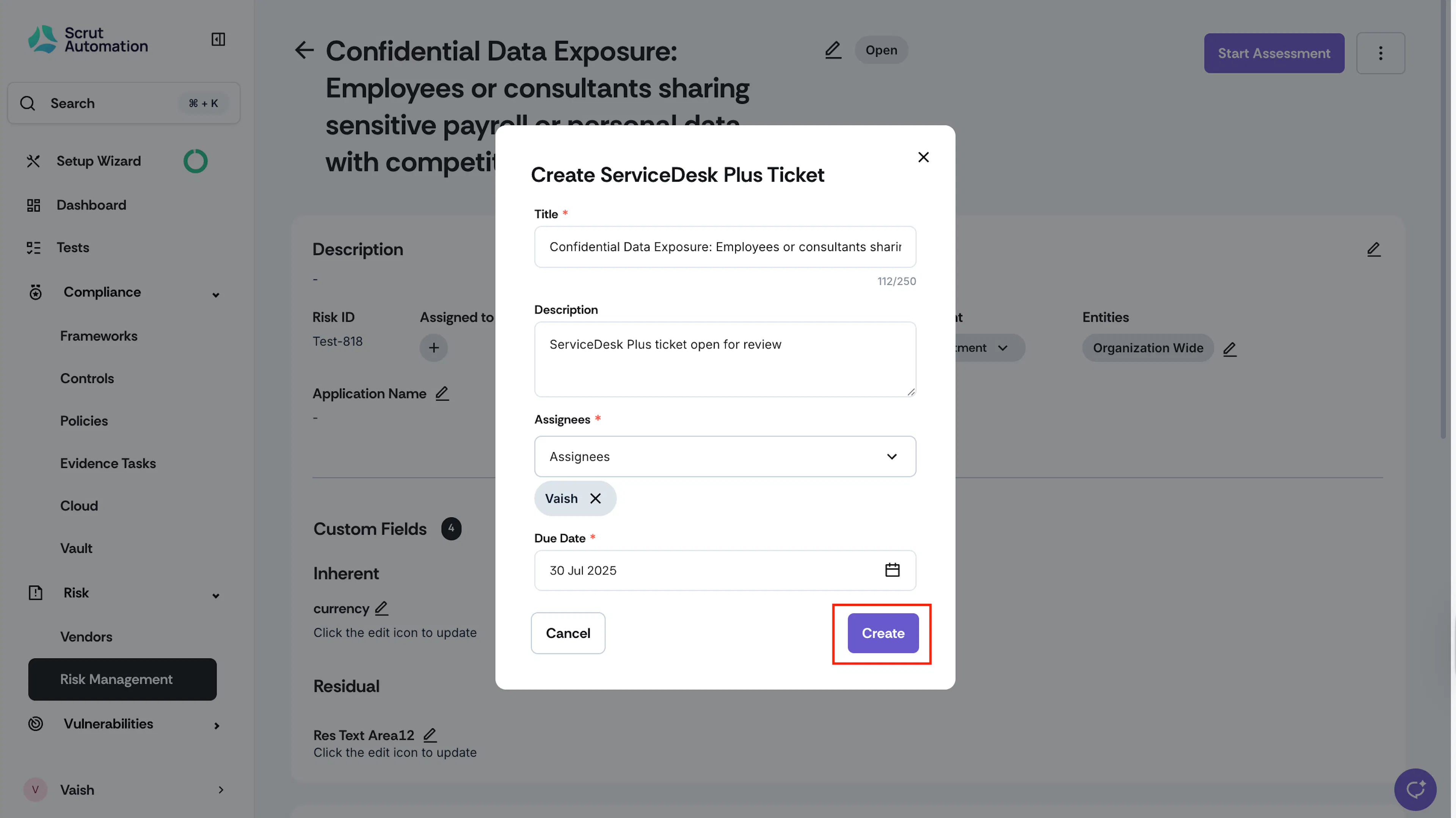
Scrut automatically fills in the ticket Title and Description. You can edit these details if required.
-
Select the Assignee who will handle the ticket and set a Due Date.
-
Click Submit.
-
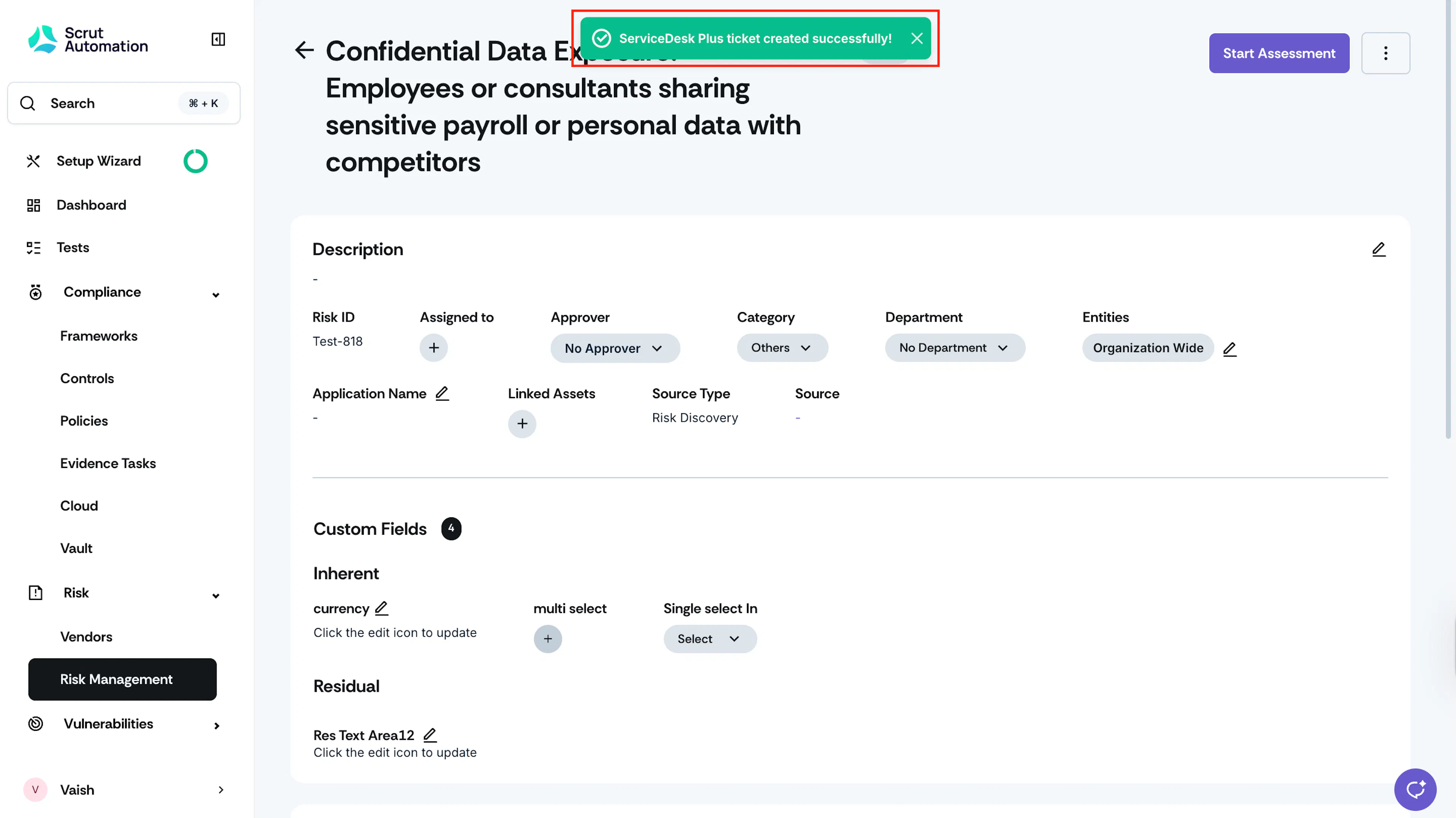
Scrut will create the ticket in your ServiceDesk Plus account. Watch out for the success notification.
-
Scrut also adds the ticket link and creator’s details to the Audit Logs.
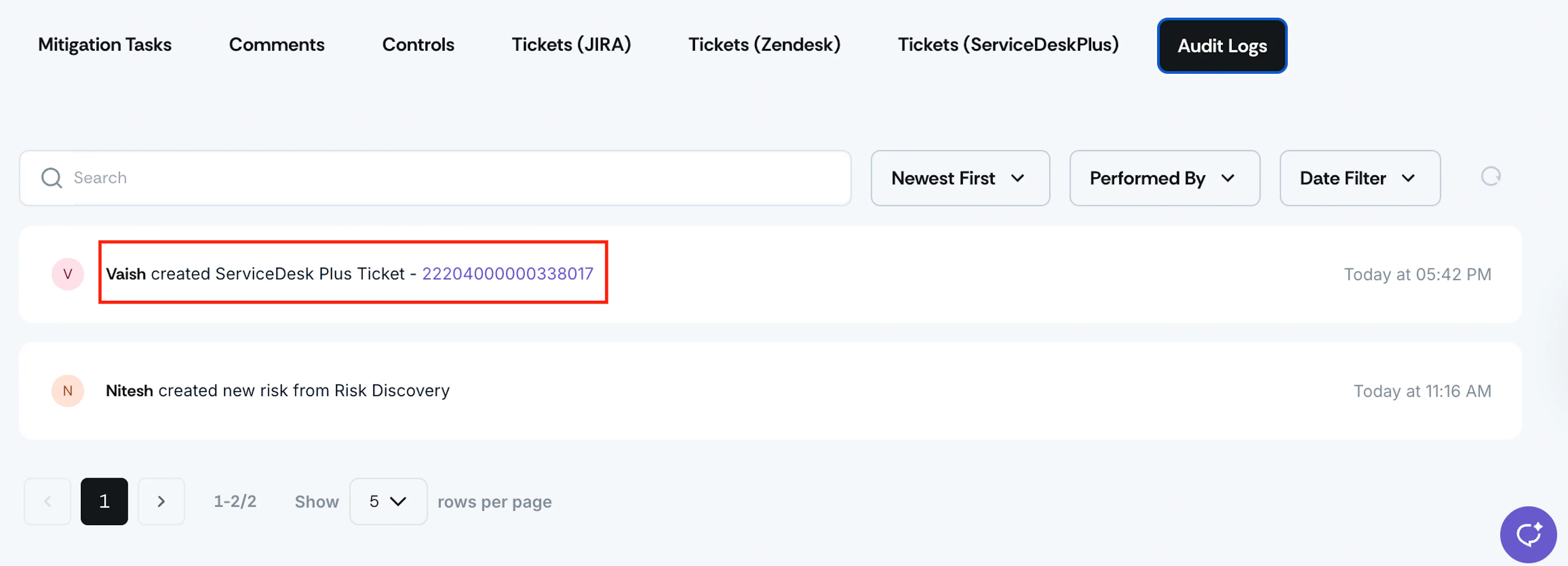
Sample audit log details for a ServiceDesk Plus ticket creation -
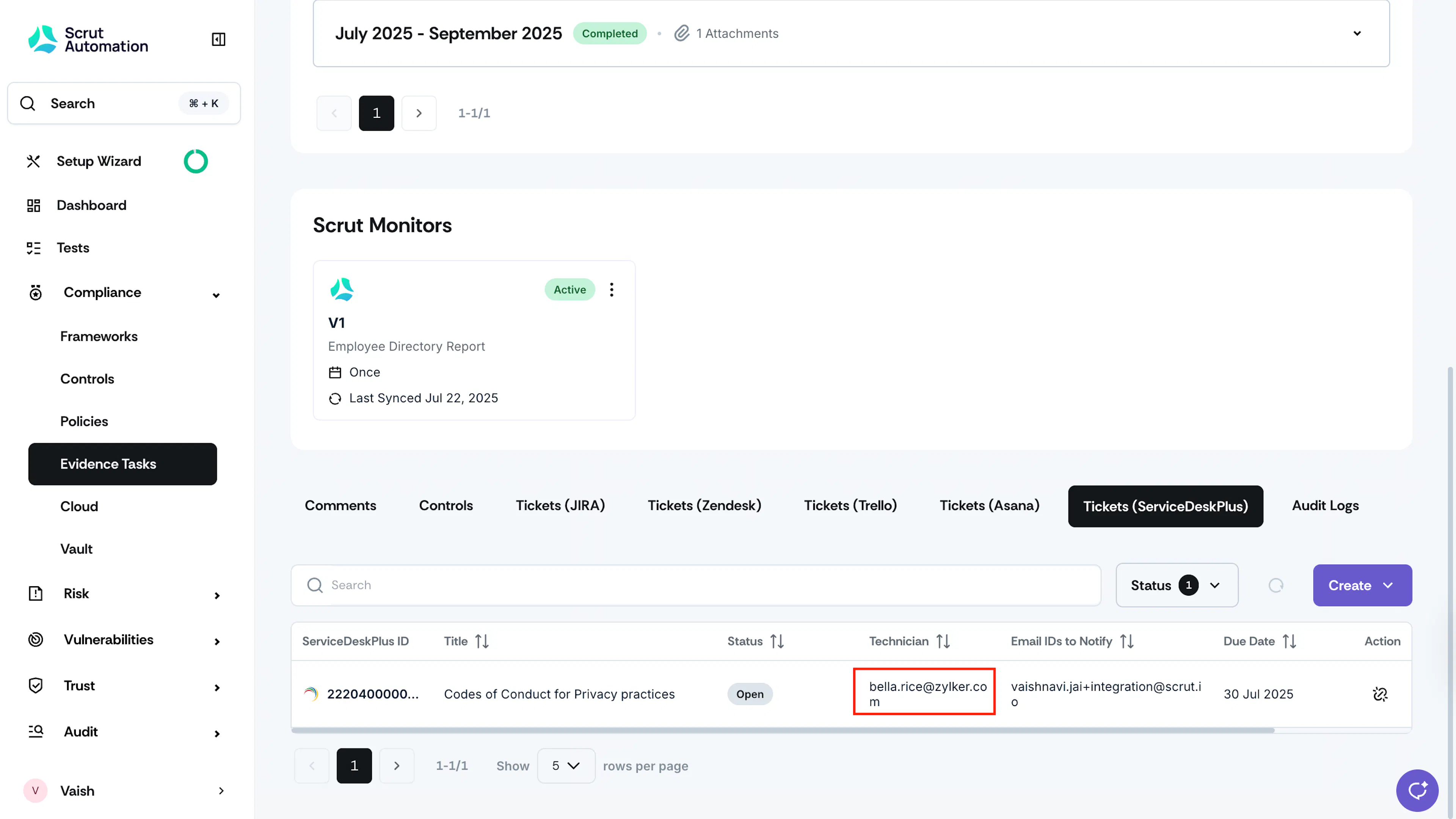
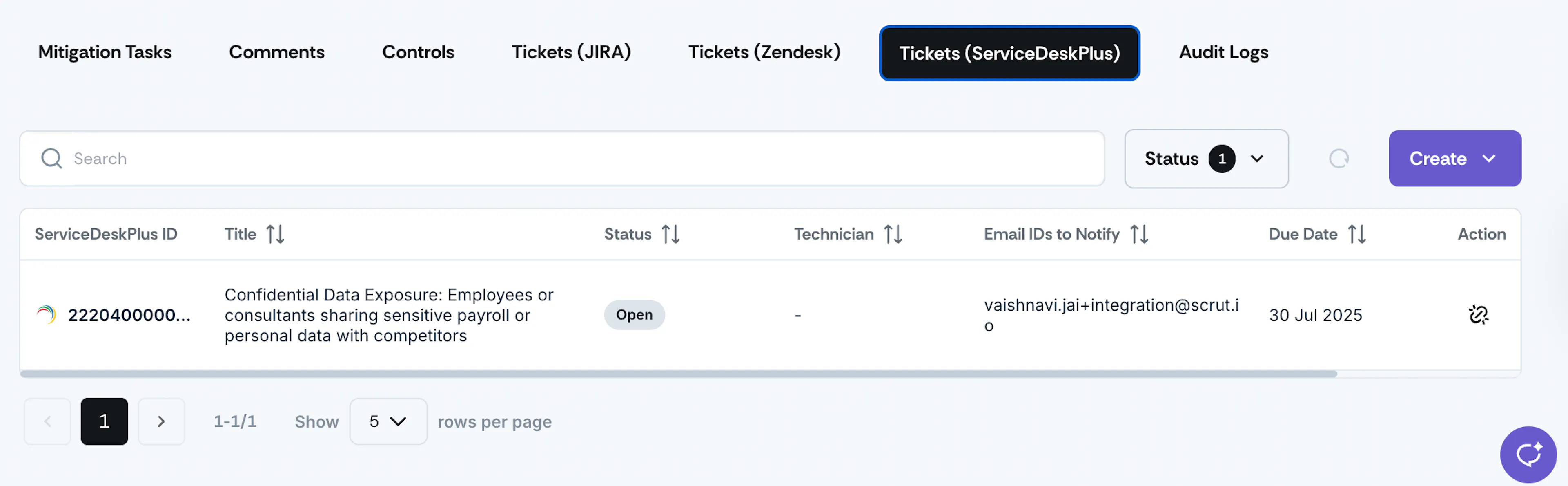
The Tickets (ServiceDesk Plus) tab provides details on all ServiceDesk Plus tickets you’ve created for this artifact. It includes information such as:
- ServiceDesk Plus ID
- Title
- Status
- Technician
- Email IDs to Notify
- Created Date
- Due Date
Pro Tip!
Clicking the ServiceDesk Plus ID of the ticket will take you directly to the corresponding ticket details page in ServiceDesk Plus.
Linking Existing ServiceDesk Plus Tickets in Scrut
Scrut allows you to link existing tickets in your ServiceDesk Plus dashboard to specific artifacts. To do this:
-
Log in to Scrut and navigate to your preferred artifact.
-
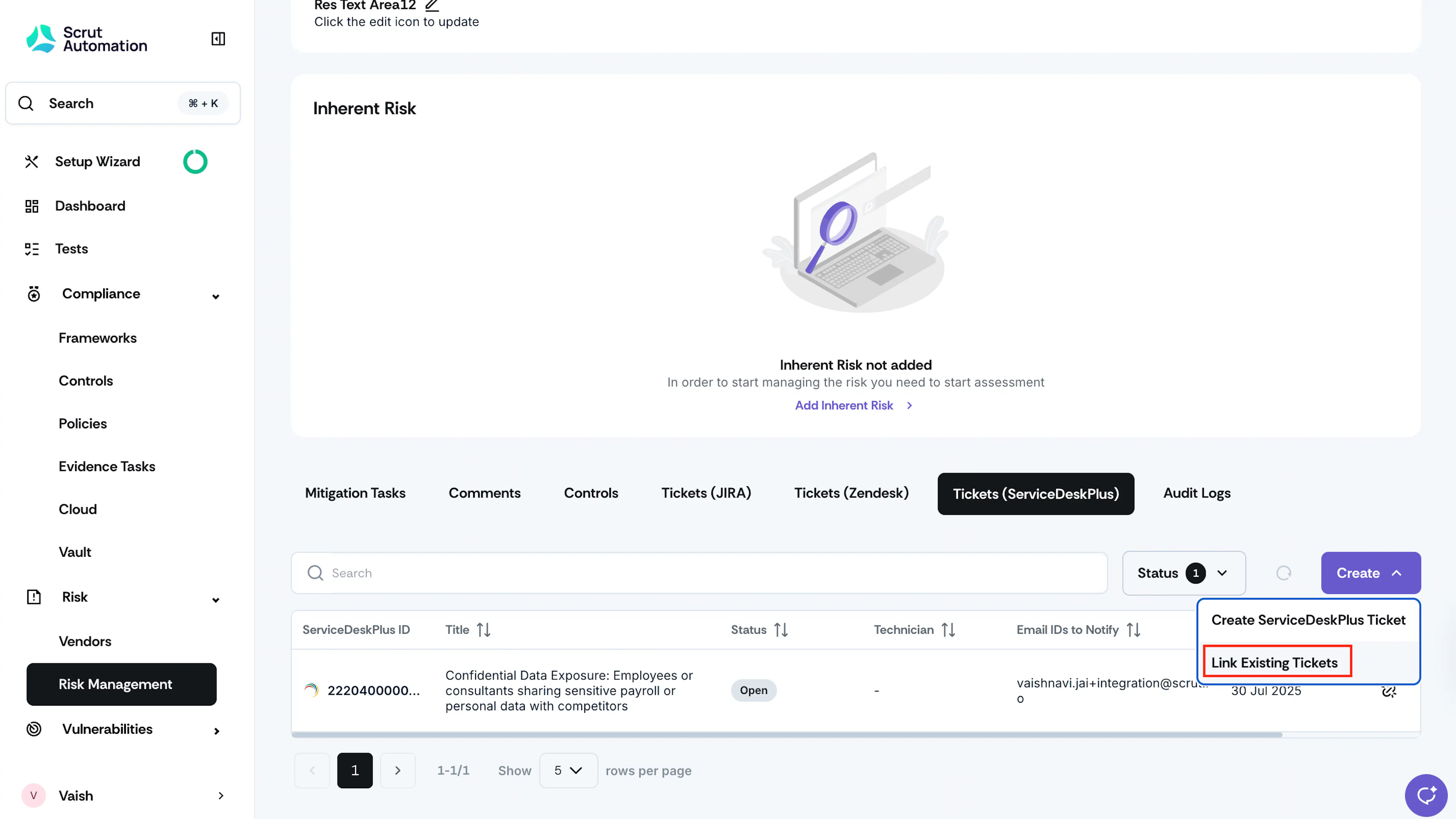
Scroll to the Tickets (ServiceDesk Plus) tab.
-
Click the Create button and select Link Existing Tickets.
-
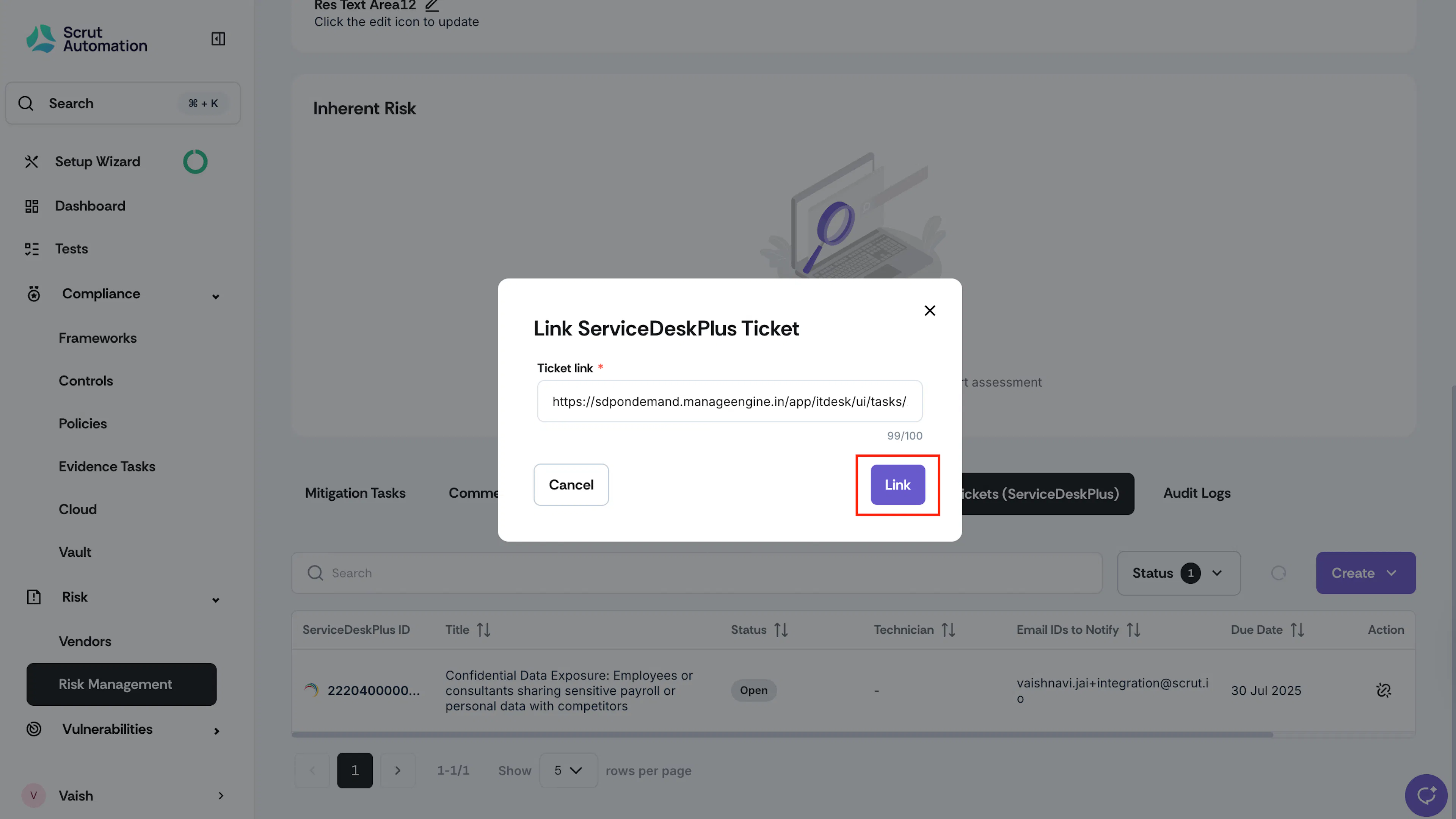
Copy and paste the ticket URL and click Link.
-
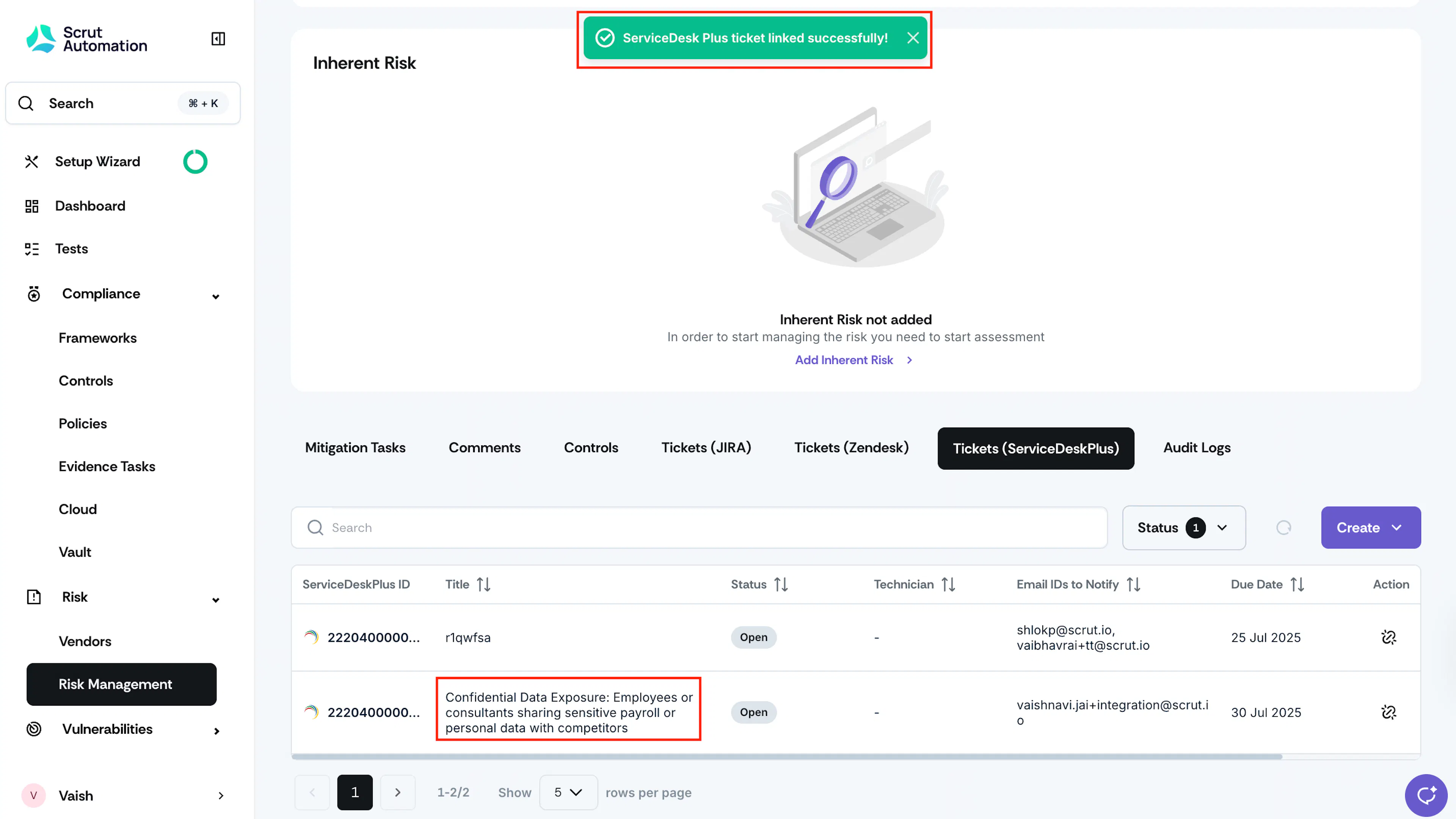
The ticket will be linked to the artifact.
Updating Tasks in ServiceDesk Plus
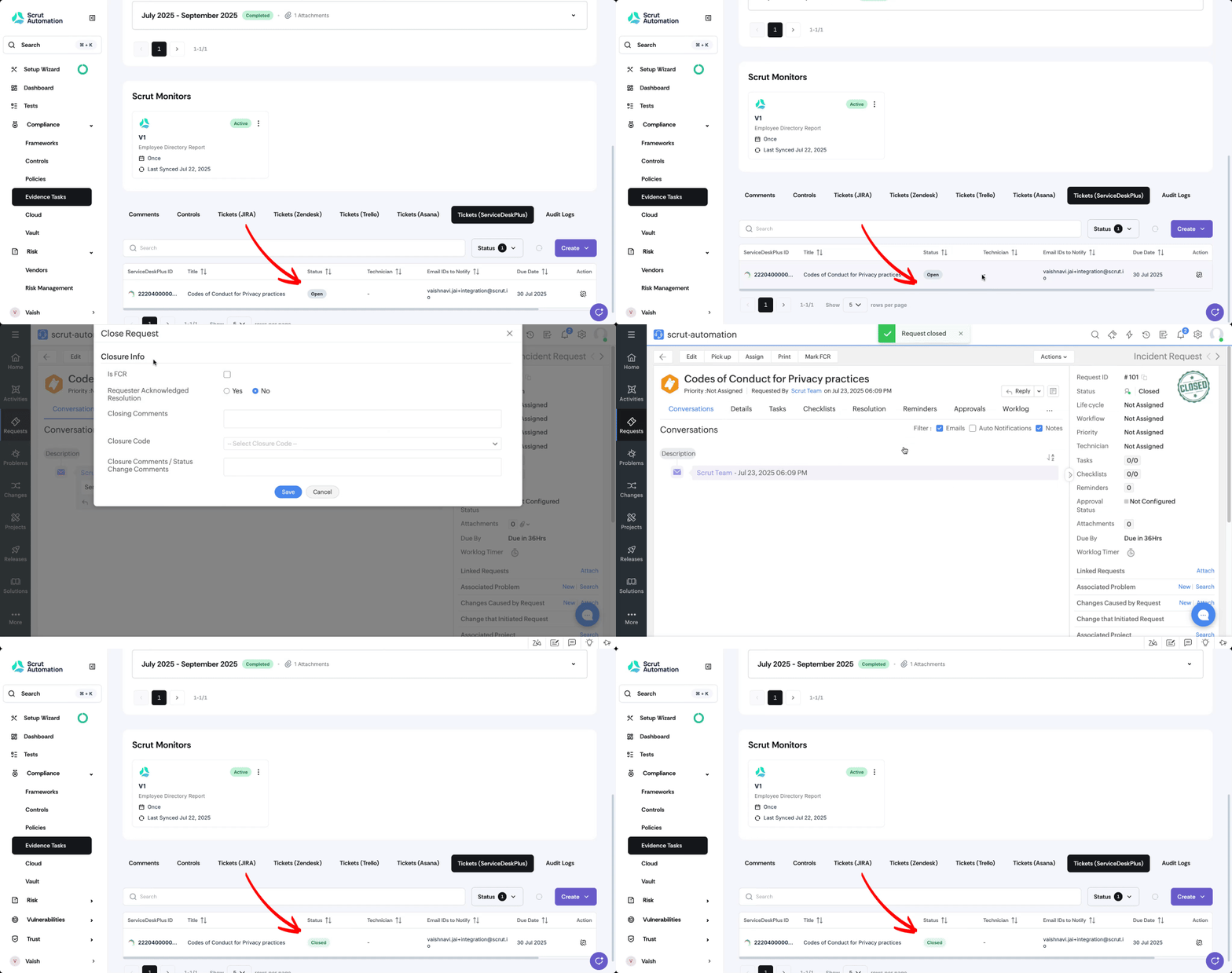
The integration between Scrut and ServiceDesk Plus is bidirectional and syncs in real time. When you change any synced fields in your ServiceDesk Plus tickets, those changes will automatically update in Scrut. For example, if you mark a task as completed in ServiceDesk Plus, that completion status will immediately appear in Scrut.
Limitations
When creating a ServiceDesk Plus ticket from Scrut, you cannot assign a Technician. The Assignee you select in Scrut will be added to the Email to Notify field.
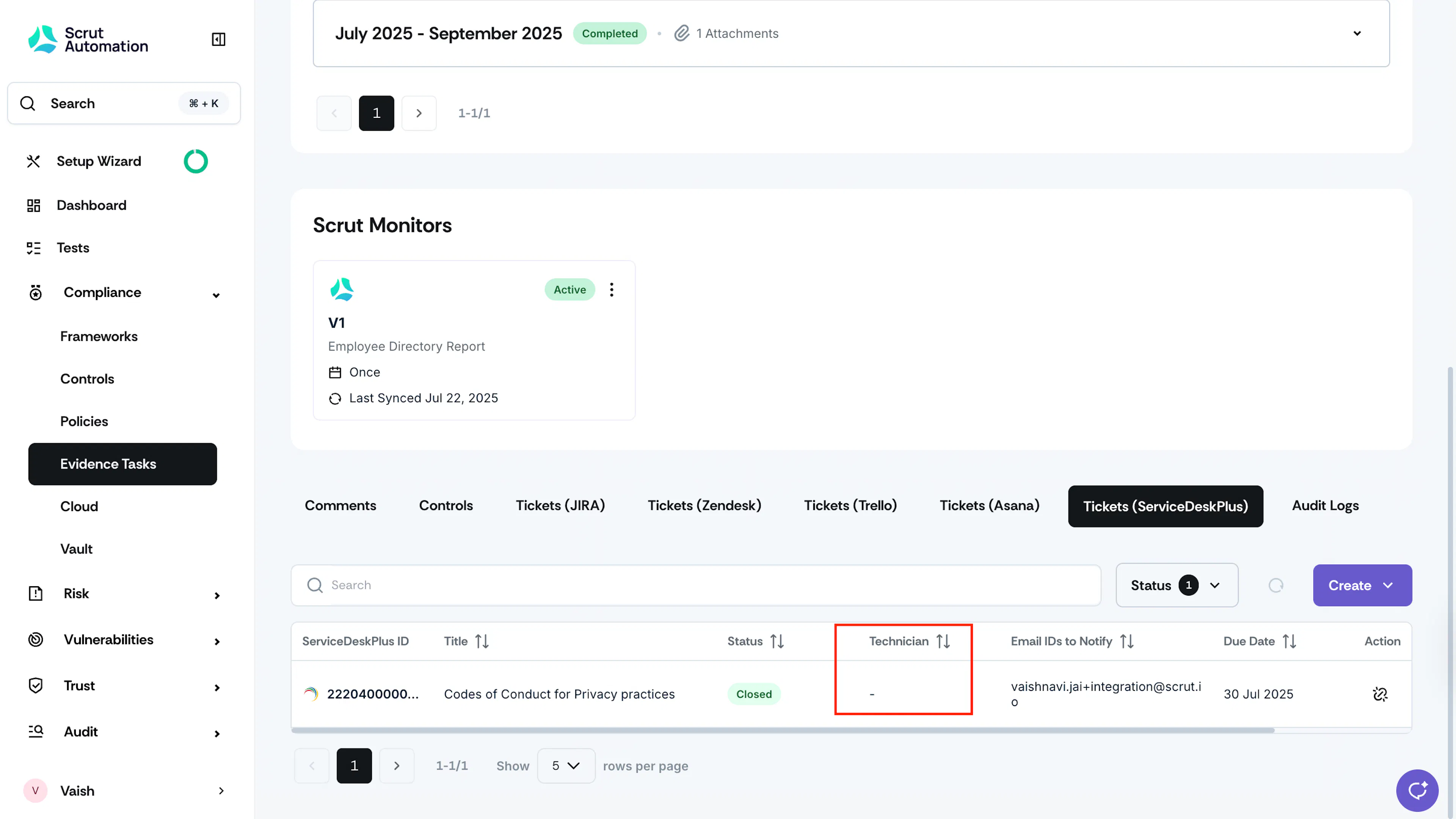
However, if you edit the request in ServiceDesk Plus to add a Technician, the details will be reflected automatically in Scrut.