Manage Evidence Attachment
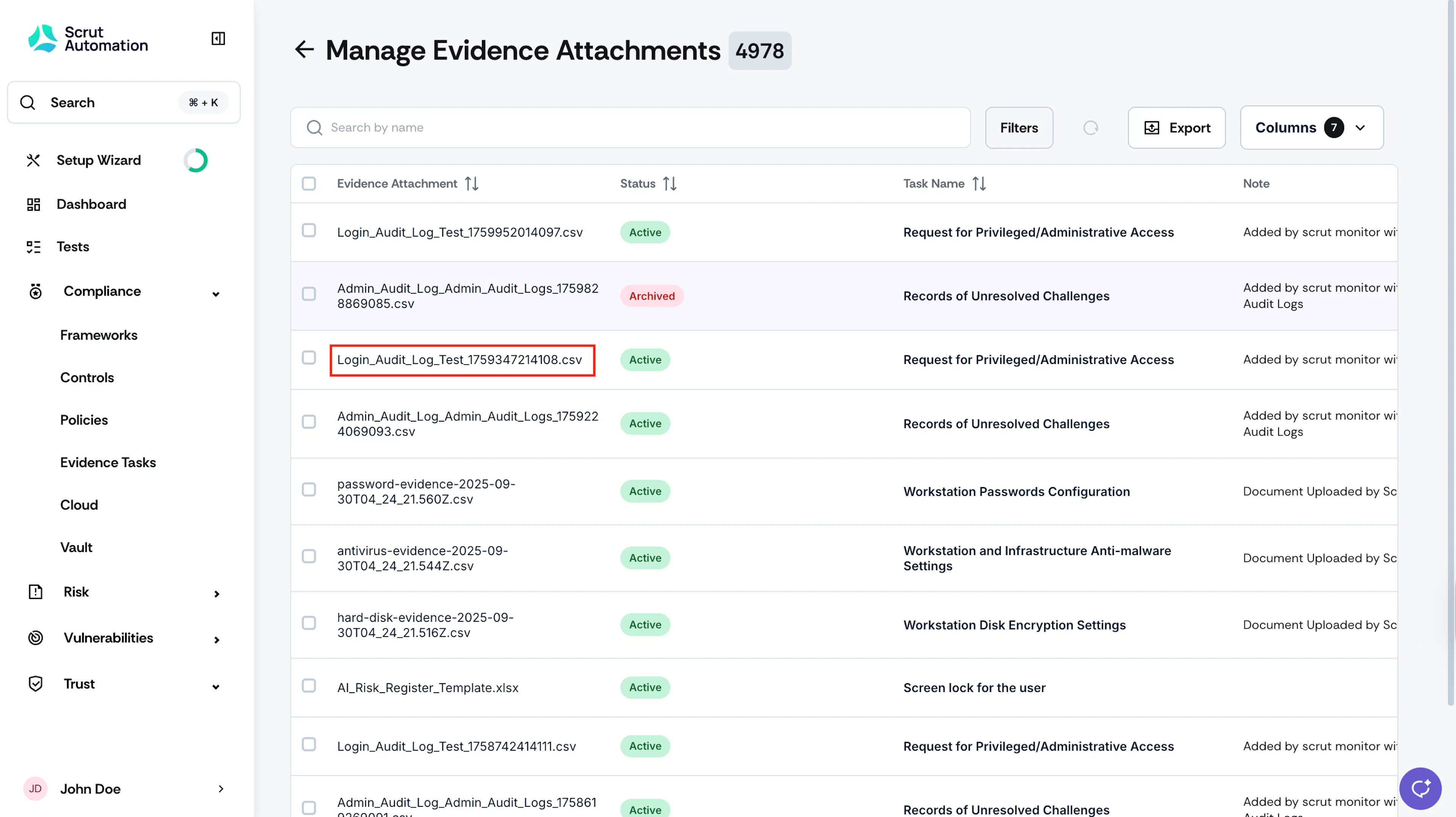
The Settings → Manage Evidence Attachment section lists all attachments linked to various evidence tasks. This page allows you to perform the following actions:
- Archive Attachments
- Unarchive Attachments
- Delete Attachments
- Export Attachment Details
- Download Attachments
Archive Evidence Attachments
Archiving attachments removes them from the corresponding evidence tasks. This is helpful when attachments become outdated or irrelevant. You can archive them for future reference, without cluttering evidence tasks.
-
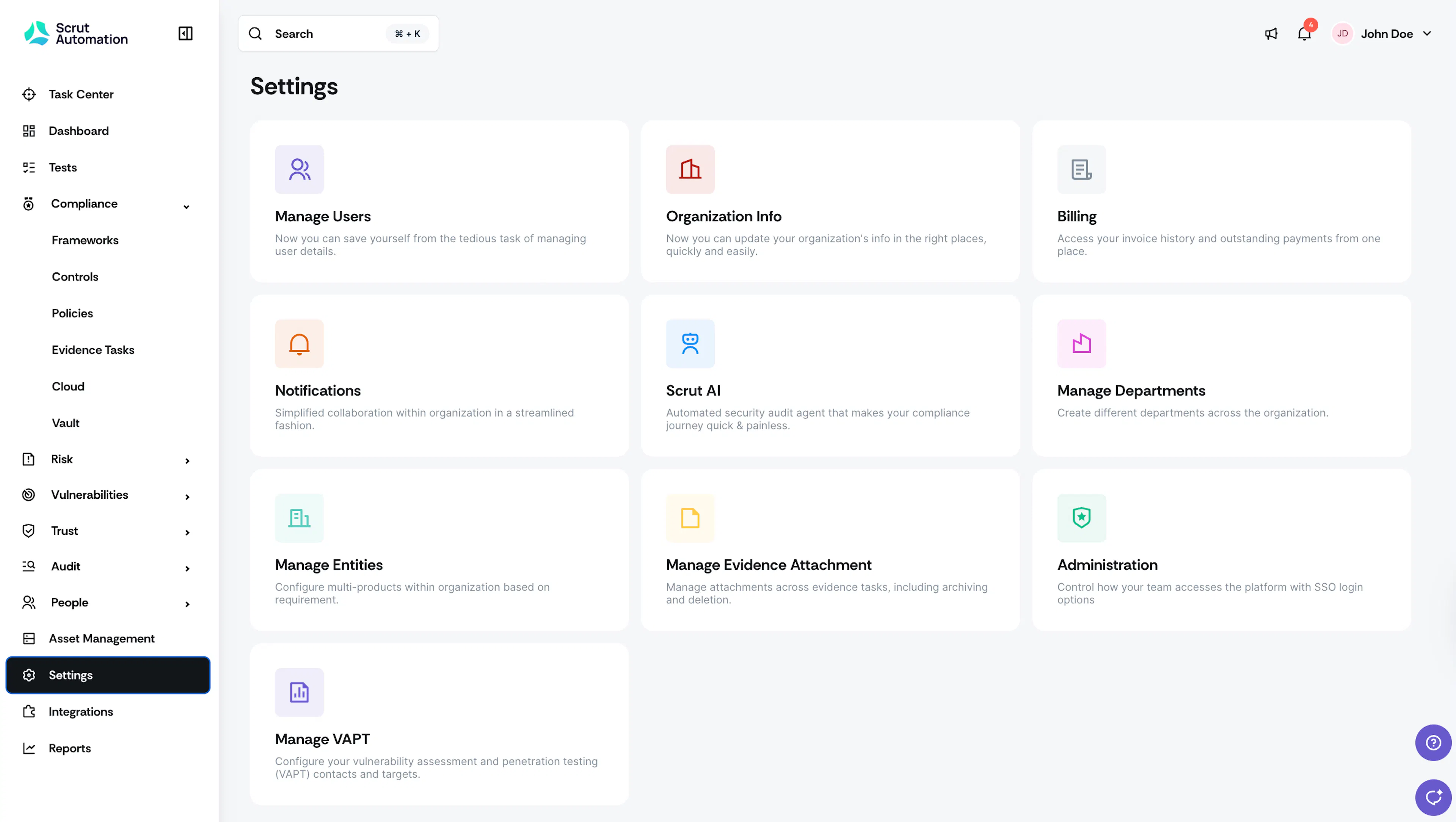
Click Settings on the left navigation panel, and click the Manage Evidence Attachments section.
-
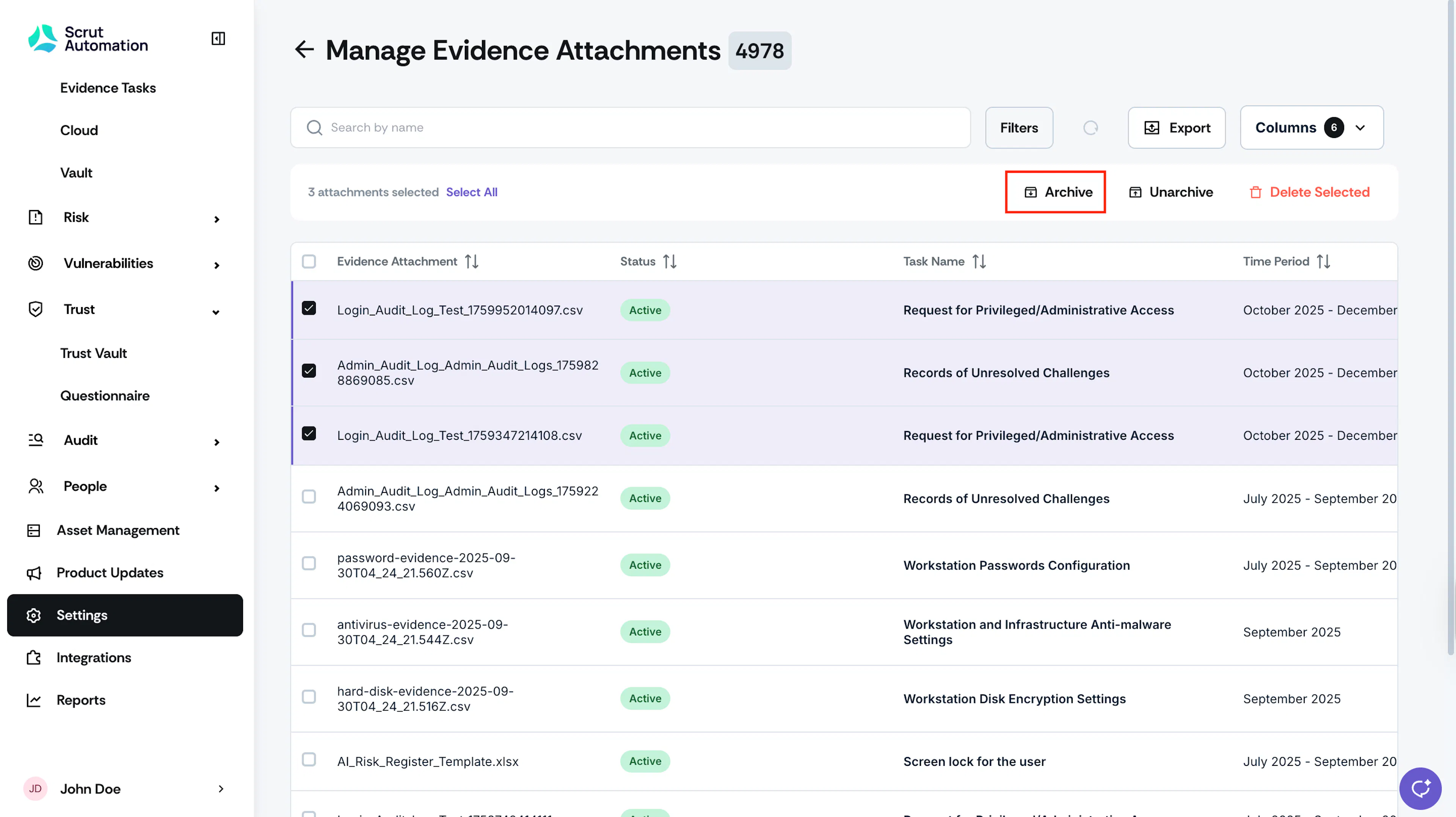
Select the attachments that you want to archive. You can select one or more as needed.
-
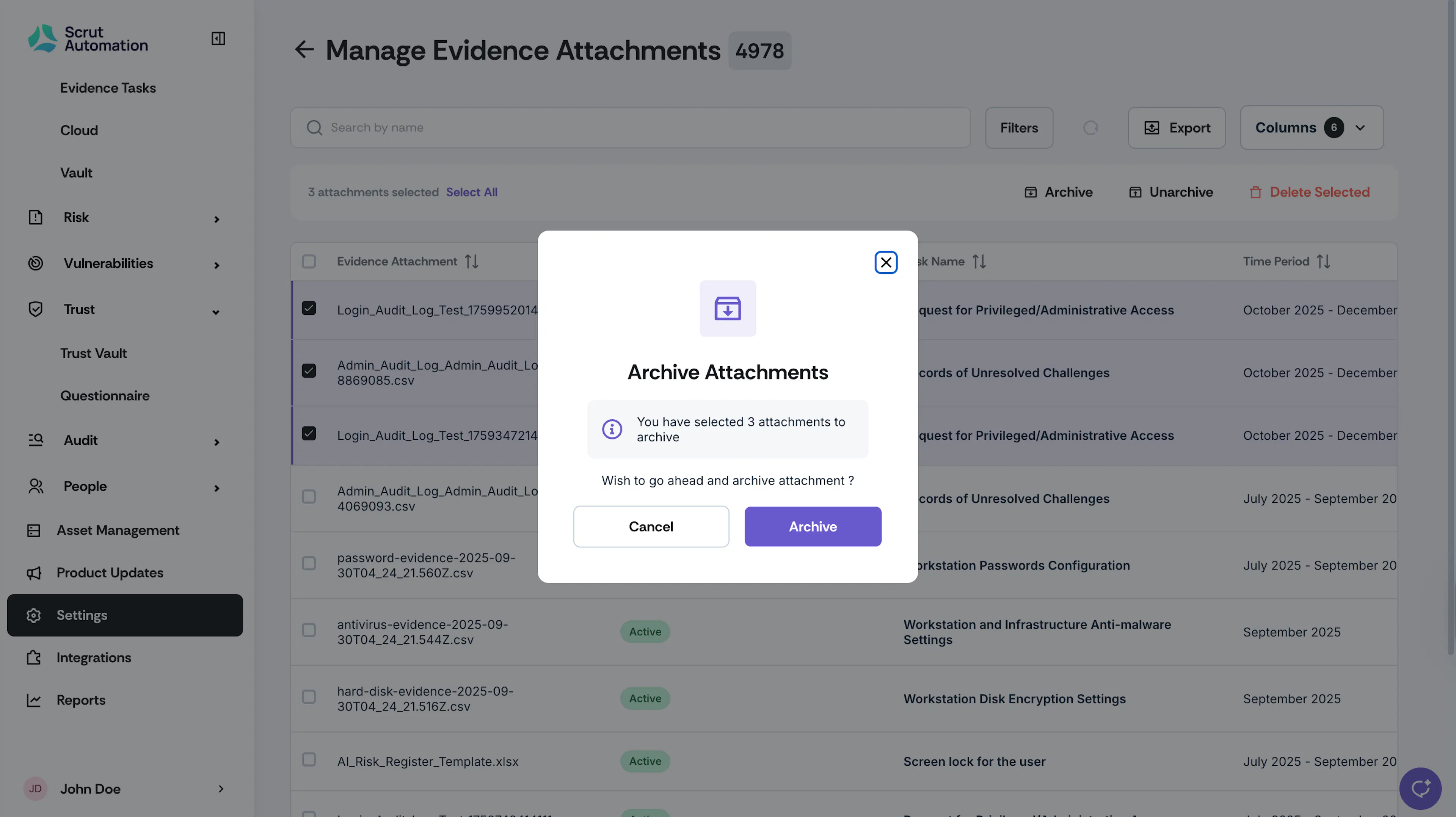
Click the Archive button at the top of the table.
-
Click Archive again to confirm and complete the action.
Unarchive Evidence Attachments
Unarchiving restores previously archived attachments and reattaches them to the corresponding evidence tasks.
-
Click Settings on the left navigation panel, and click the Manage Evidence Attachments section.
-
Select the attachments that you want to unarchive. You can select one or more as needed.
-
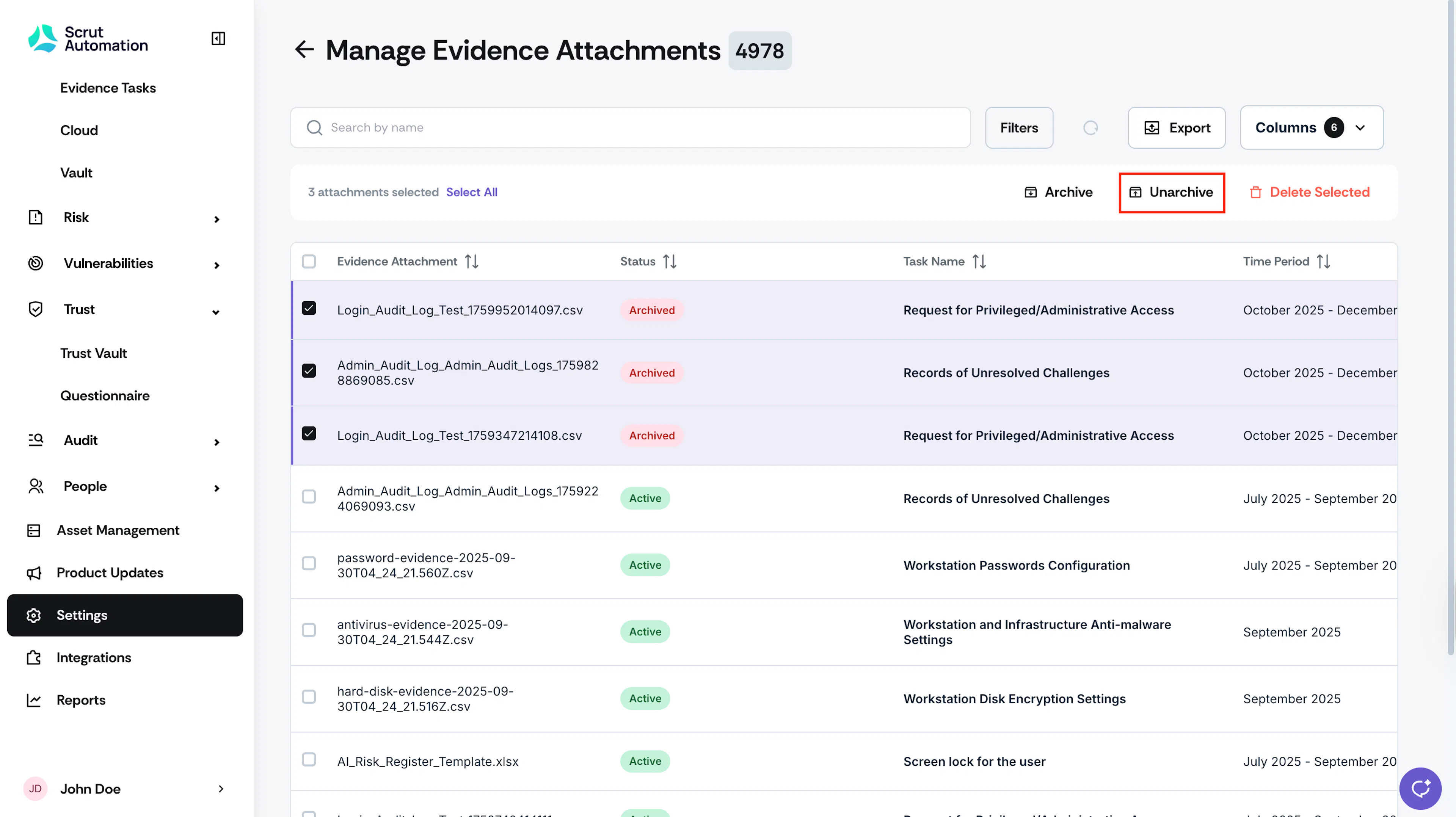
Click the Unarchive button at the top of the table.
-
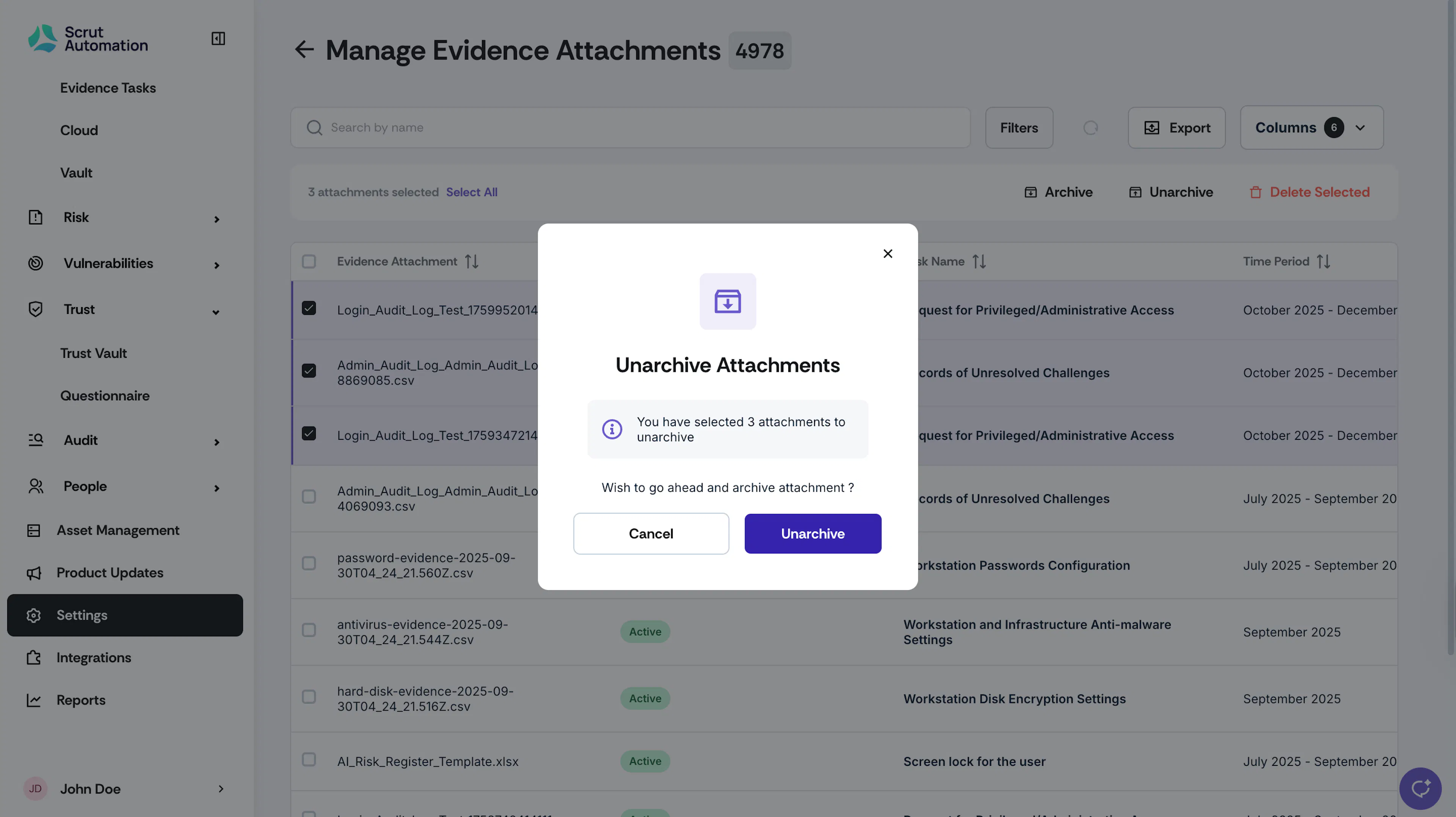
Click Unarchive again to confirm and complete the action.
Delete Evidence Attachments
Deleting permanently removes attachments from Scrut. Deleted attachments cannot be restored.
-
Click Settings on the left navigation panel, and click the Manage Evidence Attachments section.
-
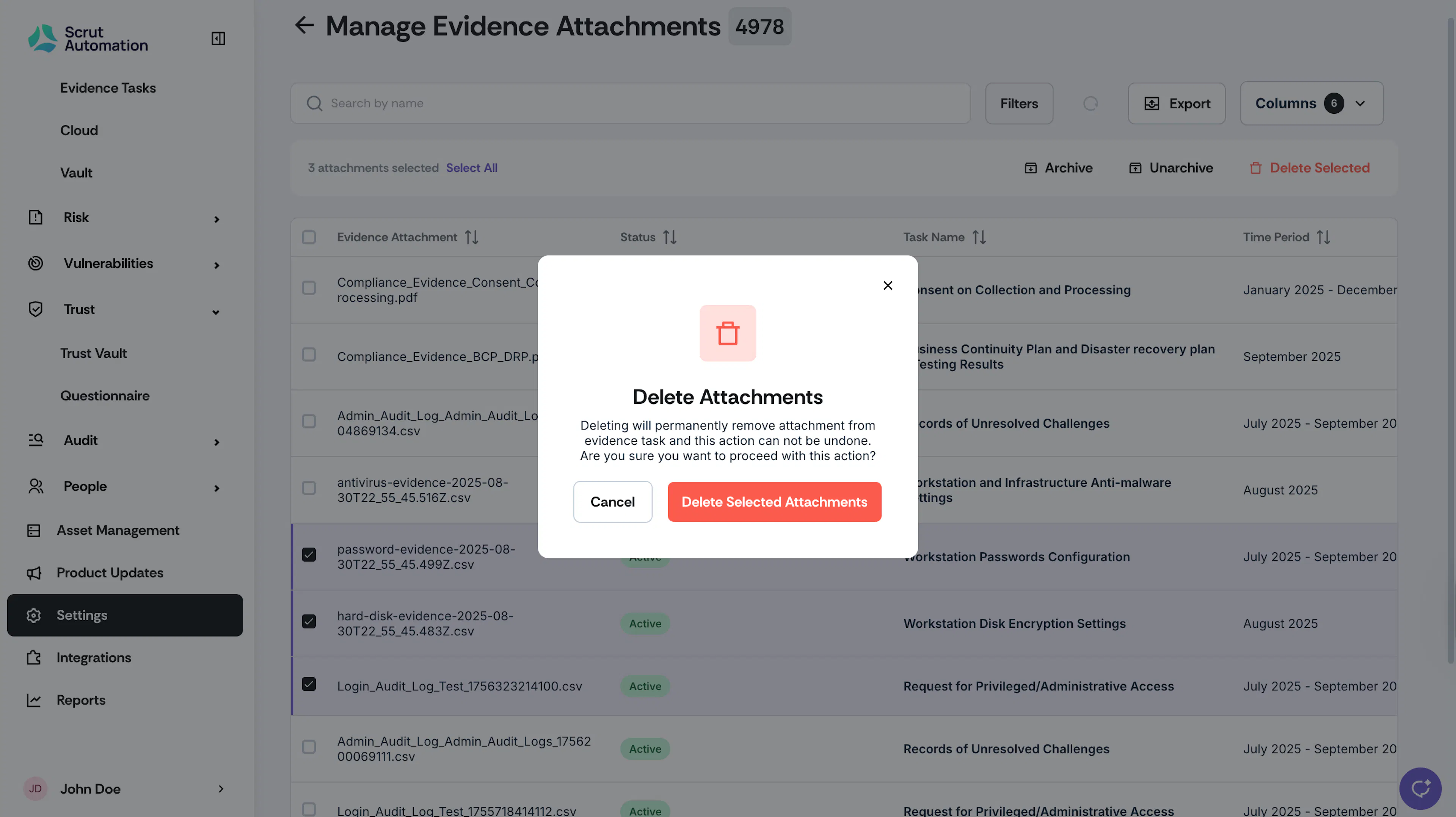
Select the attachments you want to delete. You can select one or more as needed.
-
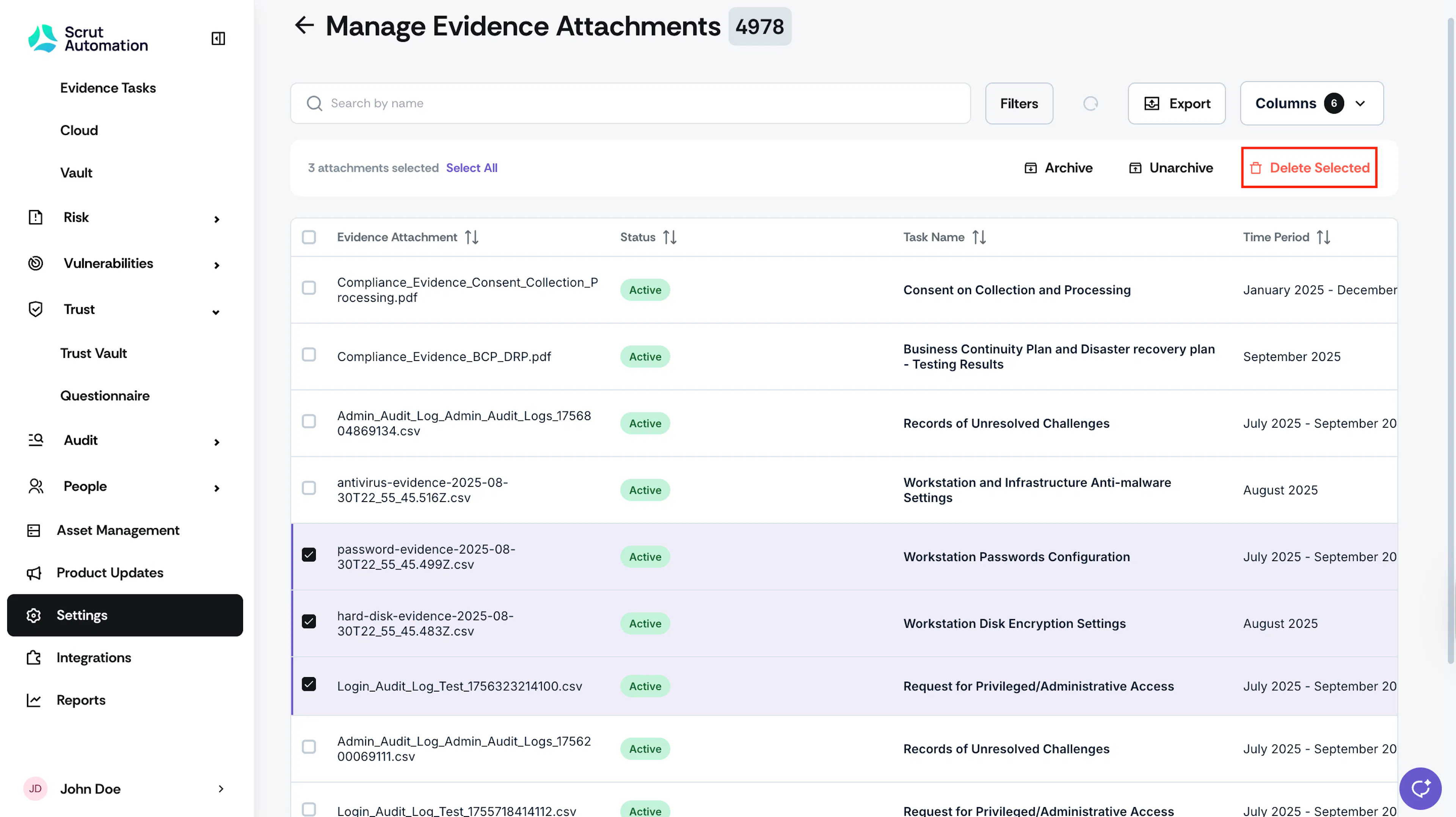
Click the Delete button at the top of the table.
-
Click Delete again to confirm and complete the action.
Export Attachment Details
To export the attachments table:
-
Click Settings on the left navigation panel, and click the Manage Evidence Attachments section.
-
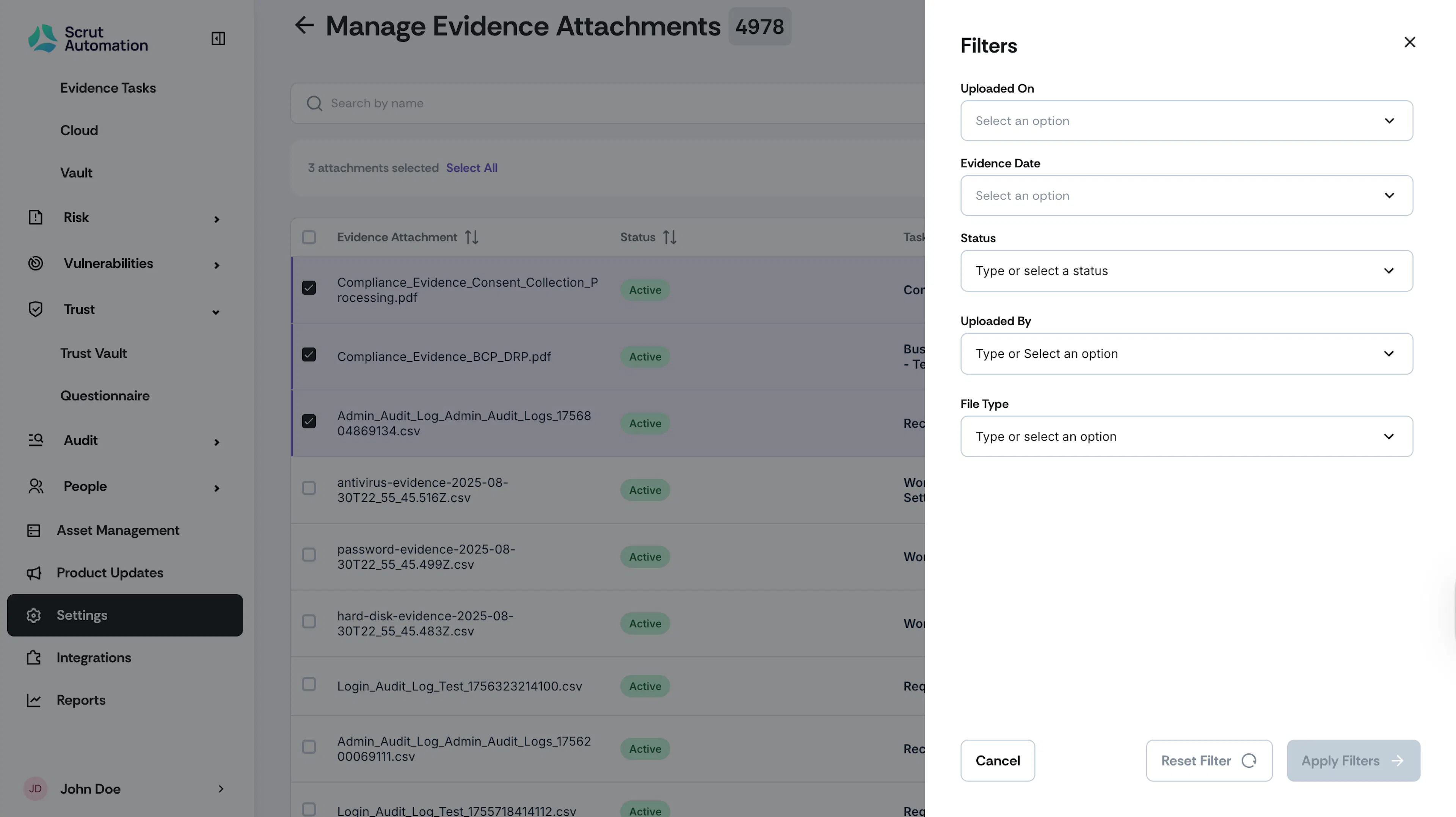
Apply the necessary filters to refine the evidence table, as required. For example, you can apply the Uploaded On filter to find attachments added in the last 7 days, among other options.
-
Use the Columns button to display and hide table columns as needed.
Pro Tip!
The Note column in the table provides contextual details about the attachment.
-
Click the Export button.
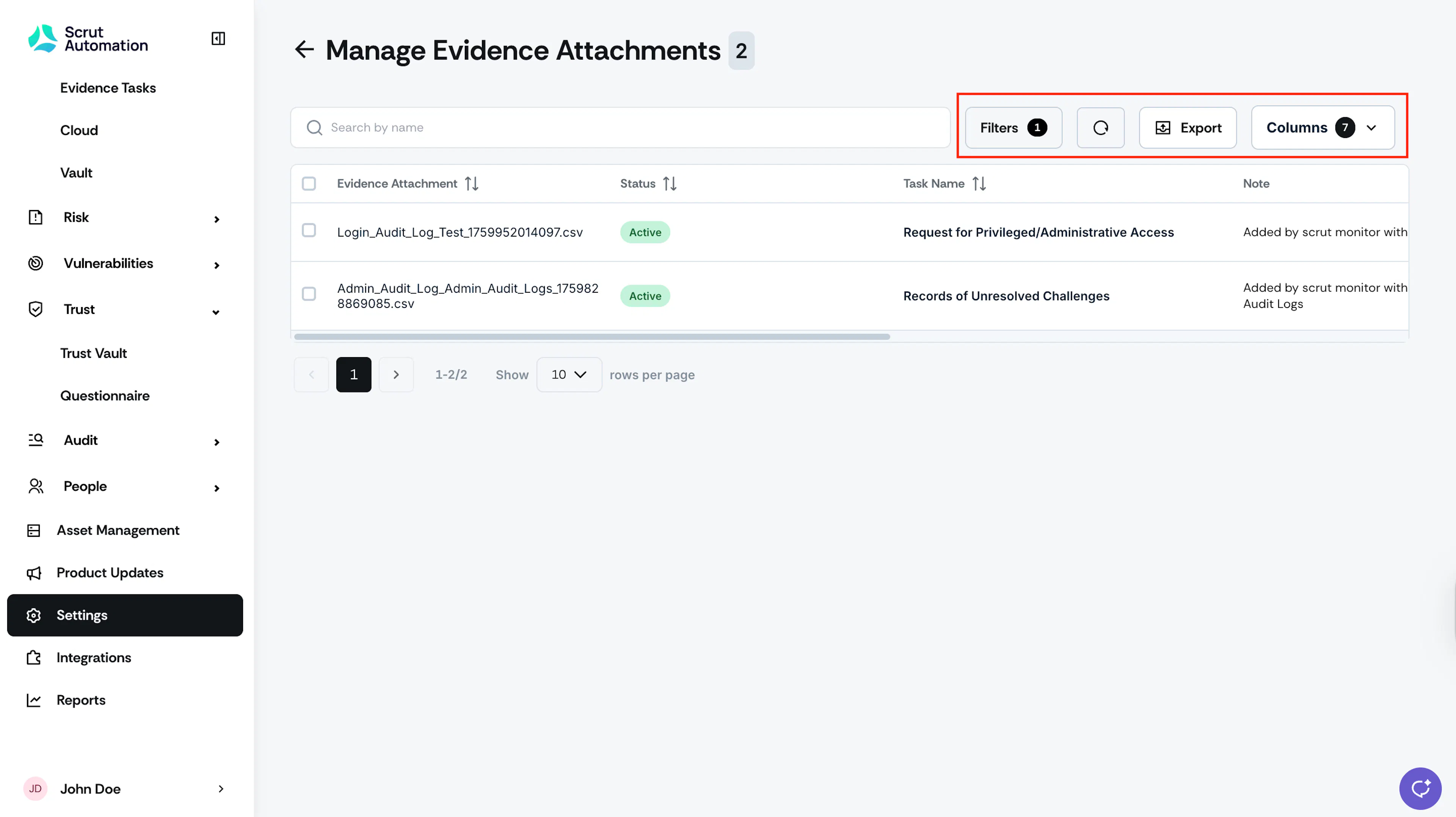
Scrut downloads the items visible in the table with the applied filters as a CSV file.
Heads Up:
Exporting downloads only the table; and not the actual attachments.
Download Attachments
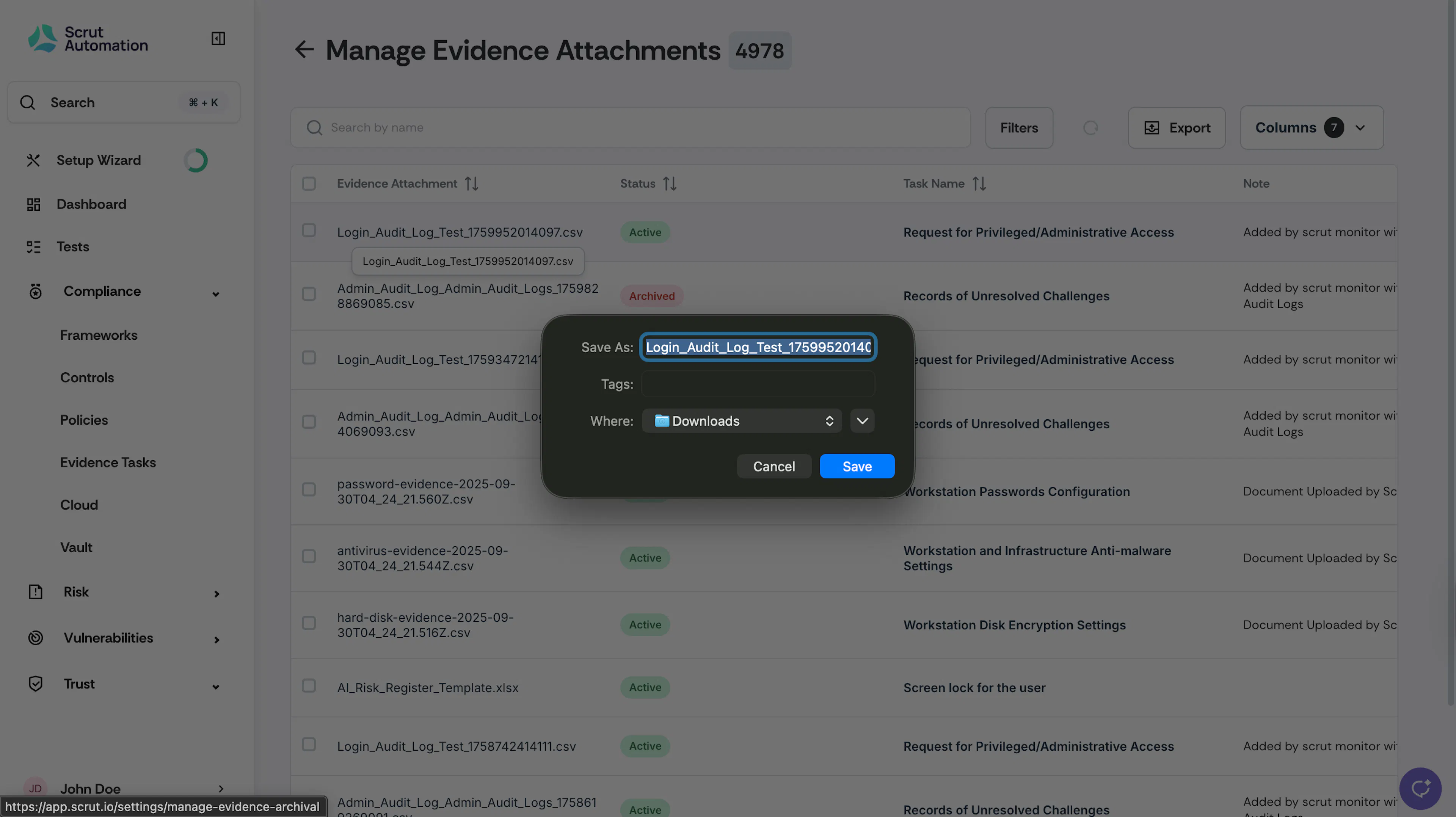
To download the attachment, click the file in the table, and Scrut will automatically start the download.