Documentation Index

Fetch the complete documentation index at: https://help.scrut.io/llms.txt

Use this file to discover all available pages before exploring further.

Auto Save a Policy

Prev Next

Who can use this feature

  • Supported on Foundation, Growth, and Scale plans

By default, policies are autosaved as you work in the policy editor.

However, you can turn off autosave to manually save your changes. This gives you greater control over when your edits are committed and captured in the revision history.

How To Turn Off Autosave

Important:

If you turn off autosave, unsaved changes will be lost unless you manually click the Save button in the policy editor.

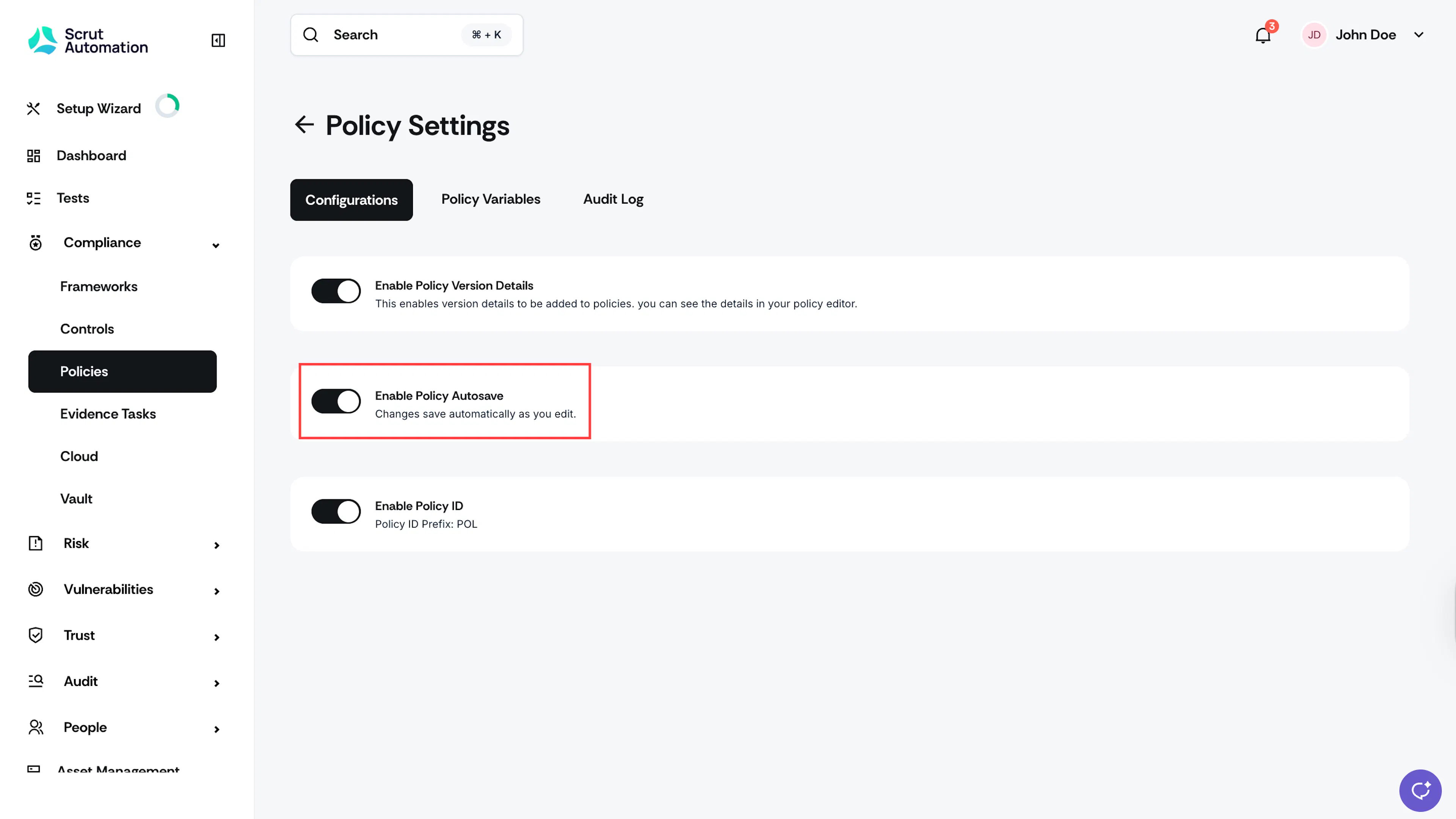
  1. Navigate to Compliance → Policies → Settings.

  2. In the Configurations tab, disable the Policy Autosave toggle.
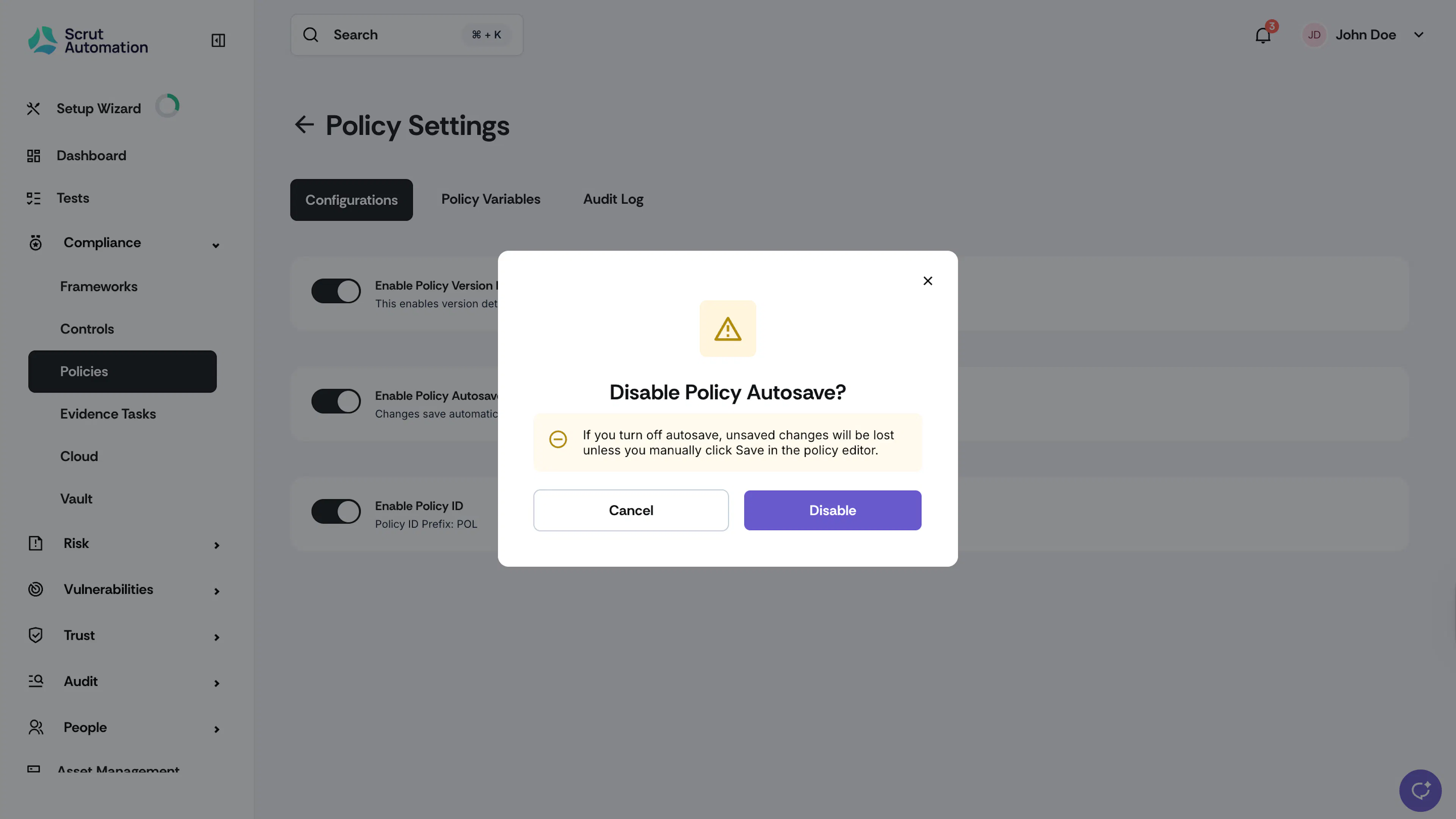
  1. Turn off the toggle. Click Disable to confirm.
Using Manual Save Mode

  1. Open your preferred policy, and click Edit Policy to view the inline policy editor.
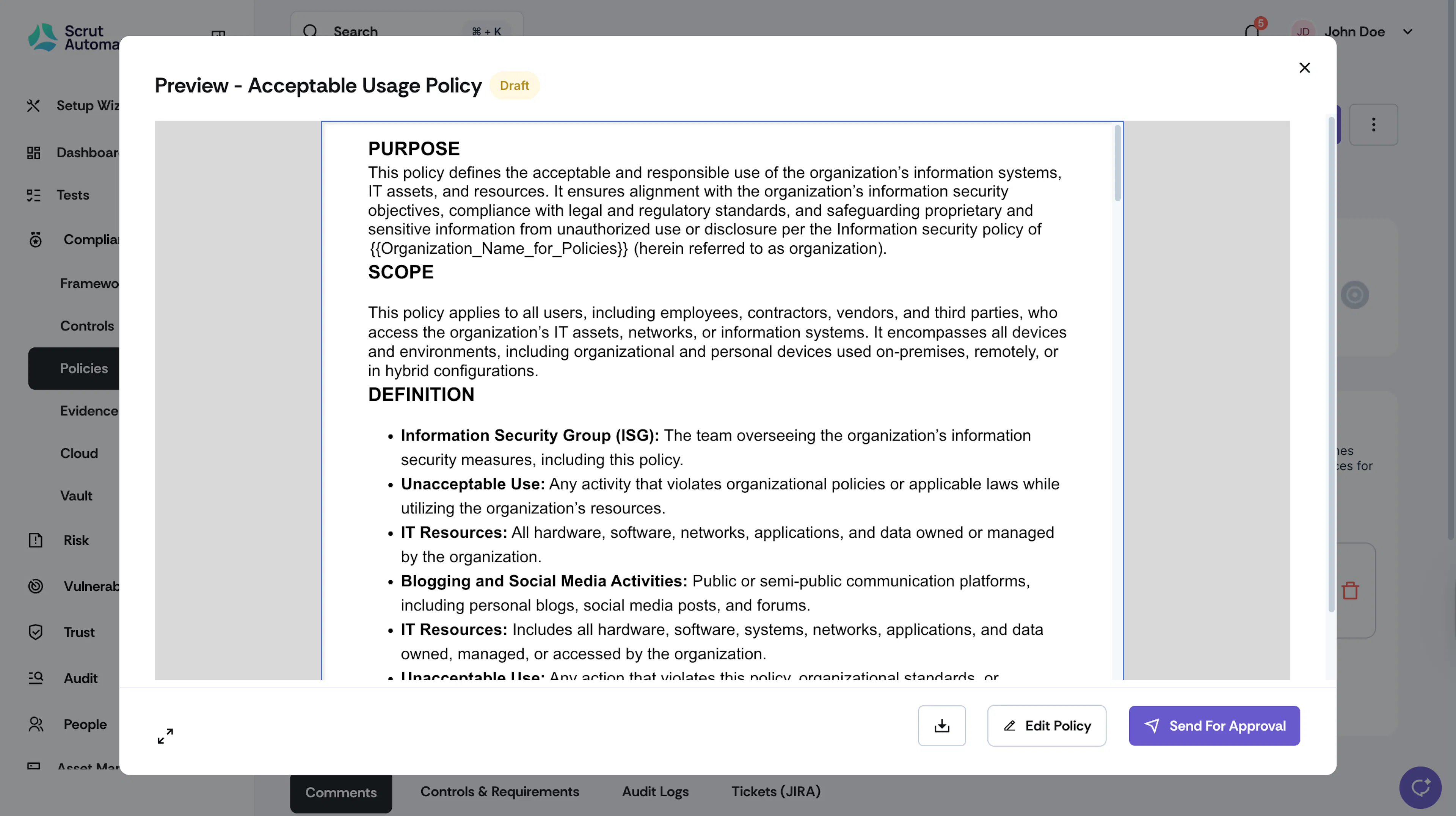
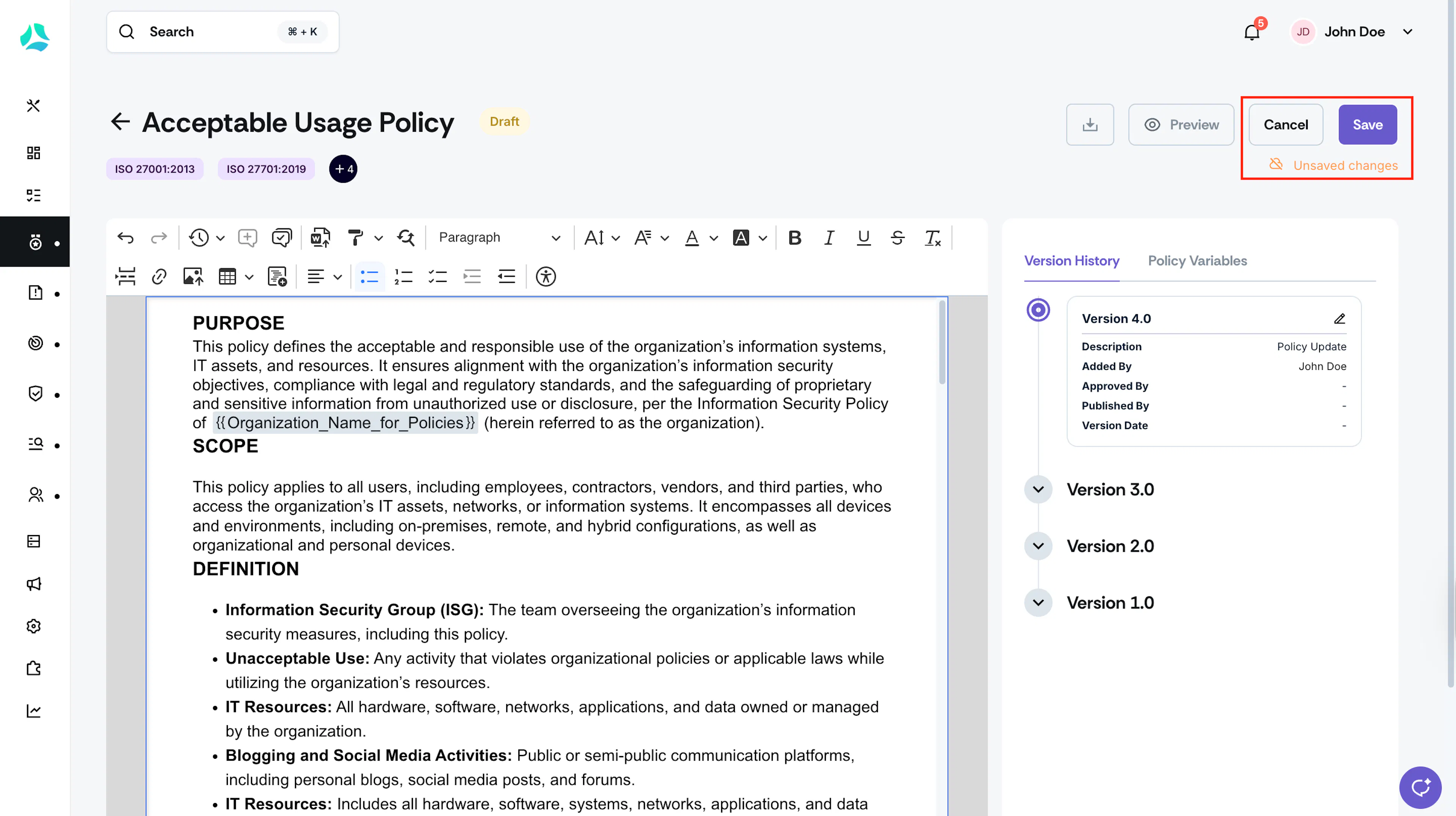
  2. As you make edits, you’ll see two buttons: Save and Cancel.

  3. The “Unsaved Changes” tip shows that you have unsaved changes.
  4. To Save:

    • Click the Save button

    • Your changes are permanently saved

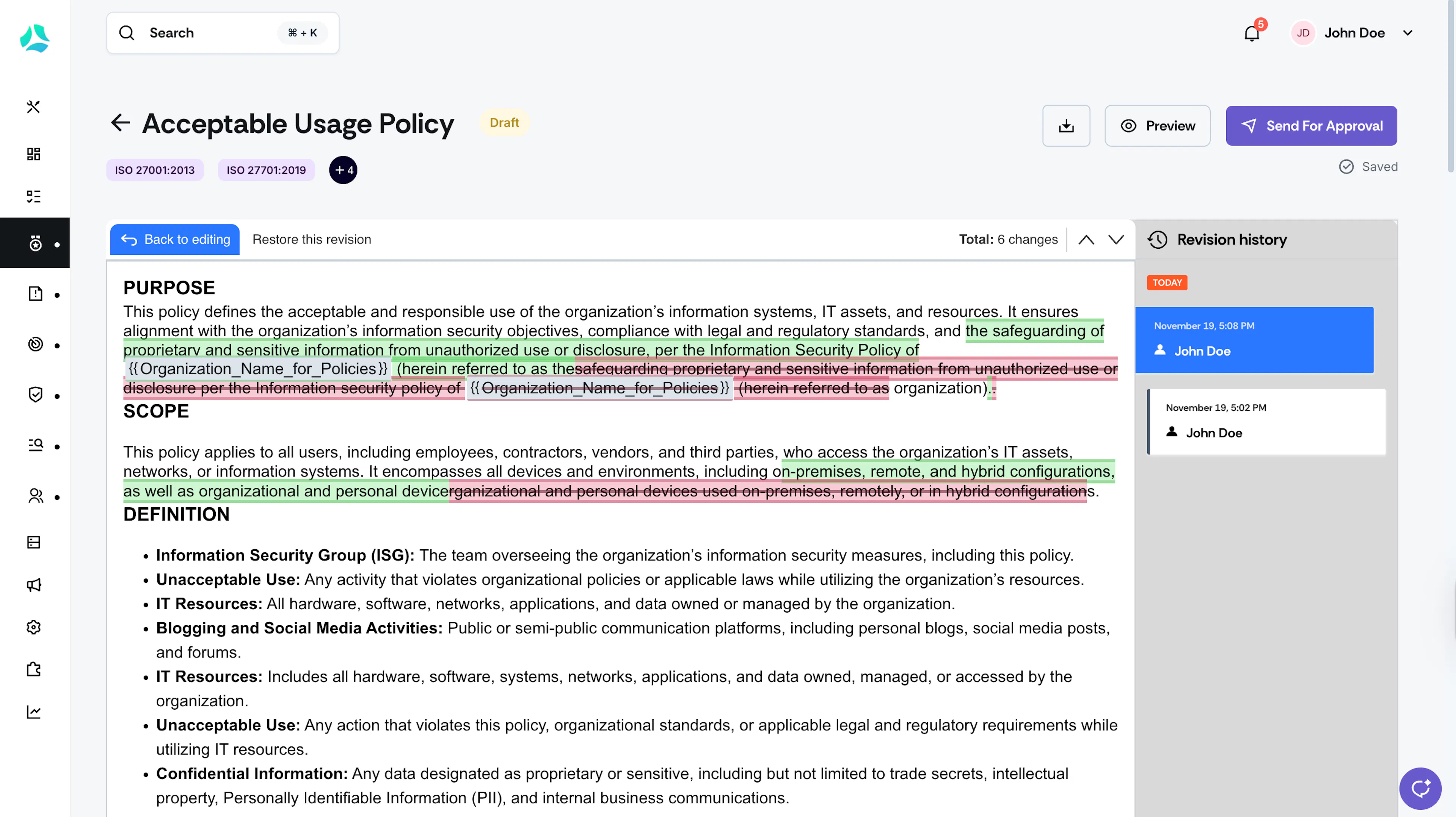
    • A new revision history entry will be created

    • Click the revision history button in the toolbar and select Open Revision History to view the entry added

    • Click Back to Editing to go back to the Policy Editor
  5. To Cancel:

    • Click the Cancel button

    • A confirmation dialog will appear asking if you want to leave without saving changes

    • If you confirm, all unsaved changes will be lost

    • No revision history entry will be created


FAQs & Troubleshooting

1: Can multiple users edit a policy simultaneously in the manual save mode?

No. Only one user can edit a policy at a time. If another user is editing, you'll need to wait until they finish.

2: What happens when I switch between the autosave and manual modes?

Switching from AutoSave to Manual:

  • Your existing revision history remains unchanged

  • Future edits will be captured only when you click the Save button

Switching from Manual to AutoSave:

  • Your existing revision history remains unchanged

  • Future edits will be captured automatically

3: What happens to my old revision history when I switch modes?

Nothing changes. All existing revision history remains intact regardless of mode switches

4: How does revision history work in each mode?

Manual Save Mode

  • Revision history is created only when you click "Save."

  • Each save creates a single history entry that includes all your changes for that session.

AutoSave Mode:

  • Revision history is created automatically as you edit.

  • Multiple history entries may be created during editing.

5: When to use manual save mode?

It’s preferable to enable the manual mode when you want to review all changes before committing them. However, make sure to save your work periodically to avoid losing progress.

6: Can I recover changes if I accidentally clicked Cancel?

No. Changes are permanently discarded when you confirm cancellation.